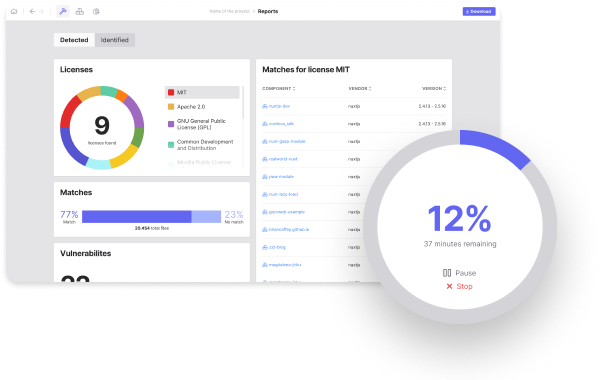
The SBOM Workbench is a graphical user interface to scan and audit source code using SCANOSS API.
Auditing your source code for license compliance has never been easier. Simply scan your source code directory to find and identify open source components. Generate your SPDX-Lite software bill of materials (SBOM) with the press of a button.
Find prebuilt binaries for all platforms over at: Software Transparency Foundation
Prerequisites
- Node.js >=v22.12.0
- NPM (Node Packages Manager)
We strongly recommend handling your node versions using nvm
Install
npm install --legacy-peer-deps
Please note that you should include the --legacy-peer-deps parameter in the installation command. This is because @mui/styles is not compatible with React 18. You can find more information about this at https://mui.com/system/styles/basics/.
Troubleshooting
SBOM Workbench uses node-gyp to compile SQLite3 native module.
This module uses "node-pre-gyp" to download the prebuilt binary for your platform instead you need build from source.
In case it does not exist for your platform, node-gyp going to build it.
Depending on your operating system, you will need prepare the correct environment to run node-gyp: See https://github.com/nodejs/node-gyp#installation
Starting Development
Start the app in the dev environment:
npm start
For live reloading you can use npm run start --watch to run the app using Electronmon. Warning: this tool has a high memory consumption.
Packaging for Production
To package apps for the local platform:
npm run package
Multi-language (i18n)
SBOM Workbench is multi-language enabled. To contribute a new language please see our internationalization documentation.
Workbench Configuration
SBOM Workbench support advanced settings. All the configurations needs to be included in the global config file ~/.scanoss/sbom-workbench-settings.json
Scanner parameters
"SCANNER_CONCURRENCY_LIMIT": ""
Number of threads to use while scanning (optional - default 5)
"SCANNER_POST_SIZE": ""
Number of kilobytes to limit the post to while scanning (optional - default 16)
"SCANNER_TIMEOUT": ""
Timeout (in seconds) for API communication (optional - default 300)
Proxy settings
You might need to specify proxy settings depending on how your network is configured
"PROXY": ":"
If your network is using a proxy with SSL interception you can include your certificate in the configuration
"CA_CERT": ""
You can disable any SSL errors, to do so you can change this option to true
"IGNORE_CERT_ERRORS": true
Local Cryptography Detection in SBOM-Workbench
Overview
Local cryptography can be detected by SBOM-Workbench when an API key is configured. This feature enables the detection of cryptographic algorithms and libraries within a codebase.
Default and Custom Detection Rules
Default rules are provided for the detection of cryptographic algorithms and libraries. However, custom rules may be defined at the root of the project to be scanned.
Custom Rule Files
Custom rules can be defined through the following JSON files at the project root:
- Algorithm detection rules:
scanoss-crypto-algorithm-rules.json. See: Algorithm Rules Sample
- Library detection rules:
scanoss-crypto-library-rules.json
Rule File Structure
Algorithm Rules Structure
The structure of scanoss-crypto-algorithm-rules.json should be formatted as follows:
[
   {
     "algorithmId": "md5",
     "algorithm": "MD5 Message-Digest Algorithm",
     "strength": "128",
     "keywords": [
       "md5_file",
       "md5",
       "md5crypt",
       "aprcrypt",
       "md5_encrypt",
       "md5_block_data_order",
       "ossl_md5_sha1_",
       "MD5_Init"
     ]
   }
 ]
Library Rules Structure
The structure of scanoss-crypto-library-rules.json should be formatted as follows:
[
  {
    "id": "library/webcrypto",
    "name": "Web Cryptography API",
    "description": "A JavaScript API for performing basic cryptographic operations in web applications.",
    "keywords": [
      "window.crypto.subtle",
      "crypto.subtle.",
      "crypto.getRandomValues",
      "NodeWebCrypto",
      "WebCryptoAPI"
    ],
    "url": "https://developer.mozilla.org/en-US/docs/Web/API/Web_Crypto_API",
    "category": "library",
    "purl": "pkg:generic/webcrypto",
    "tags": [
      "JavaScript"
    ]
  }
 ]
SCANOSS Settings File
SCANOSS provides a settings file to customize the scanning process. The settings file is a JSON file that contains project information and BOM (Bill of Materials) rules. It allows you to include, remove, or replace components in the BOM before and after scanning.
Settings
The scanoss.json object allows you to configure various aspects of the scanning process. Currently, it provides control over which files should be skipped during scanning through the skip property.
BOM Rules
The bom section defines rules for modifying the BOM before and after scanning. It contains three main operations:
1. Include Rules
Rules for adding context when scanning. These rules will be sent to the SCANOSS API meaning they have more chance of being considered part of the resulting scan.
{
    "bom": {
        "include": [
            {
                "path": "/path/to/file",
                "purl": "pkg:npm/vue@2.6.12",
                "comment": "Optional comment"
            }
        ]
    }
}
2. Remove Rules
Rules for removing files from results after scanning. These rules will be applied to the results file after scanning. The post processing happens on the client side.
{
    "bom": {
        "remove": [
            {
                "path": "/path/to/file",
                "purl": "pkg:npm/vue@2.6.12",
                "comment": "Optional comment"
            }
        ]
    }
}
3. Replace Rules
Rules for replacing components after scanning. These rules will be applied to the results file after scanning. The post processing happens on the client side.
{
    "bom": {
        "replace": [
            {
                "path": "/path/to/file",
                "purl": "pkg:npm/vue@2.6.12",
                "replace_with": "pkg:npm/vue@2.6.14",
                "license": "MIT",
                "comment": "Optional comment"
            }
        ]
    }
}
Matching Rules
- Full Match: Requires both PATH and PURL to match. It means the rule will be applied ONLY to the specific file with the matching PURL and PATH.
- Partial Match: Matches based on either:
- PURL only (PATH is optional). It means the rule will be applied to all files with the matching PURL.
Example Configuration
Here's a complete example showing all sections:
{
    "bom": {
        "include": [
            {
                "path": "src/lib/component.js",
                "purl": "pkg:npm/lodash@4.17.21",
                "comment": "Include lodash dependency"
            }
        ],
        "remove": [
            {
                "purl": "pkg:npm/deprecated-pkg@1.0.0",
                "comment": "Remove deprecated package"
            }
        ],
        "replace": [
            {
                "path": "src/utils/helper.js",
                "purl": "pkg:npm/old-lib@1.0.0",
                "replace_with": "pkg:npm/new-lib@2.0.0",
                "license": "MIT",
                "comment": "Upgrade to newer version"
            }
        ]
    }
}
Usage
You can add your 'scanoss.json' on the root of your project
Command Line Interface (CLI)
SBOM Workbench includes a CLI for managing configuration without launching the graphical interface. This is useful for automation, scripting, and headless environments.
Getting Help
# Show all available commands
./sbom-workbench-1.27.0-linux-x86_64-app.AppImage --help
Windows
On Windows, Electron applications run as GUI processes without a console attached by default. This means:
- Commands that modify configuration work correctly (
config init, config api add, config api rm, config api default)
- Commands that display output won't show results (
--help, --version, config api list) - there is no visible output in cmd.exe or PowerShell
Windows examples:
:: Initialize configuration
sbom-workbench-1.27.0-win-x64-app.exe config init

:: Add an API
sbom-workbench-1.27.0-win-x64-app.exe config api add --url=https://api.scanoss.com --key=YOUR_API_KEY --default

:: Remove an API by index
sbom-workbench-1.27.0-win-x64-app.exe config api rm --index=1

:: Set default API
sbom-workbench-1.27.0-win-x64-app.exe config api default --index=0
> Tip: To view your configured APIs on Windows, open %USERPROFILE%\.scanoss\sbom-workbench-settings.json in a text editor.
Linux / macOS
On Linux and macOS, CLI output displays normally in the terminal. Both parameter syntaxes work:
# Space syntax
./sbom-workbench-1.27.0-linux-x86_64-app.AppImage config api add --url https://api.scanoss.com --key YOUR_API_KEY

# Equals syntax (also works)
./sbom-workbench-1.27.0-linux-x86_64-app.AppImage config api add --url=https://api.scanoss.com --key=YOUR_API_KEY
Ubuntu 24.04+
On Ubuntu 24.04 and newer, the AppImage sandbox may not work due to kernel restrictions. If you encounter sandbox errors, disable it by setting the environment variable:
export ELECTRON_DISABLE_SANDBOX=1
./sbom-workbench-1.27.0-linux-x86_64-app.AppImage config init
Configuration Commands
Initialize Configuration
Creates the default configuration file at ~/.scanoss/sbom-workbench-settings.json:
./sbom-workbench-1.27.0-linux-x86_64-app.AppImage config init
> Note: This command will fail if a configuration file already exists.
API Management
The CLI allows you to manage multiple API configurations for connecting to different SCANOSS servers.
Display all configured APIs with their indices:
./sbom-workbench-1.27.0-linux-x86_64-app.AppImage config api list
Example output:
Configured APIs:
[0] https://api.scanoss.com [key set] (default)
[1] https://custom.scanoss-server.com
Add an API
Add a new API configuration:
# Add API with URL only (public SCANOSS API)
./sbom-workbench-1.27.0-linux-x86_64-app.AppImage config api add --url https://api.scanoss.com

# Add API with URL and API key
./sbom-workbench-1.27.0-linux-x86_64-app.AppImage config api add --url https://api.scanoss.com --key YOUR_API_KEY

# Add API and set it as the default
./sbom-workbench-1.27.0-linux-x86_64-app.AppImage config api add --url https://custom.server.com --key YOUR_KEY --default
Remove an API
Remove an API configuration by its index:
./sbom-workbench-1.27.0-linux-x86_64-app.AppImage config api rm --index 1
> Note: If you remove the default API, the default will automatically be adjusted to the last available API.
Set Default API
Change which API is used by default:
./sbom-workbench-1.27.0-linux-x86_64-app.AppImage config api default --index 0
The SBOM Workbench includes support for a collaborative workspace, a feature designed to enhance teamwork. View more details here.
Code Viewer Keyboard Shortcuts
The code viewer supports the following keyboard shortcuts for zooming:
| Action | macOS | Windows/Linux |
|---|
| Zoom In | Cmd + + | Ctrl + + |
| Zoom Out | Cmd + - | Ctrl + - |
| Reset Zoom | Cmd + 0 | Ctrl + 0 |
You can also zoom using Ctrl/Cmd + Mouse Wheel. Press F1 to open the command palette and see all available commands.
Contributing
SBOM Workbench is an open source project, and we love to receive contributions from our community. There are many ways to contribute. For more information see the Contributing Guide and Code of Conduct.
Docs
This project was made using Electron React Boilerplate
See docs and guides here