CyrFlip





CyrFlip is a tray toolkit for your keyboard and desktop on Windows. Out of the box it keeps you in the right layout and fixes text typed in the wrong one; everything else is an optional module you switch on when you need it, and by default nothing leaves your computer.
Type in the right layout - on from the first start:
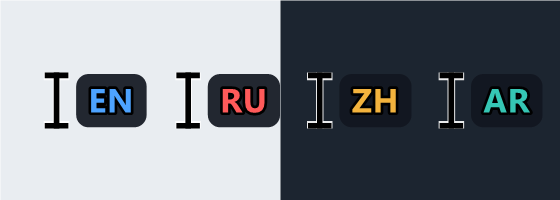
- A live layout indicator where you type. The marker follows both the I-beam and the blinking caret. The curated set covers EN, ZH, HI, ES, FR, AR, BN, PT, RU, UR, DE, IT and UK, while any Windows layout still gets its own live two-letter code.
- A table of layout conversions. Keep the familiar EN ⇄ RU flip or add as many "from layout ⇄ to layout" rows as you like, each with its own global hotkey. Conversion follows physical key positions (so AZERTY and QWERTZ are handled correctly), works in both directions - if the pair's second layout is already active, the same chord converts back - and switches to the matching layout afterwards.
- Fix CapsLock. A second hotkey (Ctrl+Shift+F11) inverts the case of the selection, optionally setting the physical CapsLock key to match the corrected text.
- A settings window that also replaces the Windows language pane. Install, reorder and remove keyboard layouts, pick the whole-cycle switch chord, and assign per-language switch shortcuts that Windows handles (so they keep working when CyrFlip is closed). Nothing is downloaded - the layouts already ship with Windows.
Act on what you selected - opt-in, off by default:
- A context menu of CyrFlip's own. Hold Ctrl and right-click a selection: Copy/Cut/Paste, your layout conversions, the case fix, your translation rows, Quick launch and the clipboard history, all at the pointer. The menu never takes the focus, so the selection survives it; Ctrl+Shift+Alt+M opens the same menu at the caret. While it is off, the mouse hook is not installed at all.
- A translator that runs on your own computer. Select text anywhere in Windows, press a chord, and the translation appears in a small window next to the mouse pointer, filling in as the model writes it. It runs on Ollama, a free program you install once yourself - no account, no key, and no text sent to the developer or to a cloud service.
Keep what you copy and write - opt-in, off by default:
- An encrypted clipboard history with search, pins and a compact strip on Ctrl+Shift+F10.
- Quick notes. Press Ctrl+Shift+Alt+N, type or paste, close. The text is kept exactly as it is - no Markdown, no highlighting, no auto-formatting - so a fragment of code pastes back into the editor without a single change, and search looks inside the body, because most notes never get a name. Stored only on your machine, encrypted with Windows DPAPI. Notes and clipboard history move to another computer as one plain-text exchange file you export yourself.
Launch and capture:
- Screen-region capture. Ctrl+PrintScreen (or the tray item) freezes the screen, you drag a region, and the picture goes to the clipboard - optionally also saved as a PNG into a folder. While saving is on, Ctrl+Shift+PrintScreen opens that folder.
- A quick-launch module (the absorbed OneClickRunner), opt-in. Your programs, scripts and yt-dlp downloads as scenarios, launched from the tray, the settings table, an optional per-scenario global hotkey, or the taskbar Jump List. Until you enable it, CyrFlip behaves exactly as before.
- Two keep-awake switches - no sleep, no screen blanking - remembered across restarts.
Yours alone: no account, no telemetry, nothing sent to the developer; a UI in 13 languages, right-to-left included; a light, dark or Windows-matching theme; one portable exe with nothing to install. How the product is introduced everywhere is set in POSITIONING.md.
On your first launch, a five-step welcome tour introduces CyrFlip and offers to open Settings on General for initial setup. Skip or close it to keep the defaults. Updates do not show it again; replay it from About. Start CyrFlip with Windows stays off until you choose it.
Install
- Microsoft Store - the recommended way: Microsoft signs the package, so there is no SmartScreen warning, and the Store keeps it updated.
- winget -
winget install SerZhyAle.CyrFlip (the portable build, same as the ZIP below).
- Portable ZIP from GitHub Releases - unpack it to a permanent folder and run
CyrFlip.exe. The ZIP is unsigned, so Windows may warn - see Windows or antivirus warnings.
Status
Early development - which here means "it works, but we reserve the right to be humble about it." CyrFlip is made and supported by one person, so an answer to an issue may not be instant. See
CLAUDE.md for the architecture and conventions.
How it works
- CyrFlip watches the active keyboard layout and shows its two-letter code in three places: next to the blinking text caret, on the system I-beam mouse cursor (optional), and on the tray icon. Beside the caret and on the mouse pointer the marker is translucent, so the text under it stays readable, and its letters are fitted to the badge with one pixel of border around them. When CapsLock is on, all three get a thin coloured frame.
The letters name the language - US and Dvorak both read
EN - and the colour names the layout: each of the 25 keyboard layouts of the 13 curated languages has its own shade of its language's colour, so Russian is always red but Russian Typewriter is a different red. That is what the compact dot style shows, where the colour is the whole marker. Any other layout keeps its language's letters (PL, JA, TR) and one neutral colour. The full table is in the guide.
- A global low-level keyboard hook listens for the hotkeys; on trigger, the selection is copied, transformed, and pasted back. Two fixed chords - the case fix (Ctrl+Shift+F11) and the clipboard manager (Ctrl+Shift+F10) - plus every row of your conversion table, which starts life with EN ⇄ RU on Ctrl+Shift+F12.
- Clipboard history is opt-in. It keeps Unicode text in a compact topmost strip; choose an item with the mouse, pin or delete it, search the whole history, or toggle the strip with Ctrl+Shift+F10. The encrypted local history is protected with Windows DPAPI and can be paused or cleared.
> The cursor change is system-wide (SetSystemCursor) and is restored when CyrFlip exits. Only the text I-beam is changed, not the normal arrow pointer.
Using CyrFlip
- Run it - launch
CyrFlip.exe. It sits quietly in the notification area (system tray) and its icon shows the active keyboard layout.
- Convert text - select the
ghbdtn you meant as «привет», press Ctrl+Shift+F12, and it's replaced in place. Works in any app (Notepad, Word, browsers, ..). That chord is simply the EN ⇄ RU row the conversion table starts with; add rows for any other pair of installed layouts, each with its own chord.
- Fix CapsLock - select the
hELLO you meant as Hello and press Ctrl+Shift+F11.
- Keep a fragment - press Ctrl+Shift+Alt+N, paste the code or type the thought, close the window. It is saved without a name if you don't give it one, and found later by any part of its text.
- Tray menu (right-click the icon) keeps the frequent switches: show/hide history, clipboard history on/off, pause capture, the three indicator toggles, the two keep-awake switches, the Quick launch submenu, Translate clipboard and Quick notes (each shown only while its module is enabled), Settings... and Exit. Double-clicking the icon opens Settings.
- Settings (thirteen tabs, every change applied at once, no restart). Each page opens with its title and what it is for, and its sections fold away one by one. Find a setting... (or Ctrl+F) searches every setting by its name and its description and takes you straight to it; Expand all / Collapse all act on the current page. The window remembers its size and position, which sections you left open and where each page was scrolled, and it opens on the monitor you are working on. The mouse wheel over a dropdown or a number field scrolls the page instead of changing the value:
On General, export CyrFlip settings to JSON, preview changes before importing, or restore settings before the last import. The three newest snapshots stay locally. The file excludes notes, clipboard history, launcher scenarios, machine paths and Windows system settings. Enabling history or notes and sending selections to another translation server require separate consent.
- General - in four groups: language and theme (the interface language, 13 to choose from, and the theme - same as Windows (the default), light or dark; every window, dialog and menu follows it at once, and in "same as Windows" it follows Windows switching while CyrFlip runs), startup (start with Windows, the Start menu and desktop shortcuts), power and screen (keep the computer awake, keep the screen on - both remembered across restarts) and the settings transfer above.
- Indicators - what you see before you type: the I-beam cursor marker (off by default), the caret marker (on by default), the compact dot style and the marker size.
- Windows languages - install / reorder / remove Windows keyboard layouts, choose the cycle chord (Alt+Shift, Ctrl+Shift,
` or off), and assign direct per-language shortcuts that Windows itself handles. Both sections take a one-time backup of your pre-CyrFlip state with a one-click restore.
- Text correction - the two fixes of mistyped text: one table holding every chord that converts text between layouts, EN ⇄ RU included (each row is a pair of installed layouts plus its own combination and on/off switch, and each works in both directions), "change layout after converting text", whether punctuation is converted with the text, and the case fix - its chord and "synchronize CapsLock after case correction".
- Selection menu - CyrFlip's own menu over the selected text (off by default): the switch, the mouse chord that opens it, and the keyboard chord that opens it at the caret.
- Translation - the local translator (see below): the Ollama address and model, the buttons that install, start and check it, the table of translation directions, and what to do with the result.
- Clipboard - the history switch and pause, its chord, the history window's transparency and search, and clearing.
- Quick notes - the local notepad (see below): the switch, its chord, whether the editor wraps long lines, the export of every note to one Markdown file, and the button that destroys the lot.
- Screenshots - the screen region capture: its chord (Ctrl+PrintScreen by default), a Capture a region button, and the optional saving of every capture as a PNG into a folder you choose; the folder opens on its own chord (Ctrl+Shift+PrintScreen by default), bound only while saving is on. The capture always goes to the clipboard; the same command is in the tray menu.
- Quick launch - the scenario launcher (see below).
- Hotkeys - the master switch and the option to yield the chords to a focused remote-desktop client, then every CyrFlip chord in one list: what it does, whether it works right now and why not, with change, switch and reset on each row. A chord's own switch stays on the page of its feature.
- About - the build version (the same
YY.M.D.HHmm stamp the release ZIP carries, so you can tell at a glance whether a fix is in your copy), links to the MIT licence and the privacy policy, plus the caret-position diagnostics and Send logs to the author.. (see below).
CyrFlip is a normal desktop app, not a Windows service: a global keyboard hook and the layout indicator must run in your interactive session, so "autostart" is a per-user startup entry rather than a service.
Quick launch (scenario launcher)
An optional module that absorbs OneClickRunner into CyrFlip - one tray process instead of two. Off by default; enable it on Settings → Quick launch.
- Scenarios are either program/script (path, arguments, working folder, an optional "run as administrator") or yt-dlp (download folder + extra options; the link is asked for on every run, and the external
yt-dlp tool must be on PATH). Add, edit, clone, reorder, search, export and import them in the settings table.
- Four ways to run one: the tray Quick launch submenu, the settings table (double-click / Enter), an optional global hotkey per scenario, and the taskbar Jump List - right-click the CyrFlip icon on the taskbar (pin it to have the list handy even when CyrFlip isn't running: a Jump List click then does a one-shot launch without starting the tray).
- Storage: one XML per scenario in
%APPDATA%\CyrFlip\Scenarios, format-compatible with OneClickRunner. Disabling the module clears the tray/Jump List surfaces but keeps the files.
- Migration: on first enable CyrFlip offers to copy your existing OneClickRunner scenarios (
%APPDATA%\OneClickRunner\Scenarios); the originals are never modified, and the "Import from OneClickRunner..." button repeats the import any time. .ps1 runs via PowerShell with a one-off -ExecutionPolicy Bypass, .bat/.cmd via cmd.exe; elevation is asked only for scenarios marked "run as administrator".
- Scenario files: the copy keeps OneClickRunner's order and each scenario's identity; a file that cannot be read is skipped and named, never fatal. Running the import again skips the scenarios already copied (same identity and content) and says how many; one you have edited since arrives as a separate copy under a new identity. The per-scenario hotkey is CyrFlip's own field: OneClickRunner ignores it and drops it if it saves that file. An exported scenario is a plain XML file carrying its path and arguments as written, so never put a password in the arguments.
Interface languages
The UI ships in English, Русский, Українська, Deutsch, Italiano, Español, Français, Português, العربية, हिन्दी, বাংলা, اردو and 中文. A fresh install follows the Windows display language and falls back to English. Arabic and Urdu are mirrored right-to-left. Translations for the languages the author does not speak are machine-made and not proofread - corrections are welcome via an issue or a pull request.
Translation (local Ollama)
An optional module that translates the selected text with a language model running on your own computer. Off by default; enable it on Settings → Translation. While it is off no hotkey is bound, there is no tray entry, and CyrFlip opens no network connection at all.
- How it goes: select text anywhere in Windows, press the chord (the row created on the first enable uses Ctrl+Shift+F9, since F12 is the layout flip, F11 the case fix and F10 the clipboard manager), and a small window appears next to the mouse pointer and fills in as the model writes.
- Ollama is installed separately - a free program you install once on your own machine. CyrFlip doesn't bundle it, has no account and no key, and no text is sent to the developer or to any cloud service. The address is
http://localhost:11434 by default, that is your own computer; the settings tab says plainly that entering another address sends the selected text to that machine.
- Directions are an open-ended table, like the layout conversions: each row is "translate into this language" plus its own global hotkey. Besides the 13 interface languages a row can target the interface language or the language of the keyboard layout active in the target window, both resolved at the moment the chord is pressed.
- The result can be copied to the clipboard - where the optional clipboard history records it like any other copy - or pasted straight over the selection. Both off by default.
- One-press helpers on the settings tab: install Ollama, start it, check the connection, and download a model. The recommended ones are
aya-expanse:8b (~4.7 GB, the default - the best translation of those tested) and gemma2:9b (~5 GB). Models under 4 GB failed the Russian and Ukrainian check outright, so gemma2:2b (~1.5 GB) is there only for a machine short on space, and it will make mistakes. The model is held in memory by the Ollama process, not by CyrFlip, which stays inside its 50 MB budget. In the Microsoft Store build the install button only opens ollama.com - a Store app must not download and run an installer.
- Worth knowing: the quality is the local model's; the first translation after a cold start takes a while, because the model has to load; Ollama and a model are a multi-gigabyte download you make once; and of a long selection the first 4000 characters are translated, which the window tells you.
Quick notes
A small local notepad for the thing you want to keep right now and find again later. Off by default; enable it on Settings → Quick notes. While it is off CyrFlip neither reads nor creates the notes file, there is no tray entry and no chord is bound.
- One gesture: Ctrl+Shift+Alt+N opens the window with a new note and the caret already in the body. You can also open the list from the tray, or save a selection straight from CyrFlip's own context menu.
- The text stays text. No Markdown rendering, no syntax colouring, no smart quotes, no tab expansion - the point is that a fragment of code can be pasted back where it came from without a single change. The editor is monospace and does not wrap long lines by default, which is a setting.
- A name is optional. Most notes never get one; the list shows the first non-empty line instead, and that caption is derived on the way to the screen rather than stored, so changing the first line later spoils nothing.
- Search is the index. It looks in the name, the body and every checklist item at once, from the first character typed, and the results keep the standard order rather than an invisible relevance score.
- Newest first, by creation. Editing an old note never moves it: the creation date is assigned once and never changes, and the modification date is metadata.
- Checklists are the second kind of note: one level of tickable items you can add, rename, reorder and delete. A note can be converted between the two kinds, and CyrFlip says so first when the conversion would lose the tick marks or the exact line endings.
- Stored locally and encrypted. An append-only journal in the same folder as the other CyrFlip data, each record protected by Windows DPAPI for your account - title included, not just the body. Nothing goes to the network, nothing is indexed by Windows Search, and the clipboard history is never turned into notes by itself. It is not a secret store: don't keep passwords, production tokens or private keys there.
- Getting text out: copy, export one note as
.txt or .md, export every note into a single Markdown file, or Copy for Google Keep - the text goes to the clipboard and CyrFlip offers to open Keep, where you paste it. That is the honest limit: Google's Keep API is a Workspace-administrator interface, not something a personal account can use, so CyrFlip does not pretend to synchronize.
VS Code extension
Inside VS Code the external marker can't track the caret precisely (Monaco draws its own caret).
The companion extension reads the layout CyrFlip publishes and renders the marker exactly at the
editor caret.
How they link up: CyrFlip writes the current layout code to %LOCALAPPDATA%\CyrFlip\layout.txt (for a Microsoft Store install, the apps own per-user folder %LOCALAPPDATA%\Packages\SZA.CyrFlip_fdk7e19xt9z9j\LocalCache\Local\CyrFlip\layout.txt, plus a copy under %ProgramData%\CyrFlip for older extension versions; the extension reads the newest per-user file, and the app removes the files when it exits)
(see LayoutPublisher.cs); the extension watches that file and draws
the two-letter marker of any layout at the caret, plus a status-bar indicator. CyrFlip must be running for the
marker to appear.
- Install - from the VS Code Marketplace: search "CyrFlip" (publisher SerZhyAle), or
install the prebuilt
vscode-extension/cyrflip-vscode-.vsix via
Extensions ▸ .. ▸ Install from VSIX...
- Source & docs - vscode-extension/ (build, package, settings, publishing).
The marker only renders inside code editors; webviews (terminal, search, chat) can't host editor
decorations, so there the mouse-cursor marker and tray icon apply instead.
Requirements
- Windows 10 / 11 (x64)
- .NET Framework 4.8 (preinstalled on Windows 10/11 - no extra runtime to install)
Build & run
dotnet build CyrFlip.sln -c Release
.\src\CyrFlip\bin\Release\net48\CyrFlip.exe
Or run the tests:
dotnet test CyrFlip.sln
Configuration
All settings are stored in the Windows Registry (HKCU\Software\CyrFlip) and are changed through Settings - no config file to edit.
| Setting | Default | What it does |
|---|
| Conversion table | one EN ⇄ RU row on Ctrl+Shift+F12 | Every chord that converts text between layouts. The first row is created on the first run and can be edited or deleted like any other; add as many pairs as you like |
| Case hotkey | Ctrl+Shift+F11 | Inverts the case of the selection - the "I left CapsLock on" fix |
| Clipboard hotkey | Ctrl+Shift+F10 | Shows or hides the clipboard manager strip |
| Hotkey switches | on | A master switch in Settings → Hotkeys, plus a toggle beside each chord on the page of its feature (fix-CapsLock on Text correction, clipboard on Clipboard); each conversion row carries its own switch |
| Yield hotkeys to remote desktop | off | While a remote-desktop client (mstsc/msrdc) is focused, CyrFlip lets the chord pass to the remote session, so a CyrFlip running there handles it - avoids the double-instance clash on both ends of an RDP connection |
| Cursor indicator | off | Replaces the system I-beam with a layout-branded cursor |
| Caret overlay | on | Shows the layout marker next to the blinking text caret |
| Caret dot style | off | Coloured dot instead of the layout letters in the overlay |
| Change the layout after converting text | off | After a conversion, also switches the active window to the layout the text now reads in, so you can keep typing straight away |
| Synchronize CapsLock after the case fix | off | After a case fix, also sets the physical CapsLock key to match the corrected text - off when it ends in a small letter, on when it ends in a capital - so the next keystrokes match |
| Interface language | OS language | 13 languages; falls back to English when Windows runs in a language CyrFlip has no translation for |
| Theme | same as Windows | Light, dark, or following Windows' own light/dark setting - live, no restart. Every CyrFlip window, dialog and menu follows it; a Windows contrast theme always wins over it. The layout marker does not change with the theme (its colour names the layout), and the balloon tips and the file dialogs are drawn by Windows itself |
| Keep awake / keep the screen on | off | Stop Windows sleeping or blanking the screen on idle. Both are remembered: leave one on and it keeps the machine awake after a restart too - CyrFlip will not watch your battery for you |
| Clipboard history | off | Encrypted local text history; toggle it from the tray or Settings |
| Show clipboard manager window | on | Remembers whether the manager window is open - close it and it stays closed on the next launch, while history keeps capturing in the background |
| Quick launch | off | The scenario launcher: tray submenu, per-scenario hotkeys and taskbar Jump List tasks. Scenarios live in %APPDATA%\CyrFlip\Scenarios (one XML each) and survive the switch being turned off |
| Translation | off | The local translator. Holds the table of directions with their own chords (the first row gets Ctrl+Shift+F9), the Ollama address (http://localhost:11434 by default) and model (aya-expanse:8b), and whether the result is copied to the clipboard or pasted over the selection (both off). A row can target any language Windows knows; what the model actually handles is a question for the model, and the editor links to its page. Ollama itself is installed separately |
| Context menu | off | CyrFlip's own menu over the selection, opened by a mouse chord (Ctrl+RightClick by default; the right button always needs a modifier, or every context menu in Windows would be swallowed). While off, no mouse hook is installed |
| Quick notes | off | The local notepad: its chord (Ctrl+Shift+Alt+N), whether the editor wraps long lines (off), and the window's size and position. The notes themselves live in quick-notes.log beside the other CyrFlip data, one DPAPI-encrypted record per operation; the file is never created while the feature is off, and never collected by "Send logs to the author" |
Settings → Windows languages writes Windows' own settings rather than CyrFlip's: the installed keyboard layouts (HKCU\Keyboard Layout\Preload plus the modern user-profile store), the cycle chord and the per-language switch shortcuts (HKCU\Control Panel\Input Method\Hot Keys). Each of the two sections snapshots your pre-CyrFlip state once and can restore it.
A legacy config.json (next to the exe or in %APPDATA%\CyrFlip\) is migrated to the registry automatically on first run.
Known issues
- The caret marker doesn't appear in some apps. CyrFlip locates the text caret via the Windows system caret or UI Automation. A few apps keep their caret a closely guarded secret and expose neither - chiefly console/terminal windows (Command Prompt, PowerShell, Windows Terminal) and the occasional app with custom-drawn text and weak UI Automation support. There the caret marker bows out gracefully; the tray icon and mouse-cursor marker still show the layout. And in some editors (e.g. VS Code and other Monaco-based ones), UI Automation reports the caret position imprecisely, so the marker may appear toward the edge of the input rather than exactly at the caret - for VS Code, use the companion extension, which places it exactly at the editor caret.
- The mouse text cursor (I-beam) can stay changed after a force-kill. CyrFlip replaces the system I-beam globally and politely restores it on exit. If the process is killed hard (e.g. End task in Task Manager), it never gets to say goodbye, so Windows keeps the fancy cursor until you run CyrFlip again or sign out and back in.
- IME and dead-key input. A conversion profile changes characters Windows can resolve to one physical key. Composed/dead-key output and already composed IME text (such as Chinese Pinyin) are ambiguous and are left unchanged; the target layout still switches after a successful conversion.
- Two layouts of one language share a code. The indicator shows the language, not the variant, so US and Dvorak both read
EN, and the standard Russian layout and Russian Typewriter both read RU. The Windows languages tab shows the exact KLID of each installed layout, which is what conversion profiles bind to.
- Some Windows-language changes need a sign-out. Installing, reordering or removing a layout, and the per-language shortcuts, are applied to the live session immediately, but Windows occasionally only settles them after signing out and back in. The Microsoft Store build additionally runs in a container, so Windows may redirect those registry writes into the package - the tab warns about this and links to the Windows settings.
Reporting a problem
Settings → About → Send logs to the author.. packs CyrFlip's own diagnostic logs
(launcher.log, context-menu.log, translate.log, the caret diagnostics, layout.txt) plus a
configuration report into one ZIP under reports, next to the layout file, and opens a message to
sza@ukr.net with that archive attached.
- You send it. CyrFlip opens no network connection of its own; the transport is your own mail
program, and the Send button is yours. Nothing happens without the button being pressed.
- Clipboard history is never in the archive. Before anything is sent you get the file list, the
sizes and the archive's path, and can open the folder to read it - that, not a row of checkboxes,
is the consent step. The logs do contain file paths; the usual ones no longer carry your Windows
account name, but one in an unusual shape still can.
- If your mail client can't take an attachment from a link - webmail and the new Outlook can't,
because
mailto: has no attachment field at all - CyrFlip opens the message anyway and selects the
archive in Explorer so you can drag it in. Classic Outlook and Thunderbird attach it directly.
- The archive stays on your disk either way; the five newest are kept and older ones removed.
An issue on GitHub works just as well - attach the same
archive there if the problem is not obvious from the description.
Windows or antivirus warnings
Windows SmartScreen ("Windows protected your PC") or an antivirus may stop CyrFlip.exe from the ZIP. The full answer - what the warning is, why it appears, exactly what to click, and what CyrFlip never does - is on Why Windows or an antivirus may warn. In short:
- It is unsigned, and that was a choice. A code-signing certificate costs money every year; CyrFlip is free and made by one developer, so the GitHub ZIP is not signed. winget installs that same unsigned ZIP. Only the Microsoft Store build is signed (by Microsoft) and does not meet SmartScreen. SmartScreen reputation grows with downloads, so the warning fades for a build over time.
- Behaviour heuristics are a second reason, and signing would not cure them. Some engines - notably Avast / AVG, as
IDP.Generic (Behavior Shield) - flag it because a layout indicator does exactly what they watch for: a global keyboard hook (WH_KEYBOARD_LL), synthesized keystrokes (SendInput), clipboard access, a system I-beam cursor swap. CyrFlip is open source - read what it does in src/CyrFlip/. Static scanners agreed on an earlier build - 0/71 on VirusTotal - but that report covers that one file only; scan your own download to check the build you have.
- Unpack the ZIP to a permanent folder such as
%LOCALAPPDATA%\Programs\CyrFlip\ and run it from there, never from inside the archive or %TEMP% - a temporary extraction path is itself a reputation flag.
- Report a false positive so the vendor clears the file: Avast form · AVG form. Check the SHA-256 against the
.sha256 published beside each release.
FAQ
- Is it a keylogger? No. The keyboard hook looks at each key only to see whether it is one of your chords; nothing is recorded, nothing is sent anywhere, and there is no telemetry. The only text CyrFlip keeps is what you switch on yourself - the clipboard history and the quick notes (both off by default, both encrypted with Windows DPAPI). The privacy policy is published in all 13 interface languages.
- Does it switch the layout by itself? No, and on purpose. It acts only on your chord, so it cannot misfire in an IDE, a terminal, a game or a password field, and there is no exclusion list to maintain. The one automatic thing is the indicator, which only shows the layout.
- Why does the translator need Ollama? It does not, unless you turn the translator on. It is off by default and, while it is off, CyrFlip opens no network socket. When on, CyrFlip hands the selected text to Ollama running on your own computer and the model translates it - CyrFlip sends the text, it does not translate, and it makes no promise about which languages a given model handles. No account, no key, nothing goes to the developer or to a cloud service.
- Why does Windows warn about the ZIP? See Windows or antivirus warnings. The Microsoft Store build avoids it.
Author
SerZhyAle - sza.od.ua (more tools by the author) · sza@ukr.net
License
MIT - see LICENSE.