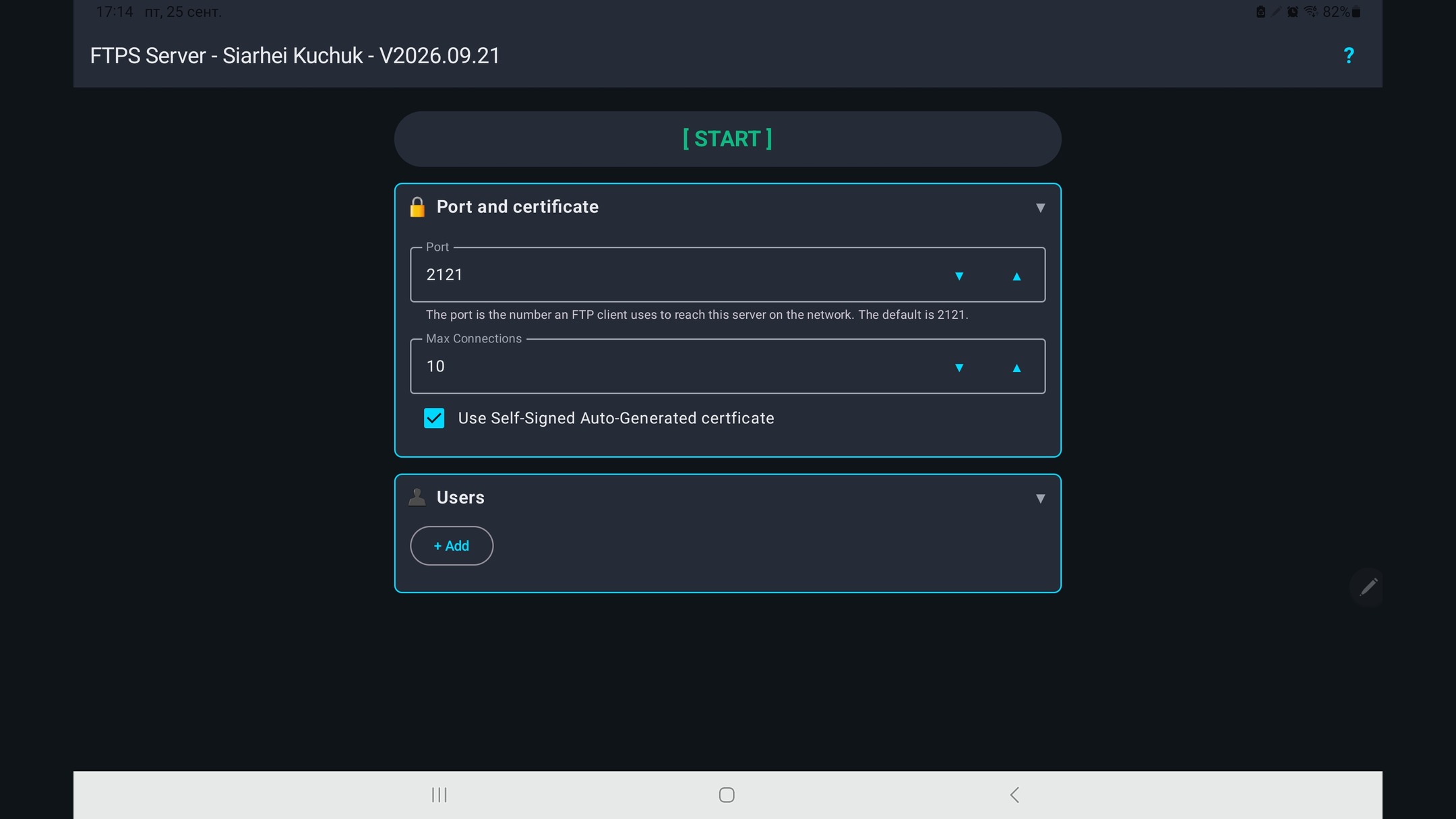
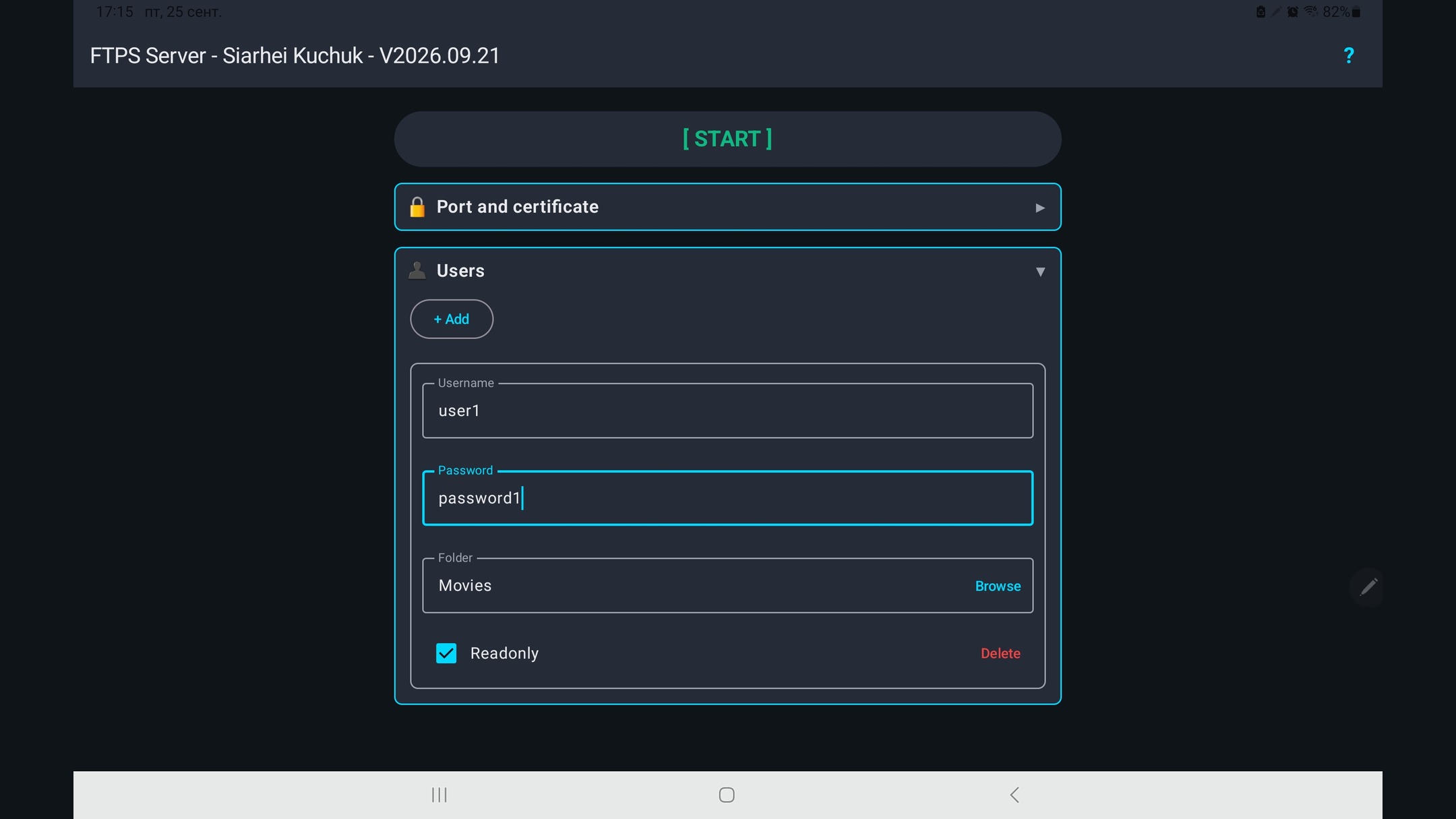
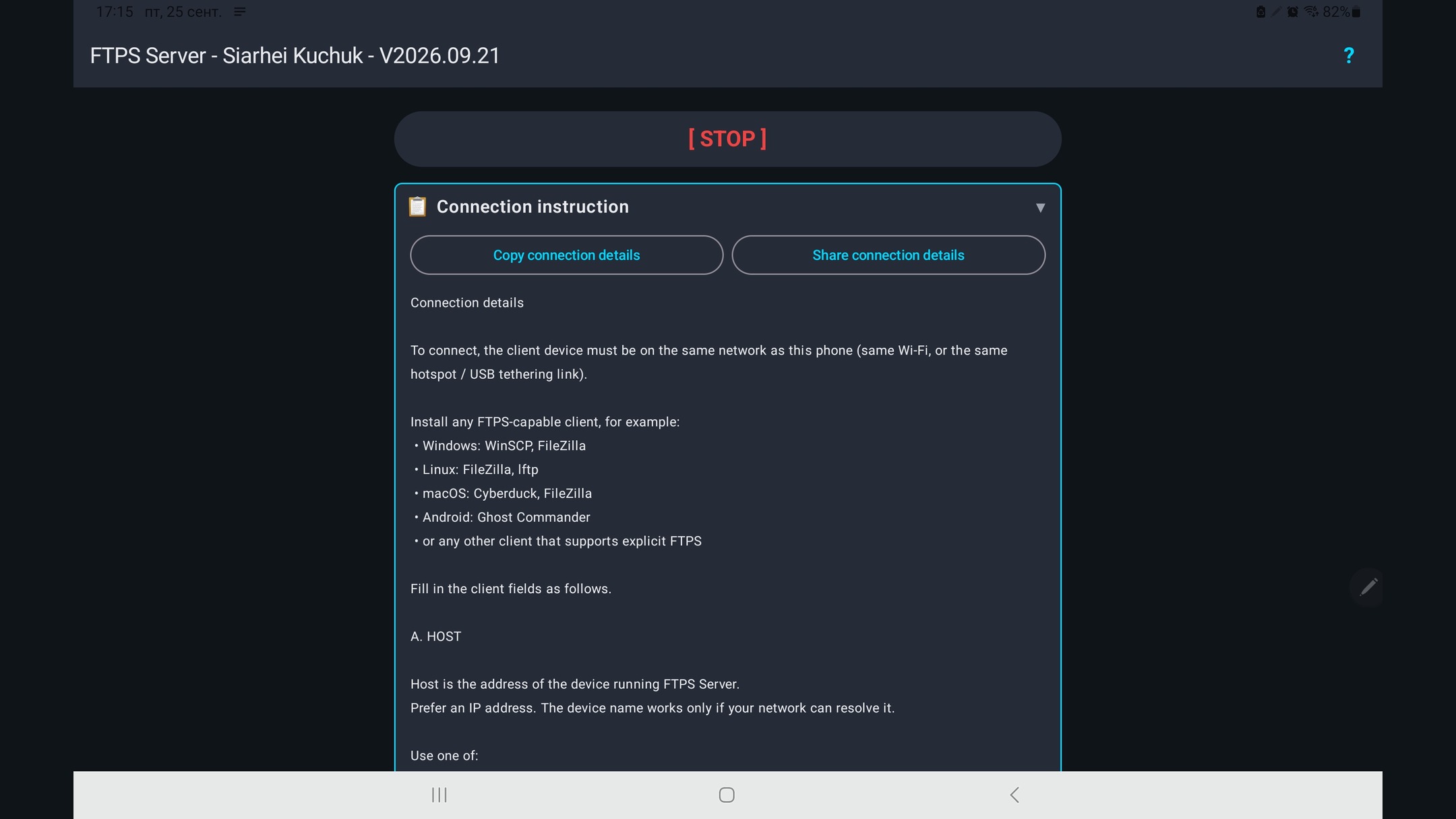
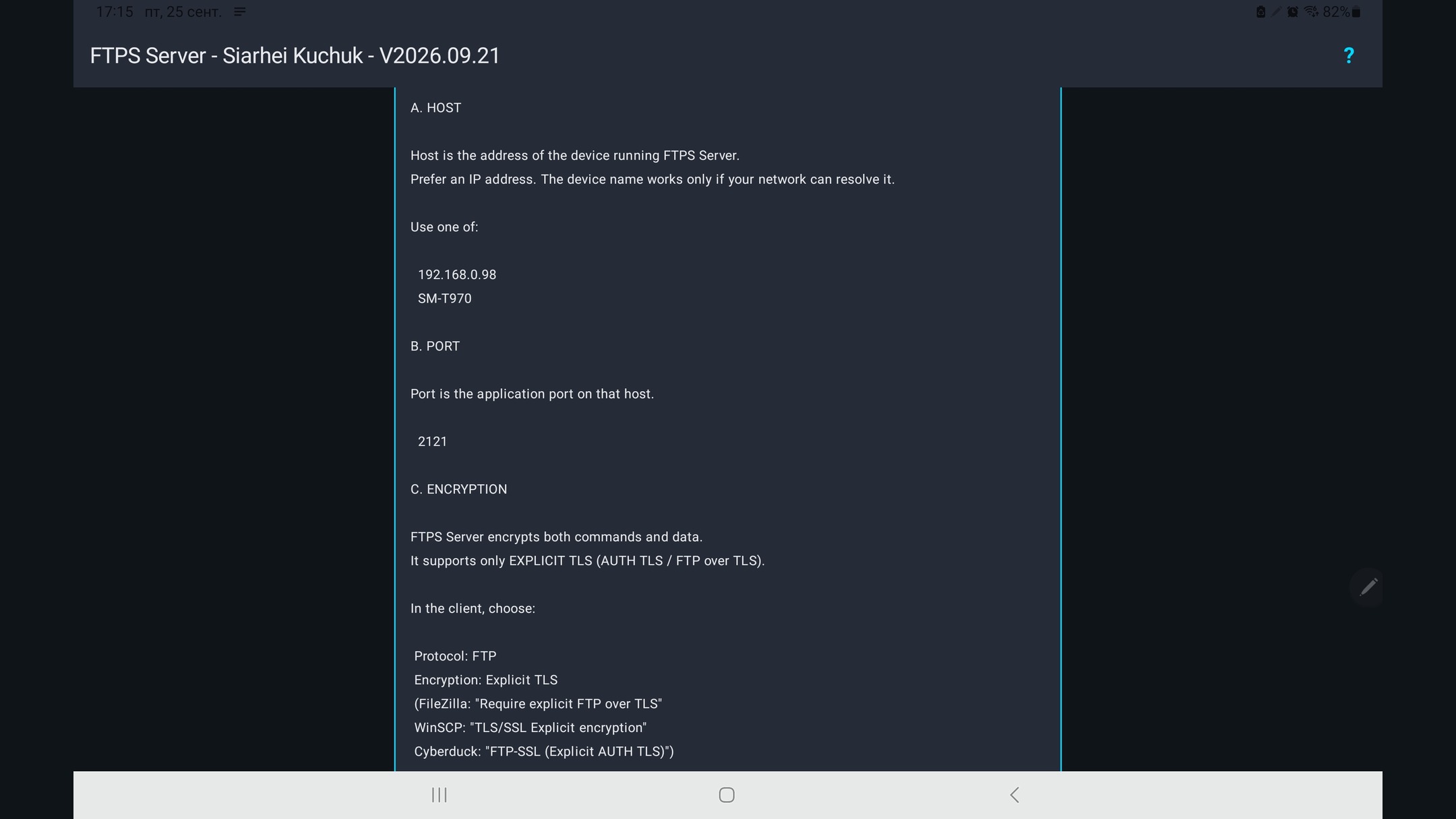
Sharing files via FTPS betweeen devices over network.
Desktop app has WPF and Avalonia versions.
Console app is written in C# (.NET 10).
Android app has Avalonia and Kotlin versions.
✨ Features
- User Permissions - Granular control over Read/Write operations
- Per-User Root Folders - Isolated directories for each user
- Path Security - Protection against directory traversal attacks
- UTF-8 - Supports localized characters
- Localized to Amharic — አማርኛ, Arabic — العربية, Bengali — বাংলা, Burmese — မြန်မာဘာသာ, Chinese Simplified — 简体中文, French — Français, German — Deutsch, Hausa — Hausa, Hindi — हिन्दी, Igbo — Igbo, Indonesian — Bahasa Indonesia, Italian — Italiano, Japanese — 日本語, Kazakh — Қазақша, Korean — 한국어, Marathi — मराठी, Nepali — नेपाली, Nigerian Pidgin — Naijá, Oromo — Afaan Oromoo, Pashto — پښتو, Persian — فارسی, Polish — Polski, Portuguese,Brazilian — Português do Brasil, Punjabi — ਪੰਜਾਬੀ, Russian — Русский, Spanish — Español, Swahili — Kiswahili, Tamil — தமிழ், Telugu — తెలుగు, Thai — ภาษาไทย, Turkish — Türkçe, Ukrainian — Українська, Urdu — اردو, Uzbek — O'zbekcha, Vietnamese — Tiếng Việt, Yoruba — Yorùbá, Yue Chinese — 粵語
📦 Installation for Windows, Linux, Android
Windows
A. Microsoft Store
Best option. Store will keep application up to date.
B. Setup look for asset windows_setup.exe
Setup is good when you can't use Store (no Microsoft Account, etc). Application will check for self-updates however you should manually update the application.
C. Microsoft Win-Get
winget install -e --id SiarheiKuchuk.FtpsServer
D. Binaries look for windows_archive.7z
Binaries are good if setups and zip archives are blocked by corporate policies. Application will check for self-updates however you should manually update the application.
Linux
Debian, Ubuntu, and derivatives
A. Installation via APT Repository
Best option. System will keep application updated.
One-Time Setup - add repository
curl -fsSL https://drweb86.github.io/dotnet-ftps-server/gpg-key.pub | sudo gpg --dearmor -o /usr/share/keyrings/ftps-server.gpg
echo "deb [arch=$(dpkg --print-architecture) signed-by=/usr/share/keyrings/ftps-server.gpg] https://drweb86.github.io/dotnet-ftps-server stable main" | sudo tee /etc/apt/sources.list.d/ftps-server.list > /dev/null
Install sudo apt update && sudo apt install ftps-server
B. DEB look for asset linux_arm64.deb and linux_amd64.deb
Those files can be installed with sudo dpkg -i ftpsserver_*_linux_*.deb && sudo apt-get install -f .
C. Bash script
Installation:
wget -O - https://raw.githubusercontent.com/drweb86/dotnet-ftps-server/master/scripts/ubuntu-install.sh | bash
Installation of preview:
wget -O - https://raw.githubusercontent.com/drweb86/dotnet-ftps-server/master/scripts/ubuntu-install.sh | bash -s -- --latest
Uninstallation:
wget -O - https://raw.githubusercontent.com/drweb86/dotnet-ftps-server/master/scripts/ubuntu-uninstall.sh | bash
Fedora, RHEL, Rocky, Alma, and openSUSE
RPM look for asset linux_x86_64.rpm and linux_aarch64.rpm
sudo dnf install ./ftpsserver_*_linux_*.rpm
openSUSE: sudo zypper install ./ftpsserver_*_linux_*.rpm
Arch Linux, Manjaro, and EndeavourOS
Pacman look for asset linux_x86_64.pkg.tar.zst and linux_aarch64.pkg.tar.zst
sudo pacman -U ftpsserver_*_linux_*.pkg.tar.zst
Other glibc Linux (amd64 and arm64)
Tarball look for asset linux_amd64.tar.gz and linux_arm64.tar.gz
sudo tar -C / -xzf ftpsserver_*_linux_*.tar.gz
The tarball unpacks into /usr. The system needs glibc, libstdc++, libX11, and fontconfig.
After installation for linux, the following commands are available: ftps-server-ui — graphical user interface; ftps-server — console tool.
Android
A. Google Play
Best option. Store will keep application up to date.
B. RuStore
C. HUAWEI AppGallery
D. FDroid
E. Prebuilt APK look for android.apk asset. Tap the downloaded APK in the browser download list, or open it from the Android Downloads app. If Android blocks the install, tap Settings and enable Allow from this source for the browser or file manager you used, go back and Install. Because app is self-signed, Android will ask you to confirm that you trust the APK before installing it. When Google Play Protect shows a warning for the self-signed APK, choose the option to install anyway if you trust this project. On Samsung devices click Details, Install anyway.
Library
NUGet Package
The library has no third-party dependencies. Notices for apps that do are next to those apps: sources/FtpsServerConsole/THIRD-PARTY-NOTICES.md, sources/FtpsServerWindows/THIRD-PARTY-NOTICES.md, sources/FtpsServerAvalonia/FtpsServerAvalonia/THIRD-PARTY-NOTICES.md, and sources/android/THIRD-PARTY-NOTICES.md.
✨ Information
🖼️ Screenshots
Desktop
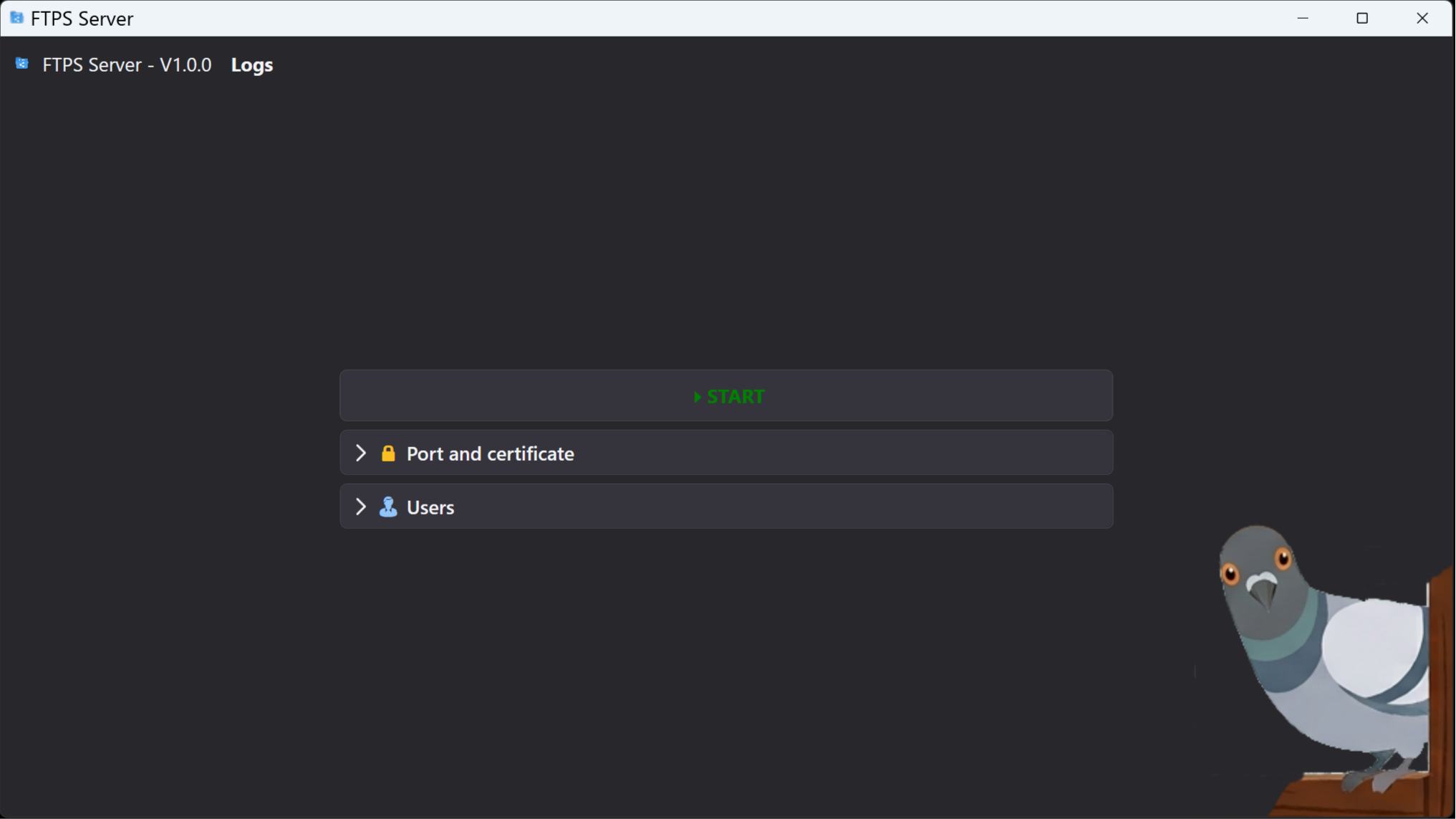
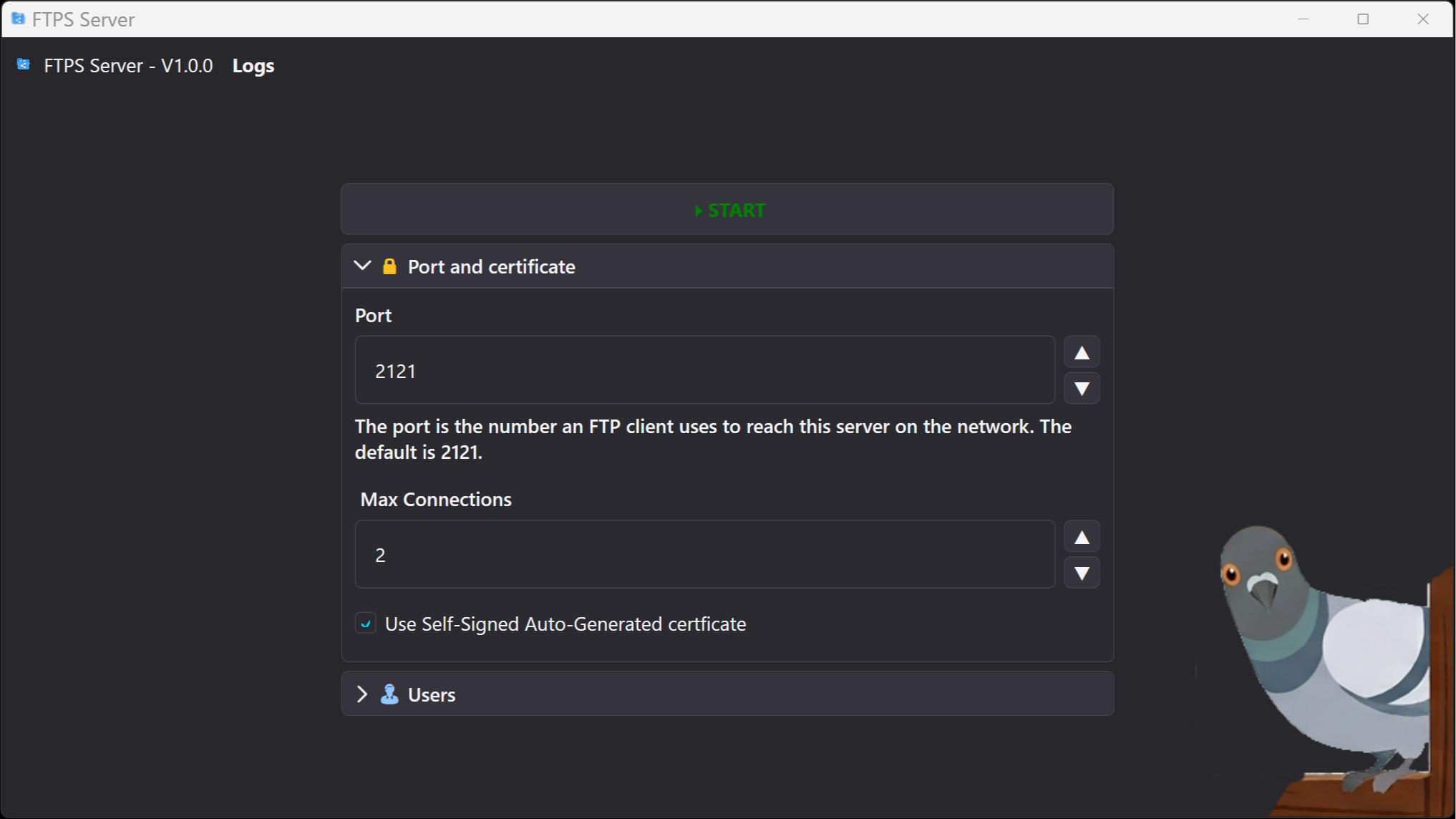
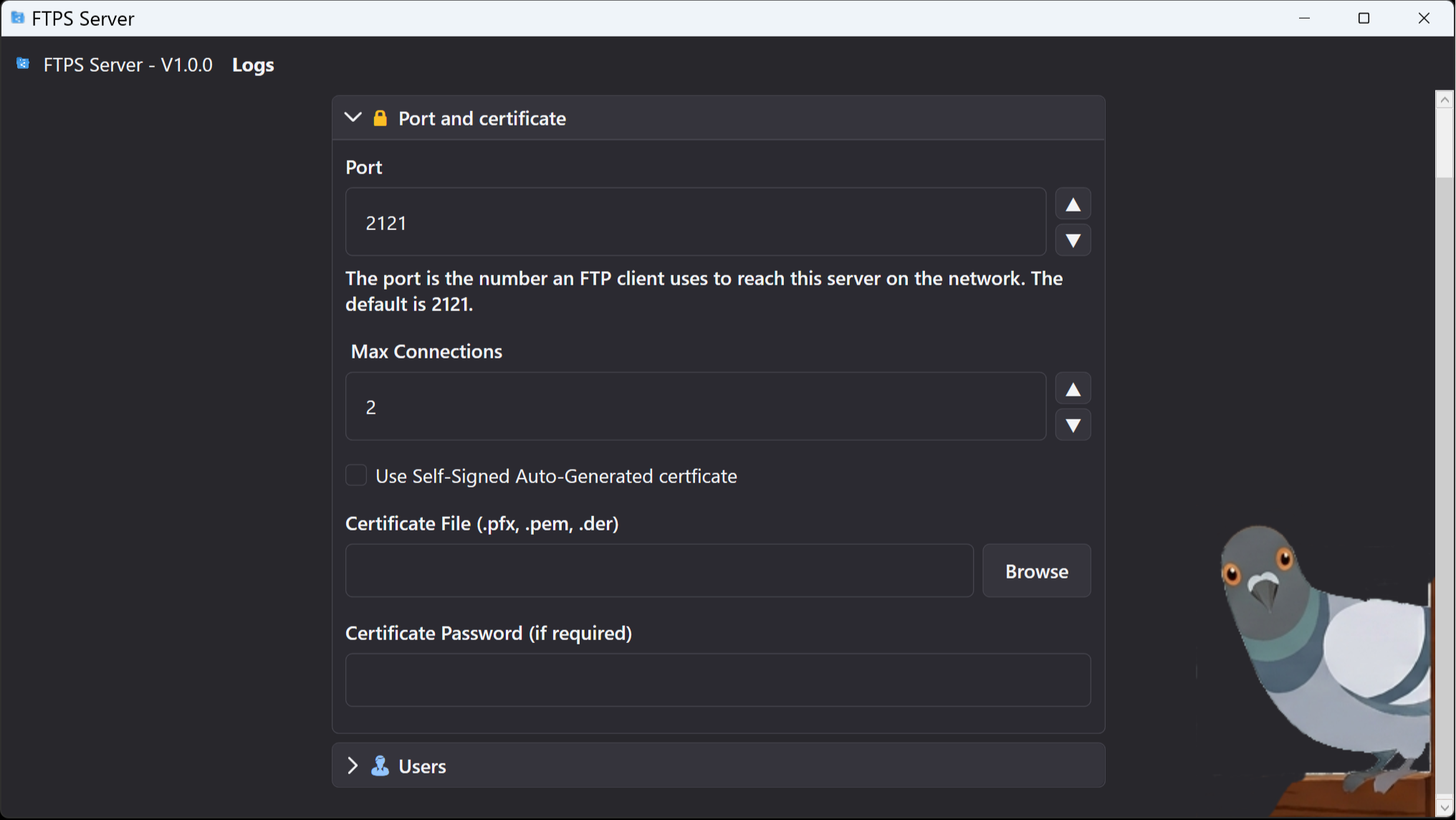
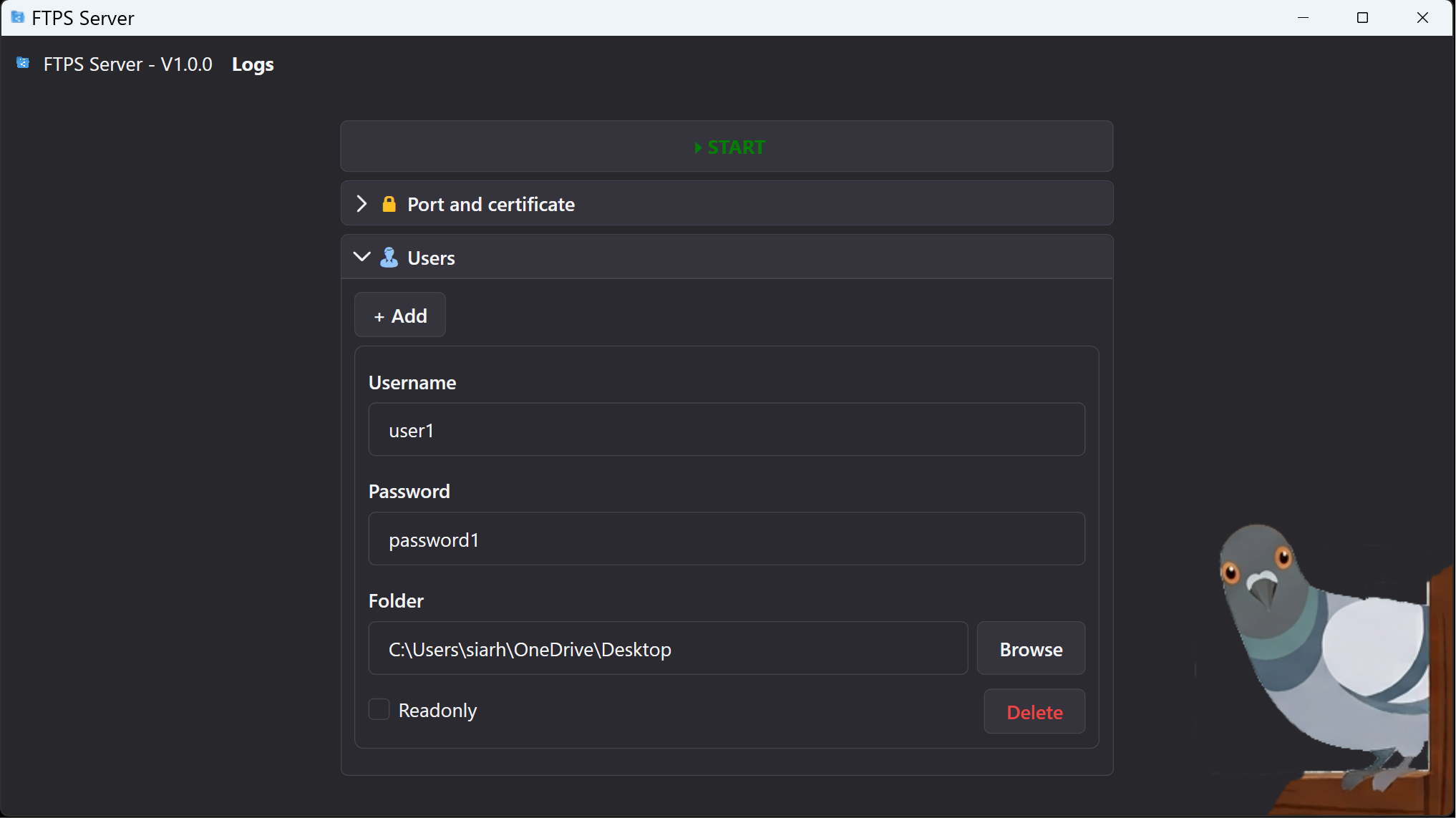
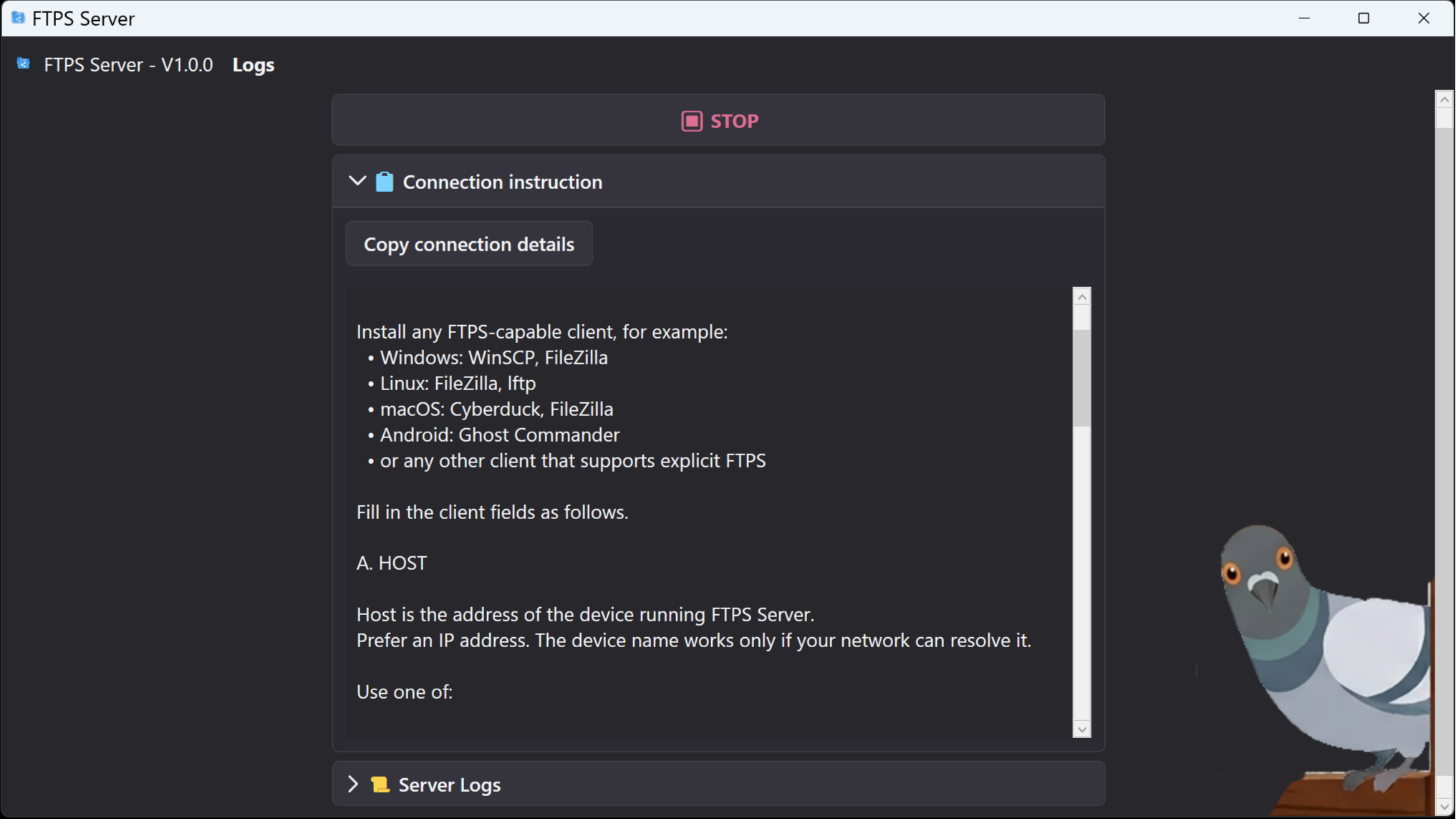
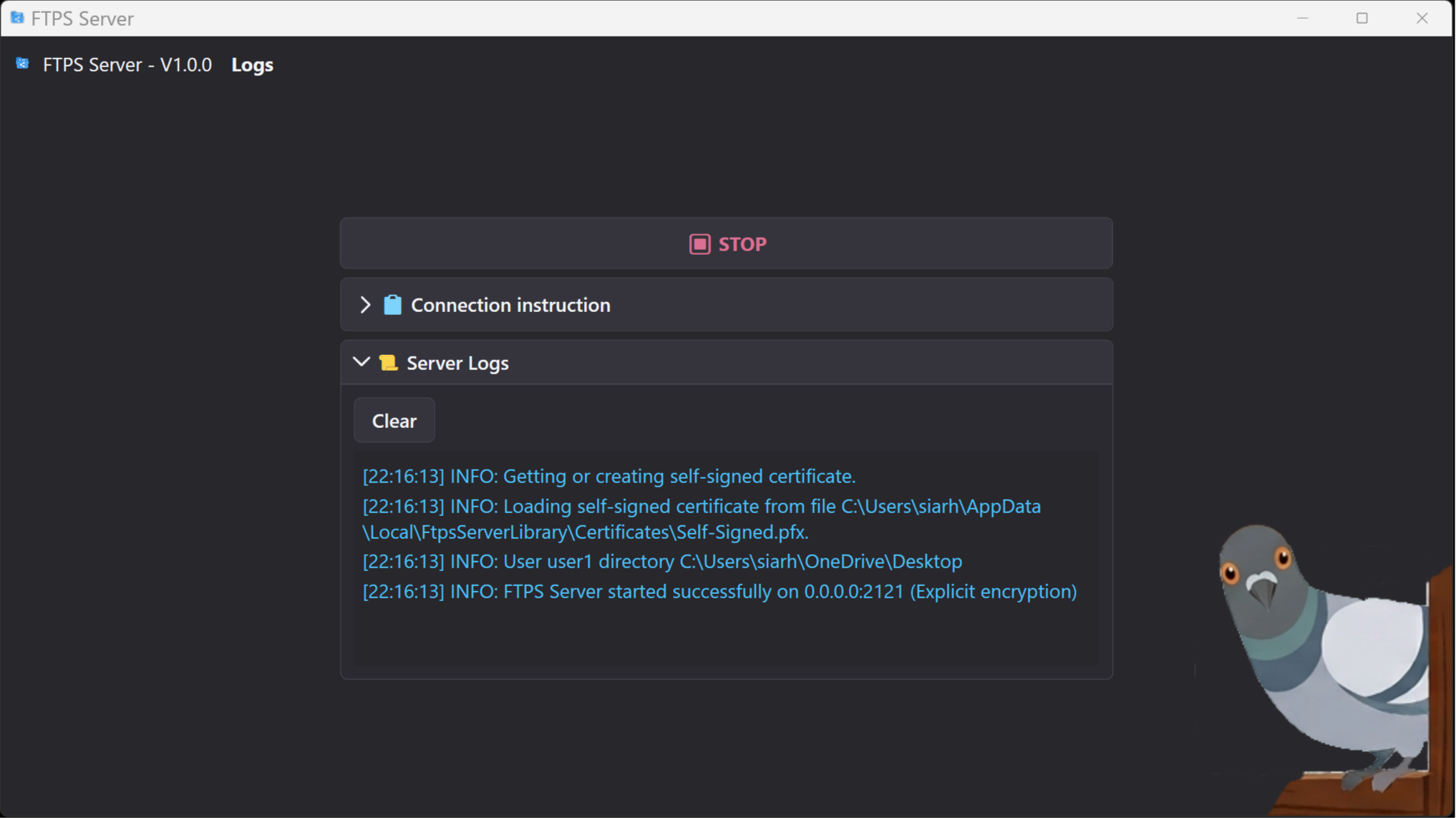
Console

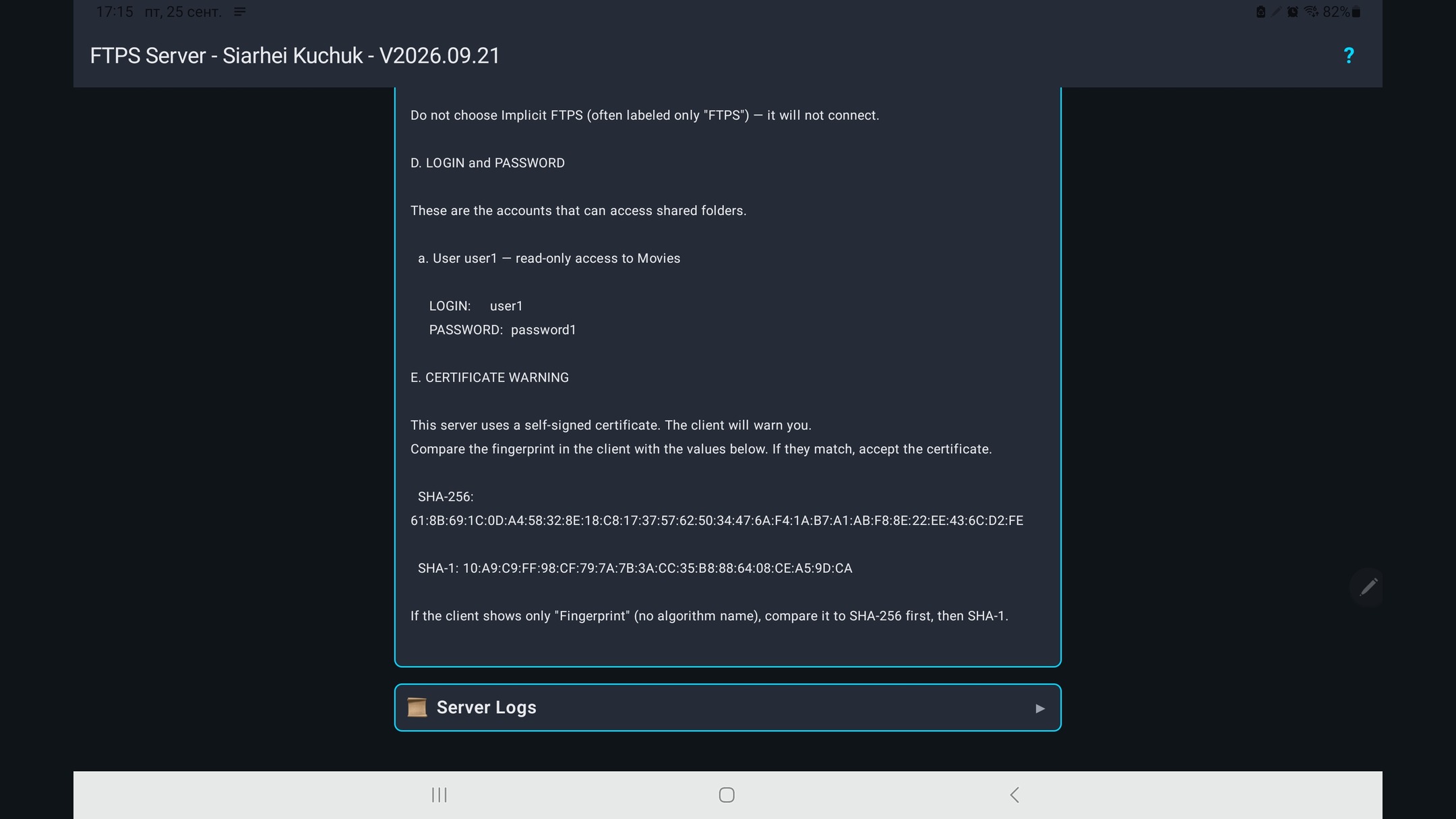
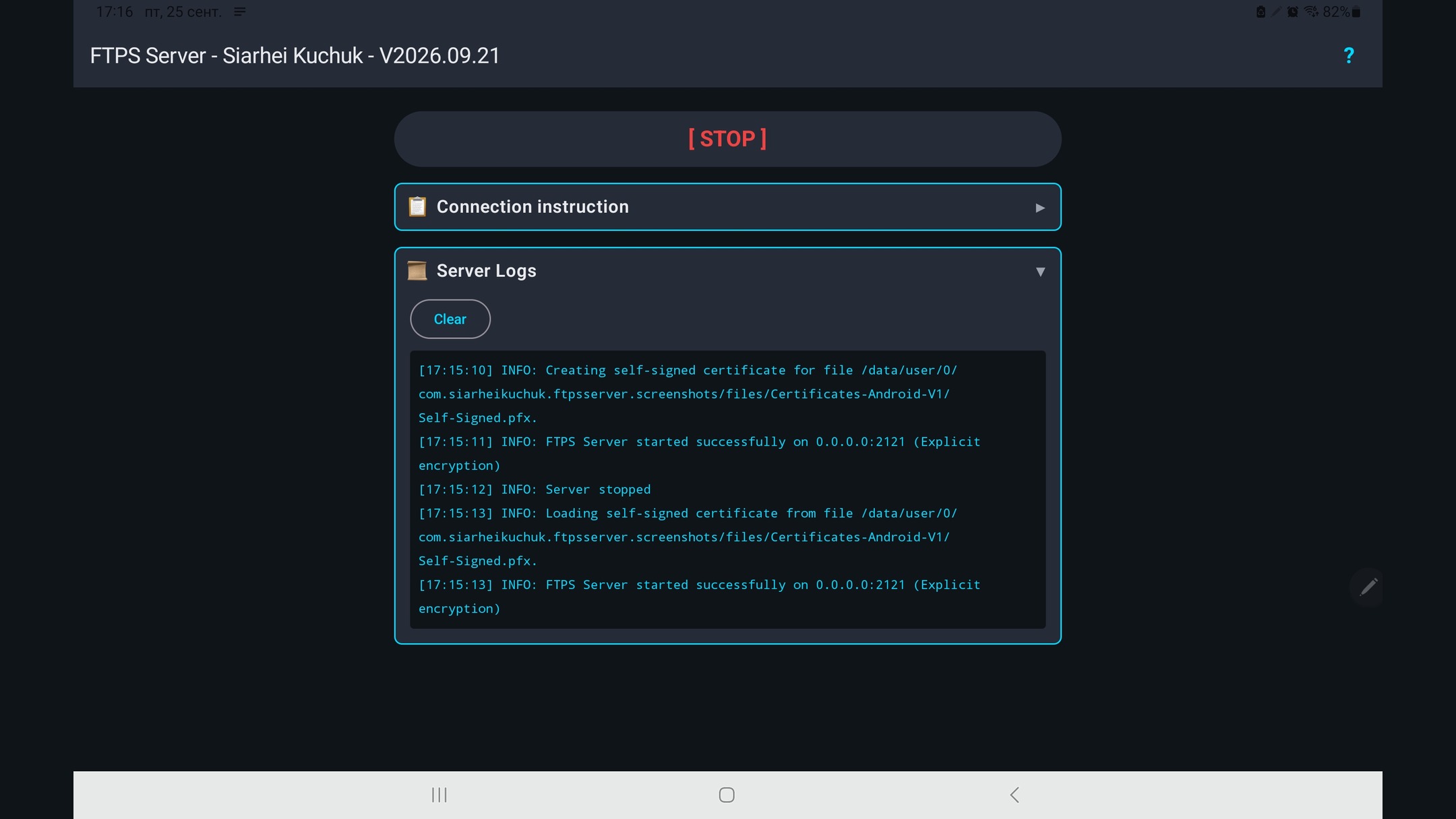
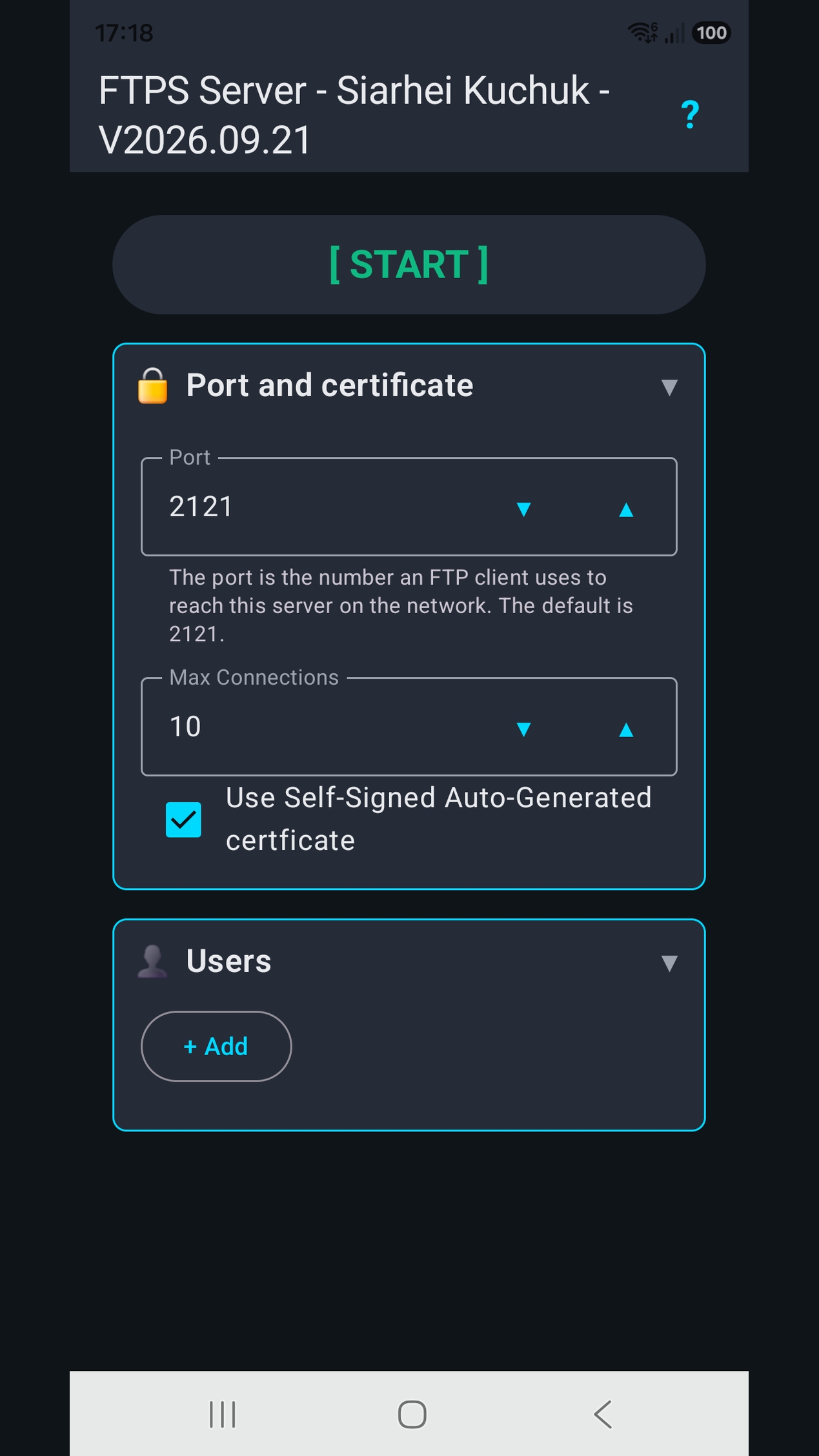
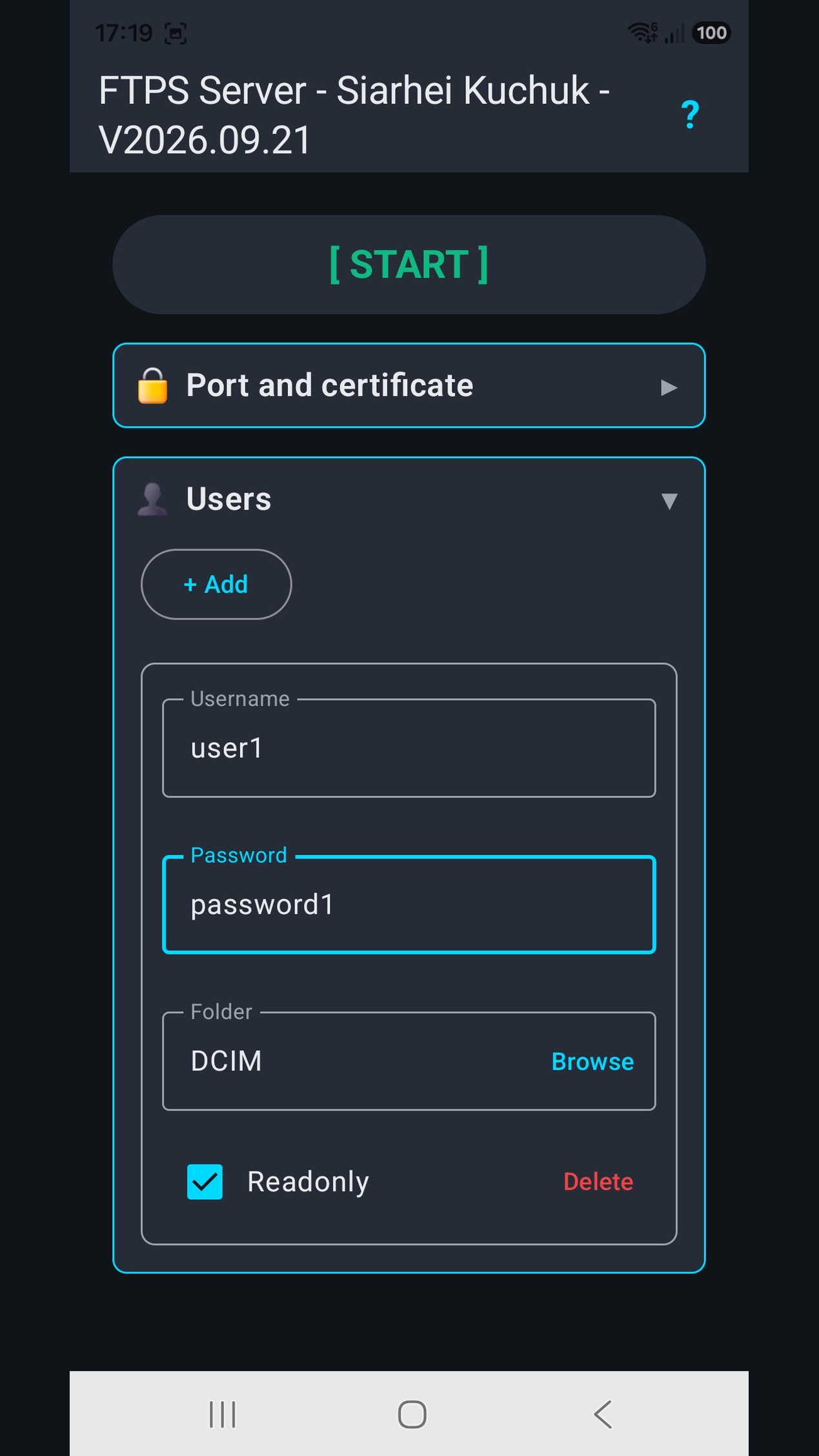
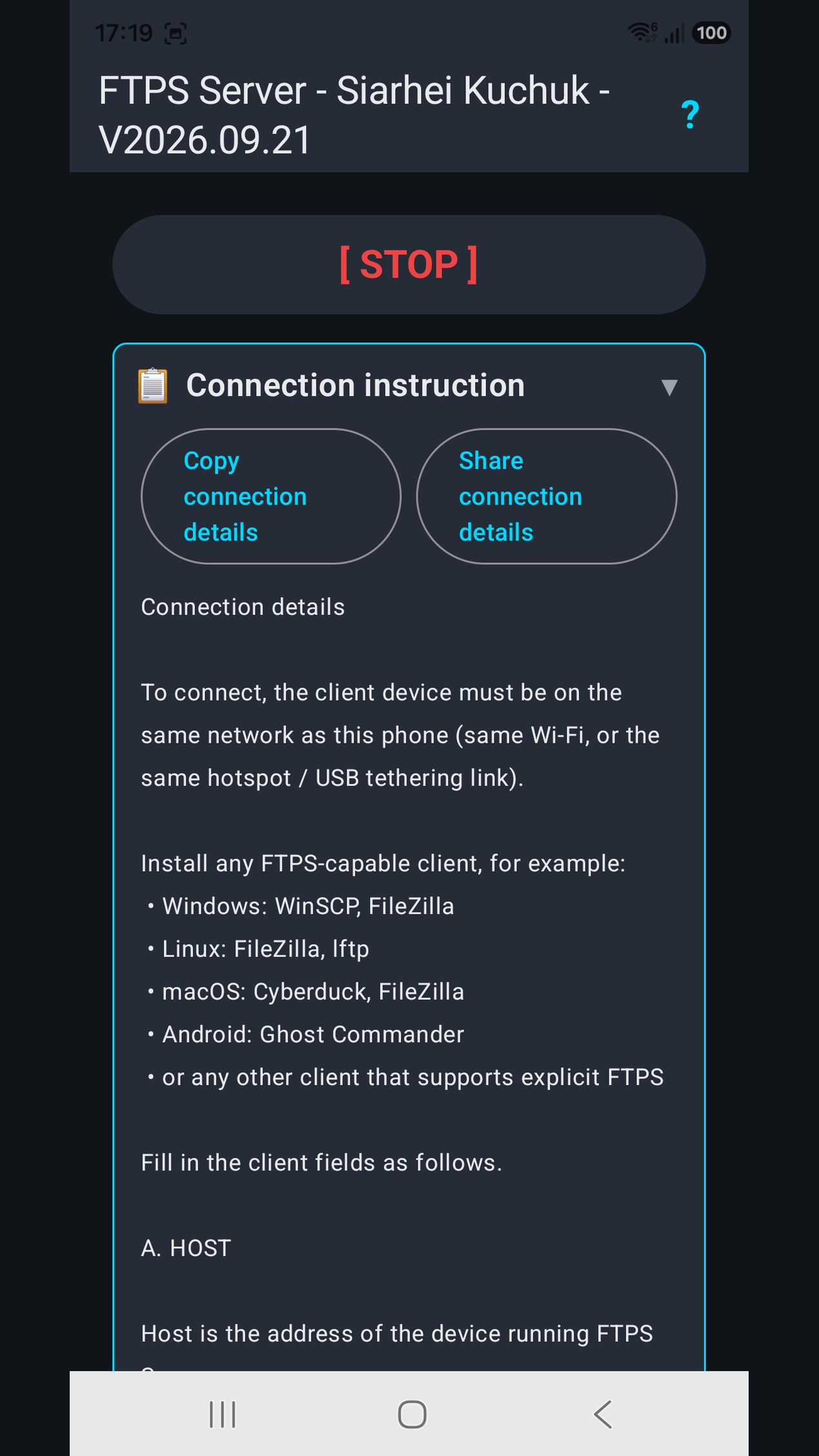
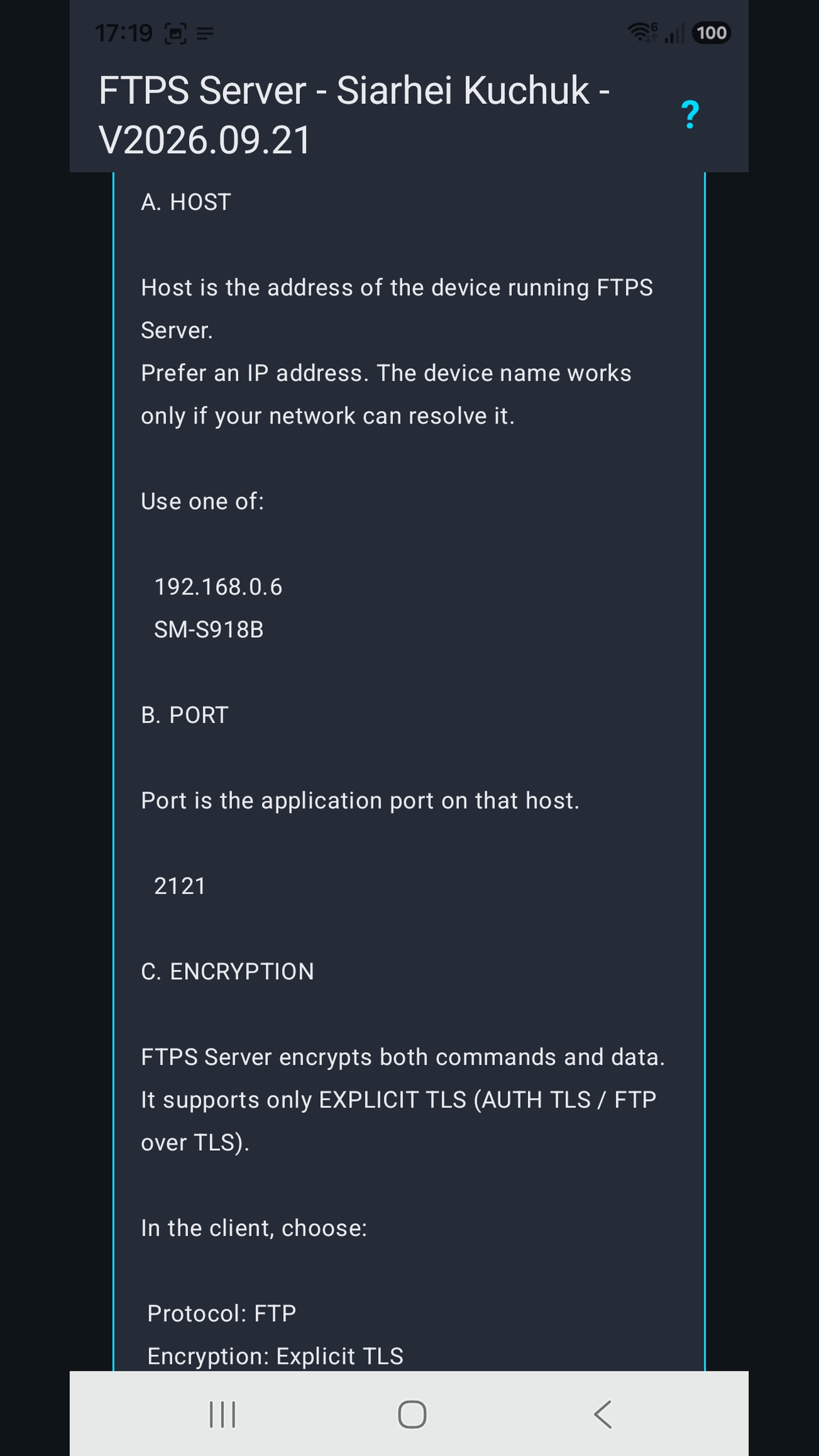
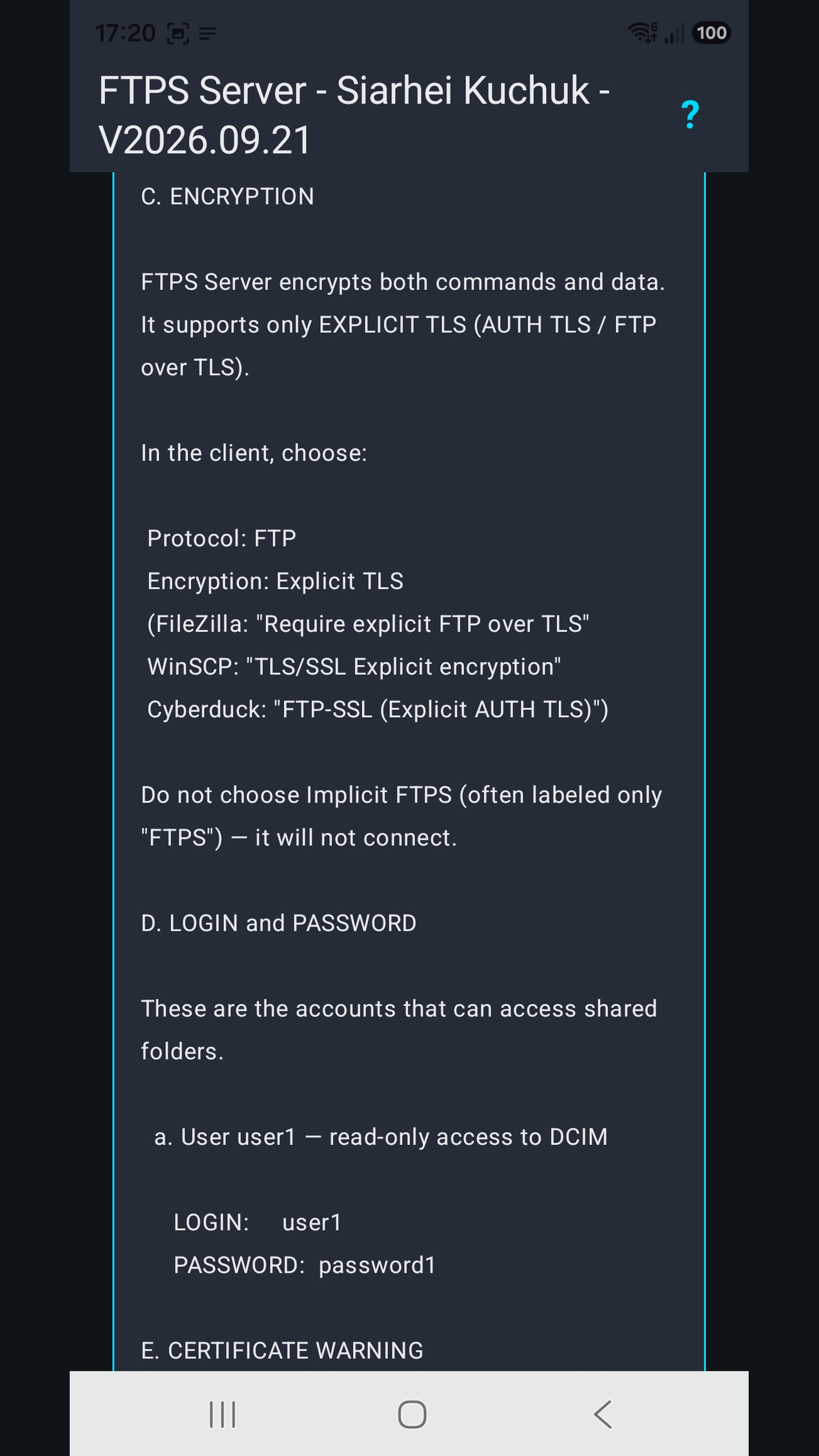
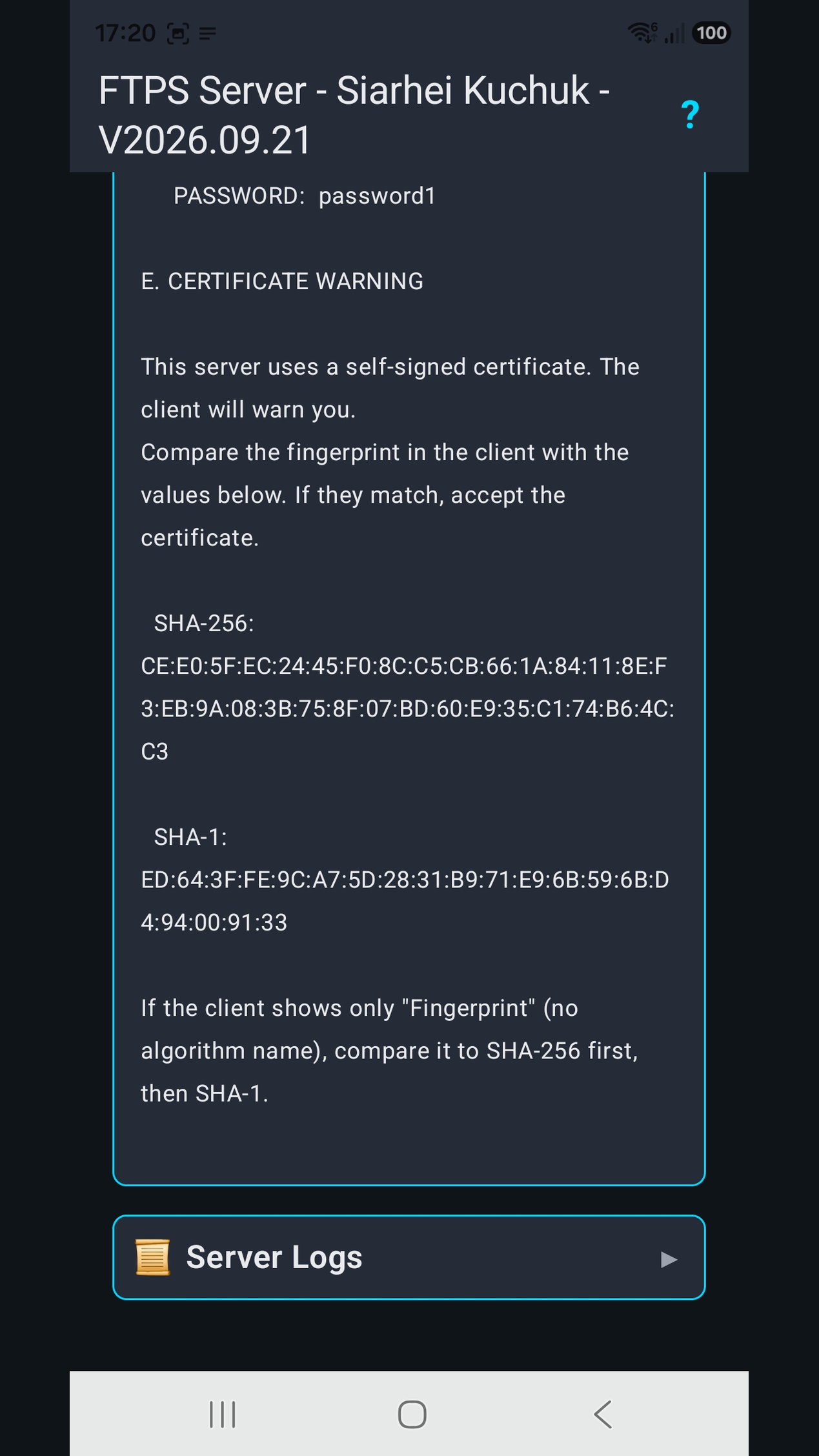
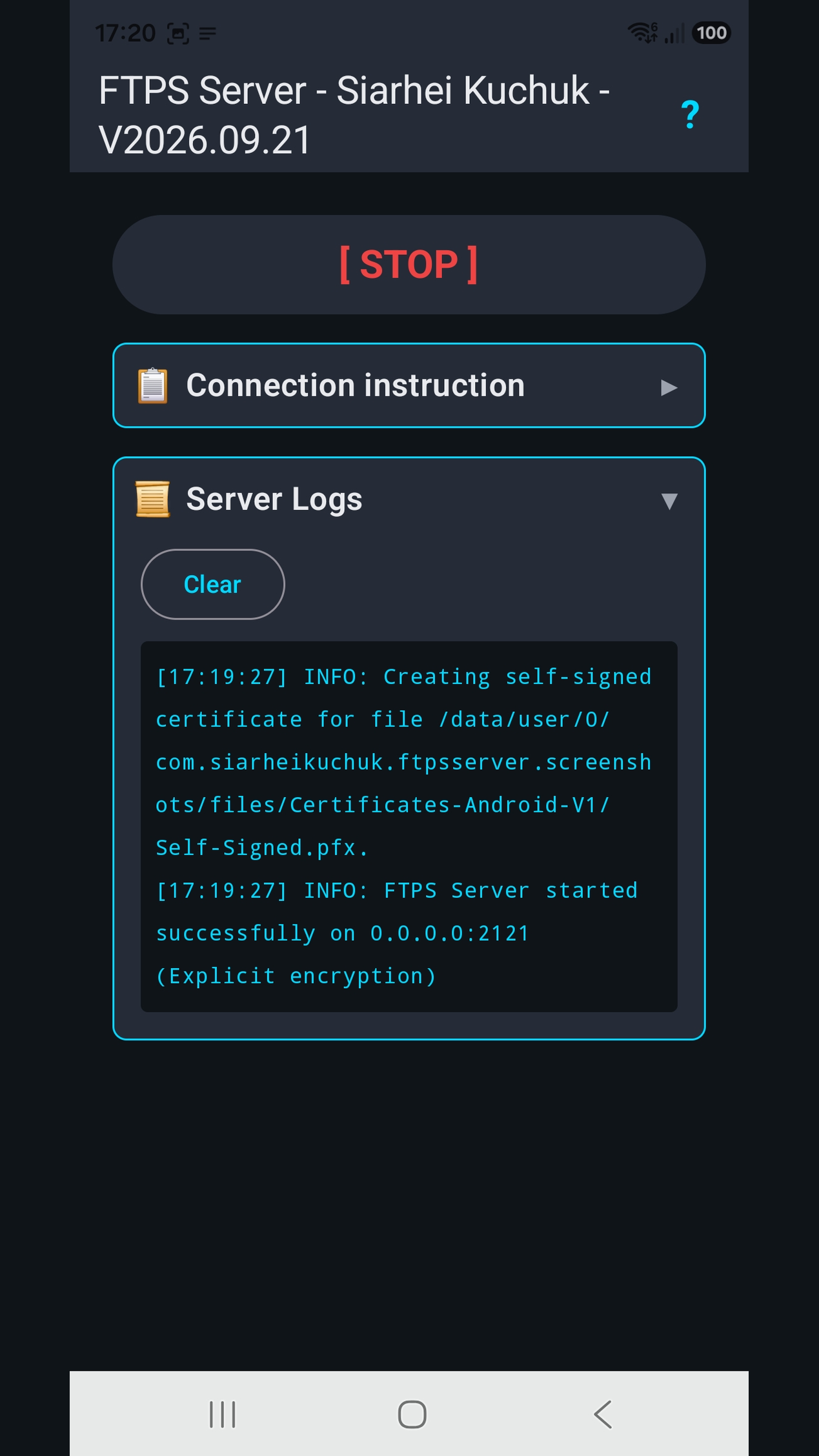
Android
Phone
Tablet