A beautiful, standalone desktop widget for Windows, macOS, and Linux that displays your Claude.ai usage statistics in real-time.
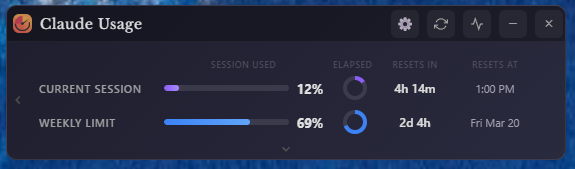
Features
🎯 Real-time Usage Tracking — Monitor both session and weekly usage limits
📊 Visual Progress Bars — Clean, gradient progress indicators with configurable warning thresholds
⏱️ Countdown Timers — Circular timers showing time elapsed in the current session window
🔄 Auto-refresh — Updates every 5 minutes automatically, with animated refresh indicator
📈 Usage History Graph — Toggleable 7-day chart showing session and weekly trends over time
🌍 Currency Support — Extra usage displays your account's billing currency (€, £, $)
🎨 Modern UI — Sleek, draggable widget with dark and light themes
🔒 Secure — Encrypted credential storage
📍 Always on Top — User-controlled, stays visible across all workspaces
💾 System Tray — Minimizes to tray for easy access
⚙️ Settings Panel — Persistent preferences for startup, theme, tray, thresholds, and date/time formats
🔔 Usage Alerts — Desktop notifications when usage crosses configurable warn/danger thresholds
🔔 Update Notifications — Automatic check for new releases on startup
🕐 Configurable Date & Time Formats — 12h/24h time, and flexible weekly reset date display
📐 Compact Mode — Minimal view for when you just need a quick glance
🧩 Per-Model Breakdowns — Rows and chart lines for Sonnet, Opus, Fable, Cowork, OAuth Apps, and Design usage when your account reports them
💳 Credit Clarity — Monthly spend cap and credit balance shown separately, with a promo-vs-purchased split and expiry warnings
👥 Multi-Account Support — Run isolated instances for separate accounts via the --profile flag (see below)
> For a full history of changes by version, see Release Notes.
Screenshots
Settings Panel
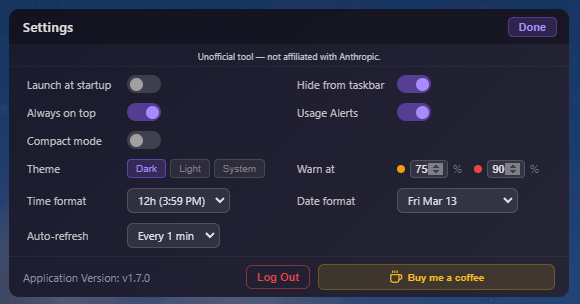
Settings Options
- ⚙️ Launch at startup — Auto-start with Windows or macOS login
- 📌 Hide from taskbar — Tray-only mode
- 🎨 Theme selector — Dark / Light / System
- ⚠️ Warning thresholds — Configurable amber and red levels for usage bars
- 🔔 Usage alerts — Desktop notifications at warn/danger thresholds
- 🕐 Time format — 12h or 24h
- 📅 Date format — Controls how the weekly reset date is displayed
- 📐 Compact mode — Minimal view
Installation
Download Pre-built Release
Windows:
- Download the latest
Claude-Usage-Widget-{version}-win-Setup.exe (installer) or Claude-Usage-Widget-{version}-win-portable.exe (no install needed) from Releases
- Run the installer or portable exe
- Launch "Claude Usage Widget" from the Start Menu (installer) or directly (portable)
- To launch at Windows startup (portable only): Press
Win+R, type shell:startup, and copy the portable .exe into that folder. To update, copy the new version in and delete the old one.
macOS:
- Download the latest
Claude-Usage-Widget-{version}-macOS-arm64.dmg (Apple Silicon) or Claude-Usage-Widget-{version}-macOS-x64.dmg (Intel) from Releases
- Open the DMG and drag the app to your Applications folder
- Launch "Claude Usage Widget" from Applications
> ⚠️ macOS Security Notice: Because this app is not yet notarized with Apple, macOS Gatekeeper may show a "damaged or can't be opened" warning. To fix this, run the following command in Terminal after installing:
> > xattr -cr /Applications/Claude\ Usage\ Widget.app >
> Then try launching the app again.
Linux:
- Download the latest
Claude-Usage-Widget-{version}-linux-x86_64.AppImage (Intel/AMD) or Claude-Usage-Widget-{version}-linux-arm64.AppImage (ARM) from Releases
- Make it executable:
chmod +x Claude-Usage-Widget-*.AppImage
- Run it:
./Claude-Usage-Widget-*.AppImage
> Note: AppImage runs without installation on most Linux distributions. On Ubuntu 22.04+, you may need to install a dependency first:
> bash > sudo apt install libfuse2 >
Linux: Desktop Launcher & Autostart (optional)
By default the AppImage runs from wherever you put it. To get a clickable icon in your app launcher (and optionally launch at login), follow these steps.
1. Place the AppImage somewhere permanent:
mkdir -p ~/.local/bin
mv Claude-Usage-Widget-*.AppImage ~/.local/bin/claude-usage-widget.AppImage
chmod +x ~/.local/bin/claude-usage-widget.AppImage
2. Create a desktop entry:
cat > ~/.local/share/applications/claude-usage-widget.desktop << EOF
[Desktop Entry]
Name=Claude Usage Widget
Comment=Monitor Claude.ai usage
Exec=$HOME/.local/bin/claude-usage-widget.AppImage --no-sandbox
Icon=$HOME/.local/bin/claude-usage-widget.AppImage
Terminal=false
Type=Application
Categories=Utility;
StartupNotify=true
EOF
> Note: The --no-sandbox flag is required for Electron-based AppImages on most Linux systems due to sandbox namespace restrictions. This is an Electron/Chrome limitation, not specific to this widget.
3. Register the entry:
update-desktop-database ~/.local/share/applications/
The widget should now appear in your application launcher. Test it by launching from your app menu before proceeding to autostart.
4. Autostart at login (optional):
mkdir -p ~/.config/autostart
cp ~/.local/share/applications/claude-usage-widget.desktop ~/.config/autostart/
Build from Source
Prerequisites:
- Node.js 18+ (Download)
- npm (comes with Node.js)
git clone https://github.com/SlavomirDurej/claude-usage-widget.git
cd claude-usage-widget
npm install
npm start
Usage
First Launch
- Launch the widget
- Click "Login to Claude" when prompted
- A browser window will open — log in to your Claude.ai account
- The widget will automatically capture your session
- Usage data will start displaying immediately
- Drag — Click and drag the title bar to move the widget
- Refresh — Click the refresh icon to update data immediately
- Graph — Click the graph icon to toggle usage history
- Minimize — Click the minus icon to hide to system tray / dock
- Close — Click the X to Close the app
System Tray
Right-click the tray icon for: Show/Hide, Refresh, Re-login, Settings, Exit.
Multi-Account Support (Advanced)
Launch with --profile= to run a fully isolated instance — its own session, cookies, and settings — so you can track two Claude accounts side by side without them interfering.
Example: claude-usage-widget --profile=work
This is a power-user feature, tested by us but not yet broadly validated by the community — if you hit issues, please open a GitHub Discussion.
Understanding the Display
Current Session & Weekly Limit
| Column | Description |
|---|
| Session Used | Progress bar showing usage from 0–100% |
| Elapsed | Circular timer showing how far through the window you are |
| Resets In | Countdown until the window resets |
| Resets At | Actual local clock time / date when the window resets |
Color Coding:
- 🟣 Purple: Normal usage (below warning threshold, default 75%)
- 🟠 Orange: High usage (above warning threshold)
- 🔴 Red: Critical usage (above danger threshold, default 90%)
Privacy & Security
- Credentials stored locally only using encrypted storage
- No data sent to any third-party servers
- Only communicates with the official Claude.ai API
- Logout clears all session data, cookies, and Electron session storage
Troubleshooting
"Login Required" keeps appearing — Session may have expired. Click "Login to Claude" to re-authenticate.
Widget not updating — Check internet connection, click refresh manually, or try re-logging in from the tray menu.
Build errors — Clean reinstall resolves most issues:
rm -rf node_modules package-lock.json
npm install
If issues persist, open a Support discussion with your OS, Node.js version, and full error output.
Roadmap
Contributors
Special thanks to these contributors who have improved the widget:
License
This project is licensed under the MIT License - see the LICENSE file for details.
Built with Electron · Releases · Discussions