SearchBox
Find anything on your computer — instantly, and completely private.



 If SearchBox is useful to you, please ⭐ star the repo — it helps others find it.
🌐 Try the interactive demo on the website → — search a simulated document index right in your browser.
SearchBox looks inside your files — PDFs, Word documents, spreadsheets,
notes, web pages, even images — and finds what you're after in a blink, even
if you don't remember the exact words (or spell them wrong). Everything runs
on your own computer. Nothing is uploaded, tracked, or sent anywhere.
Free, open source, and yours to keep.
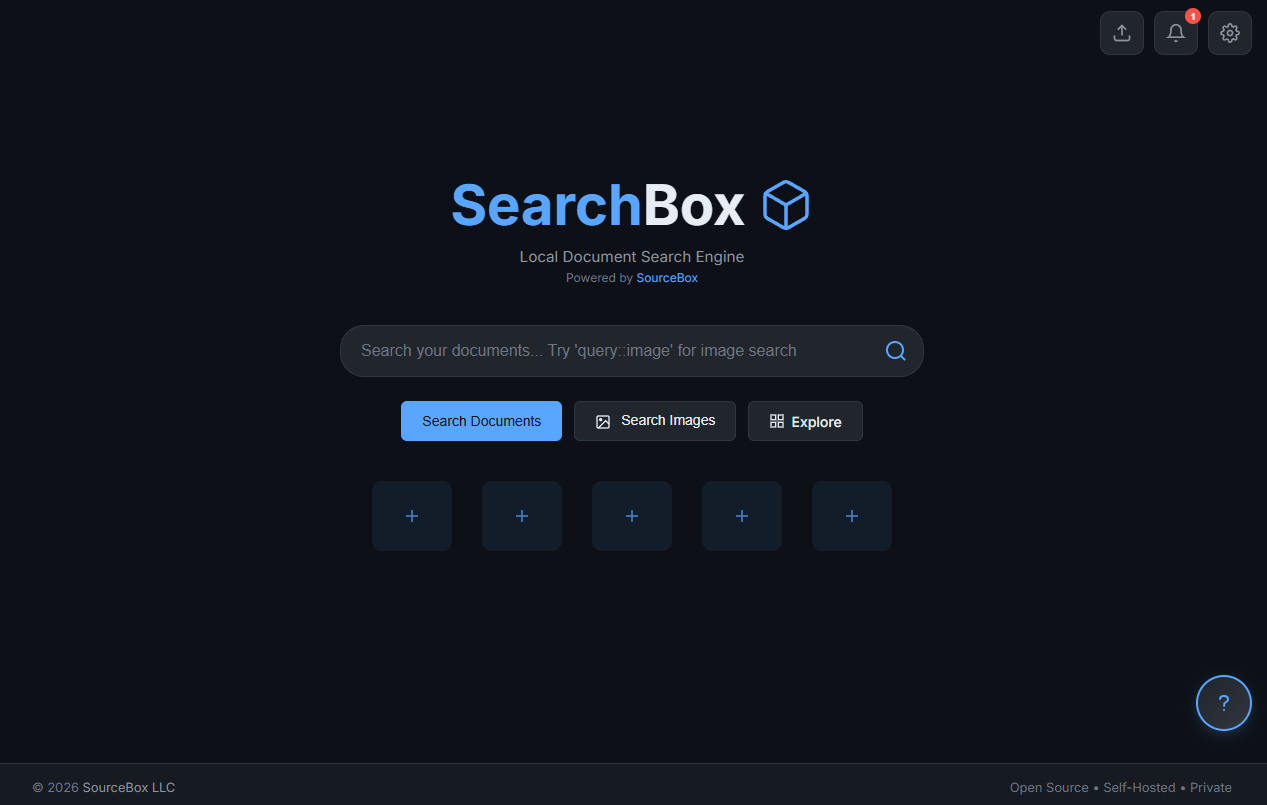
What you can do with it
| |
|---|
| 🔎 Search everything | Type a word or phrase; SearchBox searches the contents of your files, not just their names. |
| ✨ Forgiving search | Typos are fine — it still finds what you meant. |
| 📂 Point it at a folder | Pick any folder and SearchBox reads everything inside so it's all searchable. |
| 📚 Index ZIP & ZIM archives | Point it at a .zip or an offline-Wikipedia .zim (Kiwix) and it reads everything inside — searchable and browsable like a folder, articles and all. |
| 🗂️ Open files in the app | Read PDFs, Word docs, and notes right inside SearchBox. |
| 🖼️ Browse your images | A built-in gallery and an "Explore" view to flip through everything visually. |
| 🔒 Private vault | Upload sensitive files and lock them behind your password — encrypted on disk. |
| 🤖 AI summaries (optional) | Connect a free local AI and get a short summary of your results — still 100% on your machine. |
| ⭐ Bookmarks & history | Pin your most-used documents and jump back to recent searches. |
Get SearchBox (Windows)
The easy way — no setup, no technical steps:
- Open the Releases page.
- Download the latest installer for your PC —
SearchBox-…-x86_64.msi for
most machines, or SearchBox-…-aarch64.msi for ARM64 Windows (e.g.
Snapdragon laptops).
- Double-click it and follow the installer.
(Windows may show a "publisher not recognized" notice the first time — click More info → Run anyway.)
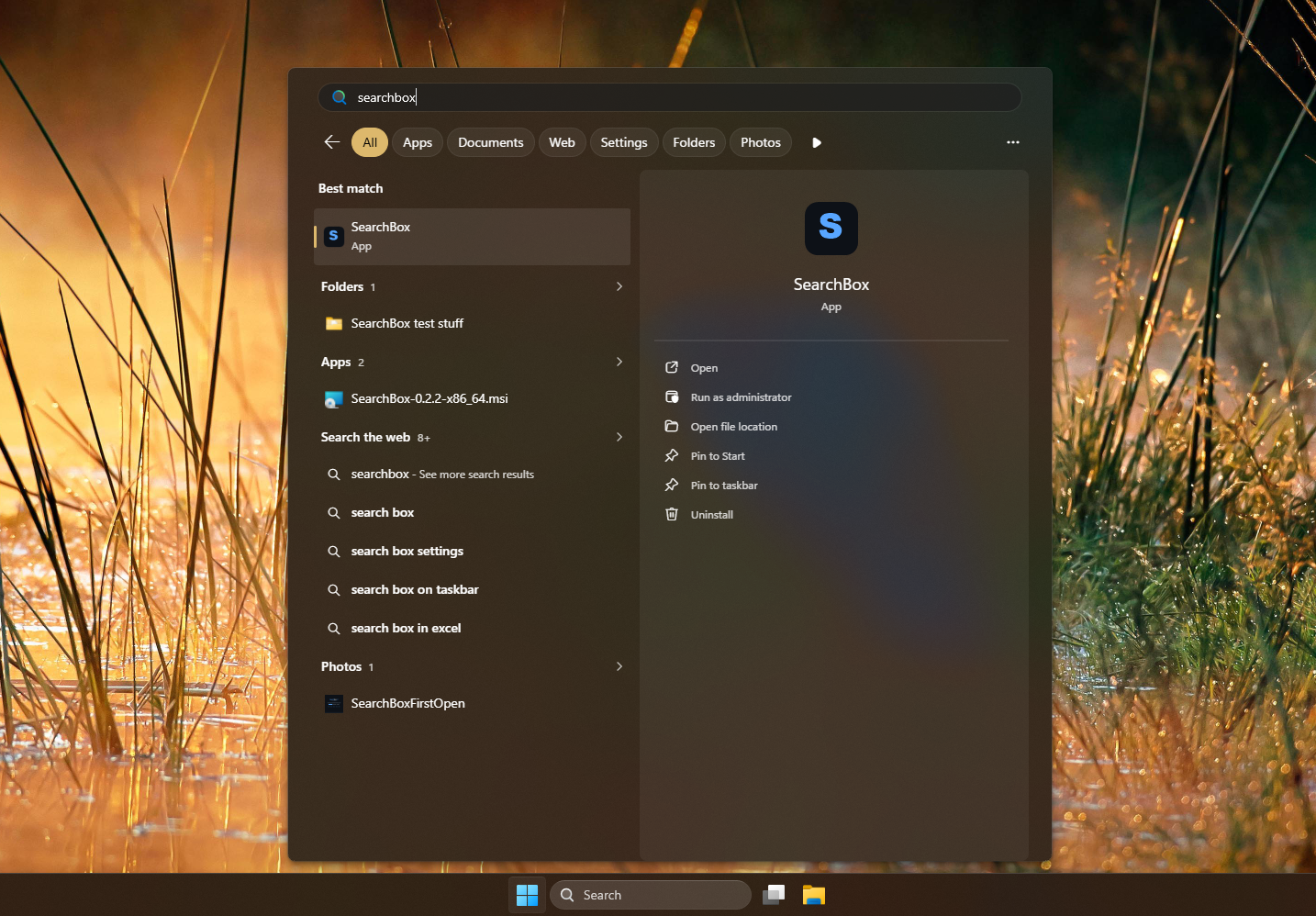
- Launch SearchBox from the Start menu.
SearchBox opens in its own window, just like any normal app. Close the
window to quit; reopen it from the Start menu whenever you like.
Prefer the terminal? winget install SourceBox.SearchBox does the same thing.
Runs on Windows 10 and 11. (Windows 11 ships with Microsoft's WebView2
component built in. On Windows 10, if SearchBox won't open, install the free
WebView2 Runtime
first — the installer doesn't bundle it yet.)
Your first two minutes
- Create your account. The first time you open SearchBox it asks you to
set up an account — just an email and a password. This never leaves your
computer; it's how you log in and how your private vault is locked.
- Add a folder. Go to Settings, choose a folder to index (your
Documents folder is a great start), and watch the progress as SearchBox
reads through it.
- Search. Start typing in the search bar. Results appear as you go —
click one to open it.
That's it. You can add more folders any time.
Documentation
- The manual — friendly, screenshot-guided docs for
everything: getting started,
searching, the private vault,
settings, and
troubleshooting.
- Tutorials — step-by-step projects like
your first search,
offline Wikipedia,
a private vault, and
local AI summaries.
- Developer docs — architecture, the HTTP API,
frontend conventions, and the dev workflow.
Search shortcuts
Type these right in the search bar to narrow your results:
budget ::pdf — only PDF filesnotes ::docx — only Word documentsfigures ::xlsx — only Excel spreadsheetsvacation ::image — jump to the image gallerytaxes ::vault — only files in your private vault
Power users can also combine filters with ::&& (and), ::|| (or), and
::! (not).
Your privacy, in plain terms
- Nothing leaves your computer. No ads, no tracking, no cloud account, no
phoning home.
- Runs on localhost only. SearchBox and its search index listen on
127.0.0.1 — not your network — so your files and index stay on your machine.
- Your vault is encrypted with your password using strong encryption
(AES-256). Files in the vault can't be read without it.
- Recovery key for password reset. During setup, you'll download a recovery
key — save it somewhere safe. If you forget your password, the recovery key
lets you reset it and keep accessing your vault. Without the recovery key,
vault files cannot be recovered.
Curious about the details? See SECURITY.md for encryption details and recovery key guidance.
Questions people ask
Is it really free?
Yes — free and open source (AGPL-3.0 license).
Do I need an internet connection?
No. SearchBox works entirely offline. (The only exception is the optional AI
feature, and even that runs locally once it's set up.)
Where are my files and data stored?
Your search index and settings live in %LocalAppData%\SearchBox on your PC.
Uninstalling SearchBox leaves your data right where it is.
It says the "search engine" is off — what do I do?
SearchBox includes a small search engine that normally starts on its own. If
it doesn't, open Settings → Search Engine → Start. (With the official
installer this is handled for you automatically.)
How do I turn on AI summaries?
Install Ollama (a free tool that runs AI models on your
own machine), then enable it in Settings. Everything stays local.
Can it search my downloads?
If you use qBittorrent, SearchBox can find and index your completed downloads
— switch it on in Settings.
How do I update?
SearchBox can update itself — go to Settings → About → Check for updates
(it only reaches out to GitHub when you ask, and there's an opt-in
"check on startup" toggle). Or just download the latest MSI from the Releases
page and run it; it upgrades in place.
Other ways to run it
Native Linux (x86_64 tarball)
Grab SearchBox-…-x86_64-linux.tar.gz from the
Releases page, then:
tar -xzf SearchBox-*-x86_64-linux.tar.gz
cd SearchBox-*-x86_64-linux
./searchbox
# → open http://127.0.0.1:8080 in your browser
Meilisearch is bundled in the tarball and picked up automatically as long as
it stays next to the searchbox binary. Your data lives in
~/.local/share/searchbox (or $XDG_DATA_HOME/searchbox). Stop with Ctrl-C
or SIGTERM — the search sidecar shuts down with the app.
Unlike Windows there's no desktop window yet — SearchBox runs as a local
server and you use it from your browser. In-app self-update is also
Windows-only; on Linux just extract a newer tarball over the old one (your
data directory is untouched).
Docker (Linux, macOS, Windows)
docker compose up -d
# App:          http://localhost:8080
# Search engine: http://localhost:7700
First launch walks you through account setup, then index a folder from the
Settings page. Data lives in named volumes (searchbox-data,
searchbox-vault, searchbox-thumbnails, meili-data), so docker compose down won't delete anything.
One-shot run without compose (the image isn't on Docker Hub — build it
locally first):
docker build -t sourcebox/searchbox:latest .
docker run -d --name searchbox \
  -p 8080:8080 -p 7700:7700 \
  -v searchbox-data:/app/instance \
  -v searchbox-vault:/app/vault \
  -v searchbox-thumbnails:/app/static/thumbnails \
  -v meili-data:/app/meili_data \
  -e SEARCHBOX_SECRET_KEY=change-me \
  sourcebox/searchbox:latest
On Windows, to index drive letters (C:\, D:\, …) rather than whatever
Docker maps into its Linux VM, add the drive-letter overlay:
docker compose -f docker-compose.yml -f docker-compose.windows.yml up -d
For developers
Tech stack
- Axum web server (Rust / Tokio)
- SQLite via
sqlx — single-file database
- Meilisearch sidecar — typo-tolerant full-text search
- MiniJinja HTML templates
- wry + tao — the native desktop window (WebView2) on Windows
- Ollama (optional) — local LLMs for AI summaries
- Pure-Rust document extraction —
pdf-extract, calamine (XLSX), quick-xml + zip (DOCX), pulldown-cmark, scraper (HTML)
- AES-256-GCM vault with a PBKDF2-derived key (600k rounds) from the admin password
- Single self-contained binary — templates and static assets are embedded via
rust-embed (debug builds read from disk so edits are live)
Build & run from source
Requires Rust 1.84+ and a Meilisearch binary (download one from
meilisearch releases
and drop meilisearch(.exe) next to the built searchbox binary — it's
auto-detected — or set its path in Settings → Search Engine).
cargo run --release
# Windows opens the SearchBox desktop window; elsewhere browse to
# http://localhost:8080 — first run walks you through account setup
See BUILD.md for release builds and the Windows installer (MSI).
Configuration (environment variables)
| Var | Default | Purpose |
|---|
SEARCHBOX_HOST | 127.0.0.1 | Bind address (localhost-only by default; set 0.0.0.0 to opt in to network access) |
SEARCHBOX_PORT | 8080 | Bind port |
SEARCHBOX_DB_DIR | . | Where searchbox.db lives |
SEARCHBOX_BASE_DIR | cwd | Root for writable runtime dirs (vault/, meili_data/, static/thumbnails/) |
SEARCHBOX_SECRET_KEY | dev stub | Session cookie signing (set this in production) |
MEILI_PUBLIC_HOST | — | Browser-facing Meilisearch URL when it differs from the server-side one (e.g. a Docker bridge) |
MEILI_PORT | 7700 | Port for the Meilisearch sidecar |
MEILI_MASTER_KEY | dev stub | Meilisearch master key |
OLLAMA_URL | — | Set via the Settings page at runtime; this env var is only read by tooling |
Everything else — Meilisearch path, Ollama URL / model / timeout, qBittorrent
credentials, AI-search toggle — lives in the settings table and is editable
from the Settings page.
Project layout
├── src/           # Rust source
│   ├── main.rs    # boot, desktop window (wry), graceful shutdown
│   ├── config.rs, db.rs, state.rs, error.rs, templates.rs
│   ├── auth/      # argon2 + session extractor
│   ├── models/    # SQLx structs + CRUD
│   ├── routes/    # Axum route handlers
│   ├── services/  # Meilisearch, Ollama, extractor, Meili supervisor
│   ├── vault/     # AES-256-GCM + PBKDF2 wrap/unwrap
│   └── jobs/      # background indexing-job tracker
├── schema.sql     # applied on boot
├── templates/     # HTML (MiniJinja)
├── static/        # CSS + JS
├── wix/           # Windows MSI installer
├── Dockerfile, docker-compose.yml, fly.toml, entrypoint.sh
License
AGPL-3.0-or-later · © SourceBox LLC