BizHawk
An emulation project.
EmuHawk is a multi-system emulator written in C#. As well as quality-of-life features for casual players, it also has recording/playback and debugging tools, making it the first choice for TASers (Tool-Assisted Speedrunners). More info below.
A7800Hawk, Atari2600Hawk, C64Hawk, ChannelFHawk, ColecoHawk, GBHawk, IntelliHawk, NesHawk, O2Hawk, PCEHawk, SMSHawk, TI83Hawk, VectrexHawk, and ZXHawk are bespoke emulation cores written in C#.
MSXHawk is a bespoke emulation core written in C++.
More info below.
DiscoHawk is a disc image converter written in C#.


-GitHub_Actions-8250DF?logo=github&logoColor=333333&style=popout)
-GitHub_Actions-8250DF?logo=github&logoColor=333333&style=popout)



Jump to:
Features and systems
EmuHawk's features (common across all cores) are:
- format, region, and integrity detection for game images
- 10 save slots with hotkeys and infinite named savestates
- speed control, including frame stepping and rewinding
- memory view/search/edit in all emulated hardware components
- input recording (making TAS movies)
- screenshotting and recording audio + video to file
- firmware management
- input, framerate, and more in a HUD over the game
- rebindable hotkeys for controlling the frontend (keyboard+mouse+gamepad)
- a comprehensive input mapper for the emulated gamepads and other peripherals
- programmatic control over core and frontend with Lua or C#.NET
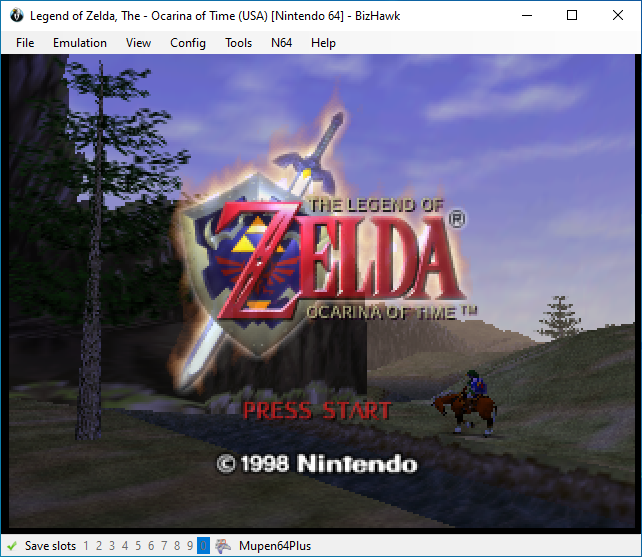
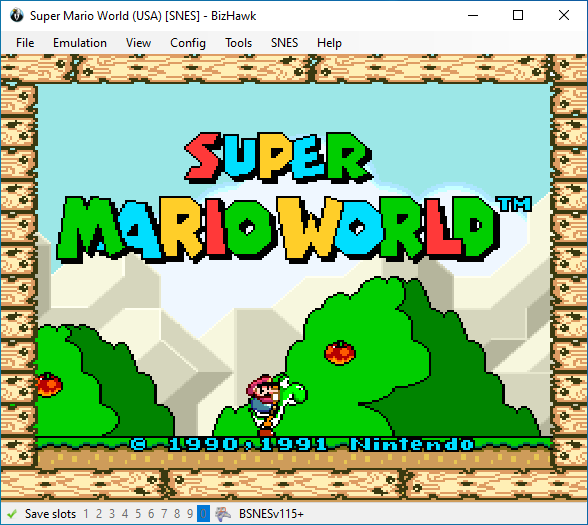
Supported consoles and computers:
- 3DO
- Apple II
- Arcade machines
- Atari
- Video Computer System / 2600
- 7800
- Jaguar + CD
- Lynx
- Bandai WonderSwan + Color
- Commodore
- Coleco Industries ColecoVision
- Doom
- DOS / Windows
- Fairchild Channel F
- GCE Vectrex
- Magnavox Odyssey² / Videopac G7000
- Mattel Intellivision
- MSX
- NEC
- PC Engine / TurboGrafx-16 + SuperGrafx + CD
- PC-FX
- Neo Geo Pocket + Color
- Nintendo
- 3DS
- DS + DSi
- Famicom / Nintendo Entertainment System + FDS
- Game Boy + Color
- Game Boy Advance
- Nintendo 64 + N64DD
- Super Famicom / Super Nintendo Entertainment System + SGB + Satellaview
- Virtual Boy
- Sega
- Game Gear
- Genesis + 32X + CD
- Master System
- Saturn
- SG-1000
- Sinclair ZX Spectrum
- Sony Playstation (PSX)
- Texas Instruments TI-83
- TIC-80
- Uzebox
- more coming soon..?
See Usage below for info on basic config needed to play games.
to top
Installing
Windows
Released binaries can be found right here on GitHub (also linked at the top of this readme):

Click BizHawk--win-x64.zip to download it. Also note the changelog, the full version of which is over on TASVideos.
Extract it anywhere, but don't mix different versions of BizHawk, keep each version in its own folder. You may move or rename the folder containing EmuHawk.exe, even to another drive—as long as you keep all the files together.
Run EmuHawk.exe to start. If startup is blocked by a Windows SmartScreen dialog, click "More Info" to reveal the override button. Third-party antivirus may also block startup. There are some command-line arguments you can use: see Passing command-line arguments.
If you get the message "EmuHawk needs X in order to run!" when launching EmuHawk, it means you need to install that component on your system. As of 2.10, only the MSVC++ redistributable is required.
For older versions we have an all-in-one installer which you can get here, or you could download and install just the component that's missing.
We will be following Microsoft in dropping support for old versions of Windows, that is, we reserve the right to ignore your problems
unless you've updated to at least Win11 21H2 (initial release) or Win10 22H2. Read more on MSDN.
> You may find that the upgrade from Win10 to Win11 is not available for your PC. Rather than throwing it out and getting a new one, consider switching to Linux. See endof10.org for more info.
A "backport" release, 1.13.2, is available for users of Windows XP, 7, or 8.1 32-bit.
It has many bugs that will never be fixed (backports have ceased) and it doesn't have all the features of the later versions—you should probably get a new operating system instead.
to top
Unix
Install the listed package with your package manager (some buttons are links to the relevant package). The changelog can be found over on TASVideos.
-%231793D1.svg?logo=archlinux&style=popout)
No package for your distro? Install via Nix (see below), or install manually by grabbing the latest release here on GitHub:

If you download BizHawk this way, don't mix different versions, keep each version in its own folder.
The runtime dependencies are glibc, Mono "complete", OpenAL, Lua 5.4, and lsb_release.
The .NET 8 Runtime (a.k.a. .NET Core) is not a runtime dependency, only Mono. Wine is also not a runtime dependency. If you try to use Wine anyway then you're on your own.
If it's not clear from the downloads here or in your package manager, EmuHawk is for x86_64 CPUs only.
You may be able to run on AArch64 with missing features: see #4052.
Run EmuHawkMono.sh to start EmuHawk—you can run it from anywhere, so creating a .desktop file to wrap the script is fine. The shell script should print an error if it fails, otherwise it's safe to ignore console output.
It takes the same command-line arguments as on Windows: see Passing command-line arguments.
Most features and cores work, a notable omission being Mupen64Plus (N64). See the Linux thread, #1430, for a more detailed breakdown.
Note: While the Linux port is about at parity, this remains a Windows-centric project. Please have patience as most of the dev team are on Windows.
to top
Android
Not available for either AArch64 or x86_64 devices. The feature request is #355.
iOS
As with Apple silicon Macs, not available.
If you were looking to emulate iOS apps, see #3956.
macOS (legacy BizHawk)
EmuHawk depends on certain libraries for graphics, and these don't work on macOS. Users on macOS have three options:
- Use another machine with Windows or Linux, or install either in an x86_64 VM (Wine is not a VM).
- Use an older 1.x release, which was ported to macOS by @Sappharad (with replacements for the missing libraries), via Rosetta. Links and more details are in this TASVideos forum thread (jump to last page for latest binaries). See #3697 for details.
- For the technically-minded, download the source of an older 2.x release. @Sappharad put a lot of work into it but ultimately decided to stop.
- ...or use the Nix expression as a starting point instead.
- Either way, this probably won't work on Apple silicon without a lot more effort. You'll probably want to build for x86_64 and run Mono via Rosetta. See #4052 re: Linux AArch64.
Nix/NixOS
> Curious what this Nix thing is about? Start here.
You can get a dev build or recent release with Nix, either by running nix-build in a clone of the repo, or by importing the expression from a tarball:
nix-env -f https://github.com/TASEmulators/BizHawk/archive/master.tar.gz -iA emuhawk-2_10
See the dedicated Nix usage readme for what attributes are exposed.
If you use Nix on a non-NixOS distro, you just need to add one --arg and your host graphics drivers will be picked up thanks to nixGL.
You can also quickly get a development setup, including the .NET SDK and an IDE, with the provided shell.nix. See the Nix-specific docs for details.
to top
Development builds
Development builds are made automatically whenever someone contributes. Because of this, we recommend using a release for work that requires stability (such as TASing), and only switching to a dev build if there's a specific change or addition you need.



Click one of the buttons above to download a dev build (they're also at the top of this readme).
- On the GitHub Actions page for a workflow run or job, click "Summary", then on the relevant download button under the "Artifacts" heading.
- On the GitLab CI page for a Pipeline, click "Jobs", then on the download button for the relevant
package_devbuild_* job. (On the Pipelines list page, there's also a download button on each Pipeline. On a Job page, the download button is on the right.)
To find the dev builds for a specific commit, you can click the green checkmark next to it (in the commit history, for example)
for a dropdown, then click the link for any GitHub Actions workflow.
(GitLab has a similar feature, but its Pipelines don't appear in GitHub's UI.)
Building
See the contributor guidelines.
tl;dr:
- On Unix, run
Dist/BuildRelease.sh (uses .NET SDK CLI). You can also use Rider or VS Code.
- On Windows, run in VS2022. You can also use the command-line (
dotnet build BizHawk.sln), Rider, or VS Code.
to top
Usage
Passing command-line arguments
EmuHawk takes some command-line options which are documented in the source.
On Linux starting from 2.10, these can also be viewed offline with the usual --help.
On Windows 10+, it's easiest to use PowerShell for this. For example, to pass --lua=C:\path\to\script.lua as the first argument and C:\path\to\rom.n64 as the second, navigate to the BizHawk install folder and run:
./EmuHawk.exe '--lua=C:\path\to\script.lua' 'C:\path\to\rom.n64'
On Linux, you can pass arguments to EmuHawkMono.sh as expected and they will be forwarded to mono and to EmuHawk. (You can also export env. vars.)
All the arguments work as on Windows, with the caveat that file paths must be absolute, or relative to the install dir (EmuHawkMono.sh changes the working dir to there).
The same example as above would be ./EmuHawkMono.sh --lua=/path/to/script.lua /path/to/rom.n64.
For char escaping tips, see Unix StackExchange your shell's man/info page. BASH and Zsh have different rules!
Loading firmware
Put all your dumped firmware files in the /Firmware folder and everything will be automatically detected and loaded when you try to load a game (filenames and subfolders aren't enforced, you can just throw them in there). If you're missing required or optional firmware, you will see a "You are missing the needed firmware files [...]" dialog.
Keep in mind some firmware is optional, and some have multiple versions, only one of which needs to be set.
If you want to customise firmware (when there are alternative firmwares, for example) go to Config > Firmwares..., right-click the line of the firmware you want to change, click "Set Customization", and open the file.
You can change where EmuHawk looks for firmware by going to Config > Paths... and changing "Firmware" in the "Global" tab to the new location. This allows multiple installs to use the same folder.
Identifying a good rom
With a core and game loaded, look in the very left of the status bar (on by default, toggle with View > Display Status Bar):
- a green checkmark means you've loaded a "known good" rom;
- a "!" in a red circle means you've loaded a "known bad" rom, created by incorrect dumping methods; and
- something else, usually a ?-block, means you've loaded something that's not in the database.
Rebinding hotkeys and virtual gamepads
There are two keybind windows, Config > Controllers... and Config > Hotkeys.... These let you bind your keyboard/mouse and gamepads to virtual gamepads, and to frontend functions, respectively.
Using them is simple, click in a box next to an action and press the button (or bump the axis) you want bound to that action.
If the "Auto Tab" checkbox at the bottom of the window is checked, the next box will be selected automatically and whatever button you press will be bound to that action, and so on down the list. If "Auto Tab" is unchecked, clicking a filled box will let you bind another button to the same action. Keep in mind there are multiple tabs of actions.
Selecting and configuring cores
To change which core is used where multiple cores emulate the same system (currently: NES, SNES, GB/C, SGB, and PCE/TG-16), look under Config > Cores. Under that menu, you'll also find the GB in SGB checkbox. When checked, GB/C games will be loaded using the chosen SGB core instead of the chosen GB core.
Cores have their own settings, which you can find in various windows under the system-specific menu (between Tools and Help when a rom is loaded). Some cores, like Mupen64Plus, have a labyrinth of menus while others have one.
Running Lua scripts
Go to Tools > Lua Console. The opened window has two parts, the loaded script list and the console output. The buttons below the menubar are shortcuts for items in the menus, hover over them to see what they do.
Any script you load is added to the list, and will start running immediately. Instead of using "Open script", you can drag-and-drop .lua files onto the console or game windows.
Running scripts have a "▶️" beside their name, and stopped scripts (manually or due to an error) have a "⏹️" beside them. Using "Pause or Resume", you can temporarily pause scripts, those have a "⏸️".
"Toggle script" does just that (paused scripts are stopped). "Reload script" stops it and loads changes to the file, running scripts are then started again. "Remove script" stops it and removes it from the list.
In-game saves
Games often have a "save progress" feature, which writes some save data on the cart or some sort of memory card. (Not to be confused with EmuHawk's savestates.)
But when EmuHawk emulates this process, the in-game saves remain in the host system's memory (RAM) along with the rest of the virtual system, meaning it's not really saved. The save data needs to be copied to a file on disk (on the host), which we call "SaveRAM flushing".
You can simply use File > Save RAM > Flush Save Ram (default hotkey: Ctrl+S) to make EmuHawk save properly. The .SaveRAM files are in system-specific subfolders of the BizHawk install folder (configurable) for if you want to make backups, which you should.
The File > Save RAM menu is printed in bold when the virtual system does a save, which usually corresponds to pushing a "save progress" button in-game. Note that some games use SRAM for miscellaneous tasks, so it may not be strictly necessary to flush the SaveRAM every time it's changed. Can't hurt though.
EmuHawk can also flush automatically, which you can configure with Config > Customize... > Advanced > AutoSaveRAM. When closing or switching roms, EmuHawk may also try to flush SaveRAM. A disclaimer: Automatic flushing is extremely unreliable and not being maintained. It may corrupt your previous saves!
More disclaimers: Develop a habit to always flush saves manually every time you save in the game, and make backups of the flushed save files! If you don't flush saves manually and something breaks, you're on your own. If your save has been corrupted and you didn't make a backup, there's nothing we can do about it.
to top
TASing
This section refers to BizHawk specifically. For resources on TASing in general, see Welcome to TASVideos. This section hasn't been written yet.
For now, the best way to learn how to TAS is to browse pages like BasicTools on TASVideos and watch tutorials like The8bitbeast's and Sand_Knight and dwangoAC's.
TAStudio
A lot of useful information is presented in the video tutorials thread on TASVideos.
Analog controls
Enter analog editing mode by double-clicking on an analog input cell. The cell color will change. There are several ways to edit values:
- Arrow keys (see the
TAStudio section in the Hotkeys menu)
- Numeric input
- Mouse dragging
- Using the
Virtual Pad tool while the Recording mode is enabled in TAStudio
While in analog editing mode, you can select multiple rows if you hold Shift or Control key and click on the Frame# column. That will allow you editing all those cells at once using Arrow keys or numeric input.
to top
Creating a GUI with Lua scripts is fiddly. If you know some C# (or another .NET language), you can replace your Lua script with an external tool. See the ext. tools wiki for more details.
We're looking to create a catalog of tools made by the community, share yours on IRC/Discord (links below).
Cores
A core is what we call the smaller bits of software that emulate just one system or family of systems, e.g. NesHawk for NES/Famicom. For the most part, we have one core per system, but sometimes you have the choice between speed (in terms of CPU usage) and accuracy.
In the table below, core names in bold are accuracy-focused and acceptable on TASVideos. The -Hawk cores are part of the BizHawk project. All other cores are ported, mainly from the Mednafen project.
| System | Cores |
|---|
| 3DO | Opera |
| 3DS | Encore |
| Apple II | Virtu |
| Amiga | UAE |
| Arcade | MAME |
| Atari 2600 | Atari2600Hawk, Stella |
| Atari 7800 | A7800Hawk |
| Atari Jaguar | Virtual Jaguar |
| Atari Lynx | Handy |
| Channel F | ChannelFHawk |
| Commodore 64 | C64Hawk |
| ColecoVision | ColecoHawk |
| Doom | DSDA-Doom |
| DOS / Windows | DOSBox-X |
| Game Boy / Color | Gambatte, GBHawk, SameBoy |
| Game Boy Advance | mGBA |
| Intellivision | IntelliHawk |
| MSX | MSXHawk |
| N64 | Ares64, Mupen64Plus |
| NDS | melonDS |
| Neo Geo Pocket | NeoPop |
| NES | NesHawk, quickerNES |
| Odyssey² | O2Hawk |
| PC-FX | T.S.T. |
| Playstation (PSX) | Nymashock, Octoshock |
| Sega 32X | PicoDrive |
| Sega Game Gear | SMSHawk |
| Sega Genesis | Genplus-gx |
| Sega Master System | Genplus-gx, SMSHawk |
| Sega Saturn | Saturnus |
| SNES | BSNES, Faust, Snes9x |
| Super Game Boy | BSNES, Gambatte |
| TI-83 | Emu83, TI83Hawk |
| TIC-80 | TIC-80 reference implementation |
| TurboGrafx | HyperNyma, PCEHawk, TurboNyma |
| Uzebox | Uzem |
| Vectrex | VectrexHawk |
| Virtual Boy | Virtual Boyee |
| WonderSwan / Color | Cygne |
| ZX Spectrum | ZXHawk |
For an idea of what systems may be covered in the future, check our core request list.
to top
Support and troubleshooting
A short FAQ is provided on the TASVideos wiki. If your problem is one of the many not answered there, and you can't find it in the issue tracker search, you can try:
You can open a new issue at any time if you're logged in to GitHub. Please at the very least read the issue templates, we tend to ask the same questions for every one-line issue that's opened.
Unless specified, the below emulators are all available for both Windows and Linux PCs. Many are also available on macOS and Android.
- Dolphin for GameCube and Wii
- FCEUX for NES/Famicom
- GBAHawk (not part of BizHawk) for GBA — requires Windows host
- libTAS for ELF (Linux desktop apps) — requires GNU+Linux host; also emulates other emulators
- lsnes for GB and SNES
- openMSX for MSX
- Not rerecording-capable:
- Ported to BizHawk:
Emulators for other systems can be found on the EmulatorResources page at TASVideos. The TASEmulators GitHub page also holds copies of other emulators and plugins where development happens sometimes, their upstreams may be of use.
to top
Contributing
EmuHawk or core development
Do you want your name next to these fine people?
We have many open issues with no-one to work on them, including these
and these.
- 'Tasks' are issues with narrow scope and/or clear requirements.
- Any which would be a good fit for someone who's new to Open Source are listed here (spoilers: it's probably empty).
- For issues in need of
bikeshedding constructive discussion, look at these and these.
The contribution guidelines have more details on how to get set up, work with the code, and submit changes to us.
Don't shy away from asking about an Issue on IRC/Discord (see above)! You might be given more info about the problem—or you might find out someone is already working on it.
For adding new features it's especially important, because details are often left out of the issue tracker, and we may want to make sure the new addition is future-proofed.
With regards to core development, we're not particularly interested in PRs adding cores out-of-the-blue, but if you have experience in emulator development please get in touch. We have a wishlist of cores to port, and on top of that, many of our in-house cores are without a maintainer.
- Open issues by programming language: C, C++,
C# (will have no lang label), Rust
to top
Testing/QA
Not a programmer? You can still be helpful by grabbing a recent dev build and reproducing old bugs (checking if they're still broken or if they've been fixed).
- This label tracks bugs which are likely fixed, but we're not sure.
- Otherwise just filter by core and look for issues without a recent
Repro: label.
Those with hardware or other domain knowledge may be able to help triage issues like these.
to top
Localization
Not available. Contact YoshiRulz on Discord or elsewhere if you're interested in translating.
to top
License
EmuHawk and DiscoHawk can be used by anyone for any purpose allowed by the permissive MIT License (Expat). The full text is very short.
Any developers looking to re-use code from BizHawk in their own work should understand which files the license applies to. It's included in the text, but tl;dr: anything outside /src isn't ours and we can't give you permission to share, use, or sell it. That means not all the files included with BizHawk releases or dev builds are free to share, either.
Disclaimer time! Can't have emulation software without a disclaimer...
> Following the terms of our license does not make you immune from other contracts or laws.
> Some or all of the following may be illegal where you live: creating a copy of non-free software for backup purposes ("dumping" or "ripping"); distributing copies of non-free software; soliciting pirated copies of software; knowingly possessing pirated copies of software; importing software from the USA (GitHub and TASVideos are American entities); using a backup copy of non-free software without the original.
> For obvious reasons, we cannot and will not distribute dumped games or firmware that are under copyright.
to top