FluentTaskScheduler
A modern, powerful, and intuitive Windows task scheduling application built with WinUI 3 and .NET 8.
Overview
FluentTaskScheduler is a professional-grade wrapper for the Windows Task Scheduler API, designed with Microsoft's modern Fluent Design System. It simplifies the creation and management of automation tasks, offering a sleek alternative to the legacy Windows Task Scheduler.
> [!IMPORTANT]
> AI Development Disclaimer: This application was developed primarily with the assistance of Artificial Intelligence. Users should be aware that AI-generated code may contain unforeseen bugs, logic errors, or security vulnerabilities. Please test all tasks in a safe environment before deployment. The developer assumes no responsibility for any system instability or data loss resulting from the use of this software.
Donate on Buy me a coffee
If you like what this project is for, I would really appreciate a (optional!) donation:

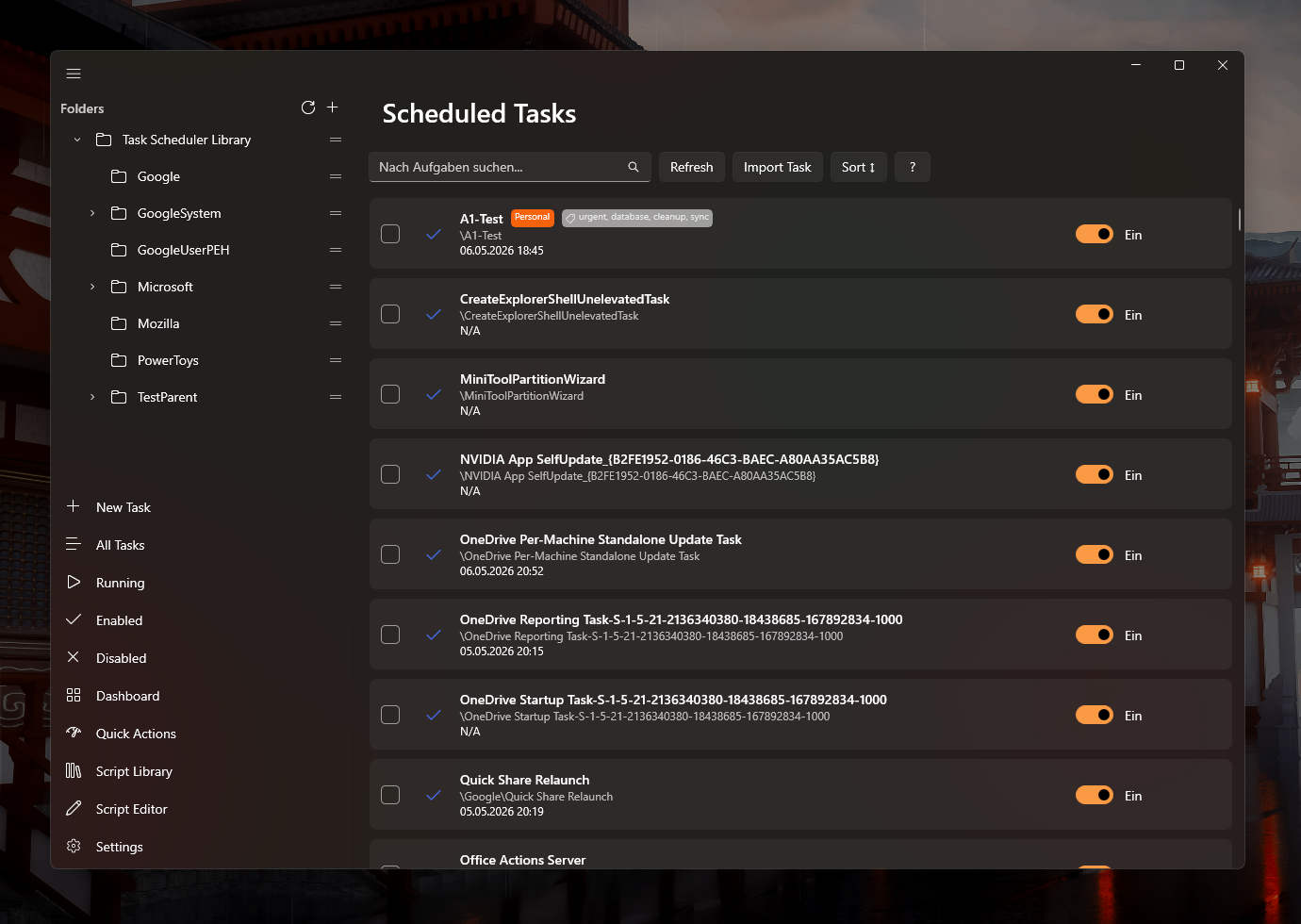
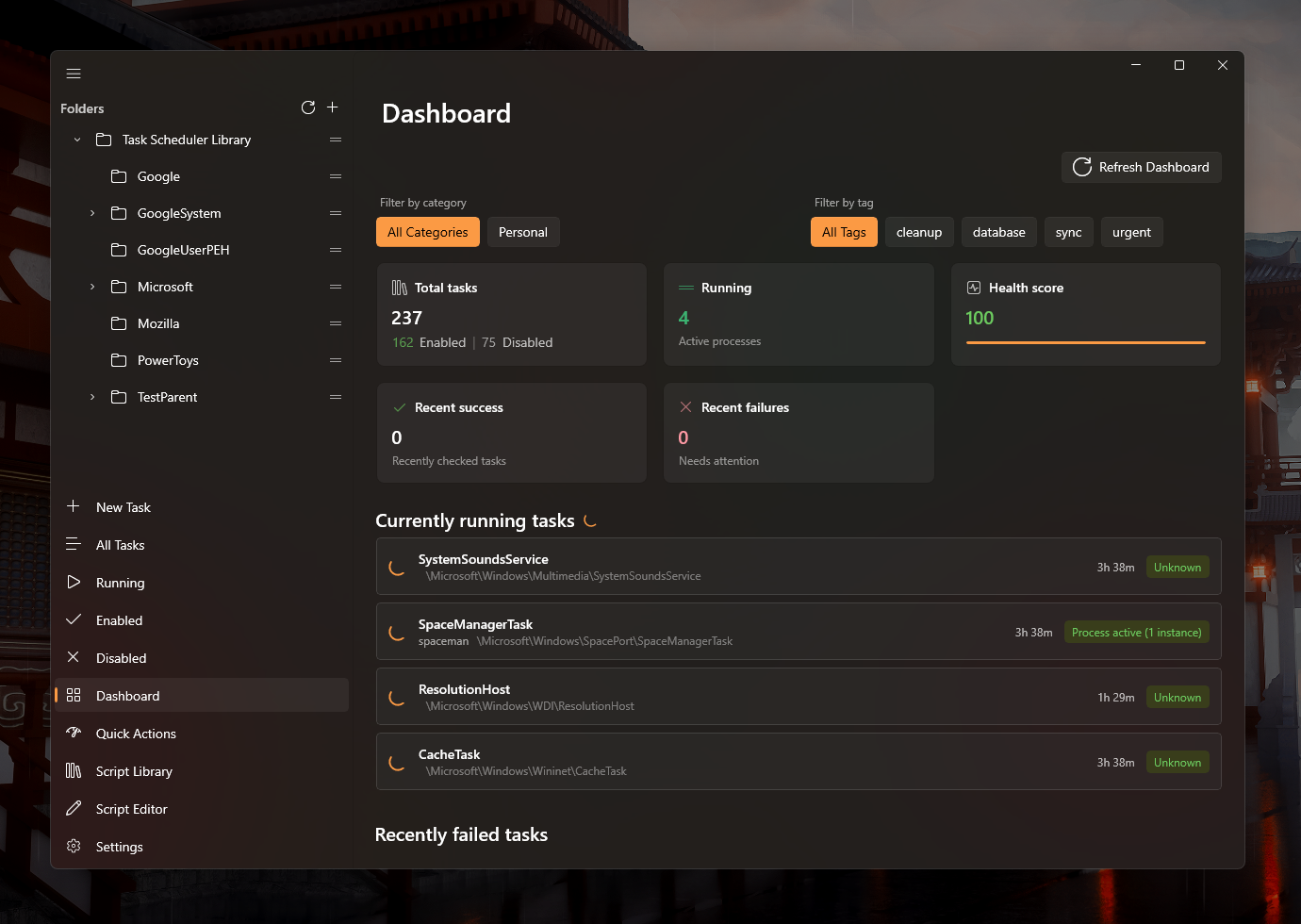
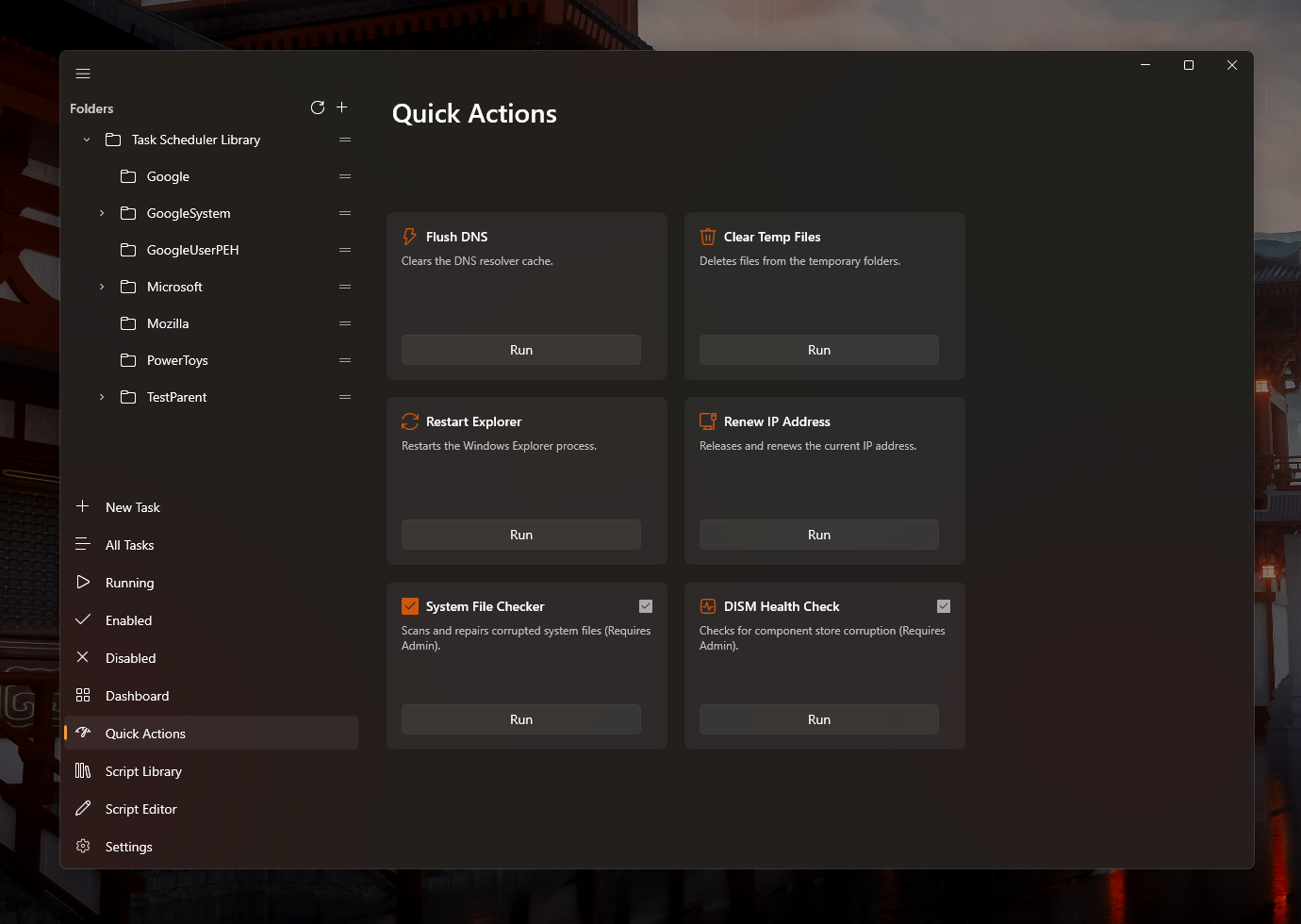
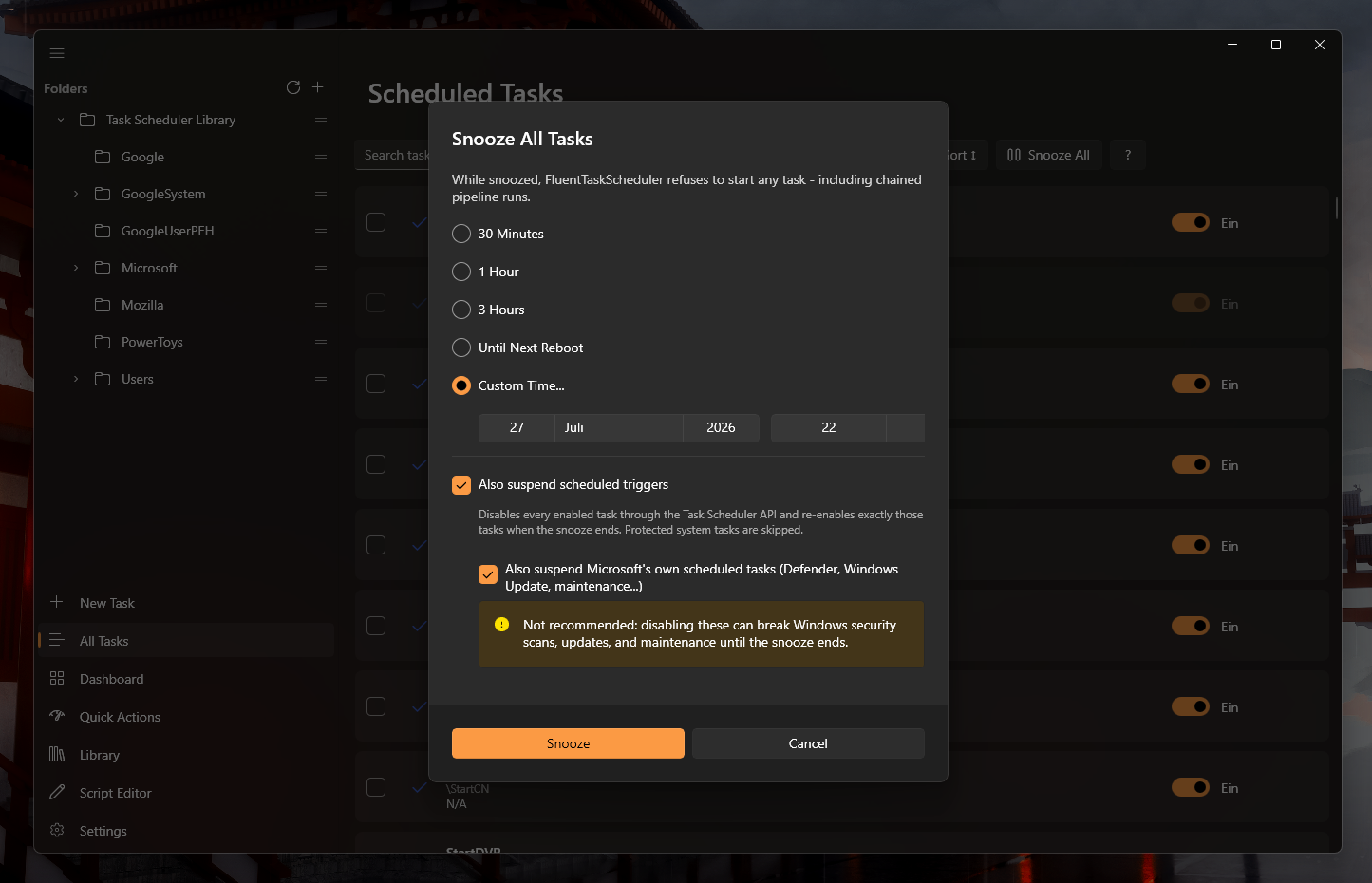
Screenshots
Installation instructions
Manually
Go to the Releases Page and download the newest version. Two formats are available per architecture (x64 / ARM64):
- Setup MSI — Traditional installer with per-user or machine-wide options.
- Portable ZIP — Extract anywhere and run. No installation required.
Winget
winget install -e --id TRGamer-tech.FluentTaskScheduler
Scoop
scoop bucket add extras
scoop install extras/fluenttaskscheduler
Chocolatey
https://community.chocolatey.org/packages/fluenttaskscheduler
choco install fluenttaskscheduler
Key Features
🕹️ Dashboard & Monitoring
- Activity Stream: A live feed of task activity. Click any entry to jump directly to the task details.
- Task History: Comprehensive history of all task executions, keeping you informed of every run.
- Visual Analytics: A dynamic task run history chart on the dashboard showing successes vs. failures over time.
- Animated Status: Clearly identify running tasks at a glance with animated status indicators.
🕒 Comprehensive Triggers
- Time-Based:
- One Time: Run once at a specific date and time.
- Daily: Recur every X days.
- Weekly: Select specific days of the week (Mon-Sun).
- Monthly: Schedule on specific dates (e.g., 1st, 15th) or relative patterns (e.g., First Monday of the month).
- System Events:
- At Logon: Trigger when a user logs in.
- At Startup: Trigger when the system boots.
- On Event: Trigger based on specific Windows Event Log entries (Log, Source, Event ID).
- Session State Change: Trigger on Lock, Unlock, Remote Connect, or Remote Disconnect.
- Advanced Options:
- Random Delay: Add a random delay to execution times to prevent thundering herds.
- Expiration: Set task expiration dates.
- Stop After: Automatically stop tasks if they run longer than a specified duration.
🔄 Advanced Repetition
- Task Repetition: Configure tasks to repeat every few minutes or hours.
- Recurring Tasks Support: Set a repetition interval and duration per trigger for flexible automation.
- Task Duration: Set a duration for the repetition pattern (e.g., repeat every 15 minutes for 12 hours).
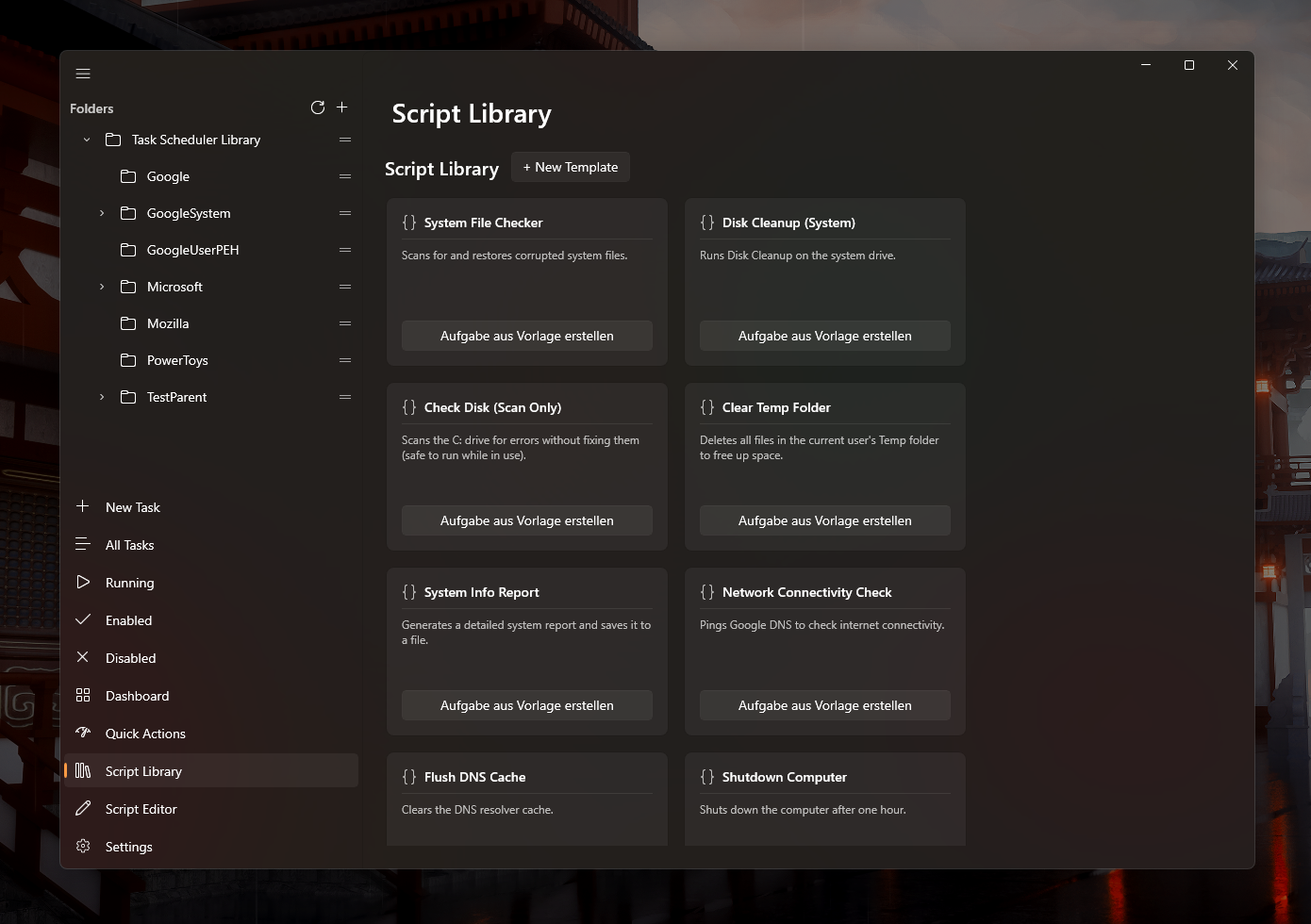
📜 Script Library
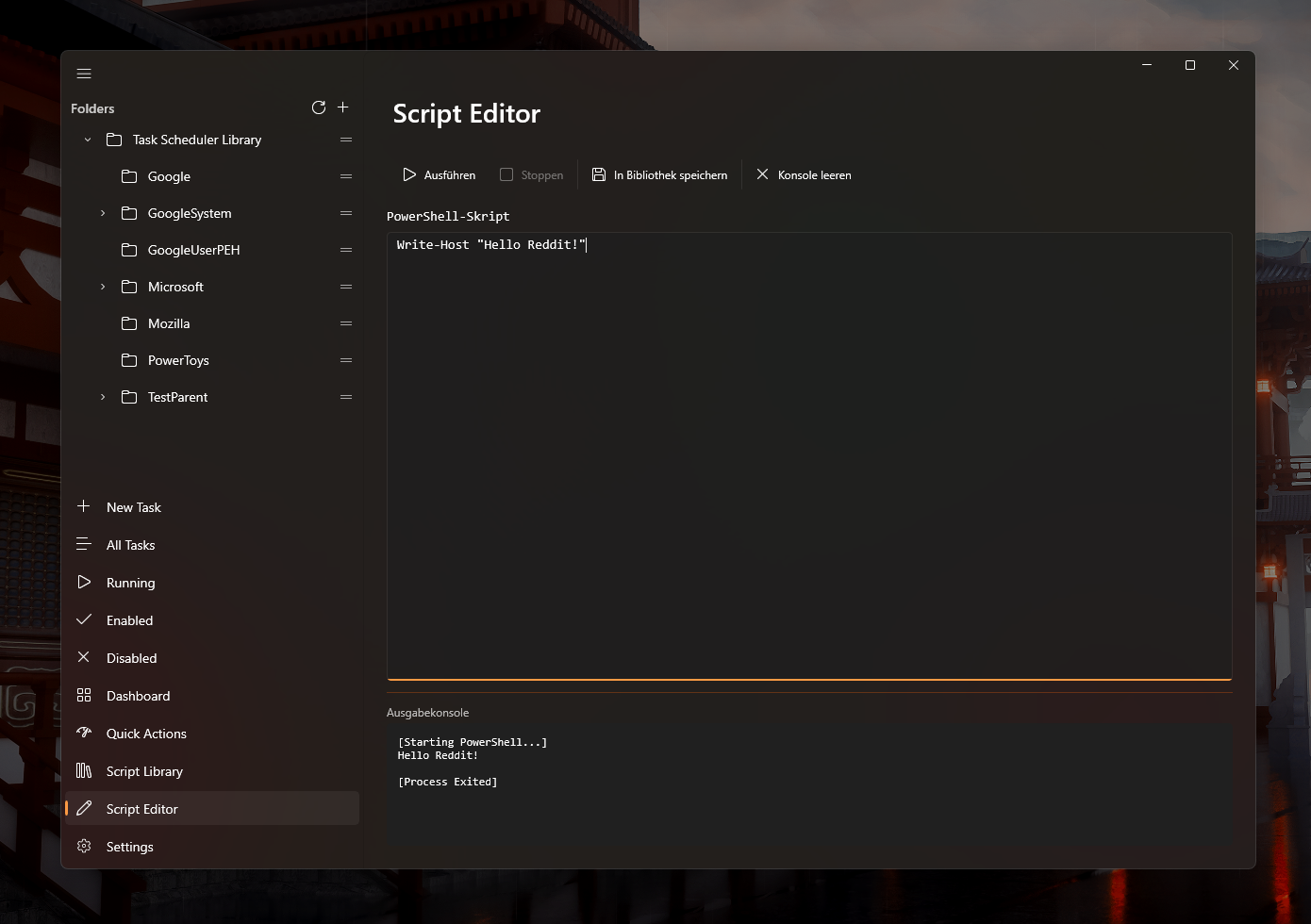
- Centralized Management: A dedicated space for pre-written PowerShell scripts, separating logic from task configuration.
- Reusable Code: Use scripts in multiple tasks.
- Custom Templates: Save and reuse your own task templates, going beyond just the pre-built scripts.
🛡️ Actions & Conditions
- Actions:
- Run programs or scripts.
- Specialized support for PowerShell scripts with execution policy bypass tips.
- Custom working directories and arguments.
- Conditions:
- Idle: Start only if the computer has been idle.
- Power: Start only if on AC power; stop if switched to battery.
- Network: Start only if a network connection is available.
- Wake to Run: enhance reliability by waking the computer to execute the task.
🎨 Customization
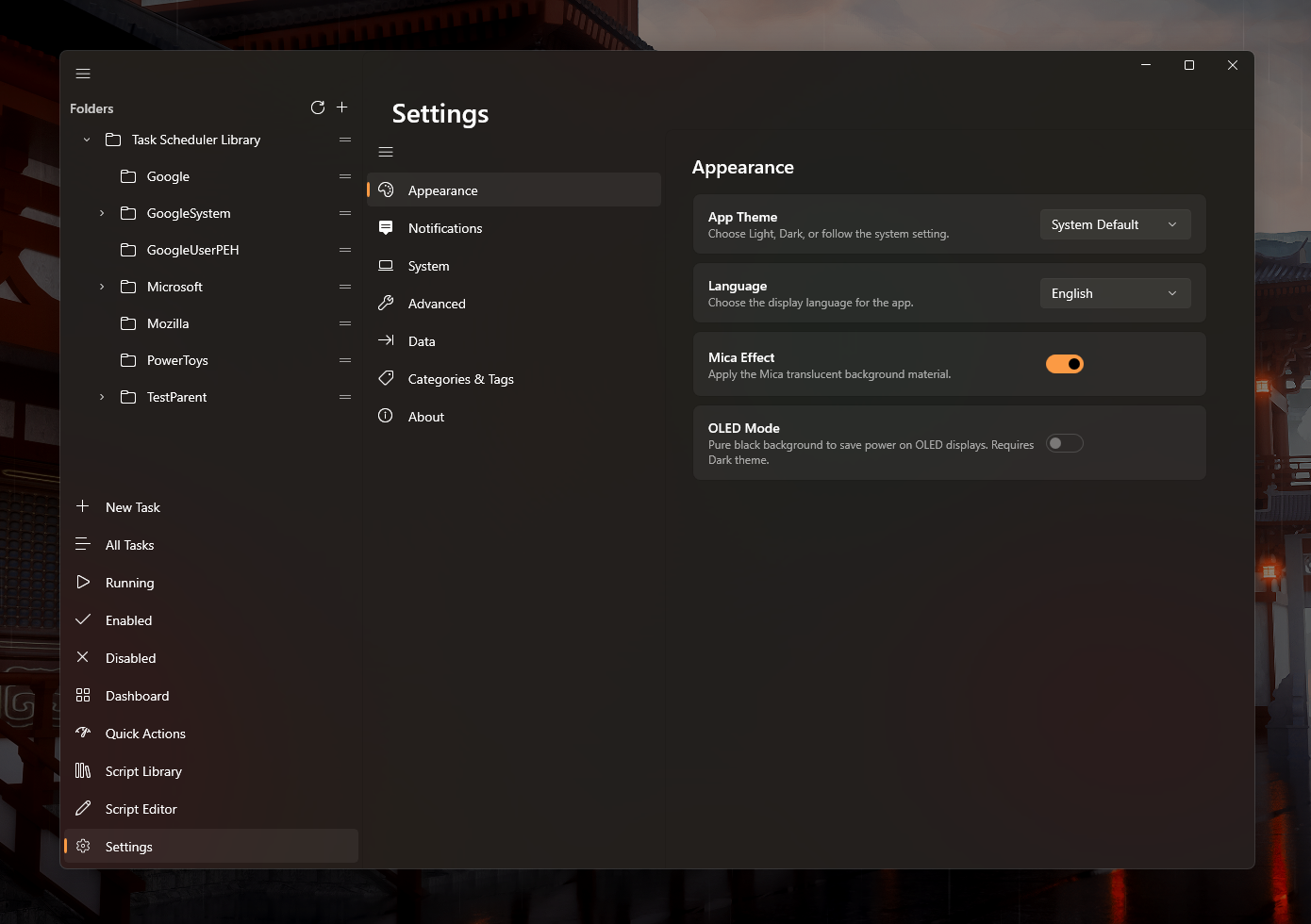
- Themes: Choose between Light Mode and Dark Mode for a standard look, or go full stealth with OLED Mode (Pure Black) if you actually care about your display longevity.
- Mica Effect: Enable or disable the Mica effect for a more premium look.
- Animated Icons: UI elements that come to life, like the Settings icon that reacts to your touch.
- Title Bar Integration: Modern, customized title bar with proper drag regions that actually work (unlike some other apps we won't mention).
- Multilingual: Support for English, German, Chinese, and Japanese with a runtime language switcher.
- Smooth Scrolling: Optional smooth/inertia scrolling throughout the app, disabled by default for a snappier feel.
- Window Size Memory: The app remembers your last window size and restores it on next launch.
🧬 System Integration
- ARM64 Support: Native support for ARM64 devices.
- System Tray: Minimize the app to the tray to keep your taskbar clean while the scheduler hums in the background. Disabled by default.
- Tray Badge: See the number of currently running tasks at a glance directly on the tray icon.
- Multi-Window Tray Management: Open multiple windows and manage them independently from the tray right-click menu — restore or close individual windows, or open a new one, all from a single tray icon.
- Tray Notification: A toast notification appears the first time the app is minimized to tray, with a click action to restore the window instantly.
- Single Instance: Launching the app a second time brings the existing window to the front instead of opening a duplicate.
- Run on Startup: Option to launch automatically with Windows.
- Notifications & Reminders: Get native toast notifications and reminders for pending tasks, completions, or those annoying failures.
- Onboarding Walkthrough: Step-by-step onboarding for first launch to guide new users through key features.
- Changelog Popup: A "What's New" popup highlighting application updates the first time you run a new version.
⚙️ Robust Settings
- Modern Navigation: A reworked settings page utilizing
NavigationView for that premium feeling you didn't know you needed.
- Privileges: Run tasks with highest privileges (Admin) or as System/Specific User.
- Priority: Configurable task priority (Realtime to Idle).
- Concurrency: Define behavior for multiple instances (Parallel, Queue, Ignore New, Stop Existing).
- Fail-Safe:
- Restart on Failure: Automatically attempt to restart failed tasks up to a configured limit.
- Run if Missed: Execute the task as soon as possible if a scheduled start was missed (e.g., computer was off).
- Settings Backup: Backup and restore your application settings to ensure your configuration is safe.
📊 Management & History
- Task History: View recent task execution history within the app (Today, Yesterday, This Week, All Time).
- Detailed Analysis: Click any history entry to open a deep-dive view with granular Event Log data (Event IDs, OpCodes, User context, etc.).
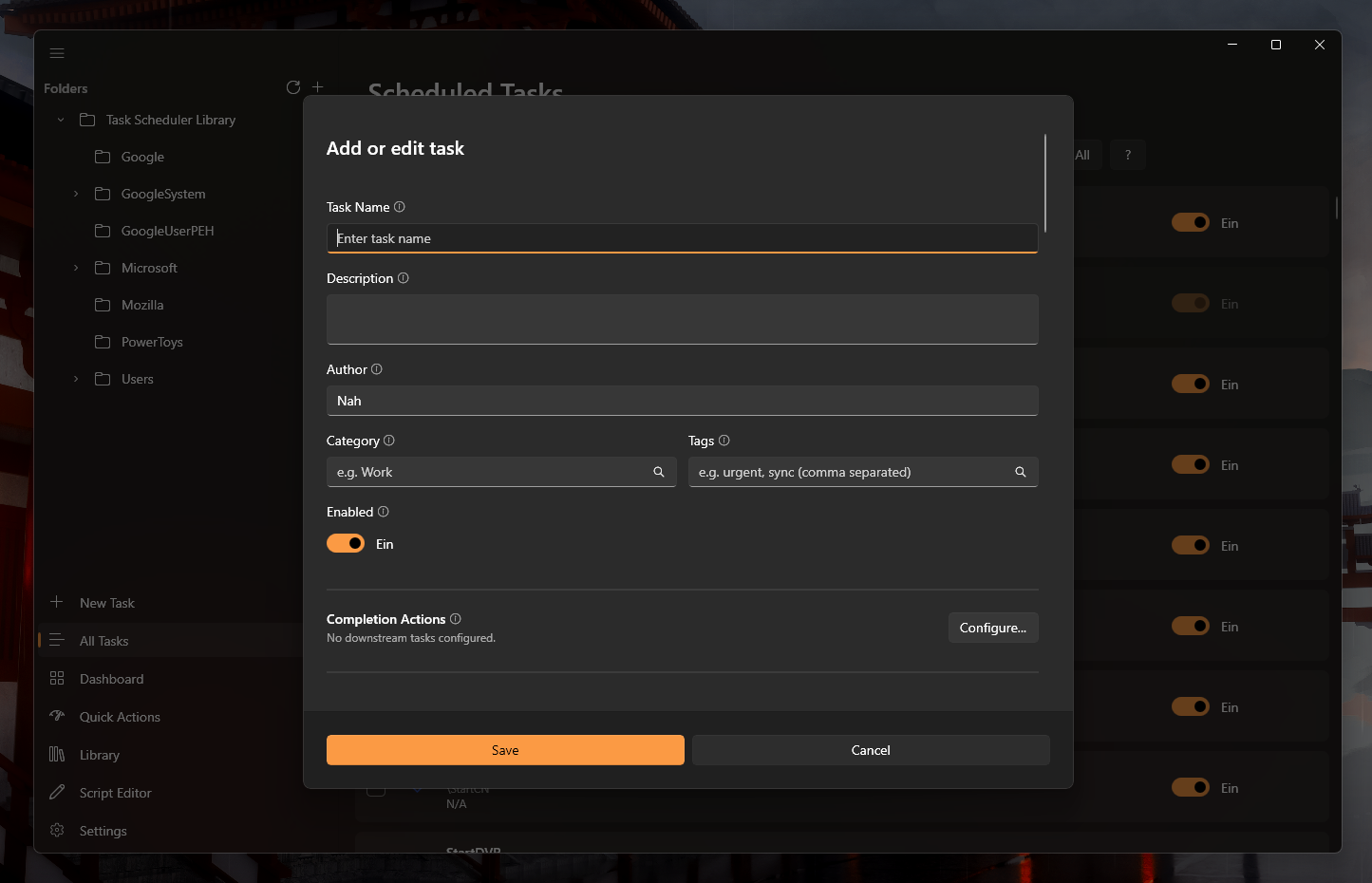
- Categorization & Tags: Organize tasks with custom tags and categories.
- Smart Search: Instantly find tasks by name, status, path, or those tags you just added.
- Folder Management: Organize your tasks logically by creating, renaming, and deleting custom folders. Features dedicated grip handles for reliable drag-and-drop reordering.
- Smart Navigation: The application remembers your last-used folder on restart.
- Sortable Lists: Sort tasks by name, status, next run, or last run from the Sort toolbar button.
- Import/Export: Easily backup or migrate task definitions. Supports importing to any selected folder.
- Batch Operations: Select and manage multiple tasks simultaneously.
- CLI Support: Full command-line interface for automation and headless management.
⌨️ Keyboard Shortcuts
| Shortcut | Action |
|---|
Ctrl + N | New Task |
Ctrl + E | Edit Selected Task |
Ctrl + R | Run Selected Task |
Delete | Delete Selected Task |
F5 | Refresh Task List |
Esc | Close Dialogs / Clear Selection |
? / F1 | Keyboard Shortcut Cheat Sheet |
💻 CLI Reference
FluentTaskScheduler supports command-line arguments for integration with scripts and external tools.
# List all tasks as JSON
FluentTaskScheduler.exe --list

# Run a specific task
FluentTaskScheduler.exe --run "MyTaskName"

# Enable or Disable a task
FluentTaskScheduler.exe --enable "MyTaskName"
FluentTaskScheduler.exe --disable "MyTaskName"

# Export task history to CSV
FluentTaskScheduler.exe --export-history "MyTaskName" --output "C:\logs\history.csv"
Technology Stack
- Framework: .NET 8
- UI Architecture: WinUI 3 (Windows App SDK)
- Core Logic: TaskScheduler Managed Wrapper
- CI/CD: Fully automated GitHub Actions for x64 and ARM64 builds (thanks, TalyNone).
- Auto-Update: VeloPack for seamless in-app updates via GitHub Releases.
- Architectures: Support for x64 and ARM64.
- Language: C#
Building from Source / Publishing with VeloPack / Winget / Choco / Scoop
See CONTRIBUTING for details
🛠️ Troubleshooting
- Crash Logs: If the application encounters a critical error, a
Crash_Log.txt file is generated in %LOCALAPPDATA%\FluentTaskScheduler\.
- Admin Rights: Some features (like "Run as SYSTEM") require the application to be run as Administrator.
- Preferences storage: The application stores its preferences as well as the log and custom script files in a JSON file in "%localappdata%\FluentTaskScheduler".
- Portable distribution: The portable release is a ZIP archive (folder), not a single
.exe. WinUI 3 requires its native runtime DLLs to be present alongside the executable; single-file bundling is not supported and will crash on startup.
License
This project is licensed under the MIT License - see the LICENSE file for details.