Loadout
Your coding agents, kitted out and kept in check.




Loadout is a workbench for coding agents. It starts the one you already use —
Claude Code, Codex, Grok CLI or one you define — and looks after everything around it.
It doesn't replace the agent, and it won't install one for you.
On its own, your agent reads all of CLAUDE.md or AGENTS.md every session.
Loadout picks the instructions the job in front of you needs, and shows you
what they'll cost before anything starts. What a project has taught you goes
into memory, and where you got to goes into a task record, so the next session
and the next machine both start from there. Agent files stay out of your
repository, and spend is added up from transcripts your agents already write.
When one agent isn't enough, put a team on the goal and watch it from your
browser. A run without a budget won't start.
Start here
- You already use Claude Code, Codex or Grok CLI. Read on, then follow
your first run. Four commands get you going.
- You're new to AI and not a programmer. Start with
Loadout in plain words. It explains what a coding
agent is before it asks you to type anything.
- You use a screen reader, magnification or another assistive technology.
Start with setting up accessibility, or its
plain-language version. It says plainly what
has been checked and what hasn't.
What it does for you
Everything Loadout does works on something around the agent, never on the agent
itself: what it's told, what it knows, what it may touch and spend, and where
you watch it work. What you get has the whole list, with
commands.
What your agent is told
Specialists: the right instructions, with the cost shown
Loadout doesn't hand your agent one enormous prompt that's mostly irrelevant.
There are 106 specialists compiled in, including 18 skills, and it works out
which ones apply from what your repository is made of and the sentence you
typed. It tells you why it picked each one.
loadout instructions explain "why is this postgres query so slow" --mode investigate
In the worked example on what you get, that set comes to
2,403 tokens against a 12,000 budget — 20%. Ask how a different task compares
and it shows only the difference: 2,403 to 1,655, 748 fewer, before you've
launched either. Five modes — implement, investigate, review, advise
and coordinate, which is for the lead of a team run — hold for the whole
session and are never guessed from your wording.
The compiled context is deleted when the agent exits.
Nobody has measured yet whether a session given the narrower set does better
work than one given everything — only that what it carries is smaller.
How specialists get chosen
Your coding styles, your voice and a map of the code
Coding styles say how you write code, and you choose which apply to a project.
loadout voice learn learns how you write from your own writing, as rules you
accept one at a time, and loadout voice check holds commit messages and docs
to them. An index of every type and member puts a one-line map of each
directory in front of the agent, so it can find where something is declared
without searching the tree, and loadout docs audit checks that the prose
still describes the code.
What it knows
Memory: what one session learned, there for the next
loadout memory keeps the durable facts about a project — decisions, traps,
quirks of the build — in your workspace, so a fact learned on one machine is
there on the next. Credentials are refused on write and named by pattern, never
by value, because the workspace gets pushed.
Only the index reaches a session, so the context says when to go and look:
before diagnosing a failure, before an unfamiliar error. That's because an index
left to be noticed was acted on once in twelve thousand turns. The other
approach was measured and removed: a hook that searched memory on every prompt
spoke on 56% of 322 real prompts when only 18% had anything relevant to say.
Memory
Tasks, ideas and sessions
- Where you got to.
loadout task keeps what a project is working on, each
entry with who said so and when, and checks it against the repository, so
"called done, and nothing committed since" gets said out loud.
- Ideas into plans.
loadout idea add takes a half-formed idea, and an
agent turns it into a plan over rounds of questions you answer, instead of it
living and dying in one conversation.
- Sessions across agents. List and resume them, with the task, mode and
profile brought back rather than a bare transcript reopened.
- The agent can ask back. Every launch declares Loadout itself as an MCP
server with 24 tools: read a specialist, ask what it was given and why,
search what the project knows, read and update its tasks and ideas. The ones
that write change Loadout's own records, never your repository, and none of
them pushes to a remote. Only Claude sessions get them so far.
What it may touch, and what it spends
Keeping your repository yours
Every coding agent wants to leave something in your repository — instruction
files, a rules directory, MCP config, session state. Loadout keeps all of it in
one workspace instead, a plain directory or a Git repository if you want it
versioned. loadout protect installs a pre-commit hook and Git excludes that
keep agent files out, and it warns rather than blocks. loadout migrate moves
what's already scattered around, shows you the change first and takes a
snapshot you can restore.
Preview, undo, one workspace and what it cost
- Preview first, undo afterwards. Every Loadout command that changes a file
takes
--dry-run, and what did change is in a snapshot loadout backup restore can put back.
- One workspace for every machine. Projects, instructions, memory and MCP
definitions go wherever you install Loadout, with secrets left in each
machine's OS credential store and referenced by name.
- What it costs.
loadout usage reads the transcripts your agents already
write, so it needs no setup and has history from before you installed it.
Where you watch, and who's working
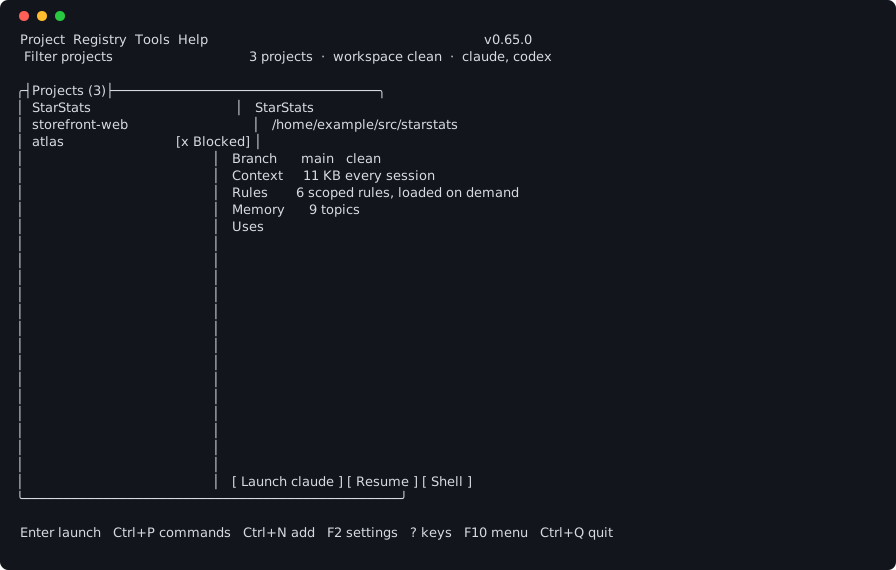
The launcher: choose a project, see the session, press Enter
Run loadout and pick a project. Enter doesn't start anything yet — it opens
the launch sheet, which asks the four things that decide a session: which agent,
what the task is, how to work, and which profile or worktree. Underneath, it
shows which instructions that task would load and what they cost. Enter again
starts the agent with exactly that. The preview costs you one keystroke.
The task line fills itself in from what the project has already recorded,
because a blank line gets skipped: when it started empty, it was typed twice in
122 launches. Correcting a sentence is a much lower bar than writing one.
Ctrl+P finds any command by what it's for — search undo and you get
backup restore.
Launching a session, step by step
Teams: several agents on one goal, one report back to you
Give a team a goal in your own words. A lead splits it into requests, workers
do them in their own sessions and Git worktrees, and you get one report. You
can say what "done" means up front with --done-when, and the report says
which criteria were met.
Spending is capped. A run with no budget and no round limit is refused before it
starts anything, a run that goes two rounds without progress stops, and a run
stops when its budget is spent. In one real run it used four of its five rounds
and $20.84 of a $25 budget. How often a run reaches done without help hasn't
been measured.
Running a team, step by step
Studio: start sessions and work in them from your browser
Studio is the page the daemon serves, at /studio/, with the classic
dashboard beside it at /classic. Start a session from it, with the same launch sheet the terminal
gives you, and type into its live terminal. It shows everything in flight on
one page and lets you answer what's waiting on you. The session belongs to the
daemon, so closing the tab ends nothing. loadout dashboard --open opens it
signed in, and --classic opens the classic page instead.
Using Studio, step by step
The dashboard: watch and steer team runs from your browser
loadout dashboard serves a page on this machine showing what every team
run is doing, what's waiting for you and what it's spent. Runs that need you
come first, under their own heading. It has five screens — List, Office, Graph,
Timeline and Terminal — and every button on it runs the same command
you'd type, so there's one behaviour rather than two that drift apart.
It listens on a loopback address, behind a token that changes every time it
starts, and it fetches nothing from the internet: no webfont, no stylesheet, no
image. A dashboard that needed the network wouldn't work on the machine that
most wants one.
Using the dashboard, step by step
Accessibility: say once how you read, and three things change
One setting changes how the agent writes to you, what it draws while it works,
and what Loadout itself prints. Nothing is detected — you turn it on, and the
first line of output tells you which profile is active.
loadout config set accessibility-preset screen-reader
There are six presets, named for what they reduce rather than for a condition.
The dashboard was built to WCAG 2.2 AA from its first commit, and axe-core
4.10.2 finds no violations in any of fifteen audited states across its two
pages.
What hasn't been checked, said as plainly: no screen reader has been
used with any of it, and no keyboard-only pass by a person has been recorded.
If you use one, what you hear is worth more than any of the above.
Setting up accessibility, step by step
Agents and editors
| Agent | What you get |
|---|
| Claude Code | The compiled context as a system prompt, session listing and resume, MCP servers per project, and a status line with project, branch and context usage |
| Codex | The compiled context as AGENTS.md in an ephemeral CODEX_HOME, session listing and resume. No status line, because Codex has no equivalent |
| Grok CLI | The compiled context via --rules, working directory, session resume, sandbox and permission-mode tightening, --allow/--deny tool rules and streaming JSON headless runs |
| Anything else | Define it under custom_agents in config.yaml — executable, arguments and environment. No code change needed |
loadout code opens the repository in your editor under the profile
you've mapped to that agent. VS Code, VS Code Insiders, VSCodium, Cursor and
Neovim are recognised by name; commands says which of them
honour a profile.
Install
It runs natively on Windows, Linux and macOS, across six runtime identifiers.
No VM and no container. One command picks the right build for your machine:
Linux and macOS — installs to ~/.local/bin, without root:
curl -fsSL https://github.com/ntatschner/loadout-cli/releases/latest/download/install.sh | sh
Windows — installs the MSI per user, with no elevation:
irm https://github.com/ntatschner/loadout-cli/releases/latest/download/install.ps1 | iex
Both check the download against the release's SHA256SUMS before installing
anything, and the Windows one checks the MSI's signature as well. If you'd
rather fetch the files yourself, every archive and installer is on the
latest release.
Homebrew — on macOS or Linux, the tap is rewritten by every release:
brew install thecodesaiyan/loadout/loadout
Installing, step by step covers checking it worked,
.deb and .rpm packages, and macOS Gatekeeper.
Getting started
loadout setup                  # set up the workspace on this machine
loadout project add .          # register the repo you're standing in
loadout protect                # keep agent files out of it
loadout                        # launcher opens, pick a project, go
Add --dry-run to any launch to see the whole thing described and start
nothing. Your first run walks through what each of
these prints.
Documentation
Everything is indexed in docs/, in four groups: step-by-step
guides, plain-language pages, reference, and internals.
Status
CI runs the full suite on Windows x64, Ubuntu x64, macOS Apple Silicon, Windows
arm64 and Ubuntu arm64, and publishes all six runtime identifiers. Where a
platform genuinely can't do something it's reported as a missing capability
rather than skipped quietly, and loadout doctor prints the matrix. macOS
signing and notarisation aren't done yet.
Building
dotnet build Loadout.slnx
dotnet test tests/Loadout.Tests/Loadout.Tests.csproj
You need .NET SDK 10.0.403 exactly, which global.json pins. Package versions
are pinned and locked too, so the same commit builds the same binaries.
Architecture has the layout, and
CONTRIBUTING.md has the rules that will get a change sent
back.
Found a security problem? SECURITY.md says how to report it
privately.
Licence
MIT, see LICENSE. Third-party notices are in
THIRD-PARTY-NOTICES.md, and build/licences.ps1
fails the build if a dependency turns up that can't ship under it.