Nova IPTV
An IPTV player for Android TV / Fire TV (APK), Windows (x64 installer), iOS (iPhone & iPad) and the web, built from one TypeScript codebase (Expo SDK 57 / React Native 0.86). Windows uses Electron to run the web player with its own bundled local service.
Nova is a player only: it ships no channels. Add your provider's M3U link, an M3U file, or an Xtream Codes login. A built-in demo playlist of public test streams lets you try every screen without a subscription.
Download (Fire TV / Android TV)
In the Downloader app on your Fire TV, enter:
https://github.com/TheLoop705/nova-iptv/releases/latest/download/Nova-firetv.apk
All builds are listed on the Releases page.
Updates install from inside the app (1.6.0 and later). Nova checks the latest GitHub release shortly after it starts. On Fire TV, when there's a newer version it offers Update now, downloads the Fire TV APK and opens Android's installer. Settings → Check for updates does the same on demand. The first time, Fire TV asks you to allow Nova to install apps; after that it's a single confirmation. Automated releases currently provide only the 32-bit Fire TV APK. In-app updates on other Android devices require a universal APK, whose automated build is paused.
Web updates (1.7.0 and later): the page checks its Nova server at startup, every five minutes while visible, and when returning to the tab. Settings → Check for updates checks immediately. When a new web build is deployed, Reload and update saves pending settings and reloads it. Deploy dist/version.json together with the exported site. Web updates load a version already deployed by the server owner; Android updates download the APK from GitHub. iPhone builds still require a signed installation through Xcode or the connected Mac.
Phone setup (1.7.0): on Fire TV / Android TV, open Add playlist and scan the QR code with a phone on the same trusted Wi-Fi. Submit an M3U URL or Xtream Codes details, then review and save on the TV. Each code is single-use and expires after ten minutes or when the editor closes. The editor scrolls its focused control into view, including Add playlist and Cancel.
Screenshots
| Home | Live TV |
|---|
 |  |
| Player | Series |
 |  |
| Movie | Movies |
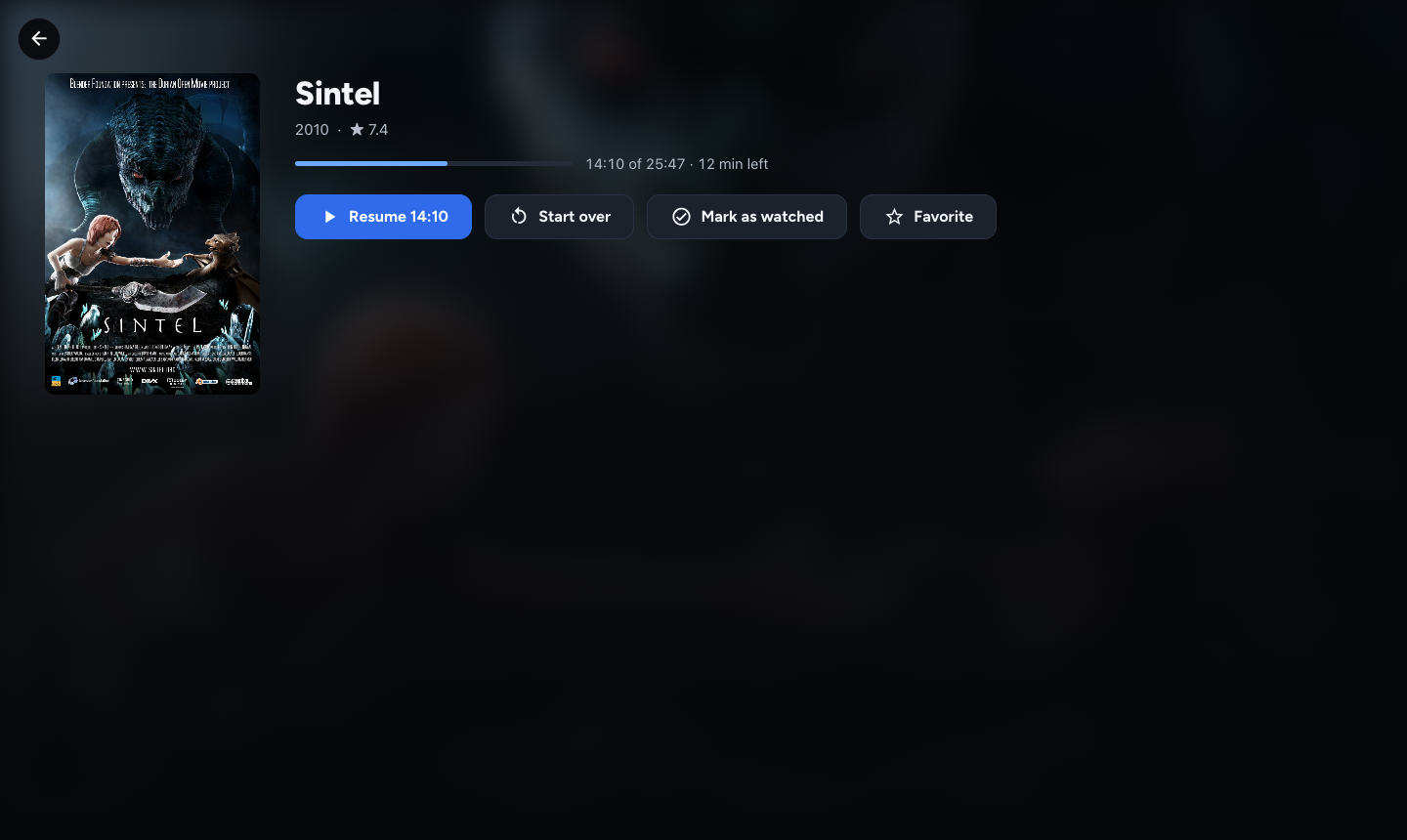 | 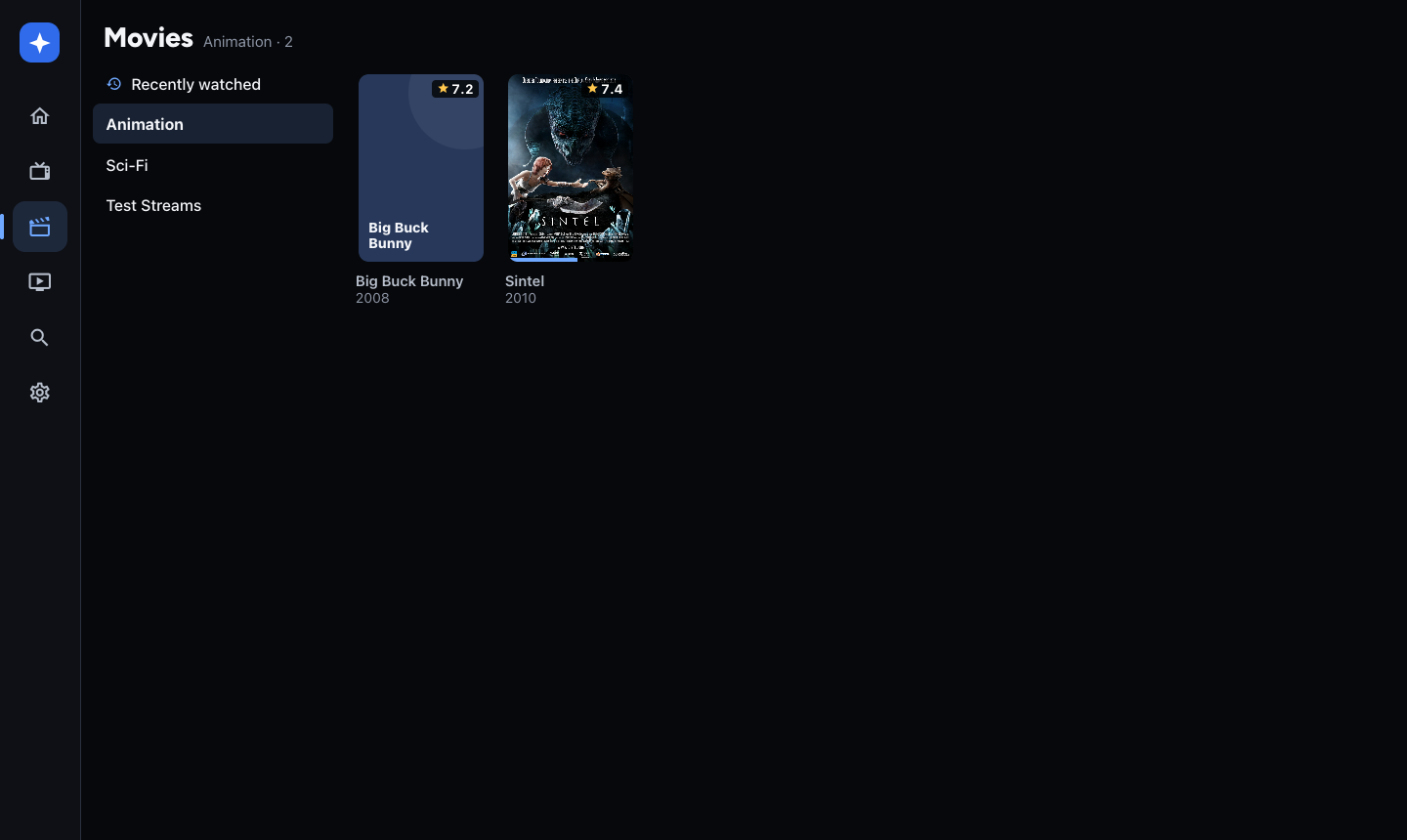 |
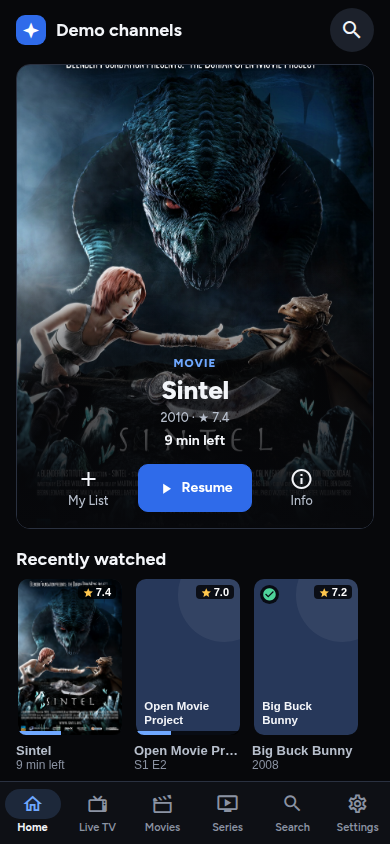
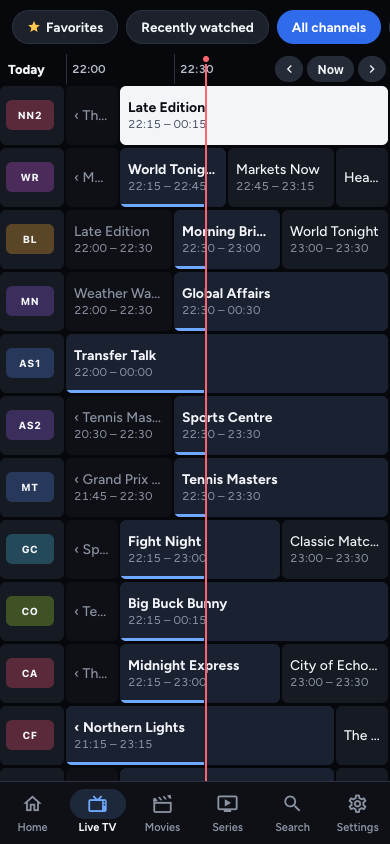
Features
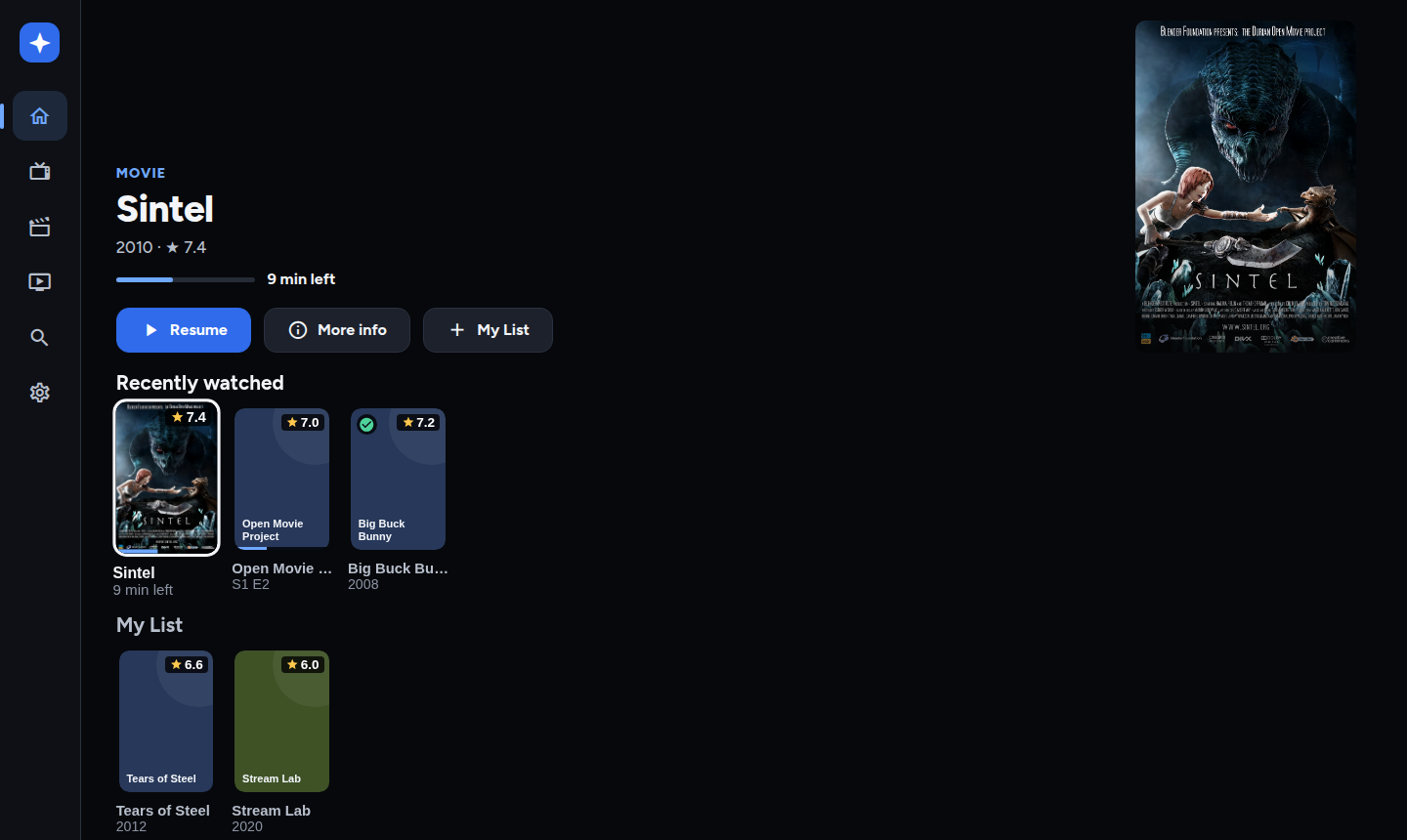
- Home (the start page) is for movies and series, laid out like Netflix; live channels stay in Live TV. On TV and desktop a billboard at the top shows the focused title: artwork, year, genre, running time, rating, plot, and Play/Resume, More info (or Episodes) and My List. Press ▲ from the first row to reach those buttons. Below are rows of posters: Recently watched (the movies and TV shows you've watched, newest first: OK resumes a movie, or carries a show on from the right episode), My List (your favourite movies and series), then categories. Categories you've starred come first, then the ones you've been watching from, then movies and series alternating in your provider's order. Long rows end in a See all card that opens the category in Movies or Series. On phones, a featured title card sits above the same rows. With a mouse, the billboard follows the pointer and arrows at the ends of a row page through it.
- Watch progress for every movie and episode: resume points, "12 min left", and a Watched mark once finished (or set by hand). It's kept when the page reloads, and on the web it's shared between browsers through the Nova server.
- Watch history you control: Remove from history on a poster's menu (Home, Movies, Series) or a channel's menu (Live TV) forgets that title: it leaves the recently watched lists, and its resume points and Watched marks go too (for a series, every episode). Settings → Watch history → Clear watch history does it for the whole playlist, or for all playlists. Favorites and My List are kept.
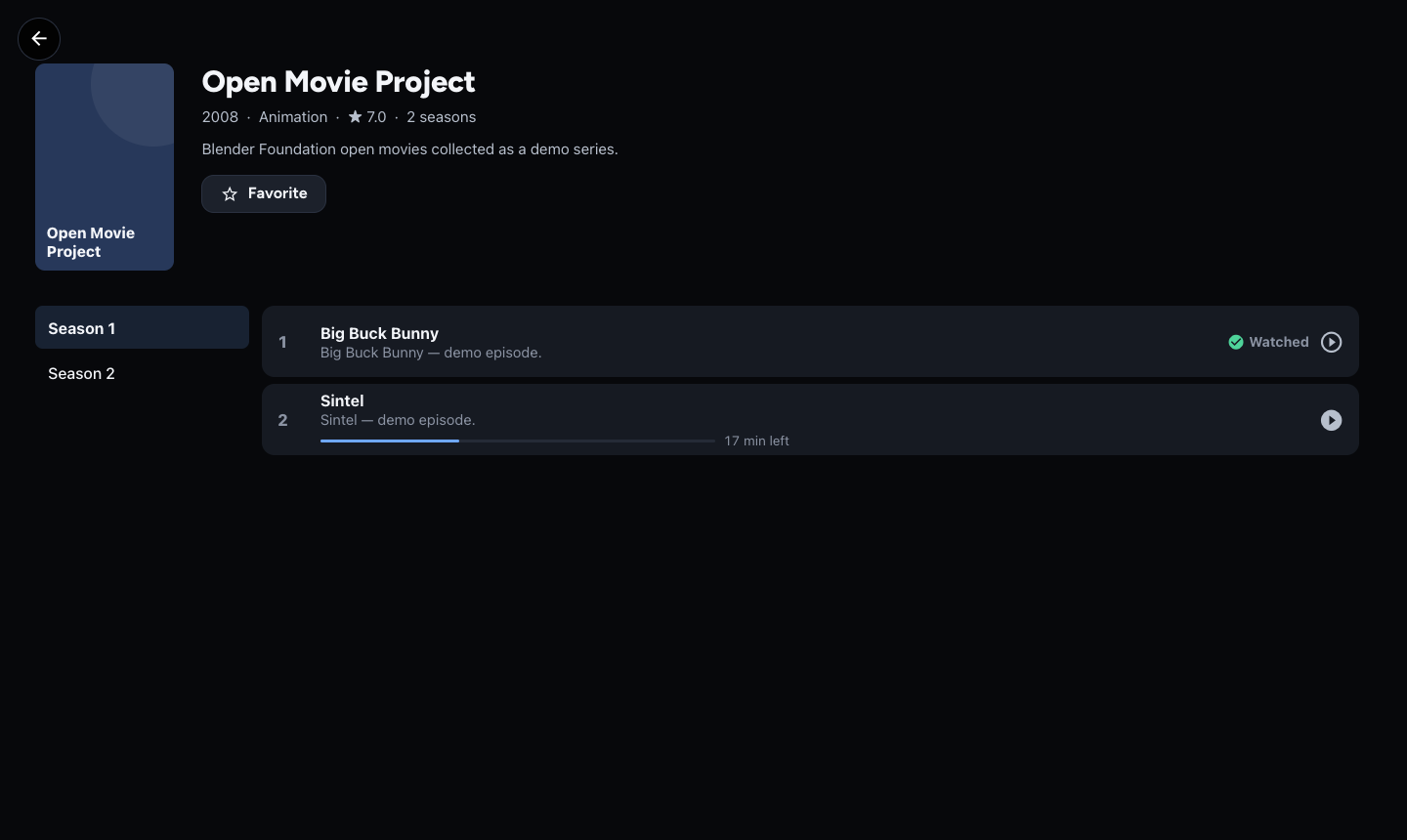
- Series remember where you are. Opening a show (from Home, Series or Search) lands on the episode to carry on with: the one you're part way through, marked Continue, or the next one once you've finished it, marked Up next. The right season is selected, the list is scrolled to it, and OK plays it; Resume S2 E5 / Continue S2 E6 at the top does the same. Coming back from the player follows along to the episode you reached. Search results show the last episode you watched.
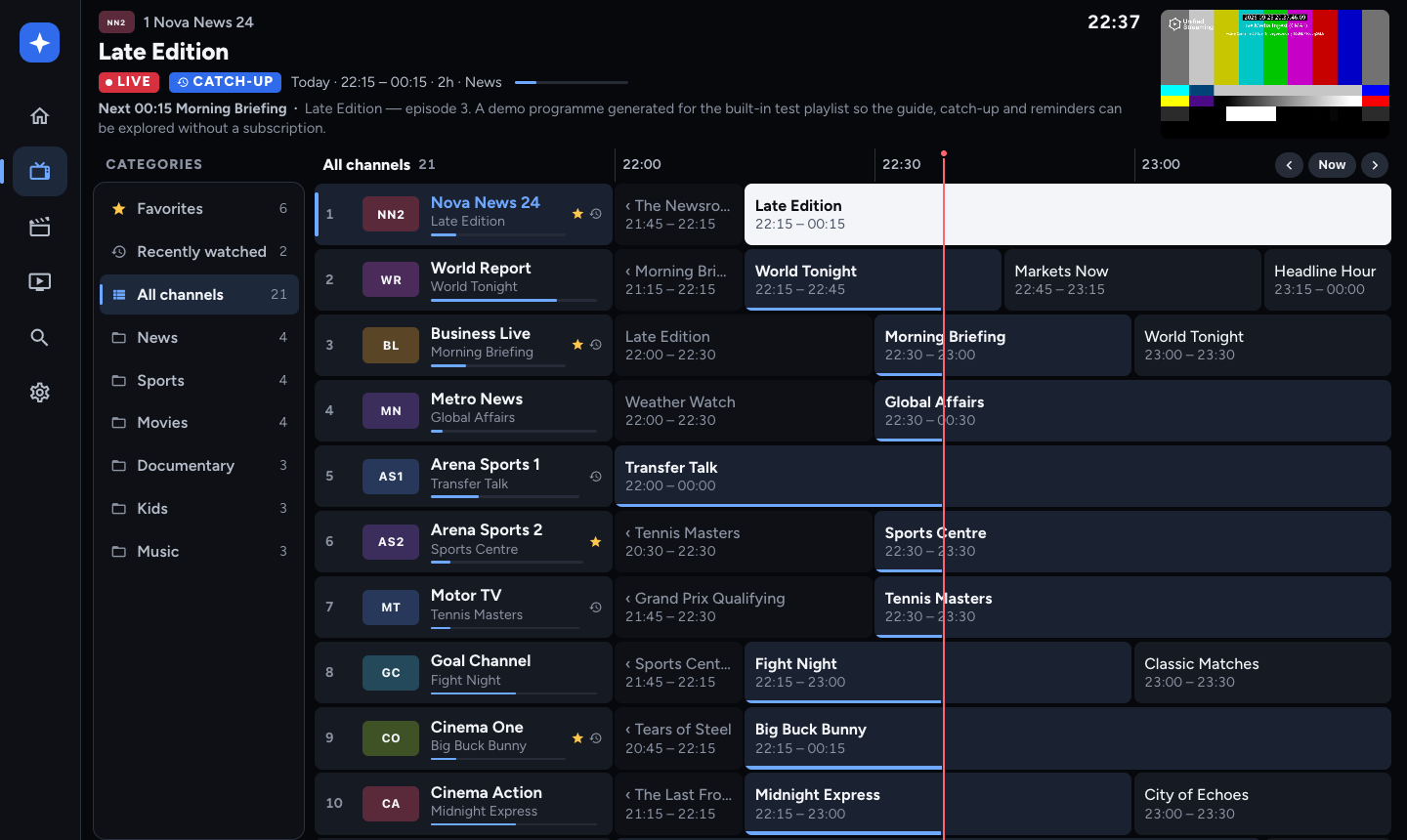
- Live TV guide (EPG grid): categories, channels with what's on now, and the timeline grid side by side, with a slim programme strip and live preview on top, a now-line, and number-key channel entry.
- Favorite categories: star any Live TV, movie or series category from its menu and it moves to the top of the list.
- Menus everywhere: Menu or long-press OK on the remote, long-press on touch, and a right-click context menu on the web. Channels, programmes, categories, posters, Home cards and episodes each have one.
- Playlists: M3U/M3U8 URL, M3U file import, Xtream Codes (live, movies, series, account info). Multiple playlists with fast switching. On Fire TV / Android TV, scan the QR code in Add playlist to enter provider details from a phone on the same Wi-Fi network.
- XMLTV guides: streamed and parsed incrementally (gzip supported). The guide URL is auto-detected from
url-tvg/x-tvg-url, or uses Xtream's xmltv.php. There's a per-channel fallback via get_simple_data_table.
- Catch-up: Xtream
timeshift and M3U catchup types (default, append, shift, flussonic, fs).
- Player: channel up/down zapping, mini channel list, info overlay with progress and next programme, last-channel recall (
0), audio/subtitle tracks, online subtitles for movies and episodes (OpenSubtitles), aspect modes (fit/zoom/stretch), restart the current show from catch-up.
- Movies & Series (Xtream and M3U VOD): category browser, poster grid, detail pages, seasons/episodes, resume positions, favorites, recently watched.
- Favorites, recents, hidden groups, search across channels, movies and series, with forgiving matching for dictated queries ("n tv" → n-tv, "channel four" → Channel 4, "canal plus" → Canal+).
- Voice search: hold ☰ Menu on the remote (or press a remote's Search/Assistant key, or
/ on the web) to jump to Search with the keyboard open. On Fire TV, then hold the remote's mic button and speak: the Fire TV keyboard types what you say. Amazon reserves the mic button for Alexa, so apps can't receive it directly. On the web there's a mic button (needs HTTPS or localhost); on phones use the keyboard's mic.
- Remote-first navigation: every screen works with a D-pad (Fire TV remote, Android TV remote, keyboard arrows on the web). Touch and mouse work everywhere too.
- Pick up where you browsed: Home's filter and rows, movie/series category and poster, the guide channel/timeline, Search's query/results, and Settings keep their position when you change sections. Positions are kept per playlist for the current app session. Search shortcuts still start a fresh query.
- Retry individual sections: unavailable Home rows, categories, search catalogs and the TV guide show their own Retry control while available content remains usable. On a remote, OK retries a focused failed Home row; Up from the top reaches category/guide retries, and Down from Search's input reaches its retry.
- Search by type: choose All, Movies, Series or Live TV. Movies and Series download only their own full catalog; Live TV needs neither. Failed full catalogs retry once automatically, and damaged cached pages fall back to the provider. The refresh arrow reloads the selected types while keeping usable data. On a remote, Down from the input reaches the filters, Left/Right chooses a button, OK applies it, and Down reaches results.
- Your channel shortlist: Menu / hold OK on a channel in Search or Live TV → Add to favorites. Your channels appear together in Live TV → Favorites, above the provider categories. Search → Live TV shows a star beside saved channels; the same menu removes them. Favorites are kept per playlist.
- Read long titles: focus a truncated title with the TV remote, or hover on web and Windows, to scroll it horizontally. Moving away resets it. Reduced-motion settings disable scrolling; browsers show the full title as a tooltip.
Player
Each platform follows its own conventions:
| Fire TV / Android TV | iPhone / iPad | Web |
|---|
| Engine | ExoPlayer (Media3) | AVPlayer for HLS/MP4, VLC for MKV/AVI/TS + automatic fallback | hls.js / mpegts.js / `` |
| System integration | Media session → Alexa voice transport controls ("Alexa, pause / rewind"), Bluetooth/HDMI-CEC media keys | Lock screen & Control Center (Now Playing), AirPlay, Picture in Picture (auto when leaving the app) | Media Session API (OS media overlay, hardware media keys; next/previous = channel zapping), Picture in Picture, true browser fullscreen |
| Controls | D-pad ◀ ▶ and the remote's ⏪ ⏩ rewind / fast-forward (10 s, hold for 30 s then 60 s steps, with a running total on screen), channel keys, number entry, Menu = options | Tap to show/hide, double-tap sides ±10 s, swipe down to close, pinch to fill | Click, double-click fullscreen, volume slider, YouTube keyboard shortcuts; moving the mouse shows the cursor and controls, which hide again when idle |
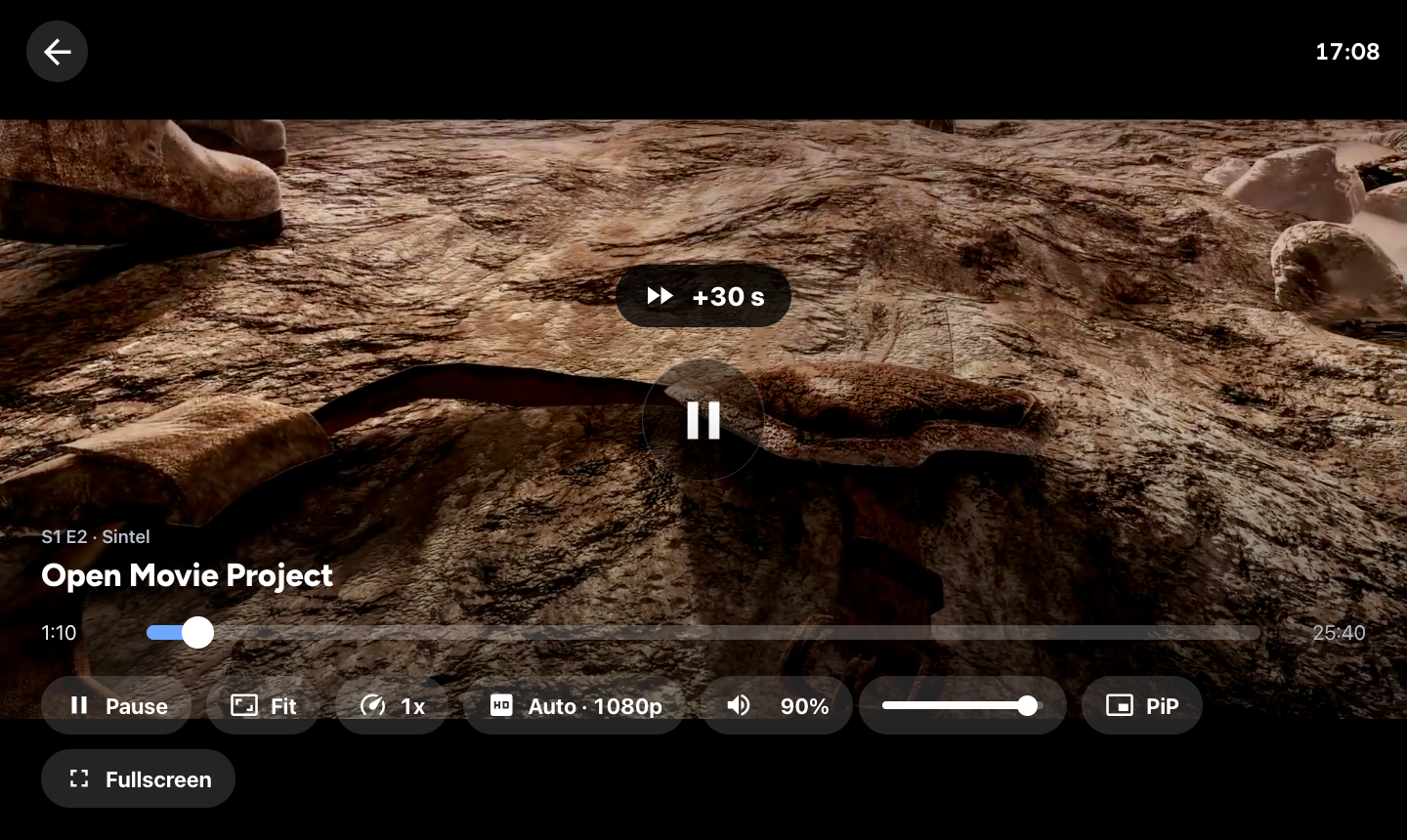
Everywhere: speed 0.5–2×, audio/subtitle tracks, aspect (fit/zoom/stretch), resume, a Next episode button during the credits (OK plays it on TV), an "Up next" countdown at the very end, and live streams that reconnect by themselves (3 attempts with backoff, stall watchdog, reload at the live edge after the app returns from the background). Web also has a manual quality picker (Auto + 1080p/720p/…) and starts muted when the browser blocks autoplay, with "Tap to unmute".
Online subtitles (movies and episodes, like TiviMate):
- Subtitles → Search online… in the player looks the title up on OpenSubtitles. It searches by the panel's TMDB id when the provider sends one, otherwise by the cleaned-up title and year (provider tags such as
EN -, |NL|, [4K] are stripped), and for episodes by season and episode. Results list your subtitle language first, then English, with the download count; All languages… widens the search.
- Nova draws downloaded subtitles itself, so they look the same on ExoPlayer, VLC and the web player. Subtitle timing shifts them by up to ±5 s when they run early or late. The menu switches between embedded tracks and the downloaded one;
c and the remote's captions key cycle through all of them.
- A downloaded file is kept for its title (the last 30), with its timing. Resuming a movie brings its subtitles back without using another download.
- Settings → Subtitles: language (follows the device language at first), Turn on subtitles automatically (an embedded track in that language, else the best download), text size and background.
- OpenSubtitles needs an API key, free at opensubtitles.com under Profile → API consumers. Enter it in Settings → Subtitles. Without an account a key allows 5 downloads a day; adding your OpenSubtitles username and password raises that to your account's allowance.
Smooth playback:
- Settings → Playback → Buffer (Fast start, Balanced, Smooth) sets how much every engine buffers before it starts. After a stall, the player waits until the buffer has refilled (4 s, then 8 s on Balanced) instead of resuming with a fraction of a second and stuttering on. Each new channel starts with the normal amount again.
- Match frame rate (Android TV / Fire TV, on by default): while something plays fullscreen, Nova measures the video's frame rate and switches the TV to a matching refresh rate at the same resolution: 50 Hz for 25/50 fps European TV, 23.976/24 Hz for films. It stops the judder you see when those play at 60 Hz. The TV only switches when its current rate doesn't fit, and goes back when playback stops. On Fire TV, also turn on Settings → Display & Sounds → Display → Match original frame rate.
- Web: raw MPEG-TS streams play through mpegts.js without latency chasing (which used to skip ahead and leave half a second of buffer), and HLS rides out live playlist hiccups (6 retries) instead of restarting the stream.
Layout
| Path | What it is |
|---|
src/screens/ | Home, guide, movies/series, details, search, settings, playlist editor |
src/player/ | VideoLayer (one surface that moves between preview and fullscreen), VideoSurface.tsx (expo-video: ExoPlayer/AVPlayer), VideoSurface.web.tsx (hls.js + mpegts.js), PlayerOverlay |
src/services/ | M3U parser, Xtream client, streaming XMLTV parser, catch-up URL builders, storage, HTTP |
src/input/ | Key router: web keyboard, Android remote, Back button → one focus model |
src/store/ | zustand stores: settings (persisted), library (channels/EPG/VOD), player, UI |
modules/remote-keys/ | Local Expo module (Kotlin) that captures D-pad/media keys on Android TV before Android's native focus system |
modules/display-mode/ | Local Expo module (Kotlin): measures the playing video's frame rate and switches the TV's refresh rate to match |
plugins/withAndroidTV.js | Config plugin: leanback launcher, TV banner, no touchscreen requirement |
server/index.mjs | Web server: serves the web build and the /api/proxy stream/CORS proxy |
server/mock-xtream.mjs | Dev-only fake Xtream panel (user demo / pass demo) |
desktop/ | Windows Electron shell, installer configuration and isolated desktop build dependencies |
Development
npm install
npm run proxy          # terminal 1: CORS/stream proxy on :8787
npm run web            # terminal 2: Expo web on :8081 (uses the proxy)
npm run mock:xtream    # optional: fake Xtream panel on :8790
Checks: npx tsc --noEmit, npm run test:updates (Node 22.18+), and, after Android prebuild, cd android && ./gradlew :playlist-pairing:testDebugUnitTest :display-mode:testDebugUnitTest. The pairing tests exercise real HTTP requests for M3U/Xtream submission, validation, single-use codes, expiration, and editor-close cancellation. The display-mode tests cover frame-rate measurement from frame timestamps and the choice of refresh rate.
Performance checks: npm run test:performance exercises large guides, catalogs, search, cancellation and caches. npm run build:perf:web && npm run test:e2e tests the production web app with a large local provider, real remote navigation and measured responsiveness. Testing instructions cover private .env credentials, Windows, Android TV emulation and physical Fire TV checks. Performance review records the findings, measurements and remaining device coverage.
Keyboard on web: arrows = D-pad, Enter = OK (hold for the long-press menu), Esc/Backspace = Back, o = options, / or Ctrl+K / ⌘K = search, right-click = context menu, PageUp/PageDown = channel up/down, digits = channel number. In the player (YouTube-style): Space/k play-pause, j/l −/+10 s, m mute, f fullscreen, c subtitles, </> speed, p picture-in-picture, +/- volume.
Android TV / Fire TV APK
Requirements: JDK 17+ and the Android SDK (platform 36, build-tools 36, NDK 27.1).
npx expo prebuild --platform android
cd android
./gradlew --parallel --build-cache :app:assembleRelease -PreactNativeArchitectures=armeabi-v7a
# → android/app/build/outputs/apk/release/app-release.apk
Install on a Fire TV:
- Fire TV Settings → My Fire TV → Developer options: turn on ADB debugging and Apps from unknown sources (or allow the Downloader app).
- Either
adb connect :5555 && adb install -r app-release.apk, or host the APK somewhere and open it with the Downloader app.
- Nova appears in Your Apps & Channels with its TV banner.
The release build is signed with the debug keystore, which is fine for sideloading. To publish to a store, create a keystore and add a release signingConfig.
Automated GitHub releases
Every push to master runs .github/workflows/android-release.yml. Typechecking, update tests and native pairing tests run in a separate job alongside the 32-bit Fire TV APK build. Publication waits for both jobs to succeed, verifies the transferred APK's SHA-256 checksum, and publishes a new latest GitHub release with Nova-firetv.apk and SHA256SUMS.txt. Universal APK builds are paused. CI versions append the workflow run number to app.json's version (for example 1.6.0.4) so in-app updates remain ordered without modifying source files.
The APK build targets :app:assembleRelease, enables Gradle's build cache and parallel execution, and restores cached Gradle state between runs. It avoids a redundant Gradle clean on the fresh runner. Each build also uploads a firetv-build-profile artifact containing Gradle task timings for diagnosing remaining bottlenecks. The first build after dependency changes can still take longer while caches warm up.
The workflow restores the update-compatible keystore from the NOVA_ANDROID_KEYSTORE_BASE64 repository secret. Never commit that keystore or its encoded contents.
The Windows installer builds and runs its desktop checks in parallel. After the Fire TV release is published, a separate job attaches Nova-windows-x64-Setup.exe, SHA256SUMS-windows.txt and Nova-winget-manifests.zip to the same release. Windows never blocks publication of the APK. Windows file versions and the installed version use the same four-component release number as the tag. Electron's internal package metadata retains the three-component source version. Local builds use a final component of 0.
Windows release assets are preserved on workflow reruns: replacing a published installer would invalidate WinGet's recorded hash. Publish a new numbered release for any changed installer.
Windows
Download Nova-windows-x64-Setup.exe from GitHub Releases, run the installer, and open Nova from the Start menu or desktop shortcut. The installer includes everything needed; Node.js and a separate Nova server are not required. Installers are currently unsigned, so Windows may show a SmartScreen warning.
Windows uses the web player's HLS/MP4 and MPEG-TS support, keyboard shortcuts, mouse controls and picture-in-picture. Codec support follows the bundled Chromium player; it does not include the iOS VLC engine. Press F11 for fullscreen, Ctrl+K to search, or Alt to reveal the menu. Help → Get updates opens the release downloads; installing a newer Windows build preserves saved data. Automatic desktop updates are not implemented yet.
Playlists, credentials, favourites, watch progress and settings are stored on this PC in %APPDATA%\Nova\nova.db; caches live in the same Nova data directory. These are separate from any Nova web server's library. The bundled service binds only to a random loopback port and requires a credential held by the desktop process. LAN providers work without extra configuration.
Build on Windows with Node.js 22.12+:
npm ci
npm ci --prefix desktop
npm run windows         # export the desktop web bundle and launch Nova
npm run build:windows   # → release/windows/Nova-windows-x64-Setup.exe
npm run test:windows    # after export: startup, restart persistence, proxy and codec checks
Electron dependencies live in desktop/package-lock.json so Android builds do not install the desktop toolchain. The generated desktop app is staged in .desktop/; source changes belong in desktop/, server/ or the shared app under src/.
WinGet distribution
The package identifier is TheLoop705.NovaIPTV. The first submission (1.7.0.5) is pending review. It must be approved and indexed by the WinGet community repository before these commands work:
winget install --id TheLoop705.NovaIPTV --exact --source winget
winget upgrade --id TheLoop705.NovaIPTV --exact --source winget
Each numbered CI release generates a Nova-winget-manifests.zip containing the three YAML manifests under manifests/t/TheLoop705/NovaIPTV//. These use a versioned GitHub installer URL, the exact installer's SHA-256, its installed product ID, and silent installation switches. The archive is ready to submit as a new version PR to microsoft/winget-pkgs; publishing a GitHub release alone does not update the WinGet catalog. This does not require a Microsoft Store listing.
For a submission, download the archive from the published release, extract it, validate with winget validate --manifest , and check installation and uninstallation before submitting. Do not regenerate a manifest from a different local rebuild or change an existing release's installer. Windows privacy information.
iOS
npx expo prebuild --platform ios
cd ios && LANG=en_US.UTF-8 pod install && cd ..
npx expo run:ios --configuration Release        # simulator
# or open ios/Nova.xcworkspace in Xcode, set your team, and run on a device / archive
iOS uses two playback engines (Settings → Playback → Video player):
- Apple's player (AVPlayer) for HLS and MP4: hardware-friendly and battery-efficient. Nova asks Xtream panels for
.m3u8 live streams on iOS.
- VLC (MobileVLCKit) for everything AVPlayer can't open (MKV, AVI, raw MPEG-TS, FLV, extension-less panel links, MP2 audio, …), and automatically whenever AVPlayer fails on a stream. Most Xtream movies are MKV, so they play through VLC.
nova://play?url=&title= opens any stream URL directly (handy for testing a link).
MobileVLCKit is LGPL-2.1 and is pulled in from CocoaPods (~260 MB download on first pod install).
Web
npm run build:web                  # → dist/
PORT=8787 BASIC_AUTH=me:secret npm run serve
On a machine that hosts Nova for the house, scripts/deploy-local.sh builds the web app from a clean checkout of HEAD, so uncommitted work never ships. It installs the build and the server into ~/.nova-iptv/app, then restarts the LaunchAgent that runs it (NOVA_APP_DIR and NOVA_AGENT override both).
build:web also writes Brotli/gzip copies of the bundle and fonts (scripts/compress-dist.mjs). The server sends those with long-lived caching for hashed files and ETags for the rest, and gzips proxied playlists, guide data and Xtream API responses on the fly.
Browsers can't reach most IPTV servers directly (no CORS headers, http:// on an https:// page, required User-Agents), so the web build sends playlist, guide and stream requests through /api/proxy. HLS playlists are rewritten so segments also go through it.
Playlists, favourites, watch progress and settings are saved on the server in SQLite (~/.nova-iptv/nova.db, override with NOVA_DB), not in the browser. A refresh or cleared site data loses nothing, and every browser that opens the server sees the same library. Changes are saved per field, so two devices editing different things don't overwrite each other, and a tab picks up other devices' changes when you switch back to it. The active playlist stays per device. Channel and guide caches stay in each browser's IndexedDB. The database holds playlist credentials, so back it up like any other secret and set BASIC_AUTH if the server is reachable beyond your LAN.
Proxy safety:
- Set
BASIC_AUTH=user:pass before exposing the server to the internet, otherwise anyone can use it as a proxy.
- Loopback, LAN, link-local/cloud-metadata, CGNAT/Tailscale and other internal addresses are refused by default. The check runs at connect time and on every redirect hop, so DNS tricks and redirects can't get around it. If your IPTV source lives on your own network (e.g. TVHeadend), set
ALLOW_PRIVATE=1.
ALLOWED_HOSTS=provider.com,cdn.provider.net restricts the proxy to your provider's hosts (subdomains included).npm run proxy (development) binds to 127.0.0.1 with ALLOW_PRIVATE=1 so the local mock panel works.
Online subtitles on web go through /api/opensubtitles, which forwards only OpenSubtitles' search, login and download calls and its subtitle files. Set OPENSUBTITLES_API_KEY on the server to give every browser a key without entering one in Settings.
Notes
- Startup: Nova shows its launch screen until settings are read, then the library it saved last time, and refreshes in the background. Startup loads movies and series only; Live TV channels load when you open Live TV (Search loads them too, for its channel results, and so does Start with last channel). On Xtream, signing in runs alongside so a wrong password or an expired account is still reported, and each Home row loads its category when it comes near the screen. An M3U playlist is downloaded once and saved in two parts, so starting the app reads only its movies. A playlist loading for the first time shows a loading screen with what's happening ("Downloading playlist… 4.2 MB").
- Caches (IndexedDB on web, JSON files in the app's documents directory on native): the channel list and an M3U playlist's movies (refreshed in the background after 24 h), Xtream movie and series categories and each category's titles (after 12 h; an empty answer from the provider never replaces a saved list), and the guide. Refresh now on a playlist re-reads all of them.
- Guide data loads the first time it's needed (Live TV, a live channel, Search or Settings), not at startup, and is refreshed every 12 h by default (Settings → TV Guide).
- Large channel/guide caches use small pages. Native installations refresh the previous large cache once after this upgrade to avoid blocking while reading it.
- Settings displays exact movie/series totals after those catalogs have loaded. Choose Count movies and series to calculate them in the background; simply opening Settings does not download both catalogs.
- The default User-Agent is
Nova/1.0 … ExoPlayerLib/2.19.1. Some providers require a specific one: set it per playlist or globally in Settings.