
> Minimize your SVG footprint
A cross-platform desktop GUI for svgo-kt —
the Kotlin port of SVGO, the SVG optimizer.
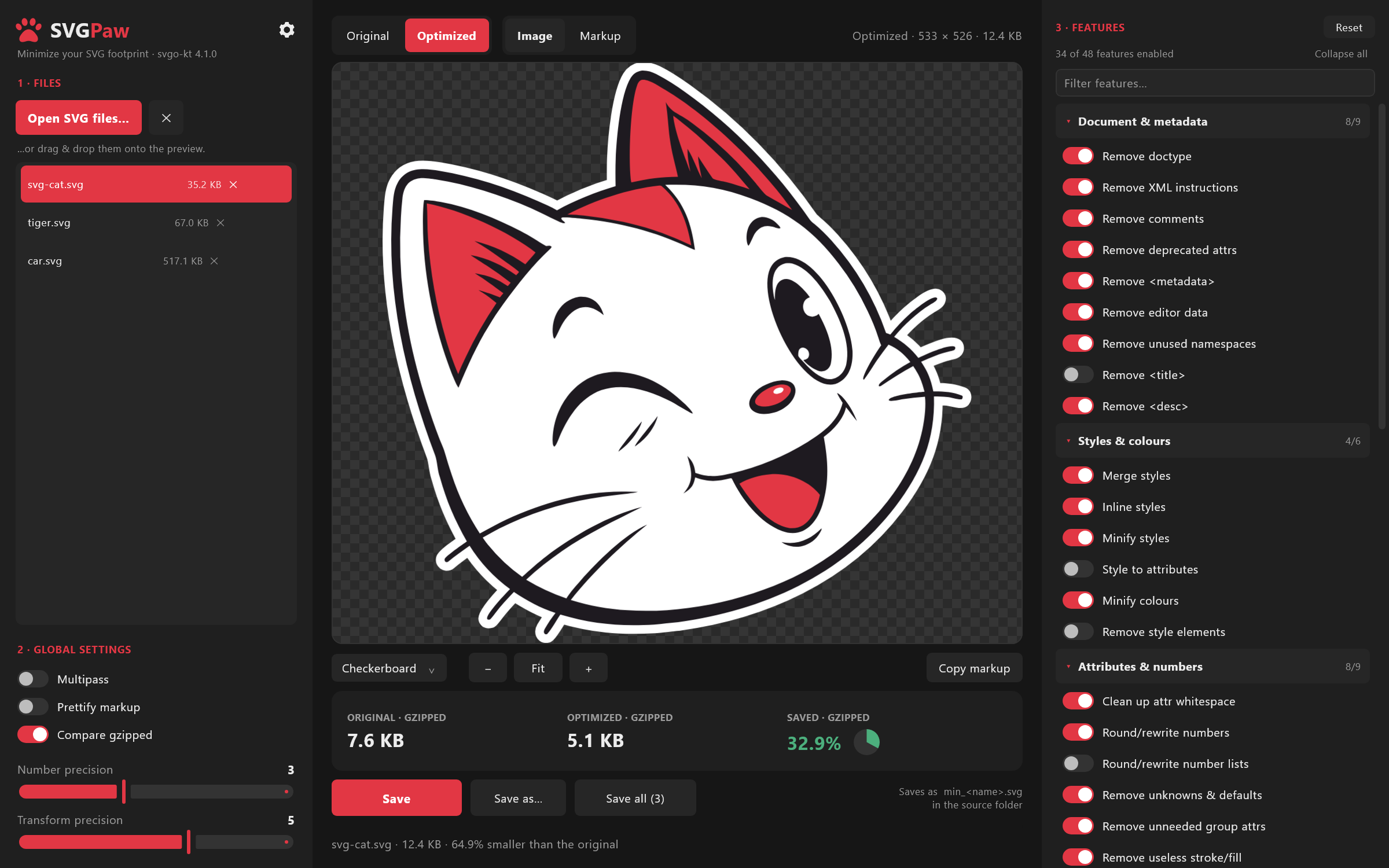
Open (or drag & drop) SVG files, tune every SVGO plugin with a live preview,
flip between Original and Optimized to see exactly what the optimizer
did, and write the results back with a configurable file-name prefix.
It is the desktop equivalent of SVGOMG — same settings,
same superpowers, same output — but it works on local files, in batches, and
without a browser or Node.js.
SVGPaw is a Kotlin Multiplatform
/ Compose Multiplatform
application. The whole UI lives in one shared module and runs on the JVM
desktop, Android and the web from the same code; the desktop build is the
one documented here and the one that ships first.
Features
- Open many SVGs at once — via the file picker, by dropping them onto the
window, by dropping a whole folder, or as command-line arguments.
.svgz
(gzipped SVG) is decompressed transparently.
- Live optimization. Every toggle and slider re-runs SVGO on the selected
file (debounced) and refreshes the preview and the size read-out. The run
happens on a background worker, so the window stays responsive throughout — a
spinner over the preview says a new version is on its way, and changing
anything while it turns cancels that run and starts the new one.
- Original ⇄ Optimized with one click — or the Space bar. Zoom and pan
stay locked between the two views, so the comparison is pixel-for-pixel.
- Image and Markup views. The Image view rasterizes the SVG with wheel
zoom, drag panning and a switchable backdrop (checkerboard, white, black,
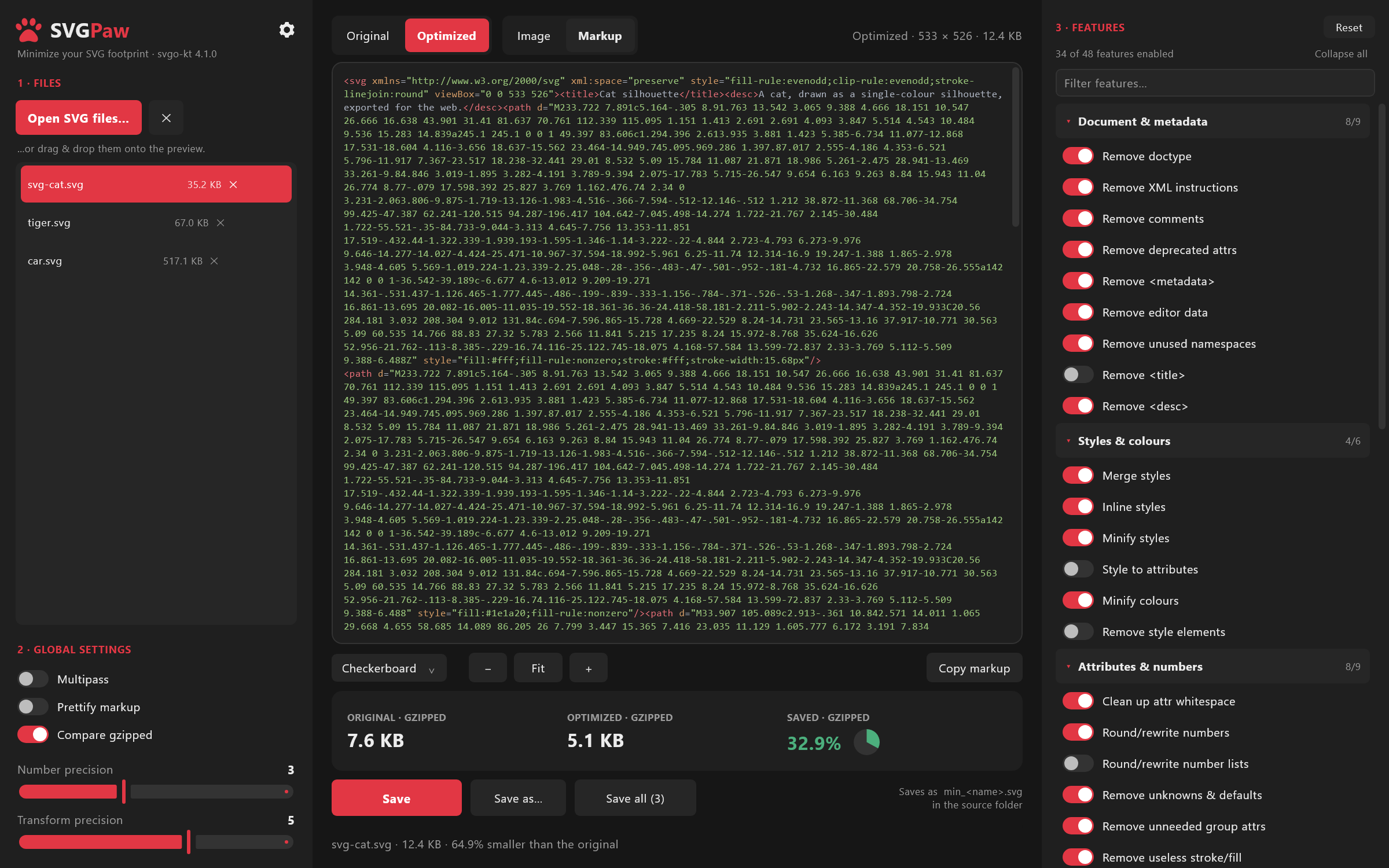
dark). The Markup view shows the actual output with syntax highlighting and
a Copy markup button.
- All 48 SVGO features in their own column, grouped into seven collapsible
categories (Document & metadata, Styles & colours, Attributes & numbers,
Shapes & paths, Structure & reuse, IDs & references, Strip content).
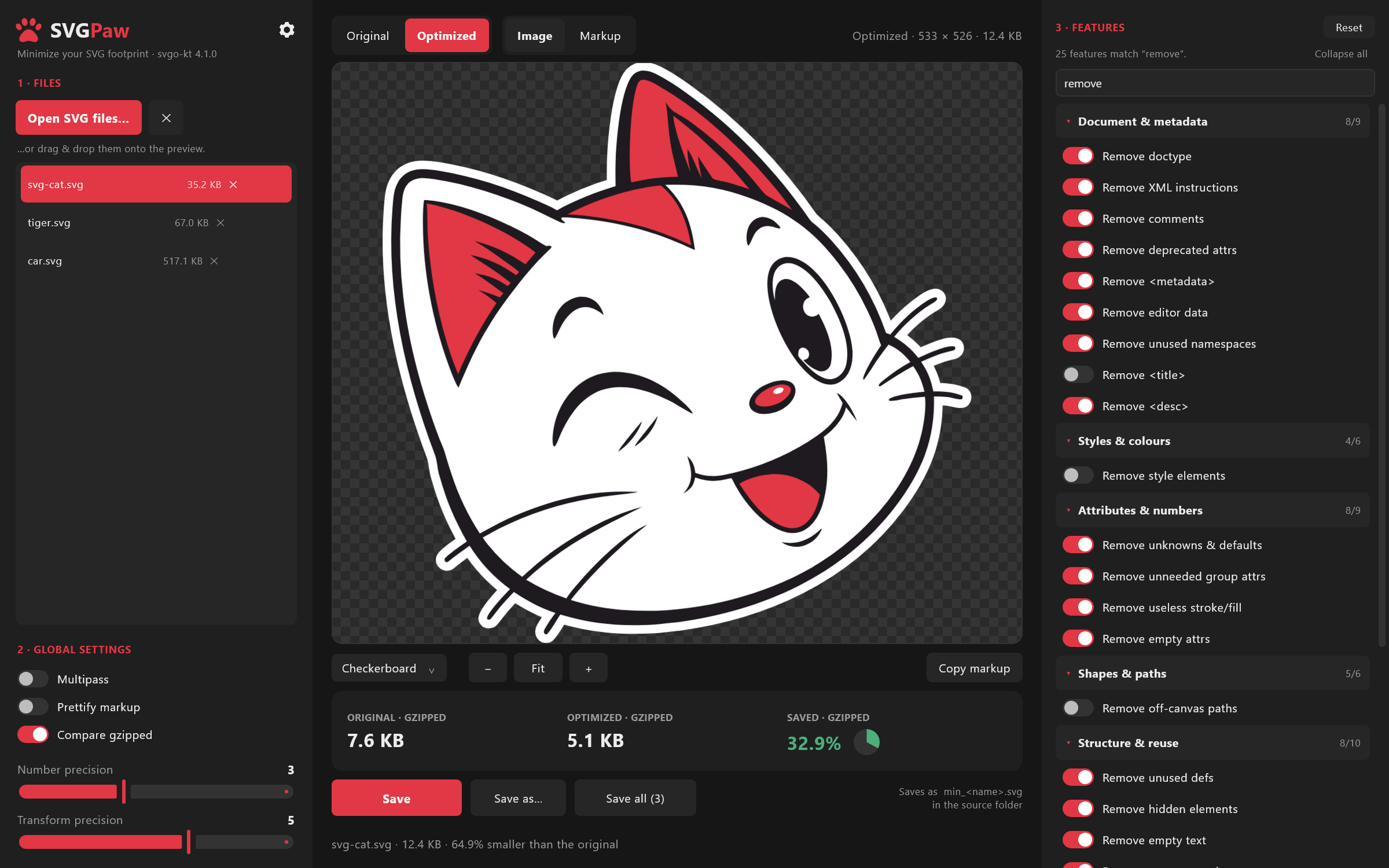
Each header shows how many of its features are on, there is a filter box that
auto-expands the groups it finds something in, and every switch has a tooltip
with its SVGO plugin name and what it does. Global options — multipass,
prettify, number precision, transform precision — stay on the left.
- Compare gzipped — sizes are reported after gzip, which is what a web
server actually transfers. The stat headings say
· GZIPPED when they do, so
they are never confused with the raw sizes in the file list and the toolbar.
Turn it off for plain byte counts.
- Batch saving. Save writes the current file, Save all optimizes and
writes every loaded file with the current settings and reports the total
saving.
- Configurable output — a file-name prefix and suffix, an output folder
(or "next to the original"), and an overwrite without asking switch.
- Settings, plugin selection and the output rules are remembered between runs.
- Dark theme with a red accent. The in-app icons are SVGs rendered by the app's
own renderer, so they stay sharp at any scale and are recoloured from the
palette rather than from a fixed bitmap.
Install
From a packaged build
The desktop app ships as a GraalVM native image, so it runs without any Java
installation on the target machine. Each platform gets both a native installer
and a portable archive you can just unzip and run:
| Platform | Installer | Portable |
|---|
| Windows | svgpaw--win-x64.msi | svgpaw--win-x64.zip |
| Linux | svgpaw__amd64.deb | svgpaw--linux-x64.zip |
| macOS | svgpaw--mac-arm64.dmg | — |
> [!NOTE]
> Signature warning on first run:
> Pre-built binaries are not code-signed with a paid developer certificate yet:
> - Windows: SmartScreen will show a warning. Click "More info" (Weitere Informationen) → "Run anyway" (Trotzdem ausführen).
> - macOS: Gatekeeper may block the app on first open. Open System Settings (Systemeinstellungen) → Privacy & Security (Datenschutz & Sicherheit) → scroll down and click "Open Anyway" (Trotzdem öffnen).
Building these yourself is covered in Building.
In the browser (Wasm)
The same UI also runs entirely client-side as a Kotlin/Wasm build — no
install, no Node.js, nothing sent anywhere; files are read and saved locally
in the browser (opening triggers the native file picker or drag & drop,
saving triggers a download). Run it from source with:
./gradlew :webApp:wasmJsBrowserDevelopmentRun
then open the URL webpack-dev-server prints (http://localhost:8080 by
default). It is the same shared module as the desktop app, so settings,
plugins and the live preview all work the same way; see
Running from source for the other launchers.
From source
Any platform a JDK 17+ runs on. See Running from source.
Requirements
- JDK 17 or newer to run from source (the packaged native builds bundle no
runtime at all — they are the runtime).
- The app itself needs no Node.js or JavaScript runtime —
svgo-kt is pure
Kotlin. (Producing the native installers/zips does use Node.js and a C
toolchain; see Building.)
The preview is rendered with Skia (via Skiko),
the same renderer Compose itself draws with, so what you see on screen matches
what a browser shows closely enough to judge an optimization by. If a document
cannot be rendered the app still optimizes and saves — only the on-screen image
preview is skipped (the Markup view keeps working).
Running from source
Use the run configurations in your IDE's toolbar, or Gradle:
# Desktop (JVM)
./gradlew :desktopApp:run
You can also pass files directly on the command line:
./gradlew :desktopApp:run --args="sample/svg-cat.svg sample/tiger.svg sample/car.svg"
The same shared UI can be launched on the other targets:
./gradlew :androidApp:assembleDebug                  # Android
./gradlew :webApp:wasmJsBrowserDevelopmentRun        # Web (Wasm)
./gradlew :webApp:jsBrowserDevelopmentRun            # Web (JS)
Usage
- Click Open SVG files…, or drop files onto the preview area.
- Pick a file in the list to work on it. The preview shows the optimized
result right away.
- Adjust Global settings on the left and Features on the right — the
preview and the size read-out follow every change. Collapse the categories
you do not need; the app remembers which ones you folded away.
- Use Original / Optimized (or press Space) to check that nothing broke.
Zoom in with the mouse wheel to inspect edges after lowering the precision.
- Open ⚙ Settings to choose the output folder, the file-name prefix, and
whether existing files may be replaced silently.
- Save writes the selected file; Save all does the whole list.
Filtering the feature list — only the groups with a hit stay on screen, and
they open themselves:
The Markup view shows what will actually be written:
Keyboard shortcuts
| Shortcut | Action |
|---|
Ctrl+O | Open files |
Ctrl+S | Save the selected file |
Ctrl+Shift+S | Save all loaded files |
Space | Toggle Original / Optimized |
| Wheel | Zoom the image preview |
| Drag | Pan the image preview |
| Double-click | Fit the image to the window |
Output files
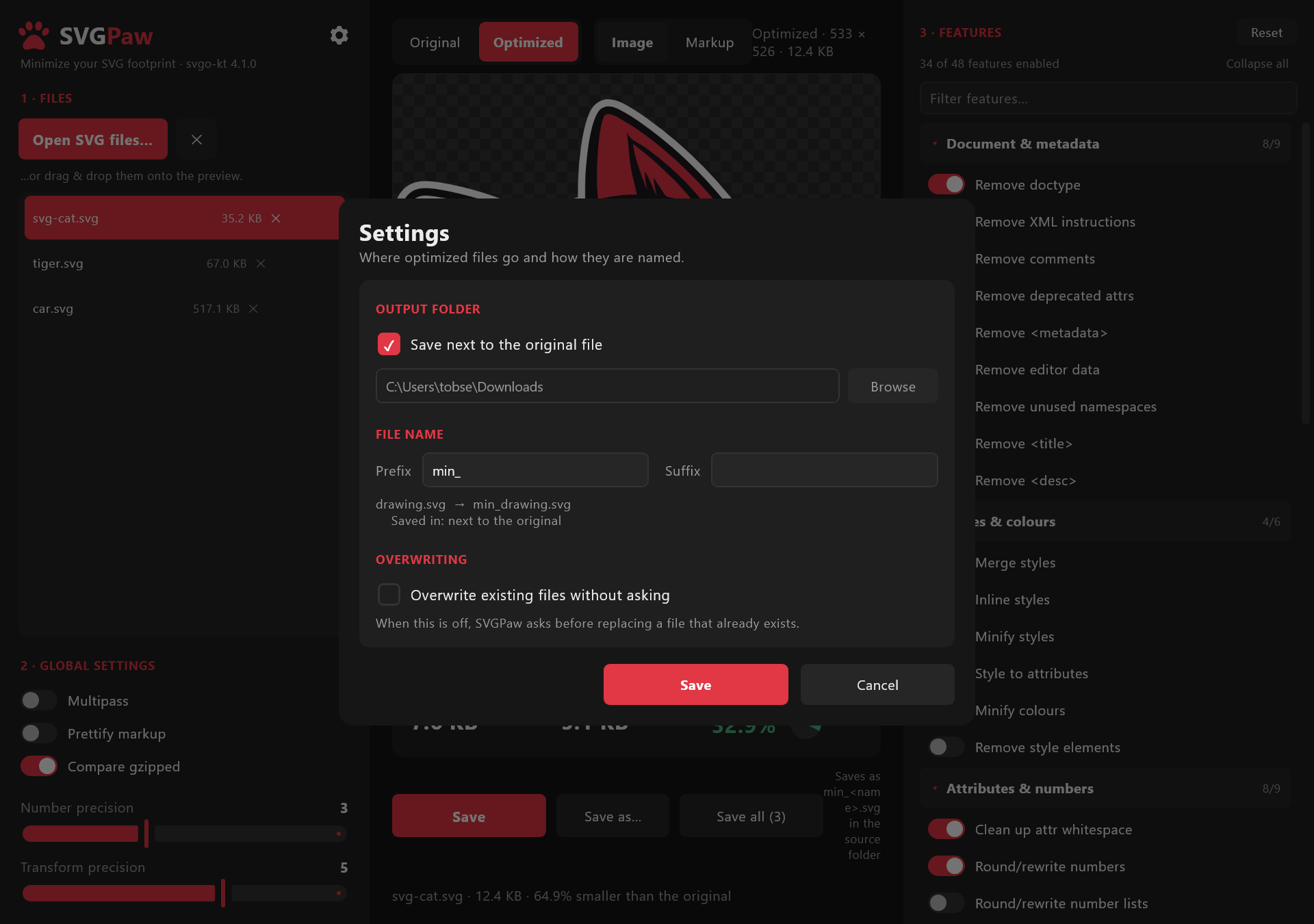
The file name is built as
.svg
with min_ as the default prefix and an empty suffix, so logo.svg becomes
min_logo.svg. The ⚙ Settings dialog previews the result as you type.
The target folder is either the source file's own folder (the default) or one
fixed folder for everything.
> Careful: with an empty prefix and an empty suffix, the optimized file
> replaces the original. The settings dialog warns you when that combination is
> selected. SVGPaw asks before replacing any existing file unless
> Overwrite existing files without asking is enabled.
Settings, defaults and SVGOMG parity
The plugin catalogue, the plugin order and the way settings are turned into an
SVGO invocation follow SVGOMG's
svgo-worker — including its quirk
of bumping cleanupNumericValues to a precision of 1 when the global number
precision is 0, because 0 almost always destroys the image there.
Two plugins were renamed in SVGO 4 and use the new names here (cleanupIDs →
cleanupIds, removeScriptElement → removeScripts), and the plugins SVGO 4
added (removeDeprecatedAttrs, removeXlink, convertOneStopGradients,
prefixIds) are part of the list.
Which features start enabled follows SVGO 4.1's own preset-default. The
practical differences from SVGOMG's older list: removeViewBox and
removeTitle are off by default (SVGO 4 dropped both from the preset —
removing the viewBox breaks responsive scaling, and `` is the image's
accessible name), and removeDeprecatedAttrs is on. Every one of them is a
single switch away.
The seven categories in the features column are a display grouping only.
Plugins always run in SVGO's own order, which is the order of the catalogue in
PluginCatalog.kt
— regrouping the UI never changes the output.
Which size is shown where
Three places report a size, and they do not always agree:
| Where | What it is |
|---|
| File list | The raw size of the file on disk. Always raw. |
| Toolbar (top right) | The raw size of the document currently shown. |
| Stat tiles | Raw or gzipped, depending on Compare gzipped; the headings say · GZIPPED when they are gzipped. |
A note on "Compare gzipped"
Optimizing can make the gzipped size grow even while the raw file shrinks: the
original's indentation and repeated formatting compress extremely well, and
minification removes exactly that redundancy. sample/tiger.svg is such a case
at the default precision. Toggle Compare gzipped off to see the raw bytes,
and lower the number precision (3 → 2 is usually invisible) when a file
refuses to shrink.
Configuration
Settings are stored locally in:
~/.svgpaw/config.json
It holds the output rules, the window's view preferences, which feature
categories you collapsed, and your full SVGO plugin selection. Nothing is sent
anywhere — SVGPaw is entirely offline. Delete the file to return to the
defaults.
Project layout
SVGPaw is a Kotlin Multiplatform project: one shared Compose UI, plus a thin
launcher per platform.
SVGPaw/
├── shared/                       # the whole app: UI, model, engine, platform glue
│   └── src/
│       ├── commonMain/kotlin/…/
│       │   ├── App.kt            # the composable entry point
│       │   ├── model/            # SvgPawModel, the config store, document state
│       │   ├── engine/           # plugin catalogue + settings → svgo-kt invocation
│       │   ├── ui/               # the three columns, dialogs and components
│       │   └── platform/         # PlatformServices: files, dialogs, rasterization
│       ├── jvmMain/kotlin/…/     # desktop actuals (Skia rasterizer, FileKit dialogs, Tao drag&drop)
│       └── jvmTest/kotlin/…/     # ScreenshotTest — regenerates docs/ screenshots
├── desktopApp/                   # Nucleus launcher (DecoratedWindow, TitleBar, GraalVM config)
├── androidApp/                   # Android launcher
├── webApp/                       # Wasm / JS launcher
├── docker/                       # linux-build.Dockerfile — Linux native build container
├── scripts/                      # build-all.sh — builds Win + Linux zip & installer
├── sample/                       # three test SVGs
├── docs/                         # screenshots and the logo
└── gradle/                       # version catalogue and wrapper
The optimizer itself is the external svgo-kt
dependency (io.github.tobsef:svgo-kt); this repository is the front-end for it.
Building
The desktop app is built with Nucleus on top
of Compose Multiplatform and ships as a GraalVM native image — a standalone
binary that needs no JVM on the target machine. Nucleus downloads the matching
GraalVM CE 25 toolchain itself on the first native build (cached in your
Gradle home); you never install GraalVM by hand. Official release builds are
built and packaged across all platforms (Windows, Linux, macOS) via GitHub Actions.
Prerequisites
| For | You need |
|---|
| Running from source (JVM) | A JDK 17+ (any vendor) |
| Native build — Windows | The MSVC C/C++ build tools (Visual Studio Build Tools → "Desktop development with C++") and Node.js 18+ (Nucleus packages the installer/zip with electron-builder) |
| Native build — Linux | build-essential, zlib1g-dev, fakeroot, Node.js 18+ — or just Docker (see below) |
| Cross-building Linux from Windows/macOS | Docker |
> GRAALVM_HOME gotcha. If that environment variable points at some other
> GraalVM, Nucleus uses it instead of the pinned CE 25 and the build fails with
> Could not find option 'SharedArenaSupport'. scripts/build-all.sh clears it
> for you; if you call Gradle directly, unset GRAALVM_HOME first.
One command for local builds
scripts/build-all.sh
builds — for both Windows and Linux — a portable ZIP and a native installer,
and collects them in dist/:
| Artefact | What it is |
|---|
svgpaw-<ver>-win-x64.zip | Portable Windows build — unzip and run SVGPaw.exe, no install |
svgpaw-<ver>-win-x64.msi | Windows installer |
svgpaw-<ver>-linux-x64.zip | Portable Linux build — unpack and run SVGPaw, no install |
svgpaw_<ver>_amd64.deb | Linux installer |
A native image cannot be cross-compiled, so each OS is built on its own: the
Windows artefacts natively on the host, the Linux ones inside a container from
docker/linux-build.Dockerfile. Start Docker
Desktop first — the first Linux run downloads the GraalVM Linux toolchain and
takes a few minutes.
Individual targets
# Portable archive for the current OS (runs without an installer)
./gradlew :desktopApp:packageGraalvmZip

# Native installer for the current OS
./gradlew :desktopApp:packageGraalvmMsi     # Windows
./gradlew :desktopApp:packageGraalvmDeb     # Linux
./gradlew :desktopApp:packageGraalvmDmg     # macOS

# Just the self-contained native folder (no archive, no installer)
./gradlew :desktopApp:createGraalvmNativeDistributable
Everything lands in desktopApp/build/compose/binaries/main/. Only the formats
listed in nativeDistributions.targetFormats (Zip, Msi, Deb, Dmg) that the host
OS supports are built.
A note on size
A Compose/Skia native image is inherently large: the self-contained folder is
~165 MB (the -Os-optimized binary ~120 MB, plus Skia, ICU and the C runtime).
The installers and ZIPs compress that to ~50–60 MB, which is the figure that
matters for distribution. -Os (optimization = SIZE) is set in
desktopApp/build.gradle.kts; UPX is deliberately
not used — it corrupts GraalVM native images on Windows (they fail to start).
Running tests
./gradlew :shared:jvmTest        # desktop / JVM
./gradlew :shared:testAndroidHostTest
Regenerating the screenshots
Every image in this README is produced by a single test that renders the real
Compose UI off-screen, so the screenshots never drift from the code. After a UI
change, run:
./gradlew :shared:jvmTest --tests "io.github.tobsef.svgokt.ScreenshotTest"
It loads the sample/ files, drives the model exactly the way a click would,
waits for the optimize-and-rasterize pipeline to settle, and writes the four
PNGs in docs/. See
ScreenshotTest.kt.
License
Provided as-is for personal use. SVGO and SVGOMG are MIT-licensed projects by
their respective authors; this is an unofficial, independent front-end.