darkbright-helper
Brightness hotkeys for Windows monitors. Adjusts the hardware backlight over DDC/CI — and
when 0 % is still too bright, keeps dimming with a black overlay. Multi-monitor aware: the
hotkey hits the monitor your mouse is on. One executable, no network access, written in
Rust.
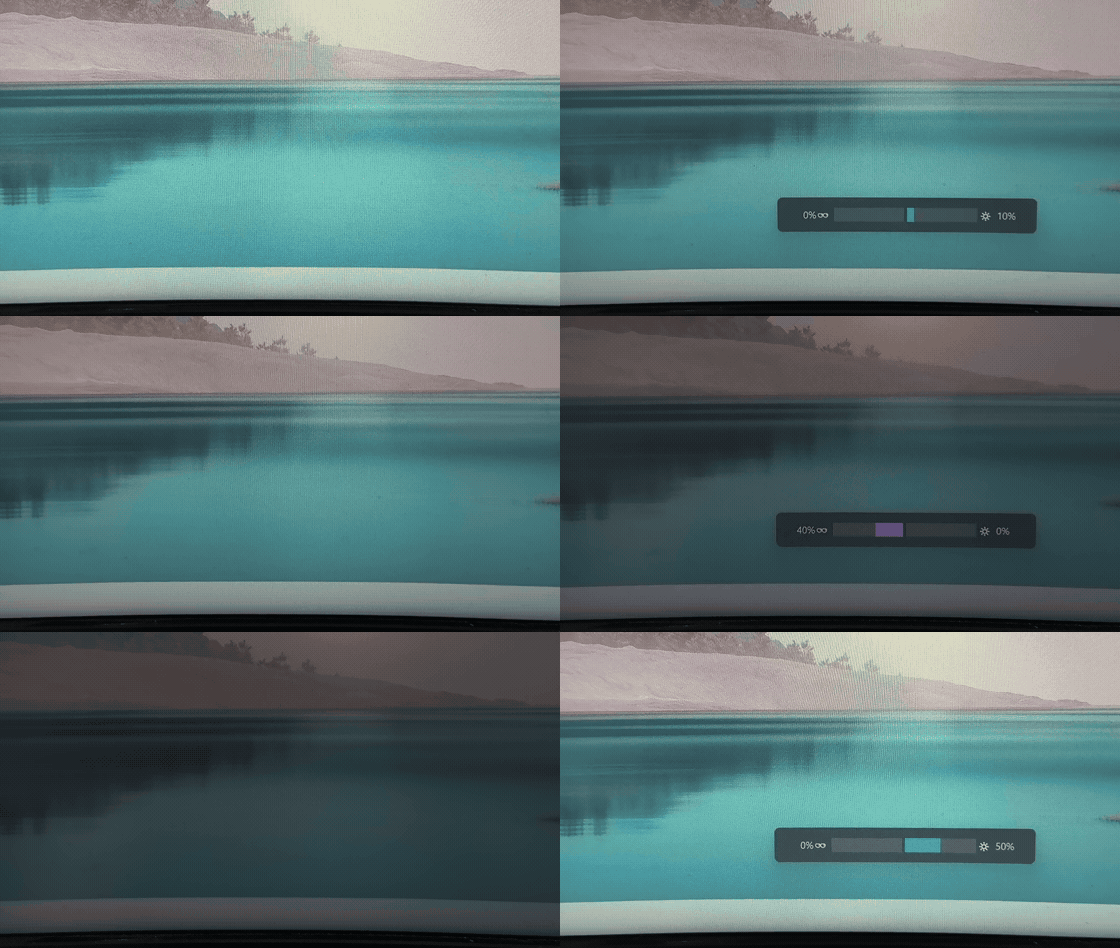
Filmed off-screen with the camera's exposure locked — a screen recording cannot show
the first half, because DDC/CI dims the monitor's backlight rather than the image.
What it does
- Dims below the hardware minimum. When DDC/CI brightness reaches 0 % and the screen is
still too bright, a black fullscreen overlay with variable opacity takes over. It does not
cover exclusive-fullscreen games or certain Windows system UI (taskbar, Start menu).
- Drives the real backlight, not a filter. For 1–100 % it talks to the monitor over
DDC/CI and sets VCP code
0x10 directly, so the panel actually gets darker.
- Multi-monitor, cursor-aware. Per-monitor control; a hotkey affects the monitor the
mouse pointer is currently on. Monitors are identified by EDID, so the configuration
survives replugging and port changes.
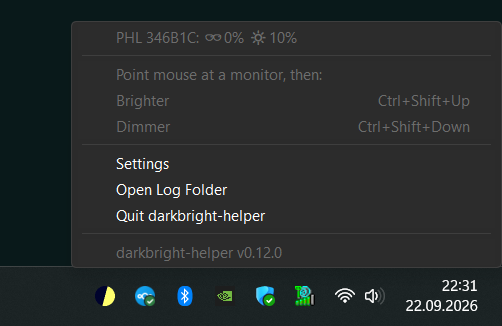
- Stays out of the way. An OSD overlay like the Windows volume indicator, plus a system
tray icon whose context menu shows live per-monitor status and your hotkeys, and offers
Settings, "Share monitor feedback on GitHub…", Open Log Folder and Quit — with warning
entries and an icon badge while degraded (e.g. DDC unavailable).
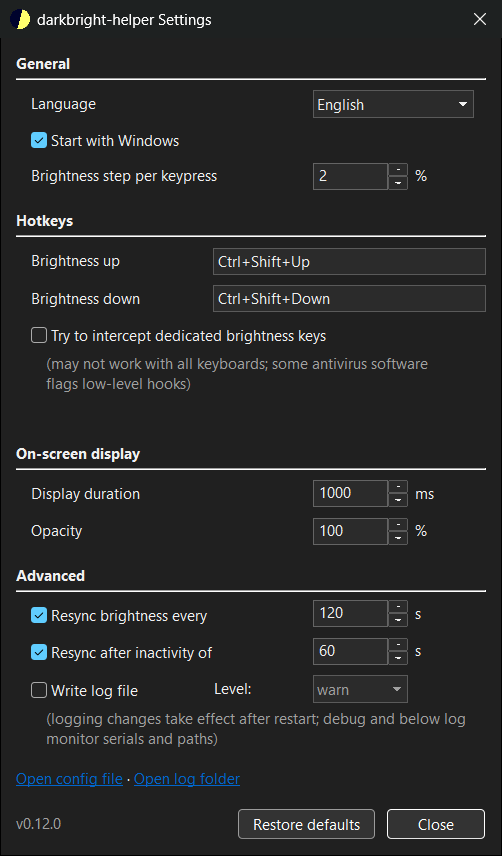
- A real settings window, not just a JSON file. The tray's Settings item opens a native,
dark-mode-aware window covering every option — hotkey rebinding included — with changes
applying instantly. An optional "Start with Windows" toggle lives there too. The config
file stays a fully supported escape hatch, one click away from the window's footer.
Install
With winget
winget is the Windows package
manager; it comes with the App Installer that ships with Windows 11 and current versions of
Windows 10. In a terminal:
winget install darkbright-helper
winget downloads the release from GitHub, checks it against the SHA-256 recorded in the
package manifest, and unpacks it. Later, winget upgrade darkbright-helper fetches a new
version — quit the program from its tray menu first, since Windows cannot replace a running
executable — and winget uninstall darkbright-helper removes it.
The package is a portable one: winget adds a darkbright-helper command but no Start menu
entry. Start the program by typing darkbright-helper in a new terminal window, and turn on
"Start with Windows" in its Settings window if you want it running after every sign-in.
From GitHub Releases
Prebuilt Windows binaries are published on
GitHub Releases
(releases after 0.8.0), as a zip bundling the executable with its license files and
third-party notices. Unpack it anywhere and run darkbright-helper.exe.
The binaries are not code-signed, so your browser warns on download and Windows warns the
first time you run one. This is expected — see
Running an unsigned binary for what to expect, why it happens,
and what you can verify.
Releases up to 0.11.0 need the Microsoft Visual C++ Redistributable: if Windows reports that
VCRUNTIME140.dll is missing, install the x64 package from
Microsoft's download page.
Later releases have the runtime built in, and winget installs it automatically wherever it
is still needed.
From source
See Build from source — the way to go if you would rather not click
past a warning for an unsigned binary.
Quick start
- Start the program:
darkbright-helper in a terminal after a winget install, otherwise
darkbright-helper.exe from wherever you unpacked it.
Ctrl+Shift+Up increases the brightness of the monitor under your mouse pointer.Ctrl+Shift+Down decreases it.- Once brightness reaches 0 %, continuing to decrease activates the dimming overlay.
- Click the tray icon for per-monitor status, a reminder of your hotkeys, Settings,
"Share monitor feedback on GitHub…", the log folder, or Quit.
Hotkeys:
- Primary:
Ctrl+Shift+Up / Ctrl+Shift+Down (reliable cross-keyboard default)
- Secondary: dedicated brightness keys (
VK_BRIGHTNESS_UP/VK_BRIGHTNESS_DOWN),
registered opportunistically — these do not work on every keyboard, see
Brightness Key Limitations
- Fully configurable via
config.json (in %APPDATA%), see Configuration
Scope
A deliberately narrow hobby project: adjust monitor brightness from the keyboard, on
Windows, including below the hardware minimum. That is all it currently tries to do.
Platform: Windows only. The core logic in src/core/ is deliberately kept
platform-agnostic, so a Linux port would be structurally feasible — but it is not planned
and not promised. I may look into it if there is real demand and I have the time and
inclination; equally, it may never happen.
Non-goals — these are settled, not open questions:
- Colour temperature, night light, or monitor gamma control
- Per-application or scheduled brightness profiles
- Telemetry, auto-update, or any network feature
Not planned, but not ruled out:
- A Linux port (see Platform, above)
- Some form of contrast handling to improve text readability at very low overlay levels
- Laptop internal panels, which do not speak DDC/CI and would need a separate Windows
backend alongside it
None of these is promised, none has a timeline, and none is worth waiting for.
If you need something this tool does not do, forking is genuinely encouraged — the licence
permits it, and I would rather you have the tool you want than wait on me.
Configuration
Every option is editable from the tray's Settings window (right-click the tray icon →
Settings) — the screenshot above shows the full set, and changes apply instantly. The file
it writes to stays a fully supported way to edit the same values by hand:
%APPDATA%\BrightnessControl\config.json
It is created on first run with every field at its default, so the quickest reference for
the file's shape is the file itself.
Two things the settings window cannot show you:
monitors is reserved for future per-monitor settings and is currently ignored.- Start with Windows is not a field in this file. The toggle writes directly to the
HKCU\Run registry key, because the app ships as a portable zip that can move between
locations.
Valid ranges and defaults for every field are tabulated in
docs/architecture.md §4. An out-of-range value is logged as an
error and replaced with the default — a bad config never stops the app from starting. The
interface follows the Windows display language (Czech, Dutch, English, French, German, Greek,
Indonesian, Italian, Polish, Brazilian Portuguese, Russian, Spanish, Turkish, Ukrainian or
Vietnamese) and can be pinned to one language in Settings; the language field holds that
choice.
Logging
- Debug builds log to the visible console; the level is controlled by
RUST_LOG (default: debug).
- Release builds hide the console. For diagnostics, set
logging.file_enabled: true: every log record is then also written to %APPDATA%\BrightnessControl\darkbright.log, reachable via the tray menu's "Open Log Folder". The file is size-capped: at 1 MB it rotates to darkbright.log.old, bounding disk use at ~2 MB while recent history survives.
logging.file_level filters the file independently of the console (RUST_LOG does not affect the file). At debug and below the file contains monitor serial numbers and absolute paths — fine for a deliberately created diagnostic artifact, but worth knowing before sharing it.- Crashes leave a trace: panics are logged (message + source location) and flushed to the file log before the process dies.
Privacy
The tool performs no network I/O whatsoever — no telemetry, no update checks, no crash
reporting. It opens no sockets, and nothing in its dependency tree is capable of doing so.
The only files it touches are its own, in %APPDATA%\BrightnessControl\: config.json
(plus a config.json.bak mirror) and, when enabled, darkbright.log.
The tray menu's "Share monitor feedback on GitHub…" entry is the one place the tool hands
something to your browser: it opens a GitHub page with a report already filled in. That link holds the
tool's version, your Windows build number, each monitor's manufacturer code and model name,
whether the tool has read that monitor's brightness, and how many displays it could not
identify. No serial numbers, no paths, no user name. The tool itself still sends nothing;
whether that page is ever submitted is up to you.
Two caveats worth stating plainly. That folder is Roaming AppData, so on a machine with
roaming profiles or folder redirection, Windows may sync it to a network share — that is
Windows rather than this tool, but it is the one way these files can leave your machine.
And if the process ever crashes, Windows Error Reporting may offer to send a report to
Microsoft, as it does for any program.
The file log is off by default and defaults to info level, at which it records your
monitors' manufacturer and model names but no serial numbers and no file paths. Raising
logging.file_level to debug or trace adds monitor serial numbers and absolute paths
containing your Windows user name — fine for a diagnostic session you started deliberately,
worth a glance before you attach the file to a bug report (see Logging).
Brightness Key Limitations
intercept_brightness_keys installs a low-level keyboard hook to catch the dedicated
brightness keys (VK_BRIGHTNESS_UP/VK_BRIGHTNESS_DOWN). It can only work on keyboards
that route those keys through the standard Windows input path. Most laptop built-in
keyboards do not: the firmware or ACPI handles them before Windows sees them, so there is
nothing left to intercept. External USB keyboards frequently work, and gaming keyboards
with media keys vary by manufacturer.
If yours does not work, use the primary hotkeys (Ctrl+Shift+Up/Down) instead. The option
is off by default because some antivirus software treats low-level keyboard hooks as
suspicious behaviour.
Running an unsigned binary
The release binaries are not code-signed. Your browser warns on download, and Windows
then shows "Windows protected your PC" the first time you run each new version —
proceed with More info → Run anyway. "Unrecognized" is not "malicious". The prompt
returns with every release because SmartScreen reputation attaches to the individual file
rather than to the project, and an unsigned file starts from zero each time.
Since you are being asked to click past a security warning, verify the download instead of
trusting it. The release notes carry the zip's SHA-256 (compare with Get-FileHash), and
both the zip and the exe inside it carry a signed build-provenance attestation:
gh attestation verify .\darkbright-helper--windows-x64.zip --repo Ud3g/darkbright-helper
That proves the artifact was built by this repository's
release workflow from a specific tagged commit.
Defender false positives, Smart App Control — which blocks locally compiled unsigned
binaries too, so building from source is not a way around it — and where code signing
stands: docs/unsigned-binary.md.
Build from source
Written in Rust (2024 edition) — chosen for cross-platform portability, low resource usage,
and native Windows API integration (windows crate).
Prerequisites
- Rust 1.88+ (2024 edition)
- Windows 10 or 11
Build
git clone https://github.com/Ud3g/darkbright-helper.git
cd darkbright-helper
cargo build --release
The executable will be at target/release/darkbright-helper.exe.
Debug vs Release Builds
| Build Type | Command | Console Window | Use Case |
|---|
| Debug | cargo build | ✅ Visible | Development, viewing log output |
| Release | cargo build --release | ❌ Hidden | End-user distribution |
- Debug builds show a console window where log messages appear (controlled by
RUST_LOG environment variable)
- Release builds use
windows_subsystem = "windows" to hide the console, providing a clean GUI-only experience
- To diagnose a release build, enable the opt-in file log — see Logging
Support and cadence
If you run into trouble, I will generally take a look. The most useful thing you can do is
enable the file log (logging.file_enabled: true, with logging.file_level set to
debug), reproduce the problem, and attach the log to an issue — that is what I need in
order to investigate anything. Please skim it first: at debug level it contains your
monitors' serial numbers and absolute paths.
What I cannot offer is any commitment on timing. I have a full-time job and children, and
this is a spare-time project. There is no response-time target of any kind. Long quiet
periods are normal and do not mean the project is abandoned — but if more comes in than I
expect, it is equally possible that an issue sits for a very long time, or that nothing
happens at all. I would rather say that plainly than let you infer a promise I cannot keep.
Hardware-specific DDC/CI problems are the hardest case: monitors might misbehave in ways I
cannot reproduce on my own hardware, and some of those I will close without a fix.
If the tool works for you, that is worth knowing too. Tray menu → "Share monitor feedback on
GitHub…" opens a prefilled report for the
Hardware reports
category (posting it needs a GitHub account) — reports on working setups are as welcome as
reports on broken ones.
How this project was built
The code in this repository is LLM-generated. I directed the work — requirements,
architecture decisions, design review, and testing against real hardware — but I did not
hand-write the Rust. I am not a Rust programmer, and I would rather say so than pretend
otherwise.
What that means in practice:
- It is reviewed, not dumped. The project has been through documented architecture
reviews (see
docs/), with findings tracked and resolved rather than waved through.
DDC/CI behaviour is verified manually against real monitors, because it cannot be
meaningfully unit-tested.
- The commit history says so. Most commits carry
Co-authored-by trailers naming the
model that produced them.
- The translations are LLM-generated too. I checked the German one myself. The other
thirteen languages went through a multi-pass LLM review — a translation, a blind
back-translation, an independent review — but no native speaker has read them. If a wording is wrong or clumsy in your language,
please say so in
Discussions.
- My support depth is limited by this. I can reason about this codebase's design and
behaviour, but I am not the right person to ask about advanced Rust idioms, and I may be
slow to judge a subtle patch. Factor that in before depending on this tool.
License
Licensed under either of
at your option.
The application icon (res/icon.ico, res/icon.png) is AI-generated; no copyright is
claimed over it.
Contribution
Unless you explicitly state otherwise, any contribution intentionally submitted for
inclusion in the work by you, as defined in the Apache-2.0 license, shall be dual licensed
as above, without any additional terms or conditions.