spec-watcher
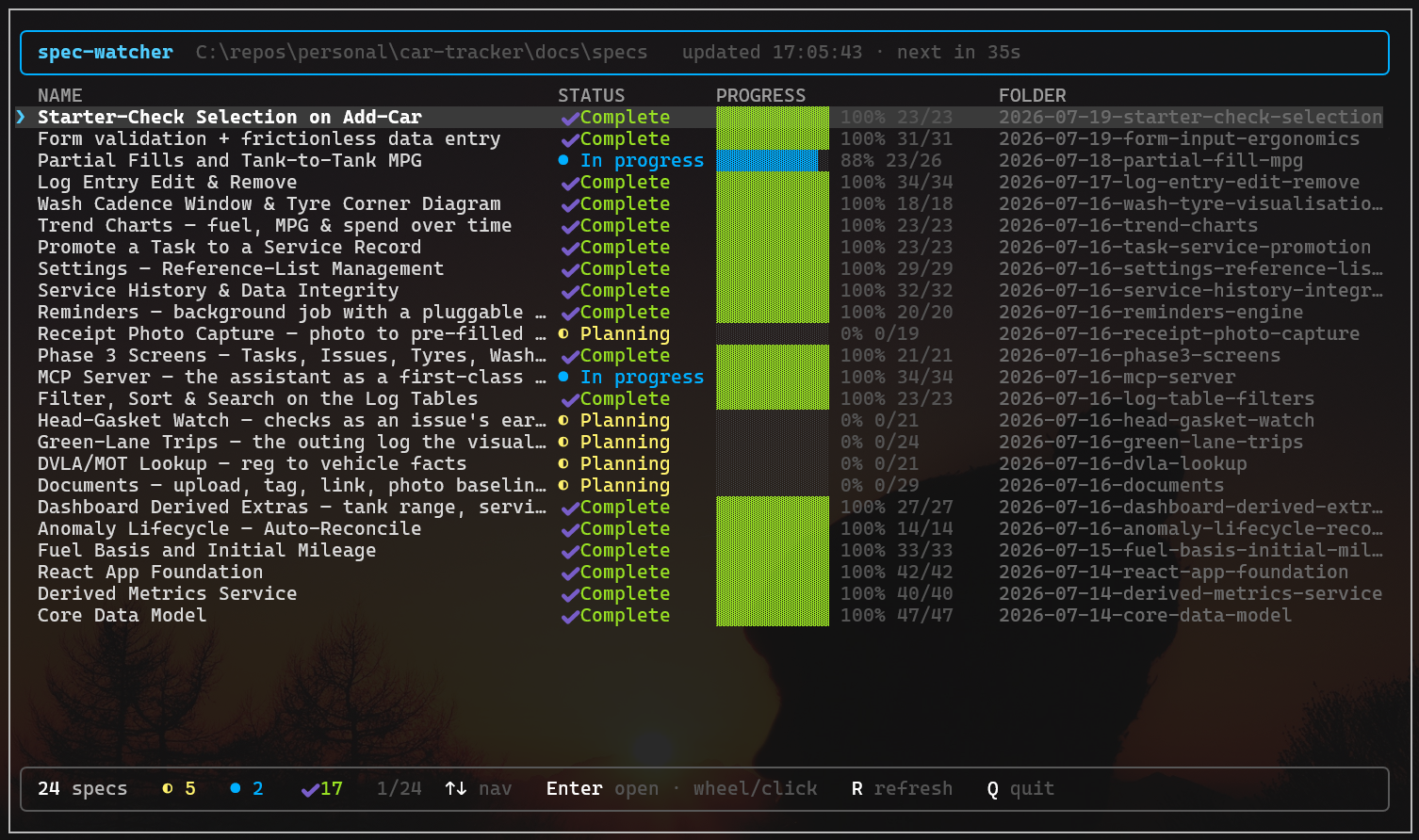
A full-screen terminal dashboard that watches a repository's specs folder and shows every spec's
name, status, and task progress in one live, navigable table. Arrow-key/mouse navigation with a
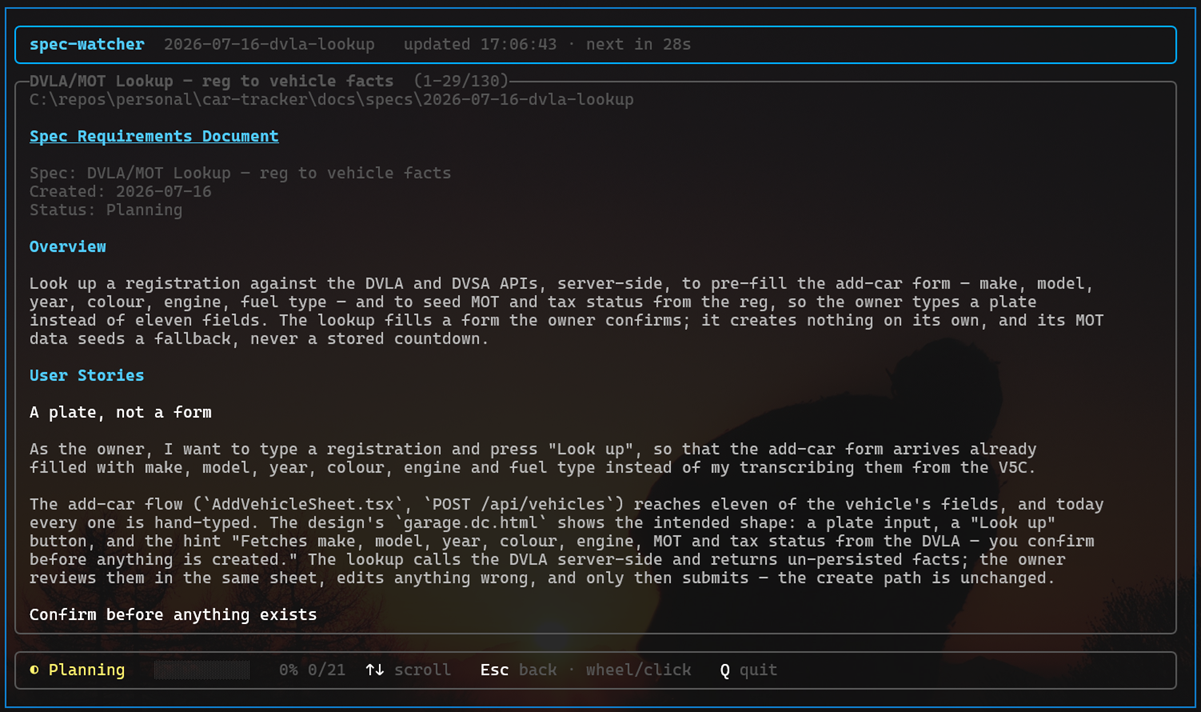
per-spec detail view that shows the whole spec.
Built for the Agent OS spec convention: one date-prefixed folder per spec under docs/specs, each
with a spec.md (blockquote header), spec-lite.md (one-paragraph summary), and usually a
tasks.md (checkbox tree).
List columns: Name · Status · Progress · Folder. Press Enter (or click a row) to open the
full spec + task checklist.
Install
winget install UsualExpat.SpecWatcher
Installs a self-contained spec-watcher command (no .NET runtime required) published by Usual Expat
Limited. See docs/publishing-winget.md for how releases are cut and how
the winget package is maintained.
Requirements
Only to build from source:
Run
# watch ./docs/specs of the current directory
dotnet run --project SpecWatcher.CLI

# watch another repo
dotnet run --project SpecWatcher.CLI -- C:\repos\personal\car-tracker

# custom specs folder and 30s interval
dotnet run --project SpecWatcher.CLI -- C:\repos\personal\car-tracker -s docs/specs -i 30
Build a binary:
dotnet build -c Release
# → SpecWatcher.CLI/bin/Release/net10.0/spec-watcher(.exe)
Options
| Argument / Option | Default | Description |
|---|
[REPO_PATH] (position) | current directory | Repository root to watch. |
-s, --specs-path | docs/specs | Specs folder, relative to the repo or absolute. |
-i, --interval | 60 | Auto-rescan interval in seconds (min 1). |
--drift-idle-days | 0 | Flag In-progress specs untouched this many days as idle (0 = off). |
--no-flags | off | Hide the drift/idle attention layer. |
--once | off | Scan once, emit the board to stdout, and exit. Never enters the TUI. |
-f, --format | table | Output format: table, json, or md. json/md imply --once. |
--fail-on | none | Comma list of status keywords (planning, in-progress, complete, unknown); any matching spec fails the gate (exit 2). |
--min-progress | none | 0–100; any spec with tasks below N% complete fails the gate (exit 2). |
Headless & CI mode
--once (or any of --format json|md, --fail-on, --min-progress) runs a single scan, writes the
board to stdout in the chosen format, and exits — no TUI, no services, no persisted state. This is
also what happens automatically when output is piped or the terminal is non-interactive.
# machine-readable snapshot you can pipe into jq, a dashboard, or a badge generator
spec-watcher --once --format json

# GitHub-flavored Markdown table for a wiki / PR description / status email
spec-watcher --once --format md

# CI gate: fail the run (exit 2) if any spec is still planning or in progress
spec-watcher --fail-on planning,in-progress

# CI gate: fail if any spec with tasks is below 80% complete
spec-watcher --min-progress 80
Exit codes: 0 = scan succeeded and the gate passed (or none was set) · 1 = scan error
(missing specs dir / IO) · 2 = gate failure (a --fail-on match or --min-progress shortfall).
When a gate trips, the offending specs are listed in the output (and in the JSON gate.violations
block), and the board is still emitted first.
The --format json output is a stable, versioned schema (camelCase field names, kebab-case
status): it is the single source of truth a README status badge or spec-status.json integration
consumes, so it will only ever change additively.
Keys & mouse
List view
| Input | Action |
|---|
↑ / ↓ | Move selection |
PgUp / PgDn / Home / End | Jump |
Enter | Open the selected spec |
| Left-click a row | Open that spec |
| Scroll wheel | Move through the list |
R | Rescan immediately |
Q / Esc | Quit |
Detail view
| Input | Action |
|---|
↑ / ↓ / PgUp / PgDn / wheel | Scroll the spec |
| Drag over text | Select & auto-copy to clipboard |
Esc / Backspace / ← | Back to the list |
Q | Quit |
Mouse (wheel + click) is supported on Windows (Windows Terminal / conhost). A left-drag selects
text and copies it to the clipboard automatically on release (a plain click still opens the row) —
most useful in the detail view. The highlight clears on the next key press or scroll. On other
platforms, or when input is redirected, the app runs keyboard-only and your terminal's own
drag-to-select handles copying.
How it reads a spec
- Name — the
> Spec: line in spec.md (falls back to the de-slugged folder name).
- Status — the
> Status: keyword → Planning / In progress / Complete. An all-checked
tasks.md is treated as Complete even if the status line is stale.
- Progress — completed vs total
- [ ] / - [x] checkboxes in tasks.md (shows — when absent).
- Folder — the raw folder slug, e.g.
2026-07-19-starter-check-selection.
- Detail view — renders the full
spec.md (Overview, User Stories, Scope, …) plus the tasks.md
checklist, loaded fresh from disk when opened.
Behavior notes
- The watch timer runs off the UI thread, so scanning never blocks input or redraws.
- Full-screen uses the terminal's alternate screen buffer and restores it on exit.
- On Windows, the console input mode is switched to deliver mouse events (QuickEdit is temporarily
disabled) and restored on exit.
- When output is piped or the terminal is non-interactive, it takes the headless path (a single
static table by default) and exits — see Headless & CI mode.
Project layout
SpecWatcher.slnx            # solution
SpecWatcher.CLI/            # the SpecWatcher.Console project
  SpecWatcher.Console.csproj
  Program.cs               # CommandApp entry point
  WatchSettings.cs         # CLI args/options + validation
  WatchCommand.cs          # Full-screen TUI: list + detail, nav, mouse, timer scan loop
  SpecScanner.cs           # Enumerate + parse spec folders (off-thread)
  SpecParser.cs            # Pure parsing of spec.md / spec-lite.md / tasks.md
  Models.cs                # SpecRow, SpecStatus, ScanResult, SpecDetail (immutable)
  Input/                   # IInputSource: Windows ReadConsoleInput (keys+mouse) + ReadKey fallback
docs/product/              # Mission, tech stack, roadmap, decisions