 PastePaw - Clipboard History Manager
中文 •
English



A beautiful clipboard history manager for Windows, built with Rust + Tauri + React + TypeScript.
Also available for macOS on the App Store — visit pastepaw.com for more.
Features
- 🔒 Private - IMPORTANT! All data stored locally
- 🎨 Beautiful UI - Modern dark/light theme with native Windows Mica & Mica-Alt window effects
- ⚡ Fast & Lightweight - Built with Rust for performance
- 📋 Clipboard History - Automatically saves everything you copy
- 🖥️ Support multiple Displays - Show on the active display
- 🔍 Search - Quickly find previously copied content
- 📁 Folders - Organize clips into custom folders
- 🚫 Application Exceptions - Ignore content from specific sensitive apps (e.g., Password Managers)
- ⌨️ Customizable Hotkey - Set your preferred shortcut to open the history
- 🔄 Infinite Scroll - Seamlessly browse through unlimited history
- 🛡️ Smart Filtering - Intelligent debounce logic to ignore "Ghost Copies" from other clipboard tools
- 🤖 AI Powered - Built-in AI to summarize, translate, explain code, and fix grammar
- ⚙️ Customizable AI - Fully customize AI action names and system prompts to suit your workflow
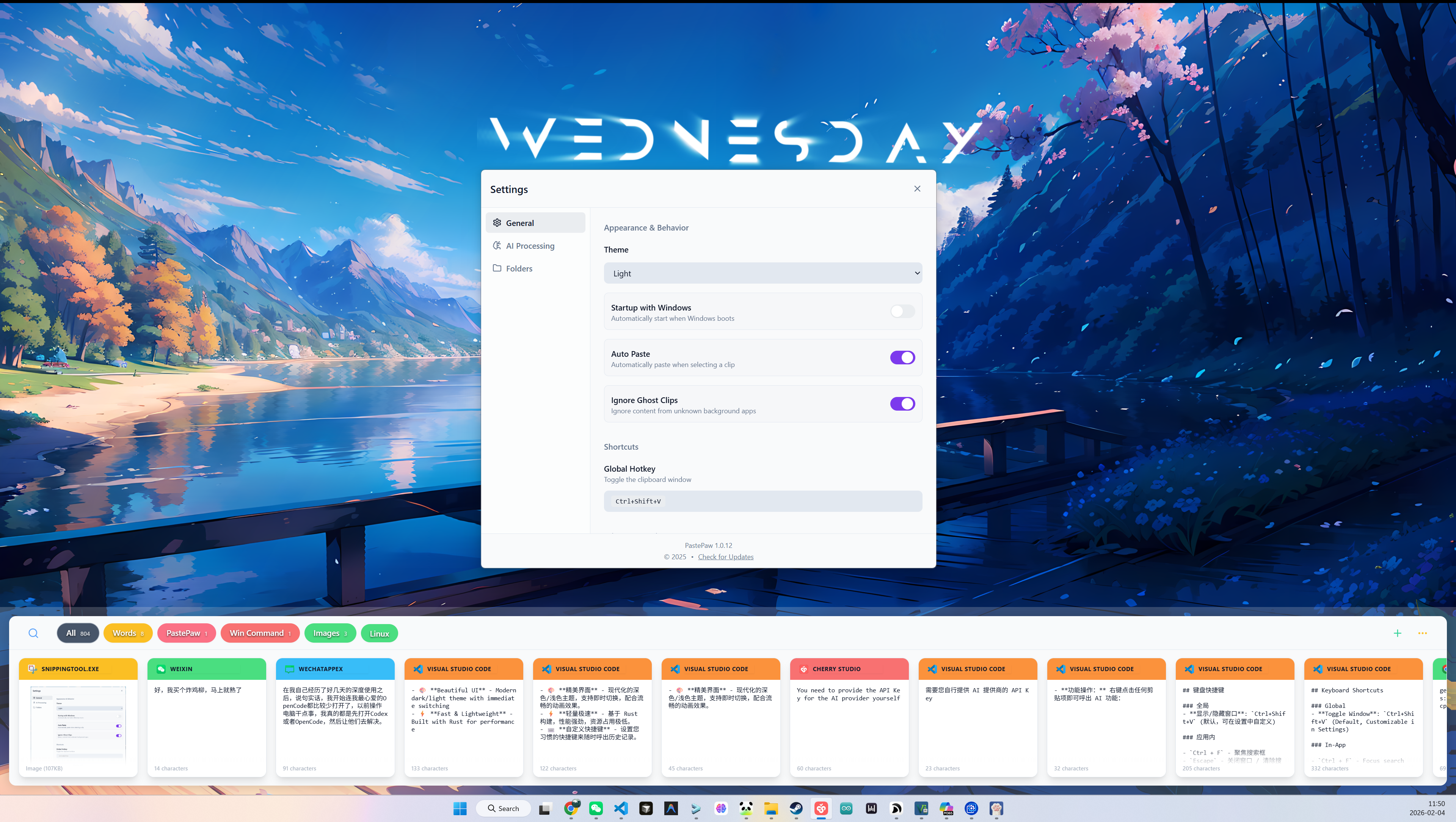
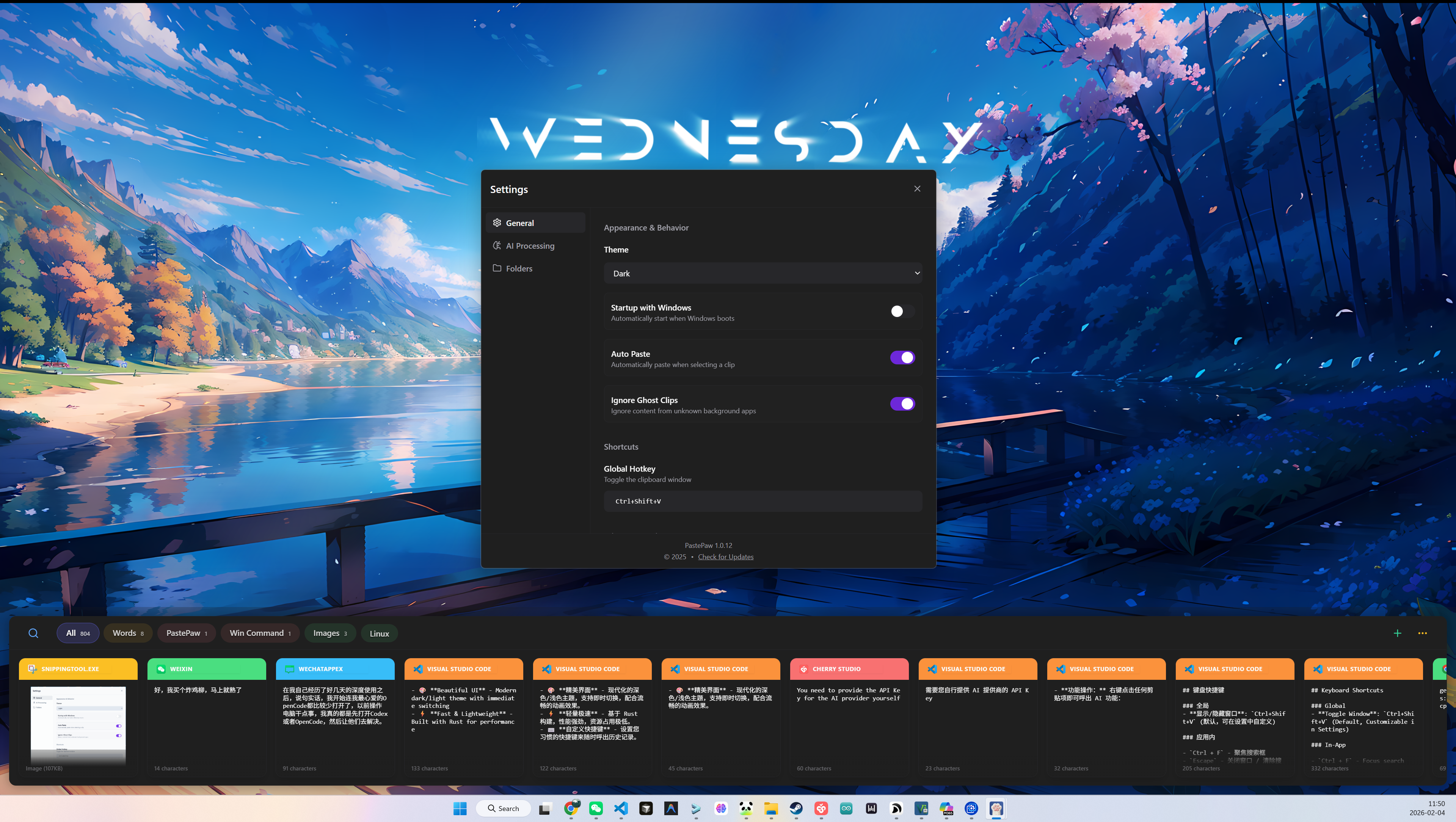
Screenshots
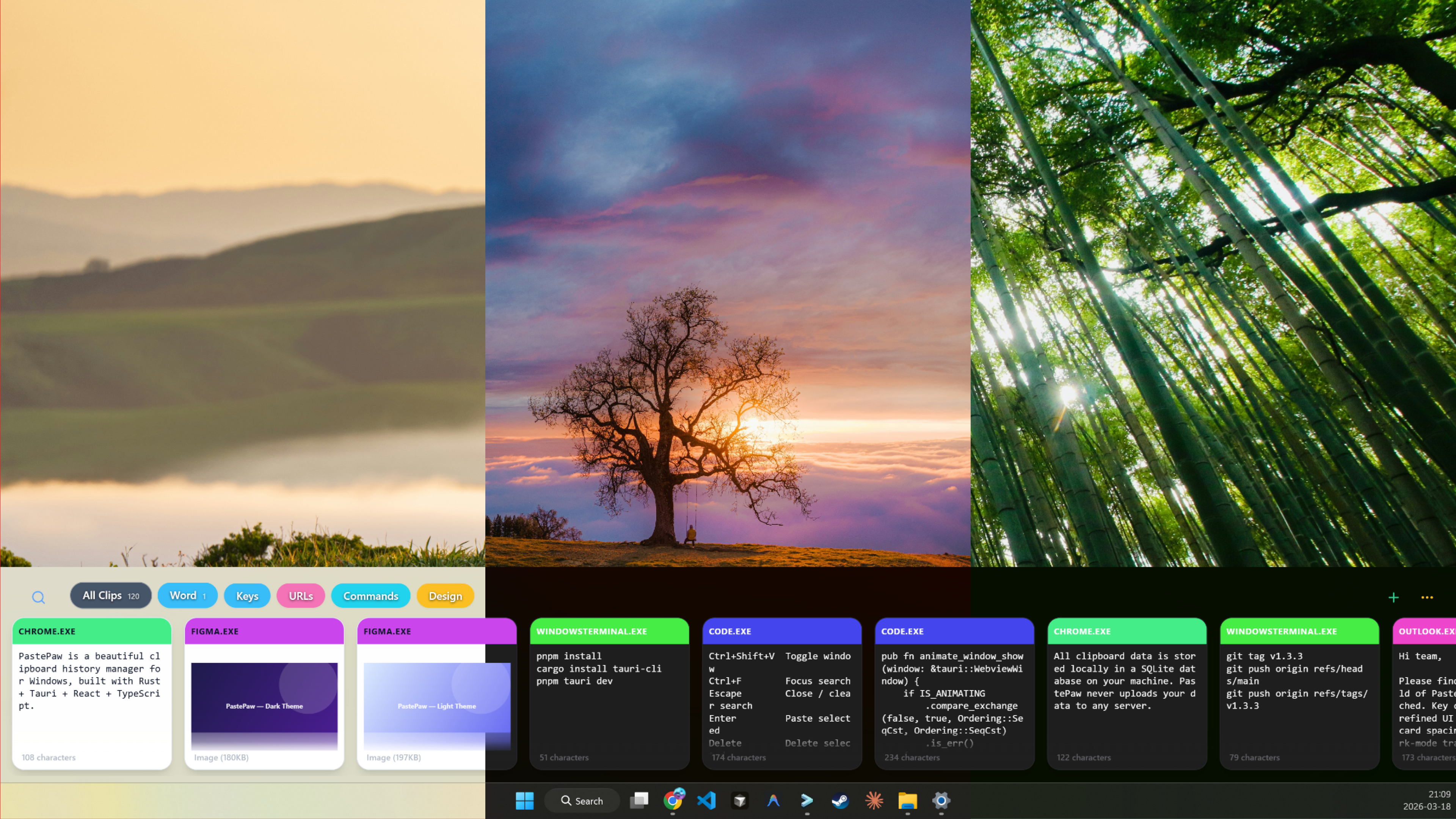
Light theme
Dark theme
Installation Guide
1. Install via Winget
winget install XueshiQiao.PastePaw
2. Download from GitHub Releases (Windows)
Download the latest installer directly from:
https://github.com/XueshiQiao/PastePaw/releases
> 🔍 Security: Every release is automatically scanned with VirusTotal (70+ antivirus engines). Scan results are linked at the bottom of each release note.
Keyboard Shortcuts
Global
- Toggle Window:
Ctrl+Shift+V (Default, Customizable in Settings)
In-App
Ctrl + F - Focus searchEscape - Close window / Clear searchEnter - Paste selected itemDelete - Delete selected itemP - Pin/Unpin selected itemArrow Up/Down - Navigate items
Application Exceptions (Ignored Apps)
PastePaw allows you to exclude specific applications from being recorded in the clipboard history. This is useful for privacy-sensitive applications like password managers or banking apps.
(You need to provide the API Key for the AI provider)
Logic & Behavior:
- How to manage: Go to Settings -> Ignored Applications. You can browse for an executable (
.exe) or strictly type its name.
- Privacy Protection: When content is copied, PastePaw checks the source application against your ignore list.
- Robust Matching: The system checks against both:
- Executable Name (e.g.,
notepad.exe) - Matches any instance of this app regardless of location.
- Full File Path (e.g.,
C:\Windows\System32\notepad.exe) - Matches only the specific installed instance.
- Case Insensitive: Matching is case-insensitive to ensure reliable detection on Windows.
AI Features
PastePaw integrates powerful AI capabilities to help you process your clipboard content more efficiently.
- Actions: Right-click any clip to access AI actions:
- Summarize: Get a concise summary of long texts.
- Translate: Translate content to your preferred language.
- Explain Code: Understand complex code snippets instantly.
- Fix Grammar: Polishing your writing with professional grammar checks.
- Full Customization:
- Custom Names: Rename AI actions in Settings (e.g., change "Translate" to "To Spanish").
- Custom Prompts: Override default system prompts to tailor the AI's behavior and output style.
- Provider Support: Support for OpenAI, DeepSeek, and other OpenAI-compatible APIs.
Tech Stack
- Backend: Rust + Tauri 2.x
- Frontend: React 18 + TypeScript
- Database: SQLite
- Styling: Tailwind CSS
- Package Manager: pnpm
Getting Started
Prerequisites
- Node.js 18+
- Rust 1.70+
- pnpm
Dev commands
# Install dependencies
pnpm install

# Install Tauri CLI
cargo install tauri-cli

# Run development build
pnpm tauri dev
Building
# Build for production
pnpm tauri build
Project Structure
PastePaw/
├── src-tauri/           # Rust backend
│   ├── src/
│   │   ├── main.rs      # App entry point
│   │   ├── lib.rs       # Core logic
│   │   ├── clipboard.rs # Clipboard monitoring
│   │   ├── database.rs  # SQLite operations
│   │   ├── commands.rs  # Tauri IPC commands
│   │   └── models.rs    # Data models
│   └── Cargo.toml
├── frontend/            # React frontend
│   ├── src/
│   │   ├── components/  # UI components
│   │   ├── hooks/       # React hooks
│   │   ├── types/       # TypeScript types
│   │   └── App.tsx
│   └── package.json
└── README.md
Development Notes
Tauri Command Argument Mapping
Tauri v2 enforces a strict case mapping between JavaScript/TypeScript and Rust:
- JavaScript/Frontend: Use
camelCase for argument names in invoke calls (e.g., filterId).
- Rust/Backend: Use
snake_case for function arguments in #[tauri::command] (e.g., filter_id).
Example:
- Frontend:
invoke('get_clips', { filterId: 'pinned' })
- Backend:
pub fn get_clips(filter_id: Option)
Failure to follow this convention (e.g., passing snake_case from the frontend) will result in arguments being passed as null or None to the backend.
Window Behavior & Multi-Monitor Support
The application is designed to appear on the active monitor (the one containing the mouse cursor) whenever the global hotkey is pressed.
-
Detection Logic:
- Located in
src-tauri/src/lib.rs (animate_window_show).
- Uses the Windows API
GetCursorPos (via the windows crate) to determine the global mouse coordinates.
- Iterates through
window.available_monitors() to find the monitor whose bounds contain the cursor point.
- Fallback: If the cursor position cannot be determined, it defaults to
window.current_monitor().
-
Positioning:
- The window is positioned at the bottom of the detected active monitor's work area (excluding taskbar).
- An animation slides the window up from the bottom edge.
Adjusting the Layout
The application uses a centralized layout system to ensure the native window and the virtualized list remain synchronized.
- Backend Constants:
src-tauri/src/constants.rs (Controls the OS window size).
- Frontend Constants:
frontend/src/constants.ts (Controls UI rendering and math).
How to change Card Height
The card height is dynamic and fills the available window space. To change it:
- Update
WINDOW_HEIGHT in both constants.rs and constants.ts to the same value.
- Restart the application (required for Rust changes).
How to change Vertical Spacing (Safe Zones)
To add more or less space at the top/bottom of the cards (e.g., to prevent clipping during hover):
- Modify
CARD_VERTICAL_PADDING in frontend/src/constants.ts.
- Increasing this value makes cards shorter; decreasing it makes them taller.
Architecture & Design Decisions
Why Frontend Clipboard for Images? (Solving "Thread does not have a clipboard open")
We use a Hybrid Clipboard Approach to solve the notorious Windows OSError 1418 (Thread does not have a clipboard open).
- Backend (Rust): Great for monitoring the clipboard and handling database checks. However, on Windows, clipboard access is bound to the thread that created the window (STA). Trying to write images from a background Tokio thread often leads to race conditions and "OpenClipboard Failed" errors. The solution would be to write images on the main thread, but this severely slows down UI responsiveness and causes lag.
- Frontend (WebView2): The browser engine has a mature, stable implementation of
navigator.clipboard.write.
Our Solution:
- Frontend: Writes the Image Blob directly to the system clipboard.
- Backend: Updates the internal database and triggers the paste shortcut (
Shift+Insert).
Why use Shift+Insert for Pasting?
We use Shift + Insert as the default paste trigger instead of Ctrl + V.
- Terminal Compatibility:
Ctrl+V often fails in terminal emulators (PowerShell, WSL, VS Code Terminal), sending a control character instead of pasting.
- Legacy Standard:
Shift+Insert is the universal paste standard recognized by virtually all Windows applications, including terminals and legacy software.
Sequence Diagram for Image Pasting (Windows)
sequenceDiagram
    actor User
    participant FE as Frontend (React/App.tsx)
    participant BE as Backend (Rust/commands.rs)
    participant BROWSER as WebView2 Clipboard API
    participant OS as OS / Target App

    User->>FE: Double click image clip
    activate FE
    FE->>BE: invoke('get_clip_detail', { id })
    BE-->>FE: Full image (base64)
    FE->>FE: base64ToBlob(...)
    FE->>BROWSER: navigator.clipboard.write([ClipboardItem])
    BROWSER->>OS: Clipboard image data set
    FE->>BE: invoke('paste_clip', { id })
    deactivate FE

    activate BE
    BE->>BE: Update clip timestamp/LRU
    Note over BE: On Windows, backend does not rewrite image bytes
    BE->>OS: Hide window
    BE->>OS: Send Shift+Insert (when auto-paste is enabled)
    deactivate BE

    OS->>User: Pasted image appears