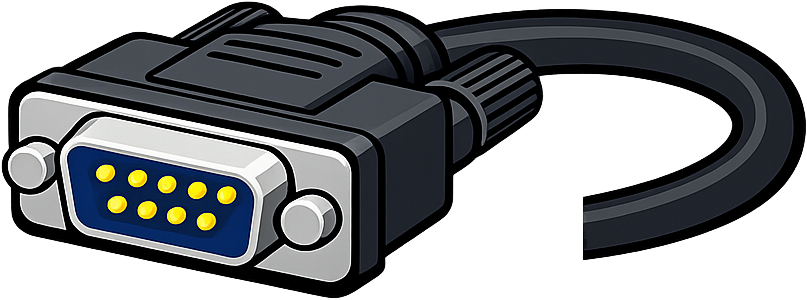
SimpleCom is a console application designed to facilitate serial communication between Windows devices and external hardware. Built as a lightweight and flexible tool, it enables users to establish and manage serial connections with ease, leveraging command-line options for configuration.
Key Features:
Command-Line Configuration: Set up serial port parameters such as baud rate, parity, stop bits, and flow control directly via the command line.
UTF-8 Support: Enable UTF-8 encoding for console output to handle text more reliably.
TTY Resizer Integration: Adjust terminal window dimensions dynamically to match connected devices.
Auto-Reconnect Functionality: Automatically reconnect to peripherals if a connection is lost, with adjustable pause and timeout settings.
Logging Capabilities: Record serial communication or stdin input for troubleshooting and analysis.
Windows Terminal Integration: Use JSON fragments to integrate SimpleCom into Windows Terminal for seamless access.
Audience & Benefit:
Ideal for developers, engineers, and technical professionals working with embedded systems or IoT devices. SimpleCom provides a reliable and efficient way to communicate with serial hardware, streamlining testing, debugging, and configuration tasks.
The software can be installed via winget, ensuring straightforward setup on Windows environments.
README
SimpleCom
Console app for serial connection.
How to use
Conenct serial adaptor to your PC
Start SimpleCom.exe
Setup serial console
If you start SimpleCom without any command line options, use dialog to configure
> SimpleCom.exe
You can configure serial port with command line, then dialog would not be shown
> SimpleCom.exe COM[N]
COM[N] is mandatory to specify serial port
Operate target device via the console
Press F1 to leave its serial session and to finish SimpleCom
Press CTRL+C in batch mode
> [!IMPORTANT]
> You have to use batch mode (--batch) if you want to redirect something into SimpleCom. Batch mode would not terminate automatically when stdin reaches EOF. So you have to type CTRL+C if you want terminate SimpleCom.
Command line options
Option
Default
Description
--show-dialog
false
Show setup dialog even if command line arguments are passed.
--wait-serial-device [seconds]
0 (disable)
Wait specified seconds for serial devices are available.
Set one of following values as a parity: noneoddevenmarkspace
--stop-bits [val]
1
Set one of following values as a stop bits: 11.52
--flow-control [val]
none
Set one of following values as a flow control: nonehardwaresoftware
--auto-reconnect
false
Reconnect to peripheral automatically when serial session is disconnected.
--auto-reconnect-pause [num]
3
Pause time in seconds before reconnecting to peripheral.
--auto-reconnect-timeout [num]
120
Reconnect timeout
--log-file [logfile]
<none>
Log serial communication to file
--stdin-logging
false
Enable stdin logging⚠️Possible to be logged each chars duplicately due to echo back from the console when this option is set, and also secrets (e.g. passphrase) typed into the console will be logged even if it is not shown on the console.
--batch
false
Perform in batch mode⚠️You have to set serial port in command line arguments, and you cannot set with --show-dialog, --tty-resizer, --auto-reconnect, --log-file.
--disable-efficiency-mode
false
Disable Efficiency Mode. Specify this option if you have performance issue in SimpleCom. This option cannot be set on setup dialog.
--help
-
Show help message
How to build
Use SimpleCom.sln on your Visual Studio.
I confirmed x64 build on VS 2019.
Distribution package
You can get distribution package when you do release build.
MSI installer installes SimpleCom.exe and README.md (and also custom action assembly). It will deploy JSON fragment for SimpleCom into %ProgramData% or %LocalAppData% (it depends on install user choice). So the use can use SimpleCom without any configuration (as following) on Windows Terminal.


 Console app for serial connection.