About
Every term, CCIT advisers have to turn the registrar's Periodic Grades
Listing PDF into two official forms, by hand, for every advisee:
- Appraisal Sheet (VPAA-CCIT-QF-05) - one per student, all terms in
one file, using the template that matches the student's course (BSCS,
BSIT, BLIS or DCT), auto-detected from the PDF.
- Report of Rating (VPAA-CCIT-QF-09) - one per student per term.
Advisee Document Filler reads the grade listing PDFs, matches students
across terms, and generates both documents automatically.
Motivation
Filling these forms by hand is repetitive, error-prone, and doesn't scale
past a handful of advisees. This tool exists so an adviser can point it at
the PDFs the SIAS already provides and get correctly formatted,
ready-to-print documents back in a few clicks - no copy-pasting names and
grades between spreadsheets and Word templates.
Features
- ✓ Parses the registrar's Periodic Grades Listing PDF directly - no manual data entry
- ✓ Auto-detects course (BSCS, BSIT, BLIS, DCT) and picks the matching template
- ✓ Matches students across multiple term PDFs by ID number
- ✓ Fills Appraisal Sheets and Reports of Rating, with unused rows trimmed automatically
- ✓ Individual docx per student, or one merged batch file for bulk printing
- ✓ Remembers Adviser, Dean, and per-subject faculty names locally for next time
- ✓ Runs as a desktop wizard (no browser) or a loopback-only local web app
- ✓ Light/dark theme, resizable text, native look on Windows and Linux
- ✓ Signed, verifiable releases built entirely on GitHub's runners
How It Works
flowchart TD
    A[Grade Listing PDFs] --> B[Parser extracts students, course, grades]
    B --> C[Students matched across terms by ID number]
    C --> D[Course code selects Appraisal Sheet template]
    D --> E[Documents filled: Appraisal Sheet + Report of Rating]
    E --> F[Unused rows trimmed]
    F --> G[docx output: individual files or one merged batch]
- One or more grade listing PDFs are added, along with the Adviser and Dean names.
- The parser reads each PDF, matching students by ID number across terms.
- The course found in each PDF picks the matching Appraisal Sheet template.
- Both documents are filled and blank rows are trimmed automatically.
- Output is generated as individual docx files or one merged batch file.
Architecture
Language: Python 3
Libraries: Flask · pdfplumber · python-docx · docxcompose · darkdetect
Packaging: PyInstaller (onedir builds), Inno Setup (Windows installer),
deb/rpm/pkg (Linux), GitHub Actions, Sigstore/cosign
flowchart LR
    subgraph UI
        GUI[Desktop wizard - Tkinter]
        WEB[Web app - Flask + HTML]
    end
    GUI --> CORE
    WEB --> CORE
    subgraph CORE[Shared core]
        PARSER[parser.py]
        FILLER[filler.py]
        STORE[store.py - SQLite]
    end
    PARSER --> FILLER
    STORE --> FILLER
    FILLER --> DOCX[templates_docx/*.docx]
    DOCX --> OUT[Generated .docx output]
Both the desktop app and the web app are thin UIs over the same parsing
and filling logic, so behavior stays identical between the two.
Project Structure
appraisal-filler/
├── app.py               # Flask web app
├── gui_app.py            # Tkinter desktop wizard
├── parser.py              # Periodic Grades Listing PDF parser
├── filler.py               # Fills the docx templates
├── store.py                # Local SQLite store for remembered names
├── version.py               # Resolves the running build's version
├── templates_docx/           # Appraisal Sheet / Report of Rating .docx templates
├── templates/                # Web app HTML
├── static/                    # Web app assets (favicon, etc.)
├── assets/                     # App icon / logo
├── signing/                     # Windows publisher certificate
├── build_windows.bat             # Local Windows PyInstaller build
├── build_linux.sh                 # Local Linux PyInstaller build
├── installer.iss                   # Inno Setup script for the Windows installer
└── .github/workflows/                # CI: builds executables and Linux packages
Installation
A. Standalone desktop app (recommended, no browser)
A step-by-step wizard, with no web server, no network, nothing exposed.
From source:
pip install -r requirements.txt
python gui_app.py
Tkinter is required once on Linux: sudo apt install python3-tk
Also available as a single-file executable, with no Python needed on the
target machine:
- Windows:
build_windows.bat produces dist\AdviseeDocFiller.exe
- Linux:
build_linux.sh produces dist/AdviseeDocFiller
Each is built on the OS it targets - PyInstaller does not cross-compile,
so the Windows exe is built on Windows and the Linux binary on Linux. A
Linux binary runs on distros with the same or newer glibc than the
build machine.
Generated documents default to an AdviseeDocuments folder inside the
real Documents folder (Documents\AdviseeDocuments on Windows, resolved
even if OneDrive or a domain policy has redirected it;
~/Documents/AdviseeDocuments on Linux, following the XDG user-dirs
setting). The output location can be changed via "Browse..." on the
Generate step.
B. Web app (optional)
pip install -r requirements.txt
python app.py
It binds to 127.0.0.1 only (loopback, not visible to the network) and
picks a free port in the dynamic private range (49152-65535), with the
exact address printed on start.
Prebuilt releases
Windows, two options from the same build:
- Installer:
AdviseeDocFiller-Setup-1.0.exe installs to
C:\Program Files\Yaksharo Solutions\Advisee Document Filler, adds a
Start Menu entry (and optional desktop icon), and registers a normal
uninstaller in Windows Settings.
- Portable:
AdviseeDocFiller-windows-portable.zip extracts once
anywhere (USB stick included), with AdviseeDocFiller.exe runnable
directly inside. The folder can be copy-pasted to move it, as long as
the exe stays next to its _internal folder.
Linux portable: AdviseeDocFiller-linux.tar.gz extracts and runs.
Linux packages (built for the three big families, attached to Releases):
- Debian / Ubuntu / Mint:
sudo apt install ./adviseedocfiller_*.deb
- Fedora / RHEL / openSUSE:
sudo dnf install ./adviseedocfiller-*.rpm
- Arch / Manjaro:
sudo pacman -U adviseedocfiller-*.pkg.tar.zst
Each package installs the app to /opt/AdviseeDocFiller, adds an
adviseedocfiller command, and registers a menu entry with the app
icon. Note: the binary inside is built on GitHub's Ubuntu runner, so it
needs a distro with the same or newer glibc. Arch and current Fedora
are fine; very old LTS releases may not be.
Builds use PyInstaller's onedir mode: the app is a folder with the
executable inside, next to an _internal folder. It starts in about a
second - heavy libraries load lazily, so the window appears immediately
and the PDF engine loads in the background the first time you click Next.
Usage
Both apps walk through the same steps; the desktop wizard breaks them
into pages (PDF Files → Students → Documents → Faculty →
Generate), and the web app does the same work on a single page with a
"Preview students" button.
- Enter the Adviser name and Dean name (both required) and add one or
more grade listing PDFs. You can add the 1st and 2nd term listings
together. Students are matched across PDFs by ID number, and the
course found in each PDF (BSCS, BSIT, BLIS or DCT) picks the matching
Appraisal Sheet template automatically.
- Preview/check the parsed students, and untick anyone you want to skip.
- Pick which documents to generate.
- Adviser and Dean are already filled in from step 1. Optionally map
instructors per subject code (desktop: a dropdown/entry per code,
pre-filled from names you've used before; web: one per line, like
CT103 = Cy Burr, MSIT). The PDF has no instructor names, so the
Faculty and Instructor columns stay blank unless you map them - leaving
a faculty field empty also leaves it blank in the generated documents,
it does not fall back to a placeholder name.
- Pick the output format. Individual gives one docx per student
(zipped on the web app). One batch file merges every student into a
single docx, one student per page, ready for bulk printing.
- For Reports of Rating you can also untick terms you don't need.
- Click Generate.
Desktop app walkthrough
A visual run-through of the wizard, start to finish. Screenshots live in
docs/screenshots/ - see that folder's README if
you're updating them.
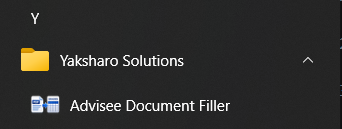
1. Launch the app
Start Menu (if installed) → Yaksharo Solutions →
Advisee Document Filler. Portable and Linux builds launch the same way
from their extracted folder or menu entry.
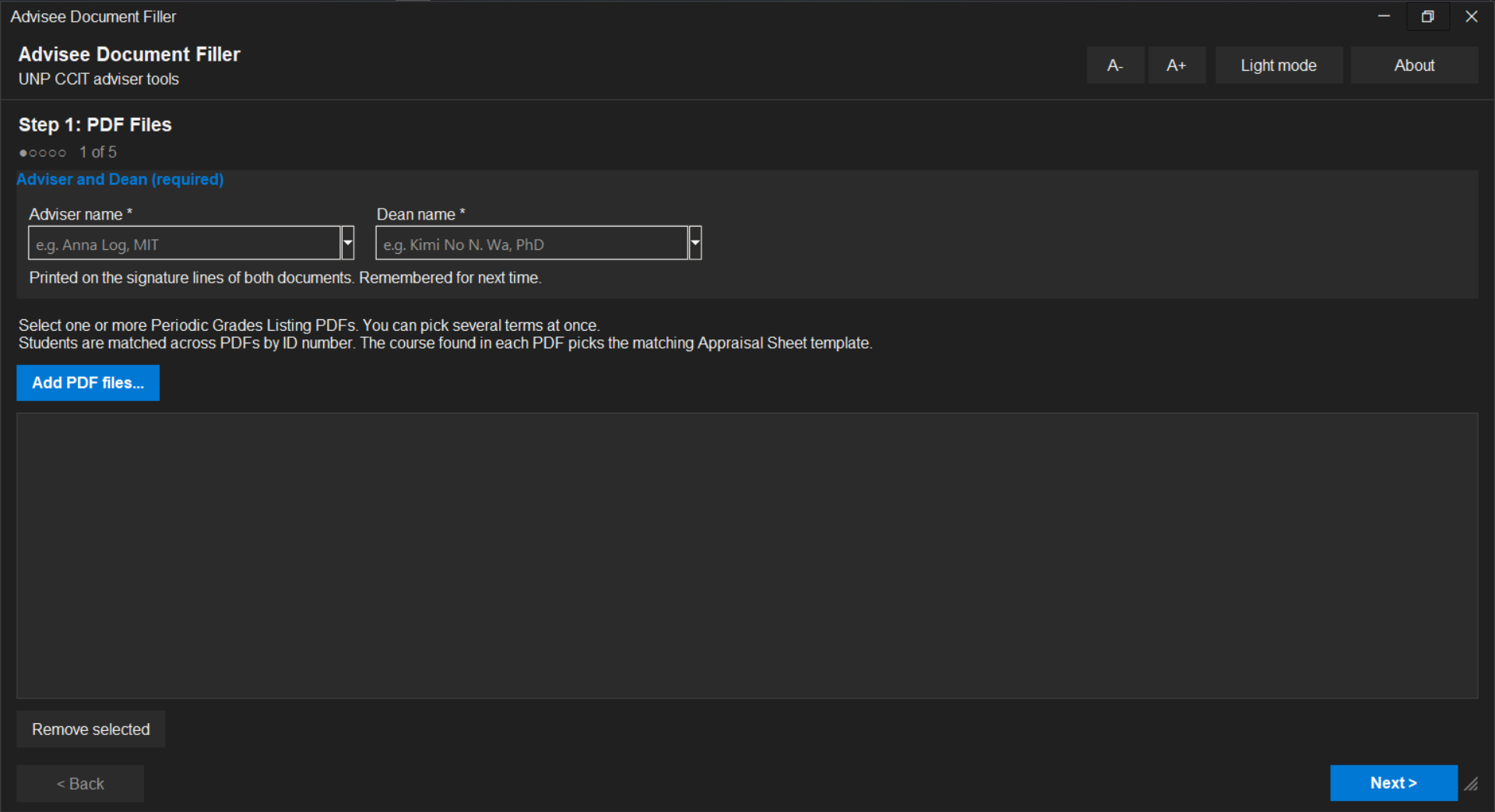
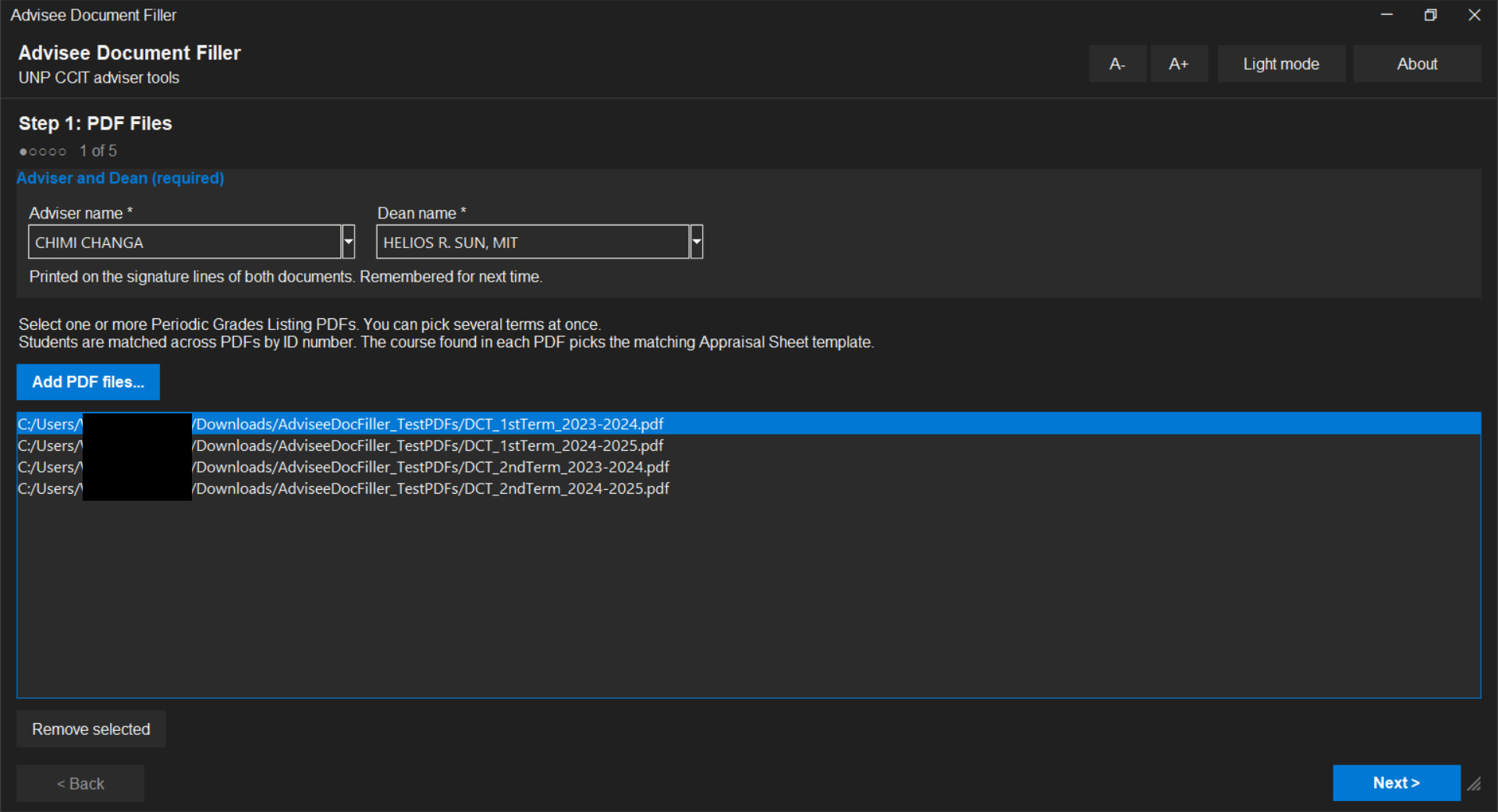
2. Step 1 - PDF Files
The wizard opens here. Enter the Adviser and Dean name (both required -
printed on the signature lines of both documents and remembered for next
time).
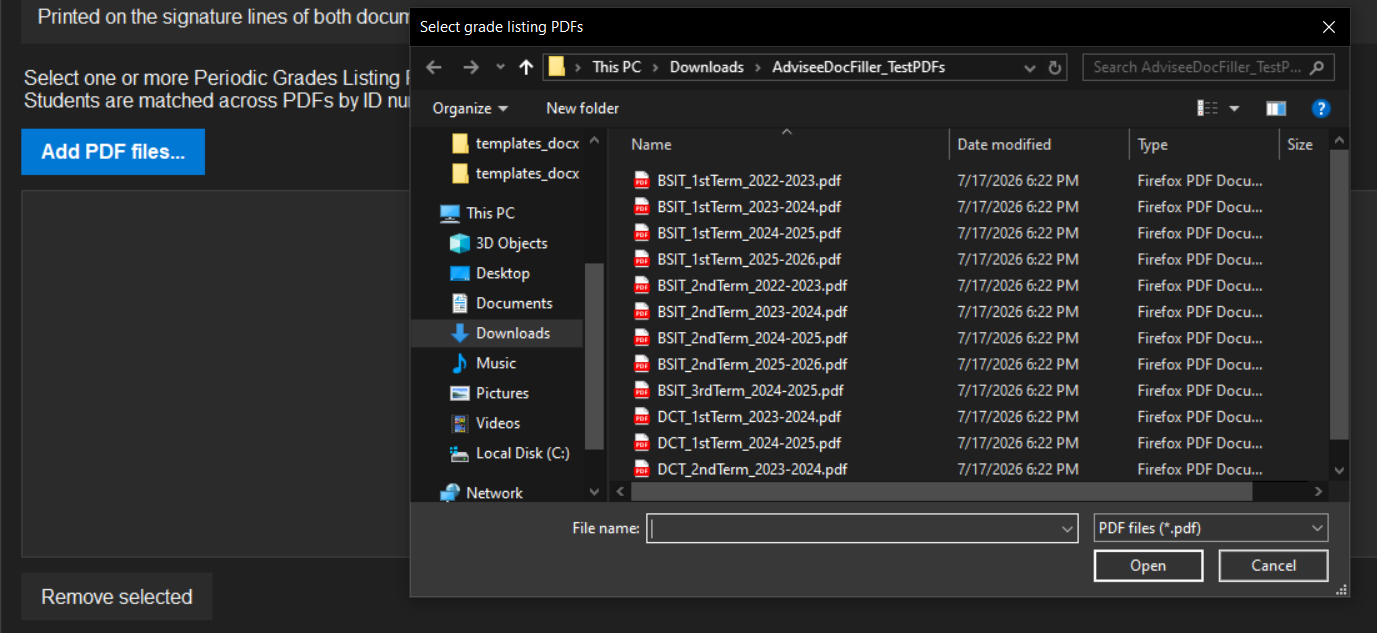
3. Add the grade listing PDFs
Click "Add PDF files..." and pick one or more Periodic Grades Listing
PDFs from the student portal - 1st and 2nd term (and beyond) can be added
together in one go.
4. Ready to parse
With the names filled in and the PDFs listed, click "Next >". Select a
file and click "Remove selected" if you added the wrong one.
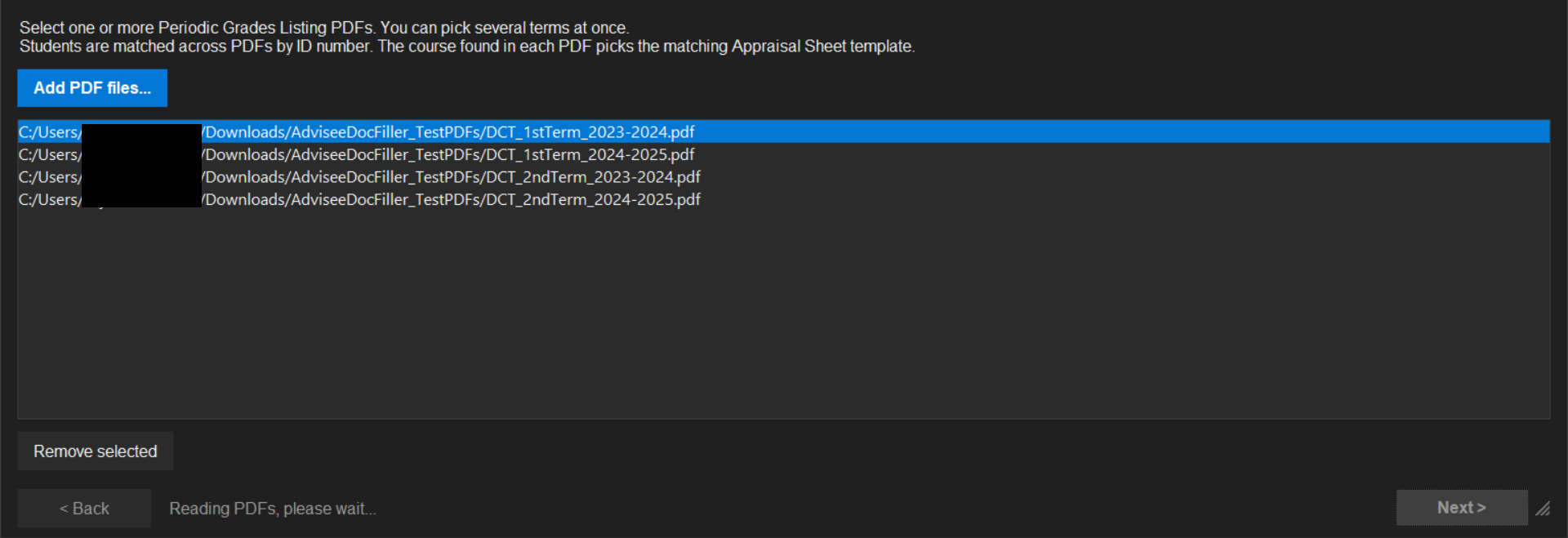
5. Parsing
The PDFs are read on a background thread, so the window stays responsive
while it works.
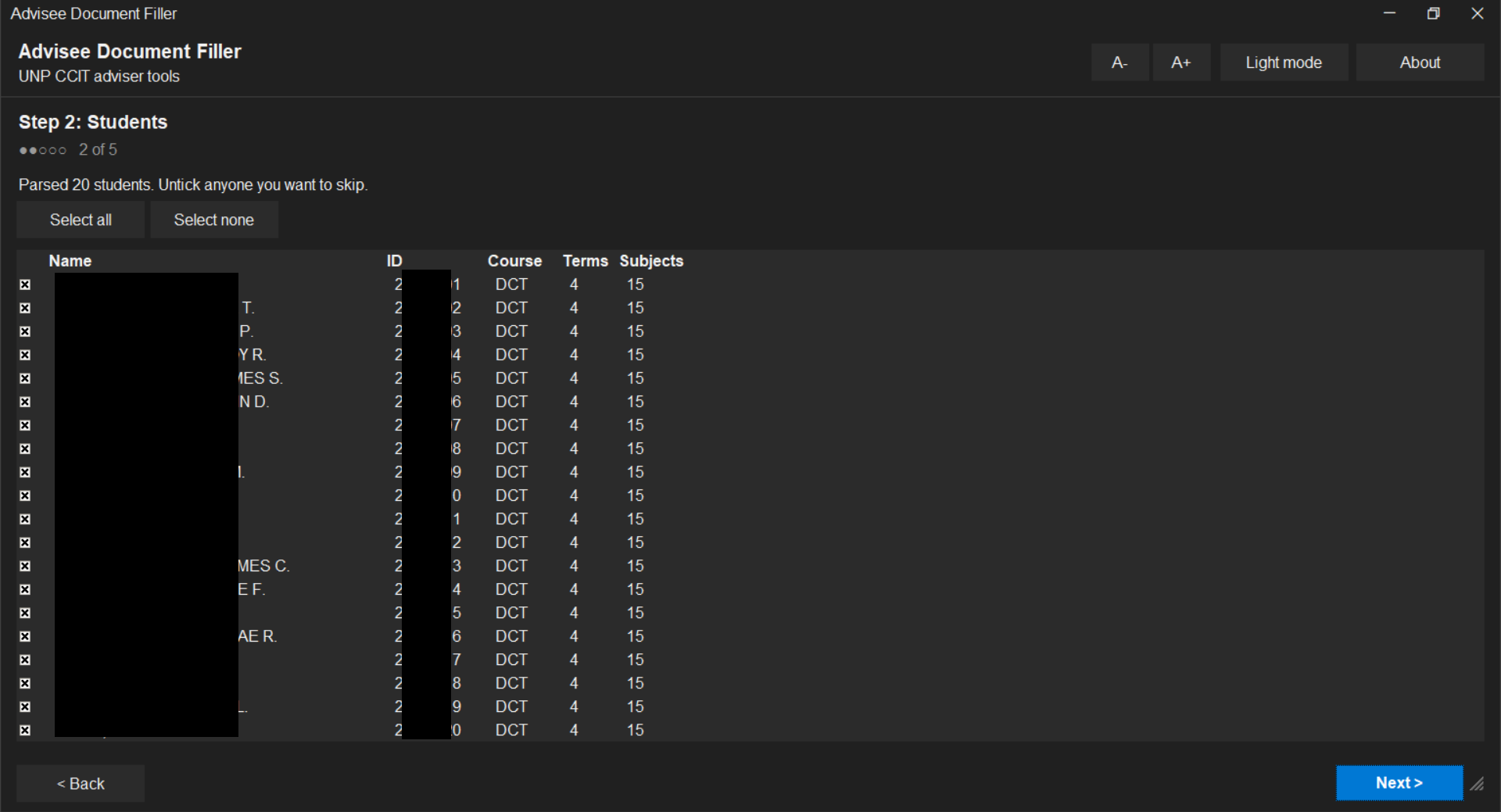
6. Step 2 - Students
Every student found across the PDFs, matched by ID number. Untick anyone
you want to skip, or use Select all / Select none.
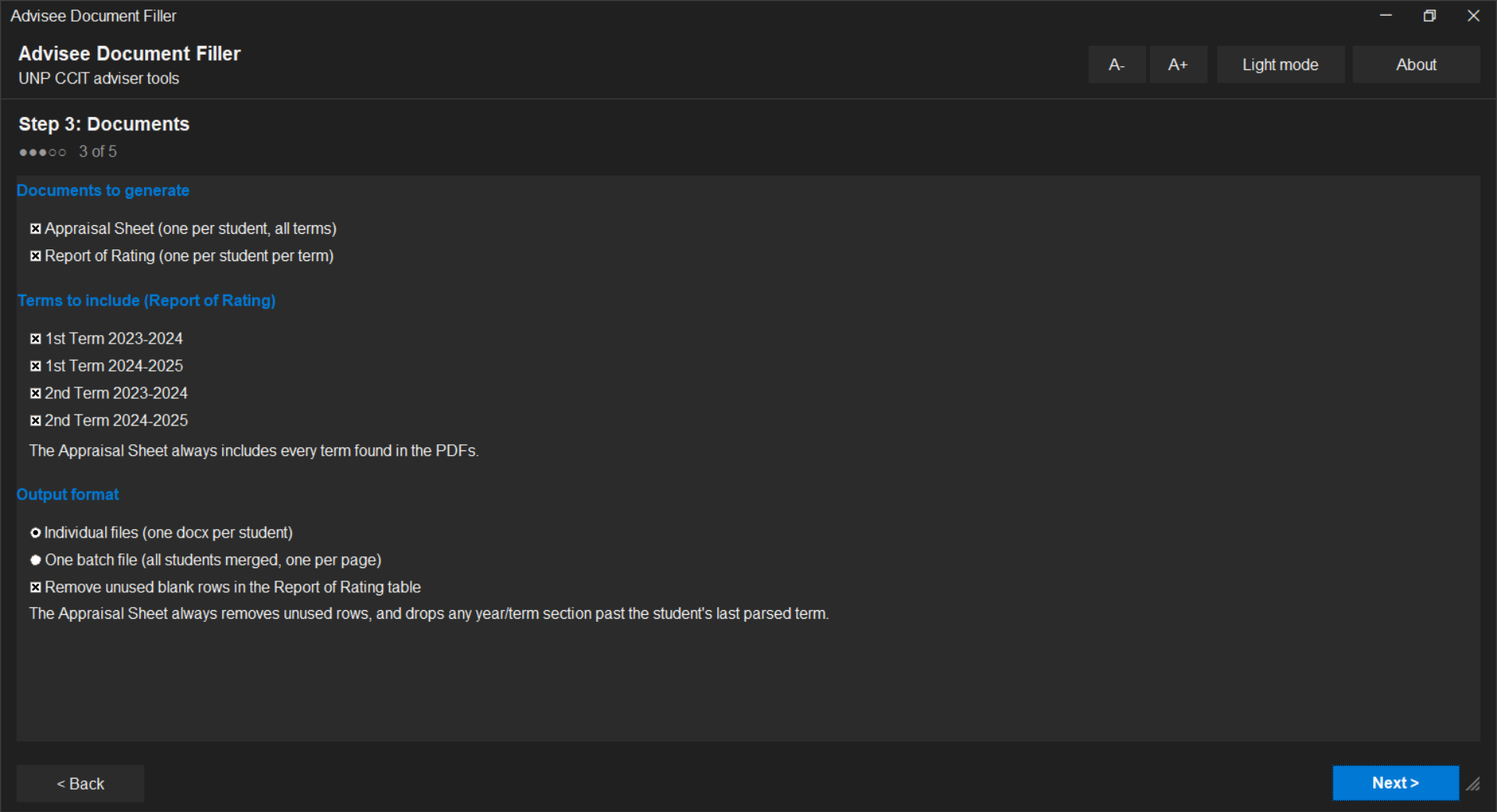
7. Step 3 - Documents
Choose which documents to generate, which terms to include on the Report
of Rating, and the output format (individual files vs. one merged batch
file for bulk printing).
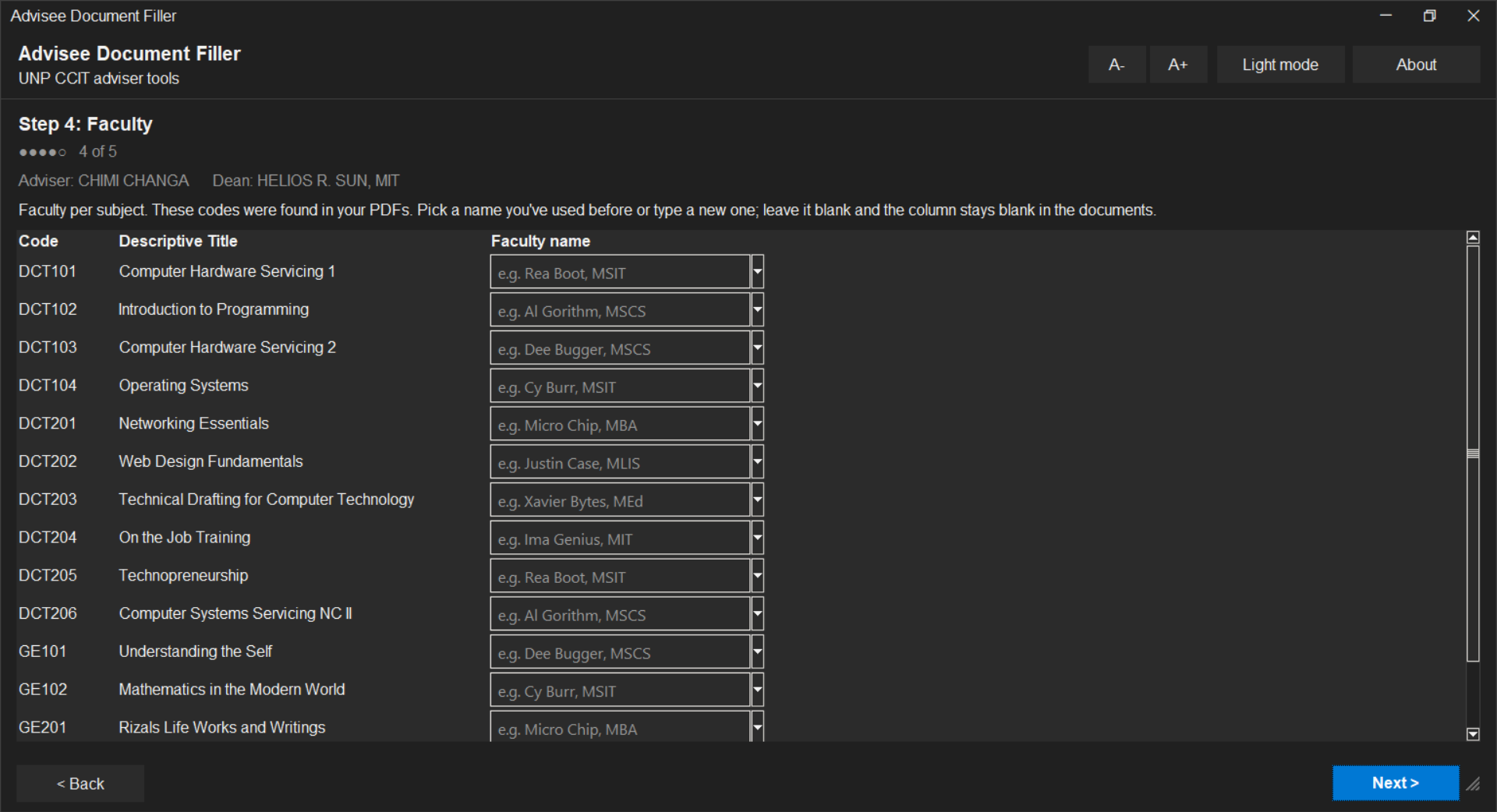
8. Step 4 - Faculty
Every subject code found in the PDFs, with a Faculty name field for each.
Pick a name you've used before or type a new one; leaving one blank
leaves that column blank in the generated documents.
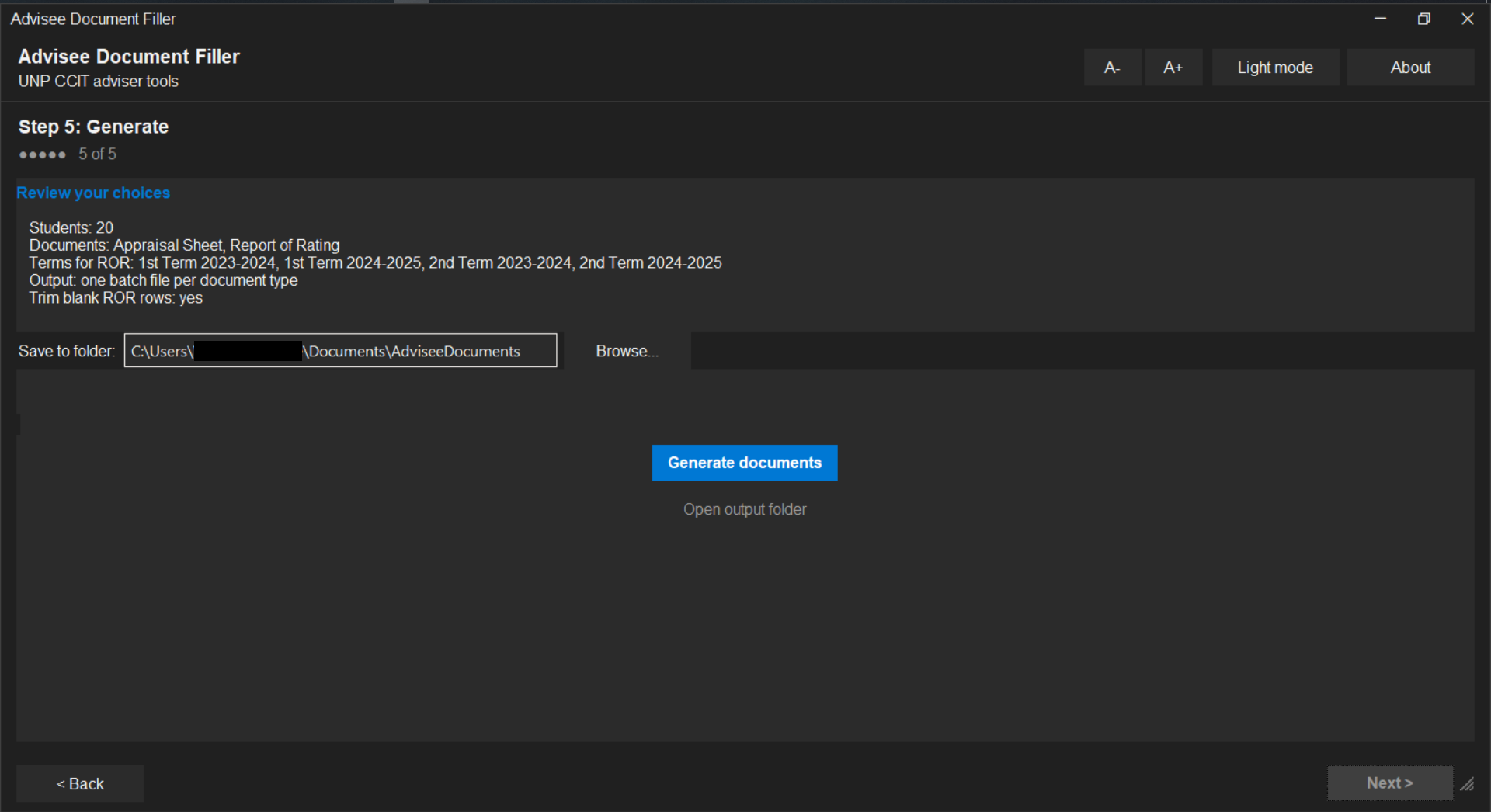
9. Step 5 - Review and generate
Double-check the summary, set (or Browse to) the output folder, and click
"Generate documents".
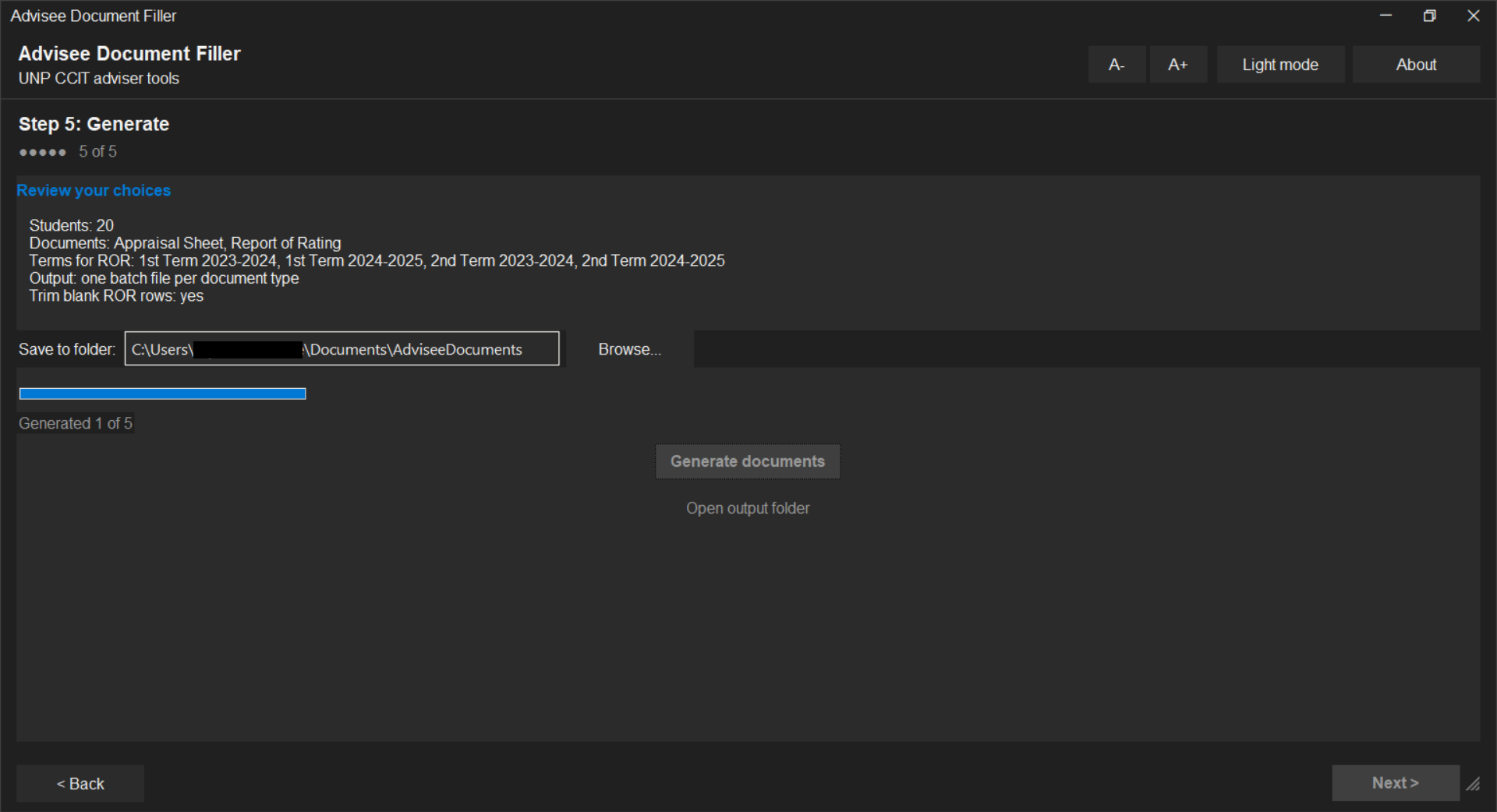
10. Generating
A progress bar tracks each document as it's written.
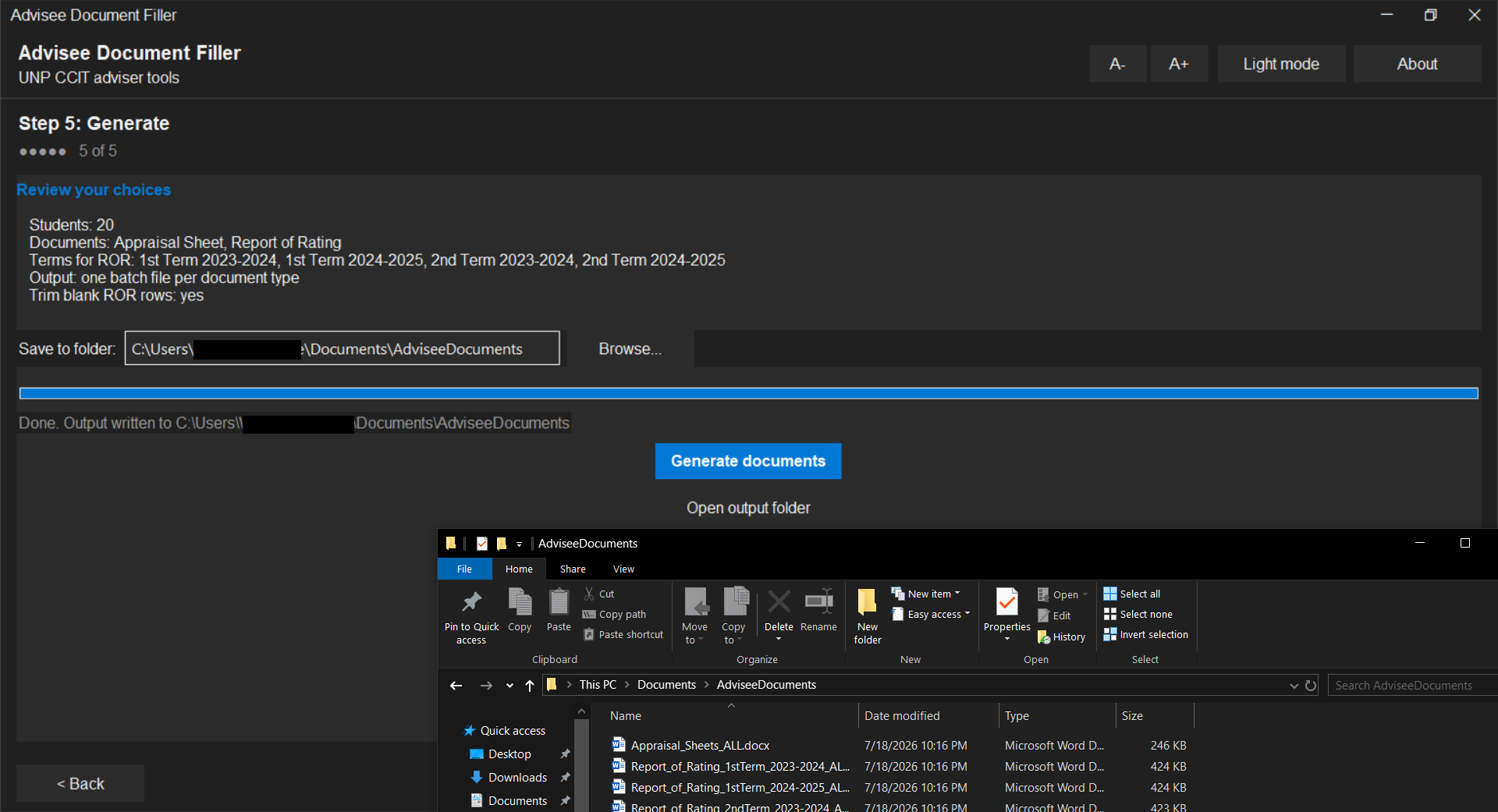
11. Done
Click "Open output folder" to jump straight to the generated .docx
files.
Remembering names (local database)
The app keeps a small local SQLite database (store.db, in the OS's
standard per-user app-data folder - never bundled, never synced) of every
Adviser, Dean and per-subject-code faculty name you've typed. Next time,
those show up as suggestions: a dropdown you can pick from on the desktop
app, or autocomplete on the web app, and the faculty step pre-fills any
subject code it recognizes from a previous run. You can still type a new
name at any time - nothing is required to already be in the list. Nothing
in this database ever leaves the machine.
How the data maps
- The periodic rating column in the PDF goes to the Midterm cell of the
Report of Rating. The Grade column goes to the Final cell.
- The course code found in the PDF (
BSCS, BSIT, BLIS or DCT) picks
the Appraisal Sheet template. An unrecognized code falls back to the
BSCS template.
- Each Appraisal Sheet template has one term table per year/term the
course actually has (DCT: First and Second Year only; the others also
have Third Year, Mid Year and Fourth Year). Tables are filled in
chronological order - earliest school year first, 1st Term before 2nd -
based on the Period line in each PDF, not on any year label in the PDF
itself.
- Whole year blocks (heading and table) that come after the student's
last parsed term are removed from the generated file, e.g. a student
who only reached Second Year won't have Third Year, Mid Year or Fourth
Year sections at all.
- Term/SY is written as
1st/25-26 style. Change term_sy_label in
filler.py if your format differs.
- Total units per term is computed and placed in the totals row.
Building & Releasing
Build with GitHub (no local build needed)
Push this project to a GitHub repository. The included workflow at
.github/workflows/build.yml builds both executables on GitHub's own
Windows and Linux machines, so you never build on your own computer.
- Manual build: open the repo's Actions tab, pick "Build executables",
click "Run workflow", wait a few minutes. This publishes/updates a
rolling "latest" pre-release on the repo's Releases page with every
build attached, so it's shareable without anyone needing to sign in
(unlike raw workflow-run artifacts, which are private and expire).
- Release build: create and push a tag like
v1.0
(git tag v1.0 && git push origin v1.0). GitHub builds both binaries
and attaches them to a proper versioned Release page instead of the
rolling "latest" one.
Verifying a release (Sigstore)
Every release includes SHA256SUMS and SHA256SUMS.bundle. The bundle
proves the published files were built by this repo's build.yml on
GitHub's runners and haven't been altered since, using
Sigstore keyless signing (no private key to
leak, verifiable against the public Rekor transparency log). This is a
supply-chain integrity check, not a Windows/Authenticode signature - it
won't change the SmartScreen or "Unknown Publisher" prompt, which come
from a separate, CA-based trust system.
To verify with cosign:
cosign verify-blob \
  --bundle SHA256SUMS.bundle \
  --certificate-identity-regexp "^https://github.com/Yaksharo/appraisal-filler/" \
  --certificate-oidc-issuer https://token.actions.githubusercontent.com \
  SHA256SUMS
Then confirm your downloaded file's hash appears in SHA256SUMS
(sha256sum -c SHA256SUMS on Linux, certutil -hashfile SHA256
on Windows).
Window style
- Linux: the app keeps your desktop environment's native titlebar, so
it automatically matches GNOME, KDE, XFCE, or whatever you run.
- Windows: the app draws its own borderless titlebar that follows the
light/dark theme, with minimize, maximize/restore, and close buttons,
drag-to-move, double-click to maximize, and a resize grip at the
bottom-right.
Themes and accessibility
- Desktop app: a flat, neutral white/grey/black look with a single blue
accent, styled to blend in with the default light/dark themes of
Windows 10/11, GNOME, and KDE. Follows your system light/dark theme on
startup, with a toggle in the header. A- and A+ buttons resize all text.
- Web app: follows the system theme, with a toggle that remembers your
choice.
App icon
The logo in assets/ is used everywhere automatically:
- Windows: the exe file icon (embedded at build time) and the window
and taskbar icon at runtime.
- Linux: the window and taskbar icon at runtime. Linux binaries cannot
embed a file icon, so for a launcher/menu icon copy the binary and
assets/logo.png somewhere permanent (e.g. /opt/AdviseeDocFiller/),
adjust the paths inside AdviseeDocFiller.desktop, and copy that file
to ~/.local/share/applications/.
- Web app: the same logo is served as the favicon.
Notes
- The templates live in
templates_docx/. Replace them with updated forms
as long as the table layout stays the same; add a new course by dropping
in a docx and adding it to APPRAISAL_TEMPLATES in filler.py.
- Unused blank rows are removed automatically in both documents: on the
Report of Rating you can untick the option in the UI to keep them, the
Appraisal Sheet always trims them (that's what the extra blank rows in
the BSCS/BSIT/BLIS templates are for).
- Trailing empty paragraphs in the templates are stripped, so the Report
of Rating no longer produces a blank second page.
- The parser targets the exact layout of the "Periodic Grades Listing"
report. If the registrar changes the report layout, adjust
parser.py.
- The About section (desktop) and footer (web) show the version of the
build you're running, resolved from
VERSION (bundled by the build
workflow from the git tag) and falling back to git describe when
running from source. See version.py.
License
MIT
Author
Developed by Yaksharo a.k.a. Ezer