Kivio is a compact desktop AI client with a built-in agent runtime. It stays in the tray or menu bar, opens when you need it, and keeps a much smaller footprint than a browser-based AI workspace.
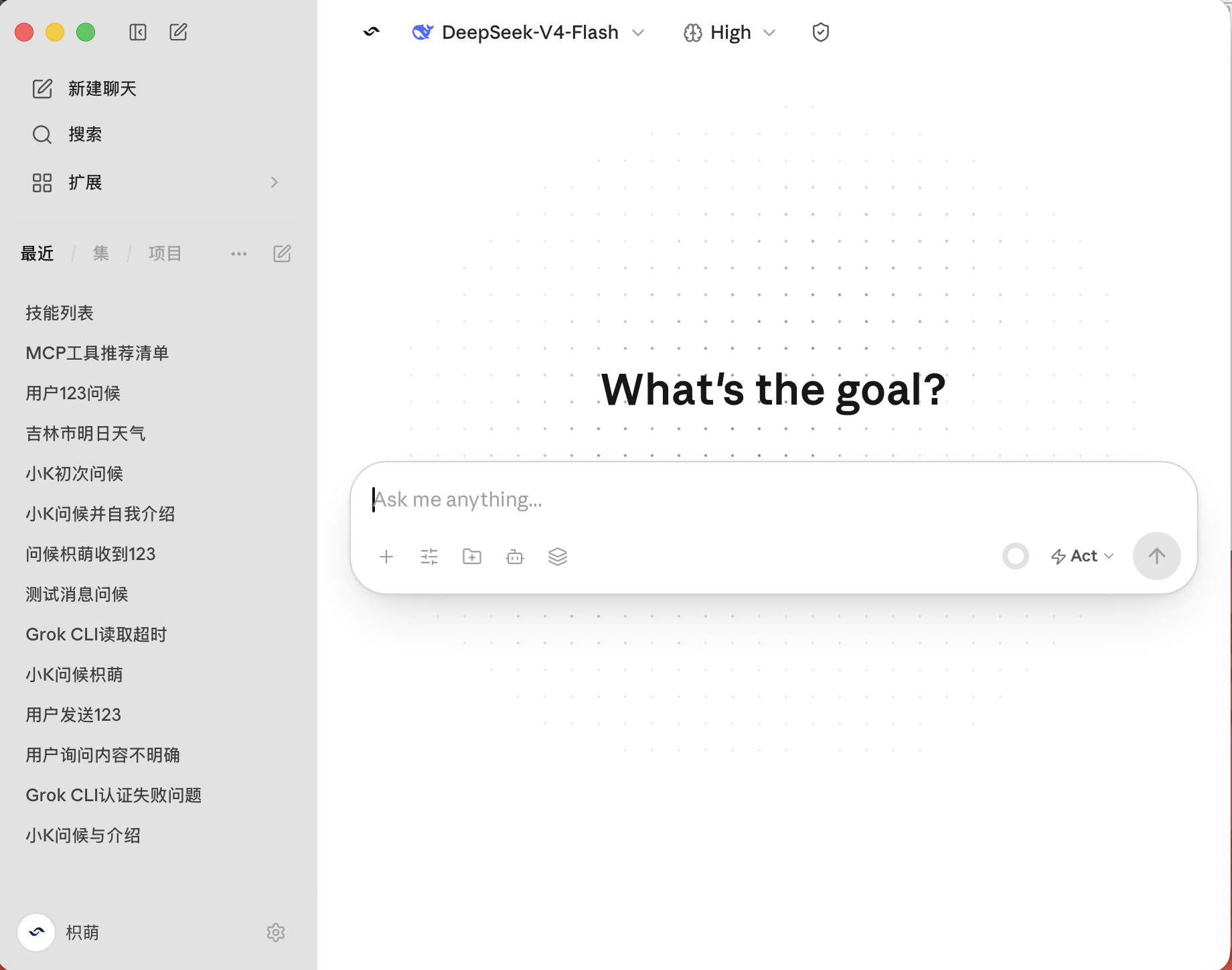
- Kivio Agent — chat, projects, assistants, memory, file/image attachments, MCP, Skills, and native tools (file ops, shell, web fetch/search, Pyodide run_python).
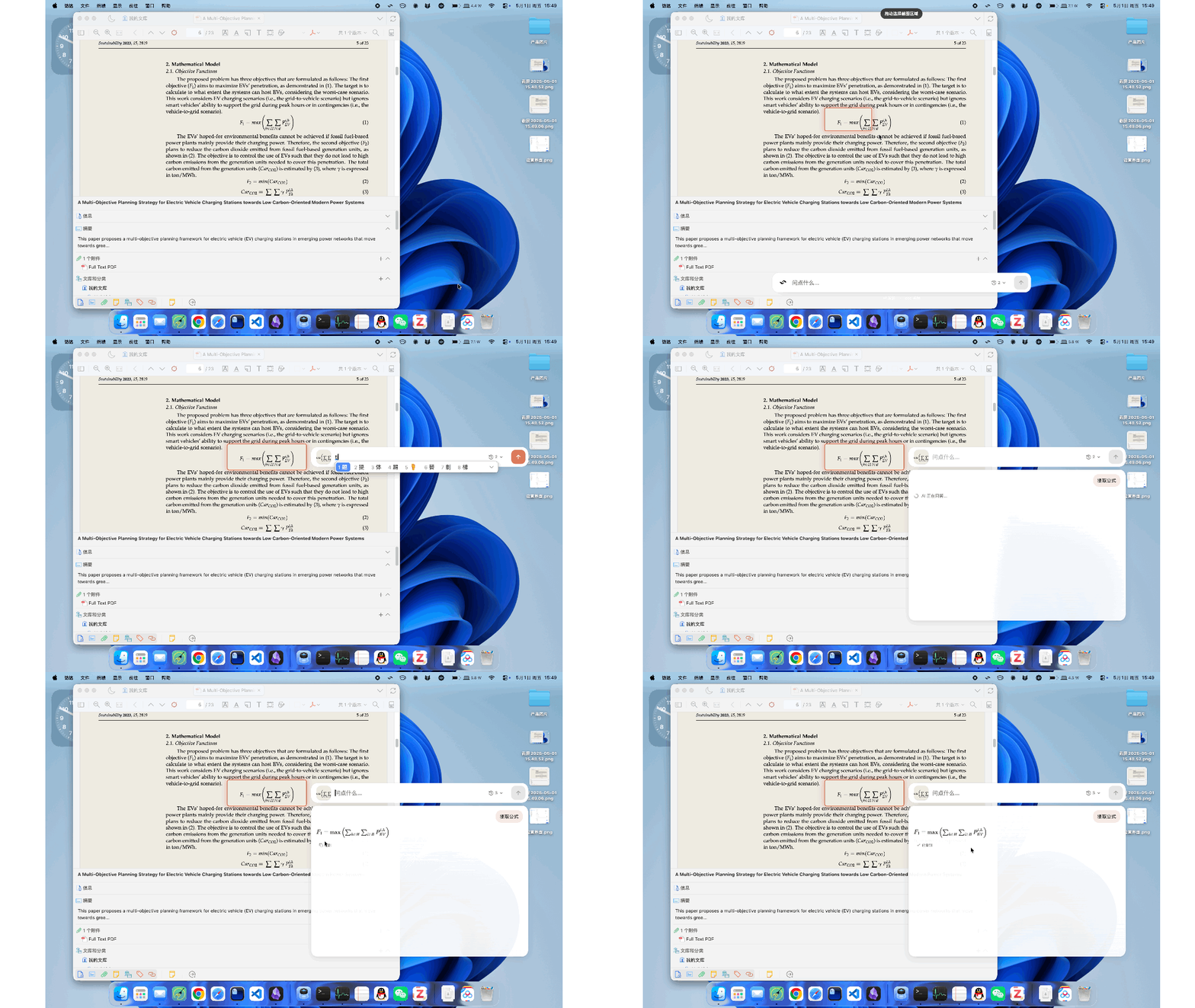
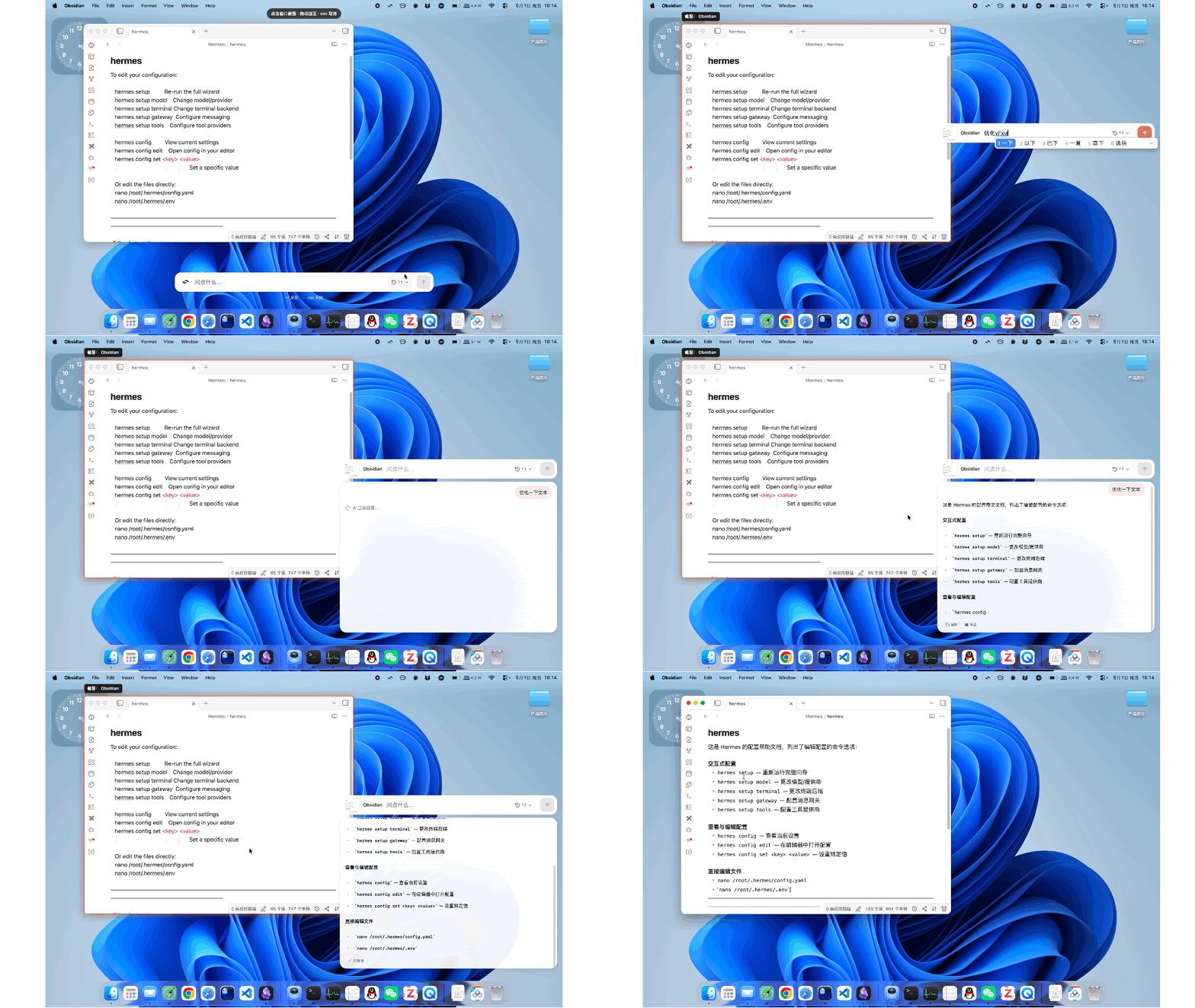
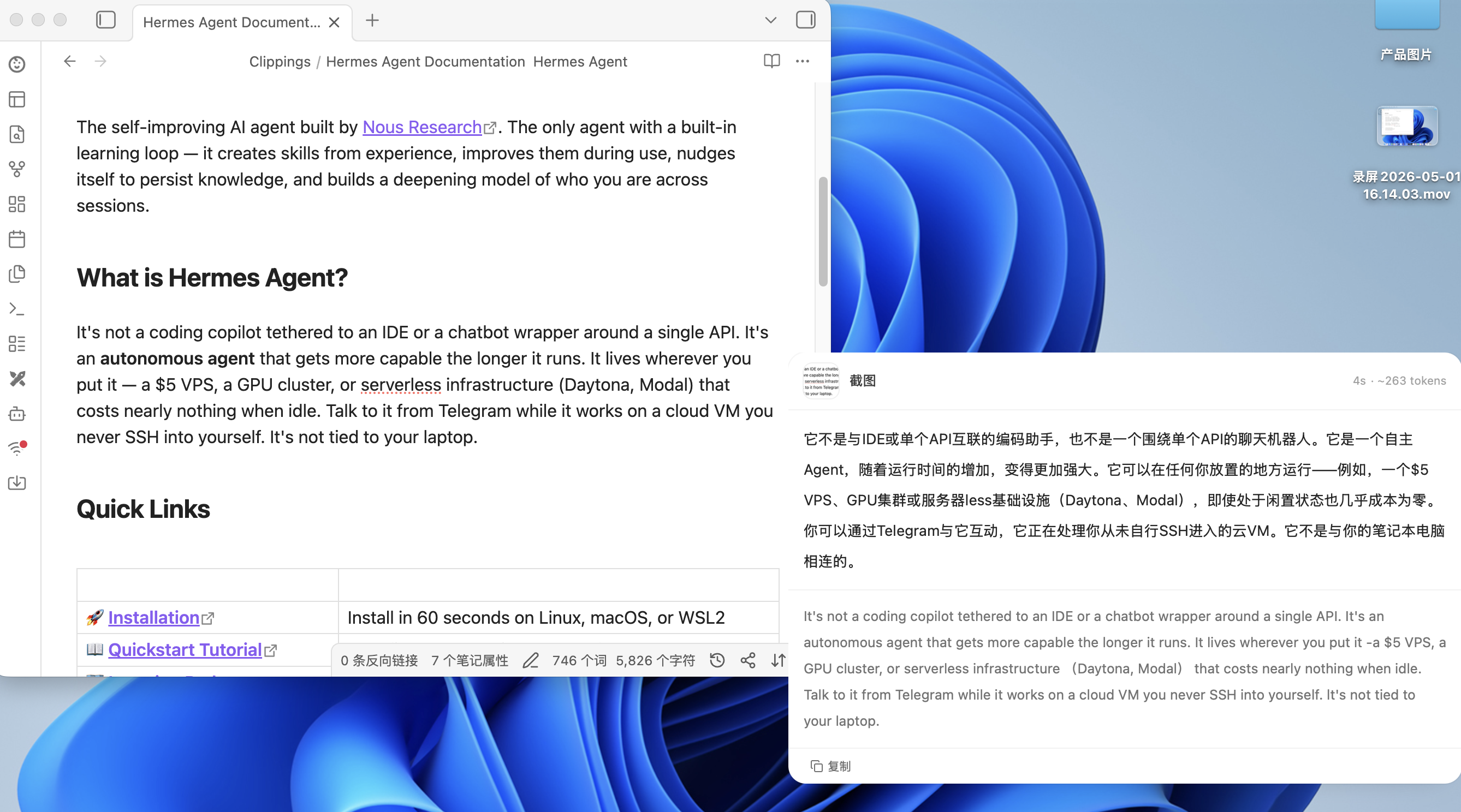
- Lens — screenshot-based visual Q&A, OCR, formula extraction, text polishing, and optional web-aware answers.
- Fast translation — typed text, selected text, windows, and arbitrary screen regions.
- Bring your own models — OpenAI-compatible providers and Anthropic Messages, with per-feature model routing and multi-key failover.
- Document-ready — PDF / Word / Excel workflows run on a bundled offline Pyodide sandbox, no first-run CDN download required.
- Private by default — no telemetry; API keys and conversation data stay on your machine.
README
Kivio Desktop
macOS / Windows 屏幕级 AI 助手:一个 Agentic AI 客户端,加上即时翻译、截图 OCR、视觉问答 —— 全部一键呼出,全部用你自己的 API Key。
Apple Vision(Swift sidecar)· Windows.Media.Ocr · RapidOCR(ONNX)
Python 沙箱
Pyodide,随包离线
npm install
npm run dev          # 完整应用:Rust 后端 + Vite UI(macOS 上自动构建 Swift sidecar)
npm run dev:ui       # 仅 Vite UI,不编译 Rust

npm run lint         # ESLint,零警告
npm run typecheck    # tsc --noEmit
npm test             # Vitest 前端测试
cargo test --manifest-path src-tauri/Cargo.toml   # Rust 测试
A screen-level AI assistant for macOS and Windows: an agentic AI client, plus instant translation, screenshot OCR, and visual Q&A — all one hotkey away, all on your own API keys.
Kivio Desktop lives in your tray / menu bar and works at the level of your screen, not just inside its own window. Press a hotkey anywhere to translate what you typed, translate what you selected, translate what you see, or capture any region and ask AI about it. Open the AI client from the tray and you get a full agentic chat app: tool calls, sub-agents, Skills, MCP servers, a knowledge base, a Python sandbox, and side-by-side multi-model answers.
Design principles, as implemented in code:
Bring your own keys. Every AI call goes to providers you configure — OpenAI-compatible, Anthropic, and Google Gemini native protocols. No account, no middleman server.
Local and quiet. No telemetry or analytics of any kind; the only background network call is the GitHub release check for updates. Settings and conversations stay on disk on your machine.
Light when idle. Windows are created on demand and destroyed on close (not hidden), so the idle process keeps a small footprint.
The AI Client
A provider-agnostic agent runtime with a real tool loop, not a thin chat wrapper.
Ask many models at once. Fan one question out to multiple models and compare the answers in tabs or side-by-side columns. Each answer streams independently; one model failing never blocks the rest, and you choose which answer the conversation continues from.
Sub-agents. Built-in personas — general-purpose, researcher, coder, reviewer — each with its own tool allow-list; the model can dispatch several in parallel from a single message. You can add your own as markdown files.
Skills. Markdown-defined skills, activated mid-conversation. Bundled: pdf, docx, xlsx, diagram, doc-coauthoring, frontend-design, mcp-builder, skill-creator, himalaya (email). Import your own from folders or ZIPs.
MCP. Connect external Model Context Protocol servers over stdio or streamable HTTP, with persistent sessions, JSON import, and live connection status.
Knowledge base (RAG). Multi-library document retrieval: hybrid search (sqlite-vec vectors + FTS5 BM25, fused by Reciprocal Rank Fusion) with an optional reranker. Ingests txt / csv / markdown / html / docx / xlsx / pdf (text layer), plus images via OCR and web pages via URL import. Answers cite sources as clickable [n] markers.
External CLI agents. Hand a conversation over to an installed terminal agent — Claude Code, codex, cursor, opencode, gemini, kimi, pi, or hermes — with detection, streaming, and session management built in.
Long conversations that keep working. Context compaction runs inside the loop: a cheap "microcompact" pass degrades old tool results first, and an LLM summary kicks in only when needed, with a visible compaction timeline in the UI.
And the rest: projects and sets for organizing conversations, full-text conversation search, file/image attachments, an assistant builder, plan/orchestrate mode with approval policies, agent todo lists, generated-file cards (~/Kivio/outputs/), and per-call token usage statistics.
Screen Tools
Lens — capture and ask
One hotkey freezes the screen. Drag a region (or, on macOS, click a window), optionally draw red arrows to point at things, then ask. Answers stream in with reasoning shown in a collapsible thinking block, LaTeX rendered by KaTeX, and up to 20 capture+Q&A entries kept in history. Lens can also plan its own web searches (Tavily / Exa / Exa MCP / Ollama / Grok — Exa MCP works keyless at low quota) and show the sources it used. One click sends the screenshot — or the entire multi-turn exchange — into the AI client to continue.
Capture text on screen and work with it in place.
Translation, four ways
Quick translator — a small input popup at your cursor; results appear as you type (600 ms debounce), Enter copies the translation and can auto-paste it back into the app you came from.
Selected-text translation — grabs the current selection via Accessibility APIs (with a clipboard fallback) and shows a floating, draggable translation card. Nothing pops up if nothing is selected.
Screenshot translation — capture a region or window; the translation streams into a card next to the selection, with the recognized original underneath.
Replace translation — capture a region and the translation is painted over the original text on a canvas, line by line, with background color sampled from the screenshot so it blends in. Uses RapidOCR for line positions.
Prompts for each mode are editable ({lang} / {text} placeholders), card width is adjustable, and streaming can be toggled.
OCR engines
Screenshot translation can recognize text three ways, selectable in Settings:
Cloud vision model (default) — one multimodal call does OCR + translation together.
System OCR — Apple Vision on macOS (via a bundled Swift sidecar) or Windows.Media.Ocr on Windows.
Four native wire protocols: OpenAI Chat Completions, OpenAI Responses, Anthropic Messages, and Google Gemini generateContent — each a first-class adapter, so no feature is lost to a compatibility layer.
Presets for DeepSeek, OpenRouter, SiliconFlow, GLM, and Ollama Cloud, each with a "get API key" link; any OpenAI-compatible endpoint works via custom provider.
Per-feature routing: the translator, screenshot translation, Lens, and each chat conversation can each use a different provider and model; separate default slots exist for vision, title summarization, compaction, and image generation.
Multi-key failover: each provider holds a pool of API keys. Auth errors (401/402/403) switch keys immediately; rate limits (429) retry with backoff and only switch after a threshold; failed keys cool down for 60 s. Server errors back off without burning backup keys.
Per-model overrides (context window, max output, capabilities, pricing) and a per-provider gzip request-body toggle for WAF-fussy gateways.
Settings
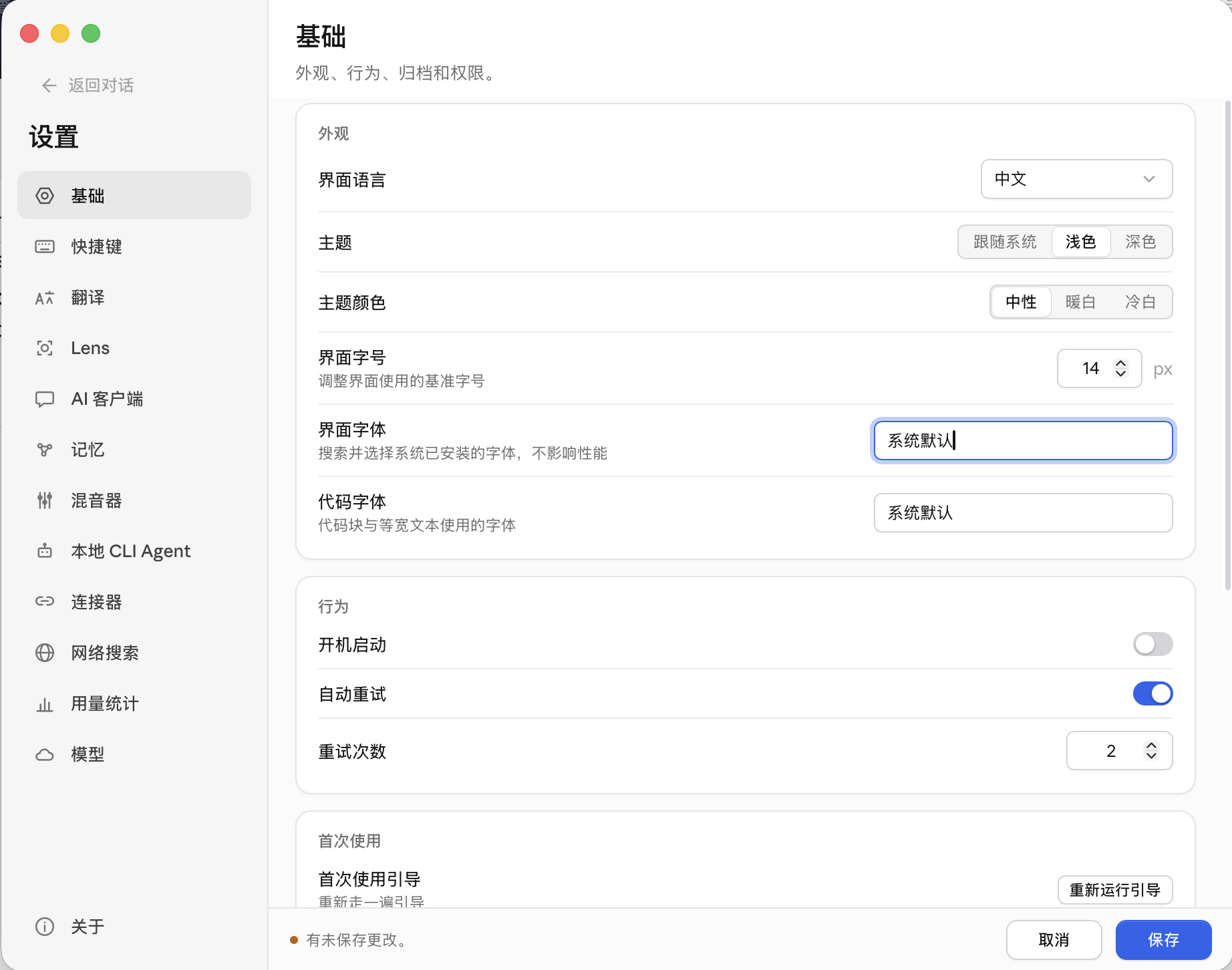
Settings live inside the AI client window: General, Translate, Screenshot, Lens, Chat, Memory, default-model routing, Kivio Code, external agents, MCP, Skills, Web Search, Connectors, Knowledge Base, Usage, Providers, and About. Highlights: a first-run wizard (provider → web search → hotkeys), settings export/import backup, theme color presets with dark mode, bilingual UI (中文/English), autostart, and a request debug panel that records recent provider calls in memory only — keys masked, copy-as-cURL.
Kivio Code
The repo also ships kivio-code, a terminal coding agent (Rust CLI/TUI) built on the same runtime — also reachable as kivio code from the main binary, with its own sessions, MCP setup, and skill staging.
Hotkeys
Action
macOS
Windows
Quick translator
⌘⌥T
Ctrl+Alt+T
Screenshot translation
⌘⇧A
Ctrl+Shift+A
Selected-text translation
⌘⇧T
Ctrl+Shift+T
Replace translation
⌘⇧R
Ctrl+Shift+R
Lens capture & ask
⌘⇧G
Ctrl+Shift+G
All hotkeys act as toggles and are remappable in Settings (with conflict detection). The tray menu has: Open AI Client · Show Translator · Settings · Quit.
Install and launch. The DMG is unsigned; on first launch right-click → Open, or run:
xattr -cr "/Applications/Kivio Desktop.app"
macOS will ask for Accessibility (hotkeys, selected-text capture, paste-back) and Screen Recording (capture) permissions. Screen capture uses ScreenCaptureKit. On Windows, launching manually opens the AI client.
Follow the first-run wizard — add a provider, optionally set up web search, confirm hotkeys.
Go. Tray → Open AI Client for chat, tools, and documents; or press a hotkey anywhere for translation and Lens.
Kivio Desktop checks GitHub Releases for updates shortly after launch (can be disabled) and can download and install the update in-app.
What's New — v2.8.3
Translator, screenshot, and Lens now speak every model protocol — these three features used to hard-code OpenAI's chat/completions shape, so any provider configured for Gemini, Anthropic, or OpenAI Responses returned a 404. They now share the same model adapter layer as chat, so all four protocols work.
Fixed Gemini / Vertex and grok rejecting tool calls — a built-in tool schema carried an anyOf whose branches had no declared type; Vertex rejected the whole request and grok refused the tool definition, leaving those models unable to use tools. The construct is stripped, with runtime validation covering the constraint.
Built-in web search — each conversation picks off, built-in, or third-party. Built-in mode calls the provider's own hosted search (OpenAI Responses, Gemini, Anthropic) and streams it as a live card above the answer; your last pick becomes the default for new conversations.
External CLIs reworked — all CLIs use their own native session mechanism instead of replaying history (kimi moved to ACP, pi uses --session-id); errors are classified with actionable guidance; availability and model probing are split and cached, cutting per-turn overhead from 10–25s to under 500ms from the second turn on.
Native Gemini image generation — generate images in chat over Gemini's native protocol with results attached as artifacts; generation through OpenAI-compatible relays works too, with endpoint routing consolidated into one self-healing resolver.
LaTeX rendering fix — the \[...\] block and \(...\) inline delimiters that many models emit didn't render at all (#19); they now do.
Import MCP servers and Skills from local CLIs — the Extensions page scans your installed Claude Code / Codex / OpenCode configs and imports them; MCP servers warm up on enable and on opening the chat window, with a short timeout for the first tool listing.
Standalone screenshot annotation — arrows, rectangles, and mosaic with undo, then copy or save; frozen-frame capture is on for both platforms and screenshots no longer include the mouse cursor.
New ego lite plugin — downloads its companion ego-browser Skill from the repo on enable and tracks upstream.
Input and UI fixes — all inputs disable WebKit smart input (fixing auto-capitalization and autocorrect inserting spaces); model pickers filter by capability (image / vision / embedding); popovers and context menus adapt to the viewport edge; conversation search matches message bodies; composer drafts survive switching conversations; a new per-model extra_body passes custom request-body fields.
Stability fixes — the HTTP connection pool gained keep-alive (fixing error sending request after long runs); request-debug token counts are no longer stuck at 0; fixes for duplicate conversation loading, the streaming column freezing during multi-model answers, long hangs from an oversized Retry-After, background commands not being isolated per conversation, and knowledge-base retrieval losing rerank scores or silently truncating results.
Apple Vision (Swift sidecar) · Windows.Media.Ocr · RapidOCR (ONNX)
Python sandbox
Pyodide, bundled offline
npm install
npm run dev          # full app: Rust backend + Vite UI (builds Swift sidecar on macOS)
npm run dev:ui       # Vite UI only, no Rust compile

npm run lint         # ESLint, zero warnings allowed
npm run typecheck    # tsc --noEmit
npm test             # Vitest frontend suite
cargo test --manifest-path src-tauri/Cargo.toml   # Rust tests