che — ⚡ Dual-Pane Terminal File Manager

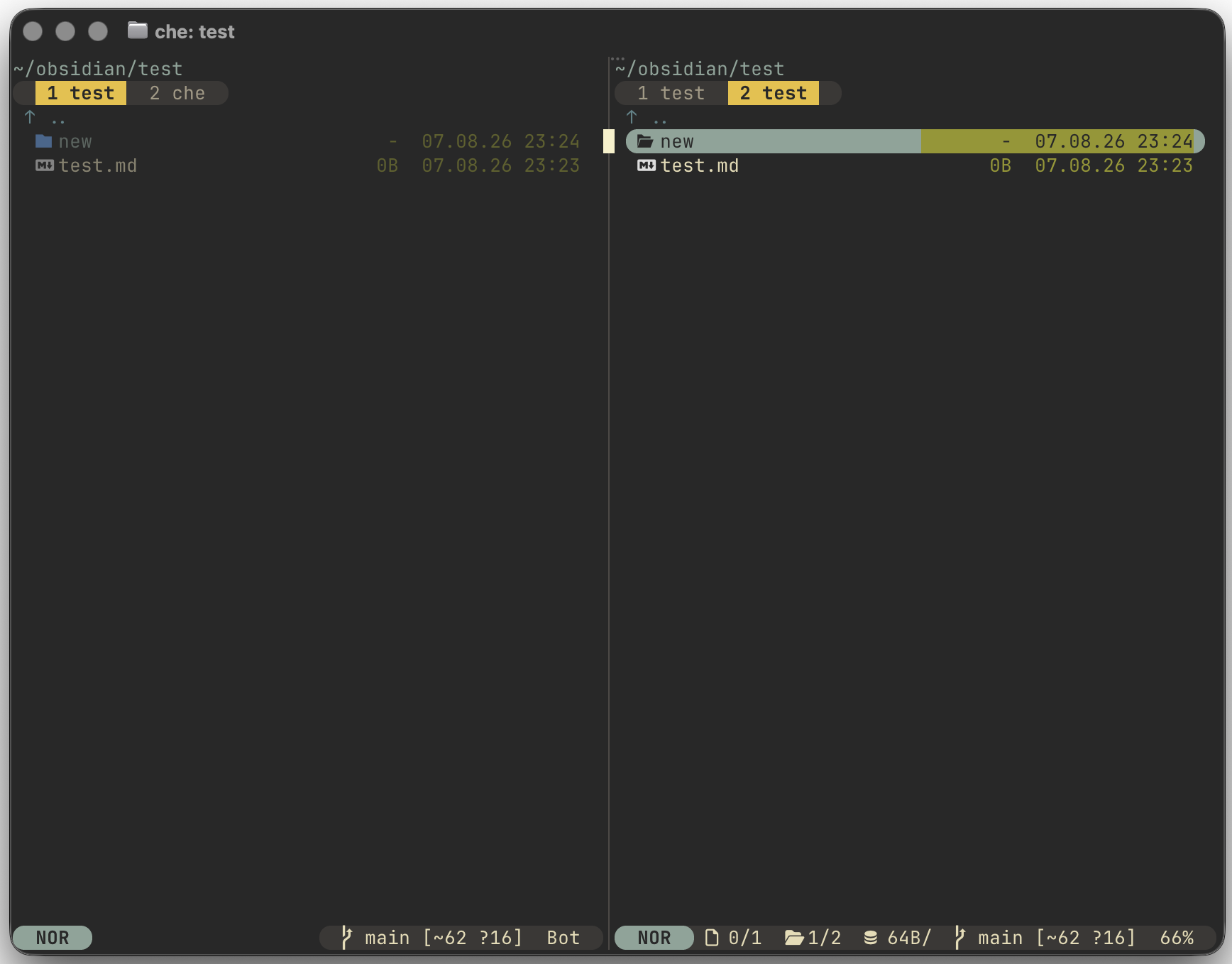
che is a modern, blazing-fast dual-pane terminal file manager written in Rust and built on non-blocking async I/O. It combines the convenience and efficiency of classic dual-pane file managers (Total Commander, Double Commander, Midnight Commander) with the powerful architecture and rich plugin ecosystem of Yazi.
💡 Motivation
I really like dual-pane file managers, but everything I see on platforms other than Windows feels quite limited. I wanted a simple, fast, and feature-rich dual-pane file manager.
The Ranger-style layout (continuous nested columns) adopted by Yazi and almost all modern terminal file managers doesn't quite fit my workflow. However, Yazi is an incredibly powerful, fast file manager with an excellent architecture and plugin ecosystem.
Instead of building everything from scratch, I created a fork and reimagined it around a native dual-pane experience.
⚡ Key Features & Differences from Yazi
Unlike standard Yazi, che elevates the dual-pane workflow to a first-class citizen and builds upon it with enhanced functionality:
- Dual-Pane Mode by Default & Adaptive Window Fallback:
- Launches directly into a dual-pane interface with two independent file columns.
- Toggle to single-pane mode using the
--single CLI flag or press Ctrl+W o.
- Adaptive Narrow Layout: When the terminal window is resized below the configured width threshold (
dual_pane_min_width = 80 in yazi.toml), che automatically switches to a single-pane layout. Pressing Ctrl+Q in narrow mode seamlessly swaps the active file list pane with a full-screen preview pane.
- Native Cross-Pane File Operations (MC/DC Style):
F5 / Shift+F5: Copy selected files/folders to the opposite pane (Shift forces overwrite).F6 / Shift+F6: Move selected files/folders to the opposite pane (Shift forces overwrite).=: Synchronize opposite pane directory to match the current pane's CWD.
- Double Commander Style Overwrite Dialog (
overwrite_dialog = true):
- Comprehensive conflict popup with inline hotkeys:
[O]verwrite, Overwrite [A]ll, Overwrite Ol[d]er, [S]kip, Skip A[l]l, Auto [R]ename, Co[m]pare, [C]ancel.
- Fast Disk & Volume Picker (
g m / disks):
- Cross-platform disk and mounted volume selector.
- Single matching drive opens immediately on keypress (e.g.
s for soft) without pressing Enter. Multiple matches cycle selection iteratively.
- Letter Jump Navigation Mode (
JUMP):
- Toggle with
Ctrl+J. Mappings allow instant cursor jumping to matching filenames by typing their initial letter.
- Smart Auto-Switch to Glob Search (
smart_glob = true):
- Searching with wildcards (e.g.
*.py, *.txt) automatically activates --glob in fd, while standard regular expressions (e.g. .*\.py) continue evaluating as regex.
- File Comments Support (
descript.ion):
- Press
c m (comment) to add, view, or edit file comments stored in descript.ion.
- Batch Rename Inline Hotkeys (
multirename):
- Action buttons feature instant hotkey triggers:
Alt+O ([O]K) and Alt+C ([C]ancel).
- Virtual Parent Directory Listing (
show_upparent = true):
- Displays
↑ .. as the top entry in file lists for fast mouse and keyboard parent navigation.
- Audio Previewer & Album Art Display:
- Integrated previewer for MP3, FLAC, M4A, and WAV files with album art extraction via
ffmpeg / exiftool.
- Tab Close & Restore (Undo Closed Tab):
Ctrl+W: Close the active tab, or exit if it is the last remaining tab.close-and-restore-tab Integration: Preserves closed tab state and history. Re-open recently closed tabs with full session state restoration.
- Built-in Dual-Pane Session Persistence (
che-session):
- Automatically saves and restores all open tabs, working directories, per-tab view settings (sorting mode, linemode, hidden visibility), active tab selection, and active pane focus across restarts.
- Available out of the box with zero external installation required.
- Double Commander Style Archive Manager & Password Protection (
che-archive):
- Interactive TUI for archive creation (
c a / c A) with format selection (zip, tar, 7z, tar.gz, tar.bz2, tar.xz, tar.zst), compression levels (0 Store to 9 Ultra), password encryption, 7z header encryption, and solid mode.
- Archive extraction into active or opposite pane (
c x, c X, c e).
- Native interactive masked password prompt when opening encrypted archives, with session-level password caching.
- Bundled Fast Directory Bookmarks & Hops (
che-bookmarks):
- Fast hopping menu, interactive bookmark creation with custom keys/descriptions (
), deletion (), fuzzy search (fzf), active pane tab jumps (1..9), and automatic JSON persistence (see Directory Bookmarks Keymap below to bind ; or custom keys without conflicting with Yazi's shell prompt).
🔌 Yazi Compatibility: Configs & Plugins
che is 100% compatible with the Yazi ecosystem!
- Yazi Plugins: Any Lua plugin written for Yazi (such as
starship.yazi, git.yazi, or mount.yazi) works out of the box in che. che implements per-pane Lua state isolation for header components, allowing plugins like starship.yazi to render independent prompts for both left and right panes concurrently without code modifications.
- Yazi Configuration: All configuration sections and options from
yazi.toml, keymap.toml, and theme.toml are fully supported.
📦 Installation
🍺 Homebrew (macOS & Linux)
brew tap aroum/che
brew install che
To upgrade:
brew update && brew upgrade che
📦 AppImage (Linux x86_64 & aarch64)
Download the standalone AppImage from GitHub Releases:
# Make executable
chmod +x che-x86_64.AppImage

# Run directly
./che-x86_64.AppImage

# (Optional) Install to ~/.local/bin and link CLI companion:
mkdir -p ~/.local/bin
mv che-x86_64.AppImage ~/.local/bin/che
ln -s ~/.local/bin/che ~/.local/bin/ch
🪟 Windows Package Manager (Winget)
winget install aroum.che
🐧 Snapcraft (Linux)
> [!NOTE]
> Classic confinement is currently pending approval in the Snapcraft forum. Once approved, install via:
snap install che-fm --classic
❄️ Nix (Flakes)
nix run github:aroum/che
🛠 Building from Source
Requires Rust toolchain (1.78+):
git clone https://github.com/aroum/che.git
cd che
cargo build --release
The compiled binaries (che and short alias ch) will be located in target/release/.
📁 Configuration Path
Configuration files for che are isolated in their own directory, ensuring zero conflict with standard Yazi installations:
- Config Directory:
~/.config/che/
yazi.toml — Primary configuration settings.keymap.toml — Custom keybindings.theme.toml — UI theme definitions.plugins/ — Custom Lua plugins.
New Options in yazi.toml
Customize che-specific features in ~/.config/che/yazi.toml:
[mgr]
# Automatically switch to glob mode for wildcard patterns (*.py, *.txt)
smart_glob = true

# Display "↑ .." entry at the top of directory listings
show_upparent = true

# Completely hide cursor and side markers in inactive pane (true = hidden by default, false = dimmed second cursor)
hide_inactive_cursor = true

[input]
# Esc key behavior in input dialogs
# false - Single Esc press immediately closes dialog (default)
# true  - First Esc switches to Vim Normal mode, second Esc closes
vim_mode = false

# Auto-highlight filename stem excluding extension during rename
rename_highlight_stem = true

cursor_blink = false

[confirm]
# Double Commander style overwrite confirmation dialog
overwrite_dialog = true
Command Line Flags (CLI)
che — Launches in default dual-pane mode.che --single — Launches in single-pane mode.che --debug — Enables verbose debug event logging.
⌨️ Keybindings & Menu Commands
Pane Navigation & Management
| Keybinding | Command (run = ...) | Description |
|---|
Tab / Shift+Tab | pane_switch | Switch focus between left and right panes |
Ctrl+W h / Ctrl+W l | pane_focus | Focus left / right pane directly |
Ctrl+W o | dual_toggle | Toggle between dual-pane and single-pane modes |
Ctrl+W p | preview_toggle | Toggle preview pane visibility |
= | sync_pane | Synchronize opposite pane CWD with active pane |
F5 / Shift+F5 | copy_to | Copy selected items to opposite pane |
F6 / Shift+F6 | move_to | Move selected items to opposite pane |
New Features & Jump Mode
| Keybinding | Command (run = ...) | Description |
|---|
Ctrl + J | jump_mode | Toggle letter jump navigation mode (JUMP) |
g m | disks | Open disk and volume selection picker |
c m | comment | Add / edit file comment (descript.ion) |
Ctrl+Shift+R / c r (custom keymap) | plugin multirename | Launch Double Commander style batch multirename plugin |
Ctrl+Shift+Y / c y | plugin system_copy | Copy selected files to OS system clipboard |
; (custom keymap) | plugin che-bookmarks | Quick directory hops and bookmarks menu |
' (custom keymap) | plugin che-bookmarks -- fuzzy | Fuzzy search bookmarks via fzf |
⚙️ Configuration (yazi.toml & keymap.toml)
You can customize che behavior by adding configuration options to ~/.config/che/yazi.toml:
[manager]
# Terminal width threshold (in columns).
# When width is below this value, che automatically falls back to single-pane mode.
# In narrow mode, press Ctrl+Q to toggle full-screen preview.
dual_pane_min_width = 80
Batch Multi-Rename TUI (multirename)
By default, pressing r on multiple selected files retains standard Yazi behavior (opening the text editor for batch rename).
To bind the interactive Double Commander style Batch Multi-Rename TUI plugin to c r or Ctrl+Shift+R, add the following to ~/.config/che/keymap.toml:
[[mgr.prepend_keymap]]
on   = [ "c", "r" ]
run  = "plugin multirename"
desc = "Multi-Rename (Double Commander style TUI)"

[[mgr.prepend_keymap]]
on   = ""
run  = "plugin multirename"
desc = "Multi-Rename (Double Commander style TUI)"

[[mgr.prepend_keymap]]
on   = ""
run  = "plugin multirename"
desc = "Multi-Rename (Double Commander style TUI)"
Directory Bookmarks Keymap (che-bookmarks)
By default, Yazi binds ; to shell --interactive (opening an interactive shell command prompt). To preserve 100% upstream Yazi compatibility out of the box, che does not silently override this binding by default.
To bind che-bookmarks to ; (and optional fuzzy search to '), add the following to ~/.config/che/keymap.toml:
[[mgr.prepend_keymap]]
on   = ";"
run  = "plugin che-bookmarks"
desc = "Hop to bookmark (che-bookmarks)"

[[mgr.prepend_keymap]]
on   = "'"
run  = "plugin che-bookmarks -- fuzzy"
desc = "Fuzzy search bookmarks (che-bookmarks)"
> [!NOTE]
> If you bind ; to che-bookmarks, you can still access the blocking shell command prompt with : (shell --block --interactive). Alternatively, you can choose any other shortcut for bookmarks, such as b or m.
Commander Keybar Hints (Midnight Commander / FAR Style)
If you prefer classic visual function key hints (similar to Midnight Commander, FAR Manager, or Norton Commander), you can easily add an informative keybar directly to your status line in ~/.config/che/init.lua without altering or breaking Yazi's layout.
Option A: Automatic Keybindings Detection (Recommended)
This snippet automatically parses your ~/.config/che/keymap.toml on startup and dynamically maps configured function keys (such as for `copy_to`, for move_to, etc.) to the bar labels:
-- ==================== MC-style Keybar (Dynamic Keybindings) ====================
local function load_keybar_buttons()
  local defs = {
    { action = "help", default_key = "1", label = "Help" },
    { action = "spot", default_key = "3", label = "View" },
    { action = "open", default_key = "4", label = "Edit" },
    { action = "copy_to", default_key = "5", label = "Copy" },
    { action = "move_to", default_key = "6", label = "Move" },
    { action = "create", default_key = "7", label = "Mkdir" },
    { action = "remove", default_key = "8", label = "Del" },
    { action = "disks", default_key = "9", label = "Disks" },
    { action = "quit", default_key = "10", label = "Quit" },
  }

  local custom_keys = {}
  local config_path = os.getenv("HOME") .. "/.config/che/keymap.toml"
  local f = io.open(config_path, "r")
  if f then
    local content = f:read("*a")
    f:close()

    for block in content:gmatch("%[%[[^%]]+%]%](.-)(?=%[%[|$)") do
      local on = block:match('on%s*=%s*"([^"]+)"')
      local run = block:match('run%s*=%s*"([^"]+)"')
      if not run then
        run = block:match('run%s*=%s*%[%s*"([^"]+)"')
      end

      if on and run then
        local action_name = run:match("^(%S+)")
        local f_num = on:match("^<[fF](%d+)>$")
        if f_num then
          custom_keys[action_name] = f_num
        end
      end
    end
  end

  local buttons = {}
  for _, def in ipairs(defs) do
    local key = custom_keys[def.action] or def.default_key
    table.insert(buttons, { key = key, label = def.label })
  end
  return buttons
end

local KEYBAR_BUTTONS = load_keybar_buttons()

Status.mc_keybar = function(status_self)
  local spans = {}
  for _, btn in ipairs(KEYBAR_BUTTONS) do
    table.insert(spans, ui.Span(" " .. btn.key):fg("#282828"):bg("#83a598"):bold())
    table.insert(spans, ui.Span(btn.label .. " "):fg("#ebdbb2"):bg("#3c3836"))
  end
  return ui.Line(spans)
end

Status:children_add(Status.mc_keybar, 10000, Status.RIGHT)
Option B: Static / Manual Customization
If you prefer to define fixed button numbers, custom actions, or localized names manually, use this simpler static table:
-- ==================== MC-style Keybar (Static Definition) ====================
local KEYBAR_BUTTONS = {
  { key = "1", label = "Help" },
  { key = "3", label = "View" },
  { key = "4", label = "Edit" },
  { key = "5", label = "Copy" },
  { key = "6", label = "Move" },
  { key = "7", label = "Mkdir" },
  { key = "8", label = "Del" },
  { key = "9", label = "Disks" },
  { key = "10", label = "Quit" },
}

Status.mc_keybar = function(status_self)
  local spans = {}
  for _, btn in ipairs(KEYBAR_BUTTONS) do
    table.insert(spans, ui.Span(" " .. btn.key):fg("#282828"):bg("#83a598"):bold())
    table.insert(spans, ui.Span(btn.label .. " "):fg("#ebdbb2"):bg("#3c3836"))
  end
  return ui.Line(spans)
end

Status:children_add(Status.mc_keybar, 10000, Status.RIGHT)
Custom Linemodes (commander & adaptive)
You can create rich custom columns and linemodes via Lua in ~/.config/che/init.lua:
- Define linemodes in
~/.config/che/init.lua:
-- Classic Double Commander style linemode (Size + Modification Date)
function Linemode:commander()
  local size = self._file:size()
  local size_str = size and ya.readable_size(size) or "  -"
  local mtime = self._file.cha.mtime
  local mtime_str = mtime and os.date("%d.%m.%y %H:%M", math.floor(mtime)) or "----"
  local result = string.format("%8s  %s", size_str, mtime_str)

  if mtime and os.time() - math.floor(mtime) <= 172800 then
    return ui.Line({ ui.Span(result):fg("green") })
  end
  return result
end

-- Responsive Adaptive linemode (dynamically collapses on narrow panes)
function Linemode:adaptive()
  local width = self._area and self._area.w or 80
  if width < 32 then
    return "" -- Hide columns on narrow panes to avoid truncating filenames
  end

  local size = self._file:size()
  local size_str = size and ya.readable_size(size) or "  -"
  if width < 46 then
    return size_str -- Show size only on medium-width panes
  end

  local mtime = self._file.cha.mtime
  local mtime_str = mtime and os.date("%d.%m.%y %H:%M", math.floor(mtime)) or "----"
  local result = string.format("%8s  %s", size_str, mtime_str)

  if mtime and os.time() - math.floor(mtime) <= 172800 then
    return ui.Line({ ui.Span(result):fg("green") })
  end
  return result
end
- Add keybindings in
~/.config/che/keymap.toml:
[[mgr.prepend_keymap]]
on   = [ "m", "c" ]
run  = "linemode commander"
desc = "Linemode: commander"

[[mgr.prepend_keymap]]
on   = [ "m", "a" ]
run  = "linemode adaptive"
desc = "Linemode: adaptive"
- Set default linemode in
~/.config/che/yazi.toml:
[mgr]
linemode = "adaptive"
💾 Dual-Pane Session Persistence (che-session)
che includes a built-in session persistence plugin (che-session, based on barbanevosa/autosession.yazi and extended for dual panes). It saves the workspace state on exit and restores it on startup:
- Open tabs with their working directories for both panes
- Per-tab view settings: sorting mode, linemode, hidden file visibility
- Active tab selection and active pane focus
1. Enable in ~/.config/che/init.lua
require("che-session"):setup({
  enabled = true,        -- true / false (toggle flag to enable or disable)
  sync_yanked = false,   -- optionally sync yanked state
})
2. Map save-and-quit in ~/.config/che/keymap.toml
[[mgr.prepend_keymap]]
on   = [ "q" ]
run  = "plugin che-session -- save-and-quit"
desc = "Save session and quit"
Available commands:
plugin che-session -- save-and-quit: Save state for both panes and exit.plugin che-session -- save: Save state without exiting.plugin che-session -- restore: Restore saved state on demand.
🚚 Migration from Yazi
Migrating your setup from Yazi to che takes just a few seconds:
-
Copy configuration files:
mkdir -p ~/.config/che
cp -r ~/.config/yazi/* ~/.config/che/
-
Copy plugins and theme data:
mkdir -p ~/.local/share/che
cp -r ~/.local/share/yazi/* ~/.local/share/che/ 2>/dev/null || true
-
Launch che:
che
All existing plugins, keymaps, and themes will function seamlessly in che!
📜 License
Distributed under the MIT License. See LICENSE for more details.