
FastPad
The text editor that's ready before you are.
Click it, type. No splash screen, no spinner, no "loading extensions".
A native Windows editor for the notes, logs, configs, JSON and Markdown you open fifty times a day.




Download · Install · Features · Shortcuts
Why FastPad
Most editors make you wait for everything before you can do anything. FastPad turns that around:
the window takes your keystrokes first, and settings, file loading, syntax highlighting and crash
recovery catch up behind you.
- Typing in about 60 ms. From launch to your first character on screen, measured over repeated
warm launches on a 2014 Intel Core i5-4590 desktop (how we measure).
- About 2 MB of memory at idle. Leave it open all day and forget it's there.
- A 1.7 MB download. One executable and two DLLs. No runtime, no framework, no Electron.
- Your text never leaves your PC. No network access, no telemetry, no account, no background
service. Links you click open in your browser; nothing else goes online.
- Never lose a word. Unsaved work is snapshotted while you type and comes back after a crash or
power cut.
Written in Rust directly on Win32, with the battle-tested
Scintilla editing engine underneath.
Install in 10 seconds
winget install coccor.FastPad
Other ways to install: Scoop, installer, portable ZIP
| Method | How | What you get |
|---|
| winget | winget install coccor.FastPad | Per-user install; winget upgrade keeps it current |
| Scoop | scoop bucket add fastpad https://github.com/coccor/FastPad``scoop install fastpad/fastpad | Portable install, Start menu shortcut, fastpad command |
| Installer | FastPad--windows-x64-setup.exe | Per-user install, no administrator prompt |
| Portable | FastPad--windows-x64.zip | Extract anywhere, run FastPad.exe; nothing written to the registry |
Every release publishes SHA256SUMS.txt so you can verify what you downloaded.
The installer puts FastPad in %LocalAppData%\Programs\FastPad and only touches your own user
registry: an uninstall entry, a Start menu shortcut, fastpad for Win+R, and FastPad in the
"Open with" list for .txt, .md, .markdown, .json, .log and .ini. Your default apps are
never changed. Optional extras: a desktop shortcut and "Edit with FastPad" on every file's right-click
menu. Uninstall from Settings > Apps. Unattended install:
FastPad--windows-x64-setup.exe /VERYSILENT /SUPPRESSMSGBOXES /TASKS="contextmenu"
/ALLUSERS installs for every user into Program Files instead (requires elevation).
The portable ZIP holds FastPad.exe, Scintilla.dll and Lexilla.dll (keep them together),
plus README.md, LICENSE, LICENSES.md and licenses\.
Settings and recovery snapshots live in %LocalAppData%\FastPad whichever way you install, so you
can switch methods without losing them, and uninstalling keeps them.
> "Windows protected your PC"? Current releases aren't code-signed yet, so SmartScreen may warn
> on first run. Choose More info > Run anyway, or check the file against SHA256SUMS.txt first.
Everything you reach for. Nothing you don't.
Markdown with a live preview
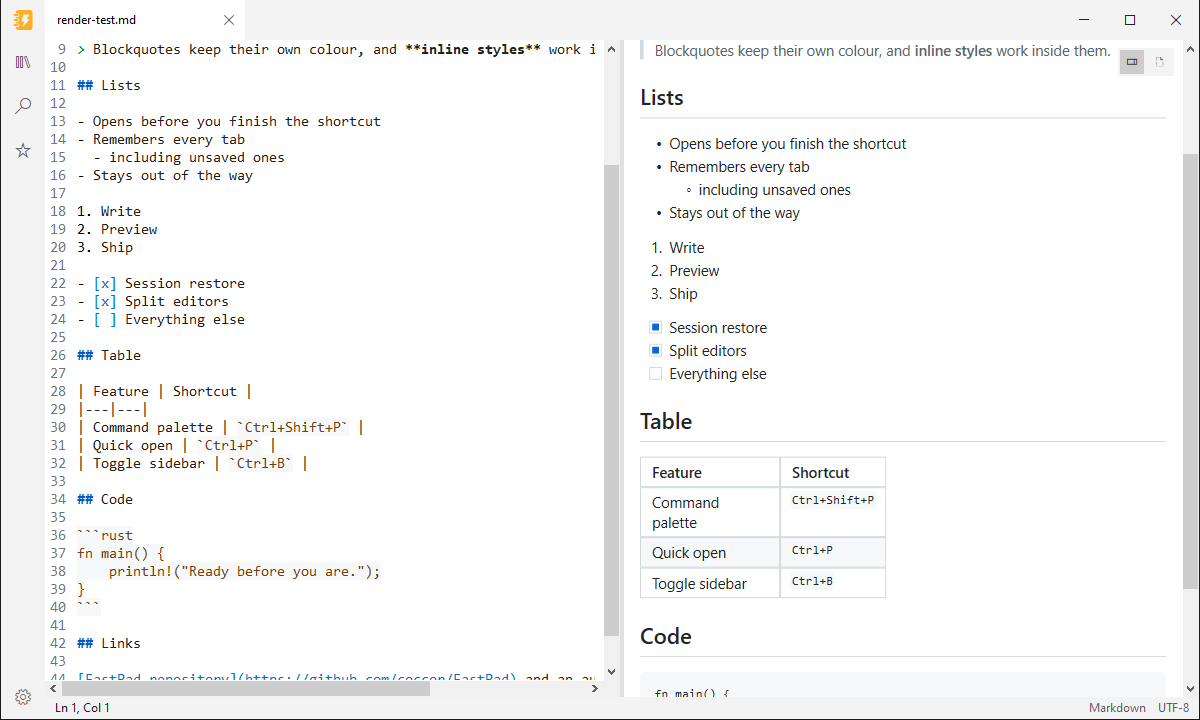
Write on the left, see it rendered on the right. FastPad draws GitHub-flavored Markdown natively
(tables, task lists, strikethrough, code blocks and local images) and updates moments after you stop
typing. Both panes scroll together.
- Each Markdown tab has a view: Source, Live (rendered as you type, below), Split (the
source with the preview beside it; drag the divider to resize it) or Preview (full width).
Pick one in the toolbar under the tabs (which also shows where the file lives) or View → Markdown
view, or press
Ctrl+Shift+V to cycle through them. Each tab keeps its own view, and Escape leaves Preview.
SVG files get Source, Split and Preview.
- Select and copy text in the preview as in a browser: drag (it scrolls at the edges),
double-click a word, triple-click a paragraph, Shift+click to extend,
Ctrl+A for everything.
Ctrl+C or right-click → Copy puts plain text on the clipboard, without Markdown markers,
plus a formatted version, so pasting into Word or Outlook keeps headings, bold, links, lists
and tables.
- Links just work: web links open in your browser,
#headings jump inside the preview, and links to
local files open in a new FastPad tab.
- Privacy by design: only local images are shown, and nothing is fetched from the internet.
- The preview's graphics stack loads the first time you open a preview, so it never slows startup.
- Writing helpers in Markdown files:
Ctrl+B, Ctrl+I, Ctrl+` and Ctrl+K make the selection
bold, italic, code or a link. Enter continues a list (Enter on an empty item ends it), Tab and
Shift+Tab nest list items and move between table cells, and a table lines up when you leave it.
Each is a single undo step.
- Live Markdown (preview):
Ctrl+Alt+V, or View → Markdown view → Live, switches a Markdown
tab to a view FastPad draws itself, in the preview's font with real wrapping. Typing, selecting, undo,
find, the writing helpers and Japanese, Chinese or Korean input work as in the source view, and the
file is only ever changed by what you type or a task checkbox you click. Headings, bold, italic,
strike-through, inline code, links and [[wikilinks]] render in place with their markup hidden,
and so do block elements: lists with bullets, numbers and clickable task checkboxes, quotes with
their bars, rules, code blocks on a full-width background, tables as aligned grids and local
images as thumbnails (anything else shows its alt text; nothing is fetched). The block you are in
(from blank line to blank line, a whole table or code block) shows its Markdown source, keeping
its formatting and highlighted; raw HTML, front matter, footnotes and math are dimmed. Ctrl+click
follows a link. Find and go to line reveal the block they land on, and switching to Split or
Preview keeps your place. Right-click gives the usual edit menu plus Open link and
Copy link address; dropped text lands where you drop it, and a selection can be dragged to move
it (Ctrl+drag copies). Screen readers see it as editable text. Commands that need the source
view's own features (multiple cursors, column selection, folding) switch back to it with a
notice. Set markdown_view=live to open Markdown tabs in it.
Notes and notebooks
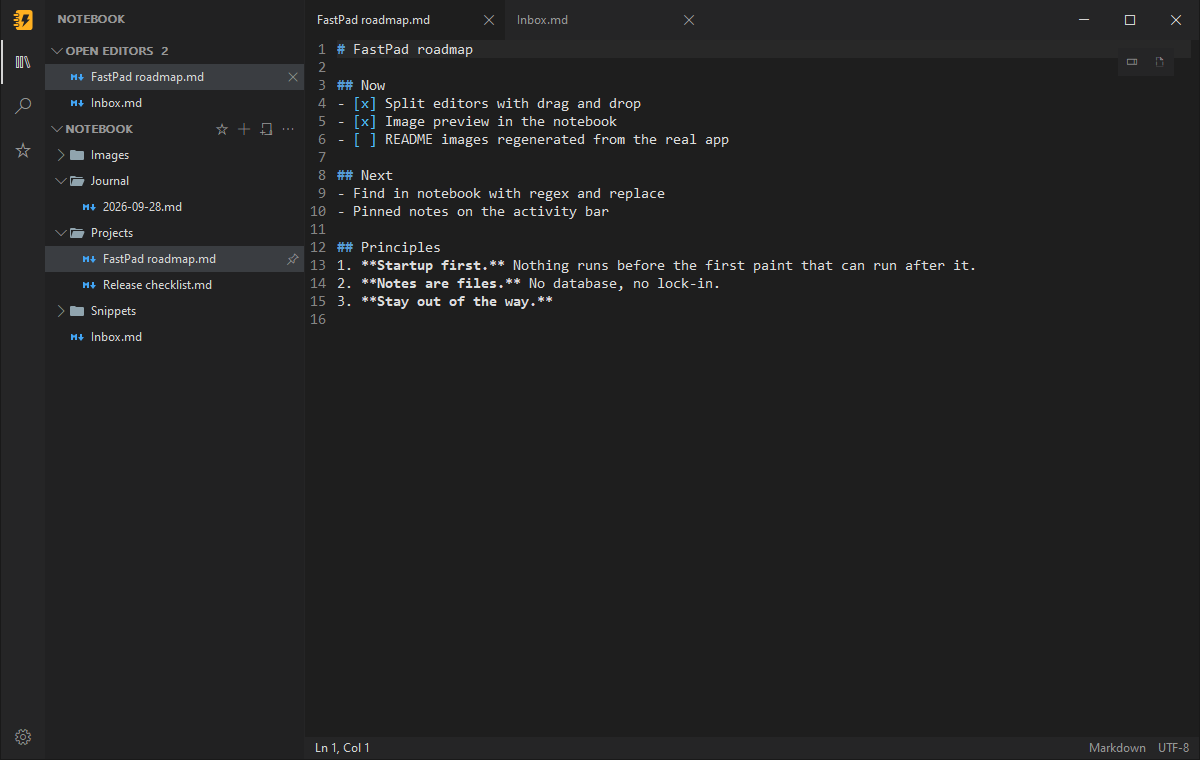
Open any folder and it becomes your notebook: a tree in the sidebar, folders as they are on disk,
pinned notes first. Notes are plain files, so nothing is locked in.
- Write fast. New notes are named inline and save themselves once they're in the notebook.
Create, rename, move (drag and drop) and delete notes and folders right in the tree.
- Find anything. Search and replace across every note, with case, whole-word and regex
options, and jump to any note by typing part of its name. Nothing is indexed; results stream in.
- Open Editors lists every open tab above the tree. Drag files in from Explorer or from Open
Editors to copy them into the notebook.
- Star notebooks to keep them in Favorites, pick coloured, minimal or solid file icons, and
drive it all from the keyboard or a screen reader.
Pins travel with the notebook in .fastpad\library.ini, and nothing is written into a folder until
you pin something. Turn notes off with notes_mode=false in fastpad.ini.
Tag a note with #tags anywhere in its text, or in its YAML front matter:
---
tags: [project/atlas, todo]
status: active
---
Call Dana about the #budget.
- The Tags view (the tag button in the activity bar, or View: Show tags) lists every tag
in the notebook with how many notes use it. Nested tags like
#project/atlas sit under
#project. Expand a tag to see its notes; click one to open it.
- In the preview, front matter shows as a table of its properties, and each
#tag is a chip
you can click to see the tag's notes.
- Tags in code, links and HTML don't count, and neither do
#123 or C#.
FastPad keeps an index of every Markdown note's tags and front matter, updated as notes are saved
or changed outside FastPad, and cached so the next start reads only what changed.
Links between notes
Link to another note by name with [[wikilinks]], as Obsidian does:
See [[Project Atlas]], its [[Project Atlas#Goals|goals]], or [[work/Plan]].
- Type
[[ and FastPad offers the notebook's notes; keep typing to narrow the list.
- Follow a link with
Ctrl+Click or F12 in the editor, or a click in the preview. A link to
a note that doesn't exist yet creates it.
- A name finds a note by its file name, its path, or an
aliases: entry in its front matter.
When two notes share a name, the one in the linking note's folder wins.
- The Links view (the link button in the activity bar, or View: Show links) shows which
notes link to the active note, with the line that mentions it, and what the note links to.
It also lists missing notes (linked but not yet written) and notes nothing links to.
- Rename or move a note in FastPad and its relative links are fixed, and FastPad offers to
update the links in other notes. Renaming can keep the old name as an alias. When another
program renames a note, a notice says which links still use the old name, and
Notes: Update links to renamed notes fixes them.
Images and files in notes
In a Markdown note, paste a screenshot (Ctrl+V) or files copied in Explorer, or drop files
with Ctrl held, and FastPad copies them into the notebook's attachments folder (or the one
your Obsidian vault uses) and links them where the caret is:  for images,
[name](…) for other files. Notes: Insert attachment… picks a file instead.
- When the clipboard has text too (a paragraph copied from Word puts a picture there as well),
Ctrl+V pastes the text. Notes: Paste image as attachment takes the image anyway.
- A Markdown file outside the notebook keeps its attachments in an
attachments folder beside it.
- Move a note and its links to images and files keep working. Move an image in the Notebook tree
and FastPad offers to update the notes that show it.
Daily notes and templates
Ctrl+Alt+D (Notes: Open today's note) opens today's note in journal\, making it the
first time from .fastpad\templates\daily.md, or with the date as its heading.
Notes: Previous daily note and Next daily note step through the journal.- Notes: New note from template… (also in the Notebook
… menu and a folder's right-click
menu) lists the templates in .fastpad\templates and makes a new note from the one you pick.
- Templates fill in
{{date}}, {{date:dddd, D MMMM YYYY}}, {{time}} and {{title}}, and the
caret starts at {{cursor}}. Placeholders work in front matter too.
- A notebook's conventions live in
.fastpad\notebook.ini, which other tools and AI agents can
read too. Notes: Edit notebook settings opens it:
daily_folder=journal
daily_format=YYYY-MM-DD
daily_template=.fastpad/templates/daily.md
templates_folder=.fastpad/templates
inbox=inbox.md
Quick capture
Press Ctrl+Alt+N anywhere to jot something down without leaving what you're doing. The
capture box appends it to your notebook's inbox.md as a time-stamped list item.
Ctrl+Enter saves and closes; Ctrl+Shift+Enter also opens the note. Esc closes
and keeps what you typed for next time.- Images and files: paste a screenshot or files copied in Explorer, drop files on the box, or
press
Ctrl+Shift+S to snip part of the screen with Windows' own tool. They are copied into
the notebook's attachments folder and linked from the capture.
Ctrl+Alt+N again in the box switches where this capture goes: the inbox, today's daily
note, or a new file of its own in inbox, which suits AI agents that process items one by one.
capture_target in notebook.ini sets the default.- It works when FastPad isn't running too: the installer's "Quick capture shortcut" option sets
up the same key, and
FastPad.exe --capture "text" captures from scripts.
Changes made outside FastPad
Edit a file in another program, sync it from another PC, or let an AI agent work on your notes:
FastPad keeps up while it's open.
- Open tabs follow the file. A tab with no unsaved edits picks up the new text as soon as
the file changes, as one edit you can undo: Ctrl+Z brings back what you had.
- Appends join your edits. Text added to the end of a file you're editing (a log, an inbox)
is added to the end of your tab, with nothing to resolve.
- Real conflicts wait for you. Any other change to a tab with unsaved edits shows a warning in
the tab and pauses autosave. Use Note: Reload from disk, Note: Keep my version, or
Note: Compare with disk to see the file's version read-only beside yours.
- A deleted file keeps its tab, marked "(deleted)". Saving creates it again.
- The notebook shows what changed. A dot marks each note changed outside FastPad since you
last opened it, and it survives a restart. Notes: Show changed notes lists only those;
Notes: Clear changed marks clears them.
The open notebook is watched for changes as they happen, and other open files are checked when
FastPad comes back to the front. Changes inside folders such as .git and node_modules are
ignored. To have every change wait for you instead, set reload_changed_files=ask.
JSON you can trust
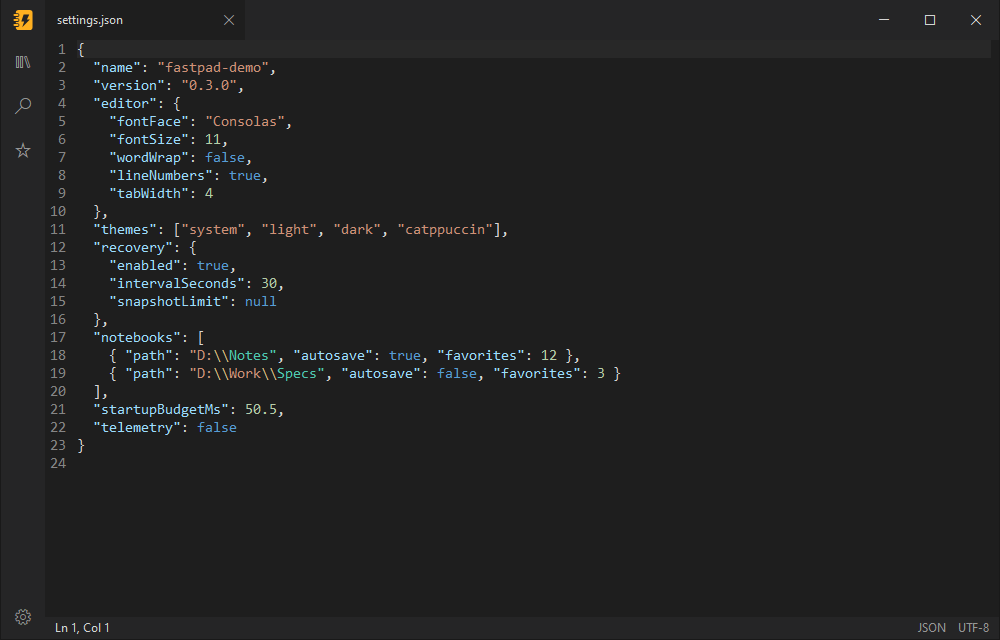
Syntax highlighting as soon as you open a .json file. Validate JSON points to the exact line
and column of a mistake; Format JSON pretty-prints the whole document in one step you can undo. Neither will
touch a file that doesn't parse.
Syntax highlighting for the files you actually open
FastPad picks the language from the file name and colours it in every theme: JSON, Markdown, XML
(including SVG, .csproj and .xaml), HTML, CSS, JavaScript, TypeScript, YAML, TOML, INI,
.properties, .env, PowerShell, Bash, Batch, Python, C, C++, C#, Rust and SQL. Switch it by hand
from View → Language or the command palette. The notebook lists all of these files too
(.env, .bashrc and Cargo.lock included), each with its own icon in every icon set.
Tabs, done right
Open as many files as you like in one window. Every tab keeps its caret and scroll position, across
switches and restarts. Open a file from Explorer or the command line and it lands as a tab in the
FastPad window you already have open, not in a new window.
Split editors
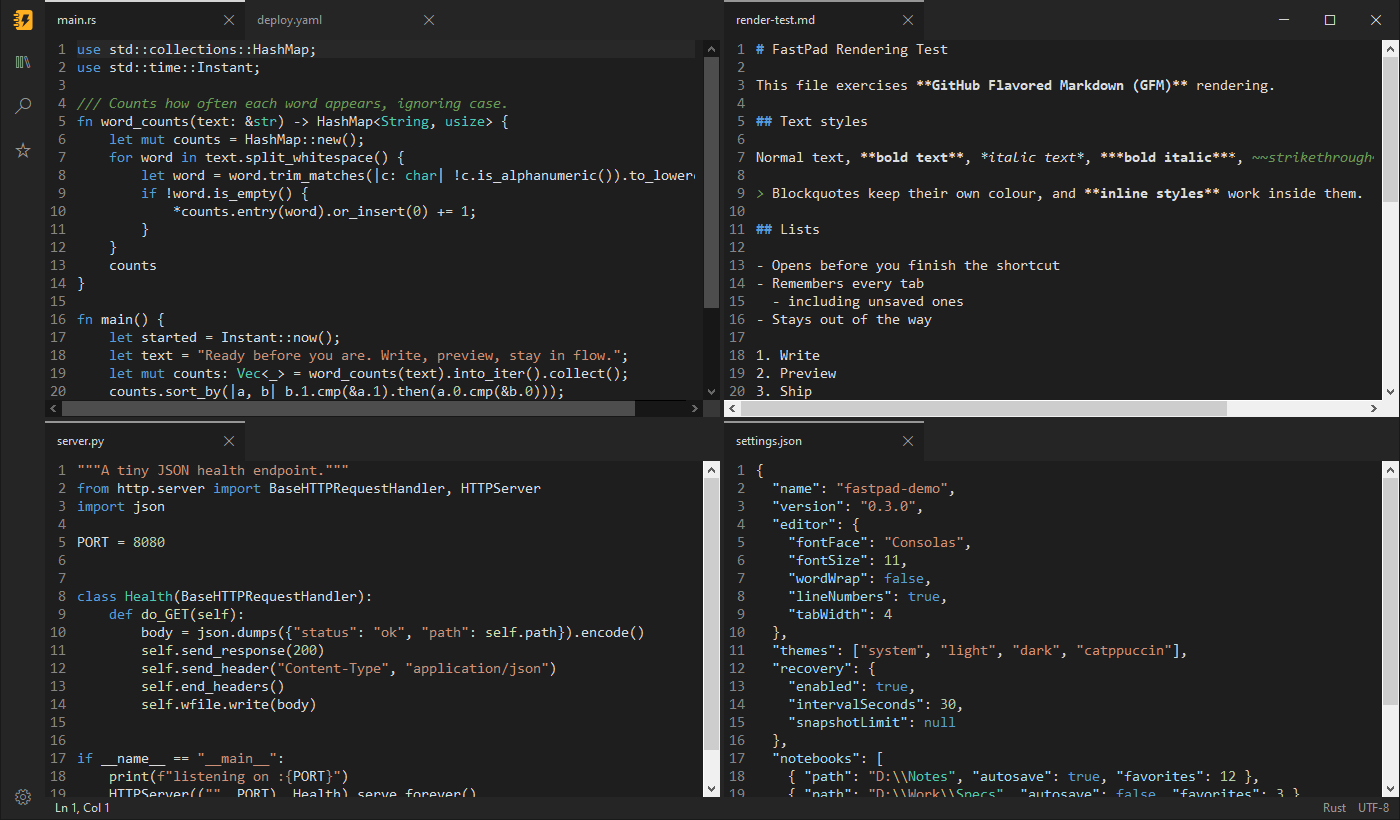
Put files side by side in any grid of rows and columns. Drag a tab onto another group to move it,
or onto an editor's edge to split it. Each group has its own tabs, and the layout comes back with
your session.
Images next to your notes
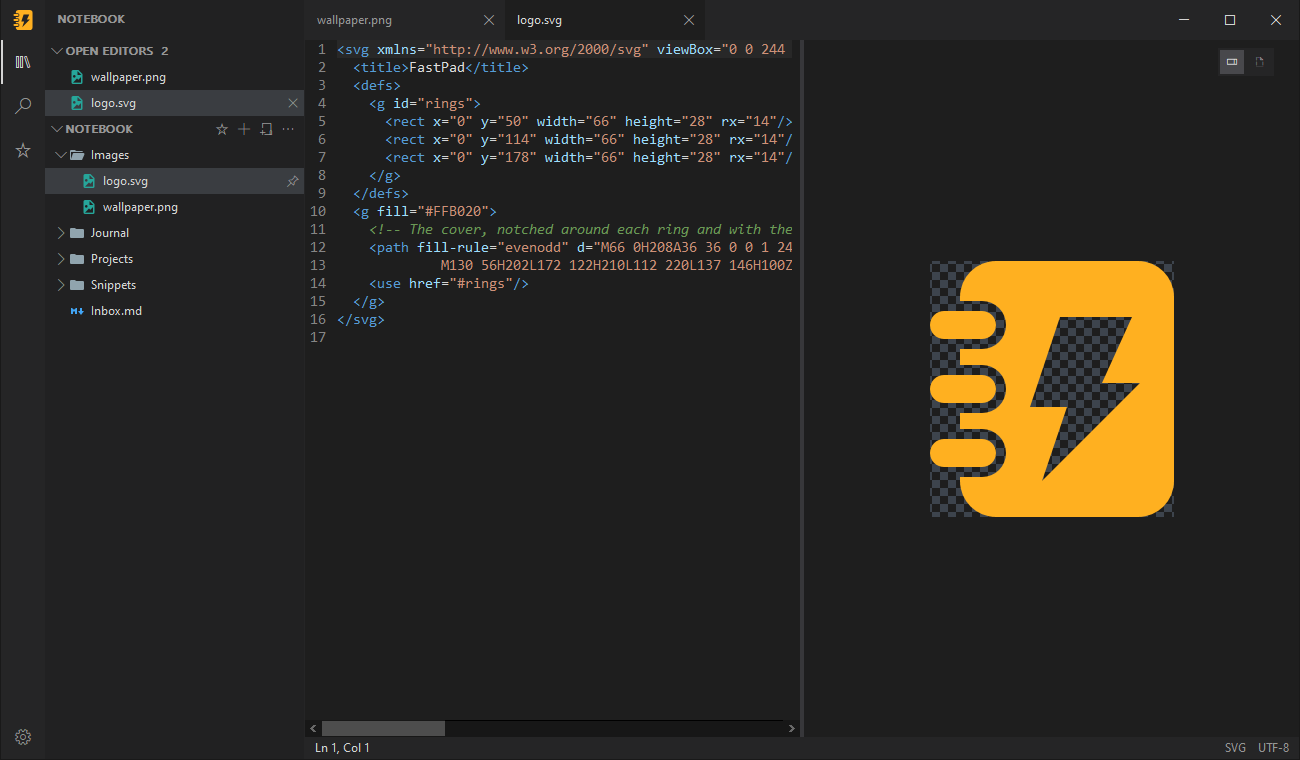
PNG, JPEG, GIF, WebP and more open in an image tab you can zoom and pan. SVGs open as text, with
their rendered preview beside the source. The notebook lists images next to your notes.
A command palette for everything
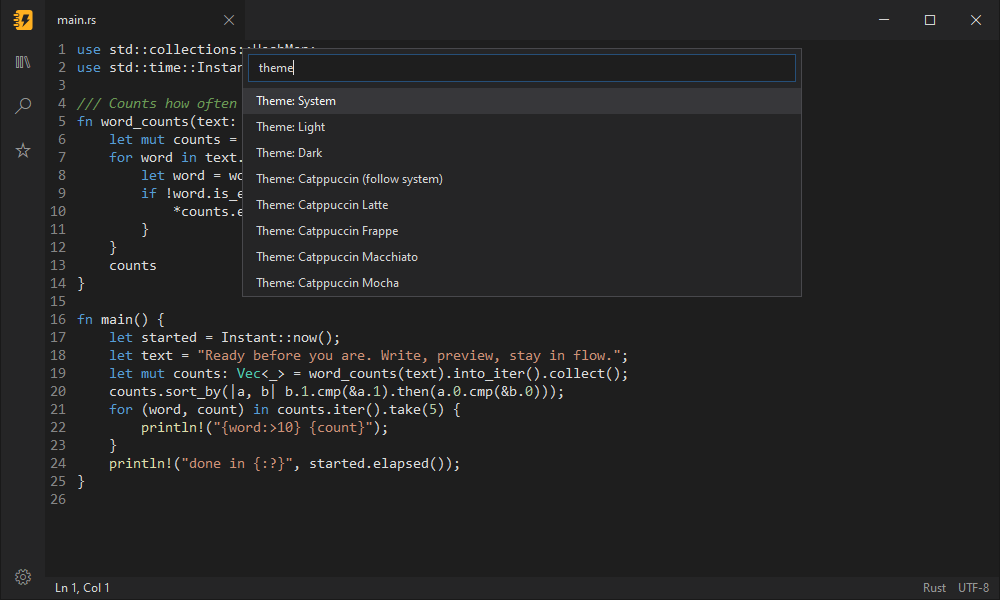
Open it and start typing. Switch theme, toggle word wrap or line numbers, change font size
or tab width, all without leaving the keyboard. Every change is saved instantly. Prefer to
see everything at once? Settings (Ctrl+,, File > Settings... or the gear at the
bottom of the sidebar) lists every setting, and changes apply as you make them.
Themes that match your desk
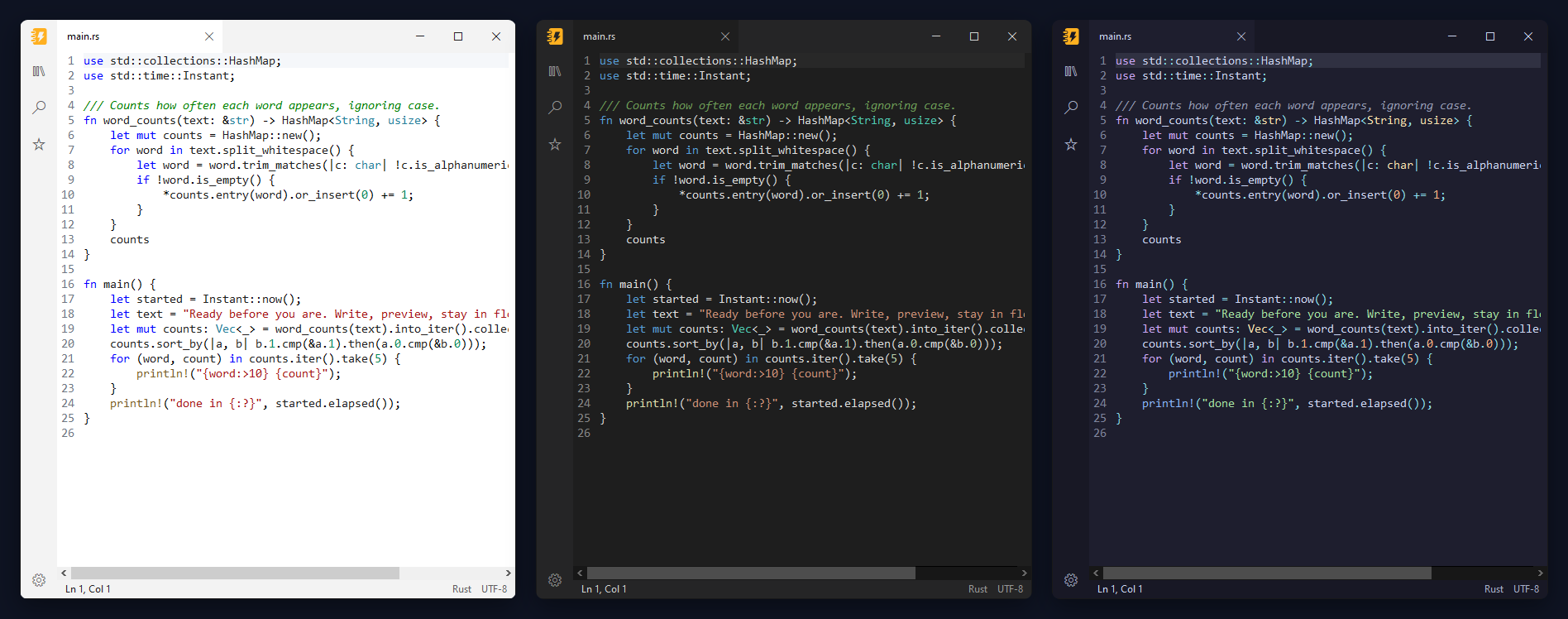
Light, dark, or System to follow Windows as it switches. Plus all four
Catppuccin flavors (Latte, Frappé, Macchiato, Mocha), or plain
catppuccin to pick Latte by day and Mocha by night. For long reading and writing sessions there are
Paper (warm off-white) and Lamp (warm charcoal), or paper-lamp to pick Paper by day and Lamp by
night. Windows high contrast is always respected.
Crash recovery that just works
FastPad quietly snapshots unsaved documents every 30 seconds while you edit. If your PC crashes,
loses power or reboots for an update, the next launch brings your work back as unsaved tabs. Saving
or discarding a recovered tab cleans up after itself.
Pick up where you left off
Close FastPad and the next launch reopens every tab, including unsaved edits and untitled notes,
with the tab you were on active. Closing never nags about unsaved changes while this is on. Turn
it off with File > Restore session on startup or restore_session=false, and FastPad asks
before closing again.
And the details you'd expect
- Safe saves. Files are written to a temporary copy and swapped into place, so a failed save never
leaves you with a half-written file.
- Encodings preserved. UTF-8, UTF-8 with BOM, UTF-16 LE and UTF-16 BE are detected on open and
kept on save.
- Find and replace with match case, whole word and regular expressions, plus zoom, word wrap
and line numbers.
- Code folding. Collapse and expand blocks from the margin, or with Fold All and Unfold All in
the command palette. Turn it off in Settings.
- Screen-reader friendly links. Links in the Markdown preview are exposed to assistive
technology and can be followed from it.
Keyboard shortcuts
| Action | Shortcut | | Action | Shortcut |
|---|
| New tab | Ctrl+N or Ctrl+T | | Command palette | Ctrl+Shift+P |
| Open | Ctrl+O | | Markdown view (cycle) | Ctrl+Shift+V |
| Save | Ctrl+S | | Format JSON | Shift+Alt+F |
| Save as | Ctrl+Shift+S | | Word wrap | Alt+Z |
| Find | Ctrl+F | | Zoom in / out / reset | Ctrl++ / Ctrl+- / Ctrl+0 |
| Replace | Ctrl+H | | Next / previous tab | Ctrl+Tab / Ctrl+Shift+Tab |
| Undo / redo | Ctrl+Z / Ctrl+Y | | Go to tab 1–9 | Alt+1 … Alt+9 |
| Open notebook | Ctrl+Shift+O | | Toggle sidebar | Ctrl+B (Bold in Markdown files) |
| Show notebook | Ctrl+Shift+E | | Search notes | Ctrl+Shift+F |
| Move note to notebook | Ctrl+Shift+M | | Sidebar / editor groups focus | F6 / Shift+F6 |
| Find next / previous | F3 / Shift+F3 | | Match case / whole word / regex | Alt+C / Alt+W / Alt+R |
| Replace in notes | Ctrl+Shift+H | | Replace all (in Search) | Ctrl+Alt+Enter |
| Replace in the selected result | Ctrl+Shift+1 | | Go to note | Ctrl+P |
| Close tab | Ctrl+W or middle-click | | Split editor right / down | Ctrl+\ / Ctrl+Shift+\ |
| Focus editor group 1–8 / last | Ctrl+1 … Ctrl+8 / Ctrl+9 | | Move tab to next / previous group | Ctrl+Alt+Right / Ctrl+Alt+Left |
| Settings | Ctrl+, | | Select line | Ctrl+L |
| Move line up / down | Alt+Up / Alt+Down | | Copy line up / down | Shift+Alt+Up / Shift+Alt+Down |
| Delete line | Ctrl+Shift+K | | Insert line below / above | Ctrl+Enter / Ctrl+Shift+Enter |
| Indent / outdent line | Ctrl+] / Ctrl+[ | | Toggle line / block comment | Ctrl+/ / Shift+Alt+A |
| Add next occurrence | Ctrl+D | | Select all occurrences | Ctrl+Shift+L |
| Add cursor above / below | Ctrl+Alt+Up / Ctrl+Alt+Down | | Add cursor | Alt+Click |
| Bold / italic (Markdown files) | Ctrl+B / Ctrl+I | | Code / link (Markdown files) | Ctrl+` / Ctrl+K |
| Follow link at caret | F12 or Ctrl+Click | | Today's note | Ctrl+Alt+D |
| Live Markdown view | Ctrl+Alt+V | | | |
Make it yours
Everything in the command palette or Settings is saved to %LocalAppData%\FastPad\fastpad.ini. You can also
edit it by hand: one key=value per line. A typo never blocks startup; FastPad points out the bad
line in a notification and applies the rest.
| Key | Values | Default |
|---|
font_face | Any installed font name | Consolas |
preview_font | Any installed font name, for Markdown preview text (code in the preview uses font_face) | Segoe UI |
preview_font_size | Markdown preview text size in pixels (positive integer) | 14 |
preview_line_height | Markdown preview line height, a multiple of the text size from 1.0 to 3.0 | 1.6 |
font_size | Points (positive integer) | 11 |
tab_width | 1–255 | 4 |
word_wrap | true/false, 1/0, yes/no, on/off | false |
line_numbers | true/false, 1/0, yes/no, on/off | true |
insert_spaces | true/false, 1/0, yes/no, on/off | false |
show_whitespace | true/false, 1/0, yes/no, on/off | false |
highlight_current_line | true/false, 1/0, yes/no, on/off | true |
code_folding | true/false, 1/0, yes/no, on/off | true |
always_on_top | true/false, 1/0, yes/no, on/off | false |
capture_hotkey | A key like Ctrl+Alt+N; empty turns it off | Ctrl+Alt+N |
capture_source | true/false: note the window you were in when you pressed the capture hotkey | false |
markdown_view | source, live, split, preview: the view Markdown tabs open in | source |
theme | system, light, dark, catppuccin, catppuccin-latte, catppuccin-frappe, catppuccin-macchiato, catppuccin-mocha, paper-lamp, paper, lamp | system |
recovery_interval_seconds | Seconds between recovery snapshots | 30 |
restore_session | true/false, 1/0, yes/no, on/off | true |
reload_changed_files | auto (a tab without unsaved edits takes a file's outside changes by itself) or ask (every change waits for you) | auto |
sidebar_view | notebook, search, favorites, tags, none | notebook |
sidebar_width | 180–480 (pixels at 100% scaling) | 260 |
settings_size | x (pixels at 100% scaling), saved when you resize Settings | none: its natural size |
window_placement | ,,x, then ,maximized if it was; saved when the main window closes | none: opens at the default spot |
file_icons | material, minimal or solid | material |
Hand edits keep your comments and other lines; the palette and Settings rewrite only the lines they change.
Command line
FastPad.exe [--new-window] [path]
FastPad.exe --capture ["text" | -] [--attach ]...
FastPad.exe notes.md opens the file in your running FastPad window, or starts FastPad if none is
open.--new-window always starts a separate, independent window.--capture opens the quick capture box. With text (or - to read it from standard input) and
any --attach files, it files them into the inbox with no window and exits: 0 when filed, 1
when the write failed, 2 when the request was refused (a missing file, or one over 20 MB). It
goes to your running FastPad when there is one.--diagnostic is for the startup benchmark harness; you don't need it.
FAQ
Is it really free? Yes. FastPad is open source under the MIT License, with no paid tier, no ads
and no data collection.
Does it replace Notepad? It sits alongside it. The installer adds FastPad to "Open with" for
common text formats without taking over your defaults, and you can make it the default for any file
type from Windows Settings.
Why the SmartScreen warning? New, unsigned apps have no reputation with Microsoft yet. Code signing
is on the way; until then, every release publishes SHA-256 checksums you can verify.
Can I use it on Windows on ARM or 32-bit Windows? Not yet. Current builds are Windows 10 and 11
x64.
The preview renders GitHub-flavored Markdown natively (tables, task lists, strikethrough, code
blocks, images, bare www. and https:// links and email addresses, and > [!NOTE]-style alerts)
and the HTML GitHub allows in READMEs: centred <div> and <p> blocks, sized
<img /> tags, <picture> images that follow the light or dark theme, collapsible
sections, and inline tags such as, , and . Local PNG, JPEG, GIF,
and SVG images are shown; remote images show a placeholder with their alt text, because nothing is
loaded from the network. It updates shortly after you stop typing, and scrolling either pane scrolls
the other. Links open when clicked: web and mail links in your default browser, #anchors inside
the preview (opening any collapsed section around them), and local files in a FastPad tab.
Files larger than 10 MB pause live updates; click the bar at the top of the preview to refresh it.
If FastPad saves you a few seconds a day, star it on GitHub.
It's the single best way to help others find it. Found a bug or missing something?
Open an issue.
Building from source
Requirements: Rust stable (see rust-toolchain.toml), Visual Studio 2022 with the C++ x64 build
tools, and PowerShell 7.
pwsh -File tools/fetch-native.ps1           # download and SHA-256-verify Scintilla and Lexilla
pwsh -File tools/build-native.ps1           # build the DLLs into native\out\x64
cargo build --release
cargo test -- --test-threads=1              # Windows integration tests must run serially
pwsh -File tools/audit-dependencies.ps1     # allow only the windows-sys/serde_json closure
pwsh -File tools/package.ps1                # dist\FastPad--windows-x64.zip
pwsh -File tools/verify-package.ps1         # add -RequireSignature for signed release builds
pwsh -File tools/package-installer.ps1      # dist\FastPad--windows-x64-setup.exe (Inno Setup 6)
pwsh -File tools/verify-installer.ps1       # silent install, registration checks, uninstall
The version comes from Cargo.toml. Releasing, code signing, and the Scoop and winget manifests are
covered in docs/distribution.md; startup benchmarking in
benchmarks/README.md.
License
FastPad is released under the MIT License. Scintilla, Lexilla and the Rust crates it
links are listed with their licenses in LICENSES.md.