Midnight Athenaeum
A desktop audiobook player for Windows, built with Electron. Plays local files with
real chapter navigation, per-book resume, per-book playback speed, bookmarks,
skip-silence, volume normalization, and a sleep timer. A Continue listening
shelf, library filters, and series grouping keep the book you're on one click
away, even in a library of thousands. Light and dark themes, following the system
by default.
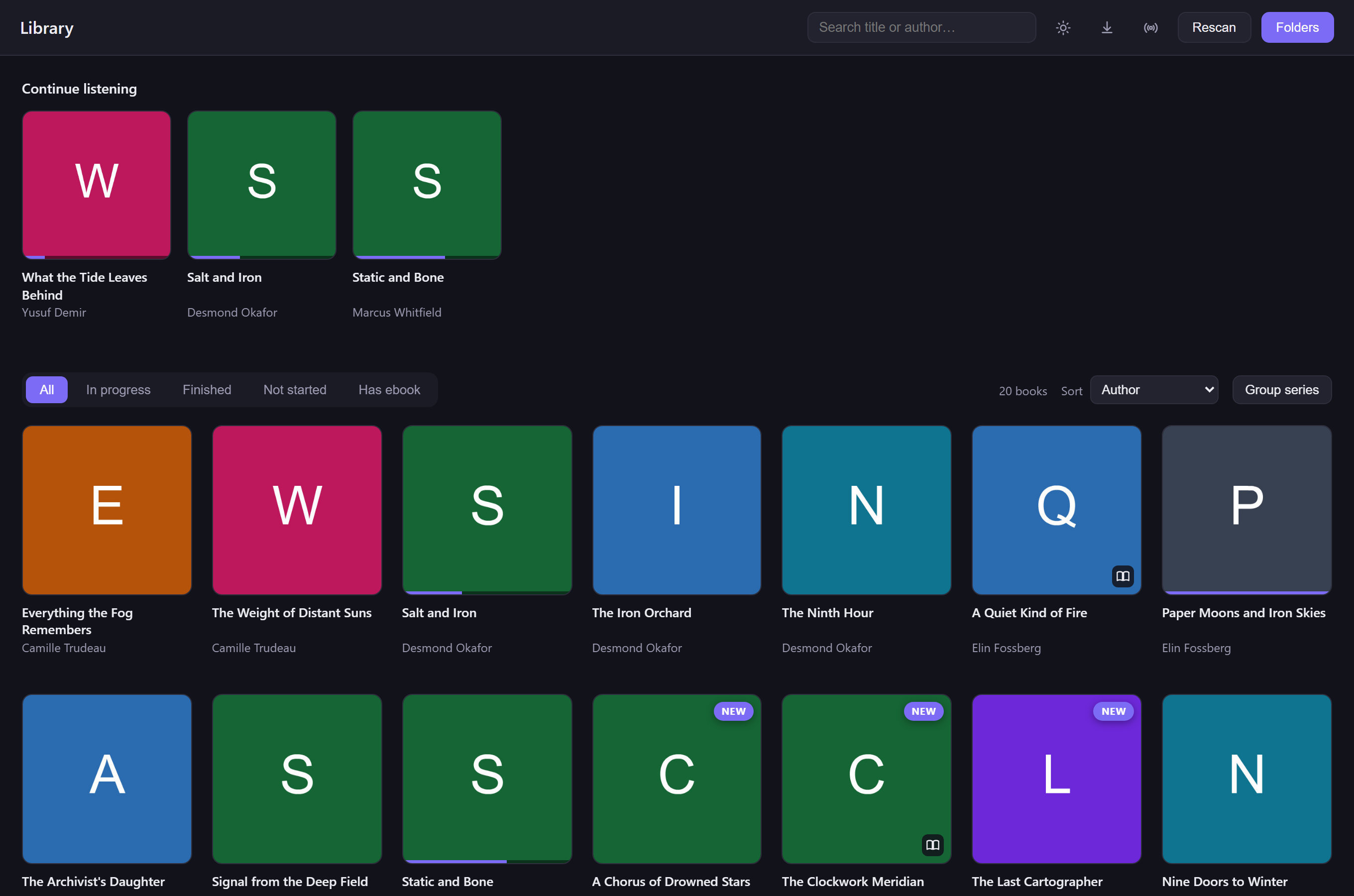
(Shown with a synthetic demo library, not real book covers — a virtualized
grid renders only what's on screen, so this scales cleanly to thousands of
books; see Performance & architecture optimizations for
details.)
Icons
The app icon is generated from assets/logo.png — the emblem is cropped out
(dropping the wordmark) and written as assets/icon.png plus a multi-size
build/icon.ico used for the window and taskbar. Regenerate with npm run icons
(tweak the CROP constants in scripts/make-icons.cjs if the framing shifts).
Planned features, differentiators, and performance work are tracked in
docs/ROADMAP.md. Released versions and what changed in each
are tracked in CHANGELOG.md.
Running it
Running from source needs:
- Node.js 22.12 or newer (Electron 43's minimum;
package.json enforces it).
- Visual Studio 2022 or newer with the "Desktop development with C++"
workload (the free Build Tools edition is enough), including its
Visual Studio Installer. The library database module
(
@vscode/sqlite3) is compiled on install, and node-gyp finds Visual
Studio through the Installer's vswhere.exe — a Visual Studio folder whose
Installer has gone missing fails with "Could not find any Visual Studio
installation to use" even though the compiler is there. Repair or
reinstall the Visual Studio Installer to fix that.
npm install
npm start
> Note: if your shell has ELECTRON_RUN_AS_NODE=1 set (VS Code's integrated
> terminal does this), electron runs as plain Node and no window appears.
> Clear it first: $env:ELECTRON_RUN_AS_NODE=$null.
On first launch, click Folders in the top bar to add your audiobook
directory. The same panel lists every folder currently in your library — each
with a live book count — and lets you remove one, which drops its books from
Midnight Athenaeum without touching anything on disk. Removing a folder that holds
thousands of books asks for confirmation first, since there's no undo.
You can also just drag a folder onto the window — it shows a drop-zone
overlay while you're dragging and adds the folder the same way "Folders → Add
folder" would. Dropping something that isn't a folder (e.g. an individual file)
is rejected with a toast rather than silently doing nothing.
For a single book rather than a whole folder, the book detail view and
right-click on any library card offer two narrower actions: Remove from
library (drops it from Midnight Athenaeum, files untouched) and Delete book
(files too) (also sends its files to the Recycle Bin — never a permanent
delete). Either way, that book's progress, bookmarks, normalization,
online-metadata override, ebook pairing, and transcript are cleared out too, so
nothing orphaned is left behind; deleting also removes the book's folder itself
if that leaves it completely empty (and only then — a folder shared with other
books, including one with other books in its subfolders, is never touched).
Installer
The easiest way to install Midnight Athenaeum is to grab the prebuilt installer from
Releases —
download MidnightAthenaeum-Setup-.exe and run it. No admin rights needed.
It's also in the Windows Package Manager:
winget install cubezombies.MidnightAthenaeum
(winget upgrade cubezombies.MidnightAthenaeum later on.) New versions reach
winget after Microsoft reviews each submission, so it can trail the Releases
page by a day or two; the in-app Check for Updates always sees the newest
release directly.
It's a per-user NSIS installer — the standard default install location
(%LOCALAPPDATA%\Programs\Midnight Athenaeum), no admin rights needed. It adds Start
Menu and Desktop shortcuts and registers an entry in Settings → Apps with
its own uninstaller (Uninstall Midnight Athenaeum.exe, also reachable from Apps). The
"Choose Install Location" page lets you pick a different folder if you'd
rather — e.g. this developer's own machine installs everything to D:, a
personal convention with no bearing on where it installs for anyone else.
Uninstalling removes the installed program files and shortcuts only — it
never touches the data folder described below, so your library, progress, and
bookmarks survive an uninstall/reinstall.
The installer is unsigned (no code-signing certificate), so Windows SmartScreen
will show an "unrecognized publisher" warning on first run — click More
info → Run anyway.
Tested: a full cycle using the actual downloaded release asset (not just a
local build) — downloaded MidnightAthenaeum-Setup-.exe from the published
Release, verified its SHA-256 against the digest GitHub recorded for it,
installed it silently to the default %LOCALAPPDATA%\Programs\Midnight Athenaeum
location, confirmed the installed app loads the real library over IPC exactly
like the dev build, then uninstalled and confirmed the install directory,
shortcuts, and registry entry were gone while the data folder was untouched.
Is this safe to install?
The SmartScreen warning is purely about the missing code-signing certificate
(one costs money on an ongoing basis; this is a free hobby project) — it's not
a signal that anything was found wrong with the installer, and there's no
Microsoft/AV review behind it either way. Judge it on what you can actually
check instead:
If you'd still rather not run an unsigned .exe, npm start from source (see
Running it) skips the installer/SmartScreen question entirely
— you're running the exact same code either way.
Checking for updates
Help → Check for Updates… (or the ⬇ button in the top bar) checks GitHub
Releases for a newer version. It's entirely manual — nothing is checked
automatically on launch or in the background. If a newer version exists it
shows what changed (pulled from that release's CHANGELOG.md
section) and downloads it in the background; once the download finishes,
Restart & Install quits and runs the new installer over the current one
(or Later, and it installs automatically the next time you quit normally).
A small dot on the ⬇ button marks a downloaded-and-ready update even if you
dismissed the dialog. Update checks only work in an installed build — the dev
copy (npm start) shows a message explaining that rather than erroring.
Building it yourself
npm install
npm run dist
produces dist\MidnightAthenaeum-Setup-.exe the same way the Release build
does (same prerequisites as Running it). npm run pack builds
an unpacked dist\win-unpacked\ folder instead, for a quick smoke test
without going through the installer; node scripts/test-unpack.cjs builds
that folder and launches the packaged app against the demo library as a
regression check.
Cutting a release
- Add a
## [x.y.z] - YYYY-MM-DD section to CHANGELOG.md
(move the [Unreleased] items into it) describing what changed — this is
what both the GitHub Release page and the in-app update dialog show.
- Bump
version in package.json to match.
- Commit, then
git tag vX.Y.Z && git push origin vX.Y.Z.
Pushing the tag runs .github/workflows/release.yml,
which builds the installer on windows-latest, publishes it to a GitHub
Release via electron-builder's GitHub provider, and sets the release's notes
from the CHANGELOG.md section for that version (failing the build if that
section is missing, so a release can't accidentally ship without notes). The
workflow can also be re-run manually (workflow_dispatch) against an
existing tag if a run needs retrying.
How a library is interpreted
Real libraries mix two conventions, so the scanner splits on file type:
| Layout | Treated as |
|---|
One .m4b / .m4a file | One book; chapters read from inside the file |
A folder of .mp3 tracks | One book; each track becomes a chapter |
Disc 1/, Disc 2/ subfolders | Merged into a single book |
GraphicAudio-style Title (1 of 2), Title (2 of 2) sibling folders | Merged into a single book |
A folder is only merged as discs when it has several audio subfolders and at
least one is disc-named — so a series folder holding separate books per subfolder
stays separate. The same idea applies to full-cast/dramatized productions split
across sibling folders (recognized from the GraphicAudio folder convention or
a [Dramatized Adaptation]/"full cast" marker): they're merged into one book
instead of showing up as two duplicate-titled entries, and marked with a badge
on the card and in the book view, where the "Narrated by" label becomes "Cast:"
since the source tag is typically a studio credit rather than a single narrator.
A Full cast library filter tab narrows the grid to just these.
Multi-track books play as one continuous timeline: the seek bar, chapter list and
saved position are all in whole-book seconds, and playback rolls over file
boundaries on its own — gaplessly, via a hidden second `` element that
preloads the next track ahead of the boundary, so there's no stall crossing from
one file to the next.
Chapters
Chapters come from a hand-written MP4 parser (src/main/mp4-chapters.js) rather
than from music-metadata.
music-metadata's includeChapters option does not surface QuickTime text
chapter tracks — a second trak with handler text, linked from the audio
track by a tref/chap reference — which is how essentially every .m4b in the
wild stores chapters. On a real library it returned zero chapters for every file.
The parser here reads that track directly (with a fallback to Nero chpl atoms),
which is both more robust and roughly 50× faster, since it does targeted reads
instead of decoding the whole file. It also recovers chapters from files
music-metadata refuses to parse at all — and, for those same files, the
title, author, narrator and cover too (readMp4Tags), since a file whose
tail is slightly truncated usually still has all of that intact near the
start.
.cue fallback. When a single-file book has no embedded chapters (a lone
.mp3, or an .m4b that omits them) but ships a sibling .cue sheet, the
chapter titles and offsets are read from that instead (src/main/cue.js). This
is a fallback only — real embedded chapters are never overridden. On the test
library it gave real chapters to ~47 otherwise-unnavigable books (some 80–180
chapters long).
Per-chapter artwork. A small number of enhanced audiobooks (mostly podcasts
and a handful of productions) embed a unique image for each chapter, using
Apple's chapter-artwork convention. When present, it's cached and shown as a
thumbnail in the chapter list, and the mini-player and Windows media flyout
switch to the current chapter's art while it's playing, falling back to the
book cover otherwise. Books without this — the vast majority — are unaffected.
Searching a chapter list. Some books have a lot of chapters — Wind and
Truth has 212 — so the book view has a search box above the list. It filters by
title text or by chapter number (typing 150 jumps straight to chapter 150
without scrolling), updating as you type. Esc clears the search first, then
un-focuses the box on a second press, rather than leaving the book view.
Where data lives
A fresh install starts completely empty — no bundled or sample library data
— and everything you add lives under the standard per-user app-data folder,
%APPDATA%\Midnight Athenaeum\ (C:\Users\\AppData\Roaming\Midnight Athenaeum\).
Paths are set in src/main/paths.js and can be redirected with the
MIDNIGHT_ATHENAEUM_DATA_ROOT environment variable (this developer's own machine
points it at a D: drive; that's a personal preference, not something the
installer assumes for anyone else).
%APPDATA%\Midnight Athenaeum\
  userData\               Electron/Chromium profile and caches
  covers\                 extracted cover art
  covers-online\          covers fetched via the online metadata lookup
  waveforms\              per-book seek-bar waveforms (tiny, regenerated if deleted)
  library.db              scanned library (SQLite; library.json, if present, is a legacy leftover)
  progress.json           per-book listening position, speed
  bookmarks.json          per-book bookmarks
  normalization.json      per-book measured loudness gain
  metadata-overrides.json per-book online metadata corrections
  ebook-pairings.json     book <-> EPUB pairings for Read along
  transcripts\            per-book Whisper transcripts
  diagnostic.log          scan progress and unexpected-shutdown diagnostics
  scan-state.json         when the last full (deep) scan completed
  session.json            present only while the app runs (see below)
Scanning happens in two phases. The first pass reads just tags and duration —
enough to show the grid and start playing — deferring cover art and (for
single-file .m4b/.m4a books) chapter extraction to a low-priority
background pass afterward, which resumes automatically if interrupted and
jumps the queue for whatever book you open first. Results are cached against
each file's size and mtime, so rescans only reparse what changed.
Routine launch scans take a fast path that only checks each book's folder,
which can miss a file re-tagged in place under the same name. Rescan
always does the full per-file check, and a launch scan does it on its own
once a week, so a library edited outside the app catches up either way.
While any scan is running, the Rescan button becomes Cancel scan —
cancelling leaves your library exactly as it was before the scan started.
Books whose files couldn't be read (a permission problem, a file locked by
another program, a flaky drive) are flagged rather than silently showing up
as "Unknown author": a warning icon on the card, an explanation in the book
view, and a Read problems filter tab that appears only while there are
any. Folders → Retry books with read problems tries them again.
If the app ever crashes or is closed some other way than quitting normally,
the next launch says so and offers to show diagnostic.log — attaching it
to a bug report makes the problem much easier to track down. (session.json
is how it knows: it's removed on every normal quit.)
Backup and restore
File → Backup data… bundles progress.json, bookmarks.json,
normalization.json, and metadata-overrides.json into one timestamped JSON
file and lets you choose where to save it — deliberately defaulting to
%APPDATA%\Midnight Athenaeum Backups, a sibling of the data folder rather than
something inside it, so deleting or corrupting the live data folder can't take
the backup down with it too. Cached cover images from the online lookup aren't
included (they're just re-fetchable), so a restored override may briefly show
no cover until you look it up again.
File → Restore from backup… reads a backup file, shows what it contains
(book counts, when it was made) in a confirmation dialog, and — only if you
confirm — replaces your current progress, bookmarks, normalization, and
online-metadata data with it. This can't be undone, so it's worth being sure
before confirming.
To scan without launching the app (useful for a first run):
node prime.mjs "E:\Books"
probe.mjs dumps an MP4's box structure, which is the quickest way to see how a
particular file stores its chapters:
node probe.mjs "path\to\book.m4b"
Layout
src/main/
  main.js            app lifecycle, window, IPC
  paths.js           where app data is written
  library.js         scanning, tag reading, cover extraction
  parse-core.js      per-file metadata extraction (tags, genres, full-cast detection)
  group.js           files -> books (disc merging, m4b vs mp3-folder)
  db.js              SQLite library persistence (library.db)
  mp4-chapters.js    MP4/M4B chapter + duration parser
  cue.js             .cue sheet chapter fallback
  media-protocol.js  ab-media:// with byte-range support
  metadata-lookup.js Open Library search/description/cover fetch
  audible.js         .aax decryption
  epub.js            EPUB parsing for Read along
  ebook-pairing.js   audiobook <-> EPUB matching
  transcribe.js      whisper.cpp transcription + transcript search
  clip.js            bookmark clip (audio/image) export
  waveform.js        per-book seek-bar loudness waveform
  ffmpeg-path.js     locates the bundled ffmpeg.exe (dev and packaged)
  duplicates.js      duplicate-book detection
  reorganize.js      reorganize-by-author moves + undo journal
  finished.js        finished-status tracking
  discord-presence.js Discord Rich Presence integration
  updater.js         electron-updater wiring
  taskbar.js         thumbbar buttons + jump list
  store.js           atomic JSON persistence
  preload.js         contextBridge API
src/renderer/        UI (no framework)
Audio is served over a custom ab-media:// protocol with HTTP range support
rather than by disabling webSecurity, so seeking inside a 40-hour file doesn't
re-read from the start. The handler validates every request against the folders
actually in your library, so it can't be used to read arbitrary files.
Known limitations
- Series-tagged titles. Some publishers set every volume's
album tag to the
series name. For single-file books the more specific title tag is used
instead, but a multi-track book (a folder of mp3s) has only the series name to
show, so volumes of the same series can render with an identical title even
though they are correctly kept as separate books. The folder names distinguish
them on disk.
- Box sets stay whole. A single file (or folder) containing several novels is
one entry with one long chapter list; there is no reliable signal to split it
into constituent books.
- Merged m4b parts use one chapter per file. When a book shipped as numbered
.m4b segments is merged, each segment becomes one chapter; any chapters
embedded inside a segment are not surfaced.
Scanned tags are sometimes wrong or incomplete — a garbage ripper tag as the
author, a missing description, no embedded cover. The book view's Look up
online button searches Open Library for the real
title, author, description, and a higher-resolution cover, and lets you apply
one as a correction on top of the scanned data.
It's opt-in and off by default — the first click shows what it does and what it
sends before turning it on, and nothing is looked up automatically at any other
time (no lookups on scan, on library load, or in the background). Everything
fetched is cached locally in metadata-overrides.json and covers-online\, so
once applied a book displays correctly offline. Revert to file tags on a
corrected book removes the override (and its cached cover) and goes back to
what was scanned from the file.
Source is Open Library only. Google Books' keyless tier returned a quota error
on the very first request in testing, before shipping a single real query,
which would have meant asking every user to obtain their own API key just to
use the feature — rejected as too much friction for an opt-in convenience.
Audible has no public API, and scraping it would be a ToS risk this app isn't
taking on.
Series-splitting is out of scope. The original ask included using this
lookup to split box sets / series-tagged titles apart. Open Library's series
data turned out to be too sparse and inconsistent across this library's real
books to build a reliable feature on — it's a metadata-correction tool
(title/author/description/cover), not a re-grouping one. The existing
series detection (parsed from the title/author already in
Midnight Athenaeum) and the known series-tagged-title limitation
above are unaffected by this feature.
Transcription & transcript search
Transcribe this book (book view) runs a book through
whisper.cpp entirely offline —
no audio or text ever leaves your machine. Each track is converted to 16kHz
mono PCM with a bundled ffmpeg, then transcribed; GPU acceleration (Vulkan)
is used automatically when available, falling back to CPU otherwise. The
first transcription downloads a ~148MB English speech model once, into the
data folder, then reuses it for every book after that.
Once transcribed, Search transcript finds every line matching a phrase
and jumps straight to that moment — "find where they first mention the
sword" — and a captions toggle shows the current line live while that book
plays. Only one book transcribes at a time; a long audiobook can take
anywhere from a few minutes (GPU) to a couple of hours (CPU-only), so it's
opt-in per book rather than a whole-library job.
It's off by default in the sense that nothing transcribes until you ask —
there's no separate opt-in gate beyond clicking the button, since (unlike
the online metadata lookup) nothing here ever leaves the machine. Delete
transcript removes a book's saved transcript if you want the disk space
back or want to re-run it later.
Per-chapter summaries are out of scope for now — Whisper transcribes, it
doesn't summarize, and doing that well would need its own model/approach
decision rather than an extension of this feature.
Audible .aax decryption
File → Decrypt Audible file (.aax)… decrypts one of your own .aax files
into a plain .m4b right alongside it, using your own Audible activation bytes
(entered once via File → Set Audible activation bytes…, stored locally,
used only to decrypt — never sent anywhere). The original .aax is never
touched. Adding a folder that contains undecrypted Audible files — or running
File → Rescan library on one already in your library — also offers to
decrypt all of them at once. A decrypted book shows a small "AUDIBLE" badge on
its card.
Listening stats
The bar-chart icon in the top bar opens a Stats view: total time listened,
books finished, your current day streak, top 5 authors and narrators, and a
12-week listening pace chart. Streak and pace tracking started with this
feature, so there's no historical data to back-fill from before you first saw
it.
Finding duplicate books
File → Find duplicate books… scans your already-scanned library for the
same book filed in more than one place — no new file access, just grouping
data that's already there. Books are grouped by title and author, then split
into distinct recordings by matching audio length and track count: a
recording with two or more copies is a real duplicate; a same-title
recording with only one copy — a different narrator, say — is shown for
context but never offered for removal. Both cases turn up in real libraries
side by side (three different narrators of the same book is not the same
thing as the same file copied into two category folders), so telling them
apart correctly is the point of the feature, not an edge case.
Removing a copy sends its file(s) to the Recycle Bin, never a permanent
delete, and only ever the files that book actually owns — never the whole
containing folder, since a folder can hold other, unrelated books alongside
it. The library updates immediately; no rescan needed.
Reorganizing your library by author
File → Reorganize library by author… moves every book on disk into
///. Nothing moves until you review the
full plan and explicitly confirm — the preview shows exactly what would go
where, plus how many books are already correctly filed or skipped (books
outside any configured library folder).
A folder that's shared by more than one unrelated book — several audio
dramas filed side by side, or an author folder with loose audio plus other
books in subfolders — only has that specific book's own files moved out
(keeping their subfolders); the shared folder itself is never renamed out
from under its other occupants. No move ever overwrites an existing file,
and a book that can't be moved completely (a file in use, say) is put back
where it was rather than left split across two folders.
Every individual move is journaled as it happens, so File → Undo last
reorganization… can put everything back exactly where it was, including
after an interruption or a cancelled run. If some files can't be moved back
(still in use), Undo says so and can simply be run again. Listening progress, bookmarks,
loudness normalization, metadata overrides, and transcripts all move with
their book, even though moving a book changes its internal id.
This is the highest-risk feature in the app, since a bug moves real files
rather than just app data — consider File → Backup data… first if
you'd like an extra safety net beyond the built-in undo.
Read along
The Read along button in the book view pairs an EPUB with the audiobook
you're viewing and shows its current chapter's text in a side panel while
you listen. Pairing is automatic when it can be (matched by folder
proximity — same folder, or an epub/E-Books-style subfolder next to it),
falling back to a native file picker when it can't confidently guess; a
background pass gradually checks the whole library this way, powering a
Has ebook library filter and a small book-icon badge on matching cards.
The panel auto-advances to the ebook chapter matching what's playing when
it's confident — the audio and ebook have the same chapter count (direct
mapping), or a weaker proportional-position signal when they don't — and
never guesses when neither signal is strong; it just stays wherever you last
navigated it, with manual chapter controls always available regardless.
Within a chapter, the paragraph nearest your position gets a soft highlight,
estimated from how far through the audio chapter you are — a genuinely
useful approximation, not real synced highlighting (that would need the
Whisper transcript aligned to text, a bigger future project).
Scoped to EPUB only for now — MOBI is a proprietary format Amazon itself
deprecated in 2021, and PDF has no reliable chapter structure, so both would
take considerably more work for considerably less reliable results.
Keyboard
| Key | Action |
|---|
Space | Play / pause |
← / → | Back / forward (skip amount, default 30s — set via the Skip dropdown) |
Shift + ← / → | Back / forward 5 min |
B | Add a bookmark at the current spot |
S | Toggle skip-silence |
N | Toggle volume normalization |
V | Toggle Voice Boost EQ |
T | Open the sleep-timer menu |
Esc | Close whatever is open (right-click menu, sleep menu, Folders panel, a toast), otherwise go back to the library |
Shortcuts are ignored while a text box or other control has keyboard focus —
including the seek bar after you've clicked it; click anywhere else (or press
Tab) to hand the keys back to the shortcuts.
Midnight Athenaeum shows up in the Windows media flyout (the popup on the volume
overlay / Win+G-adjacent media panel) and the lock screen, with the current
book's title, author, and cover, and the subtitle updates live to the current
chapter as you listen. Hardware and keyboard media keys (play/pause,
previous/next track) control playback the same way the in-app buttons do —
"previous/next track" jumps a chapter, matching the ⏮/⏭ buttons. This is the
standard Media Session
web API, which Chromium wires up to Windows' System Media Transport Controls
on its own — no extra setup needed.
The taskbar button also gets its own thumbnail-toolbar (hover over the
taskbar icon) with previous chapter / play-pause / next chapter buttons, and
right-clicking the taskbar icon (or the Start tile, if pinned) shows a
Continue Listening jump list of your most recently-played books — click
one to jump straight to it, launching Midnight Athenaeum if it isn't already running.
The jump list depends on Windows' own "Show recently opened items in Start,
Jump Lists, and File Explorer" setting (Settings → Personalization → Start);
if that's off, the list just won't appear — nothing to configure on
Midnight Athenaeum's side.
Finding your place
The library opens with a Continue listening shelf — the books you're partway
through, most-recently-played first, one click from resuming. Filter tabs (All /
In progress / Finished / Not started / Has ebook / Full cast, plus Read problems
when any book has one) narrow the grid below, and a Genre dropdown next to Sort — populated from whatever genre
tags are actually in your library, hidden entirely if none are — narrows it
further on top of whichever tab is active; the search box also matches genre
text. Each book remembers its own playback speed, and resuming after a
pause rewinds a few seconds (more the longer you were away) so you don't
lose the thread.
The seek bar shows the book's loudness waveform — quiet passages, pauses
and loud scenes are visible at a glance — with small ticks marking each
chapter boundary. Hover or drag anywhere on it to see the exact time you'd
land on before letting go. The waveform is worked out once, in the
background, the first time you open a book (a few seconds per hour of
audio); until then the bar is a plain line and everything works as usual.
The Skip dropdown in the player sets how far the ↺/↻ buttons and the plain
←/→ keys jump — 10/15/30/45/60s, 30 by default. The buttons' labels update to
match, and it's remembered across restarts. Shift+←/→ is a separate, fixed
5-minute jump either way.
Finished status is normally automatic — a book counts as finished once you're
within 30 seconds of the end — but the book view has a Mark as finished / Mark
as not finished button for the two cases that can't detect on their own: a book
you finished elsewhere (no listening position recorded here at all), or one you
gave up on that's sitting at 99% and cluttering "In progress." The button always
wins over the automatic guess until you toggle it again or use Reset progress,
which clears the override along with everything else.
Series grouping
The Group series toggle collapses the volumes of a series into a single tile
(e.g. all 15 Spellmonger books become one), so a large library reads as series
rather than a wall of covers. Click a tile to open the series and see its volumes
in reading order; opening a volume and pressing Back returns you to the series.
Series are detected from the book title and author — "Warmage: Spellmonger, Book 2" → Spellmonger #2 — entirely in the app, with no re-scan. Grouping only
forms a tile when two or more books share a series name and author, which
keeps multi-author franchises (e.g. everything with "Star Wars" in the title) from
collapsing into one meaningless pile. Books whose titles don't spell out a series
(standalones, un-numbered novellas) stay as normal cards. On the real test library
this groups ~360 series covering ~1,500 books; the rest show individually.
"NEW" badge
Books added since you last opened Midnight Athenaeum get a small NEW pill on their
cover, Spotify/Netflix-style — useful for a library that keeps growing. It
clears the next time you open the app, not the moment you glance at it, so it
doesn't disappear before you've actually had a chance to notice it. A brand new
install doesn't retroactively badge your whole library. With Group series
on, a series tile shows NEW too if any volume inside it is new — otherwise a
newly added volume of a series you already own would be invisible behind the
tile.
Bookmarks
Press B or the 🔖 button in the player to drop a bookmark at the current spot;
its label defaults to the current chapter. Bookmarks appear in the book's detail
view, where you can rename them, add a note, jump back with one click, or delete
them. Every manual pause also drops a single rolling "Last stop" marker so you
can always find where you set the book down — editing it makes it permanent.
Bookmarks are stored in bookmarks.json in the data folder.
Deleting one doesn't ask first — it shows a brief Undo toast instead, since a
delete you didn't mean is a one-click fix rather than something worth interrupting
you to confirm. The same applies to Reset progress in the book view. Undo
restores the exact bookmark or the exact position/speed you had, not an
approximation.
Clip on a bookmark row opens a small editor: two sliders pick a span around
the bookmark, then export either a short MP3 you can share anywhere or a square
image card (cover + title/author + quote + timestamp) ready for social. A span
crossing a track boundary is handled correctly rather than cut off, and the
quote auto-fills from a transcript when the book has one (fully editable
either way).
Skip silence
The ⏩ button (or S) shortens the dead air in a book. The audio is routed
through a Web Audio AnalyserNode; when it detects a sustained quiet gap
(≈0.7s, so a narrator pausing to breathe mid-sentence is left alone — a
shorter threshold was audibly clipping into those) it briefly raises the
playback rate so the gap passes quickly, then snaps back to your speed the
instant speech returns — no hard cut. It stacks on your per-book speed (capped so
playback stays intelligible) and keeps working while the app is in the
background. On a long book with lots of pauses this reclaims a meaningful chunk
of time.
Theme
Follows the OS light/dark preference until you choose otherwise. The ☀/☾ button
in the top bar toggles between light and dark; once you click it, that choice is
remembered (localStorage) and applied before the window paints, so there's no
flash of the wrong theme on launch. To go back to following the system, clear it:
localStorage.removeItem('theme') in DevTools, or delete Local Storage under
the app's data folder.
Volume normalization
Books ripped from different sources sit at wildly different levels (~7 dB spread
across the test library), so switching books used to mean reaching for the volume
slider. The ⚖ button (on by default; N toggles) evens this out: the first time a
book plays, its gated loudness is measured over ~30 seconds and a gain is computed
to bring it to a common level, stored in normalization.json and applied
instantly on every later play. The gain is clamped and peak-limited so boosting a
quiet book never clips.
The audio runs through a small Web Audio graph (source → analyser → normalize gain → voice boost EQ → volume gain → output). Putting the
analyser first means loudness is measured at full scale regardless of your volume
setting; putting volume in the graph (rather than on the element) means the
measurement — and skip-silence — are unaffected by where you set the slider.
Voice Boost
A speech-tuned EQ for fast listening, where deep-voiced narration turns muddy
at 2.5–3×. The 🎚 button (off by default; V toggles) runs two
BiquadFilterNodes: a highpass around 100Hz clears out low rumble that eats
headroom without carrying intelligibility, and a peaking filter lifts the
~2.8kHz consonant/sibilance range that actually separates words at speed.
Both ramp in and out smoothly rather than snapping, and — like skip-silence
and normalization — live in the shared Web Audio graph rather than the
<audio> element itself, so it stacks cleanly with both.
Sleep timer
The moon control in the player bar stops playback after a set time — a fixed
duration (5–60 min), at the end of the current chapter, or at the end of
the book. The volume fades gently over the last 20 seconds rather than cutting
out. If you fall asleep, resuming rewinds 30 seconds so you don't lose your place,
and +5 minutes extends (or restarts) the timer and picks playback back up.
The duration countdown only runs while audio is playing, so pausing pauses it too.
Third-party software and licenses
The MIT license in LICENSE covers Midnight Athenaeum's own code.
The installer also includes other people's software, each under its own
license:
About FFmpeg: the bundled ffmpeg.exe is a GPL v3 build (gyan.dev's
"essentials" build of FFmpeg 6.1.1). Midnight Athenaeum runs it as a separate
program rather than linking it into its own code, which is why the app itself
can stay MIT-licensed. The GPL v3 text and a pointer to the exact source
(<https://github.com/FFmpeg/FFmpeg/commit/e38092ef93>, built as described at
<https://www.gyan.dev/ffmpeg/builds/>) are installed right next to it, in
resources\app.asar.unpacked\node_modules\ffmpeg-static\
(ffmpeg.exe.LICENSE, ffmpeg.exe.README). Electron's and Chromium's
license files (LICENSE.electron.txt, LICENSES.chromium.html) are in the
install folder itself.
The speech model transcription downloads on first use (ggml-base.en) comes
from the whisper.cpp project and is MIT-licensed.