StormDesk
Your forecast. Your sky. StormDesk opens with Balanced Desk: a full-width row of ten aligned forecast cards, larger live gauges, hourly weather, and compact astronomy. The desktop view keeps everyday weather together, with deeper details in dialogs and a layout that reflows on smaller screens. The full HookEcho radar viewer and station history are one click away. Start with a location; connect a personal weather station when you’re ready. Free and open source, with no StormDesk account, ads, or subscription.
Open the app · Download 4.10.0 · Website · Setup & help · Release notes
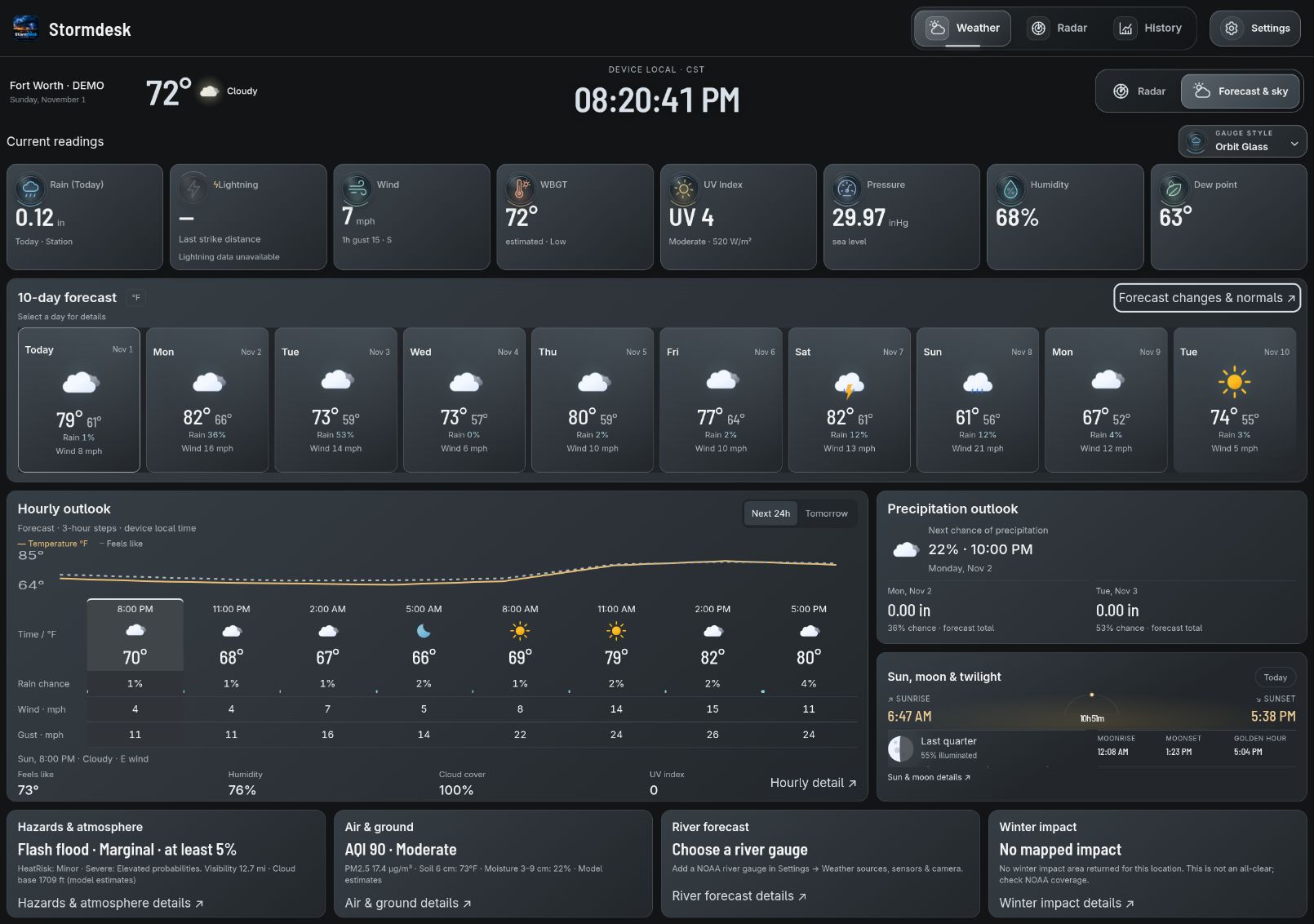
Balanced Desk · demo station readings; forecast and regional data shown for illustration. Captured November 1, 2026. Not current weather.
What’s new in 4.10.0
- Balanced Desk: ten aligned forecast cards span the page beneath larger live readings, with a compact hourly outlook below. The main Weather view fits normal desktop windows without page scrolling; smaller screens reflow naturally.
- Details when you need them: open forecast, precipitation, visibility, astronomy, hazards, atmosphere, air-quality, and ground information in dialogs without stretching the dashboard.
- More local context: mapped NOAA winter impacts and the forecast maximum for a configured NOAA river gauge, where those sources provide data. Forecast estimates, observations, coverage, and unavailable readings remain labeled.
- Live data throughout: use current station readings and existing forecast services, with on-demand specialist feeds. Your units, themes, gauge styles, reduced-motion settings, HookEcho radar, and local archive remain available.
Choose your setup
| Start in the browser | Run your own host |
|---|
| Open app.mystormdesk.com, choose a location, and use forecasts, radar, and supported cloud station data. | Install the desktop app, Linux browser-mode package, or Docker image to collect supported station readings and keep your archive locally. |
| This browser keeps its own settings. No StormDesk account is required. | Leave the host running for collection and household screens. Use /public for read-only access. |
Forecast and radar services need internet access. Station connection methods vary by platform; see compatibility. StormDesk Lite remains available for older browsers and lighter displays.
Install StormDesk
Open the latest release, then choose the
file for your device.
| Your device | File to choose | What to do |
|---|
| Windows 10 or 11 | StormDesk_*_x64-setup.exe | Open the file and follow the installer. Allow access on private networks when Windows asks. |
| Mac | StormDesk_*_universal.dmg | Open the file, then drag StormDesk into Applications. |
| Ubuntu, Debian, or Linux Mint | StormDesk_*_amd64.deb | Double-click the file, or use the short command below. |
| Other 64-bit Linux computers | StormDesk_*_amd64.AppImage | Make the file runnable, then open it. See the short command below. |
| Raspberry Pi 4 or 5 | StormDesk_*_arm64.deb | Use a 64-bit Raspberry Pi system, then install it with the short command below. |
| Android or Fire tablet | StormDesk_v*.apk | Open the file and allow installation from your browser or Files app when asked. |
If a Mac says it cannot verify StormDesk, open System Settings → Privacy & Security and choose
Open Anyway.
Linux commands
Optional local voice setup and spoken alerts
For the optional natural male voice (Kokoro Michael), install uv,
then run python3 scripts/install-natural-voice.py from this repository. Setup downloads about
350 MB once; speech then runs locally on the CPU without an account or cloud service. An installed
pw-play, paplay, or aplay provides audio playback. Restart StormDesk and use Enable / Test voice;
the setting shows Natural male voice · local when ready. The ordinary system voice remains available
on installations without the voice pack. If an installed voice pack fails, the app reports the error
instead of silently changing back to the robotic voice.
Spoken watches and warnings: open Settings → Alerts & sound → Warnings & voice, enable Read warnings and watches aloud,
then press Enable / Test voice. Keep the dashboard open. The status below the button explains
blocked playback or missing voices; the test does not send push notifications.
The Linux app falls back to the local espeak-ng engine when browser speech cannot start.
Debian and Arch packages install it as a dependency. AppImage users should install espeak-ng
with their package manager (for example, sudo apt install espeak-ng or sudo pacman -S espeak-ng).
Browser mode uses the browser's speech engine and may require a system voice and an initial tap.
On Linux, browser speech may also require speech-dispatcher and espeak-ng; restart the browser
after installing them. An embedded browser without speech support reports an error instead of
claiming an announcement played; use the Linux app's native fallback in that case.
Warnings and watches bypass quiet hours just as official alert notifications already do; routine
advisories stay silent. Closed-app and locked-phone announcements are not supported.
For Ubuntu, Debian, or Linux Mint:
sudo apt install ./StormDesk_*_amd64.deb
For a 64-bit Raspberry Pi:
sudo apt install ./StormDesk_*_arm64.deb
For the AppImage:
chmod +x StormDesk_*_amd64.AppImage
./StormDesk_*_amd64.AppImage
To build a local AppImage from source, run bash scripts/build-appimage.sh with Docker
running. It builds in Ubuntu 22.04, matching the release workflow and avoiding Arch's
newer GTK loader layout and incompatible bundled strip tool. The unsigned preview is
written to src-tauri/target/appimage-ubuntu/release/bundle/appimage/. Build caches stay
under ~/.cache/stormdesk-appimage; no host packages are changed. Published, signed
updater artifacts still come from the GitHub release workflow.
If the AppImage opens a blank window, use browser mode:
./StormDesk_*_amd64.AppImage --browser
Linux releases also include a browser-mode archive for x86-64 and ARM64. Extract it and run
stormdesk-browser.sh to keep the station collector and archive local while showing the full
dashboard in your system browser. This build needs no GTK or WebKit installation.
Chromebook
The easiest option is to run StormDesk on another computer in your home, then open the address
shown by StormDesk in the Chromebook browser. If Linux is enabled on your Chromebook, use the
browser-mode archive matching its CPU architecture. Chromebook and Samsung hub browsers open
StormDesk Lite by default; choose Full dashboard there if the device can handle it.
Set it up
- Open StormDesk and search for your town or postcode.
- Choose the matching location to see current conditions and the forecast.
- If you have a personal station, connect it under Settings → My station.
The top metrics stay in this order: Rain, Lightning, Wind, WBGT, UV Index, Pressure, Humidity, Dew point. Station readings appear where available; forecast estimates and unavailable measurements are labeled. The forecast list shows up to ten days, depending on what the provider supplies.
Tempest owners need a personal-use token from tempestwx.com → Settings → Data Authorizations.
StormDesk can find the stations connected to that token, so you do not need to hunt for sensor
numbers.
Other supported stations send readings directly from your home network. StormDesk shows the exact
address to enter in your station's app or console.
Don't own a weather station? Choosing a location is enough to use the forecast dashboard.
Use it around your home
The desktop app shows an address such as http://192.168.1.20:8088 in its window title. Open that
address on another device connected to the same Wi-Fi. Leave StormDesk running on the main
computer so the other screens can reach it.
Use the address ending in /public for a read-only screen that cannot change settings.
What you get
- Weather — Balanced Desk opens first with larger gauges, up to ten aligned forecast days, hourly weather, and compact astronomy. Open details dialogs for more context, or toggle the full HookEcho radar on when needed.
- Local context — nearby official alerts, local signals, sunrise and sunset, moon details, and device health when the source provides it.
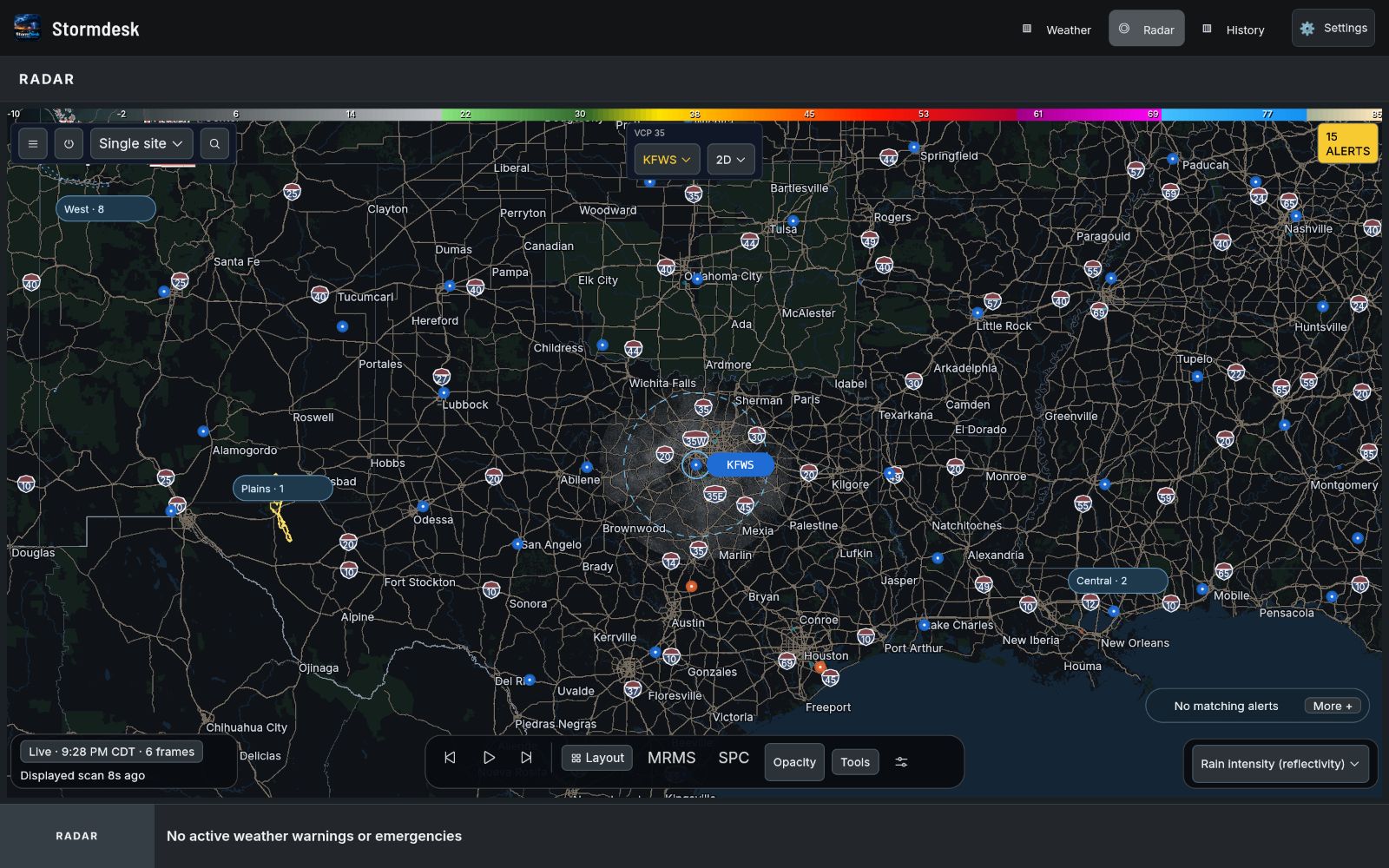
- Radar — live HookEcho radar with warnings and playback.
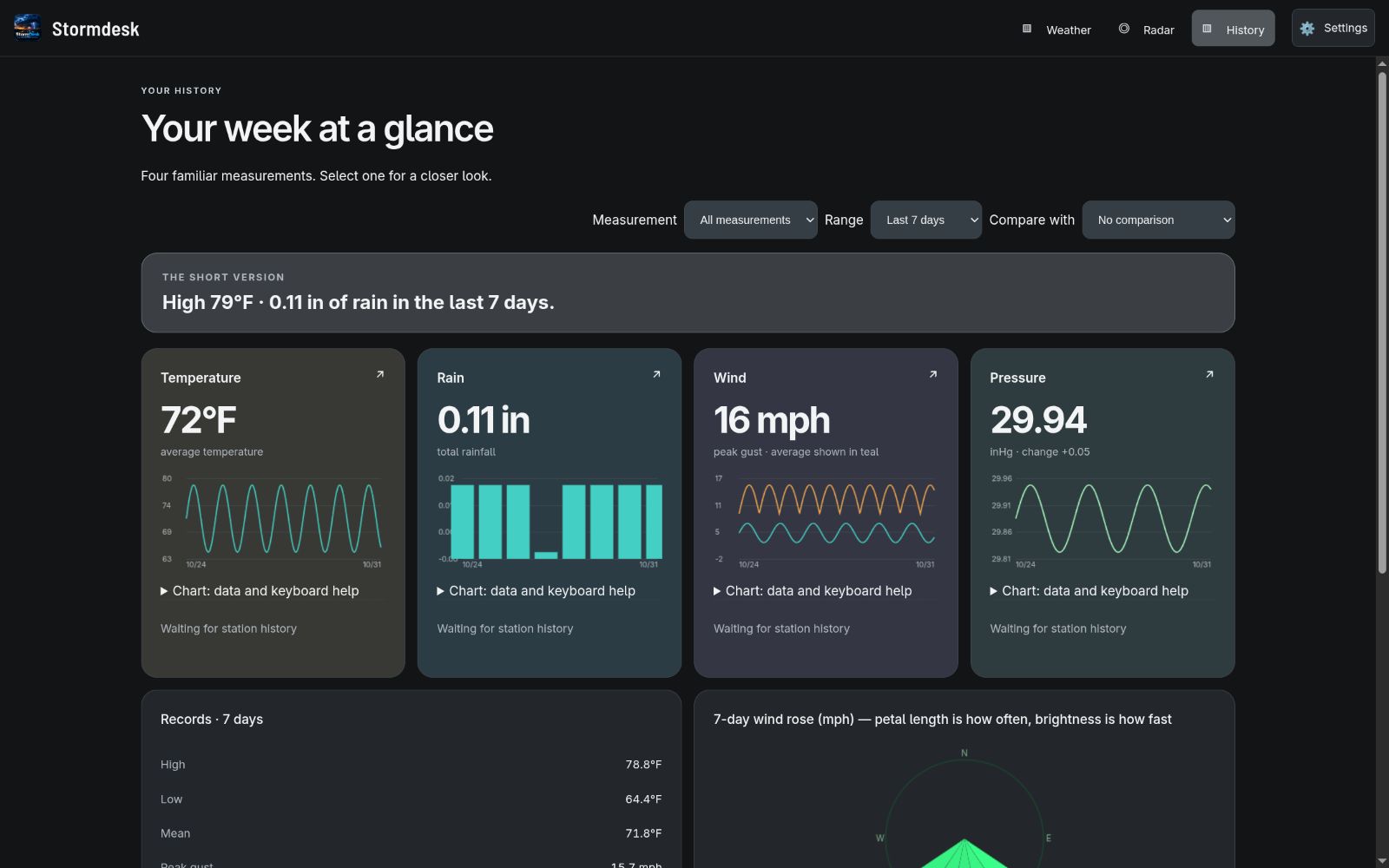
- History — keyboard-accessible charts and reading tables, records, comparisons, rainfall events, and your weather archive.
- More weather details & analysis — additional charts, the timeline, and advanced weather tools remain accessible from Weather.
- Alerts — built-in warnings plus your own rules for wind, rain, heat, cold, and more.
- Backup — one backup file for your settings and the selected station's history, notes, and extra sensors. Back up each saved station separately.
Explore your station history
Open History → Archive review, notes & reports and load a period of one to seven days.
- Review suspicious readings, record a reason before excluding them, and use Restore readings to undo an exclusion. Original observations remain in the archive.
- Add maintenance notes, snowfall, or snow-depth measurements; inspect missing periods and recover supported Tempest or Ecowitt cloud history.
- Preview a CSV import with its source units and time zone before saving. Existing timestamps are retained.
- Explore rain events, an hourly temperature heatmap, and a seasonal rainfall calendar. Load a monthly or annual report, then use Print / save PDF.
History → Additional sensors shows supported indoor, soil, air-quality, and battery channels. Select a sensor to inspect its chart/table or save a threshold alert. The station server evaluates these alerts while the page is closed.
Use Remember this station in Settings after configuring each station. The header switch selects its separate archive and settings; collection follows the selected station. Removing a saved profile does not delete its archive.
Under Settings → More tools → Weather sources, sensors & camera, choose a forecast model and official warning source for the selected place. Optional Weather panels show pollen, local PurpleAir readings, a NOAA river gauge, a camera snapshot, and outdoor activity windows. Coverage and setup requirements are in Additional weather sources; detailed archive instructions are in the technical reference.
See the current app
| Dedicated Radar | Station History |
|---|
 |  |
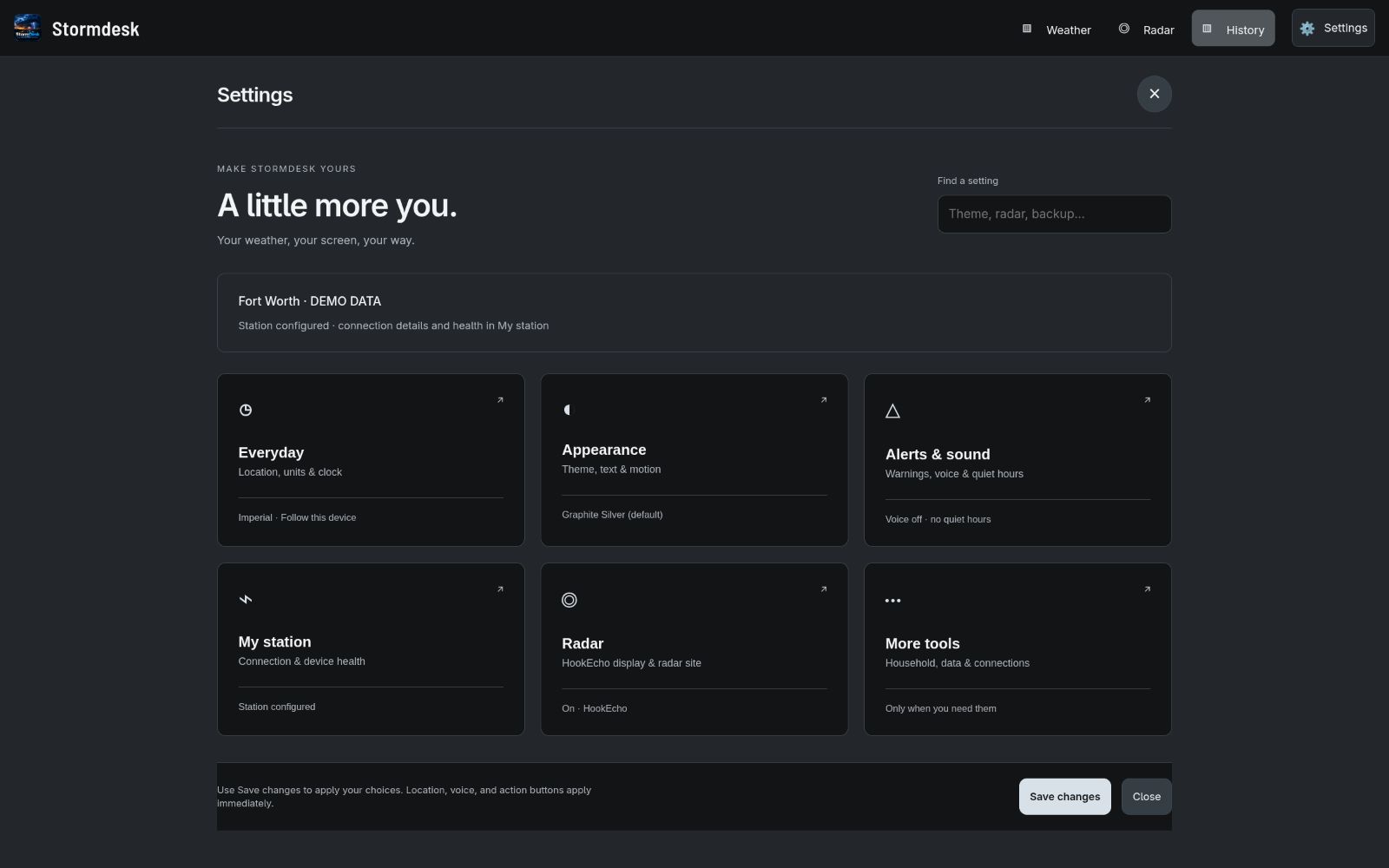
| Forecast & sky | Searchable Settings |
|---|
|  |
Five gauge styles
Use Gauge style in the weather shelf. These static close-ups show the first four gauges; the app includes animations for all eight.
| Style | Preview |
|---|
| Orbit Glass · default |  |
| Liquid Chrome |  |
| Neon Trace |  |
| Precision Dial |  |
| Pixel Pulse |  |
Graphite Silver is the fresh-install palette. Settings → Appearance → Theme includes nine more dark palettes and classic light, high-contrast, and e-ink choices. Saved preferences are preserved.
On your phone
The layout reflows for phones and smaller windows. Weather, Radar, and History remain one tap away; details open separately so the main dashboard stays readable.
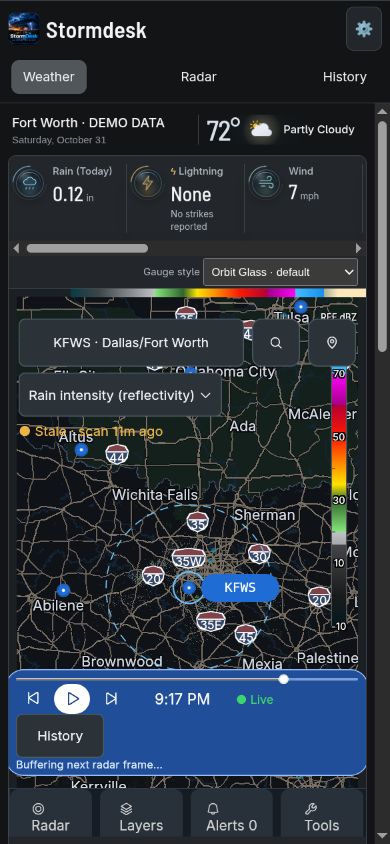
The Balanced Desk captures use demo station readings with forecast and regional data shown for illustration. Other interface captures use sample station data and retain their version labels. Screenshots are not current weather. Forecast, sensor, and regional alert availability depend on the connected sources.
Supported weather stations
- WeatherFlow Tempest
- Ecowitt and Wittboy
- Ambient Weather
- Davis WeatherLink Live
- AcuRite through
rtl_433
- La Crosse Technology
- WeeWX
- Many stations that can send data in Weather Underground format
- Forecast-only mode when no station is available
Brand-by-brand instructions are in the
technical guide.
Need help?
Open Settings → More tools → Troubleshooting → Diagnostics or the Health Center. StormDesk checks your station, forecast,
alerts, radar, saved history, and other connections. Copy support report creates a safe report
you can paste into a GitHub issue without including passwords, tokens, or your location.
Common fixes:
- No readings: reopen the welcome setup and make sure it receives one real reading.
- Another screen cannot connect: keep StormDesk running and allow it through the main computer's firewall on private networks.
- Blank Linux window: start StormDesk with
--browser.
- Old or missing forecast: open the Health Center and choose Retry now.
If you are still stuck, report a problem and
include the support report.
For technical users
The technical guide covers Docker, Home Assistant, MQTT, alert
services, read-only sharing, station upload formats, building from source, data sources, testing,
and troubleshooting.
Privacy
StormDesk stores its settings and weather history on your own computer. It has no user accounts,
ads, or app tracking. Forecast and alert providers receive only the information needed to return
weather for your area.
The regular home-network dashboard is meant for people you trust. Use /public for guests or any
screen that should not see or change private settings.
License
StormDesk is free and open source under the MIT License.