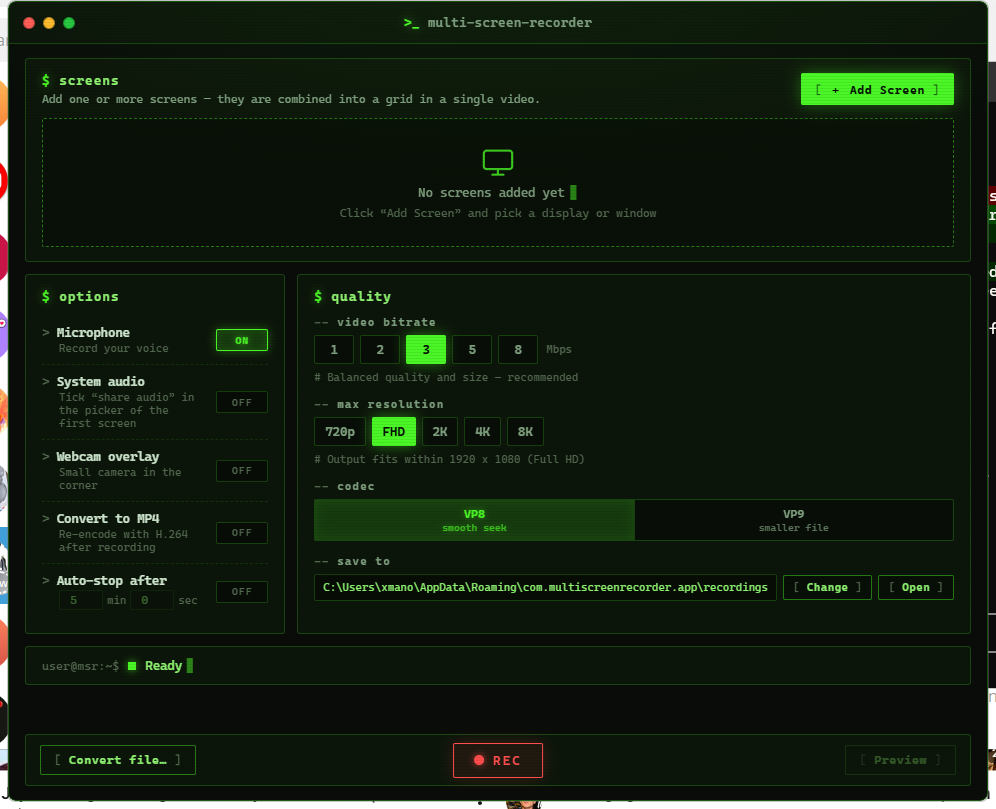
✨ Why Multi Screen Recorder?
Most screen recorders capture one display at a time. If you work with multiple monitors — trading dashboards, live ops monitoring, multi-window demos, game + chat layouts — you normally need OBS and a pile of configuration.
Multi Screen Recorder does it in two clicks: add up to 4 screens or windows, hit REC, and get a single video with everything laid out in a clean grid.
🚀 Features
| Feature | Details |
|---|
| 🖥️ | Multi-screen capture | Up to 4 screens/windows in one video — auto grid layout (2 → side by side, 3–4 → 2×2) |
| 👀 | Live previews | See every source live before and during recording |
| 📐 | Standard output sizes | Cap output at 720p / Full HD / 2K / 4K / 8K — scaled down cleanly, never stretched |
| 🎙️ | Microphone | Mixed into the recording in real time |
| 🔊 | System audio | Capture what you hear (share-audio picker) |
| 📷 | Webcam overlay | Picture-in-picture in the corner |
| ⏱️ | Auto-stop timer | Set minutes/seconds, walk away — with live countdown |
| 🎚️ | Quality control | Bitrate 1–8 Mbps, VP8 (smooth seeking) or VP9 (smaller files) |
| 🎬 | MP4 export | One-click conversion to H.264 MP4 (faststart, seek-optimized) with progress bar |
| 🔁 | File converter | Convert existing WebM/MKV/AVI files to MP4 |
| 📁 | Custom save folder | Pick where recordings go — remembered between launches |
| 🖤 | Terminal UI | Phosphor-green, CRT-scanline, keyboard-culture aesthetic |
Small footprint: the app binary is ~10 MB (plus bundled FFmpeg). No Electron, no Chromium bundle — it uses the WebView2 runtime already on your Windows.
📦 Download & Install
- Grab the latest
Multi Screen Recorder_x.x.x_x64-setup.exe from Releases
- Run the installer (per-user, no admin required)
- Launch, click
[ + Add Screen ], pick a display, hit [ ● REC ]
> Requirements: Windows 10/11 with WebView2 Runtime (preinstalled on Windows 11 and most updated Windows 10 systems).
🎯 Quick start
- Add screens — click
[ + Add Screen ] for each display/window (tick "share system audio" on the first one if you want system sound)
- Tune options — mic, webcam overlay, MP4 conversion, auto-stop timer
- Pick quality — bitrate, codec, and max resolution (
720p–8K)
- Record —
[ ● REC ] to start, [ ■ STOP ] to finish
- Your video lands in the save folder — preview it in-app or convert to MP4
🛠️ Building from source
# Prerequisites: Rust (stable), Node.js 18+
git clone
cd multi-screen-recorder
npm install

# FFmpeg (bundled binary is not committed):
# drop a static ffmpeg.exe into src-tauri/binaries/
# e.g. from https://www.gyan.dev/ffmpeg/builds/ or npm's ffmpeg-static

npm run dev     # run in development
npm run build   # build the NSIS installer -> src-tauri/target/release/bundle/nsis/
🏗️ Architecture
src/                      # Frontend — vanilla HTML/CSS/JS, no bundler (withGlobalTauri)
  main.js                 #   getDisplayMedia capture, canvas grid compositor, MediaRecorder
src-tauri/
  src/main.rs             # Settings, save recordings (raw IPC), folder dialogs
  src/encoder.rs          # FFmpeg: MP4 encode with progress events, WebM PTS fix
  binaries/ffmpeg.exe     # Bundled FFmpeg (release resource, not in git)
Recording pipeline: getDisplayMedia per screen → canvas grid composition @60fps (scaled to the resolution cap) → MediaRecorder (WebM, 1s timeslice) → raw-IPC save → FFmpeg +genpts remux → optional H.264 MP4 encode.
📄 License
MIT — free for personal and commercial use.
Built with 🦀 Rust + Tauri · UI inspired by the terminals we live in