DaVinci Resolve RPC
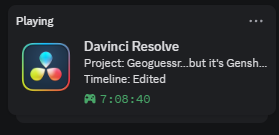
Discord Rich Presence integration for DaVinci Resolve on Windows. Runs silently in the system tray and shows your current project and timeline on your Discord profile in real time.
Download
Download the latest installer
Features
- Displays the active DaVinci Resolve project name and current timeline on Discord
- System tray icon that turns blue when Resolve is running and grey when idle
- Resets the session timer whenever you switch to a new project
- Starts automatically with Windows (optional, chosen during install)
- Single-file executable — no Python runtime required
- Per-user installation, no administrator rights needed
Requirements
- Windows 10 or later
- DaVinci Resolve 18 or later (free or Studio edition)
- Discord desktop app running
Installation
- Download the latest
DaVinciResolveRPC-Setup.exe from the Releases page.
- Run the installer and follow the wizard.
- Optionally enable "Start automatically when Windows starts" during setup.
- Launch DaVinci Resolve, open a project, and check your Discord status.
How It Works
The application polls DaVinci Resolve every 20 seconds via the official Blackmagic Design Scripting API. When Resolve is detected it establishes a Discord Rich Presence connection and updates your status with:
- Details — current project name (e.g.
Project: My Film)
- State — active timeline name (e.g.
Timeline: Assembly Cut)
- Elapsed time — resets each time you switch projects
When Resolve is closed the presence is cleared automatically.
Building From Source
Prerequisites
Steps
git clone https://github.com/elpideus/DavinciResolveRPC.git
cd DavinciResolveRPC
python -m venv .venv
.venv\Scripts\activate
build.bat
This produces dist\DaVinciResolveRPC.exe. To create the installer, compile installer.iss with Inno Setup:
"C:\Program Files (x86)\Inno Setup 7\ISCC.exe" installer.iss
The installer appears in installer_output\DaVinciResolveRPC-Setup.exe.
License
GNU General Public License v3.0