MK212 DriveGlow




A tiny dependency-free Windows tray application that uses the side light of
the OMOTON MK212 keyboard as a classic disk activity indicator.
The key backlight is left untouched. The application talks directly to the
keyboard's VIA/QMK-compatible HID interface and restores the previous side-light
settings when it exits normally.
Download the latest Windows installer
Install it, start DriveGlow, and use the tray icon to choose the indicator
color and activity mode. No drivers, services, or administrator rights are
required.
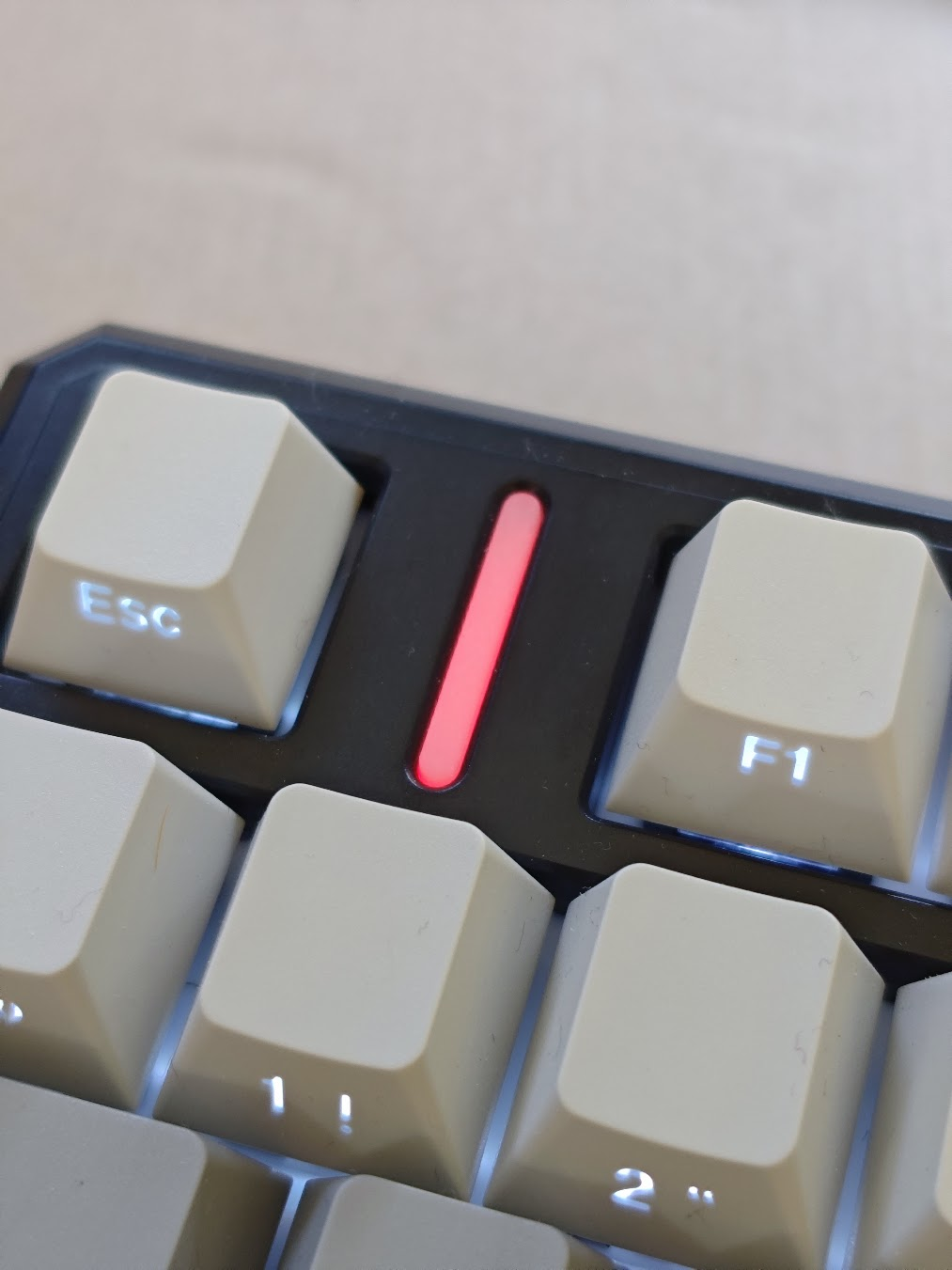
The MK212 side light acting as a classic disk activity indicator.
Features
- Warm amber flash on disk read/write activity
- Dedicated tray icon that mirrors the activity state
- Selectable full-icon tray display: classic flash, eight-step level meter, or static icon
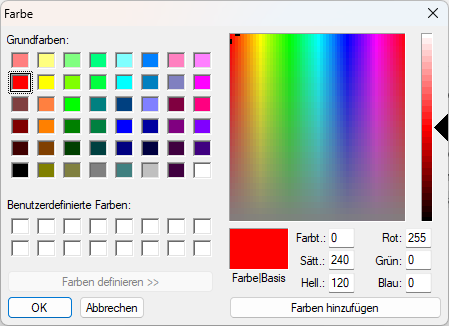
- Native Windows color picker with live preview
- Optional activity-level mode that maps disk throughput to brightness
- Settings dialog with an About tab, application version, and repository link
- Tray status showing whether the MK212 is connected
- Optional automatic start when signing in to Windows
- Automatic reconnect when the keyboard is unplugged and connected again
- Periodically reasserts the selected side-light color if another RGB application overwrites it
- No drivers, services, administrator rights, or third-party libraries
- Restores the previous side-light effect, color, speed, and brightness on exit
Requirements
- Windows 10 or Windows 11
- OMOTON MK212 (
VID 36B0, PID 3142)
- Wired or receiver mode exposing the VIA HID interface (
Usage Page FF60)
- .NET Framework 4.x, included with supported Windows installations
Install
WinGet
DriveGlow is available in the official WinGet community repository. Install it with:
winget install --id emgeka.MK212DriveGlow --exact
Installer or portable app
The recommended option is MK212-DriveGlow-Setup-v1.4.0.exe. It installs for
the current user without administrator rights, adds a Start menu shortcut, and
offers to start DriveGlow automatically when signing in to Windows.
For portable use:
-
Download MK212-DriveGlow.exe from the latest release.
-
Put it in a permanent folder.
-
Run:
.\MK212-DriveGlow.exe --install
The application starts immediately and registers itself for the current user's
Windows sign-in. Its drive-shaped icon appears in the notification area and a
startup notification points to it. Windows may initially place the icon in the
overflow menu; drag it from there onto the taskbar to keep it visible.
DriveGlow re-registers the notification icon a few seconds after sign-in and
automatically restores it when Windows Explorer or the taskbar is restarted.
Automatic startup uses a shortcut in the current user's Windows Startup folder.
Older registry-based startup entries are migrated automatically and repaired if
the executable has moved. Run MK212-DriveGlow.exe --repair-startup to recreate
the shortcut manually if an older installation does not start.
Right-click the icon to inspect its status, choose the indicator color with an
immediate preview on the keyboard, enable
or disable automatic start, open the settings dialog, or exit and restore the
previous lighting state. The About tab shows the application version and a
link to the project repository.
The Tray display submenu independently selects a classic full-icon flash, an
eight-step meter that fills the entire icon, or a static application icon. The
notification icon itself is the compact status display beside the clock; no
additional taskbar button or window is created.
Uninstall
If DriveGlow was installed through WinGet, remove it with:
winget uninstall --id emgeka.MK212DriveGlow --exact
Installer users can remove DriveGlow normally from Installed apps in Windows
Settings. For the portable version, run:
.\MK212-DriveGlow.exe --uninstall
Then delete the executable.
Test without installing
.\MK212-DriveGlow.exe --test
The side light flashes four times and is then restored.
Build
No SDK or package restore is required. On 64-bit Windows, run:
build.cmd
The executable is written to dist/ using the C# compiler included with the
.NET Framework. build.cmd applies the execution-policy override only to this
single build process and does not change the system policy.
Building the setup executable additionally requires
Inno Setup 6. Run build-installer.cmd; the
result is written to dist/ alongside the portable executable.
SignalRGB and other RGB applications
The application periodically reasserts its selected side-light color so that
occasional VIA writes from SignalRGB or another RGB application do not leave the
activity indicator in the wrong color. If another application continuously
controls the MK212 at a high update rate, both programs can still compete and
cause flickering. Excluding the MK212 from the other application remains the
cleanest solution when that option is available.
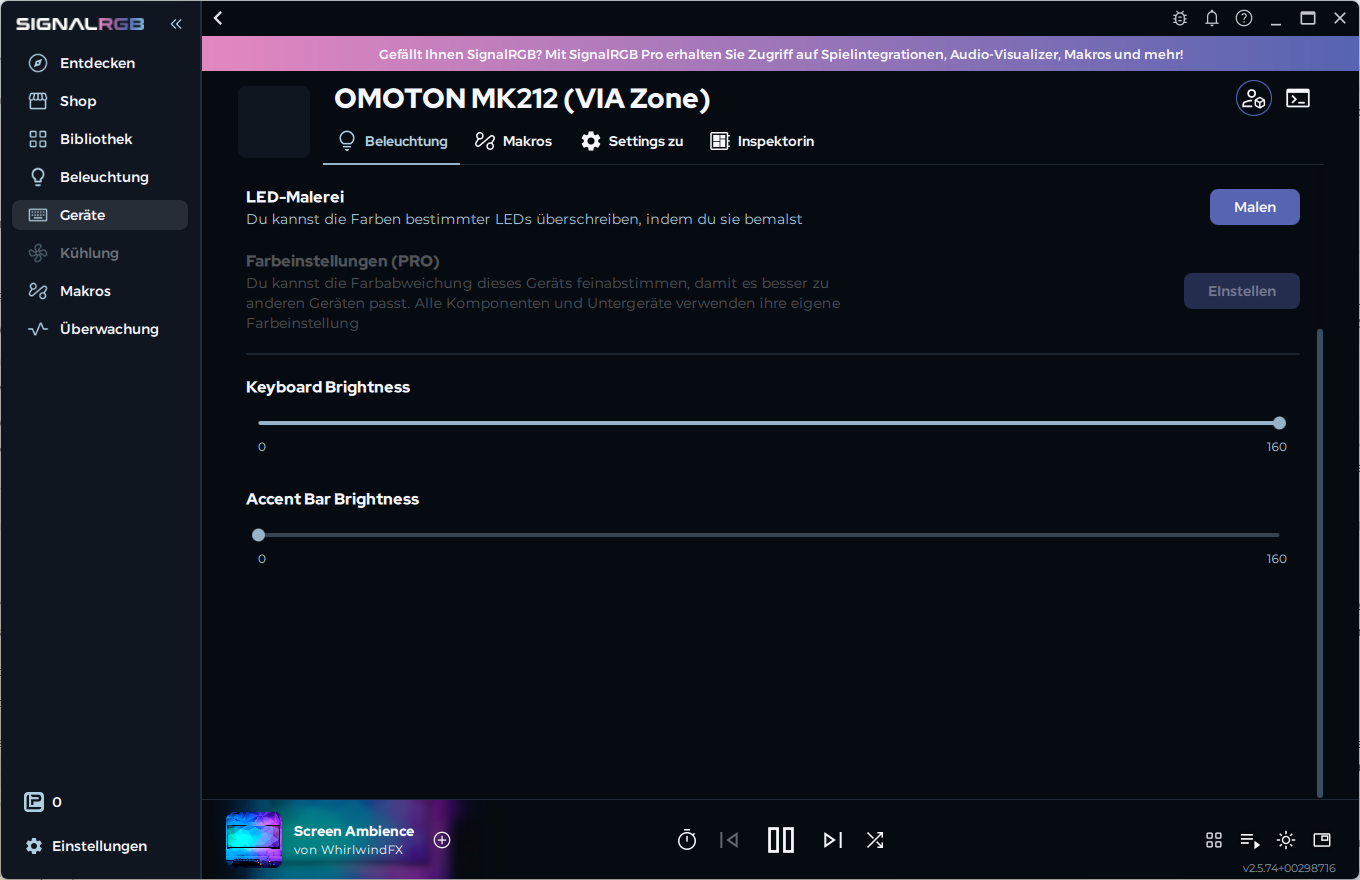
For SignalRGB, the MK212 does not need to be disabled completely. Open
Devices → OMOTON MK212 (VIA Zone) → Lighting and set
Accent Bar Brightness to 0. SignalRGB can continue controlling the key
backlight and the rest of the RGB setup, while DriveGlow retains control of the
accent bar without flickering—even with rapidly changing screen-ambience or
video effects.
For reference and manual testing, the repository includes both the
original VIA definition
and the tested
SignalRGB plugin that
releases the accent bar when its brightness is set to 0. See the
integration notes for the distinction
between the two files.
Technical notes
The official MK212 VIA definition exposes the side light on custom channel 4:
- value
1: brightness
- value
2: effect
- value
3: effect speed
- value
4: HSV color
The program sends volatile VIA custom-value commands and deliberately does not
save the activity flashes to the keyboard EEPROM.
Disk activity is sampled through Windows PDH using the language-independent
English counter PhysicalDisk(_Total)\Disk Bytes/sec.
Possible QMK/GPL compliance issue
The MK212 is advertised as QMK/VIA compatible, and OMOTON provides a VIA JSON
definition on its official download page.
As of September 15, 2026, however, we have not been able to locate the complete
corresponding source code for the firmware shipped with the keyboard.
The QMK project states that firmware based on QMK, or firmware incorporating
QMK/VIA firmware code, must make the complete source code for the shipped
firmware available under the GPL. See QMK's official
license-violation guidance
and GPLv2 license text.
If the MK212 firmware contains such code and no corresponding source is made
available, this may represent a GPL compliance violation. This is not a legal
determination. If an official source release exists, please open an issue with
the link so this notice can be corrected.
MK212 DriveGlow is an independent host-side application and contains no copied
keyboard firmware code.
License
MIT