b4n fioletoven
Install b4n with WinGet
winget install --id=fioletoven.b4n -e b4n is a lightweight and fast terminal UI application for browsing Kubernetes clusters and their resources
winget install --id=fioletoven.b4n -e b4n is a lightweight and fast terminal UI application for browsing Kubernetes clusters and their resources





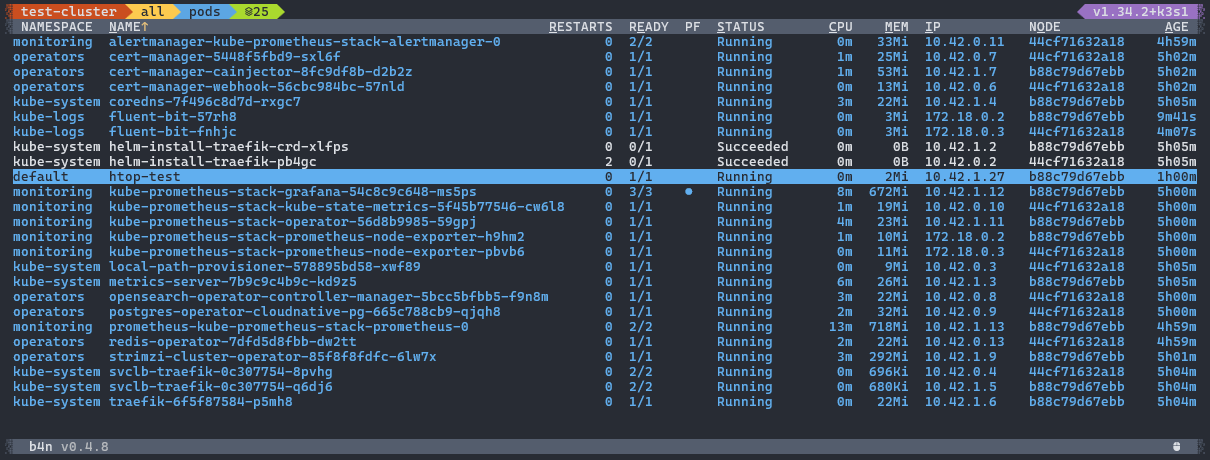
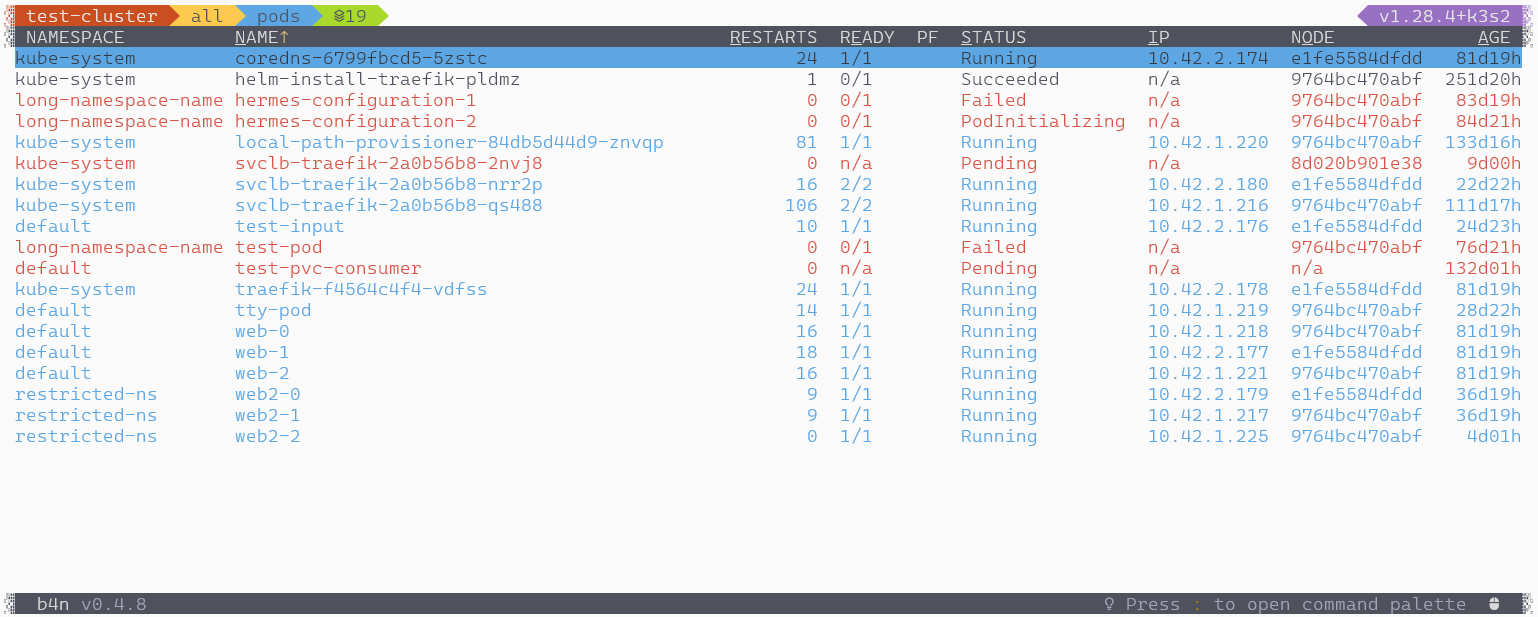
b4n is a terminal user interface (TUI) for the Kubernetes API, created mainly for learning the Rust programming language. It is heavily inspired by the k9s project and built using the kube-rs and ratatui crates.
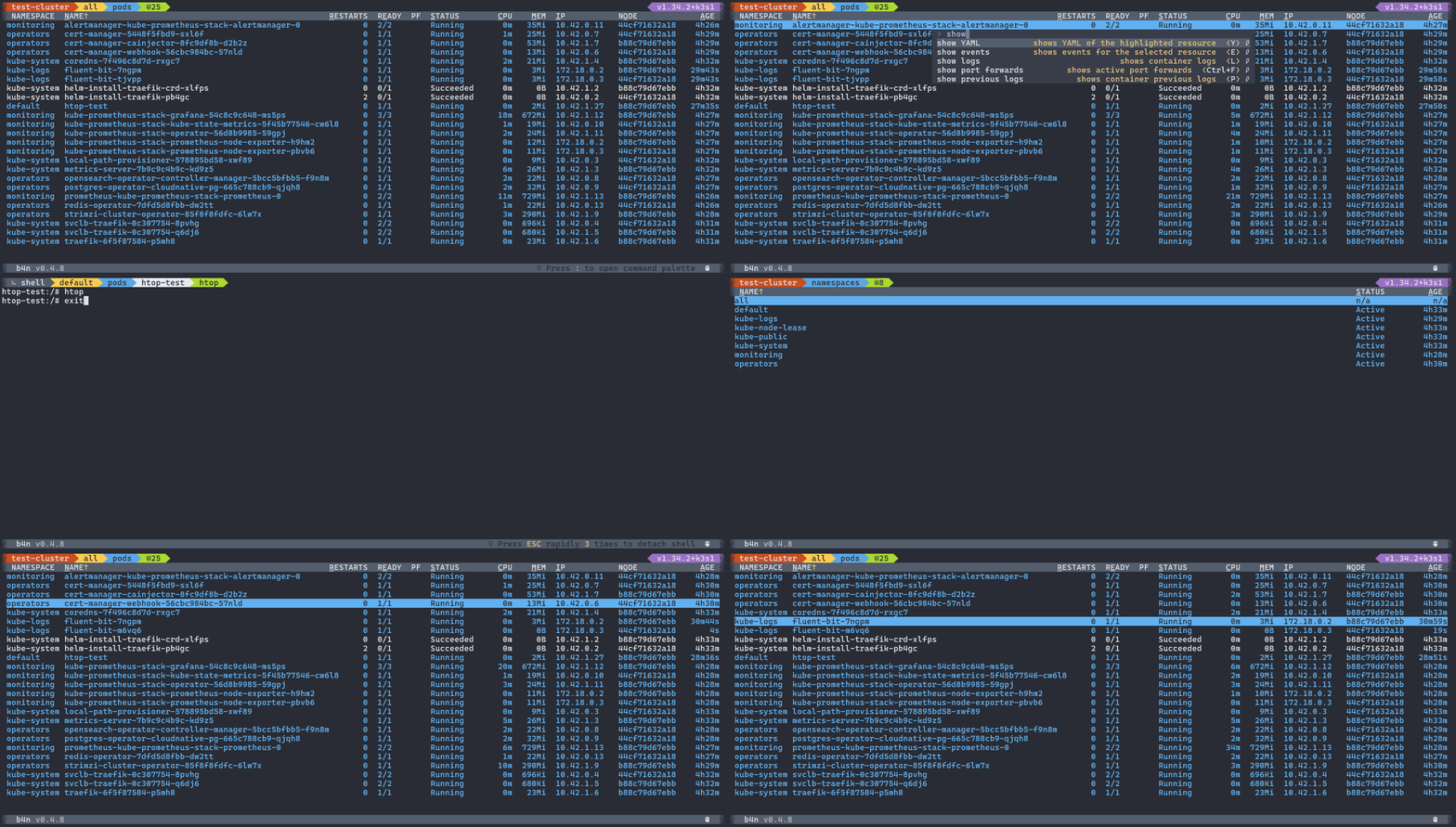
As of version 1.2.0, a font with Nerd Font symbols is no longer required. However, for the best possible user experience, installing one is still recommended.
This can be the Cascadia Code font, or any other font with Nerd Font symbols.
Make sure to configure b4n according to what your terminal supports, either via the symbols command palette action, or directly in the configuration file (see config.yaml):
symbols: nerdfont # use 'plain' or 'powerline' if terminal does not support Nerd Fonts
b4n will prompt you to copy the themes and plugins directories to the application's data directory: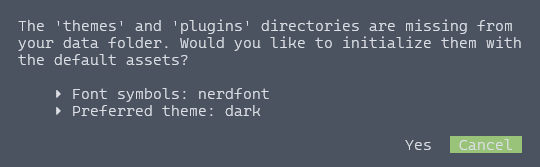
plain, powerline or nerdfont) and the theme mode (dark or light),b4n binary to your PATH, or move it to a directory already included in PATH,b4n binary was moved).> Note: If the copy assets prompt is not showing, you can always copy the themes and plugins directories by hand to the place pointed out
> by the b4n --show-dirs command.
b4n is available via Homebrew on both macOS and Linux:
brew install b4n
To upgrade to the latest version:
brew upgrade b4n
To build b4n, ensure you have a recent Rust toolchain installed (1.95+). Clone the repository and navigate into the project directory:
git clone https://github.com/fioletoven/b4n.git
cd b4n
Then compile the project in release mode for the best performance:
cargo build --release
The resulting binary will be available at ./target/release/b4n.
tar executable on the container).| Action | Command | Comments |
|---|---|---|
| Attach to the container's main process | a | Works only in containers and pods view |
| Attach to the container's shell | s | Works only in containers and pods view |
| Copy YAML / logs / resources to clipboard | c | Works only in YAML, logs and resources views |
| Create new resource | n | |
| Decode highlighted secret | x | |
| Delete selected resources | CTRL + d | Displays a confirmation dialog |
| Enable / disable mouse support | CTRL + n | Not available inside a shell session |
| Forward container's port | f | Works only in containers and pods view |
| Go back to namespace view; clear filter | ESC | Also clears input in the filter widget |
| Inject ephemeral container | CTRL + i | Works only in pods view, displays a confirmation dialog |
| Navigate to the involved object | i | Works only for events kind |
| Open / enter edit mode | i | Press ESC to exit, then ESC for save dialog |
| Open right mouse button menu | m | Navigate using ↑ or ↓ |
| Pin active filter across resources | CTRL + p | Also works in the filter dialog |
| Quit the application | CTRL + c | No confirmation dialog |
| Reverse selection | CTRL + | (CTRL + SPACE) |
| Save YAML / logs to a file | s | |
| Select all resources | CTRL + a | Then press CTRL + to deselect all |
| Select resource | | (SPACE) |
| Show / hide formatted logs | f | Works only in logs view |
| Show / hide log timestamps | t | Works only in logs view |
| Show / hide port forwards | CTRL + f | Displays all active port forwarding rules |
| Show command palette | :, > | For example, entering :q↲ quits the application |
| Show describe for the highlighted resource | d | |
| Show events for the highlighted resource | e | |
| Show filter / search input | / | Filter operators: and &, or |, negation !, (, ) |
| Show footer messages history pane | h | Also works with left mouse button click on the footer |
| Show logs for the pod or container | l | Press p to display previous logs |
| Show namespaces selector | ← | To select all rapidly press ← again |
| Show resources selector | → | To select pods rapidly press → again |
| Show YAML for the highlighted resource | y | |
| Sort column | ALT + [0-9] | Also works with ALT + [underlined letter] |
| Toggle read-only mode | ALT + SHIFT + r | |
| Transfer file from the pod's container | CTRL + t | Allows downloading a single file or a directory |
| Transfer file to the pod's container | t | Allows uploading a single file or a directory |
The resources and port forwards views support advanced filtering with prefixes:
ns: - filter by namespace (e.g., ns:kube-system)n: - filter by resource name (e.g., n:nginx)a: - filter by annotations (e.g., a:app.kubernetes.io/name=nginx)l: - filter by labels (e.g., l:app=frontend)Filters can be combined using logical operators: & (and), | (or), ! (negation), and parentheses ().
Example: ns:default & (l:app=web | l:app=api)
> Note: CTRL + p keeps the active filter pinned when you switch resources.
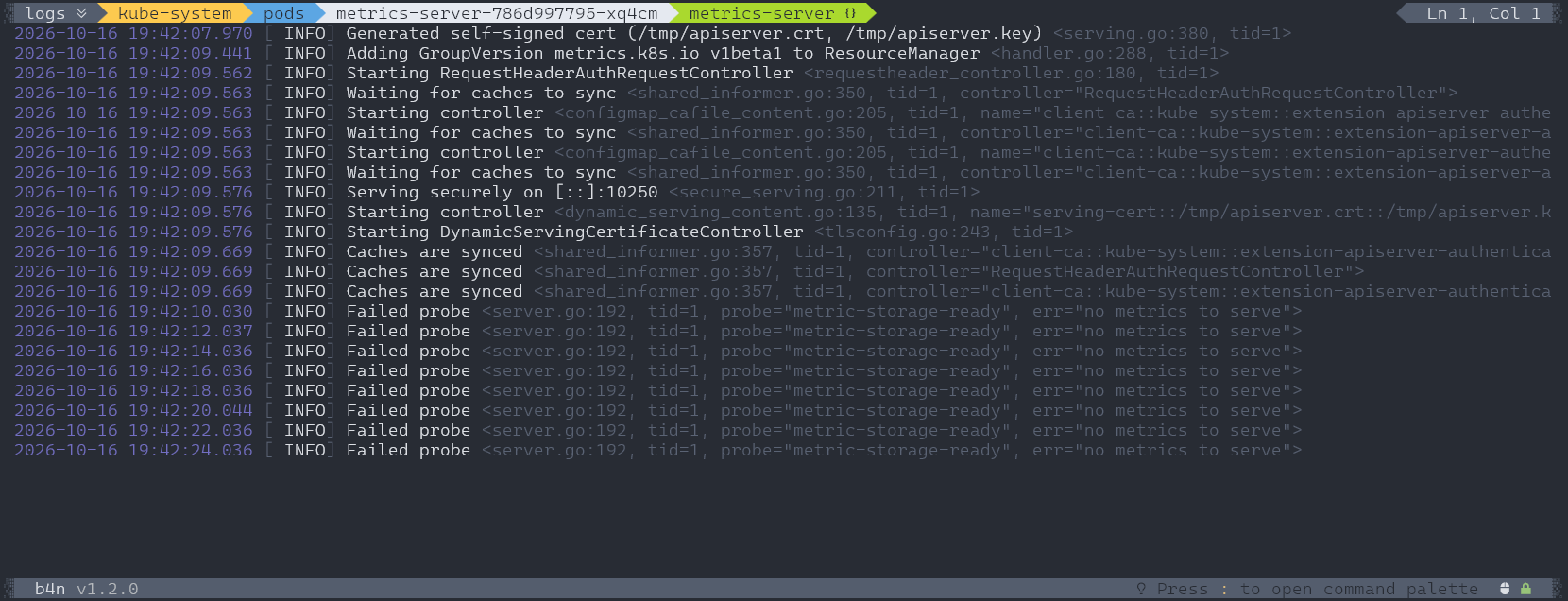
When viewing logs for a single container, you can fetch earlier entries by pressing ↑ (up arrow). This works only when you are already scrolled to the top of the current log output and earlier entries are still available.
> Note: This functionality works only in single container logs view, not when viewing combined logs for all containers in a pod.
When mouse support is enabled, you can:
In edit mode, the following shortcuts are available:
CTRL + c - copy selected textCTRL + x - cut selected textCTRL + v - paste text from clipboardCTRL + a - select all textCTRL + d - delete current lineCTRL + z - undoCTRL + y - redoALT + ↑ - move current line or selection upALT + ↓ - move current line or selection downThis feature requires a tar executable on the container where files are uploaded to or downloaded from.
If Overwrite files is unchecked before the transfer, a check will be executed on the remote container that requires the presence of sh and test commands (if the container does not have these commands, as a workaround the checkbox can be checked, but be aware that files may be overwritten).
If the destination path (To (dir): textbox) contains ~, there will be an attempt to resolve it to the home directory (this requires sh and echo commands to be present on the container). To bypass this, simply provide the full path without ~.
Configuration files are stored in platform-specific directories. The exact paths depend on your operating system:
Windows
%LOCALAPPDATA%\b4n\config\config.yaml
%LOCALAPPDATA%\b4n\data\history.yaml
> Example: C:\Users\\AppData\Local\b4n\
macOS
~/Library/Application Support/b4n/config/config.yaml
~/Library/Application Support/b4n/data/history.yaml
Linux
~/.config/b4n/config.yaml
~/.local/share/b4n/history.yaml
> Note: If the platform-specific directories cannot be determined, b4n falls back to $HOME/.b4n/.
> To list paths expected by the application: b4n --show-dirs
The layout is as follows:
/
└─ config.yaml
/
├─ logs/
├─ plugins/
├─ themes/
└─ history.yaml
This directory contains application logs, with one file created per day.
This folder contains custom command definitions that appear in the command palette in the resources view (the main b4n screen).
Store each command in a separate .yaml file.
name: plugin-name
aliases: []          # additional aliases recognised by the command palette
description: "plugin description"
shortcut: Ctrl+Y
command: dive
args: []             # command arguments; see the available variables below
scopes:
  - pods             # scopes where the plugin will be visible; empty means all (format: 'plural[.group/version]')
excluded_scopes: []  # scopes where the plugin will be hidden; empty means none
inputs:              # list of inputs to show in the modal dialog before plugin run
  - name: name       # used in $INPUT[] placeholders to get input's value (in this case $INPUT[NAME])
    kind: checkbox   # type of the input: `checkbox`, `textbox` or `select`
    label: caption   # caption for the input
    value: text      # initial value for the input
    options: []      # array of possible options (used only in `select` and `checkbox` inputs)
    required: false  # requires user to provide a value (used only in `textbox` input)
confirm: false       # if true - show run confirmation dialog or disable plugin in read-only mode
interactive: true    # run the command as an interactive terminal application; otherwise run it in the background
keep_output: false   # do not close terminal on command exit
keep_error: true     # do not close terminal if command exited with error (if keep_output: false)
output_type: plain   # highlight output as `plain`, `yaml` or `describe` (if keep_output: true and interactive: false)
auto_mouse: false    # automatically enable mouse support if app asks for it
pin_to_top: false    # stay at the beginning of the command output
highlighted: true    # allow running the plugin only when a resource in the list is highlighted
selected: false      # allow running the plugin only when at least one resource is selected
for_each: false      # run each selected resource separately (if interactive: false)
| Variable name | Description |
|---|---|
$CONTEXT | currently selected kubeconfig context |
$PLURAL | plural name of the displayed resource kind |
$GROUP | displayed resource group |
$VERSION | displayed resource version |
$NAMESPACE | currently selected namespace |
$RES[NAME] | name of the highlighted or selected resource |
$RES[NAMESPACE] | namespace of the highlighted or selected resource |
$RES[UID] | UID of the highlighted or selected resource |
$RES[CONTAINER] | container name of the highlighted or selected resource (pods only) |
$COL[COLUMN_NAME] | any visible column value from the highlighted or selected resource |
$INPUT[NAME] | input's value provided by the user |
The plugins folder is not created automatically. Example plugins are available in the assets/plugins folder.
This folder stores TUI themes. It is not created automatically. Place theme files here to make them available in the application, either by copying themes from the assets/themes folder or by creating your own.
This file contains settings that control how b4n behaves.
Example structure:
logs:
  lines: 800
  timestamps: true
  format: true
read_only: false
mouse: true
scrollbars: true
terminal:
  system_cursor: false
  scrollback_lines: 1000
symbols: nerdfont
theme: light
debug_images:
- busybox
- alpine
- nicolaka/netshoot
contexts:
  test-cluster: '#43464f:#8aad81'
  production:
    colors: '#d8d8d8:#e1140a'
    read_only: true
aliases:
  daemonsets: ds,dms
  namespace: nn
  namespaces: ns,na,nam
  services: svc
key_bindings:
  action.name: list of key bindings for that action
  command-palette.open: :, >, Shift+:, Shift+>
  [...]
logs.lines - Number of log lines to retrieve from the Kubernetes API for the selected container.logs.timestamps - Whether timestamps are enabled by default for logs. You can still toggle this while viewing logs.logs.format - Whether formatting structured logs is enabled by default. You can still toggle formatting while viewing logs.read_only - If true, no destructive actions can be selected from the app UI.mouse - Whether mouse support is enabled when the application starts. You can also toggle it while the app is running.scrollbars - Whether scrollbars are drawn (default: true). Set to false to hide all scrollbars except those in selects and the bottom history pane.terminal.system_cursor - If true, all terminal views will stop drawing their own cursor and start using the system one.terminal.scrollback_lines - A configurable maximum size limit of the terminal scrollback buffer.symbols - Symbols used in the app UI, possible options: nerdfont, powerline and plain.theme - The name of the currently selected theme. This should match a file in the themes directory (without the .yaml extension).debug_images - List of container images that are displayed during ephemeral container injection.contexts - (Optional) A map of context names to their corresponding colors. Useful for highlighting important Kubernetes clusters with distinct header colors.aliases - Command palette aliases.key_bindings - Defines custom key bindings for various application actions.Ctrl+C, Ctrl+Alt+A, F7, Z, Left, Enter.> Note: If config.yaml does not exist, the application will create it automatically with default values.
This file stores the history for filters, search patterns, and the last selected resource for each Kubernetes context.
To remove entries for a specific context, or to clear the file entirely, you can edit or delete it manually.
You can also delete history entries from the UI by highlighting one and pressing Ctrl+D.