Freifunk Meet Electron
Desktop application for FreifunkMeet built with Electron.
Features
- End-to-End Encryption support (BETA)
- Works with any Jitsi Meet deployment
- Built-in auto-updates
- Screen sharing
- Remote control
- Always-On-Top window
- Deep links with
ffmuc-meet:// or jitsi-meet://:
ffmuc-meet://myroom opens myroom on the configured server.ffmuc-meet://jitsi.example.com/myroom opens myroom on jitsi.example.com.ffmuc-meet://meet.ffmuc.net/reserve/h/ opens a reserved room as host.
- Reserved rooms (see Reserved rooms)
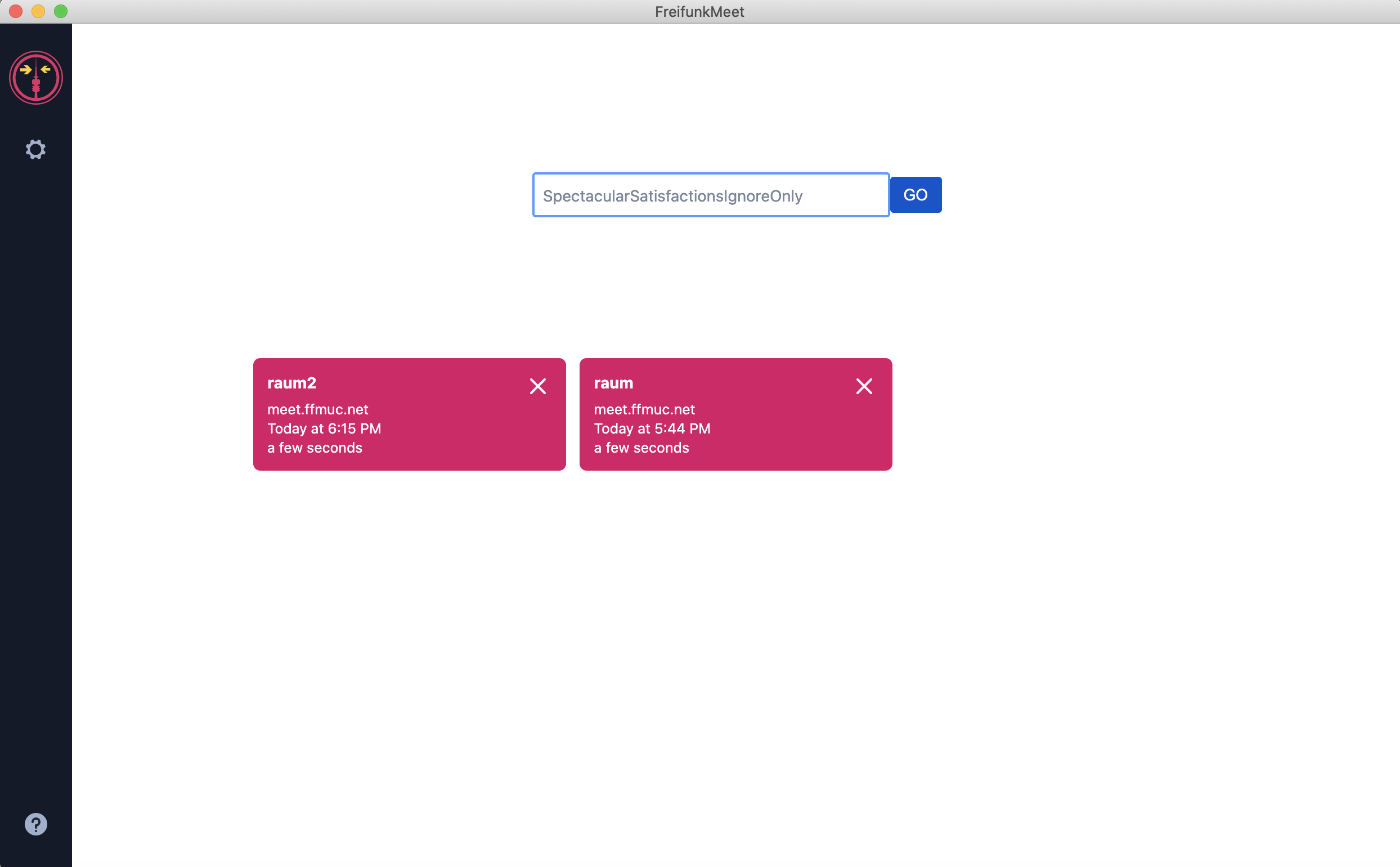
- Start page with three cards: Join a meeting, Reserved rooms and Recent meetings. Type a room name or paste a link. The app shows the room before you join.
- Light and dark theme. The theme follows the operating system. To set it manually, open Settings > Theme.
Reserved rooms
You can reserve a room on meet.ffmuc.net. A reserved room has a fixed name and an expiry date.
A reserved room has three access levels:
- Host: For you and co-hosts. The host moderates the room.
- Speaker: For people who talk, without moderator rights.
- Viewer: For all other people.
In the app:
- Join: Paste any
meet.ffmuc.net link in the start field: a host link (/reserve/h/…), a speaker link (/reserve/s/…), a viewer link or a manage link. The app shows the room and your role before you join. If the link expired, was deleted or was replaced, the app tells you. To keep a host link, click Save to My rooms.
- My rooms: Click My rooms in the left bar, or use the Reserved rooms card on the start page. The card shows your next rooms. You can:
- reserve a new room (the app does a short security check),
- add a room from a manage link or host link,
- join as host, copy the links, extend the room, make new links, delete the room, or remove it from the list.
- Storage: The app keeps only the host secret, the room name and the expiry date. It encrypts this data with the key store of the operating system. If no key store is available, the app does not save the rooms. Then, keep your manage links in a safe place.
- Reminders: The app shows a notification 3 days and 1 day before a room expires. Click the notification to extend the room.
Installation
Download our latest release and you're off to the races!
WinGet (Windows)
For Windows user, you can install the application using the following command in PowerShell:
winget install --id freifunkMUC.FreifunkMeet
Homebrew (macOS)
For macOS users, you can install the application using the following command:
brew install --cask freifunkMUC/freifunkmeet/freifunk-meet
Development
If you want to hack on this project, here is how you do it.
Show building instructions
Installing dependencies
Install Node.js 22 first (or if you use nvm, switch to it by running nvm use).
Extra dependencies for Windows
npm install --global --production windows-build-tools
Extra dependencies for GNU/Linux
X11, PNG, and zlib development packages are necessary. On Debian-like systems, they can be installed as follows:
sudo apt install libx11-dev zlib1g-dev libpng-dev libxtst-dev
Install all required packages:
npm install
Starting in development mode
npm start
The debugger tools are available when running in dev mode, and can be activated with keyboard shortcuts as defined here.
They can also be displayed automatically with the application --show-dev-tools command line flag, or with the SHOW_DEV_TOOLS environment variable as shown:
SHOW_DEV_TOOLS=true npm start
Running the tests
npm test
Building the production distribution
npm run dist
Working with jitsi-meet-electron-sdk
For instructions on SDK versus electron-app separation and how to set up local development using npm link, please refer to the Contributing and Local Development guide in the Jitsi Handbook.
Publishing
- Create release branch:
git checkout -b release-1-2-3, replacing 1-2-3 with the desired release version
- Increment the version:
npm version patch, replacing patch with minor or major as required
- Push release branch to github:
git push -u origin release-1-2-3
- Create PR:
gh pr create
- Once PR is reviewed and ready to merge, create draft Github release:
gh release create v1.2.3 --draft --title 1.2.3, replacing v1.2.3 and 1.2.3 with the desired release version
- Merge PR
- Github action will build binaries and attach to the draft release
- Test binaries from draft release
- If all tests are fine, publish draft release
Known issues
Windows
A warning that the app is unsigned will show up upon first install. This is expected.
macOS
None
GNU/Linux
-
If you can't execute the file directly after downloading it, try running chmod u+x ./jitsi-meet-x86_64.AppImage
-
If you experience a blank page after a Jitsi server upgrades, try removing the local cache files:
rm -rf ~/.config/Jitsi\ Meet/
Translations
The JSON files contain all the strings inside the application, and can be translated here.
New translations require the addition of a line in languages.ts.
Localize desktop file on linux requires the addition of a line in package.json.
Please search for Comment[hu] as an example to help add your translation of the English string Jitsi Meet Desktop App for your language.
License
Apache License 2.0. See the LICENSE file.
Jitsi is built by a large community of developers. If you want to participate,
please join the community forum.