diskmaster
Drive health for Windows, Linux and macOS: SMART read natively, a score that shows its arithmetic, a surface
scan that names the files on bad sectors, and a history that says whether it is getting worse.
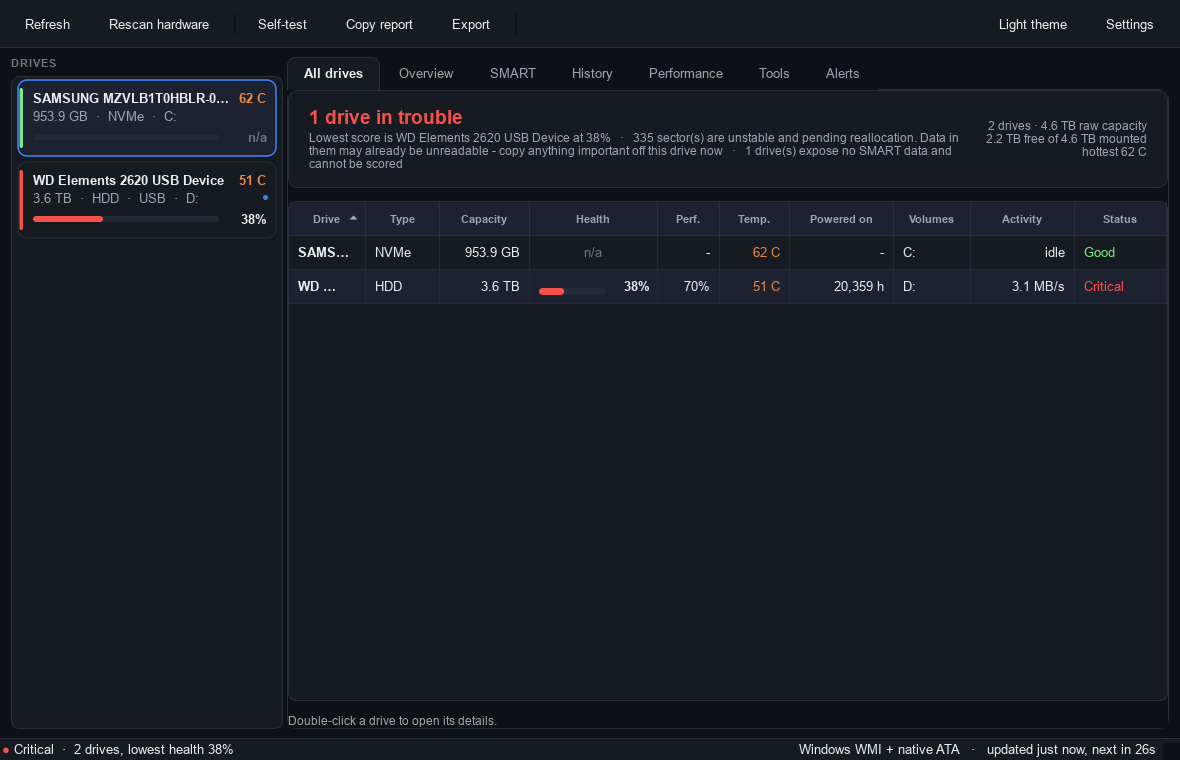
What it does
- Reads every drive natively. SATA and USB drives are spoken to over ATA pass-through (
DeviceIoControl
on Windows, SG_IO on Linux) - SMART attributes, short and extended self-tests with live progress, and
the drive's own self-test log, with nothing else installed. NVMe and macOS use smartctl when it is
present; the app offers to install it.
- Scores the drive and shows its working. Health starts at 100 and every deduction is listed with the
attribute it came from and the points it cost. Weighting follows what the large fleet studies (Google 2007,
Backblaze) found actually predicts failure. Performance is scored separately - a drive can be reliable but
slow.
- Remembers. Every reading goes into a SQLite database, so is this getting worse? has an answer: charts
for temperature, wear and every counter, and alerts on the change - three reallocated sectors that
appeared this morning, not three that have been there for two years.
- Reads the surface, not just the drive's opinion of itself. A read-only scan times every block. A drive
reporting zero errors that reads at 8 MB/s instead of 500 is not fine, and only a scan sees it. Unreadable
blocks are pinned down to the sector, and each sector is confirmed with a second read before it counts.
A read-speed benchmark catches the drive that is slow everywhere.
- Names the files. Every unreadable sector - from a failed self-test or a scan - is traced to the file
that owns it with tools the OS ships (
fsutil on Windows, debugfs on Linux), recorded permanently, and
raised as an alert. Tools can then rescue a copy of the file, skipping the dead bytes.
- Repairs what it can. Recover-first sector repair, a sanitize pass that only touches provably free
space, the OS's own filesystem repair, and a zero-fill for a drive on its way out - each behind an
explicit confirmation, detailed below.
- Tells you. Desktop notifications, a tray icon with the temperature, webhooks (Slack, Discord, ntfy),
email, or any command you name - each with its own severity threshold.
Monitoring and diagnosis are read-only: polling, SMART, self-tests, surface scans and benchmarks never write
a byte, and the drive's configuration is never touched. The repair tools in Tools are the one deliberate
exception (all of them live in core/repair.py so the boundary is auditable), and each says exactly what it
will write first:
- Sector repair re-reads each unreadable sector up to eight times, spaced out, because a marginal sector
that fails once often succeeds a moment later. A successful read is written straight back, which makes the
drive retire the sector to a spare without losing the data; only a sector that never reads is zeroed.
Confirmed by typing the drive's serial number; volumes are locked during the write; the drive the OS is
running from is refused.
- Sanitize free bad sectors is the cautious variant: it writes only sectors the filesystem's allocation
bitmap proves are unallocated at that moment, and skips everything else, so nothing can be lost.
- Filesystem repair hands the job to the operating system's own tool (
chkdsk /R, fsck,
diskutil repairVolume) in a visible console, so you see exactly what runs.
- Zero-fill overwrites the entire drive: retires every pending sector, destroys everything, and is
refused outright for the system drive. Confirmed twice, serial number included.
/                 Windows: %LOCALAPPDATA%\DiskMaster
  settings.json                Linux:   ~/.local/share/diskmaster
  history.db                   macOS:   ~/Library/Application Support/DiskMaster
  reports/                     exported HTML / JSON / CSV / text reports
Hard Disk Sentinel and CrystalDiskInfo are good at reading SMART. Their shared weakness is that they only ever
show you this moment, and they never show their working.
| diskmaster | Hard Disk Sentinel | CrystalDiskInfo | GSmartControl | HD Tune | Scrutiny |
|---|
| Windows / Linux / macOS | ✅ all three | Win + Linux¹ | Windows | ✅ all three | Windows | server + agent |
| Health score | ✅ | ✅ | ✅ (3 states) | ❌ raw only | ❌ | ✅ |
| Score is explained line by line | ✅ | ❌ | ❌ | ❌ | ❌ | ❌ |
| SMART attribute table | ✅ | ✅ | ✅ | ✅ | ✅ | ✅ |
| Raw values decoded to real units | ✅ | partial | ❌ hex/dec | ❌ | ❌ | partial |
| Failure-threshold headroom column | ✅ | ❌ | ❌ | ❌ | ❌ | ❌ |
| Long-term history database | ✅ | ✅ | ❌ | ❌ | ❌ | ✅ |
| Alerts on counter growth | ✅ | partial | ❌ | ❌ | ❌ | ✅ |
| Temperature history charts | ✅ | ✅ | ❌² | ❌ | ❌ | ✅ |
| Surface scan / bad block map | ✅ | ✅ | ❌ | ❌ | ✅ | ❌ |
| Bad sector repair | ✅ | ✅ | ❌ | ❌ | ❌ | ❌ |
| Detects uniformly slow drives | ✅ | ❌ | ❌ | ❌ | ❌ | ❌ |
| Read speed benchmark | ✅ | ✅ | ❌ | ❌ | ✅ | ❌ |
| Live per-drive throughput | ✅ | ✅ | ❌ | ❌ | ❌ | ❌ |
| Drive self-test + log | ✅³ | ✅ | ❌ | ✅ | ❌ | ✅ |
| Names the files on bad sectors | ✅ | ❌ | ❌ | ❌ | ❌ | ❌ |
| Live self-test progress, no external tool | ✅ | ✅ | ❌ | ❌ | ❌ | ❌ |
| Desktop notifications | ✅ | ✅ | ✅ | ❌ | ❌ | ❌ |
| Email alerts | ✅ | ✅ | ✅ | ❌ | ❌ | ✅ |
| Webhook alerts (Slack/Discord/ntfy) | ✅ | ❌ | ❌ | ❌ | ❌ | ✅ |
| Run any command on alert | ✅ | ✅ | ❌ | ❌ | ❌ | ❌ |
| Tray icon with temperature | ✅ | ✅ | ✅ | ❌ | ❌ | ❌ |
| All drives on one screen | ✅ | partial | ❌ tabs | ❌ | ❌ | ✅ |
| Export HTML / JSON / CSV / text | ✅ | ✅ | text only | text only | ❌ | API |
| Scriptable CLI with exit codes | ✅ | ❌ | ❌ | ✅ | ❌ | ✅ |
| NVMe health log | ✅³ | ✅ | ✅ | ✅ | partial | ✅ |
| Dark and light themes | ✅ | ❌ | skins | ❌ | ❌ | ✅ |
| Free / open | ✅ | paid | ✅ | ✅ | paid | ✅ |
¹ Hard Disk Sentinel's Linux build is a separate, far more limited product.
² CrystalDiskInfo graphs only what it has collected since launch.
³ Native on Windows and Linux for SATA and USB. NVMe and macOS use smartctl when installed.
Where the others still win: Hard Disk Sentinel has two decades of vendor-specific quirk handling, plus
features deliberately out of scope here (ATA secure erase, AAM/APM tuning). CrystalDiskInfo
reads NVMe natively on Windows without smartmontools. Scrutiny is the better fit for many machines from one
place - diskmaster reads a single machine deeply, and its JSON output is designed to feed a fleet tool.
Install
Grab a prebuilt binary from the latest release
(Windows x64 .zip, Linux x64 and macOS arm64 .tar.gz; no Python needed), unpack, run diskmaster.
Or run from source:
pip install -r requirements.txt
python main.py            # GUI   (run.cmd / run.sh do the same)
Raw SMART needs privileged device access. Without it the app still runs and shows capacity, volumes,
throughput and whatever temperature the OS reports.
| Platform | How |
|---|
| Windows | right-click → Run as administrator |
| Linux | sudo ./diskmaster, or add your user to the disk group |
| macOS | sudo ./diskmaster |
No third-party tools are required for SATA and USB drives. smartmontools is optional and used only where
native ATA cannot reach: NVMe health logs (a different command set) and macOS, where Apple provides no ATA
pass-through. The app detects it, says what it would unlock, and installs it on request (winget / apt / dnf /
brew).
Settings
Every setting lives in settings.json in the data folder and is edited from Settings in the toolbar.
| Tab | |
|---|
| Monitoring | poll interval (SMART read, default 30 s), hardware re-inventory interval, throughput sampling interval; alert thresholds: HDD / SSD temperature warn and critical, health warn / critical, free space, flash wear |
| Alerts | notify on warning, on critical, on new bad sectors; cooldown before one alert repeats; sound on critical |
| Delivery | webhook URL (Slack, Discord, ntfy or any JSON endpoint), a command to run with the alert in its environment, SMTP email - each with its own minimum severity |
| Interface | dark / light / system theme, °C / °F, chart range, show unknown attributes, start minimised, minimise to tray |
| Storage | history retention (days), record history on / off; per-drive aliases and ignored drives are set from the drive's context menu |
CLI
diskmaster --report text                 # paste-ready report to stdout
diskmaster --report html -o drives.html
diskmaster --report json | jq '.disks[].health'
The exit code is the machine's worst drive: 0 healthy, 1 warning, 2 critical - so it drops straight into
a cron job or a CI check:
diskmaster --report json -o /var/log/disks.json || notify-admin
The frozen Windows build is a GUI executable with no console: use -o there, or a report without a
destination lands in the data folder's reports/.
How the health score works
| Finding | Cost |
|---|
| Attribute below its manufacturer failure threshold | −60 (critical) / −25 |
| Pending or offline-uncorrectable sectors | −18, growing to −60 |
| Reallocated sectors | −12, growing to −55 |
| Reported uncorrectable errors | −8, growing to −40 |
| End-to-end errors | −30 |
| Spin retries | −20, growing to −45 |
| Command timeouts | −4, growing to −30 |
| Flash endurance consumed | caps health at 40 + 60 × life remaining |
| Over temperature limit | −4 warm, −12 hot |
| Drive's own failure prediction | −45 |
| UltraDMA CRC errors | −5 max (a cable fault, not drive wear) |
Penalties grow logarithmically: the first bad sector matters far more than the difference between 400 and 500,
because by then the verdict is already in.
Tips
- Health shows
- and the SMART table is empty → the app has no raw device access; run it as
administrator / with sudo.
- An NVMe drive shows capacity but no attributes → NVMe needs smartmontools; Tools offers to install it.
- A USB drive shows nothing → most USB bridges pass ATA through and work natively; the few that do not
are usually reachable with smartmontools installed.
- A file is listed as damaged but opens fine → opening a file rarely reads all of it: a zip's directory is
at its end, a video plays until the bad spot. Use Tools → Rescue a copy to read it end to end and save a
copy with the dead bytes skipped; the log names the first unreadable byte.
- A scan reports "the drive stopped answering" → the connection dropped mid-read, not a bad sector: try
another port or cable, then scan again.
- SMART is clean but everything from the drive is slow → Tools → Read speed benchmark; a drive that is
slow everywhere is scored as such, and the verdict says so.
- Too many alerts for a known problem → raise the cooldown in Alerts, or ignore the drive from its
context menu.
Windows says the app is not safe
The Windows build is not code-signed, so SmartScreen shows "Windows protected your PC — unknown publisher" the
first time you run it. Nothing is wrong with the file; an unsigned executable from a small project has no
reputation with Microsoft.
- To run it: More info → Run anyway. From a downloaded
.zip Windows also adds the mark-of-the-web:
Unblock-File .\diskmaster\* in PowerShell clears it.
- To verify the download: every release ships a
.sha256 next to the archive; Get-FileHash must
print the same digest.
- If Defender quarantines it rather than warning, that is a false positive on the PyInstaller runtime — report
it at and open an issue.
Build
pip install -r requirements.txt pyinstaller && python build.py produces dist/diskmaster---
with a .sha256 beside it. The GitHub workflow builds all three platforms on every tag and attaches them to the
release; the Linux build runs the headless self-test (DISKMASTER_SELFTEST= polls the runner's real
drives through the real GUI and writes the reports) and tests/ runs on all three before anything is built.
config.py           APP_NAME, APP_VERSION - the only place the version lives
main.py             entry point (GUI, CLI, self-test hook)
diskmaster/core/    models, smart_db, health, collector, backends/, ata, surface, filemap, rescue,
                    repair, history, alerts, notify, report - never imports Qt, usable from a script
diskmaster/ui/      main_window, theme, tray, worker, widgets/, dialogs/
utils/childproc.py  every helper process is tracked and dies with the app
tools/              make_icon.py, screenshot.py
Changes in 1.1
- The README claimed diskmaster never writes to a drive. That stopped being true in 1.0, which shipped
sector repair, sanitize, filesystem repair and zero-fill. The README now describes the write operations
and their safeguards instead of denying they exist; the code was always honest about it - every write
lives in
core/repair.py behind its own confirmation.
- The Tools tab no longer presents tests and repairs as bare button rows. Each operation is a standard row:
its name, what it does written out (previously a tooltip), and the one button that runs it. The self-test
rows show the drive's own duration estimates in place.
- The filesystem-repair button names the tool the current OS will actually run -
chkdsk /R, fsck or
diskutil repairVolume - instead of always saying chkdsk.
- Stop and Abort appear only while something is running.
Changes in 1.0.1
- Linux and macOS showed no drives at all. Their backends did not accept the
full argument the
collector passes, the resulting TypeError was reported as "Could not read drive data", and the drive list
stayed empty. Caught by the CI self-test on the frozen Linux build; the macOS 1.0 archive has the same bug.
A test now checks every backend's signature on all three platforms.
- The self-test and the CI log print the poll's error notes when no drive is reported.
Changes in 1.0
First release built to the hclivess house standard.
- Windows, Linux and macOS archives on every release, built and self-tested by CI;
.sha256 beside each; the
Windows executable carries a version resource and a 16–256 px icon.
- A surface scan confirms every unreadable sector with a second read, and a read failure that is really the
drive dropping off the bus (USB bridge reset, cable) is reported as that and never attributed to a file.
Before this one link hiccup could list 64 healthy sectors as damaged.
- Every helper process (
fsutil, debugfs, smartctl, diskutil, PowerShell, the alert command) is
tracked and killed when the app quits, however it quits.
run.py is gone: the entry point is main.py, and the version lives in config.py only. Not compatible
with the pre-release layout.