SyncthingPause





Pause Syncthing from your tray. One click. Resume when you're done.
A lightweight Windows tray companion for Syncthing, built with C# (.NET 8 WinForms). Launches Syncthing hidden, shows sync state in the icon, and gives you one-click pause/resume — that's the headline feature; everything else exists to support it.
> Renamed from SyncthingTray (v2.x). v3.0.0 is the same project, refocused around its actual usage pattern (pause when you need bandwidth) and renamed to avoid confusion with Martchus's Syncthing Tray (the well-known Qt cross-platform tray app). Existing v2.x installs continue working; see Migration below.
Screenshots
| Tray Menu | Settings |
|---|
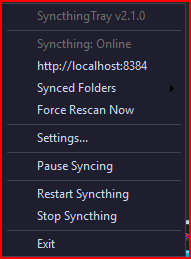 | 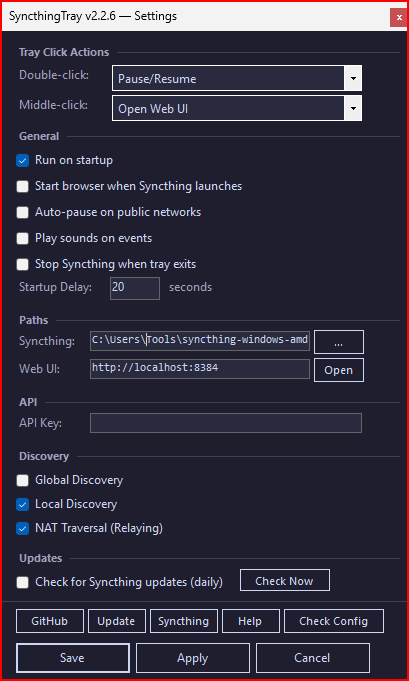 |
Features
- One-click pause/resume via menu, middle-click, or timed pause (5 min, 30 min, until resumed)
- Per-folder and per-device pause with partial-pause icon when not everything is paused
- Launches Syncthing hidden (no console window)
- Tray icon shows running state (sync / partial-pause / pause) with dark-themed context menu
- Start, stop, and restart Syncthing from the tray menu
- Open the Syncthing Web UI with a double-click
- Synced Folders submenu — open any synced folder in Explorer
- Device connect/disconnect notifications
- File conflict (pull error) detection
- Network auto-pause on public networks (WMI-based)
- Auto-update check for Syncthing (daily, rate-limited)
- Dark-themed Settings GUI with discovery toggles
- Config check utility (validates exe, process, API, discovery)
- Help window with usage guide
- Graceful shutdown via Syncthing REST API with process kill fallback
- Crash detection with audible alert when Syncthing exits unexpectedly
- Run at Windows startup (shortcut in Startup folder)
- Portable mode — auto-detected on removable drives (disables startup shortcut)
- First-run wizard — auto-opens Settings when no config exists
- Overclick safeguard — cooldown on rapid Start/Stop/Restart/Pause actions
- Single-instance enforcement — kills previous instances on launch
- Tray icon recovery after Explorer restarts
Download
Grab the latest from the Releases page:
SyncthingPause.exe — self-contained, no .NET runtime needed (~147 MB)
WinGet
winget install itsnateai.SyncthingPause
WinGet installs stay current automatically — use winget upgrade itsnateai.SyncthingPause. The in-app self-update button detects WinGet installs and points you back at the CLI instead of trying to overwrite the managed binary.
> If you previously installed itsnateai.SyncthingTray, see Migration — the WinGet PackageIdentifier changed with the rename, so winget upgrade won't carry you across versions automatically.
Self-update integrity
Releases publish a SHA256SUMS file alongside the exe. The in-app Update button downloads it, verifies the hash, and fails closed if anything is missing or doesn't match. Unverified updates never land on disk.
Requirements
- Windows 10/11
- Syncthing — download
syncthing-windows-amd64-*.zip and extract syncthing.exe
> Note: This is a lightweight alternative to Martchus's Syncthing Tray (Qt-based, ~80 MB) — that one's the established cross-platform Syncthing tray app with built-in file browser and embedded web view. SyncthingPause focuses on the single thing most users actually open the tray for: pausing Syncthing when you need bandwidth.
Setup
- Download
SyncthingPause.exe from Releases
- Download Syncthing and extract
syncthing.exe to the same folder
- Run
SyncthingPause.exe — Syncthing starts automatically in the background
- Right-click the tray icon > Settings to enter your API key
Configuration
Right-click the tray icon and select Settings to configure:
- Double-click action — configurable: Open Web UI, Force Rescan, Pause/Resume, or Do Nothing
- Middle-click action — configurable: same options as double-click
- Run on startup — creates/removes a Windows Startup shortcut
- Start browser — open the Web UI when Syncthing launches
- Sound notifications — play sounds on device connect/disconnect, file errors, unexpected stop
- Auto-pause on public networks — pause syncing on public Wi-Fi
- Startup delay — wait N seconds before launching Syncthing
- Syncthing path — custom path to
syncthing.exe
- Web UI URL — custom Syncthing Web UI address
- API Key — required for pause/resume, status polling, and graceful shutdown. Find it in the Syncthing Web UI under Actions > Settings > API Key.
- Discovery — toggle Global Discovery, Local Discovery, and NAT Traversal
- Auto-update — check for Syncthing updates daily
Settings are saved to SyncthingPause.ini in the application directory.
Diagnostics
Diagnostic logging is off by default. To enable it, add DiagnosticLogging=1 to SyncthingPause.ini. When enabled, a rolling log is written to %LOCALAPPDATA%\SyncthingPause\tray.log (1 MB cap, one-generation rotation to .1) — attach this file to any bug report.
Migration from SyncthingTray (v2.x)
SyncthingPause v3.0.0 was previously released as SyncthingTray v2.x. The rename comes with a migration bridge so existing users carry their state forward without manual steps:
- Pause state —
pause.dat is auto-migrated from %LOCALAPPDATA%\SyncthingTray\ to %LOCALAPPDATA%\SyncthingPause\ on first launch (Copy → verify → delete legacy). The 22-folder paused state from v2.x users survives the upgrade transparently.
- Settings — if
SyncthingTray.ini is co-located with the new exe, it's one-shot copied to SyncthingPause.ini. The legacy file is preserved for rollback.
- Startup shortcut — any
SyncthingTray.lnk in your Startup folder is removed on first launch so old and new don't both auto-launch and fight over syncthing.exe.
- Running predecessor — any running
SyncthingTray.exe in your session is killed at SyncthingPause startup so it releases its pause.dat lock before migration runs.
Manual cleanup after v3.0.0 verifies cleanly
winget uninstall itsnateai.SyncthingTray (the rename predecessor stays in WinGet's manifest registry as a deprecated package; users running winget upgrade are pointed at the new ID)- Delete
%LOCALAPPDATA%\SyncthingTray\ once you've confirmed pause state migrated
Uninstall
- Right-click the tray icon → Exit
- Delete
SyncthingPause.exe and SyncthingPause.ini
- Delete
%APPDATA%\Microsoft\Windows\Start Menu\Programs\Startup\SyncthingPause.lnk if you enabled "Run on startup"
- Delete
%LOCALAPPDATA%\SyncthingPause\ (contains the diagnostic log, pause state, and update sentinel)
- If installed via WinGet:
winget uninstall itsnateai.SyncthingPause
Syncthing itself is separate — uninstall it via whatever method you used to install it.
Building from Source
Requires .NET 8 SDK.
dotnet build -c Release
dotnet test
Publish as single-file .exe
dotnet publish SyncthingPause/SyncthingPause.csproj -c Release -r win-x64 --self-contained true -p:PublishSingleFile=true
Output: SyncthingPause/bin/Release/net8.0-windows/win-x64/publish/SyncthingPause.exe
Supporting This Project
This app is free and open source. If it saves you time, consider supporting continued development:

You can also build from source for free — see the build instructions above.
License
MIT