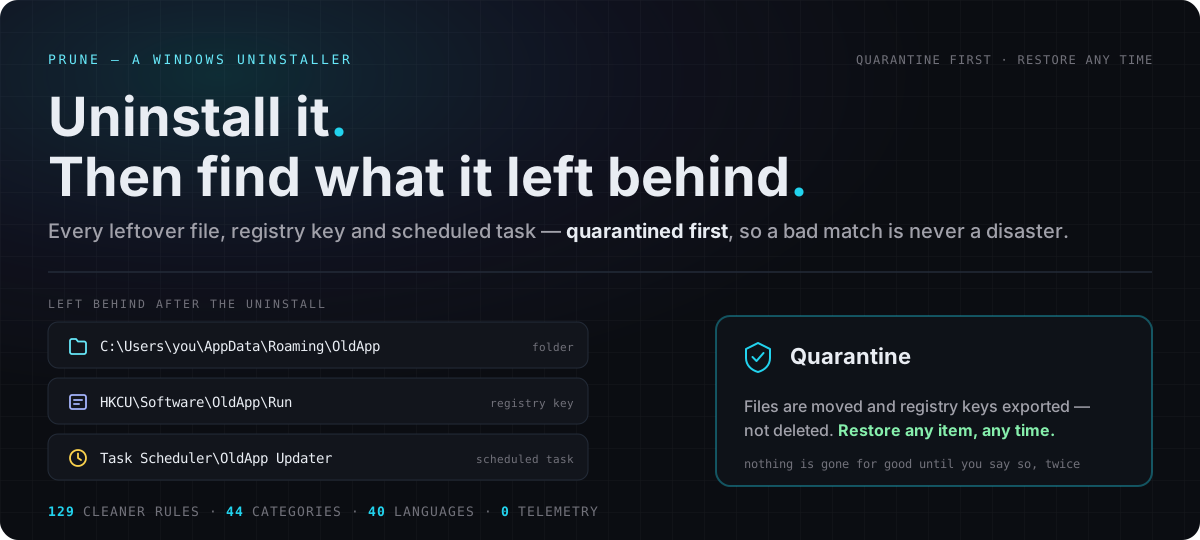
> Windows' own "Apps & features" runs an uninstaller and stops there. What
> the uninstaller forgets — a folder in AppData, a Run key, a scheduled
> task — stays on your disk forever, and nothing in Windows will ever mention
> it again. Prune runs the uninstaller, then goes looking for the rest.
It replaces four tools with one: an uninstaller, a disk visualiser, a
cache cleaner and a drive-health monitor. Every number it shows is
measured on your machine rather than estimated, and when it cannot measure
something it says so instead of printing a confident zero.
⭐ If Prune freed your disk, star the repo — it helps others find it.

🏆 What Sets Prune Apart
| Windows "Apps & features" | Typical cleaner | Prune |
|---|
| Runs the program's own uninstaller | ✅ | ❌ | ✅ |
| Finds leftover files, registry keys and tasks | ❌ | ⚠️ guesses | ✅ scanned per program |
| Removes leftovers recoverably | — | ❌ deletes outright | ✅ quarantined first |
| Batch uninstall without a wizard per program | ❌ | ❌ | ✅ silent where safe |
| Shows what a cleaner rule would actually free | — | ⚠️ estimates | ✅ measured on disk |
| Hides cleaners for software you don't have | — | ❌ | ✅ on by default |
| Real SMART drive health | ❌ | ⚠️ free space as "health" | ✅ from the drive |
| Sends data anywhere | — | often | never (update check is opt-in) |
🎬 How an Uninstall Works
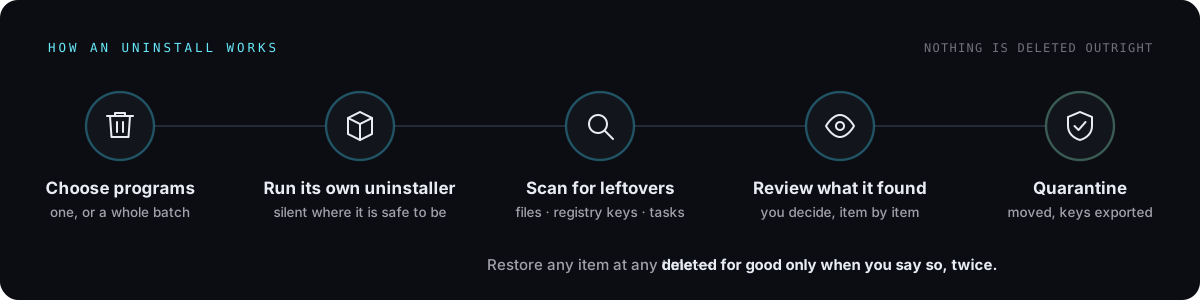
A bad match is recoverable by design: by default nothing is deleted
outright — it is moved to Quarantine first.
✨ What It Does
🗑️ Applications
Every installed program from all three registry Uninstall hives, plus the
Store apps and browser extensions no uninstall list mentions. Real icons,
measured sizes, a warning before removing something that is running, and
whether each program's own files carry a valid digital signature, checked
by Windows itself, so a file changed after its publisher signed it stands
out. Programs other accounts on the PC installed just for themselves can
be read too, with one administrator prompt; their registry files are
copied and read by Prune itself, never mounted. Programs you never want to
see again can be hidden from the list (nothing about them changes), and
Show hidden brings them back. A row's menu also opens Windows' own
Properties sheet for the program's executable.
Also what Windows' own list misses: Chocolatey packages (removed through
Chocolatey, so its record stays true), program folders nothing registered
claims, and Windows' optional features and installed updates — each
turned off or removed only after a restore point.
Batches run without a wizard per program — the vendor's own silent command
where one is published, and the right flag for MSI, NSIS, Inno Setup, WiX
Burn, Squirrel, 7-Zip, WinRAR and closed Chromium browsers otherwise — and
a game is removed before the launcher it uninstalls through. For the rest,
Prune can answer the uninstaller's own wizard for you — Next, Uninstall,
Finish, restart later — and hands it back the moment a question is yours:
your settings or data, something to type, a button it doesn't know.
Optional: a restore point or a full registry backup before each uninstall,
and a choice of where leftover files go.
A leftover scan in three depths — Safe, Moderate and Advanced —
with results tiered certain / likely / possible and never offering
Windows, Microsoft components or another program's folder. Forced
uninstall for software that isn't listed, Hunter (drag a crosshair onto a window to
identify its program, then uninstall it, end it or open Windows' Properties
for its file), Install with monitoring so a later uninstall is
exact (its records export to a .prunetraces file and import back, here or
on another PC), a Backups tab to restore registry and task backups, and a full
History.
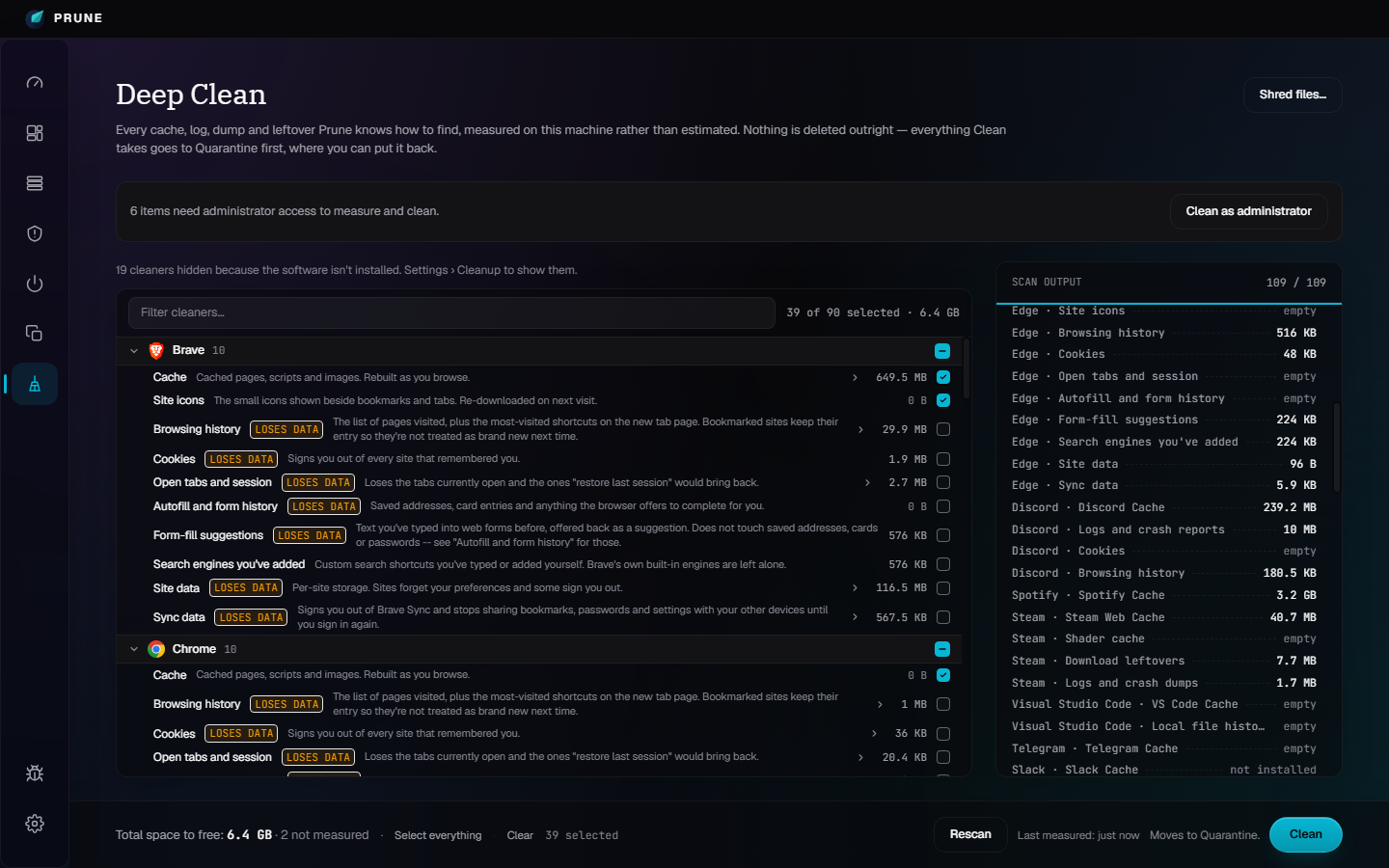
🧹 Deep Clean
129 rules across 44 categories, scanned one at a time so the tree fills
in as it goes. A rule that cannot be measured says whether the software is
missing or the read needs admin — never 0 B.
Cleaners for software that isn't installed are hidden, and rules that lose
something (history, cookies, sessions) are marked and never ticked by
default. Includes Windows Defender and WinRAR cleaners.
Two removal modes, on purpose. By default Clean moves files into
Quarantine so you can put them back, which frees no space until you empty it;
Prune says Moved, not Freed, when that is what happened. Settings › Cleanup
can switch Deep Clean to Delete now, which removes files outright and
frees the space at once, plus deep-scan patterns for backup, Office temp, Vim
swap, .DS_Store and Thumbs.db files. A Free disk space wipe is there too,
off by default and asking every time: it frees nothing, it does nothing
useful on an SSD with TRIM, and it adds write wear.
Also: a Junk files scan that finds leftover *.tmp, ~*.*, *.old,
*.dmp and similar files by name on the drives and folders you pick (your
own editable pattern list; only safe ones start ticked, and programs,
Windows and installed programs' folders are never offered), an opt-in
overwrite before deleting (1 or 3 passes), a Shred
files… tool, a free-space wipe on any local drive, locked files deleted at
the next restart, a per-rule list of the biggest files in Preview, your own
Custom locations, a cleaner rule import for lists written in a common
external format, and a prune-cli command line (list, preview, clean,
and programs, which lists installed programs by wildcard name). Overwriting
is not reliable on SSDs; Prune says so where you turn it on.
🗺️ Disk Map
An interactive treemap of what is actually using the disk, from a
full-drive scan that reads the NTFS MFT directly. Largest files, a folder
table and a breakdown by type beside the map.
Scans show real progress and time left: files scanned and bytes processed
as they happen, and — for a whole-drive walk of C: — a percentage that is
a true ratio of bytes read to bytes in use. Where no total is known there is
no percentage, only a moving bar. Motion respects Windows' reduce-motion
setting.
Scan any local drive (several NTFS drives in one administrator prompt, or
no prompt at all when Prune runs as administrator), see size and size on
disk with hard links counted once, modified dates, search by text, wildcard
or regex, export CSV and PNG, and save scans to compare later.
Sizes here and on every other screen follow Settings → Size units:
1024-based KB like File Explorer (the default), the same figures as KiB,
or the drive maker's 1000-based GB.
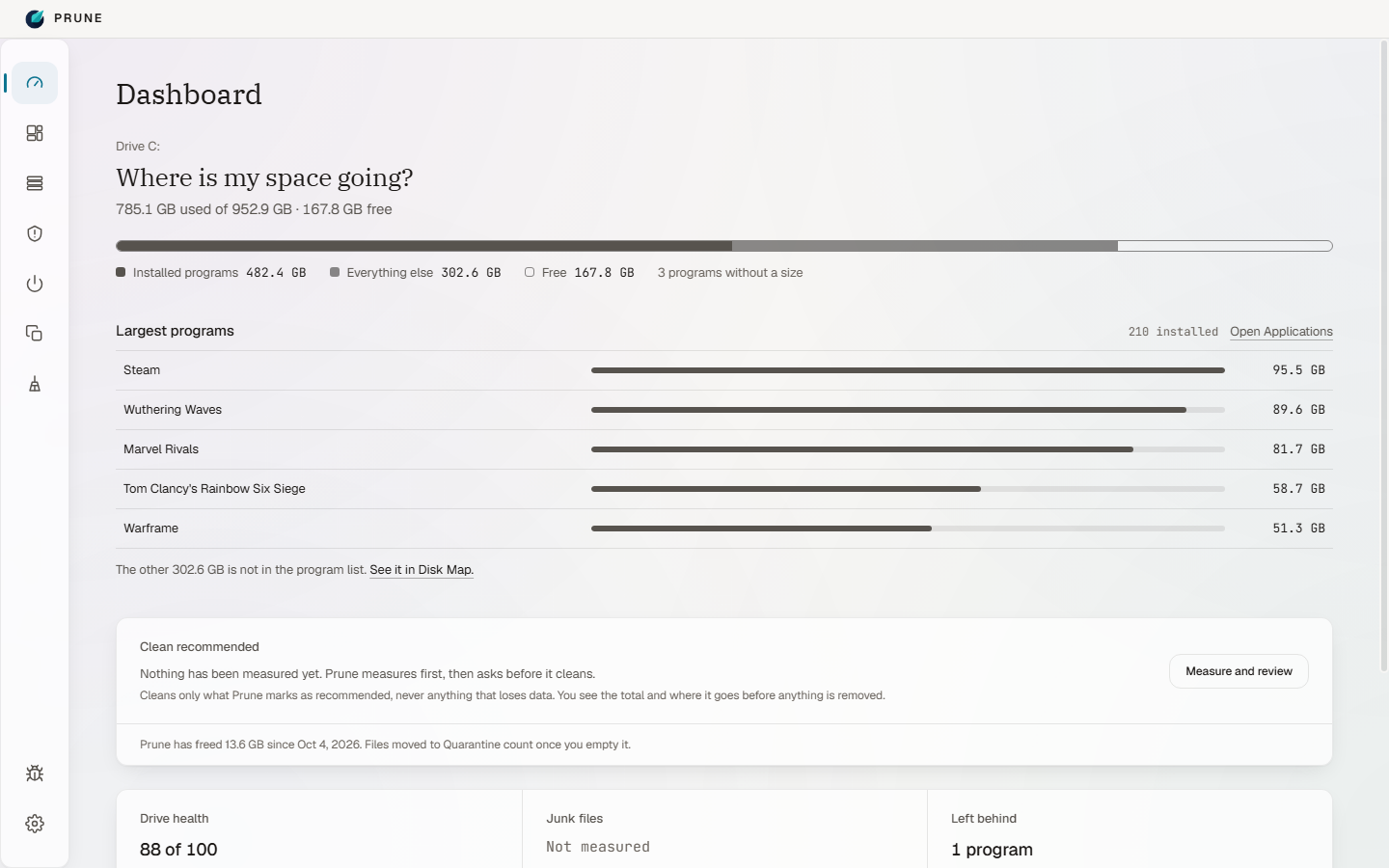
💽 Drive Health
The dashboard's health score is about your drive and nothing else: real
SMART data — wear, power-on hours, media and uncorrected errors — read from
the drive itself. A drive that reports errors lands in the red whatever its
wear life. Free space and broken apps have their own cards; they don't
dilute the score.
Windows tools on the Dashboard opens Windows' own utilities in one
place — System Restore, System File Checker and DISM (in an elevated
console that stays open), Services, Event Viewer, Device Manager, Disk
Management, Flush DNS and more — listing only the ones this PC has.
⚡ Startup
Everything Windows launches at sign-in — Run keys, Startup folders,
scheduled tasks, automatic services and Store startup tasks. The switch
writes the same record Task Manager does. Entries whose program is gone,
and the ones you switched off, can each be removed in one go — into
Quarantine, with one Undo.
🛟 Quarantine
Files are moved and registry keys exported before removal, browsable and
restorable — nothing is gone for good until you say so twice. Leftover
files can go to the Recycle Bin or be deleted outright instead, if you
choose that in Settings; registry keys are backed up either way.
🫧 Duplicates
Duplicate files under a folder you choose, found by size, then a 64 KB
sample, then a full hash — so almost nothing is read completely.
🐞 Report a Bug
A button in the side bar and in Settings → About opens a prefilled GitHub
issue. You see exactly what will be included — your words plus Prune's
version, Windows' version and the architecture, nothing else — before
anything leaves the app.
🖼️ Screens
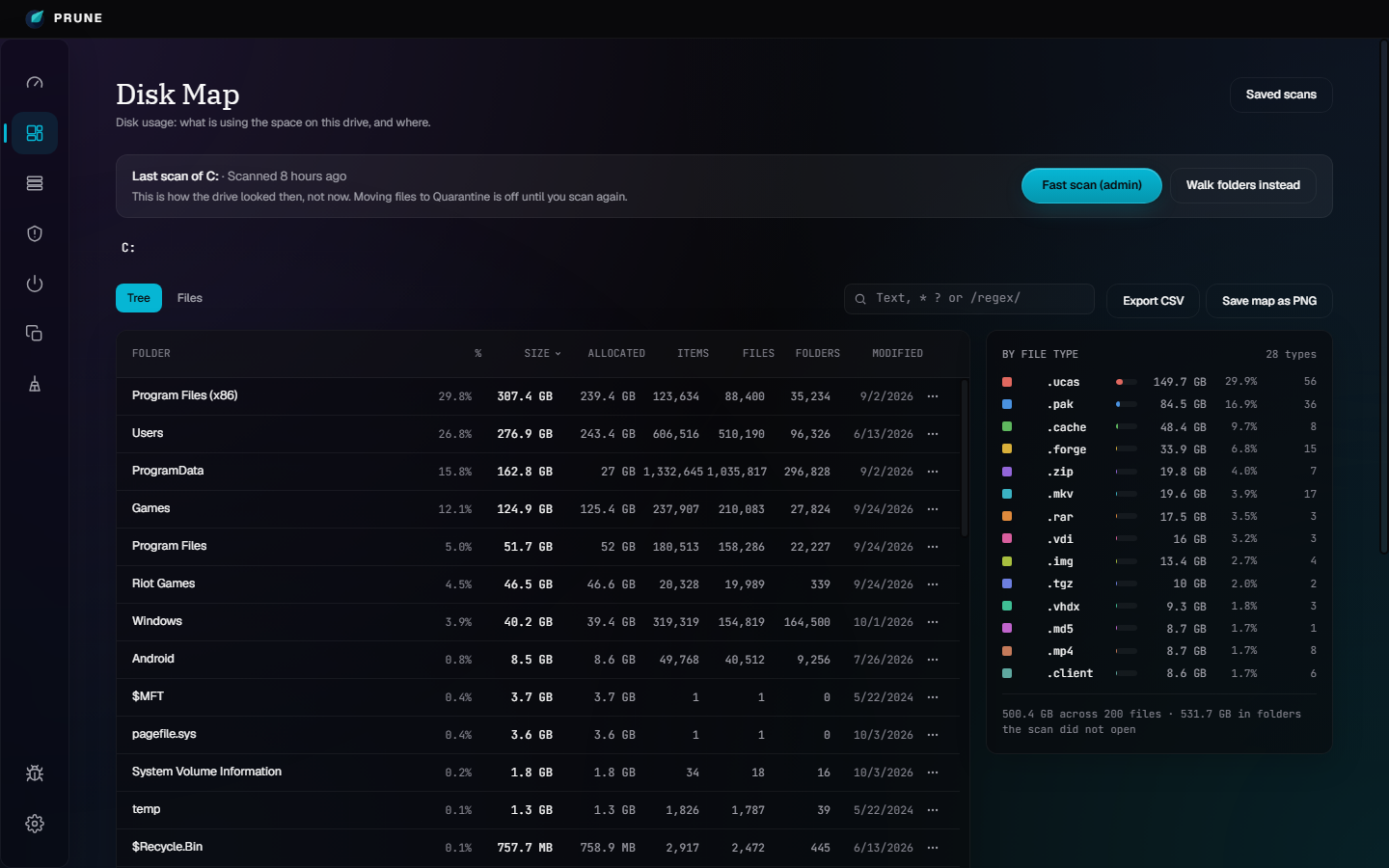
Disk MapAny drive, size on disk, search and export — and it reopens on the last scan instead of starting empty
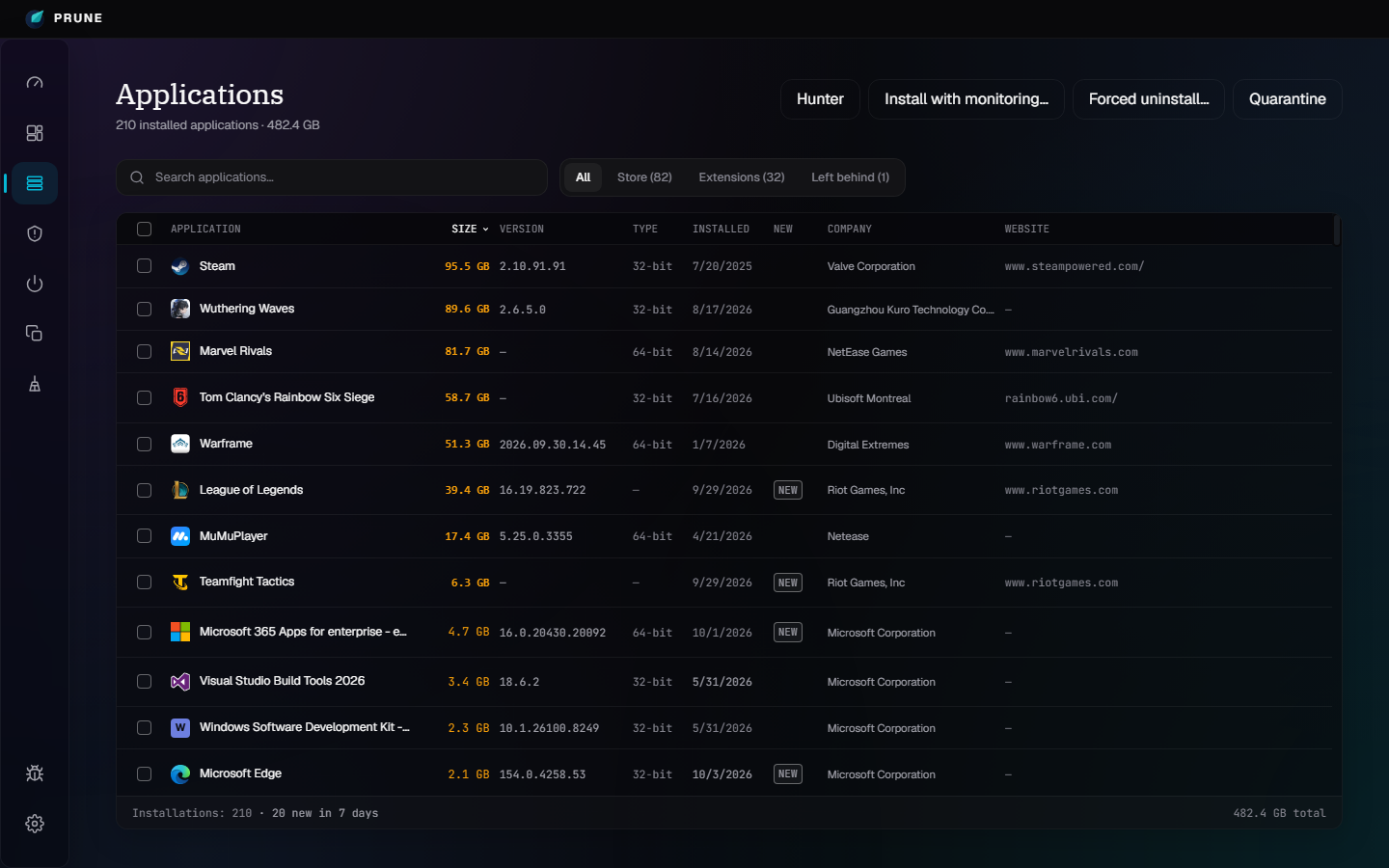
ApplicationsEvery hive, plus Store apps, extensions, Chocolatey and Windows updates — with Hunter, install monitoring and forced uninstall
Deep CleanMeasured sizes; rules that lose something are marked and never ticked by default
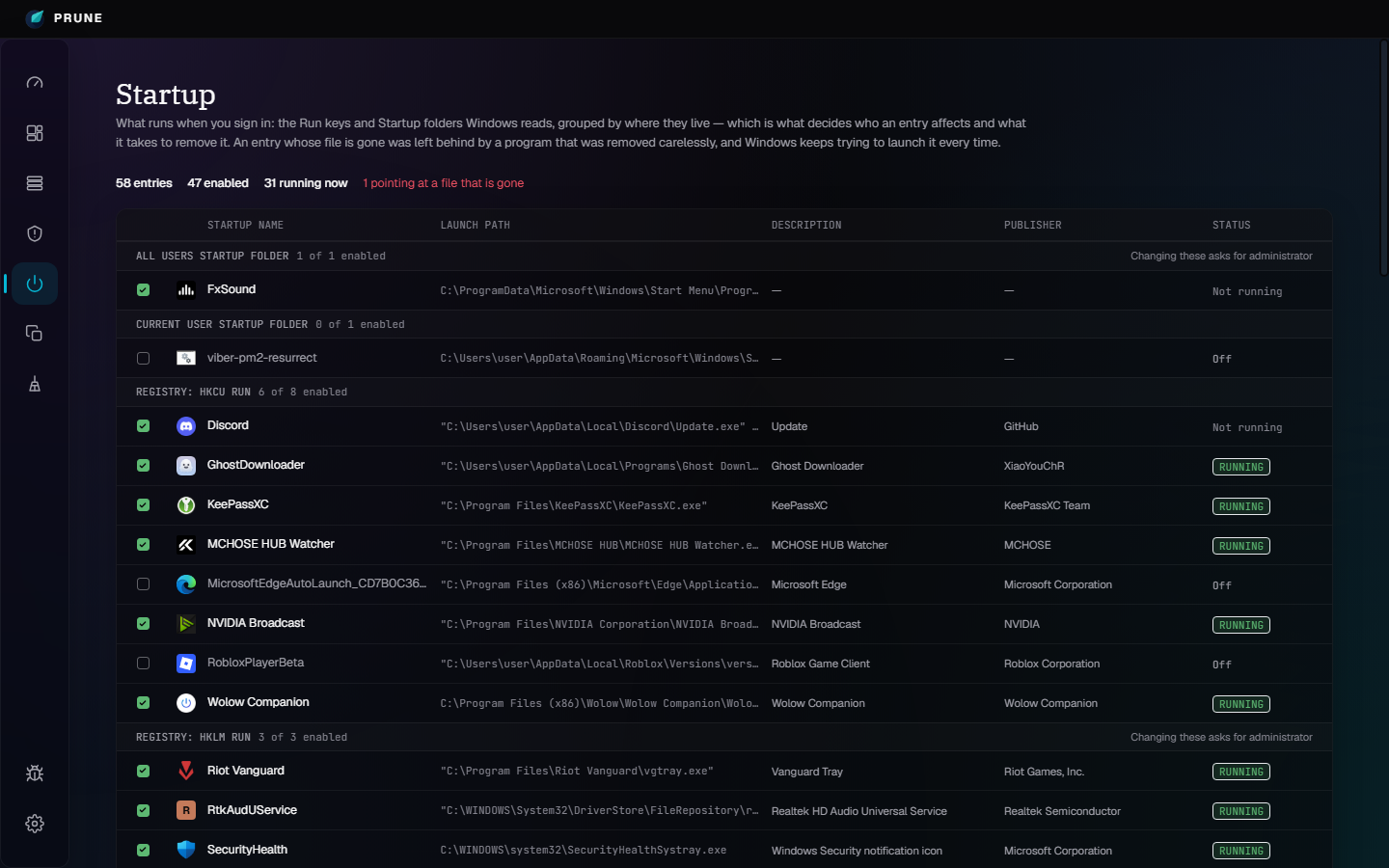
StartupGrouped by where an entry lives, because that decides how to remove it
Light & darkSystem, Light or Dark — each measured against every surface, not inverted
🔒 Private & Local-First
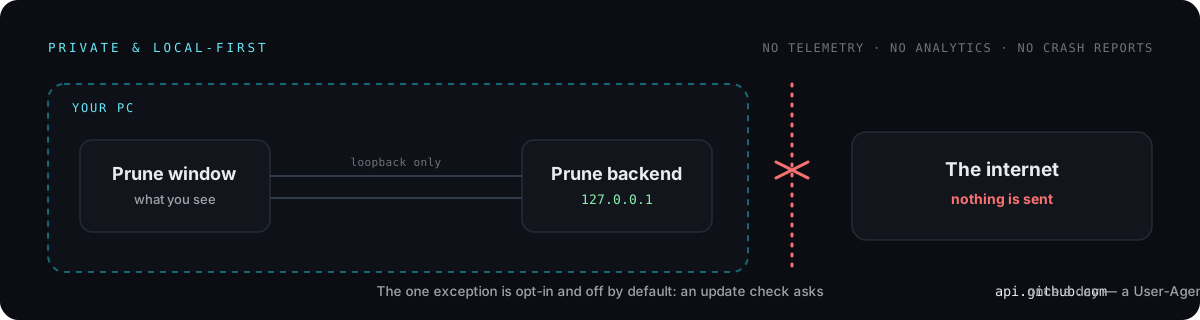
No telemetry, no crash reporting, no analytics, and no update check unless
you turn one on. The only HTTP in the app is the window talking to its own
backend on 127.0.0.1, behind a guard that checks the Host header before a
request body is ever parsed — because loopback is not the protection it
sounds like, and every web page you have open can reach it too.
The one exception is opt-in: Settings → Check for updates, off by
default. Turned on, Prune asks api.github.com once a day whether a newer
release exists, sending a User-Agent and nothing else. If there is one, a
button appears at the bottom of the side bar, and only clicking it downloads
the new installer from the GitHub release and installs it.
That is checkable rather than a promise: the only code that opens a
connection to a host that is not loopback is
backend/src/services/updateCheck.js and the updater in
electron/updater.cjs, and neither does anything while the update check is
off. SECURITY.md says exactly what the updater trusts.
📰 What's New in 3.2
- Junk files in Deep Clean — leftover
*.tmp, *.dmp, ~*.* and similar files found by name on the drives and folders you pick, from a pattern list you edit.
- Windows tools on the Dashboard — System Restore, System File Checker, DISM, Event Viewer, Device Manager and more of Windows' own utilities in one place.
- Hide programs from the Applications list — nothing about them changes, and Show hidden brings them back.
- Properties — Windows' own Properties sheet for a program's executable, from an Applications row's menu or Hunter.
- Install traces export and import — Install with monitoring's records go to a
.prunetraces file and come back, here or on another PC.
- Size units — 1024-based KB like File Explorer, the same figures as KiB, or 1000-based like a drive maker, on every screen at once.
- Startup: remove every disabled entry in one go, into Quarantine with one Undo.
Full notes: CHANGELOG.md.
What's New in 3.0
- The sidebar is icons only until you point at it, then widens over the page.
- Disk Map, reimagined — any drive, size on disk, modified dates, search, export, saved scans and compare.
- Deep Clean, taken further — overwrite and shred, any-drive free-space wipe, a command line, custom locations and a cleaner rule import, plus 16 new rules.
- Uninstaller, done properly — Safe / Moderate / Advanced scans, confidence tiers, Forced uninstall, Hunter, install monitoring, Backups and History.
- Fixes — Quick Access pins are no longer deleted, Stop keeps your ticks, the window controls stay aligned at any zoom, and Prune no longer sometimes opens in English.
What's New in 2.9
- Two Deep Clean removal modes — an opt-in Delete now mode that frees space straight away (Quarantine stays the default), Deep scan rules for backup, Office temp, Vim swap,
.DS_Store and Thumbs.db files, and an opt-in free-space wipe.
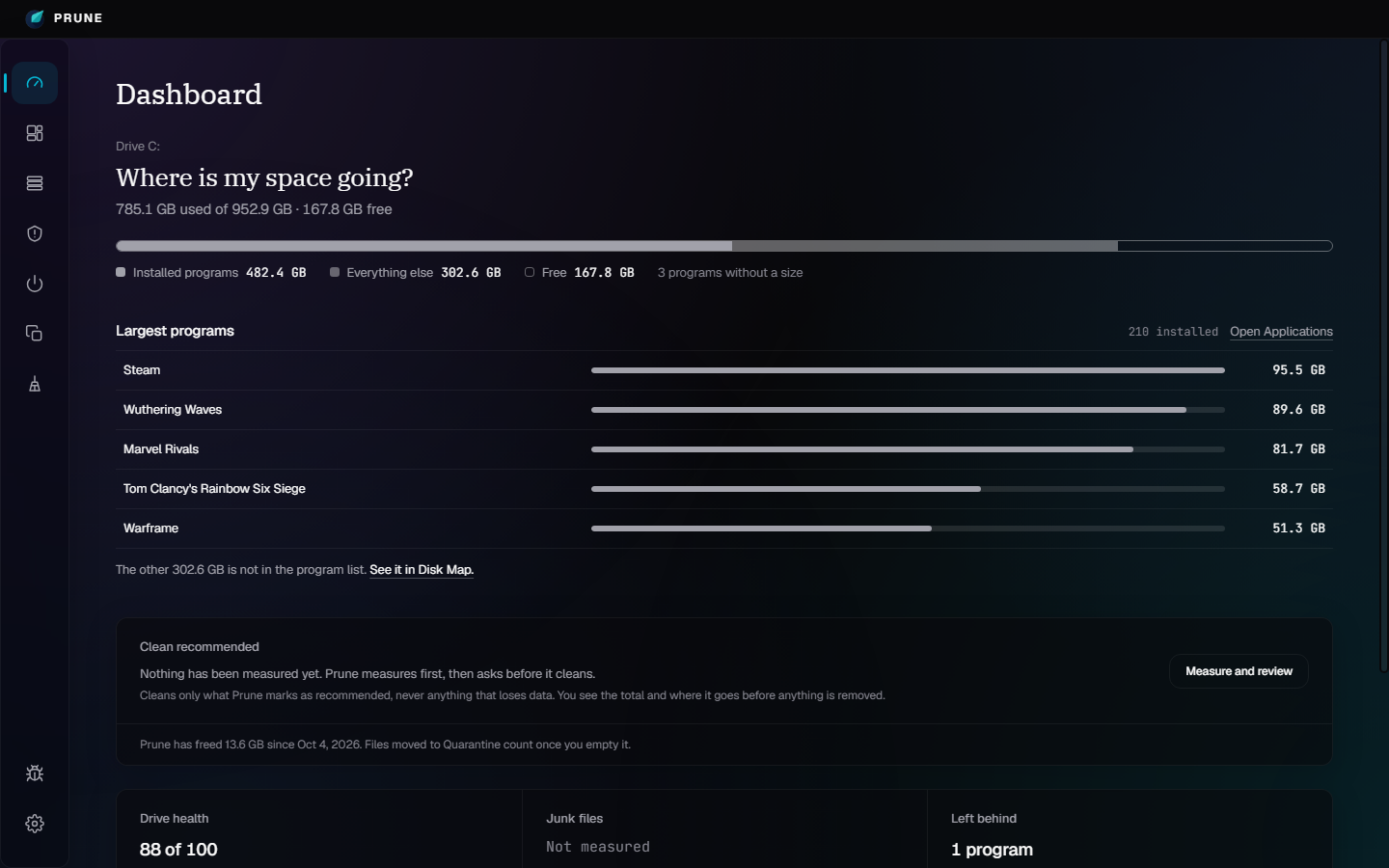
- A Dashboard that answers one question — where is my space going? One bar, your five largest programs, and drive health on demand.
- Safer by default — Clean waits for a Preview, leftovers start unticked, and the right-click menu no longer opens on Uninstall.
- All 39 translations reviewed for consistent terms.
Full notes: CHANGELOG.md.
What's New in 2.8
- Remembers where you left it — window size and position, the Settings tab, Deep Clean's ticks and collapsed groups.
- Batch uninstall that actually uninstalls — a paths-with-spaces quoting bug made some uninstallers never open; fixed, with a single "ready to scan" gate.
- Disk Map with real progress — percent, time left and a Stop button.
- Drive health only on the dashboard; the CPU/memory gauges are gone. Prune is a storage tool.
- Deep Clean hides software you don't have, and gains Windows Defender and WinRAR cleaners.
- Every screen reviewed against Apple's Human Interface Guidelines — legible text, keyboard and screen-reader access, high-contrast support, zoom, System/Light/Dark theme.
- Report a bug button with a prefilled GitHub issue.
Full notes: CHANGELOG.md.
⚡ Quick Start
- Download
Prune-Setup-.exe from the latest release.
- Run it. The installer opens in Windows' own language (40 are included) and, on a fresh install, asks whether Prune should check for updates — unticked unless you tick it.
- Open Prune and pick a program under Applications.
The -win.zip beside the installer is the same application without an
installer: unzip it anywhere and run Prune.exe. Requires Windows 10 or 11.
From 2.5.0 on, that is the last installer you run by hand: with the update
check on, one click installs a new version and reopens Prune.
🛡️ Windows will warn you — here is why, and how to verify the download
Prune is not code-signed, so the first time you run the installer
Windows shows:
> Windows protected your PC — Microsoft Defender SmartScreen prevented an
> unrecognised app from starting.
Click More info, then Run anyway.
This warning is about the absence of a certificate, not about anything found
in the file. SmartScreen flags every unsigned installer it has not seen
before, and unlike a reputation warning it does not go away as more people
download it. A code-signing certificate is a paid, identity-verified
purchase, and Prune does not have one.
You do not have to take that on trust. Every release lists the SHA-256 of
both files:
Get-FileHash .\Prune-Setup-*.exe -Algorithm SHA256
Compare the result with SHA256SUMS.txt on the release page.
Get-FileHash prints the digest in uppercase and the file lists it in
lowercase — same hash, compare them case-insensitively.
That confirms the file reached you byte-for-byte as it was built. It does
not prove who built it. For that, releases are built by GitHub Actions
and each file carries an attestation: a signed record of the repository,
the commit and the workflow that produced it. With the
GitHub CLI:
gh attestation verify .\Prune-Setup-.exe --repo jimman0I/prune
A file that passes was built by this repository's own workflow from its
public source; anything else fails. It is still not a code signature —
Windows does not read it, so SmartScreen warns all the same — but it answers
who built the file, which a checksum cannot. Releases before 2.4.1 were built
locally and have no attestation; releases before 2.5.0 named the installer
Prune.Setup..exe and cannot update themselves.
If you would rather not run an unsigned binary, build it yourself from
source: see Build it yourself. The result is the same
application.
🧱 Tech Stack
| Layer | What it is |
|---|
| Shell | Electron — quarantine data and settings live under app.getPath('userData'), never inside the install directory, so an upgrade never touches them |
| Backend | Express (ESM), in-process inside Electron when packaged. Zero native dependencies: the registry reader and Recycle Bin sizing shell out to reg.exe and powershell.exe, which every Windows machine already has |
| Frontend | React + Vite + Tailwind — the Aurora Deck design system (obsidian ground, cyan accent, glass panels), dark and light, every text tier measured against the surfaces it sits on |
| Tests | 3,000+ tests across backend, frontend and electron, run by GitHub Actions on every push and pull request |
| Releases | Built by GitHub Actions with build attestations — see RELEASING.md |
🛠️ Build It Yourself
Requires Node.js 18+ (development only — the packaged app bundles its own
runtime via Electron).
# Backend (Express, port 3101)
cd backend && npm install && npm run dev

# Frontend (Vite, port 5174) — in a second terminal
cd frontend && npm install && npm run dev

# Electron shell — in a third terminal, once both of the above are running
cd electron && npm install && npm start
Run the tests, one suite at a time (see CONTRIBUTING.md for why):
cd backend && npm test
cd frontend && npm test
cd electron && npm test
Build an installer:
cd electron && npm run dist
Produces an NSIS installer (.exe), a portable .zip and a generated
SHA256SUMS.txt in electron/dist/. See
electron/README.md for the build pipeline and
RELEASING.md for the checklist around it.
⚠️ Known Limitations
What Prune deliberately does not do, or cannot
- Windows only.
- Removing a Store app cannot be undone from Quarantine, unlike everything
else Prune removes:
Remove-AppxPackage takes the app and its data, and
the way back is reinstalling from the Store. The dialog says so before you
confirm.
- Store apps Windows marks as part of the system — the Security interface,
the app installer — cannot be removed, and their rows open Windows' own
page instead.
- "Not registered" folders are offered, never removed directly: a portable
tool you put in Program Files on purpose looks exactly like an orphan.
Remove opens Forced uninstall, where every item is reviewed first.
- Turning off a Windows feature or removing an update needs administrator
rights and a restore point. When Windows cannot make one, Prune asks again
before going ahead without it. Features Windows depends on (.NET 4,
Defender) are listed but never offered.
- Some programs still uninstall with their own wizard: anything whose
installer Prune cannot positively identify runs exactly as registered,
because a wrong silent flag is worse than a visible dialog. Game
launchers (Steam, Ubisoft, Riot) always show their own.
- A Chromium browser that is open when its uninstall runs shows its own
dialog rather than being closed for you. Microsoft Edge and the WebView2
runtime always show Microsoft's dialog: other programs, Windows Search
among them, depend on WebView2.
- Leftover scanning is heuristic (name and publisher matching), not a full
before/after filesystem snapshot.
- Delete permanently, if you choose it for leftover files in Settings,
means exactly that: they cannot be restored. It is off by default, the
review says so before you confirm, and a guard refuses Windows, a drive
root, Program Files itself, your profile's own folders and Prune's
quarantine whatever the scan found.
- A full registry backup before uninstalling covers
HKLM\SOFTWARE and
HKCU\Software — about 140 MB here — and only the newest three are kept.
- The installer is unsigned, so SmartScreen warns on first run and keeps
warning.
Code signing policy
Prune has applied to SignPath Foundation for free code signing. Releases are unsigned until that is accepted.
- Committers and reviewers: contributors
- Approvers: jimman0I
- Privacy: see PRIVACY.md. Prune does not transfer information to other networked systems unless the user or the person installing or operating it specifically asks it to.
📖 Documentation
| Doc | What's in it |
|---|
| CHANGELOG.md | Release notes, newest first |
| CONTRIBUTING.md | How to run it, how code is written here, and how to work on the parts that delete things without deleting your own |
| SECURITY.md | Where to report a vulnerability privately, and what is in scope |
| PRIVACY.md | What stays on your PC, where, and how to restore or delete it |
| RELEASING.md | The release checklist |
| electron/README.md | How the build pipeline works |
🤝 Contributing & Help
- 🐞 Found a bug? Use Report a bug inside Prune, or open an issue.
- 💡 Want a feature or a new cleaner rule? Open an issue — rules live in
backend/src/data/cleaners.json.
- 🔧 Want to send a fix? Read CONTRIBUTING.md first.
- 🔐 Security issue? Follow SECURITY.md — please don't post it publicly.
📄 License
MIT — see LICENSE. Use it, fork it, sell it; keep the copyright
notice. It comes with no warranty, which is worth reading rather than
skipping for a program whose job is deleting things.