WinTabber
WinTabber is a Windows desktop utility for window switching and window management. The main feature
is a switcher that shows the windows of the application that has focus, not every window on the
desktop.
WinTabber also includes window sleep, floating window thumbnails, a CapsLock hyper key, a desktop
dock, and an alpha media and audio control panel.
Requirements
- Windows 11 24H2 (build 26100) or later, on x64.
- No administrator rights. The application runs as the invoking user.
Install
- Download the
WinTabber--win-x64.zip file from the releases page.
- Extract the archive to a folder of your choice.
- Run
WinTabberUI.exe.
The release build is self-contained. The .NET runtime is not a separate install.
WinTabber runs in the notification area. There is no main window.
Read the default shortcut table before you start the application. Win+Ctrl+Left is bound to the
dock window by default, and WinTabber hides that key press from Windows. The virtual-desktop
shortcut of the same name stops working until you change or remove the binding.
Features
Window selector
 https://github.com/user-attachments/assets/1c1378f3-2cd8-4530-8f28-8be61cdcbc59
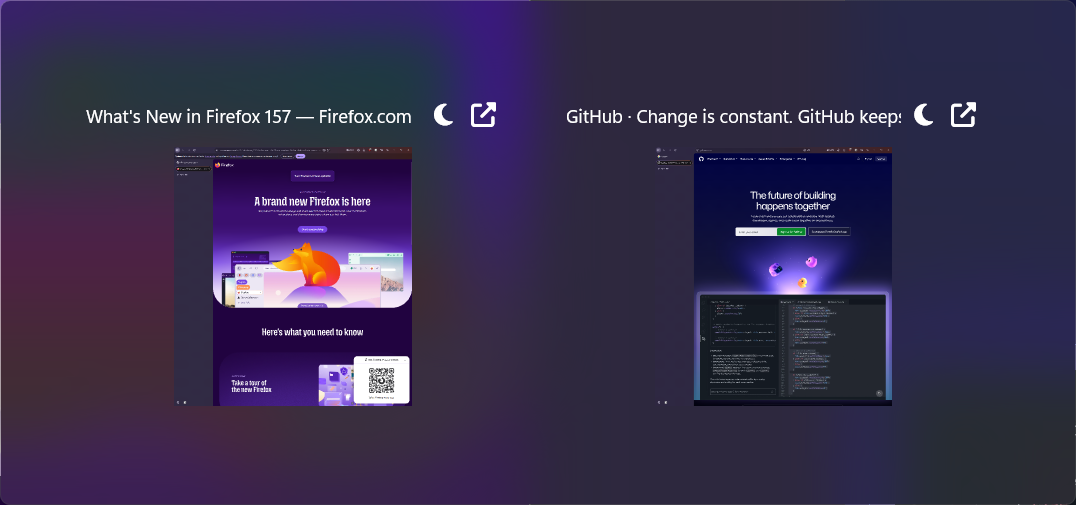
The window selector is the core feature. It lists every window of the application that has focus.
"Application" means the process name, so all instances of the same program contribute their windows
to one list. The list is ordered most-recently-focused first.
https://github.com/user-attachments/assets/1c1378f3-2cd8-4530-8f28-8be61cdcbc59
The window selector is the core feature. It lists every window of the application that has focus.
"Application" means the process name, so all instances of the same program contribute their windows
to one list. The list is ordered most-recently-focused first.
Each tile shows a live thumbnail of its window, the window title, and two buttons: sleep and floating
thumbnail.
Controls in the open selector:
- The next-window and previous-window shortcuts step through the tiles.
- The arrow keys move between tiles in two dimensions, by tile position on screen.
- The pointer selects the tile under it. Hover selection stays off until the pointer moves.
- A click on a tile activates that window and closes the selector.
Enter activates the selected window. Esc closes the selector without a switch.
The selector commits when you release the modifier keys that opened it. WinTabber records the held
modifiers for each activation, so a second binding cannot hold the selector open. If your binding has
no modifier keys, use Enter or Esc.
The selector opens on the monitor that holds the pointer, and it centers itself there.
Rename a window
Click the title on a tile to edit it. A check button and a cancel button replace the tile buttons
while you edit. Enter applies the new title. Esc cancels.
A rename calls SetWindowText on the window. The change is not permanent: the owning application can
write the caption again at any time, and the new title is lost when the window closes or when
WinTabber restarts.
Sleep a window
The sleep button hides a window and puts its process to sleep. A sleeping process uses no CPU. All
windows of that process are hidden, because sleep applies to the whole process.
A bar appears at the bottom of the screen and lists every sleeping window. The bar opens with the
window selector, and only when at least one sleeping window exists. The bar never takes focus. Click
an entry to wake that process and to show its windows again.
A sleeping process stays asleep and hidden if WinTabber stops without a clean exit. Three
recovery paths exist:
- A clean exit wakes every sleeping process.
- WinTabber records sleeping windows in
%APPDATA%\WinTabber\Suspension\suspended_state.json. The
bar is rebuilt from that file on the next start. Entries for processes that no longer exist are
removed.
- The notification-area menu has a "Resume all suspended" item. This item works even if the selector
is unreachable.
WinTabber refuses to sleep an elevated window, its own window, and a window whose process already
sleeps. The sleep button is disabled in those cases.
In the settings file and in the settings window, the commands for this feature are named
SuspendWindow and SuspendedWindows.
Floating window thumbnail
 https://github.com/user-attachments/assets/6322ff4d-1acb-4a54-bb8f-a5ae8e519131
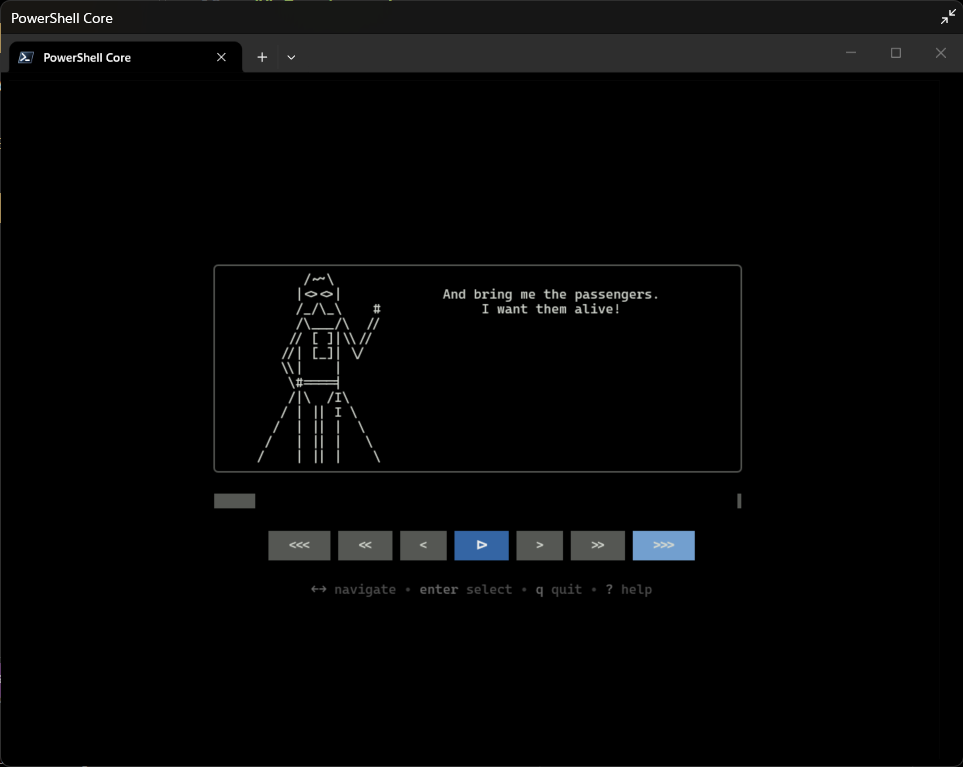
The thumbnail button, and the thumbnail shortcut, move a window off screen, hide it from the taskbar,
and put a small live preview of it in a floating window. The preview stays on top. Close the preview
to restore the window to its original position, size, and state.
https://github.com/user-attachments/assets/6322ff4d-1acb-4a54-bb8f-a5ae8e519131
The thumbnail button, and the thumbnail shortcut, move a window off screen, hide it from the taskbar,
and put a small live preview of it in a floating window. The preview stays on top. Close the preview
to restore the window to its original position, size, and state.
A minimized or hidden window cannot become a thumbnail. Windows has nothing live to draw in that
case.
The ThumbnailResizeMode setting controls what a resize of the preview does. See
Configuration.
CapsLock hyper key
CapsLock acts as a hyper key. WinTabber hides the CapsLock key press from Windows and sends
Ctrl+Shift+Alt+Win instead, so CapsLock+ reaches other applications as that four-modifier
chord. A tap shorter than 200 milliseconds sends a real CapsLock key press.
This behavior is always on. There is no setting for it. The hyper key steps aside while the shortcut
capture dialog is open, so CapsLock is recorded as CapsLock there.
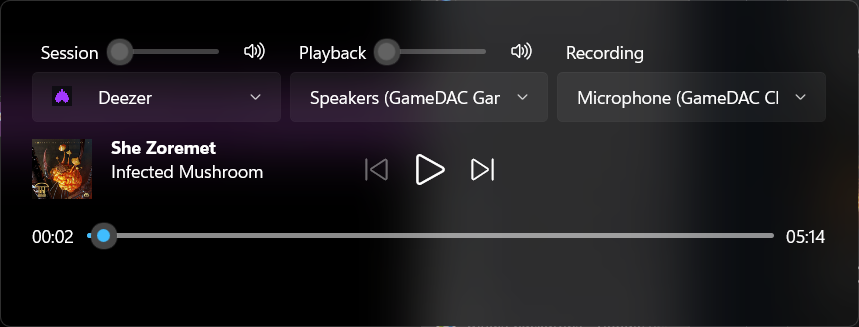
This feature is alpha. Expect incomplete controls and rough behavior.
The media panel combines two Windows sources:
- System Media Transport Controls (SMTC), for track metadata and for the play, pause, next, and
previous commands.
- WASAPI, for per-application volume, mute, and the list of playback and recording devices.
The panel lists the audio sessions that exist, follows the active media session, and lets you pick
the default playback device and the default recording device. Parts of the panel carry keyboard hint
overlays.
Other
- Minimize and maximize the active window through a shortcut. Mouse-button shortcuts also work,
and the defaults use them.
- Start with Windows, through the registry or through a logon task. See
Configuration.
- Pause the input hooks from the notification-area menu. This releases every shortcut without an
exit.
- DPI aware. The application is per-monitor DPI aware (PerMonitorV2).
Default shortcuts
| Command | Default binding | Group |
|---|
| Next window | Alt+` | Window Switching |
| Previous window | Alt+Shift+` | Window Switching |
| Commit selection | derived, see below | Window Switching |
| Dock window | Win+Ctrl+Left (hidden from Windows) | Window Management |
| Minimize window | Ctrl+Alt+LeftClick, Ctrl+MouseX2 | Window Management |
| Maximize window | Ctrl+Alt+RightClick, Ctrl+MouseX1 | Window Management |
| Sleep active window | Alt+Ctrl+Shift+S | Window Management |
| Sleeping windows | Alt+Ctrl+S | Panels |
| Thumbnail active window | Alt+Ctrl+T | Panels |
| Media controls | Alt+Ctrl+G | Panels |
| Settings | Alt+Ctrl+, | Panels |
"Commit selection" has no binding and cannot be bound. WinTabber derives it from the release of the
modifier keys that opened the selector.
Modifiers are side-agnostic. The left and the right key of a modifier are the same modifier.
Configuration
Open the settings window from the notification-area menu, or with Alt+Ctrl+,. Settings are applied
and saved as you change them. A shortcut change takes effect at once, without a restart.
The settings file is %APPDATA%\WinTabber\Settings\settings.json. The file has three blocks:
Appearance, General, and Shortcuts.
If the file is not valid JSON, WinTabber uses the default settings for that session. WinTabber does
not overwrite the file in that case, so your edit is safe.
Appearance
| Key | Default | Range in the settings window | Description |
|---|
ScaleToDpi | true | on or off | Scale the selector tiles with the screen DPI. |
ScaleFactor | 1.0 | 0.5 to 3.0 | Extra scale factor for the user interface, on top of any other scaling. |
WindowTileWidth | 250 | 250 to 500 | Width of a selector tile, in device-independent pixels. |
The settings window limits these values. The JSON file does not.
General
| Key | Default | Values | Description |
|---|
StartupMode | Disabled | Disabled, Registry, Task | How WinTabber starts with Windows. |
ThumbnailResizeMode | ResizeSource | see below | What a resize of a floating thumbnail does. |
StartupMode values:
Disabled: WinTabber does not start with Windows.Registry: a WinTabber value under HKCU\SOFTWARE\Microsoft\Windows\CurrentVersion\Run.Task: a scheduled task named WinTabber Startup, with a logon trigger and a two-second delay. On
an administrator account the task runs with the highest available privileges.
ThumbnailResizeMode values:
ThumbOnlyLockedAspect: the preview resize keeps the aspect ratio of the source. The real window
is never touched.ThumbOnlyFreeAspect: the preview resizes freely, and Windows stretches the image to fill it. The
real window is never touched.ResizeSource: the preview resize also resizes the real off-screen window, once per drag, by a
uniform zoom factor that keeps the original aspect ratio.
Shortcuts
The Shortcuts page of the settings window groups the commands by category. Each command shows its
current bindings. You can:
- Add a binding. The capture dialog records the next key or mouse chord that you press.
- Remove a binding. A command can have any number of bindings, or none at all.
- Reset one command to its defaults, or reset every command.
The page marks a binding that two commands claim, and a binding that Windows refused because another
application already owns the chord. A refused binding stays saved. It starts to work if the other
application releases the chord.
The Shortcuts block of settings.json is hand-editable:
{
  "Shortcuts": {
    "Version": 1,
    "Bindings": {
      "NextWindow": [
        { "Type": "Keyboard", "Modifiers": "Alt", "Key": "OemTilde" }
      ],
      "MinimizeWindow": [
        { "Type": "KeyMouse", "Modifiers": "Ctrl, Alt", "Button": "Left" }
      ],
      "DockWindow": [
        { "Type": "Keyboard", "Modifiers": "Win, Ctrl", "Key": "Left", "Suppress": true }
      ]
    }
  }
}
Trigger fields:
| Field | Values | Notes |
|---|
Type | Keyboard, KeyMouse | Required. |
Modifiers | None, or a comma-joined list of Ctrl, Alt, Shift, Win | Required. |
Key | a key name, for example OemTilde, Left, F13 | Keyboard only. Names, not numbers. |
Button | Left, Right, Middle, X1, X2 | KeyMouse only. |
Edge | Press (default), Release | Keyboard only. |
Suppress | false (default), true | true hides the input from other applications. |
Command names are the keys of Bindings. Valid names are NextWindow, PreviousWindow,
DockWindow, MinimizeWindow, MaximizeWindow, MediaWindow, ShowSettings, ThumbnailWindow,
SuspendedWindows, and SuspendWindow.
Rules that the loader applies:
- A command with no entry gets its default bindings.
- A command with an unreadable trigger gets its default bindings. A half-applied keymap is more
confusing than a known-good one.
- An unknown command name is ignored.
Suppress is ignored on a trigger with no modifiers. A bad binding therefore cannot trap your
keyboard.
Build from source
Requirements: the .NET SDK version that global.json pins, and the Windows SDK for build 26100.
# Build the solution
dotnet build WinTabber.slnx

# Run the application
dotnet run --project WinTabberUI/WinTabberUI.csproj

# Run all tests (the --solution flag is required on the .NET 10 SDK)
dotnet test --solution WinTabber.slnx
Use check.ps1 to build and launch a binary that provably matches HEAD. The script stamps the
commit SHA into the assembly and refuses to launch a stale build.
Code formatting uses CSharpier. The rules are in .csharpierrc.yaml.
See CLAUDE.md for the project layout and the architecture.
Release
A push of a tag that matches v* runs the Release workflow. The workflow runs the tests, publishes
a self-contained single-file x64 build, and attaches the zip archive to a GitHub release. The tag is
the only source of the version number.