Crow's NestMQTT
Crow’s NestMQTT is a versatile, cross-platform MQTT GUI client designed to simplify and enhance your messaging experience across Linux, Windows, and macOS. With an intuitive, polished interface, it serves as your lookout—monitoring, managing, and troubleshooting MQTT communications with precision and ease.
Whether you're a seasoned developer or a newcomer to IoT, Crow’s NestMQTT provides robust tools for subscribing to topics, and inspecting payloads in real time. The client offers customizable dashboards, seamless connection management, and advanced filtering options, ensuring you can quickly pinpoint critical data streams. Its cross-platform support means that no matter your operating system, you can harness the power of MQTT to orchestrate reliable and secure message flows. Welcome aboard, and let Crow’s NestMQTT guide you through the vast network of your IoT environment!
Installation
Microsoft Store
Install from the Microsoft Store for the simplest experience. Packages are automatically signed by Microsoft—no additional setup required.
winget
Install via winget, from powershell:
winget install koepalex.CrowsNestMQTT
Homebrew (macOS)
Install via Homebrew using the custom tap:
brew tap koepalex/crowsnest
brew install --cask crowsnestmqtt
To update:
brew upgrade --cask crowsnestmqtt
GitHub Releases (Sideloading)
Download the .msixbundle or platform-specific .msix from GitHub Releases. These packages are unsigned, so Windows requires Developer Mode to be enabled before installation:
- Open Settings → System → For developers
- Enable Developer Mode
- Double-click the downloaded
.msixbundle to install
Alternatively, install via PowerShell:
Add-AppxPackage -Path .\CrowsNestMqtt-1.0.0.msixbundle
Linux
Download the platform-specific archive from GitHub Releases and run the executable directly—no installation step required.
For video playback, install the VLC plugin modules:
sudo apt install vlc-plugin-base
Linux release builds bundle these modules with the application. Developers building a Linux release must install this package before publishing.
Current macOS release artifacts are not yet Apple Developer signed/notarized. If macOS blocks app launch after copying to /Applications, use one of these options:
- In Finder, right-click
CrowsNestMQTT.app and choose Open.
- If needed, remove quarantine attributes from Terminal:
xattr -dr com.apple.quarantine /Applications/CrowsNestMQTT.app
Why using it?
- Focused on developer 💻
- Controllable via keyboard shortcuts ⌨️
- Fast topic search with
/[term] and navigate with n/N
- Navigate message history with
j/k (vim-style)
- MQTT V5 feature rich 📨
- Shows more than only MQTT message payload
- metadata like
response-topic, correlation-data, content-type etc.
- all user properties
- Supports MQTT V5 enhanced authentication
- Visual indication of expired messages ⏰
- Strikethrough and dimmed text in message history for expired messages
- Yellow warning icon in metadata view for the expiry field
- Supports TLS connection to MQTT Broker 🔐
- Supports WebSocket transport (ws:// and wss://), including HTTP(S) forward proxies 🌐
- Can handle huge amount of MQTT messages
- Allows filtering of MQTT topics by pattern 🗃️
- Allows searching of pattern within MQTT message payloads 🔍
- Supports copy of MQTT message including metadata
- Export of MQTT messages
content-type aware visual representation of MQTT message payload
- Json
- Images
- Video
- Hex (for binary data)
- MQTT message publishing
- dotnet Aspire context aware
Graphical User Interface
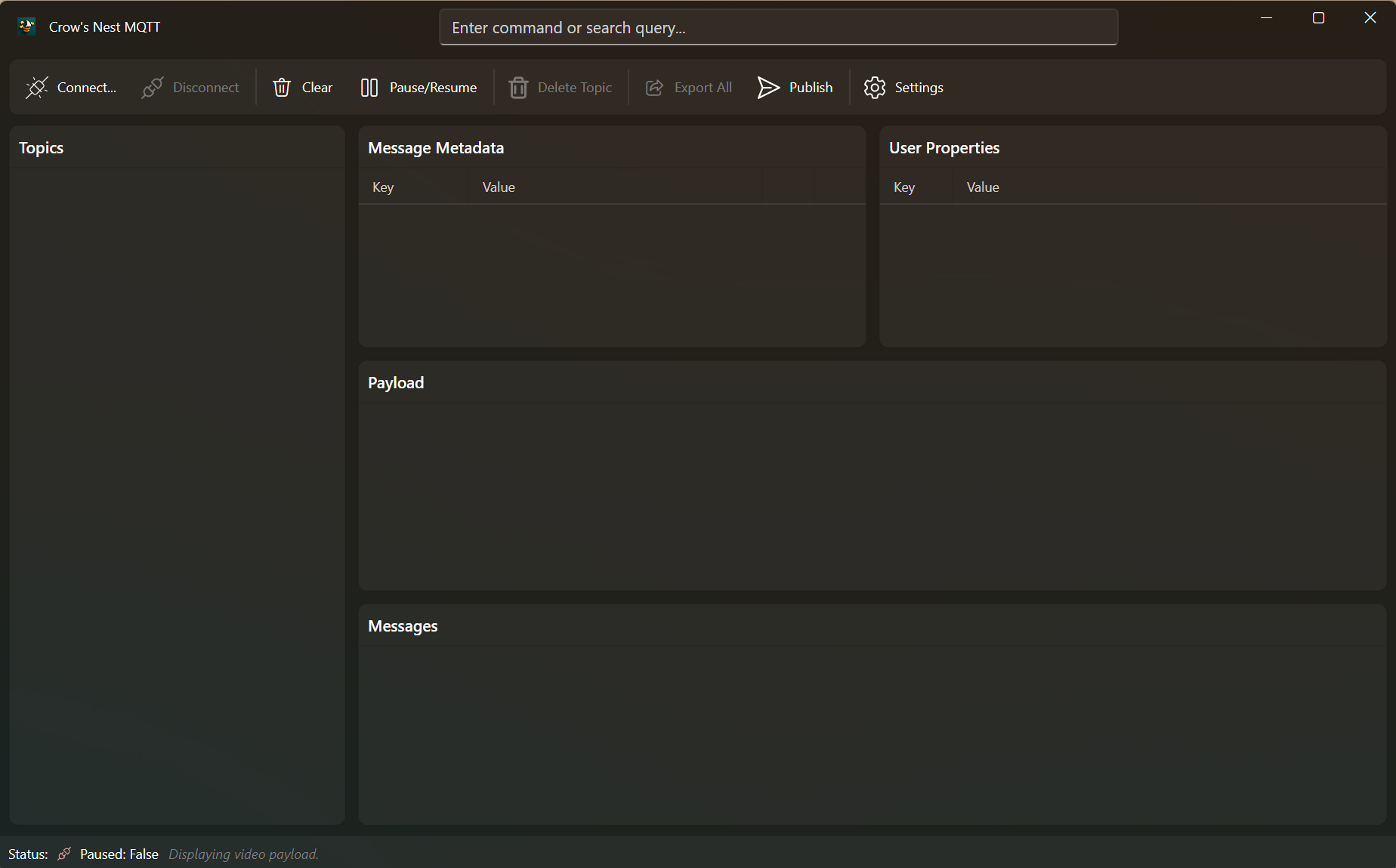
The Crow’s NestMQTT graphical interface is organized into several key areas:
Command Plate
Used to execute commands, as Crow's NestMQTT is designed for developer this is the main interaction mode. For list and description of available commands see Command Interface section.
Command Plate can be selected by Ctrl + Shift + P keyboard shortcut.
Connection dialog
Used to connect Crow's NestMQTT to an MQTT Broker, can be opened/closed by clicking on Connect button or using :connect command.
Settings Dialog
Used to configure Crow's NestMQTT, can be opened/closed by clicking on Gear button or using :settings command.
MQTT Topic Tree
Used to show MQTT topics, where messages are received. Selecting a topic here will set the context for the other panes.
History View
Shows the history of received messages of the selected topic. Including the received time, the size, a small preview and the possibility to copy the whole message. Selecting a message here will set the context for details and metadata panes.
Payload View
Shows the payload of the message selected in history view. Supports rendering of JSON payload or shows payload as text. The default viewer is depending on content-type of the selected Message. The viewer can be switched by using :view raw, :view json, :view image and :view video commands.
Metadata View
Shows all the metadata of the message selected in history view. Including standard metadata like correlation-id, response-topic but also custom metadata like user-properties. When a message has a non-zero message-expiry-interval, the metadata view shows the remaining time or "EXPIRED" status. Expired messages display a yellow warning icon next to the expiry field.
Settings
Connection Settings
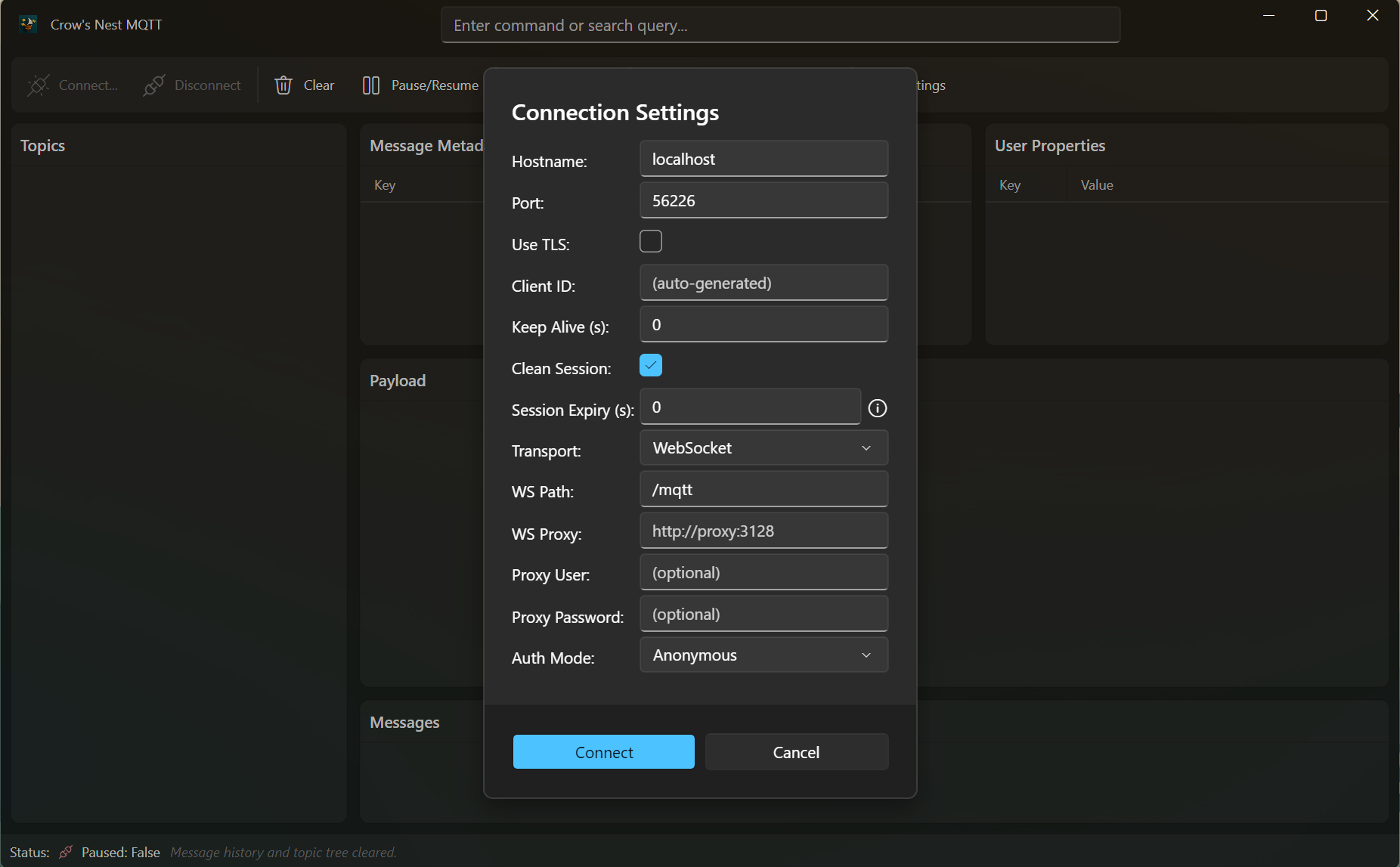
General
Configure how the client connects to your MQTT broker:
- Hostname: The broker address (default:
localhost).
- Port: The broker port (default:
1883).
- Use TLS: Enable to connect to the broker using TLS encryption. If enabled, the client will allow untrusted certificates and ignore certificate chain and revocation errors. You can also set this via the
:setusetls command.
- Transport / WS Path: Select WebSocket transport and configure its broker path (default:
/mqtt).
- WS Proxy / Proxy User / Proxy Password: Optional HTTP(S) forward proxy settings used only for WebSocket transport.
- Client ID: Optional identifier for the client. If left blank, one is generated.
- Keep Alive Interval: Time in seconds between keep-alive pings (default:
60).
- Clean Session: If enabled, the broker does not retain session data after disconnect.
- Session Expiry Interval: How long (in seconds) the broker should retain session state after disconnect (if Clean Session is off).
Authentication
Choose the authentication mode:
- Anonymous: No credentials required.
- Username/Password: Enter credentials for brokers requiring authentication.
- Enhanced: For MQTT 5.0 enhanced authentication, specify:
- Authentication Method (e.g.,
SCRAM-SHA-1, K8S-SAT)
- Authentication Data (method-specific data)
- Azure: For Azure Event Grid namespace MQTT brokers. Uses
Azure.Identity.DefaultAzureCredential (env vars → managed identity → Visual
Studio → az login → interactive browser) to obtain an Entra ID access
token. The token is sent via MQTT v5 enhanced authentication using method
OAUTH2-JWT and is automatically refreshed before it expires without
reconnecting. Selecting Azure auto-enables TLS, port 8883, and TCP
transport. The default OAuth scope is https://eventgrid.azure.net/.default
but can be overridden in the OAuth Scope field.
Application Settings
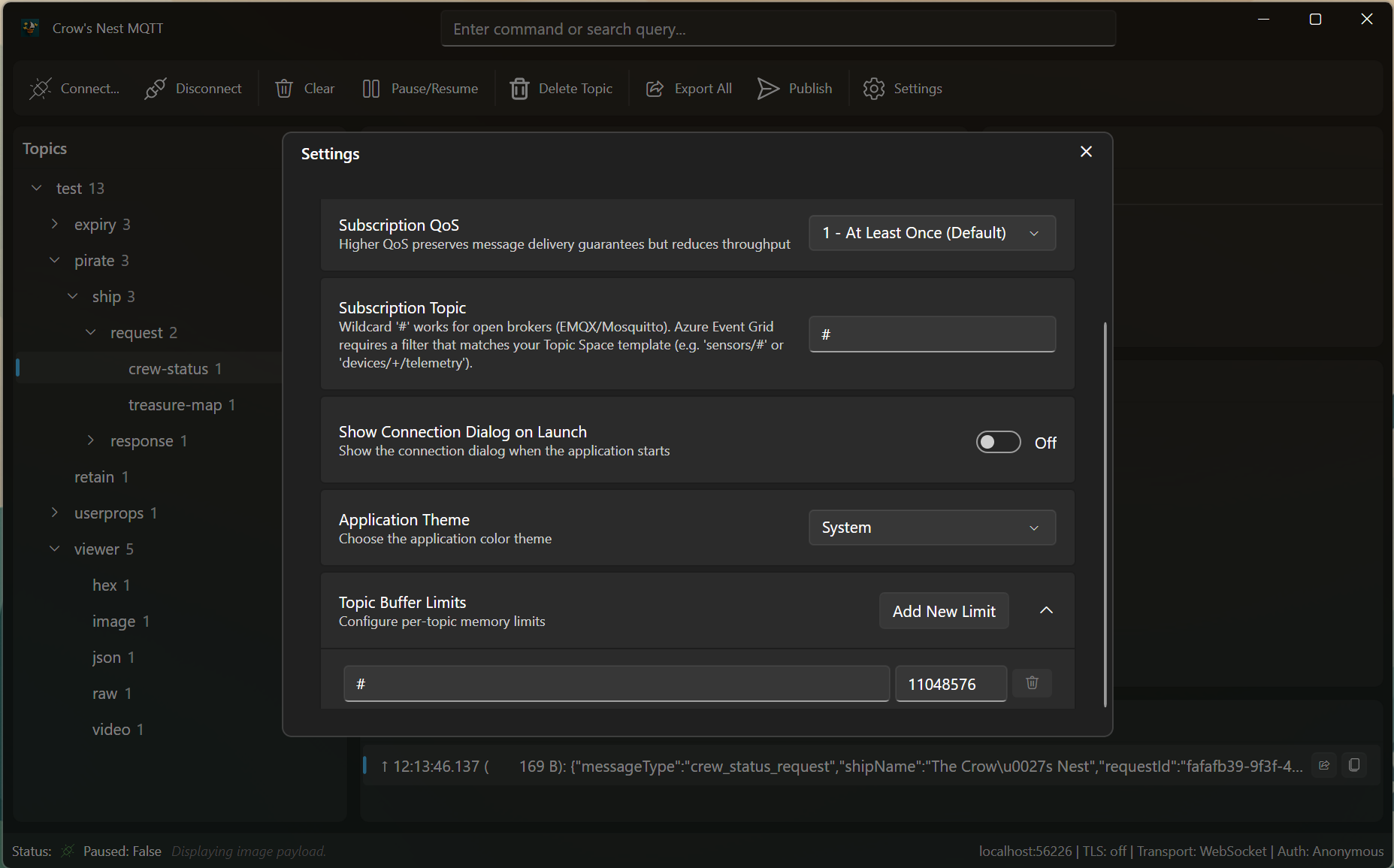
Export Options
Control how and where message logs are exported:
- Export Format: Choose between JSON or plain text.
- Export Path: Directory for exported files.
Message History
- Auto-follow Latest Message: Select each newest message as it arrives so the payload and metadata views follow incoming traffic. Disable it to keep the current message selected.
Topic Buffer Limits
Set per-topic message buffer limits to manage memory usage:
- Topic Filter: MQTT topic or wildcard (e.g.,
# for all topics).
- Max Size (Bytes): Maximum buffer size for each topic.
Viewers
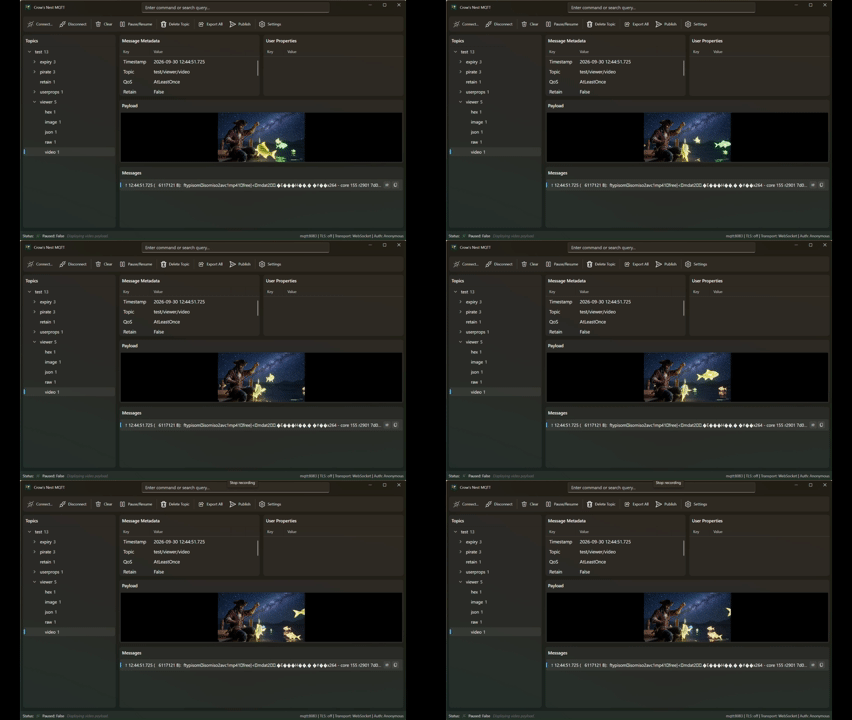
Crow's NestMQTT automatically render content of MQTT message as image when the content-type indicates an image
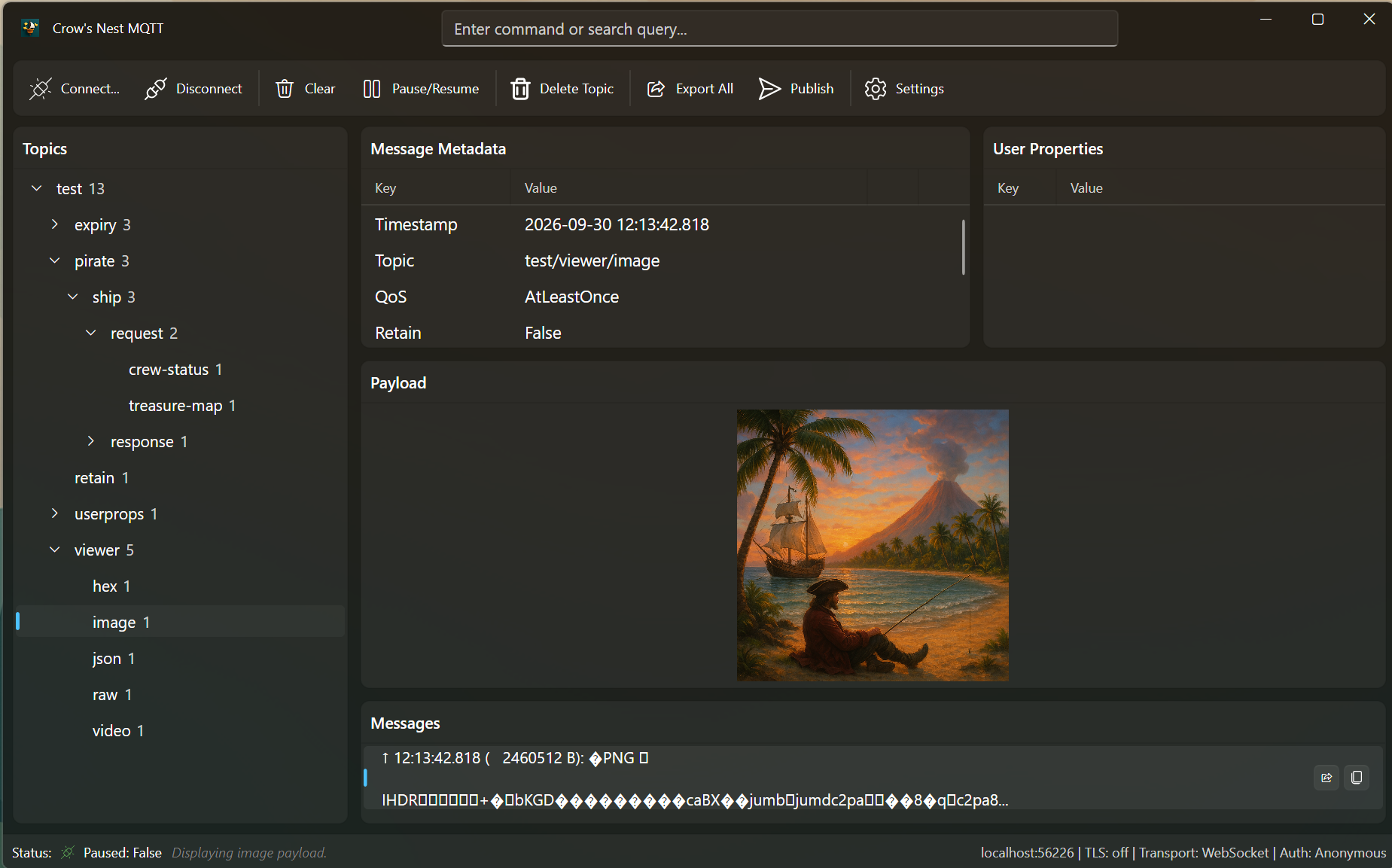
or plays a video when the content-type indicates one
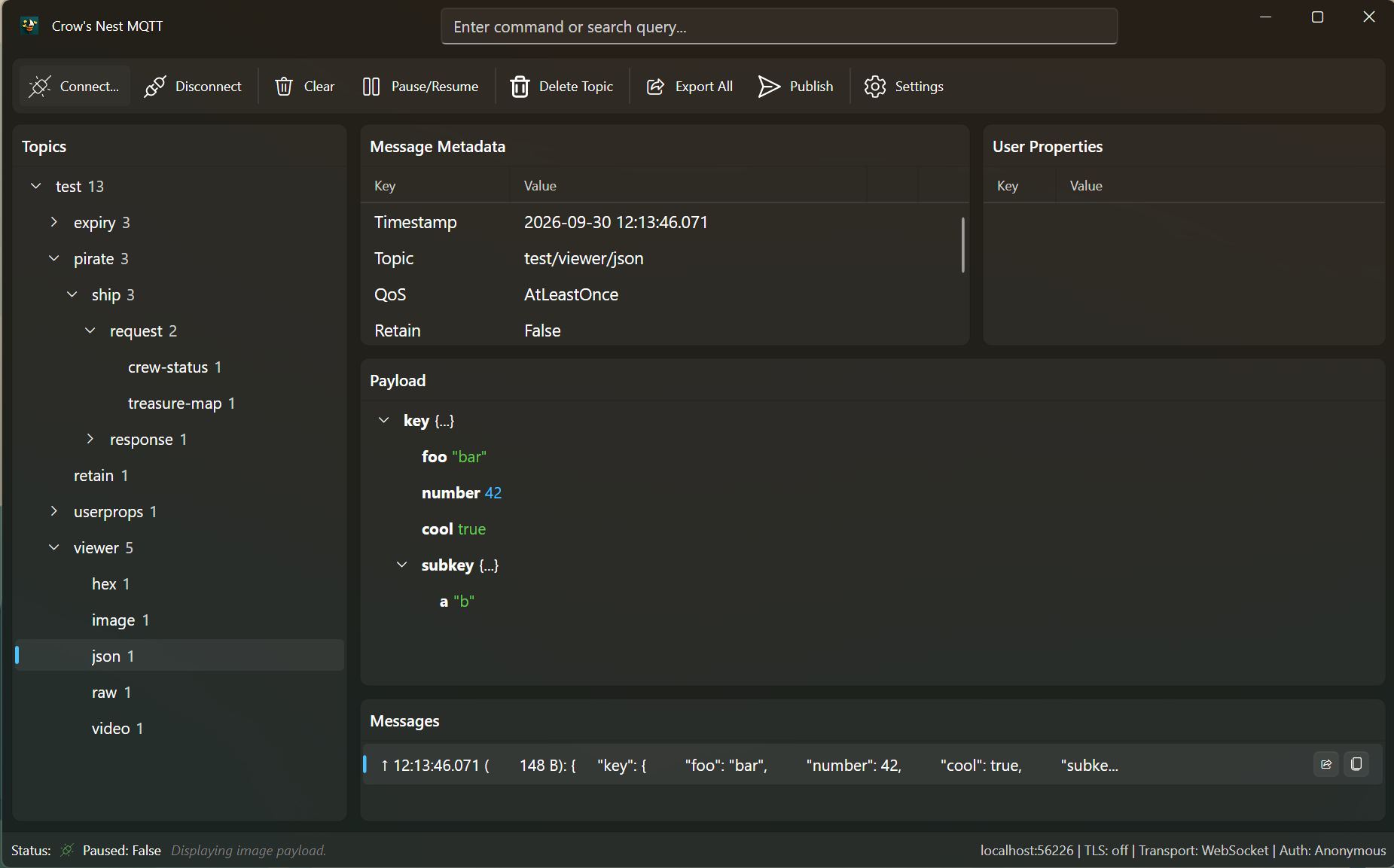
or renders a JSON object when the content-type is set to application/json
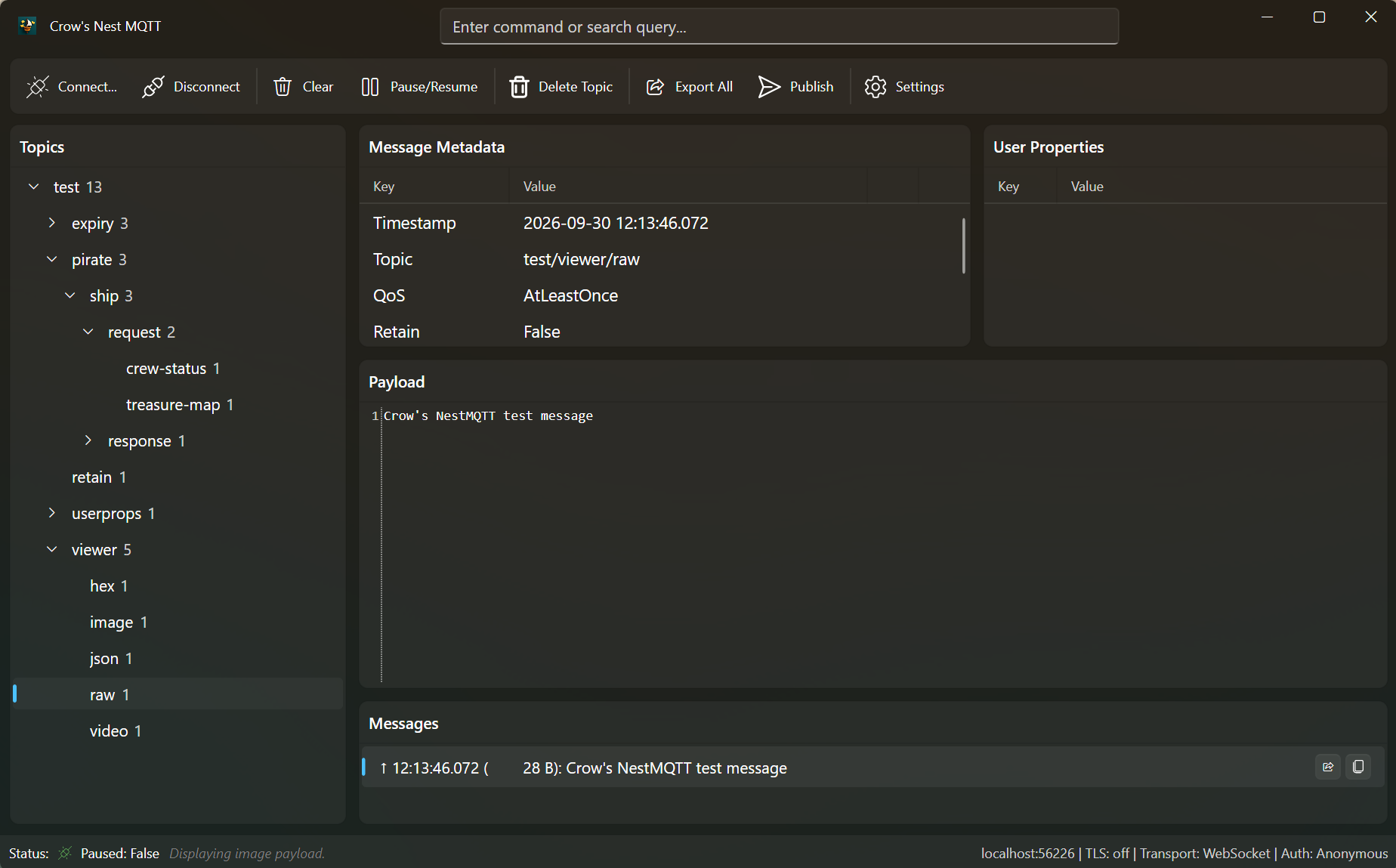
if the special viewer can't be applied the default content viewer is used
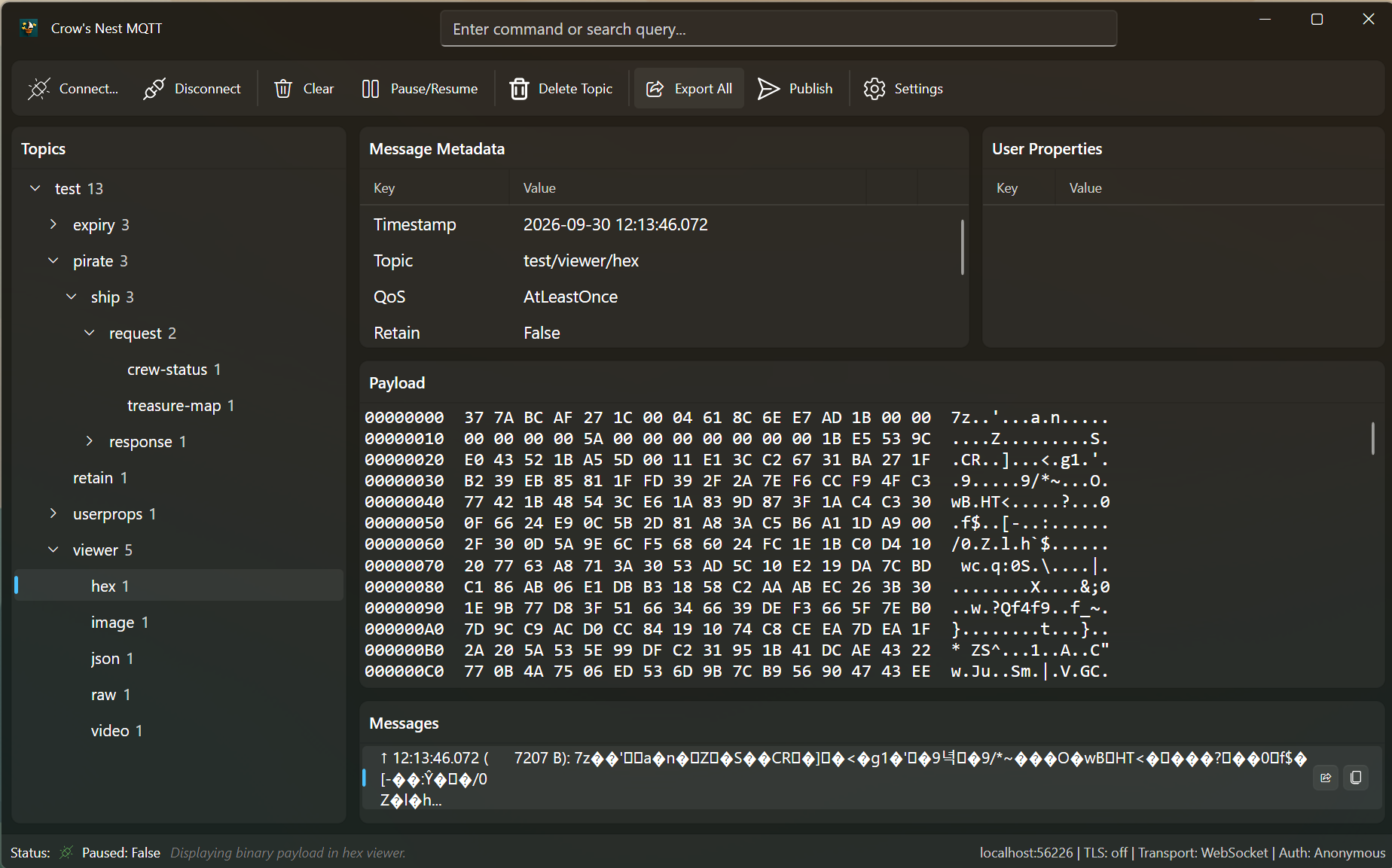
If the content-type indicates binary data (but not image/video), Crow's NestMQTT will automatically show the payload in a read-only hex viewer:
You can switch between viewers for the currently selected MQTT message using the :view command.
Publishing
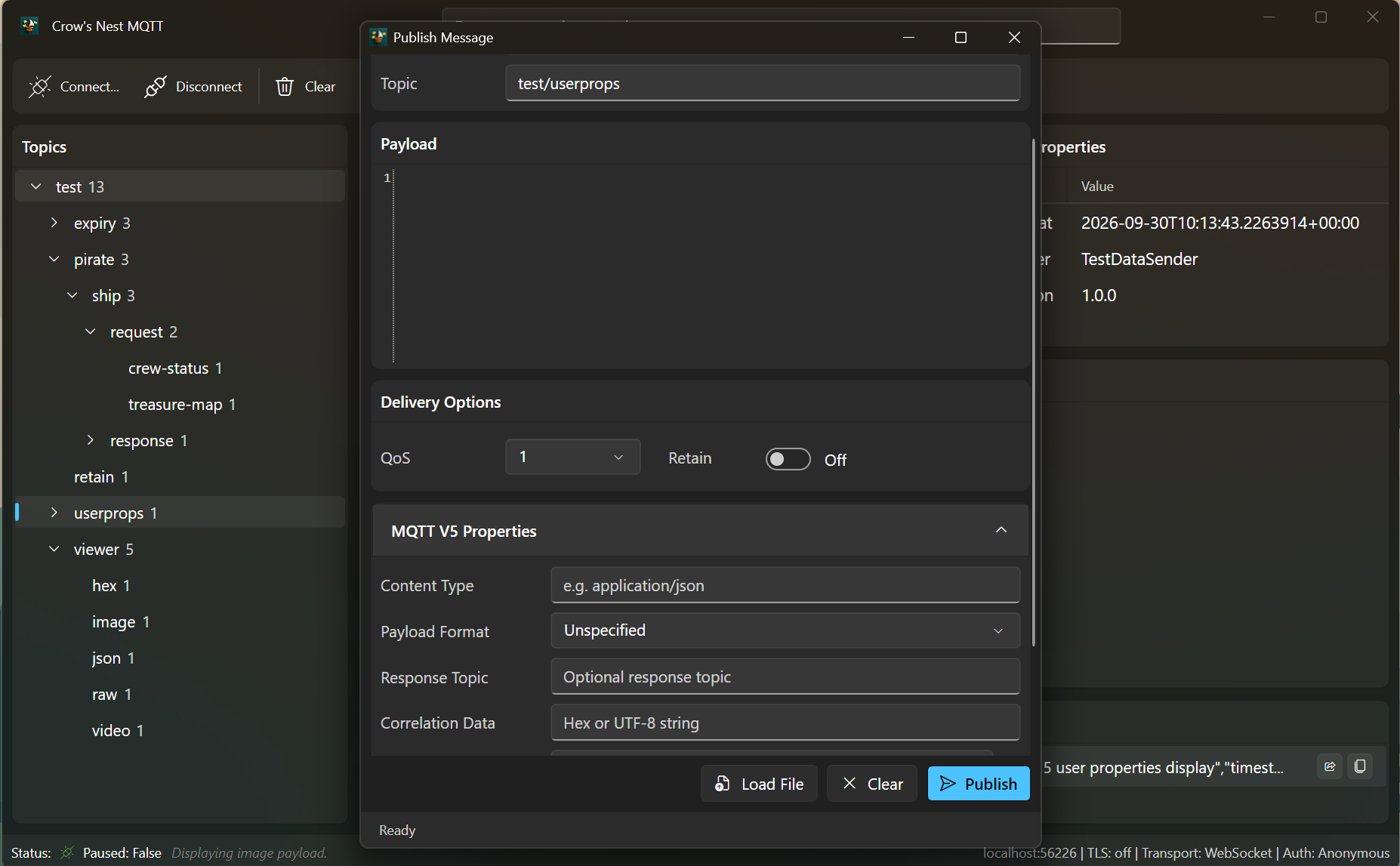
Crow's NestMQTT allows publishing of MQTT messages, the publishing dialog (can be toggled via Ctrl+Shift+M) allows defining the payload, configuring message metadata as well as setting user-properties.
You can also choose to select a file for publishing instead (which will fillout some metadata like content-type automatically). As pirates take everything and give nothing back, all send messages are stored locally to easily send them again.
Other Features
Crow's NestMQTT has some advanced features to make the life of the pirate that sail on the MQTT bit sea easier such as.
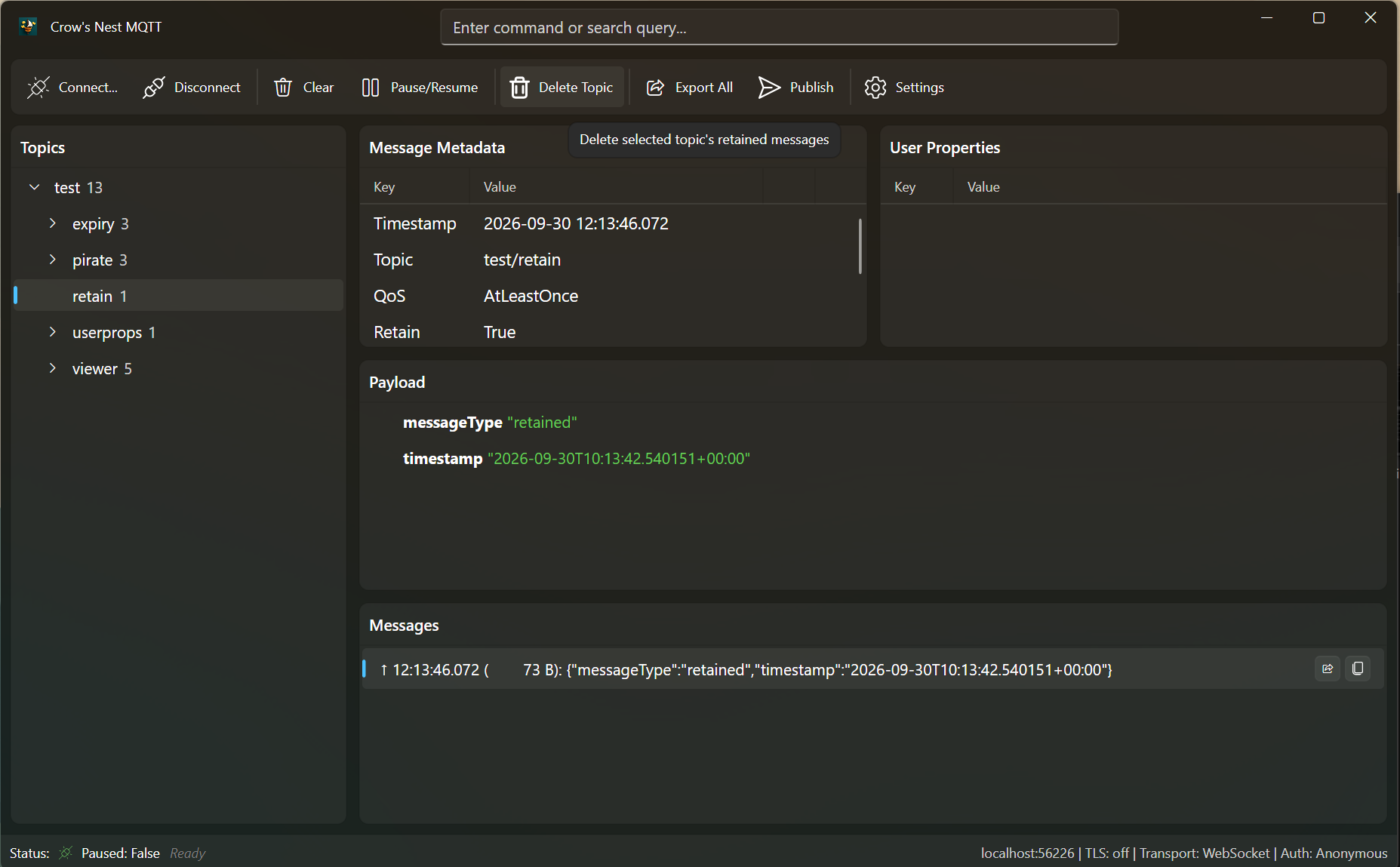
Delete Topics allow remove retain messages from selected topics
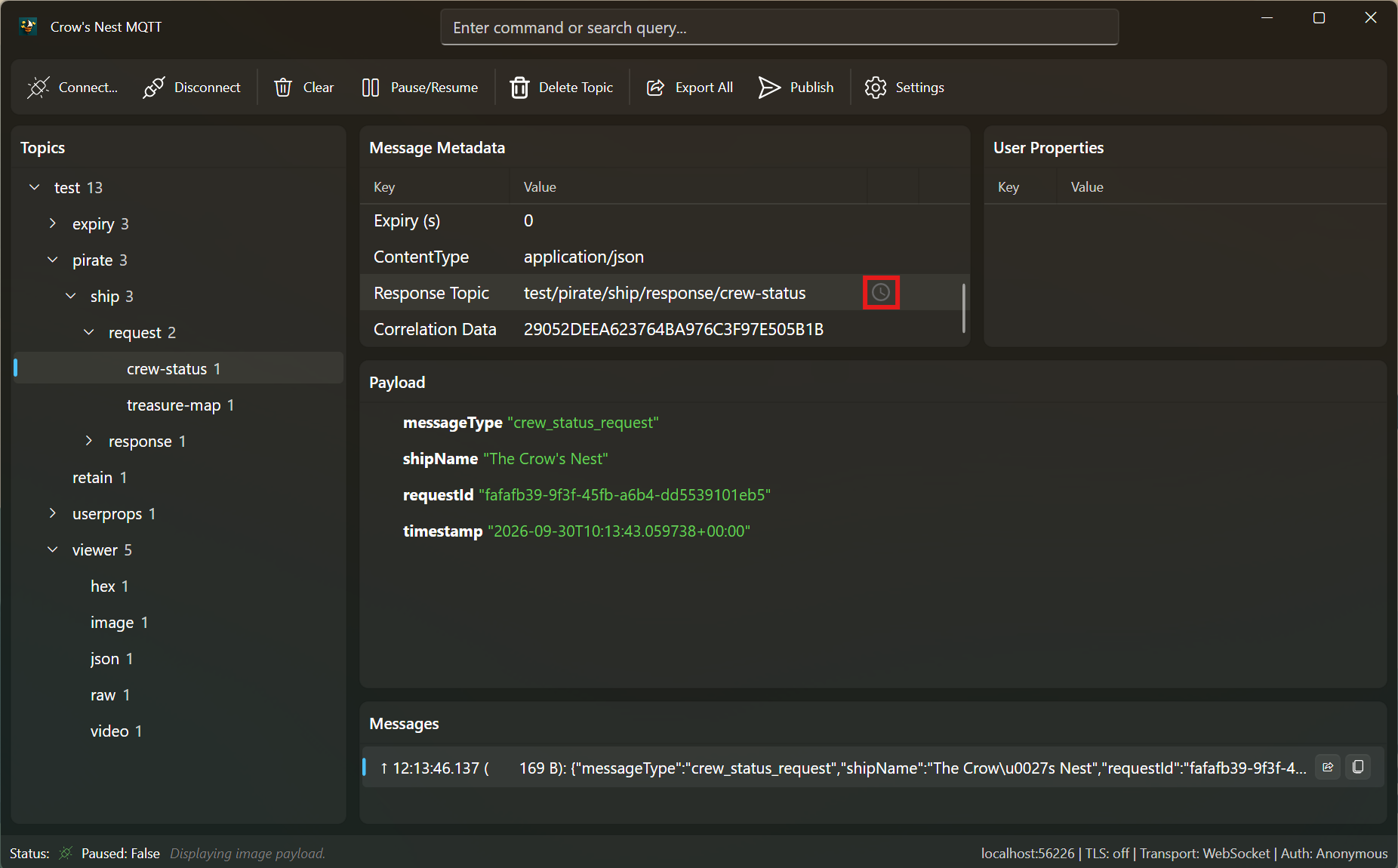
Crow's NestMQTT understand MQTT V5 request/response, each request message shows a small clock icon while waiting for the related response message.
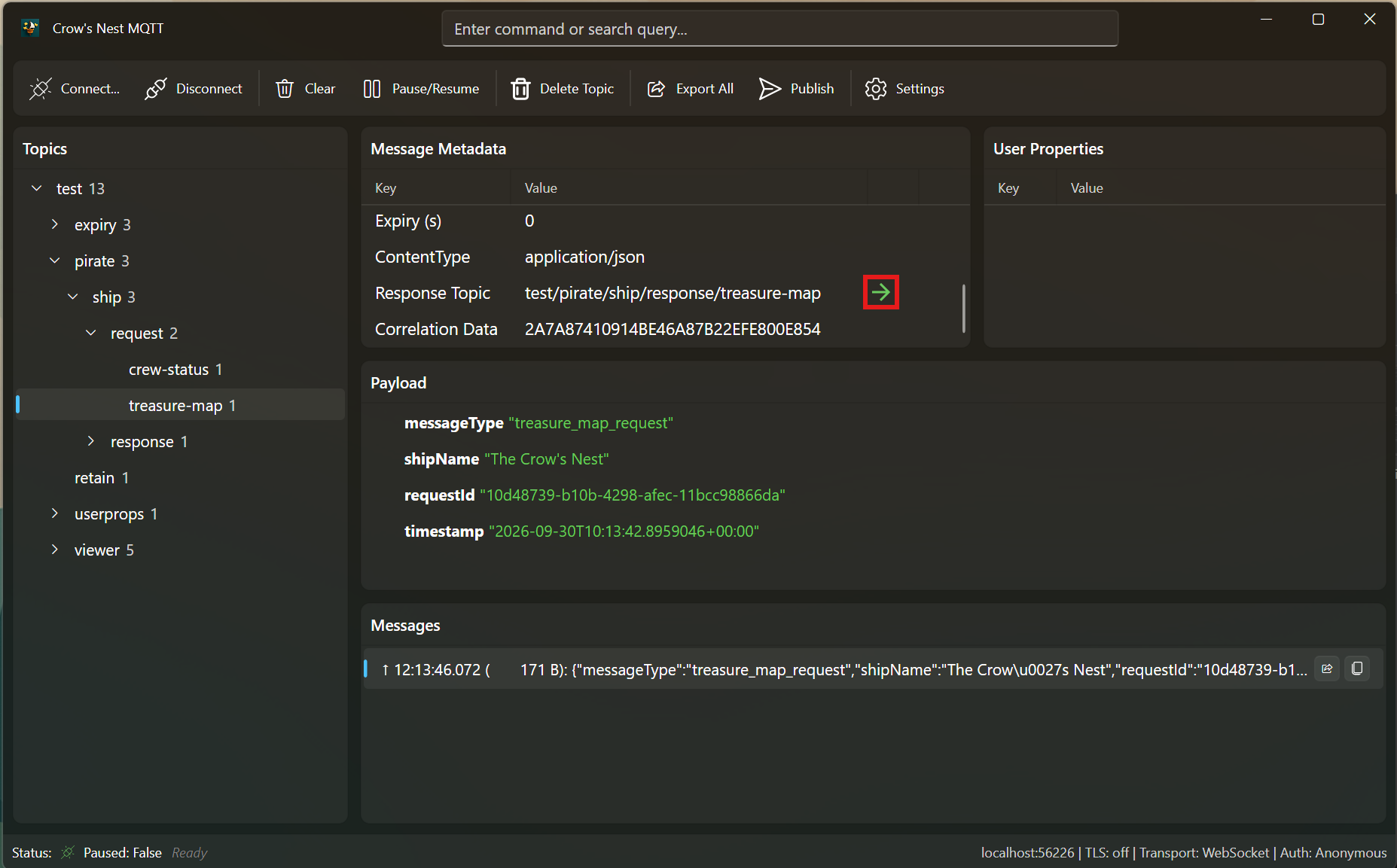
Once the response message is received (first message send to given response topic that has the same correlation data), and clickable arrow icon allows jumping direct to the response.
Messages with MQTT V5 message-expiry-interval are visually marked when they expire: the message history shows them with strikethrough text and dimmed foreground, while the metadata view displays a yellow warning triangle icon next to the expiry field with the "EXPIRED" status.
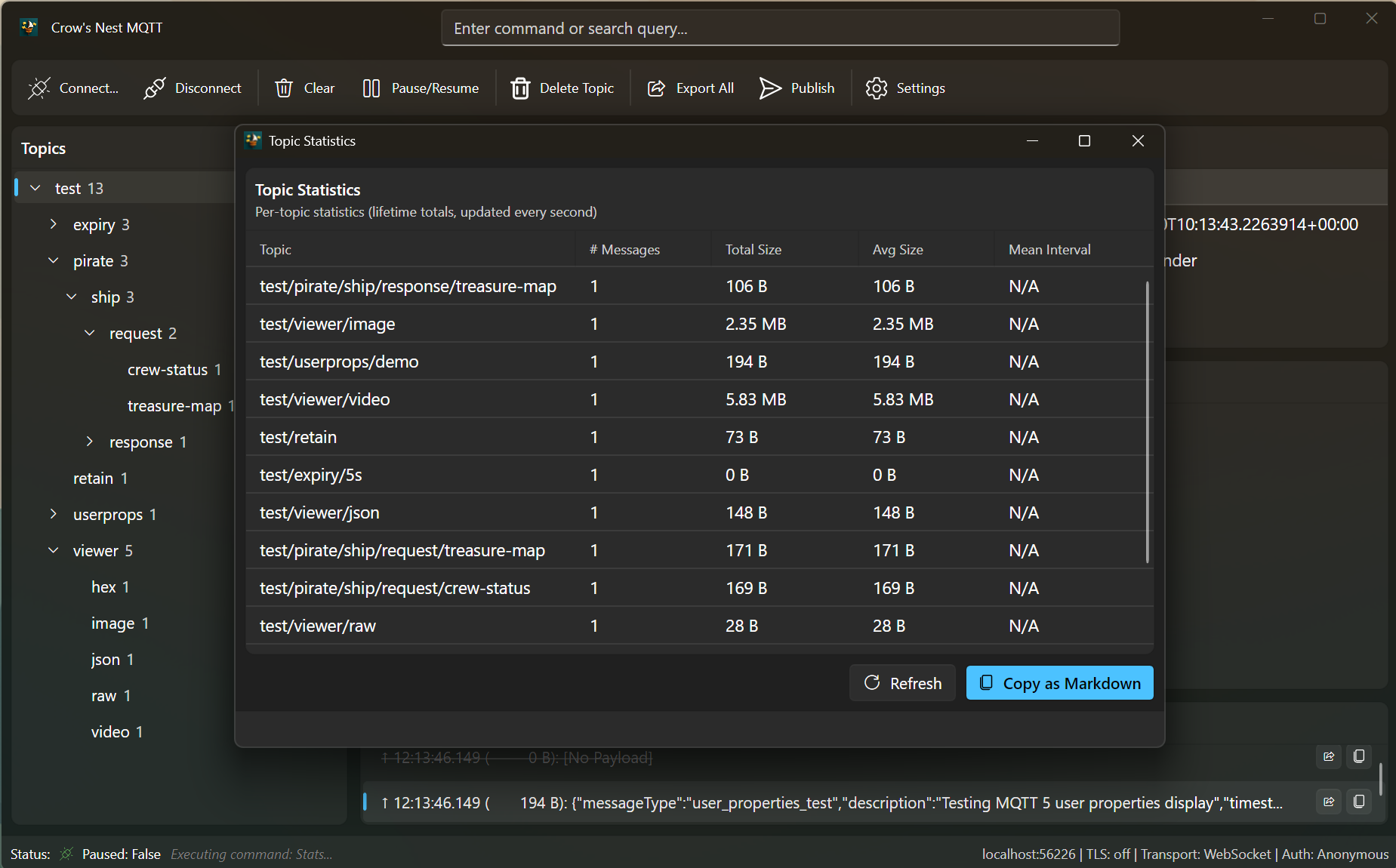
Using the :stats commands opens a non modal dialog, that shows MQTT message statistics per MQTT topic.
Command Interface
Crow's Nest MQTT provides a command interface (likely accessible via a dedicated input field) for quick actions. Commands are typically prefixed with a colon (:). You can quickly access this input field using the Ctrl + Shift + P keyboard shortcut.
:connect [] [] [] - Connect to an MQTT broker. If arguments are omitted, connection details are loaded from settings. Supports WebSocket URIs: :connect ws://host:port/path or :connect wss://host:port/path.:disconnect - Disconnect from the current MQTT broker.:export - Export messages to a file in JSON or plain text format. If arguments are omitted, the path and format are loaded from settings.:export all - Export all messages from the currently selected topic to a single JSON file in the configured export path. The file contains an array of all messages from that topic.:filter [regex_pattern] - Filter messages based on a regex pattern. Clears the filter if no pattern is provided./[search_term] - Search for topics containing the search term (case-insensitive). Use n to navigate to the next match and N (Shift+n) to navigate to the previous match. The topic tree automatically expands to show the selected topic.:clear - Clear all messages from the display.:help [command] - Show information about available commands.:copy - Copy the selected messages to the clipboard.:pause - Pause the display of new messages.:resume - Resume the display of new messages.:expand - Expand all nodes in the topic tree.:collapse - Collapse all nodes in the topic tree.:deletetopic [] - Removes all retain messages to a given topic (and subtopics):gotoresponse - Navigate to the response message for the currently selected MQTT v5 request message (if a response has been received):view - Set the payload view to raw text, formatted JSON tree, image, video, or hex viewer. The hex viewer displays binary payloads in a classic hex+ASCII table.:settings - Toggle the visibility of the settings panel.:setuser - Set the username for MQTT authentication.:setpass - Set the password for MQTT authentication.:setauthmode - Set the authentication mode. Use azure to connect to Azure Event Grid namespaces with Entra ID tokens via DefaultAzureCredential.:setauthmethod - Set the enhanced-auth method name (e.g., SCRAM-SHA-1, K8S-SAT). Applied only when the auth mode is enhanced. Note: this is distinct from :setauthmode; passing anonymous/userpass/enhanced/azure here is rejected because it's a common typo caused by the palette autocomplete.:setauthdata - Set the authentication data for enhanced authentication (method-specific data).:setauthscope - Set the OAuth scope requested when Azure authentication mode is active. Defaults to https://eventgrid.azure.net/.default.:setclientid [] - Set the MQTT Client ID (required for Azure Event Grid, must match a registered Client resource on the namespace). Omit the argument to clear.:setsubscription [] - Set the MQTT topic filter for the client's initial subscription. Defaults to #. Azure Event Grid rejects #; use a filter that matches your Topic Space template (e.g. sensors/#). Omit the argument to reset to #.:azurewhoami - Print the identity (upn, oid, name, appid, tenant) that DefaultAzureCredential will use for Azure Event Grid. Use the values it prints to configure the authenticationName on the Event Grid Client resource.:setusetls - Set whether to use TLS for the MQTT connection. When set to true, the client will connect using TLS, allow untrusted certificates, and ignore certificate errors.:setproxy [ [ []]] - Configure the forward proxy used for WebSocket transport. Omit all arguments to clear it, and reconnect after changing it. A dedicated command is used instead of extending :connect because proxy configuration is transport-level state that should persist across broker reconnects and remain separate from MQTT broker credentials.:publish [topic] [@file|text] - Open the publish window. Optionally pre-fill the topic (defaults to the selected topic) and payload from a file (@path/to/file) or inline text. The publish window is non-modal and supports all MQTT V5 properties.:stats - Open a non-modal window showing per-topic statistics (message count, total payload size, average payload size, mean time between messages) for every topic that has received a message. The counters are lifetime totals — they are not affected by ring-buffer eviction and only reset on :clear. The table is sortable, updates once per second, and can be copied as a GitHub-flavored Markdown table via the Copy as Markdown button (or Ctrl+C).[search_term] - Any text entered without a : prefix is treated as a search term to filter messages.
Keyboard Navigation Shortcuts
Crow's NestMQTT provides vim-inspired keyboard shortcuts for efficient navigation without leaving the keyboard:
Topic Search Navigation
/[search_term] - Search for topics containing the term (case-insensitive). Automatically selects the first match and expands the topic tree to show it.n - Navigate to the next search result. Wraps around to the first match when reaching the end.N (Shift+n) - Navigate to the previous search result. Wraps around to the last match when at the beginning.
The search status is displayed in the status bar showing the current match position (e.g., "Search: 'sensor' (match 2 of 5)").
Message History Navigation
j - Move down to the next message in the history view. Wraps to the first message when at the end.k - Move up to the previous message in the history view. Wraps to the last message when at the beginning.
Other Shortcuts
Ctrl + Shift + P - Open the command palette to quickly access any command.Ctrl + Shift + M - Toggle the publish window.Alt + P - Send/publish message (when publish window is focused).Ctrl + Enter - Alternative send shortcut (when publish window editor is focused).Escape - Close the publish window.
Note: Keyboard shortcuts are automatically disabled when typing in the command palette to prevent interference with normal text input.
Enhanced Authentication
Crow's Nest MQTT supports Enhanced Authentication, as defined in the MQTT 5.0 specification. This allows for more advanced authentication mechanisms, such as Challenge/Response Authentication.
To use Enhanced Authentication, you need to configure the following settings:
AuthenticationMethod: The name of the authentication method (e.g., SCRAM-SHA-1, K8S-SAT).AuthenticationData: The authentication data, which is specific to the chosen authentication method.
You can set the authentication mode to enhanced using the :setauthmode command:
:setauthmode enhanced
:setauthmethod ABC
:setauthdata CAFE
When connecting to a broker with Enhanced Authentication, the client and broker will exchange authentication data until the authentication process is complete.
Azure Event Grid Namespace (OAUTH2-JWT)
Crow's NestMQTT can connect to Azure Event Grid namespace MQTT brokers using Entra ID
(Microsoft Azure Active Directory) tokens. No certificates or shared keys are required —
the client uses Azure.Identity.DefaultAzureCredential to acquire an access token via
the standard Azure credential chain (env vars → managed identity → Visual Studio →
az login → interactive browser).
To connect:
:setauthmode azure
:connect mynamespace.eastus-1.ts.eventgrid.azure.net:8883
:connect automatically detects Azure Event Grid hostnames (suffix
.ts.eventgrid.azure.net) and switches to Azure auth mode if needed. Selecting Azure
auth mode also auto-configures TLS, port 8883, and TCP transport.
Custom OAuth scope: the default scope is https://eventgrid.azure.net/.default.
Override with :setauthscope if your tenant requires a different audience.
Token refresh: Entra ID tokens expire (typically ~1h). Crow's NestMQTT schedules a
proactive refresh 5 minutes before expiry and sends a new token via an MQTT v5 AUTH
packet, so long-running sessions stay connected without reconnect.
Authentication on the client machine:
| Scenario | Recommended setup |
|---|
| Local development | az login |
| CI / containers | AZURE_CLIENT_ID + AZURE_TENANT_ID + AZURE_CLIENT_SECRET env vars (workload identity / service principal) |
| Azure VM / Container App | Use the host's managed identity (no extra config needed) |
Local development / Aspire testing (no Azure required)
The repository ships a MockAzureEventGridBroker project under tools/ that emulates
an Event Grid namespace listener locally: it accepts CONNECT packets whose
AuthenticationMethod is OAUTH2-JWT and whose AuthenticationData is a
well-formed JWT (signatures are not verified). The bundled Aspire host launches
this mock broker alongside a fourth Crow's Nest instance (crows-nest-mqtt-azure)
so you can exercise the full Azure code path with dotnet run --project src/AppHost
without deploying to Azure.
To bypass DefaultAzureCredential and use a hand-issued JWT, set the
CROWSNEST__AZURE_TOKEN_OVERRIDE environment variable to the token string. When
present, AzureAccessTokenProvider returns the override directly and the JWT's
exp claim drives the refresh timer (fallback: 1 hour). The Aspire host wires
this automatically for the fourth instance — you do not need to set it manually
when running the AppHost.
> ⚠️ Do not set CROWSNEST__AZURE_TOKEN_OVERRIDE in production. It short-circuits
> Entra ID entirely and will forward whatever token you provide to the broker.
Automated coverage lives in tests/AppHost.Tests/AzureAuthModeAspireTests.cs:
dotnet test tests/AppHost.Tests/AppHost.Tests.csproj --configuration Release
The tests spawn the mock broker as a child process, connect a real MQTTnet v5
client with OAUTH2-JWT, and assert that: (1) valid tokens are accepted, (2)
CONNECTs without an OAUTH2-JWT method are rejected, and (3) client-initiated
MQTT v5 AUTH re-authentication packets are received by the broker.
Troubleshooting Azure Event Grid connections
If your Azure auth-mode connection is stuck in a reconnect loop with
NotAuthorized in the status bar, work through these three checks in order —
they cover the vast majority of setup issues.
1. Hostname must be the MQTT topic-space FQDN, not the HTTP Data Plane URL.
| ❌ Wrong (HTTP Data Plane) | ✅ Correct (MQTT topic space) |
|---|
https://mynamespace.northeurope-1.eventgrid.azure.net/api/events | mynamespace.northeurope-1.ts.eventgrid.azure.net |
The Azure portal shows both URLs in different blades. For MQTT you need the one
with the .ts. infix, no scheme, and no path. The client auto-corrects
common mistakes: pasting the HTTP URL strips https:// / /api/events and
rewrites the suffix on the fly, showing a status-bar note when it does.
2. Client ID must match a registered client on the namespace.
Azure Event Grid's MQTT broker maps the CONNECT packet's Client ID field to
one of its Client resources (or a Client Authentication Name attribute rule).
An empty / auto-generated GUID will be rejected. Set the Client ID via the
settings pane or :setclientid to the name of your Event Grid client
resource, or to a value that matches your attribute rule.
To figure out which identity to register the client for, run:
:azurewhoami
That command decodes the token DefaultAzureCredential would use and prints
its upn, oid, name, appid, and tenant claims. Register an Event Grid
Client whose Client authentication name matches your oid (Object ID is
the most stable choice) or upn, then set the MQTT Client ID field to that
client's name:
$myOid = az ad signed-in-user show --query id -o tsv
az eventgrid namespace client create `
  --resource-group  `
  --namespace-name  `
  --client-name my-cli-user `
  --authentication-name $myOid `
  --state Enabled
Then in Crow's Nest: :setclientid my-cli-user.
3. The signed-in identity needs an Event Grid RBAC role.
DefaultAzureCredential gets a token for whoever is signed in via az login,
Visual Studio, managed identity, or an AZURE_CLIENT_ID+AZURE_CLIENT_SECRET
env-var pair. That identity must have one of these roles on the namespace or
topic-space:
EventGrid TopicSpaces PublisherEventGrid TopicSpaces Subscriber
Assign the role via az role assignment create or the portal's IAM blade. See
the Event Grid MQTT client auth docs
for details.
4. Subscription filter must fit inside your Topic Space template.
After a successful CONNECT the client fires a single SUBSCRIBE. The default
filter is # (all topics), which is what open brokers like EMQX or Mosquitto
accept. Azure Event Grid always rejects # — the SUBACK carries
NotAuthorized — because the filter has to be matched by a Permission Binding
whose Topic Space template covers it. Set a narrower filter that fits your
namespace's Topic Space:
:setsubscription sensors/#
or a specific topic template like devices/+/telemetry. Then reconnect. The
subscription topic is also visible in the settings pane ("Subscription Topic")
and is persisted to settings.json.
Other gotchas
Keep Alive below ~30 seconds is rejected; the client bumps it to 30
automatically when you switch to Azure mode.Session Expiry below 5 minutes with Clean Session=true causes the session
to expire before the first reconnect; the client bumps it to 3600 automatically.Use TLS must be checked; Event Grid only accepts TLS on port 8883.
dotnet Aspire
Crow's NestMQTT automatically connects to the MQTT Broker endpoint defined via dotnet Aspire environment variables. It supports both services__mqtt__mqtt__0 and services__mqtt__default__0 naming conventions. The endpoint URI scheme determines the transport protocol:
mqtt://localhost:1883 → TCP connectionws://localhost:8083/mqtt → WebSocket connectionwss://localhost:8084/mqtt → Secure WebSocket connection (TLS)
When an Aspire endpoint environment variable is detected, the application:
- Parses the hostname and port from the URI
- Overrides the corresponding settings
- Automatically connects to the broker on startup
- Persists the overridden values to
settings.json so other tools can use them
The repository AppHost also starts an ubuntu/squid forward proxy and a
crows-nest-mqtt-ws-proxy application instance. That instance connects to the
EMQX WebSocket listener through Squid, so proxy behavior can be exercised from
the Aspire dashboard without additional setup. The AppHost mounts
src/AppHost/squid/crowsnest.conf, which permits HTTP CONNECT tunneling to the
EMQX WebSocket listener on port 8083.
  // ...
  var mqttViewerWorkingDirectory = @"S:\upertools\CrowsNestMqtt";
  builder
      .AddExecutable("mqtt-client", Path.Combine(mqttViewerWorkingDirectory, "CrowsNestMqtt.App.exe"), mqttViewerWorkingDirectory)
      .WithReference(mqttBrokerEndpoint)
      .WaitFor(mqttBroker);
Environment Variable Configuration
All settings can be configured via environment variables using the CROWSNEST__ prefix. When environment variable overrides are detected, they are applied on top of file-based settings and persisted to settings.json so other tools (e.g., SendTestData.ps1) can use the same configuration.
This is useful for:
- Running from dotnet Aspire (settings won't be overwritten)
- Running integration tests with specific configuration
- CI/CD environments
- Docker containers
Available Environment Variables
| Variable | Description | Type | Example |
|---|
services__mqtt__mqtt__0 | Aspire MQTT endpoint (triggers auto-connect) | URI | mqtt://localhost:1883 |
services__mqtt__default__0 | Aspire MQTT endpoint (alternative name) | URI | mqtt://broker:8883 |
CROWSNEST__HOSTNAME | MQTT broker hostname | string | mqtt.example.com |
CROWSNEST__PORT | MQTT broker port | int | 8883 |
CROWSNEST__CLIENT_ID | MQTT client ID | string | my-client |
CROWSNEST__KEEP_ALIVE_SECONDS | Keep-alive interval in seconds | int | 30 |
CROWSNEST__CLEAN_SESSION | Whether to use clean session | bool | true |
CROWSNEST__SESSION_EXPIRY_SECONDS | Session expiry interval | uint | 300 |
CROWSNEST__AUTH_MODE | Authentication mode | enum | anonymous, userpass, enhanced, azure |
CROWSNEST__AUTH_USERNAME | Username (when AUTH_MODE=userpass) | string | myuser |
CROWSNEST__AUTH_PASSWORD | Password (when AUTH_MODE=userpass) | string | mypass |
CROWSNEST__AUTH_METHOD | Enhanced auth method (when AUTH_MODE=enhanced) | string | SCRAM-SHA-1 |
CROWSNEST__AUTH_DATA | Enhanced auth data (when AUTH_MODE=enhanced) | string | |
CROWSNEST__AUTH_SCOPE | OAuth scope (when AUTH_MODE=azure) | string | https://eventgrid.azure.net/.default |
CROWSNEST__USE_TLS | Enable TLS encryption | bool | true |
CROWSNEST__TRANSPORT | Transport protocol | enum | Tcp, WebSocket |
CROWSNEST__WEBSOCKET_PATH | WebSocket path (when TRANSPORT=WebSocket) | string | /mqtt |
CROWSNEST__WEBSOCKET_PROXY_ADDRESS | HTTP(S) forward proxy used for WebSocket transport | URI | http://proxy.example.com:3128 |
CROWSNEST__WEBSOCKET_PROXY_USERNAME | Optional proxy username | string | proxy-user |
CROWSNEST__WEBSOCKET_PROXY_PASSWORD | Optional proxy password | string | proxy-password |
CROWSNEST__SUBSCRIPTION_QOS | Subscription QoS level (0, 1, or 2) | int | 1 |
CROWSNEST__EXPORT_FORMAT | Default export format | enum | json, txt |
CROWSNEST__EXPORT_PATH | Default export file path | string | /tmp/exports |
CROWSNEST__MAX_TOPIC_LIMIT | Max topics for delete operations | int | 500 |
CROWSNEST__PARALLELISM_DEGREE | Parallelism for batch operations | int | 4 |
CROWSNEST__TIMEOUT_SECONDS | Operation timeout in seconds | int | 5 |
CROWSNEST__DEFAULT_BUFFER_SIZE_BYTES | Default per-topic buffer size | long | 1048576 |
CROWSNEST__TOPIC_BUFFER_LIMITS | Per-topic buffer limits (JSON array) | JSON | [{"TopicFilter":"#","MaxSizeBytes":2097152}] |
Priority
CROWSNEST__HOSTNAME / CROWSNEST__PORT take highest priority for connection settings- Aspire endpoint env vars (
services__mqtt__mqtt__0, services__mqtt__default__0) are used as fallback for hostname/port
- File-based
settings.json is the lowest priority (used when no env vars are set)
Example: Aspire Integration
# Set by Aspire automatically:
services__mqtt__mqtt__0=mqtt://localhost:41883

# Or for WebSocket transport:
services__mqtt__default__0=ws://localhost:8083/mqtt
Example: WebSocket Configuration
# Connect via WebSocket
export CROWSNEST__HOSTNAME=broker.example.com
export CROWSNEST__PORT=8083
export CROWSNEST__TRANSPORT=WebSocket
export CROWSNEST__WEBSOCKET_PATH=/mqtt

# Or via secure WebSocket
export CROWSNEST__HOSTNAME=broker.example.com
export CROWSNEST__PORT=8084
export CROWSNEST__TRANSPORT=WebSocket
export CROWSNEST__USE_TLS=true
export CROWSNEST__WEBSOCKET_PATH=/mqtt
Example: WebSocket Through a Forward Proxy
export CROWSNEST__HOSTNAME=broker.example.com
export CROWSNEST__PORT=8083
export CROWSNEST__TRANSPORT=WebSocket
export CROWSNEST__WEBSOCKET_PATH=/mqtt
export CROWSNEST__WEBSOCKET_PROXY_ADDRESS=http://proxy.example.com:3128

# Optional proxy authentication:
export CROWSNEST__WEBSOCKET_PROXY_USERNAME=proxy-user
export CROWSNEST__WEBSOCKET_PROXY_PASSWORD=proxy-password
Example: Manual Configuration
# Override all connection settings
export CROWSNEST__HOSTNAME=mqtt.production.com
export CROWSNEST__PORT=8883
export CROWSNEST__USE_TLS=true
export CROWSNEST__AUTH_MODE=userpass
export CROWSNEST__AUTH_USERNAME=svc-account
export CROWSNEST__AUTH_PASSWORD=secret
export CROWSNEST__CLIENT_ID=monitoring-client
export CROWSNEST__KEEP_ALIVE_SECONDS=60
Scripts
The tools/ directory contains utility scripts for working with exported MQTT data.
A PowerShell script that extracts and formats the Payload property from exported JSON files.
Purpose:
When messages are exported using :export all, each file contains the complete MQTT message structure including metadata. The payload itself is stored as a JSON string within the Payload property. This script parses each exported JSON file, extracts the payload, and saves it as a properly formatted, readable JSON file.
Usage:
cd tools
.\extract-payloads.ps1
Behavior:
- Processes all
*.json files in the script's directory
- Skips files that have already been extracted (files ending with
_extracted.json)
- For each file with a
Payload property, creates a new file named _extracted.json
- The extracted JSON is properly indented for readability
- Files without a
Payload property are skipped with a warning
Example:
If you have an exported file sensor_temperature.json containing:
{
  "Topic": "sensor/temperature",
  "Payload": "{\"value\":23.5,\"unit\":\"celsius\"}",
  "ContentType": "application/json"
}
Running the script creates sensor_temperature_extracted.json with:
{
  "value": 23.5,
  "unit": "celsius"
}