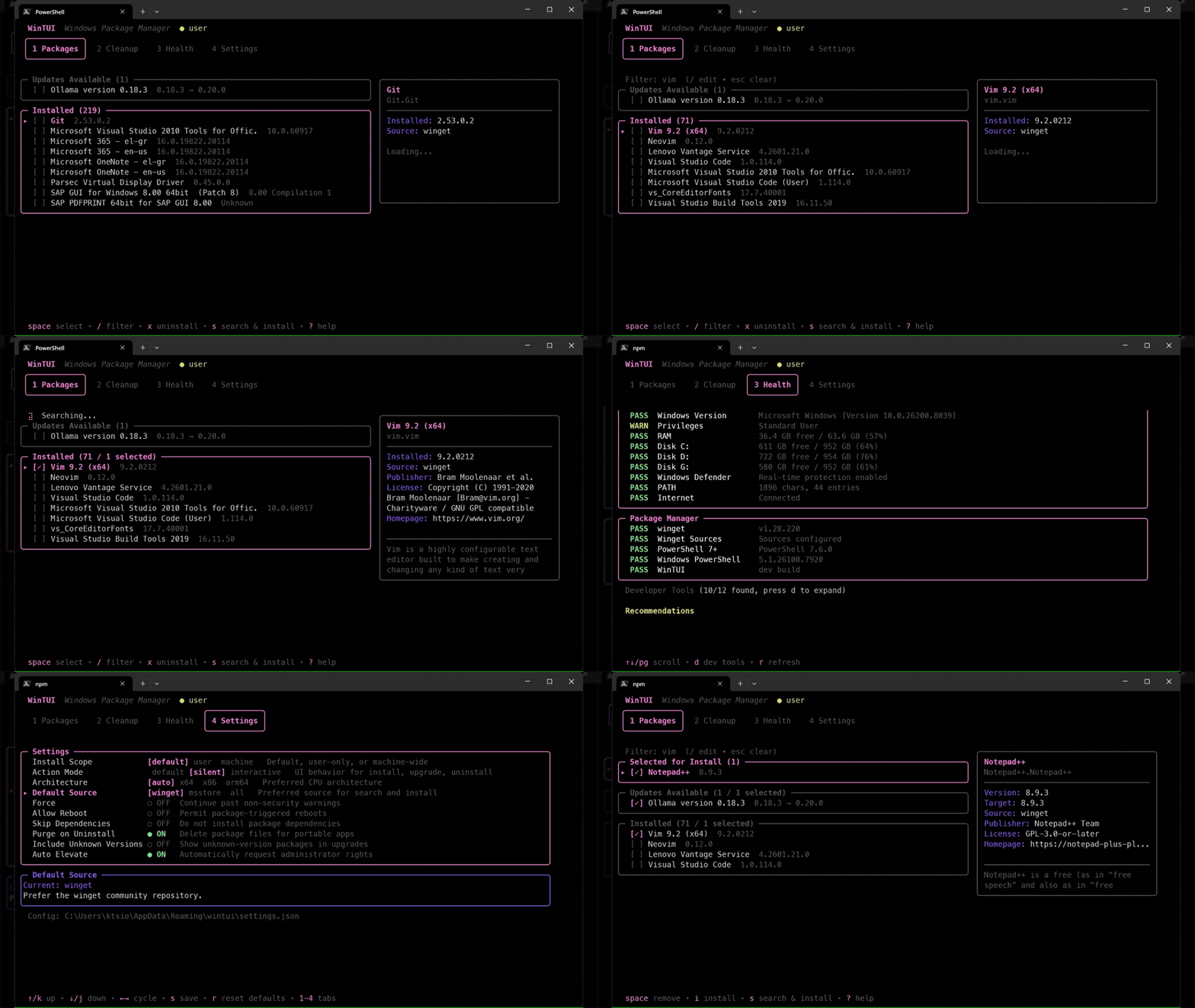
WinTUI is a terminal user interface for Windows Package Manager featuring a split-panel workspace for browsing, searching, installing, upgrading, and managing packages. Includes disk-persistent cache for instant startup, background refresh, integrated search with install queue, batch operations with a single UAC prompt, per-package rules and ignore filters, live command preview, system health checks, registry-driven cleanup tab with per-target sizing and elevated-helper integration, package list export and import for moving installs across machines, and a headless CLI mode for scripting.
README
WinTUI
A terminal user interface for winget (Windows Package Manager), built with Go and the Charmbracelet TUI libraries.
Browse, search, install, upgrade, and manage Windows packages without leaving the terminal.
WinTUI features a split-panel workspace, batch operations with a single UAC prompt, and a headless CLI mode for scripting.
Install
Requirements: Windows 10/11 with winget installed.
winget install kts982.WinTUI
Or install manually:
# Run a release binary
.\wintui.exe

# Or build/install with Go 1.26+
go install github.com/kts982/wintui@latest

# Or clone and build from source
git clone https://github.com/kts982/wintui.git
cd wintui
go build -o wintui.exe .
Pre-built binaries are available on GitHub Releases — both .exe and .zip for Windows amd64 and arm64:
Split-panel layout — package list on the left, detail summary on the right
Bordered sections — Updates Available, Installed, Search Results, and Install Queue with package counts and active focus highlighting
Normalized package actions — press Space to stage the focused package, g to apply staged changes, or use i / u / x for direct install, upgrade, and uninstall accelerators
Search & Install — press s to search the winget catalog, Space to queue packages, i to install the focused result or the full install queue
Upgrade / Uninstall — stage packages across sections, then apply them together, or use u / x on the focused package or current selection
Export / Import — press e to drop the installed package list as a dated JSON on your Desktop, or Shift+I to open the import overlay (scans Desktop / home / cwd for export files, lets you toggle which entries to install). The same flow is also headless via wintui export and wintui import
Package Details — press Enter or → for a full detail overlay with version picker (v), homepage (o), release notes (n when available), Auto/Ask/Hold package policy, a live command preview showing exactly what winget will run (including per-package overrides), and scrollable metadata
Batch Execution Modal — review selected packages, press ? to preview the exact winget command for each one, watch live progress with per-package spinners and the most recent winget output line, view compact results with Ctrl+E retry (elevated when needed, plain retry for process-in-use failures)
Version Selection — pick a specific version to install or upgrade to from the detail panel
Self-upgrade handoff — WinTUI can check for its own winget update before launch and close so a local handoff script can run winget upgrade kts982.WinTUI after the current process exits
Headless CLI — wintui check, wintui list, wintui show , wintui upgrade --all, wintui upgrade --auto, wintui upgrade --id , and wintui doctor (verdict-first readiness check) for scripts, Task Scheduler, or CI without launching the TUI; --json works on check, list, show, and doctor
System Utilities
Health Tab — slim WinTUI / winget readiness panel: WinTUI version + path, winget version, source freshness, cached upgrade counts (visible / auto / held + cache age), privileges + Auto Elevate context, system drive free space, and a neutral Settings summary line. Loads instantly — no fresh winget calls or disk scans
wintui doctor — verdict-first headless health (OK / WARN: N issues / FAIL: N issues, exit 0/1/2). --verbose adds the per-row table; --full re-adds verbose system diagnostics (RAM, Defender, drives, ping, Windows PowerShell); --dev-tools appends a developer-tools detection group; --json emits structured output for scripts
Toast notifications — opt-in (off by default). When enabled, fires a single Windows toast on TUI batch finish, on wintui upgrade --auto/--all finish, and when wintui check finds updates. AUMID-attributed as "WinTUI" via a one-time Start Menu shortcut drop on first toast
Cleanup tab — registry-driven multi-target cleanup with grouped panels (Core Temp, Caches, Developer caches, GPU shader caches, WinTUI self-update scratch), per-target sizing, age-aware scrubbing, and an elevated helper for admin-only paths (%WINDIR%\Temp, system minidumps). Configurable auto-scan policy (safe / all / off); developer caches default to off and opt-in toggles persist across sessions
Ctrl+E elevated retry on the result modal when auto-elevate is off
Responsive layout — detail panel hides on narrow terminals, compact header on small screens
Usage
.\wintui.exe
> Tip: Some operations require administrator privileges. The subtitle bar shows ● admin / ● user status. Enable Silent mode + Auto Elevate in Settings for hands-off elevated operations, or press Ctrl+E on the result modal when a package fails. WinTUI's own update is handled by closing WinTUI and letting winget replace the released binary; after the handoff finishes, start wintui again manually.
Headless CLI
# Human-readable upgrade check (honors per-package update policy)
wintui check

# Exit code 1 when visible updates are available
wintui check ; if ($LASTEXITCODE -eq 1) { "Updates available" }

# Machine-readable output
wintui check --json
wintui list --json > packages.json

# Inspect what WinTUI would pass to winget for a given package
wintui show Mozilla.Firefox --json

# Upgrade everything that is not held
wintui upgrade --all

# Upgrade only packages marked Auto
wintui upgrade --auto

# Upgrade specific packages by ID (repeatable; pipe-friendly)
wintui upgrade --id Mozilla.Firefox --id Microsoft.VisualStudioCode

# Export and re-import package lists across machines
wintui export --output packages.json
wintui import packages.json --dry-run     # preview before installing
wintui import packages.json               # install the safe subset
The old root flags --check and --list have been removed; use
wintui check and wintui list. WinTUI itself is not upgraded by
headless upgrade commands; the running binary is skipped with a hint
pointing at the TUI startup self-update handoff.
Cycle focused winget/msstore package update policy: Ask → Auto → Hold
i
Install queued packages or focused search result
a
Stage all available updates
v
Pick version (in detail view)
c
Reset to latest version (in detail view)
o
Open homepage (in detail view)
n
Open release notes URL (in detail view, when available)
p
Open per-package rules editor (detail view or list)
i
Toggle ignore on the focused package (in detail view)
?
Expand winget command preview for each item (in batch confirm modal)
r
Refresh package data
Ctrl+E
Retry failed packages (result modal) — elevated retry for permission failures, plain retry for items blocked by a running process
?
Toggle full help panel
Global
Key
Action
1-4
Switch tabs
Tab / Shift+Tab
Cycle tabs
q
Quit
Settings
Configurable from the Settings tab, stored in %APPDATA%\wintui\settings.json:
Setting
Options
Install Scope
user / machine / auto
Action Mode
auto / silent / interactive
Architecture
x64 / x86 / arm64 / auto
Default Source
winget / msstore / auto
Force
skip non-security issues
Allow Reboot
permit reboots during install
Skip Dependencies
don't process dependencies
Purge on Uninstall
delete all package files
Include Unknown Versions
show packages with unknown versions
Auto Elevate
automatically request admin rights
WinTUI Auto Update
check for and apply WinTUI's own update before launch
Toast Notifications
Windows toast on TUI batch finish, scheduled wintui upgrade --auto/--all, and wintui check finding updates (off by default)
Action Mode: Silent + Auto Elevate runs all install/upgrade/uninstall operations through the elevated helper upfront, avoiding UAC popups from installers that elevate themselves.
Auto Elevate (without silent mode) retries automatically on hard permission errors. When a batch finishes with failures, the result modal offers Ctrl+E to retry only the failed elevation-candidate packages.
Per-Package Rules
Any of the settings above can be overridden for a specific package, and winget/msstore-managed packages can be marked Ask, Auto, or Hold for updates. Press t from the package list to cycle the focused package through Ask → Auto → Hold, or open a package's detail view and press p for the full rules editor.
Supported rules: update_policy, scope, architecture, elevate, ignore, ignore_version. Auto and Hold packages show [AUTO] / [HOLD] badges in the package list. Held packages are omitted from normal upgrade actions with an (N held) count on the section header.
For the full rule reference and behavior details, see Per-package rules.