SysManager for Windows
One portable app for keeping a Windows PC healthy — 60 tabs of network diagnostics, cleanup, privacy
controls, app updates and hardware health, with no telemetry and no account.
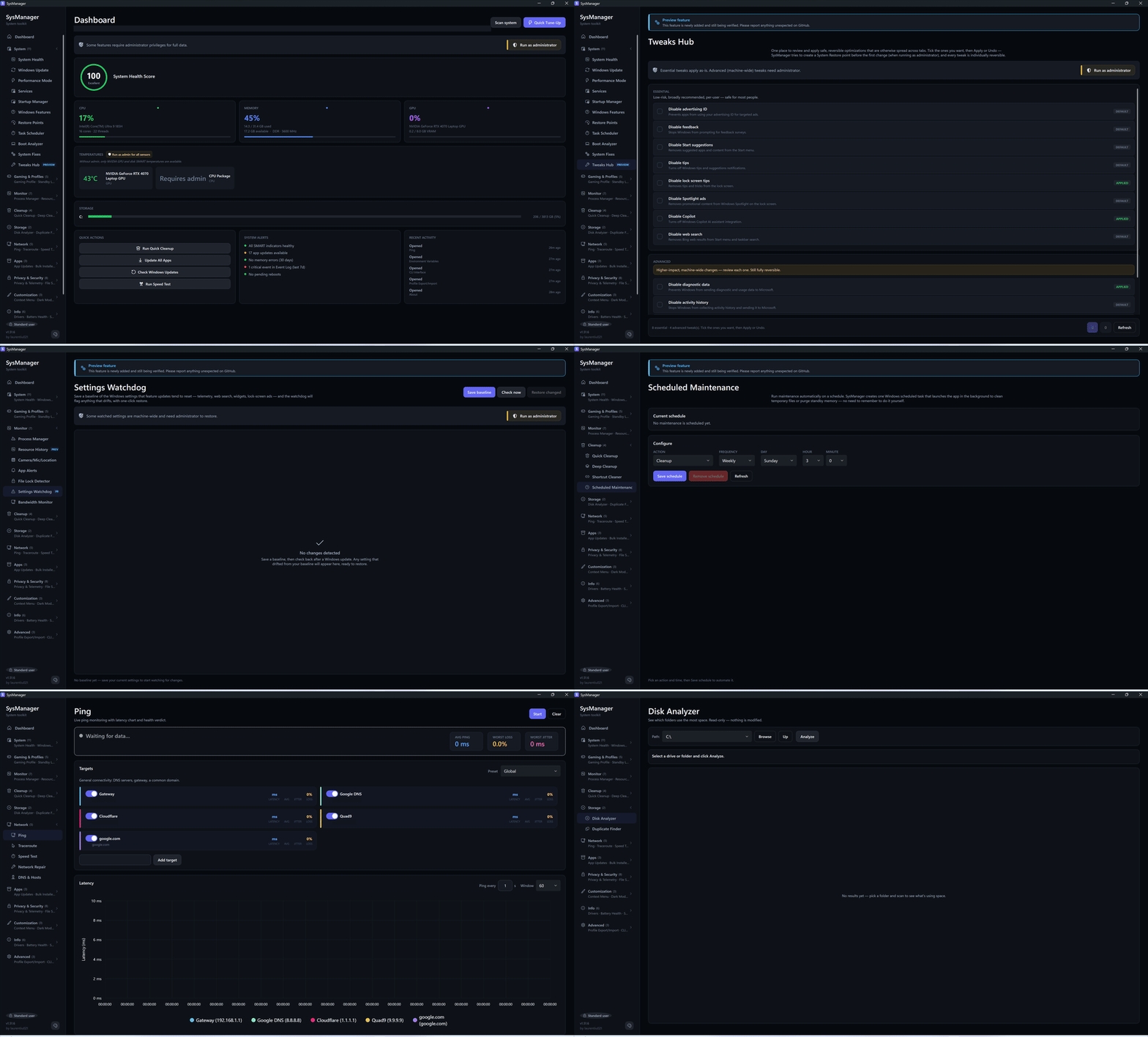 A quick tour: Dashboard, Resource History, Settings Watchdog, Scheduled Maintenance, CLI, Ping, Disk Analyzer (recorded on an earlier version; the sidebar has changed since). More below ↓





⚡ Get it in one line
winget install laurentiu021.SysManager
…or download the portable .exe — self-contained, no installer, no .NET runtime needed. Runs on Windows 10/11.
> ⭐ If SysManager saves you a reinstall or a head-scratch, please star the repo — it's the single biggest help for a solo project and how others discover it.
Table of contents
What it is
SysManager is a local-first desktop tool for keeping an eye on a Windows PC.
It rolls network diagnostics, system health, Windows Update, app management
(updates, bulk install, uninstall), privacy controls, context menu management,
secure file shredding, driver inventory, safe deep cleanup, and a readable
Event Log viewer into a single tabbed WPF app.
Everything runs on the machine itself. No cloud, no telemetry, no account.
> When SysManager uses the network. The app never sends usage data and has no
> account to sign in to. Two checks run on their own when it starts:
>
> - The version check asks GitHub's public releases API which release is newest, so
> it can tell you when a fix is available, and fetches the notes of the last ten
> releases for the About tab. Nothing about you or your PC is sent. Once a check has
> succeeded it waits a day before the next one, and the About tab has a checkbox —
> "Check GitHub for a new version when SysManager starts" — that switches it off
> entirely, and when that setting cannot be read, the check does not run. The Check
> for updates button still works on demand either way.
> - The Dashboard's app-updates alert asks winget which of your installed apps have
> updates (winget upgrade), and winget answers from its package sources, which
> Microsoft runs. SysManager adds nothing about you to it. The About tab has a checkbox —
> "Check winget for app updates when SysManager starts" — that switches it off, and when
> that setting cannot be read, the check does not run either. "Scan system" on the
> Dashboard and the App Updates tab still ask winget when you press them. If either
> choice cannot be saved, About says so under the two checkboxes.
>
> Everything else happens only when you use it: the network diagnostics (ping and
> traceroute, and the speed test — Cloudflare's servers, or Ookla's through the Ookla
> CLI it downloads the first time you use that engine), listing, searching for,
> installing, updating and removing apps through winget, Windows Update, and the
> PowerShell Gallery module Windows Update's history needs. App icons in the Bulk
> Installer are an opt-in extra — off by default, and only when you tick "Load app
> icons from the web" does it fetch them from Google's favicon service, and if that
> choice cannot be saved, the tab says so. Nothing else leaves your PC.
>
> The local diagnostic log keeps its 14 most recent files — a new one each day, or
> sooner when a day's file reaches 10 MB — in %LocalAppData%\SysManager\logs, and the
> user-name folder in every path (C:\Users\[user]\…) is replaced with [user] on
> every line — including inside error messages — so a log you choose to share does not
> carry your account name in its paths.
Built with gamers in mind — live ping overlays for CS2, FACEIT, PUBG and streaming
endpoints, Steam/Epic/Battle.net/Riot/GOG/EA launcher cache cleanup, and
an honest "is it my PC, my ISP, or the server?" verdict.
Beyond those, the rest of the 60 tabs cover performance tuning, putting SysManager's own changes back one at
a time, what changed on the PC lately and who changed it, DNS and hosts editing, duplicate files, battery
health, processes with plain-English descriptions, startup entries, shortcut cleanup, app blocking,
new-install alerts and Windows optional features.
The full list is below, grouped as the sidebar groups them.
Why SysManager?
Most Windows utilities do one thing, or bundle telemetry and upsells. SysManager
is a single, local-first app that covers the whole maintenance surface — and it's
fully open source.
| SysManager | BleachBit | CCleaner | Wintoys | O&O ShutUp10 | HWiNFO |
|---|
| Open source | ✅ | ✅ | ❌ | ❌ | ❌ | ❌ |
| No telemetry / no account | ✅ | ✅ | ❌ | ❌ | ✅ | ✅ |
| Fully local (no cloud) | ✅ | ✅ | ❌ | ✅ | ✅ | ✅ |
Portable single .exe | ✅ | ⚠️ | ❌ | ✅ | ✅ | ✅ |
| Code-signed binary | ❌ | ⚠️ | ✅ | ✅ | ✅ | ✅ |
| Disk / cache cleanup | ✅ | ✅ | ✅ | ✅ | ❌ | ❌ |
| Privacy & telemetry toggles | ✅ | ⚠️ | ⚠️ | ✅ | ✅ | ❌ |
| Network diagnostics (ping / traceroute / speed) | ✅ | ❌ | ❌ | ❌ | ❌ | ❌ |
| Disk / RAM SMART health | ✅ | ❌ | ⚠️ | ❌ | ❌ | ✅ |
| App updates + bulk install (winget) | ✅ | ❌ | ❌ | ⚠️ | ❌ | ❌ |
| Game-server latency tools (ping presets, timer resolution) | ✅ | ❌ | ❌ | ❌ | ❌ | ❌ |
| Free | ✅ | ✅ | ⚠️ | ✅ | ✅ | ✅ |
⚠️ = partial, paywalled, or limited. Comparison reflects the free editions as of 2026; features evolve — corrections welcome via an issue.
BleachBit is here because it is the rival that ties on the rows above. A table whose top three rows
exclude the best-known open-source Windows cleaner is cherry-picked, and a reader who knows BleachBit spots
that immediately. Its ⚠️ cells are specifics, not hedges: it ships a portable zip of many files rather
than one .exe; it cleans tracking data thoroughly but does not toggle Windows' own telemetry settings; and
its current Windows release publishes a detached GPG signature for the zip rather than stating an Authenticode
signature, which is a different thing from what stops the SmartScreen warning. Licences differ — SysManager is
MIT, BleachBit is GPL-3.0 — which is why that row no longer names one.
The signing row is the one where SysManager loses, and it is here on purpose — a table a project wins
every row of tells you nothing. Builds are unsigned, so Windows shows a warning on first launch. Why, what
that warning looks like, and how to check the download yourself:
First launch · Verifying the download.
Sponsorship goes toward that certificate — see Support.
Features
The sidebar organises 60 feature tabs into 12 groups — 11 collapsible groups
plus a flat top-level Dashboard entry — so you can find what you need without
scrolling through a flat list. The active tab stays marked with an accent bar,
selected background, and stronger label while you move between groups. Every tab
row and every group header is also keyboard-operable with a visible focus cue. All
60 tabs are fully implemented:
| Group | Tabs |
|---|
| 🏠 Dashboard | Dashboard |
| 🔧 System | System Health · Windows Update · Performance Mode · Services · Startup Manager · Windows Features · Undo Changes · Restore Points · Task Scheduler · Boot Analyzer · System Fixes |
| 🎮 Gaming & Profiles | Gaming Profile 🔬 · Standby List Cleaner · Timer Resolution · CPU Core Affinity · Display Profiles |
| 📊 Monitor | Process Manager · Resource History 🔬 · Camera/Mic/Location · Settings Watchdog 🔬 |
| 🧹 Cleanup | Quick Cleanup · Deep Cleanup · Shortcut Cleaner · Scheduled Maintenance 🔬 |
| 💾 Storage & Files | Disk Analyzer · Large Files · Duplicate Finder · File Lock Detector |
| 🌐 Network | Ping · Traceroute · Speed Test · Bandwidth Monitor · Network Repair · DNS & Hosts |
| 📦 Apps | App Updates · Bulk Installer · New App Alerts · Uninstaller |
| 🛡️ Privacy & Security | Privacy & Telemetry · File Shredder · App Blocker · Preinstalled Apps · Browser Cleaner · Edge/OneDrive Remover · Defender Tweaks |
| 🎨 Customization | Right-Click Menu · Dark Mode Scheduler · Volume Control · Notification Blocker 🔬 |
| ℹ️ Info | Drivers · Battery Health · Recent Changes · System Logs · System Report · Legacy Panels · About |
| ⚙️ Advanced | Profile Export / Import · CLI Interface 🔬 · Environment Variables |
> 🔬 = Preview — fully implemented and usable, marked in-app while it settles in.
Search finds any tab in your own words. The box at the top of the sidebar matches what you would
actually type, not just the tab's name: "slow startup" finds Boot Analyzer, "popups" finds Notification
Blocker, "webcam" finds Camera/Mic/Location, "cannot delete" finds File Lock Detector, "free up space"
finds Deep Cleanup. 56 of the 60 tabs carry keywords for this; typing clears the groups and shows a flat
list of matches with a count, and clearing the box brings the groups back.
Groups expand and collapse with a click. Cleanup opens with the app — every group
used to start collapsed, so the first screen showed twelve category names and not one
feature. Only one group opens, because the viewport has room for exactly one: in the
default 820px window the twelve collapsed headers fill 600 of the sidebar's 670px, so
opening Cleanup already pushes Info and Advanced below the fold, and opening System as
well would hide nine of the twelve. Every group header shows how many tabs it holds and,
on hover, the full list; a collapsed group also shows a short written summary of what it
covers, up to two lines. Dashboard renders as a flat top-level entry without an expander
arrow. Each tab shows a slim progress bar under its name when performing a long-running
operation, so you always know which tab is working; the flat Dashboard row is the
exception.
Pointing at a row draws a neutral bar on its left edge, a different colour from the accent
bar of the open tab, so hovering never looks like opening. The foot of the sidebar shows
whether SysManager runs as Administrator or as a standard user, its version, and the help
and appearance buttons.
Theme customization
The palette button at the bottom of the sidebar, beside the ? chip, opens the Appearance panel above it,
with:
- Dark mode — 6 curated presets (Midnight Indigo, Deep Ocean, Dark Forest, Neon Rose, Violet Night, Warm Ember)
- Light mode — 6 curated presets (Clean Indigo, Sky Breeze, Warm Sand, Mint Fresh, Soft Blossom, Lavender)
- Auto mode — follow the Windows light/dark setting, and keep following it. It changes with Windows
while the app is open, whether you flip it by hand, on a Windows schedule, or from SysManager's own
Dark Mode tab. Your colour family is kept across the switch: on Warm Ember, going light gives you
Warm Sand rather than the default. Picking any preset turns Auto off, and the panel then
shows Dark or Light selected, whichever the preset is
- Custom mode — free hex input for accent, background, surface, and text colors
- Background shade slider for fine-tuning lightness/darkness
- Reset to default theme — one click back to the shipped dark theme and shade, from any mode
- Settings persist between sessions. If they cannot be read when SysManager starts, a change
applies for that session but is not saved over them
Custom colours cannot make the app unreadable. Main, secondary and muted text are adjusted to stay
legible against every surface they land on — coloured status text keeps its fixed light or dark palette —
and a panel colour that leaves no room for readable text at all — a near-white card on a
near-black background, say — is nudged toward the background until it does. The twelve built-in themes
are unaffected by that correction; their surfaces already sit near their backgrounds. If a result is
still not what you wanted, Reset to default theme puts the shipped theme back and survives a restart.
A switch reaches everything at once, on the tab you are on and on the ones you opened before: console
output, verdicts, health cards, status chips and the cards in the Appearance panel itself redraw in the
new theme's colours, whether you pick the theme or Auto follows Windows.
Graph lines follow the theme rather than fighting it. The Ping, Traceroute, Bandwidth Monitor, Resource
History, Speed Test and Battery Health charts each draw with a fixed set of colours — blue is CPU, purple is
memory — and those colours were chosen against a dark card. Switching to a light theme darkens each line
by exactly as much as it needs to stay at 3:1 against the card it is drawn on, and on a dark Custom card a
line that falls short is lightened instead, so the line remains followable without a second palette to
maintain and without changing which colour means what. Brightness moves, hue does not; on the six dark
presets, where the original colours already clear the bar, nothing changes at all. On Ping, the bar on each
target's card is drawn in its line's colour, so it still says which line is whose.
Keyboard navigation
The app is operable without a mouse, and the control you are on is always visible. Tab moves
forward, Shift+Tab back, Space presses a button or ticks a checkbox, and the arrow keys move
within a table or a row of filter chips. In the sidebar, Enter also opens the tab or group you are
on, the way it opens a folder in File Explorer. Opening the appearance panel moves focus into it, Tab
cycles the themes inside it, and Escape closes it and puts focus back on the button you opened it from.
Escape also stops whatever the open tab is doing — a disk scan, a duplicate search, a speed test — on
the 25 tabs that can be cancelled from the keyboard: every tab with a Cancel button but System Fixes, and Display
Profiles, where it puts back the previous mode while a new one waits for "Keep". Every run on System Fixes repairs
Windows, so stopping one is left to its Cancel button rather than a keypress. On Windows Features Escape stops a
scan, never a change. On Uninstaller, App Updates and Bulk Installer it stops a batch before its next app, once the
uninstaller, update or install already running has finished, and on Quick Cleanup it stops everything but a component
store cleanup, which only its Cancel button stops. It only acts
while something is running, and only after the control you are on has had its own chance to use the key,
so it still closes a drop-down or undoes a text edit first.
F5 re-reads the tab you are on, across all 46 tabs that have something to look at again — the
process list, the startup entries, the event log, the installed apps. Each tab names its own refresh, so
F5 runs exactly what its own toolbar button runs and nothing else: nothing that cleans, deletes, applies
or uninstalls is reachable from a bare keypress. On Drivers, Windows Update and Disk Analyzer that is List
drivers, List updates and Analyze. Pressing it during a refresh that is already running does nothing
rather than starting a second one.
Delete in a list does nothing. A startup program, an app, a variable or a menu entry is removed only
through its own button and that button's confirmation, so a stray key press never takes a row off a list
while it stays on the PC.
Focus stays where you were when a list refreshes. A refresh rebuilds a list's rows, and the button or cell
you were on used to go with them, leaving focus at the top of the window. Now focus comes back to the same
control in the same row: after F5 on Services, after putting a change back on Undo Changes, and on every table
and every other list that reloads its rows the same way. If that row has gone, focus moves to the row now in its
place. It only happens when you were using the keyboard, so a list that refreshes by itself never pulls the view
back while you scroll with the mouse.
Ctrl+F jumps to the search box on the 12 tabs that have one, and selects whatever is already
typed there so you can replace it straight away — the same thing the key does in a browser. On a tab with
nothing to filter it does nothing at all, rather than moving your caret somewhere unexpected.
F1 opens About, where the version, the release notes, "Report a problem" and "Ask a question" all
live. The same place is one click away from the ? chip at the bottom of the sidebar, beside the
appearance button. Both exist because everything a stuck person needs was already in About and none of it
was findable: About is the last entry in the eleventh of twelve sidebar groups, and every group except
Cleanup starts closed. Unlike the three keys above, F1 works immediately — it does not wait for the tab
you are on to be ready, because a key you press when you are lost has to answer on the first frame.
The focus outline is deliberately two thin lines of opposite shade — one light, one dark — rather
than a single accent-coloured ring. A single colour cannot be visible everywhere: it has to show up
on a purple primary button, a red delete button, a grey secondary button and a plain card, and any
one colour disappears against at least one of those. With two, one line always contrasts whatever is
underneath. Measured across all 12 themes and the six fills a control can sit on, the better of the two
lines never drops below 4.47:1 — above the 3:1 WCAG asks of a non-text indicator.
Every button is at least 28 by 28 pixels, however small its label. Every button in the app that sets its
own padding — 110 of them — was rendered and measured, and 30 came out smaller than the 24 by 24 that WCAG
2.5.8 asks for, spread across 16 screens. The worst was the X that removes an entry from your hosts
file, at 20 by 19: the smallest destructive target in the app. There is now a
floor on the shared button style, so a cramped label makes a button narrow to look at and not to click. 28
rather than 24, because a floor set exactly at the threshold leaves nothing for a fractional display scale,
and because 28 is already the size of the small round buttons at the bottom of the sidebar. Disk
Analyzer's map blocks are the exception: they are sized by their folders, and never drawn smaller than 40
by 24.
Screen readers
The six controls whose effect is hardest to take back explain themselves, not just their label. Landing on
Shred All announces the button and then "Overwrites every item in the list so it cannot be recovered, then
deletes it. This cannot be undone, not even from the Recycle Bin. SysManager asks you to confirm first." The
same goes for Uninstall selected, Kill process, Delete preset, Delete selected shortcuts, and the Run as
administrator button that appears on the 31 pages needing elevation.
Before that, the red colour and the confirmation dialog were the only warnings, and neither reaches someone
who cannot see the screen — the dialog arrives after the button has already been pressed. The explanation is
not a tooltip for the same reason: a tooltip needs a mouse hovering over the control, so it never reaches
someone who tabbed to it, and it is not reliably handed to assistive software. It is kept to those six,
plus the button on each Undo Changes row, which says before you press it that it asks first — or why it
cannot be pressed yet. An explanation on every button in the app would make it slower to navigate, not
clearer.
Every tab also reads out what it is doing as it works. The line that says so — "Scanning…",
"Removed 1,204 files", "Scan complete." — is announced on all 60 tabs, at the bottom of most of them and
beside the work on the rest, as are the SFC and DISM results when a system repair finishes and Deep Cleanup's
scan and clean summaries. Announcements are polite, so they wait their turn rather than cutting across whatever
you are reading. The one exception is the pop-up notification in the corner, which is announced at once
because it fades on its own.
What is deliberately not announced matters just as much. Deep Cleanup's percentage changes several times a
second and its current folder changes per directory; the repair ETAs tick continuously, and so does the count
of an update being downloaded. Reading those aloud would talk over you without telling you anything, so each
tab announces the coarsest line it has and leaves the fast-moving numbers on screen only. Both halves of that
are enforced by a test, because a change that announced everything would look like an improvement.
CSV exports
The eleven tabs with an Export CSV button write files that open in Excel with a double-click, in your own
region. The columns are split on Windows' list separator and the numbers carry your decimal mark, so where
decimals are written with a comma, Romanian, German and French among them, the columns are split on semicolons
and 3,7 is a number Excel can sort. Each file is UTF-8 with the mark Excel looks for, so accented names and dashes
arrive intact. A value that holds the separator, a quote or a line break is quoted, so a folder named
Grieg, Peer Gynt stays in one column.
Empty lists
A list with nothing in it says why. When a search or a filter has hidden everything, it says that nothing matches
and how to bring the rest back, rather than asking for a scan, which would keep the search. When its advice names a
button or a switch, it uses the label shown on the tab.
A drop-down opens from a click anywhere on it, not only on its arrow, and an editable one, such as Ping's target,
keeps clicks on its text for typing. A tooltip longer than its width wraps onto more lines, so its last words are
there to read. A search box or a drop-down you are typing in keeps its purple focus border while the pointer rests on
it, and a drop-down reached with Tab shows the same focus ring as a button.
Manage Windows Explorer right-click entries — toggle them on or off without
deleting anything. Plain menu entries use the standard LegacyDisable registry
mechanism; add-ons use Windows' own blocked-extensions list. Neither removes
anything a program registered, so both are undone by turning the switch back on:
- Presets: Win10 Default (classic full menu), Win11 Default (modern compact), Custom
- The preset currently applied is marked with a tick, so you can see which style you are on without applying one
- Selecting a preset resets to clean defaults, disabling third-party entries — re-enable individually
- Classic or modern menu — Win10 Default switches to the classic full menu and Win11 Default to
the modern compact one, restarting Explorer when the style changes. There is no separate style
switch, so changing the style also resets the entries to clean defaults. When Windows will not let
SysManager switch the style, the preset says so and changes nothing, and Explorer is not restarted
- Visual preview on hover — real screenshots of each menu style
- Entry explanations — human-readable descriptions for common entries
- Add-ons listed too — the COM shell extensions that programs like archivers, cloud sync
clients and antivirus install are shown alongside the plain menu entries. These are the ones
that make a right-click take a second to open, because Explorer loads each add-on's DLL and
waits for it before drawing the menu. A "Type" column says which kind each row is — "Menu
entry" or "Handler" — and an add-on's row names the program behind it instead of the raw class id
- Add-ons can be switched off too — hiding one adds its class id to the blocked-extensions list
Windows checks before loading a shell add-on, which is the same reversible mechanism Autoruns
writes. Nothing the program installed is deleted; switching the row back on removes the entry.
It is a machine-wide setting, so it needs administrator rights, and the row's tooltip says so
before you click
- Restart Explorer button — Explorer decides which add-ons to load when it starts, so a blocked
add-on is still in the menu until it restarts. The button does it after confirming, rather than
leaving you to conclude the switch did nothing
- Windows' own add-ons stay out of the way — an add-on implemented from inside the Windows
folder is treated as a system entry: hidden behind "Show system entries" and never touched by a
preset. Presets only ever change plain menu entries, so one click cannot block every add-on on
the machine
- "Applies to" column — shows whether the entry affects Files, Folders, Files and folders,
Desktop, or Directory Background
- HKCU fallback — system-protected entries can be toggled via user-level registry override
- Before each change, a copy of the affected registry key is saved to
%LocalAppData%\SysManager\Backups\ContextMenu, the three most recent per entry. The switch is
the undo; the copy is for someone who would rather restore the key by hand
- Admin elevation banner with one-click restart as administrator
Environment Variables
Edit Windows environment variables without the cramped built-in dialog:
- User and System scopes in one grid — filter by scope, search by name or value
- In-place value editing, plus add and remove variables. A new variable is User or System
- Dedicated PATH editor for PATH-like variables — reorder directories, remove
entries, and strip duplicates in one click
- Missing folders highlighted so you can spot dead PATH entries at a glance. The folders are
checked in the background, each once while the variable is selected, so the window stays
responsive. A folder on a network share is not checked, and not called missing: Windows can
take tens of seconds to give up on a share it cannot reach
- Local until Apply: changes are staged and each scope gets a one-time safety
snapshot before its first write. New User snapshots stay under HKCU; System
snapshots use access-controlled HKLM storage, and only that protected source can
restore machine-wide variables
- Apply never undoes a change it did not see. Installers such as Python, Node.js and Git
add themselves to PATH, and can do it while the tab is open. Apply reads every variable it
is about to write or delete again first, and when one has changed since the tab read it,
nothing is applied and the status line names it, so Refresh shows the change before you
make yours again
- Restore backup puts every variable back to that snapshot and removes the ones added
since, after a confirmation — the machine-wide ones only as administrator — and Discard
drops the staged changes. A snapshot another program has open just then is said to be
unreadable for now, on Apply and on Restore backup, rather than called invalid
- Changes broadcast to Windows, so new terminals pick them up without a reboot
- System-scope edits need administrator rights (standard elevation banner); user
variables can be edited without it. An Apply that includes a System change is refused
as a whole until SysManager runs as administrator
- Undo Changes can restore the snapshot too, while a variable differs from it. This tab
then reads the variables again ("Variables read again after Undo Changes."), and an edit
not yet applied goes with the old list
Dark Mode Scheduler
- Switch the Windows light/dark theme instantly — apps only, or the taskbar
and Start too
- Schedule it — set a dark time and a light time (e.g. 19:00 / 07:00) and the
theme follows automatically; handles the overnight switch correctly
- Applies immediately with no sign-out, no admin needed, and is fully reversible
- Honest about its limits — the schedule runs while SysManager (or its tray)
is open, checked once a minute; it's not a background Windows service. Equal dark and
light times keep the light theme, and the schedule is kept in
%AppData%\SysManager\darkmode-schedule.json
- If the saved schedule cannot be read when SysManager starts, a change still applies but
is not saved over it, and the status line says so
Volume Control
- This PC — a card above the apps sets the volume for all sound at once, with its own
mute and level meter, and picks the device all sound plays through: speakers, headphones,
a monitor's speakers. The list under the picker says what kind of device each one is and
which is in use now. Where Windows does not let SysManager switch, the card still names the
device and opens Windows' sound settings instead. Apps you sent to a device of their own keep
it, and neither the PC's volume nor its device is saved in a preset, so applying one never
moves the sound to other speakers. Plug in headphones or switch from the taskbar and the
card, and the app list under it, follow within about ten seconds
- Per-app volume mixer — lists every app currently playing sound, on any of your
playback devices, each with its own volume slider, mute toggle, and a live peak meter
- Live and lightweight — the app list reconciles on a ~1-second loop and the meters
update on a shared timer, both paused while the tab is hidden so it costs nothing in
the background. The refresh never replaces a message on the status line, so a saved preset
or a change Windows refused stays there until you do something else
- Real names and icons — resolved from each audio session's process (with a safe
fallback for protected processes), including the Windows "system sounds" session
- Per-app output routing — send one app to your headset and another to your speakers.
On Windows 10 21H2 and later, and on Windows 11, each app gets an output-device picker in the
row; where Windows lacks the routing interface, the row shows a "Choose output device…" button
that opens Windows' per-app sound settings so you're never left without a path. The picker
shows the device Windows sends each app to, read again every ten seconds along with the device
list, so a change made in Windows' own settings shows up too, and a route is still shown after
the app or SysManager restarts. Plug a headset in while the tab is open and it appears on its
own. When Windows cannot say where an app plays, the picker says "Choose a device" rather than
guessing. An app you send to another device keeps its row there, with its level and a slider
that reaches it, and is still listed after it restarts
- Volume presets — save the current per-app volumes and mutes as a named preset (e.g.
"Gaming", "Focus") and re-apply it in one click; presets are keyed by app so they work
across restarts, and are stored locally in
%LocalAppData%\SysManager. The summary counts
only the apps Windows actually changed, and says how many it refused — an app that has
just stopped playing, for example. A preset that could not be saved or deleted says so, and
saved presets that cannot be read are never written over
- Tray shortcut — a "Volume mixer" item in the system-tray menu opens the app straight
to this tab, alongside "What's using my PC" (Process Manager) and "Free up space" (Quick
Cleanup)
Recent Changes
- "It was fine last week — what changed?" answered in one list. What SysManager did, what Windows
installed or could not install, the programs installed, updated or removed, and the settings you saved in
Settings Watchdog that have changed since, newest first and one day at a time. Each row says when, what,
and who: you in SysManager, Windows Update, the Microsoft Store, an installer, or Windows or another program
- Windows' own record, including what happened while SysManager was closed. Windows updates, Microsoft
Store app updates, Defender definitions and drivers that were installed or could not be, and programs
installed or removed with Windows Installer, come from the history behind Windows' Reliability Monitor,
which needs no administrator rights. A change Windows recorded twice is listed once
- Programs Windows keeps no record of. Each time the tab is shown it keeps the list of installed
programs, so a program that appears, goes away or changes version between two looks is listed with the
time between them — "some time between your look on Fri 2 Oct and 15:20" — which is all that can be
known. The first look only starts the list, and the page says so. A new version of a program, from the
same publisher, is one update rather than one program removed and another installed
- What New App Alerts noticed, at the time it noticed. A program that Windows Installer and New App
Alerts both saw within ten minutes is listed once, from Windows' record, and so is a new folder and the
program found in it within ten minutes, under the program's name
- Settings that changed from the ones you saved, from when Settings Watchdog first noticed: each look at
either tab records it, and when the setting went back or changed again. When a setting changed is not
known, only when it was noticed, so its row shows a dash where the time goes and says when it was noticed
underneath
- A night of updates does not bury the rest: two or more updates Windows installed on one day are one
row — "Windows installed 9 updates", and what they were by kind — that opens to the full list
- Filter by kind — SysManager, Windows, Programs, Settings — and by period: 7, 30 or 90 days. The
activity log keeps 200 entries instead of 60, and when even that does not reach back to the start of the
period, the page says from when SysManager's own actions are listed
- Problems are not changes. Crashes and programs that stopped responding in the same days are counted
in one line, which opens System Logs on the errors in the Application log over the same days, already
loaded
- A source that could not be read is named rather than shown as nothing changed, and an empty period
says what was checked: "Nothing was installed or updated, SysManager changed nothing, and your saved
settings still match"
- Rows lead to the tab that can do something about them — Open Uninstaller for a program, Open App
Alerts for one New App Alerts noticed, Review for a changed setting — and the Dashboard's Recent
activity card leads here with See all changes
- Export CSV saves what is shown to a file you choose. Nothing on this tab changes anything on the PC,
and nothing leaves it: the list of programs and when each setting was noticed are kept in your
%LocalAppData%\SysManager folder
- The page looks again each time it is shown, and on Refresh or F5
System Logs (Windows Event Log, friendly)
- Browse System, Application, Security, and Setup logs
- Each event gets a plain-English explanation and recommended next steps
- Nothing is read until you press Refresh (or F5), unless another tab sends you here (below).
The log, the time range, the maximum number of results and the severity boxes decide what
Refresh reads. Unticking a severity or typing in the search box filters what is loaded straight
away. Ticking a severity the list was loaded without — Information and Verbose start unticked —
loads the list again with it
- Opens on what sent you here. The Dashboard's critical-events alert opens the tab on the
critical events in the System log over the last 7 days, and Recent Changes' problems line on
the errors in the Application log over its 7, 30 or 90 days, where Windows records the crashes
it counted. The list is loaded straight away, and the search box is cleared so nothing typed
earlier hides those events
- Mark any event with the flag button to keep it findable while you keep scrolling or
change filters. "Clear 2 marks", which counts them, removes them all, including any a
filter is hiding. A load keeps the marks, and the event open on the right, for every
event it lists again
- Export to CSV — every event loaded, including any a filter is hiding — with a "search
online" link for unknown events
- The Security log requires administrator rights. Without them the page says so
outright rather than showing an empty list that looks like "no events"
System Report
- One-click, read-only snapshot of the whole machine: OS, CPU, memory
(with per-slot module detail), GPU, motherboard, storage health, and active
network adapters
- Opens with what is wrong, before the inventory — the same health score and
"what to do" list as the Dashboard, each part of the score (or that Windows would not
say), and up to five recent problems from the Windows System log: critical and error
events from the whole of the last 7 days, grouped so one noisy error cannot fill the
list or push an older critical one out, critical first, with a plain-English explanation
where SysManager has one. Whoever you send it to
reads the verdict in seconds. An event's own message is never included, because it can
name your files, your user name or your computer
- Storage section carries SMART detail when available — temperature, wear %,
and power-on time — reusing the same disk-health data as the System Health tab
- Export as plain text, a styled self-contained HTML page, or structured
JSON — or copy the text straight to the clipboard
- Fully local: nothing on the system is changed and the report is written only
to the file you choose — nothing leaves the machine
- Safe to hand to a stranger. The report is what you attach to a bug report, so it
deliberately does not identify your machine: there is no user name and no computer name,
each adapter's hardware (MAC) address is left out, and its local address is shortened to
192.168.x.x. The network half is kept because that is the part that answers a "no
internet" question — whether the address is private, static, or a 169.254 self-assigned
one. A MAC address is permanent, it survives a Windows reinstall, and nobody can take one
back once it is posted, which is why it is not in there at all
System Health
- OS / CPU / RAM / storage overview
- SMART data per disk: temperature, life remaining, power-on hours, read/write errors —
fullest when SysManager runs as administrator. A figure the drive does not report reads "—",
with an empty bar, rather than a value it never measured
- Colour-coded verdict per drive
- The mouse wheel scrolls the page over the memory and disk tables too: they are as tall as their
rows, so they have nothing of their own to scroll
- Memory diagnostic that scans the last 30 days of WHEA events for RAM errors. If the event log
cannot be read, it says the check could not be done rather than reporting no errors
- Run MemTest (reboot) opens the Windows Memory Diagnostic, where you choose to restart now
or test at the next boot
- Read-only chkdsk with auto-discovered NTFS/ReFS drives and multi-select. C: is ticked
to start with, and whatever you tick after that survives a refresh — so a rescan cannot
quietly point a long disk check at a drive you deselected. chkdsk needs administrator
rights, and without them each drive you ticked says so
- A running chkdsk shows under System Health in the sidebar and on the taskbar button, and
closing SysManager during one asks first. It waits for a disk scan or clean-up another tab
is running, and says which
- BIOS & firmware — BIOS version/date/vendor, motherboard model, boot mode (UEFI/Legacy), and Secure
Boot status, all read-only. A Find BIOS update button opens the board maker's support site (ASUS,
MSI, Gigabyte, ASRock, Acer, Biostar, Dell, HP, Lenovo, …), or a web search for the board when the
maker is not one of those, and Copy info grabs the model + BIOS version for support searches.
SysManager never flashes firmware itself.
Undo Changes
- One place to put back what SysManager changed, one change at a time. Five tabs each keep what they
need to undo their own change; this tab reads all five copies, so putting something back no longer means
remembering which tab made it. It lists them in plain words, one row for each:
- Performance Mode — the settings that differ from its record of how they were before it was first
used: the power plan, visual effects, Game Mode, the Xbox Game Bar, Game DVR, the NVIDIA graphics
setting and the processor minimum. While game mode is on, was left on by an earlier run, or
SysManager cannot read whether it was, the settings are game mode's own, so Performance Mode waits
until game mode is off and the status line says why. The graphics setting takes effect after a
restart, and the setting of an NVIDIA card that is no longer found is left as it is
- Services — the services SysManager turned off that are still off, in one row: putting it back
returns each one to the startup type it had
- Hosts file — once SysManager has written the hosts file, the copy kept beside it, for as long as
the file still differs from it. Restoring it replaces everything written to the file since, by
SysManager or by any other program, and the question says so
- Environment Variables — the copy kept from before SysManager first changed them, for as long as a
variable differs from it. Every variable goes back to that copy, including changes other programs
made since, and variables added since are removed; the question lists them
- Gaming Profile — game mode while it is on, or after a run that did not end cleanly left it on
- and the settings you saved in Settings Watchdog that have changed since and that it can write back:
one row that opens Settings Watchdog, where Restore changed puts them back
- A copy that could not be read just now, could not be compared with how things are now, could not be
used, or is damaged, is named as such — under "Nothing found to put back" when nothing else is listed
— and never shown as nothing to put back
- Asks first, and says what will change. Each question says what goes back — "Power plan: Ultimate
Performance → Balanced", "Print Spooler: Disabled → Automatic", or the date of the hosts file copy it
restores — and the put-back goes through the same restore its own tab uses. It reads the copy again
first, and changes nothing if what it finds is no longer what the question described. There is
deliberately no "undo everything" button: one button that reverses several unrelated changes would
itself be a large change
- One that stops part-way says what went back and what did not, and the list then shows what is
still different. Each change put back shows in the Dashboard's Recent activity
- Only what SysManager has a record of. A switch that is on may have been set by Windows, by an
organisation or by you long ago, so the tabs whose switches are their own undo — Privacy & Telemetry,
Right-Click Menu, Startup Manager, App Blocker, Notification Blocker, and DNS & Hosts for DNS — are links,
never rows
- The whole PC at once points to Restore Points and names the newest restore point when SysManager
runs as administrator. If Windows has not answered about its restore points within a minute, the card
says so, and Refresh asks again. What cannot be put back — files deleted for good, removed
preinstalled apps, uninstalled programs — is said plainly
- Some changes need administrator rights — the hosts file, services, machine-wide variables that differ
from the copy, game mode left on by a run that paused search indexing, and Performance Mode while the
NVIDIA graphics card it recorded may still be there (found, or not checked just now) — and their rows
say so, with the button off until SysManager runs as administrator. The rest go back without them
- The tab that made a change hears of each put-back and reads its state again, so Performance Mode,
Services, DNS & Hosts, Environment Variables and Gaming Profile never go on showing a change that is
gone. An edit not yet saved on DNS & Hosts, or not yet applied on Environment Variables, goes with the
old list, since it was made to what Undo Changes just replaced
- The page looks again each time it is shown, and on Refresh or F5
Restore Points
- List every Windows System Restore point — sequence number, date, description,
and type — newest first
- Create a restore point with an optional custom description (enables System
Restore on the system drive first if it's off). Windows makes at most one a day;
when it declines, this tab says so rather than reporting a point that was
never made, and the tabs that take one automatically mention a restore point only
when Windows really made one
- It says so before turning System Protection back on. Creating a point turns System
Protection back on for the Windows drive if it is off, because Windows cannot make one
otherwise, and protection then keeps some disk space for restore points. The confirmation
says so here and on Performance Mode, and on the tabs that try a point before their first
change of a session: Windows Features, Gaming Profile, Privacy & Telemetry,
Preinstalled Apps, Edge/OneDrive Remover and Defender Tweaks. Those say it only while that
attempt is still to come and SysManager is running as administrator, since otherwise
nothing is changed
- Restore the PC to a selected point, with a clear confirmation that warns
Windows will restart and that programs/drivers added since that point are removed
- Admin elevation banner. Listing, creating and restoring all need administrator
rights, because Windows answers a standard user's request for the list with
"Access denied". The tab says so, rather than reporting that there are no
restore points
- To put back one change SysManager made rather than the whole PC, the tab points
to Undo Changes
Legacy Panels
- One-click launcher for the classic Windows applets that newer releases keep
hiding: Control Panel, Sound, Power Options, Network Connections, Region,
System Properties, User Accounts, Device Manager, Computer Management,
Programs and Features, Mouse, and Date and Time
- Pure launchers — each just opens the built-in panel; nothing is modified,
so no elevation or confirmation is needed
- The applet list is fixed in code, so no typed input ever reaches the launcher
System Fixes
One-click repairs for common Windows breakages, each with a clear description and
a confirmation before it runs. Grouped by whether the fix needs administrator rights,
so it is obvious what you can do without elevating.
Repair Windows itself — these change system files, services or settings, so they
need administrator rights:
- Repair damaged Windows files (SFC) — runs
SFC /scannow, which checks every
protected Windows file against Windows' own known-good copy and replaces the damaged
ones. Takes 5–15 minutes in the background, with a live percentage, an ETA, and a
plain-English verdict at the end rather than a raw exit code. The verdict is read from
SFC's own messages in whatever language Windows is in, says what to do next when a repair
waits for a restart, and points to the console rather than calling the scan a success when
SFC ends in a way it does not recognise
- Repair Windows' own repair source (DISM) — runs
DISM /RestoreHealth, which rebuilds
the store of known-good copies that SFC draws from, downloading replacements through
Windows Update. Run this first when SFC reports files it could not fix. Takes 10–30 minutes.
When it succeeds, it says the repair source is healthy and to run SFC next
- Reset Windows Update — stop the update services and Windows Installer, rename the
SoftwareDistribution and catroot2 caches so Windows rebuilds them, and restart the
services. The confirmation says that it interrupts an installation running elsewhere, and
that the old folders are kept, a new pair on every reset. It will not start while SysManager
itself is installing, upgrading or uninstalling an app — it says which one is running — and none
of those can start until the reset is done. If a cache folder is still in use and cannot be
renamed, the fix says so instead of asking for a pointless reboot — and restarts the services
either way
- Reinstall WinGet — re-register the App Installer when app installs/uninstalls fail: your
own copy, or the newest one on the PC if you have none
- When either of these two stops, the status line and the console say why, for example that App
Installer is not installed, and the reason is logged
Fix the desktop and taskbar — no administrator rights needed, and the quickest things
to try when the taskbar, the Start menu or the icons misbehave. Both close any open File
Explorer windows; the taskbar and desktop come back on their own within a few seconds:
- Restart Windows Explorer — for a taskbar that has stopped responding, a Start
menu that will not open, or a desktop with no icons. Every Explorer instance is
ended individually, so one unkillable process cannot leave you without a shell
- Rebuild icon & thumbnail cache — for icons or previews that come up blank,
wrong, or as a plain white page. Explorer is stopped first, because it holds those
cache files open — a delete with the shell running clears only the files that are
not the problem. Explorer is brought back even if the delete fails, and Windows
rebuilds the cache as you browse
Sign-in — Set up Auto Sign-in opens the built-in User Accounts dialog (netplwiz), so
Windows stores the credential securely and SysManager never handles your password. SysManager does
not need administrator rights to open it.
Across the tab:
- Live output, honest success/failure reporting, admin elevation banner
- The Cancel button stops a repair;
Escape does not, because every run here changes Windows
- Network-stack reset (Winsock / TCP-IP / DNS flush) lives on the Network → Network
Repair tab, which offers those as individual one-click tools.
- Freeing up disk space lives on Cleanup → Quick Cleanup. The two tabs are split by what
you are trying to achieve rather than by which Windows tool does it: SFC and
DISM /RestoreHealth repair a broken Windows and are here, while
DISM /AnalyzeComponentStore and /StartComponentCleanup reclaim space and are there.
Boot Analyzer
- Shows how long your PC takes to boot — total, core (main path), and
desktop ready-up time — across recent boots, read from the Windows
boot-performance history (Diagnostics-Performance log)
- A trend line tells you whether the last boot was faster or slower than your
recent average
- Lists the apps, drivers, services, and devices Windows flagged as slowing boot,
with the delay attributed to each. Clicking When, Boot time or Delay sorts by the time
itself, so 9.8 s comes before 12.3 s
- Each row links to the tab that can switch it off — a slow service opens Services already
filtered to that service; a slow app or background task opens Startup Manager. Drivers and devices
get no link, because SysManager cannot disable one and sending you looking would waste your time
- Read-only; reading the log requires administrator (elevation banner shown)
- A read that fails says so. "No boot performance events found yet" is kept for a history
Windows returned empty. When the log could not be read, the tab says that instead, and a
refresh that fails keeps what was already shown
Task Scheduler
- Browse every Windows scheduled task with its state, type, and what the task is for in Windows'
own words, plus its last and next run once you select it — hovering the description shows which
publisher created it. The task's folder decides the type first (telemetry folders, then
\Microsoft\Windows\ for System); the publisher decides it only outside those folders
- Color-coded by type — Third-party, well-known Telemetry (Compatibility
Appraiser, CEIP, Feedback, Error Reporting), and System — so it's obvious
what's safe to touch
- Enable / disable any task; disabling is fully reversible and never deletes
the task — System tasks show an extra warning before you disable them
- Filter by name or path, and optionally hide system tasks to focus on the rest
- Stoppable — the task scan can take a while on a machine with a full task tree, so there is a
Cancel button while it runs, and whatever was already listed stays on screen. Refresh is disabled
during a scan instead of stacking a second one on top
- A read that fails says so. If Windows does not answer, the tab says the tasks could not be
read rather than that there are none, and a refresh that fails keeps the list you already had
- Changes need administrator and are verified by reading the task's state back
- Overlaps Startup Manager on purpose: that tab lists the third-party tasks among
these next to the programs that launch at boot, because that is all the shorter answer to "why is my
PC slow to start" needs. It is the same task in both places, so switching it in one tab applies in the
other as soon as that tab refreshes — the two lists are not kept in step live
- Direct Windows Update Agent COM integration (
Microsoft.Update.Session) —
installs everything WUA can offer, including optional drivers and firmware
that PSWindowsUpdate filters out client-side
- Unified DataGrid for everything in one scan — standard updates, feature
upgrades and optional drivers
- Categorized with colored pills: Security, Cumulative, Defender, Driver,
Servicing, .NET, Feature upgrade, and Update for everything else — click headers to sort,
with Size in the order of the download size
- Per-update checkbox selection with Select all / Deselect all — every update the scan lists
starts ticked, optional drivers and feature upgrades included, so untick what you don't want
before Install selected. What you untick stays unticked: listing again, with F5 or after a
look at the history, keeps your choices, and only an update not listed before starts ticked
- Live progress per update:
Connecting → Downloading → Installing → ✓ Installed
streamed to the console as it happens
- Per-row Status column updated in real time
(
Pending… → Downloading… → Installing… → Installed /
Installed (reboot required) / Failed / Not applied). A failed row names the error code
Windows reported, such as Failed (install 0x800F0922), the code to search for, and the failure
is written to the log, so a diagnostics bundle carries it
- Honest aggregate reporting:
Installed X/Y. Failed: Z. Not applied: W.
- Reboot detection — toast notification if any update requires reboot
- Pending-reboot check, update history (last 30 — via PSWindowsUpdate)
- Admin banner with a one-click "Run as administrator" relaunch. Installing needs it, and so
does changing when updates are installed — deferring, pausing or restoring the default;
without it the tab says so before asking you to approve anything
- PSWindowsUpdate is optional (used only for the History view); install it
from a normal, non-administrator SysManager session. The installer validates
the official PowerShell Gallery endpoint and uses the current-user module directory.
A Check now button confirms on demand whether the module is present, so you
don't have to run Update History to find out
- Update timing & deferral — defer feature updates by N days while security
patches keep flowing, pause all updates for a bounded window (max 35 days, then
Windows auto-resumes), or restore defaults. Uses the documented Windows Update
policy keys and is fully reversible. No "disable updates forever" option by
design — the strongest action is a bounded pause, so the machine is never left
permanently unpatched. If Windows will not let it read the current settings, the
tab says so rather than showing the defaults.
App Updates (winget)
- Scan for upgradable packages
- Sort by name, ID, version, or source via clickable column headers
- Select all or individual packages — every package found starts ticked — and bulk upgrade with
per-package status, after a confirmation that warns an upgrade cannot be undone and names the
apps when there are five or fewer
- An app whose installed version winget cannot read is listed but not ticked. winget offers
such an app on every scan, because reinstalling it does not tell winget the version, so it is
left for you to tick, the status line says how many there are, and the Dashboard's count and
its Update All Apps leave those apps out
- SysManager is not on the list. About keeps SysManager up to date, so App Updates, the
Dashboard's count and its Update All Apps leave SysManager's own winget package alone, and
winget is never asked to replace the file SysManager is running from. Update All Apps
upgrades the listed apps one by one for that reason
- Unticking a package survives a rescan — including when the rescan finds a newer
version on offer, since "don't upgrade this one" doesn't stop being true because the
version changed
- A check that fails says so. If winget cannot finish the query — none of its sources
reachable, for example — the tab says it couldn't check for updates, and why, instead of
reporting everything up to date
- The list ends where winget's does, in any of the languages winget ships. It stops at
winget's count of updates, so the heading and header winget prints below it, for apps that
have to be updated one by one, are never listed as apps
- Every column is read where winget wrote it — by the column titles winget prints in each of
its languages, and counting a Chinese, Japanese or Korean character as two columns, as winget
does, so an app named in those scripts, or a winget in those languages, gets the right ID and
versions
- Each result says what winget reported. A download that did not match what winget
expected is named as that, not as "no update", and one that needs administrator says so
- An update that needs a restart is installed. When the installer asks for Windows to
restart to finish, the row says so, the update counts as done rather than failed, and the
summary says how many apps need the restart. The Dashboard's Update All Apps says it too
- Cancel stops a batch between apps — the update already running finishes first, because
ending winget half-way ends the installer it started.
Escape does the same
Quick Cleanup
Freeing up disk space, and nothing else — the Windows repairs that used to sit here are on
System → System Fixes, where the tab name matches what they do.
- Clear TEMP folders, leaving alone the folder single-file apps unpack themselves into, in
Windows' own TEMP folder as well as yours. Files created or changed in the last week stay, as
Windows' own Disk Cleanup leaves them, so a program being installed keeps what it unpacked;
the size shown counts only what would go. Deep Cleanup's Temporary files, the Dashboard's
quick clean and Quick Tune-Up, Scheduled Maintenance and
--cleanup keep them too
- Empty the Recycle Bin. Its size is the one Windows reports, as Explorer shows it, so an
empty bin reads "Empty" and is left as it is; each time it is emptied, Recent activity
records it with what it held
- Component store (WinSxS), reported before it is touched. WinSxS routinely holds
several gigabytes of superseded Windows components, and it is where the free editions of
the mainstream cleaners find their biggest number. "Check component store" runs the
read-only
DISM /AnalyzeComponentStore and reports how large the store is and whether
Windows itself recommends a cleanup, whatever language Windows is in (the full breakdown is
in the output below); only when
Windows recommends one does "Clean up component store" become clickable, and only behind
a confirmation that states the cost — after a cleanup, updates already installed can no
longer be uninstalled. /ResetBase is never used, and a test makes it impossible to add
by accident. The component-store steps and the Windows TEMP folder need administrator rights
Escape never stops a component store cleanup. Stopping it part-way leaves Windows to
finish the servicing transaction on its own, so only the Cancel button stops it, as the
confirmation before it says. Escape still stops the Temp clean-up, the Recycle Bin and the
analysis
Deep Cleanup
- Scan-first: every category is discovered with size + file count
before a single byte is deleted. Every category with something in it starts ticked — the
Recycle Bin on every drive included — except the blue-screen memory dumps and Windows.old, so
untick anything you want to keep. Deleting is permanent: nothing goes to the Recycle Bin, and
the confirmation says so. Clean deletes what that confirmation listed, and stays off while a
scan runs
- What you untick stays unticked. Scanning again — including with F5 — keeps your
choices instead of re-ticking everything, so the tab cannot quietly undo the "untick
anything you want to keep" it just asked you for. A category that was empty last time
and has filled up since is the one exception: it was unticked by the scan rather than
by you, so it takes the default again
- Says when administrator rights are what's stopping it. Seven of the buckets live in
the Windows folder — the Windows Update download cache, Delivery Optimization, the
Installer patch cache,
Windows\Temp, Prefetch, the blue-screen memory dumps and the old
servicing logs — and without administrator they cannot be deleted. The tab says so at the
top, and offers to restart elevated
- System buckets: NVIDIA / AMD / Intel installer leftovers, Windows
Update cache, Delivery Optimization cache, Windows Installer patch
cache, TEMP, Prefetch, crash dumps, old CBS logs, DirectX shader cache,
Recycle Bin on every drive.
- The Recycle Bin is counted the way Explorer counts it. Its size and item count come
from Windows, so an empty bin reads as empty and starts unticked, and a deleted folder is
one item however many files it holds. When a clean empties the bin, the result in Recent
activity says so
- The Delivery Optimization cache is emptied the way Windows empties it. It is measured
where current Windows keeps it, in the Network Service profile, and emptied through Windows'
own
Delete-DeliveryOptimizationCache rather than file by file, so the service that owns it
stays in step. Files a download in progress is using are kept, and the result counts only
what actually went
- The two biggest wins on a machine that has crashed, both scoped to
exactly the files they name: the blue-screen memory dumps (
MEMORY.DMP is sized to
your RAM, so it is routinely gigabytes — never ticked for you, because deleting it ends
any investigation into the crash) and the Explorer thumbnail & icon cache, which
Windows rebuilds and whose clearing is the standard fix for blank or wrong thumbnails.
Its folder also holds your recent-files jump lists, so only thumbcache_*.db and
iconcache_*.db are counted, and only those are deleted — the same two patterns
System Fixes uses, from one shared list. Note that Explorer keeps some of those files
open while it runs, so a clean from here removes the ones it is not using and reports
the rest as skipped; System → System Fixes → "Rebuild icon & thumbnail cache"
stops Explorer first and gets all of them, which is what you want if the goal is to
fix blank icons rather than to reclaim space.
- Gamer buckets — launcher caches and logs, never game files or logins:
Steam (appcache, htmlcache, depotcache, logs, shader cache), Epic Games
Launcher (web cache and logs), Battle.net, Riot / League of Legends (logs only), GOG Galaxy,
EA app / Origin (cache and logs).
- Windows.old is detected and flagged as irreversible, never selected
by default.
- Safe by design: never touches browsers, passwords, the registry, active
drivers, or actual game files. Locked files are skipped, never forced.
Startup Manager
- Lists the programs that run at Windows boot: the Run and RunOnce registry keys for both your
account and the whole machine, including the separate location 64-bit Windows uses for programs
installed by a 32-bit installer, plus both Startup folders and scheduled tasks belonging to
programs you installed. Windows lets only administrators read which scheduled tasks exist, so
without "Run as administrator" those tasks are left out, and the tab says so
- A scheduled task says when it runs. One that runs when you sign in or Windows starts reads
"Enabled (at start-up)"; one that runs on a schedule, such as an hourly updater, reads "Enabled
(scheduled)", and the Dashboard's Why is it slow? does not count it as starting with Windows.
SysManager's own Scheduled Maintenance task is not listed
- Windows' own scheduled tasks are deliberately left out, so the list stays short enough to read
and nothing here is something you should not touch. Task Scheduler is the tab that
shows every task, Windows' included — a third-party task appears on both, and it is the same task in
both places. Each task shows its real state, so one that is disabled reads "Disabled (scheduled)" and
stays that way after a refresh
- Also reads the "policy" startup list that Task Manager does not show at all — a favourite hiding
place for bundled software, since you can switch off everything visible, restart, and it still starts.
Windows gives an app no way to disable these, so each one is labelled "Set by a system policy —
managed elsewhere", and its switch refuses and says so rather than silently doing nothing. A
run-once item, which runs at the next boot and then removes itself, cannot be disabled either,
and says that instead
- Toggle on/off without deleting the original entry (same mechanism as Task Manager) — the disable
flag is written to the location Windows actually reads for that kind of entry, so a disabled item
really stays down. Your own entries switch without administrator rights; the ones set to start
for everyone on the PC need them, and the banner at the top says so
- Enable All turns every disabled entry back on, after a confirmation, and Hide system hides
the entries whose publisher is Microsoft or whose command runs from a Windows or Microsoft folder
- A Signature column that says whether Windows can confirm the publisher. The Publisher column next
to it comes from the file's own version info — a string any program can set to "Microsoft Corporation"
— so on its own it is a trust badge with nothing behind it. This asks Windows whether the file's
signature holds up instead, and shows one of three things: Verified ("Windows can confirm this
really comes from Google LLC"), Unsigned, or Check failed. Programs whose command doesn't
point at a readable file get no badge at all rather than a guess.
- Unsigned is grey, not a warning. Most small utilities are unsigned and so is SysManager
itself; the tooltip says so in as many words. Amber is reserved for a file that is signed and
whose signature does not hold up — the one case here worth a second look.
- The verdict is Windows' own, from the same check behind Explorer's Digital Signatures tab, so
it agrees with what Windows tells you elsewhere. It asks for no revocation lookup and answers from
your PC only, so opening the tab never waits on the network and downloads nothing.
- Windows components count as signed too. Windows signs most of its own programs through a separate
catalogue file rather than inside the program, and both are read — so
powershell.exe, cmd.exe and
the rest are confirmed rather than listed as unsigned. Anything still marked Unsigned after that is
genuinely unsigned.
- Sort by name, publisher, location, safety, status, signature, or startup impact via clickable column
headers
- Plain-language description for recognised programs (from the built-in database) instead
of a raw command line, plus a Safety chip — Windows or Known app — so you can tell what an
entry is before deciding whether to turn it off. A program the database does not know gets no
chip rather than a guess
- Shows name, publisher, and enabled/disabled status; the full command path is on hover
- A Location column saying where the entry actually lives — which registry Run key and hive, which
Startup folder, or Task Scheduler. This is the difference between an entry you can switch off yourself,
one that needs administrator rights, and one a system policy holds in place; long paths shorten from
the end, with the full value on hover
- A Startup impact column — how long Windows measured that program delaying your last start-up, from
Windows' own boot-performance events rather than an estimate. Sorts by the real delay rather than the
text, and a second click on the header puts the slowest entry first. A figure appears only when
Windows' report matches the entry exactly, by name or by executable file name: a near-match would
blame the wrong program, and this is the tab where you act on that. Blank means Windows measured
nothing, never "0 s". Requires administrator rights, because reading those events does — the banner at
the top of the tab says so
- Open file location in Explorer
Windows Features
- Lists all Windows optional features with current state (Enabled/Disabled)
- Toggle enable/disable per feature with confirmation dialog
- Categorized: Virtualization, Networking, Development, Media & Print, Legacy, and Other for the rest
- A Safety column — Safe, Caution or Critical, with the reason on hover. A feature the built-in
list does not know is marked Not rated, in grey, and its hover says to look it up first. It
informs rather than blocks: every feature can still be toggled after the confirmation
- Says what else comes on — turning on a feature turns on every feature it needs, so the confirmation names
them and their rows show them on afterwards. Turning one off names the features it needs, which stay on
- After every change the tab reads the feature back from Windows, so the row shows what Windows reports rather than
what was asked for, including a change waiting for a restart, which shows "Reboot required"
- When Windows refuses a change, the status line says why: Windows' own reason with its error code, and plain
words when the files a feature needs could not be downloaded or found, a policy forbids downloading them, or a
service it needs is turned off
- Cancel and Escape stop a scan, never a change: stopping DISM part-way could leave a feature half-changed
- A Windows restore point is attempted before the first toggle of the session, shared with the
other tabs that change system settings. This is the tab where it matters most: turning a feature
back on is a second servicing operation that can itself fail, and unlike removing a Store app,
a restore point really does cover this kind of change. Mentioned only when Windows actually made
one, and never on a toggle that failed
- Search/filter across all features
- Requires administrator privileges — to list the features as well as to change them, because
Windows shows the list only to an administrator. Without it, Scan says so rather than
reporting an empty list
Duplicate Finder
- Three-pass scan: group by size, partial-hash pre-filter, then full SHA-256
- Duplicate groups sorted by wasted space (descending)
- Preset folders or custom folder selection
- Configurable minimum file size filter
- Files OneDrive keeps online only are not downloaded to compare them. Reading one makes
OneDrive download it, so such files are left unread, and the summary says how many were not
checked
- A folder it could not scan says why, rather than "No duplicates found": one that no longer
exists, a link to another location, one Windows would not let it list, or one of the folders
Windows keeps for itself, such as the Recycle Bin, which every scan leaves out
- Two names of one file are not two copies. A hard link is a second name for the same file,
and deleting it frees nothing, so a file's other names are left out of its group and of the
space wasted
- Suggests which copy to keep — one file per group is badged Keep, chosen as the
oldest (usually the original). The rule is stated on screen rather than applied
silently, each row shows its date so you can check it, and "Keep this one" moves the
badge when you know better — a copy that preserved its timestamp, or a cloud-sync
rewrite, will fool the heuristic
- Read-only — Open (shows the file in Explorer), Copy (copies its path) and "Keep this
one" only. Nothing is
deleted, moved or renamed; deciding which of five identical photos to remove is done by
you, in Explorer
Disk Analyzer
- Space breakdown by top-level folders with drill-down navigation
- A map of the folder you are in, above the list: each subfolder is a block sized by the
space it uses, so the one eating the disk is the biggest block. Click a block to open that
folder, right-click for Show in Explorer. Folders too small to label share one grey "Other"
block, and a wider window shows more of them. Every block is a button with its name, size and
share for a screen reader, and "Hide map" (remembered) gives the list its full height back
- Drive usage bar showing how full the drive is
- Preset paths (fixed drives, user profile, Program Files) or custom browse
- Show in Explorer for each folder
- Export CSV saves the breakdown to a file you choose the location for, with both the
readable size and the raw byte count — so a spreadsheet can sort it, which it cannot do with
"9.8 GB" and "10 MB" as text. Useful for comparing before and after a cleanup without
running a minutes-long scan twice from memory
- Says what it doesn't count — four Windows system areas (
$Recycle.Bin,
System Volume Information, Windows\WinSxS, Windows\CSC) are skipped because they are
slow or unreadable, and junctions are never followed, since following one would
double-count or lead outside the folder you asked about. WinSxS alone is often several
GB, so the tab states on screen that its total can be smaller than the space Windows
reports as used, and names the exact folders on hover
- Folders Windows wouldn't let it fully read are marked, so a partial figure never looks
like a complete one
- A folder it cannot measure at all — one that no longer exists, a link to somewhere else, or
one Windows will not let it list — is reported as exactly that, not as an empty folder, and is
not remembered as your last scan of it
- Remembers your last scan of each folder (the 20 most recently scanned) and shows what changed —
"3.2 GB larger than your last scan on 12 Jul 2026" — so a one-off number becomes an answer to "why did
my disk fill up?". It is always phrased as since your last scan, never as live monitoring, because
you choose when to scan. Stored only on this PC and never carried to another (folder sizes here mean
nothing there). If the earlier scans cannot be read, the tab says so, and never saves a new scan over
them
Large Files
Answers "what is actually using my space?" by listing the biggest files in one place.
- Scan Downloads, Documents, Desktop, Videos, Pictures, Music, Program Files, or a whole drive
- Configurable minimum size (default 500 MB) and how many to list (default 100)
- Click Size or Modified to sort by the size or the date itself: 800 MB before 1.2 GB, and
by year and month rather than by the day of the month
- Read-only — the only actions are "Show" (reveals the file in Explorer) and "Copy" (copies its
path).
Deletion is disabled by design, even with administrator rights, so a mis-click here can
never cost you a file. Deleting is a decision to make in Explorer, where you can see what
else is in the folder
- Windows' own paging and hibernation files are left out —
pagefile.sys, swapfile.sys and
hiberfil.sys are usually among the biggest files on the system drive, and nothing you can do here
affects them.
Disk Analyzer still counts them, which is where to look if you want to know
how much they take
- Lives beside Disk Analyzer and Duplicate Finder because
all three answer the same question and none of them delete anything. It used to sit below Deep
Cleanup's scan-and-delete list, where it was both hard to find and easy to mistake for part of
the deletion
Process Manager
- Lists running Windows processes with PID, memory, threads, status, and when each one started
- Real-time filter by name, description, category, or PID
- Show only apps narrows the list to programs with a window, and a program whose window has
stopped responding reads Not responding in the status column. A Store app such as Settings
or Calculator counts as the app it is, not as the frame Windows draws it in, and a window
Windows keeps hidden does not make a program an app
- Sort by memory, CPU usage, name, category, PID, or start time via clickable column headers
- Right-click a row for the same actions the row's buttons offer, each naming the program, as
in "Kill notepad.exe", or press the Menu key or Shift+F10 — the Windows shortcut Task Manager
honours. Without it, reaching the buttons on the 200th process meant arrowing to that row and then
pressing Tab through every cell before it. The menu item that ends a program is coloured like the
button that does, says what it costs, and goes through the same confirmation
- Export CSV saves the list as currently filtered to a file you choose the location for —
someone who has typed a filter to isolate a suspect gets that list, not all ~470 rows. Both the
readable and the raw values are included, so a spreadsheet can sort by size and by start time
- Started column — when each process began. "Something is eating my CPU" is usually
answered by when it appeared: a process that started three minutes ago is a very
different suspect from one that has been running since you turned the PC on, and sorting
by it groups everything that arrived recently. Processes whose start time Windows will
not reveal — most system processes, unless you run as administrator — show a dash rather
than a made-up date
- Built-in description database — 108 common Windows processes and popular
applications with plain-language descriptions and categories (System, Browser,
Development, Communication, Media, Gaming, etc.). The description sits under each
process name and the category has its own sortable column, so a process you don't
recognise explains itself without a web search — including the Windows system
processes whose own description Windows withholds unless SysManager is elevated
- Safety column — every process is labelled Windows, Known app or
Not recognised, with a hover explanation of what that means for ending it.
Sortable, so everything unrecognised can be grouped together at a glance
- Signature column — whether Windows can confirm who made the running program, read
from the file's own certificate. This is a different question from Safety, and the
difference is the point: Safety recognises a process by name, so a copy of
svchost.exe sitting in a downloads folder inherits the real one's label. The
certificate belongs to the file. Shows Verified ("Windows can confirm this really
comes from Google LLC" on hover), Unsigned, or Check failed
- Unsigned is grey, not a warning — most ordinary programs are unsigned, and so is
SysManager itself. Amber is kept for a file that is signed and whose signature does
not hold up, which is the one case worth a second look
- Processes whose file Windows will not let SysManager read — most system processes,
unless you run as administrator — get no badge at all rather than a guess
- The verdict is Windows' own — the same check behind Explorer's Digital Signatures tab. It asks
for no revocation lookup and answers from your PC only, and it runs just for processes that have
just appeared, so a tab refreshing every second neither re-checks the same programs nor reaches
for the network
- The list appears first and this column fills in behind it. Checking a signature takes Windows
about a fortieth of a second per program, which adds up over everything running, so the process list
is on screen straight away and the badges arrive over the next couple of seconds rather than the tab
making you wait for them
- Windows components count as signed too — Windows signs most of its own programs through a
separate catalogue file rather than inside the program, and both are read, so
powershell.exe,
cmd.exe, conhost.exe and the rest are confirmed rather than listed as unsigned. What is still marked
Unsigned is genuinely unsigned
- Kill process with confirmation dialog, and the warning matches the real cost. Processes Windows
genuinely cannot survive losing (
winlogon, csrss, lsass, svchost, dwm and eight more) are
refused outright, even as administrator. Security and servicing processes (Defender's engine, Windows
Installer) can be ended, but only after a prompt that says plainly it can switch off protection or
interrupt an update part-way, and that a restart does not undo that. Other Windows components get a
warning that a feature may look broken until you sign out. Everything else gets the ordinary "unsaved
work may be lost" confirm
- Kill ends that one program, as Task Manager's End task does. The programs it
started keep running, so ending Explorer to fix a frozen taskbar does not close
everything you opened from it. If the program closed while the confirmation was open
and Windows gave its process ID to another one, that other program is left alone.
SysManager's own row is refused: close it from its window or the tray instead
- Open file location in Explorer
Resource History 🔬
- Historical CPU, RAM, GPU usage and temperatures — the app samples your
vitals every 10 seconds in the background (including while minimized to the
tray), so you can investigate what caused a spike yesterday instead of seeing
only the live moment
- Scrollable timeline — pick a range (last hour, 6 hours, 24 hours, 7 days,
30 days); the usage chart (CPU / RAM / GPU %) and a separate temperature chart
(CPU / GPU °C) redraw to fit, downsampled so even a 30-day view stays smooth. GPU usage is
read from NVIDIA cards only; temperatures need sensors Windows can read, and the CPU's needs
administrator rights
- Configurable retention — keep 7, 14, or 30 days of history; older samples
are pruned automatically. If the setting cannot be read, nothing newer than 30 days
is pruned until it can be, or until you choose again
- Export to CSV — save the visible range for analysis in Excel or elsewhere
- Strictly local: history is stored in your
%LocalAppData%\SysManager folder
and nothing ever leaves the machine
Bandwidth Monitor
- See your network usage at a glance — live total download and upload speed
with a rolling throughput chart (the last ~2 minutes), so you can spot a sudden
upload (a background sync, an update, something unexpected) the moment it starts
- Who's using the network — a per-app list showing which programs are talking (the 40 busiest),
how many connections each holds, and the remote ports involved. This works with
no administrator rights and no setup — it reads the same connection tables
Windows exposes to any user
- Precise per-app speeds (optional) — for exact upload/download rates and
session data totals per app (like Task Manager's Network column), enable precise
mode; it uses a Windows kernel trace and so needs administrator. The tab
offers it only when you're already running as administrator and falls back to the
no-admin view automatically if the trace can't start — it never breaks the tab
- The Download, Upload and Session total columns sort by the figure itself, so 800 KB/s comes
before 1.2 MB/s
- Export CSV saves the per-app list to a file you choose the location for, with the raw
bytes-per-second and byte totals beside the readable figures — a file whose only numbers are
"1.2 MB/s" cannot be sorted or added up. What it says afterwards stays on screen: the
once-a-second refresh does not write over it
- Threshold alert — set a Mbps limit and the tab warns you when total download
or upload goes over it (handy for catching a runaway background upload); set it to
0 to turn the alert off
- Look back over the last hour, day, or week — pick a range and the chart shows
the throughput it recorded, with how much you actually downloaded and uploaded over
that period and the fastest speed you hit. That answers "where did my data cap go?"
without any account or cloud service. History is recorded only while the tab is on screen,
and kept for 7 days in a plain file on your own PC
- Strictly local and read-only: SysManager only observes, never throttles or blocks,
and nothing about your traffic leaves the machine
File Lock Detector
- Find what's holding a file — when you get a "file in use" error, enter a file or
folder path (or browse to a file) and see which process(es) are using it, via the
Windows Restart Manager (the same mechanism Explorer's own dialog uses)
- Folders are checked through the files inside them — Windows tracks files, not
folders, so for a folder the tab checks the files in it and its subfolders (up to
1,000; it says so when a folder holds more) and lists every process holding any of them
- A path that does not exist, or a check Windows could not complete, is reported as
exactly that — never as "no process is using it"
- Shows process name, PID, type, and start time for each locker. The type is in plain words,
such as App window, File Explorer, Windows service, or Needed by Windows for the process
that should not be ended
- Export CSV saves the list to a file you choose the location for, including the flag that
marks a process Windows will not let you safely end — the one row nobody should act on
- End process — terminate a selected locker (with confirmation) to release
the file; critical system processes are protected from termination
- Ends the locker you picked, and no other — if it closed after the check and
Windows gave its process ID to another program, that program is left alone, the tab
says the locker had already closed, and the file is checked again
- Detection works as a standard user; ending a process owned by SYSTEM or
another user needs administrator rights (surfaced, not crashed)
Camera/Mic/Location
- Shows which apps recently used your camera, microphone, or location, and when
- Reads the Windows access history (CapabilityAccessManager consent store) — covers
both Store apps and desktop programs
- Devices in use right now are flagged and sorted to the top, and the tab reads the history
again each time you open it, so "In use now" means now
- If Windows does not let SysManager read a device's history, the tab names that device
instead of listing the others as if it had been checked, and a Refresh that reads
nothing at all keeps the previous list on screen
- Read-only: an Open privacy settings button hands off to Windows to grant or
revoke a permission — SysManager never changes capability permissions itself
- Export CSV saves the history to a file you choose the location for, so evidence about
which app used the camera can be sent to whoever helps you with the PC instead of
photographed off the screen. The file stays on your machine unless you move it
Settings Watchdog 🔬
- Catch the settings Windows Update silently resets — feature and quality
updates often flip telemetry back to Full, re-enable web search, the Widgets
board, lock-screen ads, and Start-menu suggestions
- See exactly what is being watched — the full list of monitored settings, each
with its value right now in plain language and the reason it is watched, visible
from the moment you open the tab rather than only after something has changed.
Hovering a reason shows all of it, with the registry value the setting is read from
- Save a baseline of your current preferences with one click; the watchdog
remembers exactly what each watched setting was. If the baseline cannot be written — a
full disk, for example — the tab says it was not saved, and why. If a saved baseline
cannot be read, the tab says so, and saving a new one asks first and keeps the old file
aside
- Check now re-reads the live values and lists any drift in plain language, one row per
setting with its category and Was / Now columns — e.g. Diagnostic data (telemetry):
Was "Off (Security)", Now "Full". The tab also checks each time you open it, so following a
link from Undo Changes or Recent Changes shows the change that sent you here
- Export CSV saves the list of changes before you restore them. Restore overwrites the
"now" column, so this file is the only record of what Windows changed — which is why the
button sits to the left of Restore. Its "Can restore" column says what Restore will do: "no"
for a setting that was not set when you saved the baseline
- Restore changed writes the drifted settings back to your baseline values in
one step, after one confirmation. Telemetry, activity history and Widgets are machine-wide
policies and need administrator rights, surfaced not crashed. A setting that was not set at all
when you saved the baseline cannot be put back this way, because Restore never deletes a value:
it is listed, and the tab, the confirmation and the result each say that Restore changed leaves
it as it is. Restore changed does not start while Privacy & Telemetry or another tab that changes
Windows settings is at work, and says which one is
- Undo Changes links here — the settings that drifted from your baseline, and that
Restore changed can write back, are one row there that opens this tab
- Recent Changes says when — each look records when a changed setting was first seen and when it
went back to your baseline or changed again, so Recent Changes can list it among everything else that
changed. Saving a new baseline starts that record again
- Strictly local: the baseline lives in your
%LocalAppData%\SysManager folder and
the watchdog only ever reads or writes a fixed list of well-known registry values
Operation Lock
- Prevents conflicting concurrent operations across tabs
- Operations grouped by category (Disk, Network, SystemModification, Shell, Install, Display)
- If a conflicting operation is already running, the UI shows which operation
is blocking and refuses to start the new one
- Taken by the tabs that change disk, network or system state, restart the Windows shell, or
install, upgrade or uninstall software: Quick Cleanup, Deep Cleanup, Shortcut Cleaner, File
Shredder, Browser Cleaner, Network Repair, DNS & Hosts, Performance Mode, Gaming Profile,
Environment Variables, System Fixes, Windows Features, Windows Update, Restore Points, Context
Menu, App Updates, Bulk Installer, Uninstaller, Preinstalled Apps, Privacy & Telemetry, Defender
Tweaks, Edge/OneDrive Remover, Services, Undo Changes, and the Dashboard's quick actions. Disk
Analyzer, Large Files, Duplicate Finder and System Health's chkdsk only read, and take it so a
scan never runs while a cleanup is deleting; Speed Test and Traceroute take it so a measurement
never runs during a network change; the Dashboard's Why is it slow? takes it so it never
measures SysManager's own cleanup as the thing slowing the PC down. Display Profiles holds one
of its own while a new display mode waits to be kept, so closing SysManager then asks first
- These tabs change things without it: Startup Manager, Task Scheduler, App Blocker, Notification
Blocker, Settings Watchdog, Scheduled Maintenance, Standby List Cleaner, Display Profiles, Timer
Resolution, CPU Core Affinity, Dark Mode Scheduler, Volume Control, Profile Export/Import, and
ending a process on Process Manager or File Lock Detector
- An MSI-based install, upgrade or uninstall started on one of App Updates, Bulk Installer,
Uninstaller or the Dashboard's Update All Apps while another is running fails with exit code
1618, because Windows Installer only ever runs one installation at a time. The four now refuse
to start a second one instead. Reset Windows Update stops Windows Installer, so it waits for all
four, and none of them starts while it runs
- Changing DNS on DNS & Hosts waits for Network Repair, a speed test or a traceroute, and they
wait for it, so a DNS change never lands in the middle of a network reset or a measurement.
Saving or restoring the hosts file waits for nothing: nothing else in SysManager writes that
file, and each save puts a finished copy in place, so it cannot be left half-written
- Nothing restarts or services Windows in the middle of a repair. A feature change, a
Windows Update install, Reset Windows Update, and creating or restoring a restore point
each wait their turn behind an SFC or DISM repair, a component-store cleanup, or one another.
A restore restarts Windows at once, so it can no longer cut off a repair SysManager is running
- Deep Cleanup and Windows Update take turns with the Windows Update folder. The "Windows Update cache"
category deletes inside it, and the "Delivery Optimization cache" holds what Windows Update downloads, so a
clean with either ticked waits for an update install or a Windows Update reset, and they wait for it. The refusal names both ways out, untick
them or wait, and a clean without them is never held up
- Gaming Profile takes the lock before it reads your current settings, not just
around the changes — it and Performance Mode set the same power plan and the same
visual-effects switch, so whichever starts second would otherwise write down the
other one's change as "how you had it" and restore you to that later
- Gaming Profile's undo is never refused. If a game exits while another change is running,
or SysManager puts back a session a crash left on, the optimizations are still reverted —
leaving your PC on a gaming power plan because a lock was busy would be worse than the clash
the lock exists to avoid. The undo buttons you press yourself — Performance Mode's Restore All,
Environment Variables' Restore backup, DNS & Hosts' Undo, and Undo Changes — wait their turn
like any other change, and say what is running
Shortcut Cleaner
- Scans your Desktop and the Public Desktop, your Start Menu and the all-users Start Menu, Quick
Launch, and Recent Items for broken .lnk shortcuts whose targets no longer exist. Removing one
from the Public Desktop or the all-users Start Menu needs administrator rights
- "Broken" means the scan proved the target is gone, never that it could not reach it. A
shortcut to a file on a drive that is not plugged in, on a network folder that is not
answering, on a BitLocker volume still locked, or in a folder this user cannot read is
left alone and counted, not listed — because every listed shortcut arrives ticked for
deletion. The status line says how many were left alone and why, so an empty list on a PC
with an unplugged drive reads as "nothing confirmed" rather than "your PC is clean". A shortcut
to a network share is never judged gone, even when the share has been removed: from here a
removed share and a sleeping one look the same
- A shortcut in a folder OneDrive shares with your other PCs is not called broken because its
program is missing here. Once OneDrive backs up the Desktop, its shortcuts sync to every PC
on the account, so one may point at a program installed on another of them, and deleting it
here would delete it there too. Those are left alone and counted, and the status line says why
- Lists results with name, location, and missing target path
- Export CSV saves the list before you delete anything, naming both the shortcut and its
missing target, so the change is reviewable rather than a batch of deletions nobody can audit
- Select all / deselect individual items — and unticking one survives a rescan, so
scanning again cannot quietly put back a shortcut you decided to keep
- Move to Recycle Bin or permanent delete, with confirmation dialog
- COM-based IShellLink resolution for accurate target validation
Scheduled Maintenance 🔬
- Automate maintenance on a schedule — register one Windows scheduled task that
runs SysManager in the background (via its CLI) to clean temporary files, daily or weekly
at a time you pick — on the hour, or at a quarter past, half past or a quarter to
- Purging standby memory is not offered. It needs administrator rights, which the scheduled
task does not have, and a task given them would start, with those rights, whatever replaced
SysManager's exe in a folder your account can write to. Standby List Cleaner can purge
automatically while SysManager runs as administrator. A purge schedule saved by an earlier
version is flagged on the page, which says every run of it fails and how to replace or remove it
- See the last run, next run, and last result of the task at a glance, with a failed run
described in words
- "Not scheduled" means Windows said so. If the schedule cannot be read, the page says that
instead of "No maintenance is scheduled yet", and Save warns that it replaces any schedule
SysManager has already set. Its last run and result are read the same way, so a read that
failed is not shown as "Not run yet", and a removal Windows refuses goes to the log with
the reason
- Runs on battery too. Windows will not start a scheduled task on battery unless it is
told to, so on an unplugged laptop the schedule would silently never fire — it now starts
regardless, and keeps going if you unplug mid-run. Untick it if you would rather it waited
for mains power.
- Optional "only when I'm not using the PC" condition, off by default
- The schedule you are about to save is spelled out in words, conditions included, and
updates as you change the settings
- One schedule at a time, said out loud. Saving replaces the schedule you already had
rather than adding a second, so the page says so — in the header and again beside the Save
button — and the confirmation names the time the old one was next due, so you can tell what
you are about to lose. One task by name for each account is what keeps this feature from
needing administrator rights and from being able to touch anything else Windows schedules
- Windows' own count of skipped runs is shown when it is not zero — the only signal
Windows gives for a run its conditions blocked
- Runs at the time you picked, before and after the clocks change. The task follows your
PC's clock, so the end or start of daylight saving time does not move it by an hour
- Update or remove the schedule any time, each with a confirmation
- Runs in your user context (no admin required), only while you are signed in, and only ever
touches its own task. Each Windows account on the PC has its own, named
SysManager Scheduled Maintenance- followed by the account's security ID, so one account's
schedule never replaces or removes another's, and no other scheduled tasks are affected
- Every run deletes without asking, and the confirmation says so. A run is
--cleanup, which
deletes for good the temporary files nothing has created or changed in the last week, the same
files Quick Cleanup's Clean TEMP deletes after you confirm it. The confirmation you answer when
you save the schedule says what each run deletes, and it is the only time you are asked
Privacy & Telemetry
- 12 registry-based toggles across 3 categories (Telemetry, UI Declutter, Features)
- Telemetry: disable diagnostic data, activity history, advertising ID, feedback prompts
- UI Declutter: disable Start suggestions, tips, lock screen tips, Spotlight ads
- Features: disable Copilot, Cortana, web search in Start, widgets
- Explicit apply — flip toggles to stage changes, press Apply to write to the
registry, or Discard to revert pending changes. The button says how many changes
it will make ("Apply 2 changes") and each switch you moved says "changes when you
apply", so accidental clicks never modify the system silently.
- Group the switches by topic or by reach — "Just you" for the ones that change only
your account (no administrator needed) and "Everyone on this PC" for the ones that
change Windows for every account. Searching the sidebar for "tweaks" opens the tab
grouped this way
- Privacy choices from another PC — import a profile in Profile Export / Import and
it opens here with the profile's choices already on the switches, as pending changes.
Nothing is written until you press Apply, and Discard keeps this PC as it is.
When SysManager is not running as administrator, the tab says beforehand how many of
the changes need it
- Category filter
- Requires admin for HKLM-backed toggles
- Fully reversible — switch a toggle back and press Apply. Turning one off removes the
value SysManager wrote, so Windows goes back to its own default
- A Windows restore point is attempted before the first Apply of the session — the same one
every tab that changes the system shares. It is attempted after you confirm, so declining
costs you nothing, and it is mentioned only when one was really created
File Shredder
- Secure multi-pass file and folder deletion beyond recovery on a hard disk. On an SSD the tab says
plainly that overwriting is unreliable — wear-levelling can keep copies that no overwrite reaches —
and points to full-disk encryption (BitLocker or VeraCrypt) instead
- Three shred methods: Quick (1 pass, zero fill), Standard (3 passes) and Thorough (7 passes); Standard
and Thorough end with a pass of cryptographically random data (RandomNumberGenerator)
- Add files or entire folders via file picker dialogs
- The Size column sorts by the file's size in bytes, not by its text
- Per-item progress, and Cancel stops the queue rather than abandoning a file mid-overwrite.
Nothing that has not started is touched; a file whose overwrite has already begun is finished
and removed, because once the first byte is replaced the original cannot come back — stopping
there would leave a file at its original name holding nothing while telling you the operation
was cancelled. The summary says how many items were destroyed before you stopped
- Skips junction points and symbolic links (prevents symlink attacks)
- Refuses Windows' own folders — Windows, System32 and Program Files — even through a link or a
short name, a file with more than one hard link, and a selected folder that is itself a link. A file
it cannot overwrite is left where it is and named, never deleted the ordinary way
- Confirmation dialog before irreversible shred
Ping
- Says WHERE the problem is, not just that there is one. Targets are tagged by role —
your gateway, public DNS, game servers, streaming services — and the verdict names the
layer: "Problem on your local network", "Problem at your ISP or upstream", "It's the game
server, not you", "Streaming service is slow", or "Multiple layers affected". This is the
point of the tab: "my internet is bad" is not actionable, "your router is fine, your ISP
is not" is.
- Watches several hosts at once, each with its own live latency, average, jitter and
loss, and its own colour on the shared chart. A ping that got no reply, and an average or
jitter not measured yet, read "—"
- Five presets for gamers and streamers, plus your own: type a hostname or IP to add a
target, and only the ones you added carry a remove button
- Global — Google DNS, Cloudflare, Quad9, google.com
- CS2 Europe — Valve matchmaking relays (Vienna, Luxembourg, Warsaw, EU West/Central/East)
- FACEIT Europe — competitive CS2 servers in DE, NL, UK
- PUBG Europe — the EU matchmaking cloud regions (Frankfurt, Ireland, London)
- Streaming — YouTube, Twitch, Cloudflare, to correlate buffering with the network
- Your gateway is detected and added automatically, so the first thing the chart can
tell you apart is your own network from everything beyond it
- Live latency chart with a window you pick in minutes (1, 5, 10 or 15) and a ping
interval you type in seconds, default once per second. Each target has its own on/off
switch
- Headline numbers across all targets: average ping, worst loss, worst jitter
- Start, Stop and Clear are separate, and the status line confirms what Clear did
Traceroute
- Traces every ping target on a loop, so you can see which hop the latency appears at
rather than only that the destination is slow — interval 30 s to 10 min, default 60 s
- Latency per hop, charted, alongside the hop table (number, address, ms)
- One-off trace to any host you type (Trace now), with its own status line and a Cancel
button. Its route is listed and charted beside the ping targets' until you trace another host.
Start auto-trace adds the host you typed to the loop and traces it straight away, and
stopping auto-trace, here or on Ping, takes it off the loop again
- An address that names no host, such as
0.0.0.0, or a name too long to look up gets a message
saying it cannot be traced, and leaves the loop's other targets alone
- Shares its targets and its start/stop state with the Ping tab, because it is the same
monitor answering a different question
Speed Test
- Two engines, and it explains why they disagree. Ookla measures raw TCP throughput to
a nearby server (closest to what you pay your ISP for); the HTTP test measures through
Cloudflare's CDN (closer to real browsing, usually lower). The tab says this on screen
rather than leaving you to wonder which number is "wrong".
- A verdict, not just numbers — each result says what that speed is actually enough for
("Comfortable for HD streaming on one or two devices, and for video calls", "Handles 4K
streaming and several devices at once") plus one line comparing it with your previous test
on the same engine, so a slow day is visible as a slow day rather than a number you have
to interpret
- Pick the Ookla server or leave it on Auto (nearest): Bucharest, London, Frankfurt,
Amsterdam, Paris, New York
- Separate persistent history per engine, the last 20 results each — date, download,
upload, ping and server — clearable on its own, because comparing an HTTP run against an
Ookla run is not a comparison. A quick test from the Dashboard joins the HTTP history too,
even while this tab is open. If the saved results cannot be read, the tab says so rather
than showing none, and a new result is never saved over them
- A history table that has nothing left to scroll the way the wheel turns passes the turn to the page
- A trend above each history, drawn from the same results, so "is my internet worse than
it used to be, or is it just today?" is answered at a glance: download and upload over time,
a dashed line at your usual download, and one sentence — "Usually about 480 Mbps", plus a
note when the latest test was well below that, or the last few in a row were. "Usual" is the
median, so one bad evening does not move it. It appears from the second test, and each engine
has its own, because the two measure differently
- A reading it could not take says so. When no ping gets an answer, which is common on
networks that block ping, or the server refuses the upload, the card shows "—" and the line
under it says why. The history records it as not measured, never as a perfect 0 ms ping
- Progress bar with a time-remaining estimate and a Cancel button, on the card of the test
that is running and not on the other; the Ookla CLI is downloaded on first run
- Only one engine runs at a time, so the two cards can never show conflicting progress
Network Repair
- Three fixes, each explained before you press it — what it does, whether it is safe,
whether it needs a reboot, and what kind of breakage it is for:
- Flush DNS Cache — clears the local resolver cache for stale entries. Safe, instant,
no reboot.
- Reset Winsock Catalog — resets the socket API that every networked app uses, for
damage from broken VPN drivers, malware or corrupted LSP providers. Admin + reboot.
- Reset TCP/IP Stack — rebuilds the TCP/IP registry keys from Windows defaults. The
last resort, and labelled as one: it discards custom IP configuration, routes and
adapter settings. Admin + reboot.
- Admin elevation banner with a one-click restart as administrator, and the card says which
fixes need it: the Winsock and TCP/IP resets need administrator rights and a reboot, Flush DNS
needs neither
- A reboot warning appears only after a fix that actually needs one, rather than
standing on screen permanently
- Each of the three is confirmed before it runs, and the buttons disable while a repair is
in flight so two resets cannot overlap
DNS & Hosts
- DNS Preset Switching — one-click DNS change: plain resolvers (Google,
Cloudflare, OpenDNS), Quad9, which blocks known malware domains by default, plus
ad/malware/family-blocking variants
(Cloudflare 1.1.1.2 malware / 1.1.1.3 family, AdGuard DNS ad-blocking + family,
OpenDNS FamilyShield), each with a description of what it blocks. IPv6
resolvers are configured automatically alongside IPv4. The change goes to the adapter
Windows sends its traffic through, the one whose DNS servers it asks, and the confirmation
names it as Windows does, such as "Wi-Fi". Preset changes and
reset to automatic (DHCP) are confirmed, then verify the captured adapter and
DNS state again inside the mutation script. An Undo button follows that
adapter's stable identity and restores its exact prior IPv4 and IPv6
automatic/static configuration without persisting DHCP-supplied addresses as
static overrides. Undo lasts until SysManager closes: DNS is not one of the changes SysManager
keeps a copy of, so after a restart pick the preset you had, or Reset to DHCP.
- Current DNS — the IPv4 servers of that same adapter, or "Automatic (DHCP)" when none
are set. When Windows cannot report them it says "Unavailable" rather than guessing.
- Hosts File Editor — view, add, and remove entries from the Windows
hosts file with a clean table UI. Add IP + hostname pairs, toggle entries,
or remove them; the changes are written to the hosts file when you press Save,
and the tab says so. The first save keeps a copy of the file as it was (
hosts.bak,
beside it) unless one is there already, later saves never replace that copy, and the
save says when it kept one. Restore original puts the copy back, after a question
that says when it was made, and only once SysManager has written the hosts file: a
hosts.bak beside a file SysManager never wrote can be anyone's, so it is left alone.
It never saves a list it could not read from the file: after a failed read, Save asks
you to Refresh first
- Save never undoes a change it did not see. A VPN client, Docker Desktop, an ad-blocker
or an edit in Notepad can change the hosts file while the tab is open. Save reads the file
again first, and when its entries are no longer the ones the list was read from, nothing is
written and the tab says so, so Refresh shows the change before you make yours again
- The file keeps its encoding. A hosts file saved in the system's ANSI code page, as older
Notepad and many localised tools save it, is written back in it, and a byte order mark stays,
so a comment with letters outside English keeps them
- Undo Changes can restore that copy too — once SysManager has written the hosts file,
and while the file differs from the copy, Undo Changes lists it as "Hosts file"
(administrator rights needed). After it restores the copy, this tab reads the file again
("Read again after Undo Changes: 12 entries.") so Save cannot write the old list back
over it; edits not saved yet go with the old list
- Requires administrator privileges for both DNS and hosts operations
- Admin elevation banner with one-click restart
Bulk Installer
- Curated catalog of popular applications grouped by category: Browsers,
Communication, Media, Development, Utilities, Gaming, Security,
Office & Productivity, Creativity, Networking & VPN, Runtimes & Frameworks
- Select multiple apps and install all via winget in one batch operation. It asks
first, naming the apps when there are only a few, and warns that an app that is
already installed is upgraded instead when a newer version exists, in the same
words App Updates uses
- Custom winget search — search the entire winget repository and add
any package to your install queue; up to 30 results, listed under Custom. A search
that fails says why, rather than "No packages found"
- Already installed is not a failure — an app that is already on the PC, with nothing
newer to install, is marked "Already installed" and counted on its own, not as a failed
install
- An install that needs a restart is installed — the row reads "Installed — restart
required", it counts as installed, and the summary says how many apps need Windows restarted
- Category filter and text search across the catalog, plus a button named for the chosen
category, such as "Select Browsers", that ticks every app in it at once
- Per-package install status tracking with ETA
- Cancel stops a batch between apps — the install already running finishes first, because
ending winget half-way ends the installer it started.
Escape does the same
- The catalog is grouped under category headings, and an app already on this PC carries an
Installed badge
- Some apps install system-wide and need administrator rights; the banner at the top says so
New App Alerts
- Monitors Program Files, Program Files (x86), AppData\Local\Programs and the
machine-wide registry uninstall keys for new application installations, from the
moment you press Start Monitoring
- FileSystemWatcher on install directories + 30-second registry poll cycle
- Shows timestamped install history with app name, publisher, path, and
detection source
- Export CSV saves the history to a file you choose the location for. Worth doing before
Clear History, which erases it — the button sits to the left of it for that reason
- An alert you have not acknowledged yet is marked New in the list, so the count of new
alerts above it points at rows, and Acknowledge All clears the marks
- Start/stop monitoring, Acknowledge All, clear history. While it is monitoring, F5
checks for new installs straight away instead of waiting for the next 30-second pass. To
see every program that is installed, use the Uninstaller
- Starting takes a moment while it notes what is already installed, and the progress bar moves
while it does. Monitoring itself is shown by the status line, not by a bar that never finishes
- The list is kept between sessions — the last 200 detections, with the time each was noticed,
in your
%LocalAppData%\SysManager folder — and Recent Changes lists them too. Clear History clears
both, and asks first, since it cannot be undone
- Notifies you when a new install is detected, so you find out even when you are
on another tab or the window is in the notification area
- One install, one alert. An installer creates its folder first and registers the program
minutes later. When a new program turns out to live in a folder announced in the last ten
minutes, that alert takes the program's name, "VLC media player" rather than "VideoLAN", and
no second notification comes
App Blocker
- Blocks applications from executing using Image File Execution Options (IFEO)
registry mechanism
- Enter an exe name or browse for a file, confirm, and the app is prevented
from launching. Any name a program file can have works, such as
notepad++.exe,
Setup (1).exe or a name with ă or é. A name no file can have, with a folder or a
character Windows does not allow in it, is refused before the confirmation, and the
tab says what is wrong with it
- Fully reversible — unblock restores normal execution, and a block an older version wrote is
listed and can be lifted wherever Windows is installed
- A block goes by file name: it stops every program with that name on the PC, for every
user, and the confirmation says so
- Shows list of currently blocked apps with select/deselect and batch unblock. Your ticks
survive a refresh, so the Unblock button cannot quietly stop doing anything
- If Windows does not let SysManager read which programs are blocked, the tab says so
instead of reporting that nothing is, and a failed Refresh keeps the list on screen
- Requires admin privileges for registry modifications, in both directions —
blocking and unblocking write the same protected setting, and each says so
before asking you to confirm anything
- Refuses any target whose block could not be undone — the processes Windows needs
to start, the permission prompt (
consent.exe), and SysManager itself — and a program
another program has already registered a debugger for, so that setup is never overwritten.
Each refusal says why rather than blaming your admin rights
- Warns about a block it could not lift, including one written by an older version
before that refusal existed. Such an entry is marked in the list, raised on the
Dashboard, and the banner gives the recovery step — including the exact registry
location, for the case where no permission prompt can appear to grant it
- The confirmation tells you what a block actually looks like: Windows reports that it
cannot find
SysManager_Blocked.exe. That missing file is the mechanism, not a
fault, and nothing is deleted
Preinstalled Apps
Remove preinstalled Windows Store apps you don't use. This tab has no ad or suggestion controls —
those are in Privacy & Telemetry, and it used to be called "Debloater & Ads", which promised
them:
- Scan all installed Store apps with name and publisher, and a short description for the
apps in the built-in list
- Curated "common bloat" preset pre-selects safe, frequently-removed apps
(Bing News/Weather, Clipchamp, Solitaire, Xbox apps, consumer Teams, and more)
- System-critical apps are protected — the Store, frameworks, and security/shell
components are denylisted and can never be selected or removed
- Impact summary + confirmation before anything is uninstalled
- Your ticks survive a rescan, including when an app updates itself in between — apps are
matched by the identity that stays the same across versions
- A scan that fails says so, rather than reporting that there are no Store apps, and a refresh
that fails keeps the list you already had. One app Windows cannot read does not hide the others
- Reversible for most apps — removal is per-user, so an app can be reinstalled from the
Store, unless Microsoft has retired it, as it has Skype and Mail & Calendar. The confirmation
names any such app in your selection
- A Windows restore point is attempted before the first removal, shared with the other tabs
that change system settings. Described honestly rather than reassuringly: System Restore does
not bring Store apps back, so reinstalling from the Store stays the real undo and the app
says exactly that
- Search, and the descriptions of the apps it knows, help you decide before removing
Browser Cleaner
Reclaim space and clear browsing traces, per browser:
- Auto-detects Chrome, Edge, Brave, Vivaldi, Firefox, and every Opera channel —
including Opera GX, the gaming build, which is listed as its own row ("Opera GX") beside
Opera. Beta and Developer are covered too; a channel you don't have simply never appears
- Every profile, not just the first — if you keep separate Chrome/Edge/Brave/Vivaldi profiles
(personal and work, or one per person), each is scanned and named in its own row
("Google Chrome — Profile 1"), so you can see which one you're cleaning. Cleaning one
profile never touches another, and the same holds between Opera channels
- Firefox profiles are named too, not just numbered. Firefox stores each profile in a
folder with a random prefix, so the rows use the readable half — your everyday profile is
simply "Firefox", and a second one reads "Firefox — dev-edition". Two profiles therefore
never arrive as two identical "Firefox" rows you cannot tell apart, and a tick on one
cannot drift onto the other when you rescan
- Per-category with size shown: Cache, History, Cookies, Sessions. The Size column sorts by
bytes, not by its text
- History is cleared the way the browser clears it — with the address bar's suggestions
and the New Tab page's most visited sites, so a site you cleared does not come back as a
suggestion or a tile
- Cookies/sessions are flagged and left unticked by default — cleaning them
signs you out, so it's always an explicit choice; cache and history are pre-selected
- Your ticks survive a rescan, in both directions — unticking cache or history is not
put back, and ticking cookies or sessions is not taken away. If you have opted into
signing out, the summary says so instead of repeating the reassurance that you have not
- Firefox gets cache, cookies and sessions — but not history, on purpose. Firefox
keeps history and your bookmarks in the same file (
places.sqlite), so clearing
"history" would delete your bookmarks with it. Rather than do that quietly, the tab
simply doesn't offer History for Firefox. Its cookies and sessions target only their
own named files — never saved logins, keys or bookmarks
- Confirmation with an impact summary before anything is deleted
- Per-user (no admin); locked files (browser open) are skipped, not forced, and
symlinks/junctions are never followed. When a browser held every file, the result says
nothing was removed and suggests closing the browser, rather than "Browser data cleaned"
- Extensions: see what each browser has added — and who added it. "Since last week my searches go to
some other site" is usually an extension. The Extensions view lists every extension in every browser and
profile above, says in plain words what each one can do ("Changes your search engine", "Can read and
change everything on every website"), when it was installed and where it came from, and marks the ones
another program put there, the ones your organisation manages, and the ones that are turned off.
Those added by another program come first, and one whose files cannot be read is still listed rather
than left out. Read-only: SysManager never changes a browser —
"Manage in …" opens the browser's own extensions page, where it asks you itself. For Opera, whose
channels share one program name, and for a Firefox profile other than the one Firefox starts in, it
puts the page's address on your clipboard to paste instead, since starting the browser could open the
wrong one. While SysManager runs as administrator it opens no browser, so the browser never gets those
rights: it copies the address then too. Searching the sidebar for "extensions", "add-ons", "search
changed" or "browser ads" opens this view
Edge/OneDrive Remover
Get Microsoft Edge and OneDrive out of your way — reversibly:
- OneDrive: full removal for your account — stops the client, runs the official
uninstaller, and clears its File Explorer sidebar entry. No admin needed. Files
already synced to this PC stay on disk; cloud-only files simply aren't downloaded.
The card says whether OneDrive itself is installed, for your account or for every
account, not whether Windows still keeps its setup, and reads "Checking OneDrive…"
until it knows. A removal that fails leaves the sidebar entry in place and says that
OneDrive was closed for the attempt, so you know to open it again
- Edge: disable & de-integrate, never uninstall — Windows relies on Edge (WebView2)
and reinstalls it if forced out, so instead this turns off its background mode and
startup boost (via the documented Group-Policy keys) and disables its automatic-update
scheduled tasks, so Edge stops running on its own. You can still open it normally.
Without those tasks it no longer updates itself in the background, so its security
fixes can arrive late until you restore it. The tasks are found by the start of their
names, since Edge Update adds an ID to each; when none is found or one cannot be
changed, the change is reported as failed, and the two policies go back to what they
were before. While Edge is disabled, it says "Your browser is managed by your organization"
in its menu and settings. That message comes from the two Edge policies SysManager sets, not
from anything harmful. Restore Edge removes them, and the message with them, unless something
else on this PC sets Edge policies too.
- A Restore button for each — reinstall OneDrive and re-pin its sidebar entry, or
clear the Edge policies and re-enable its update tasks — so nothing here is one-way.
The OneDrive entry comes back only once its setup has succeeded; a failed reinstall
is reported as failed, just as a failed removal is
- Honest about the default browser — Windows hash-protects the default-browser
choice, so no app can switch it for you; the tab opens Windows' default-apps settings
and guides you instead of pretending to change it
- Every action confirms first with a plain-language impact summary; disabling Edge and restoring
it need administrator (the tab explains why and what it unlocks), removing OneDrive does not
- A Windows restore point is attempted before the first change of the session — shared with
the other tabs that change system settings, so at most one is made no matter how many tabs you
use. It is mentioned only when one was really created: System Restore is switched off on many
PCs and Windows allows roughly one point a day, so silence means "no snapshot", never a promise
Defender Tweaks
Manage Microsoft Defender without digging through Windows Security:
- Status at a glance — real-time protection, cloud protection (MAPS), PUA
protection, and Controlled Folder Access. Real-time protection shows whether
Defender is scanning, as Windows reports it, not only how it is set: when another
antivirus is in charge, Windows stops Defender's scanning and leaves the setting on,
so the card reads Off and the status line says why
- Toggle PUA protection and Controlled Folder Access (ransomware protection). Turning
Controlled Folder Access on first says which folders it protects, that some games and
programs then cannot save there until you allow them, and where in Windows Security to
allow one
- Scan exclusions — add or remove folders Defender should skip (handy for
big game libraries); paths are validated and additions never replace your
existing exclusions. Windows shows the list only to an administrator, so
without elevation the card says the exclusions are hidden rather than showing
an empty list
- Honest about Tamper Protection — if it's on, Windows can silently ignore
changes, so the tab detects it, warns you, and only reports a change as done
after reading it back and confirming Windows actually applied it
- Changes need administrator and are confirmed first; lowering a protection is
always an explicit, reversible choice
- A Windows restore point is attempted before the first change of the session, shared with the
other tabs that change system settings. All four changes run through one path, so none of them can
quietly skip it, and it is mentioned only when Windows really made one — never on a change that
was rejected
Notification Blocker 🔬
Mute the apps that nag you with pop-up notifications — update reminders, trial
offers, "rate us" prompts:
- Lists every app that has shown a notification, most recently active first,
with how many notifications it sent recently so the noisy ones stand out.
A program Windows identifies by its location, such as PowerShell, gets its
own row under the program's name
- Mute per app with a switch — it flips the same per-app setting as Windows
Settings > Notifications, so nothing is hooked or hacked, and Windows itself
honors it
- Main switch to silence everything at once (with a clear warning that it
also mutes calendar and reminder alerts)
- Pending-changes flow — flips stay local until you press Apply, with a
confirmation and a Discard to back out
- Search the list by app name
- Fully reversible (flip the switch back), per-user, no administrator needed
Battery Health
- Charge %, health %, wear level, cycle count, chemistry. Wear reads in the same plain colour
as health, not in the red kept for failures, and the verdict under the capacity chart says
whether it is a problem
- Design vs full-charge capacity via WMI
- Estimated runtime display
- Gracefully shows "No battery detected" on desktops
- If Windows does not answer the battery query, the tab says the battery could not be
read rather than that there is none, and a failed Refresh keeps the last reading on
screen, saying it is from then
- Health and wear need administrator rights (SysManager reads them from a part of
Windows that answers only an elevated process). Without it they read "Not available"
and the page explains why, instead of showing a number that isn't a measurement.
Design capacity, full-charge capacity and cycle count come from the same place, so
without administrator rights they read "Not available" too. A cycle count of 0 that
Windows did give, as it does for a new battery, still reads 0
- Capacity over time — how much charge the battery holds when full, as a percentage
of what it held when new, drawn from the history Windows keeps of it, so it shows
months on the first visit. No administrator rights needed
- One plain verdict under it: normal wear, a little faster than usual, or faster than
usual, judged on the last six months against what ordinary use costs, with what helps.
It never says the battery is dying, and under three months of history a faster loss
is called too early to tell
- After a battery is replaced, the chart and the verdict start again from the new battery:
the old one's history is left out, so a replacement never draws as a recovery. With less
than a month of history the card says how much Windows has recorded so far
Uninstaller
- Lists all installed applications via winget with size from registry. If winget cannot
list them, the tab says so instead of reporting 0 applications
- Filter by name or package ID
- Sort by any column — name, size, version, publisher, source or status — via clickable headers
- Select/deselect all, batch uninstall with confirmation dialog. Select all asks first when it
would tick more than 20 apps with no filter typed. Ticks survive a rescan, and
applications Windows reports without a package id — most of the older ones — are matched by
name too, so they are not treated as one entry
- Local app support — uninstalls apps not in winget via registry UninstallString
- The list is read the same way on a winget in any of its languages: an app winget knows keeps its
source on a Spanish, Portuguese or Russian winget, and Chinese, Japanese or Korean text does not
shift the columns after it
- "Removed" means removed — an app is taken off the list only once Windows stops listing it,
whether SysManager runs its uninstaller directly or through winget. Some uninstallers hand over
to a second copy of themselves and return straight away; those apps stay on the list, marked as
still installed, until the uninstaller finishes and you scan again
- Runs uninstall actions only from an unelevated SysManager session; each package requests its own UAC elevation when required
- Cancel stops a batch between apps — the uninstaller already running finishes first, because ending one
half-way can leave its program half-removed.
Escape does the same
- What it left behind — after an uninstall, a Left behind card lists what the app left on
the PC: the folder it was installed in, folders named after it in AppData, Local AppData and
ProgramData, its own settings key under
HKEY_CURRENT_USER\Software, and a folder named after
its publisher in AppData when no other app of that publisher is installed. Only the install
folder arrives ticked; everything else is labelled Probably, Its own key or Guess, and stays
unticked unless you tick it
- Never offered — anything inside Windows; Program Files, ProgramData, your profile and its
AppData folders themselves; Documents, Desktop, Downloads, Pictures, Music and Videos and
everything in them; SysManager's own folders; a folder any installed app still uses, including
drivers and runtimes the list does not show; links, or a folder holding one; and anything not
on this PC's own drives. What was found in those places is listed with the reason it is left alone
- Can be put back — folders go to the Recycle Bin, and if one is too big for it, Windows asks
before deleting it for good. A registry key is saved as a
.reg file in
%LocalAppData%\SysManager\Backups\Uninstaller before it is deleted; double-click the file to put
the key back. You confirm the exact list first, and every folder is checked again just before it goes
- Leftovers that need administrator rights wait for them — uninstalling runs without them,
so a leftover under Program Files or ProgramData is kept on a list and offered again, unticked,
the next time you open Uninstaller with SysManager running as administrator
Gaming Profile 🔬
- One-click "game mode" — apply a bundle of reversible optimizations together,
then restore them automatically when the game exits (or with a single Stop)
- Optionally target a running game — two ticks apply to it: High CPU priority, on by
default, and pinning it to the performance cores, off by default because many games schedule
better across all cores (on a CPU without performance cores, pinning uses all of them). Its
exit is what triggers the automatic revert, even when it closes while game mode is still
starting
- Changes the game you picked, and no other — if it closed after the list was read and
Windows gave its process ID to another program, Start changes nothing and says the game had
already closed, and neither raising, restoring nor waiting for the game ever reaches that program
- System-wide optimizations — Ultimate Performance power plan, reduced visual
effects, finest (~0.5 ms) timer resolution, freeing standby memory, pausing Windows
Search indexing, and silencing notifications — each ticked individually
- Fully reversible & snapshot-based — the original state (power plan, visual
effects, indexing, notifications) is captured before any change and restored exactly;
SysManager also tries a System Restore point first (best-effort, needs administrator)
- Your own changes win — if you switch notifications back on yourself while a profile is
running (Customization → Notification Blocker, or Windows Settings, which is the same switch), the
restore leaves that switch as you set it. If you mute them yourself on the Notification Blocker
tab, they stay muted, and if SysManager cannot tell whether you did, it switches them back on.
Likewise, if the fast timer was already on from the Timer Resolution tab, game mode leaves it on
when it ends
- Crash-safe — the session is recorded on disk, so if SysManager closes mid-game, it asks the
next time it starts whether to put the system-wide changes back: once the Dashboard has loaded, or
when you open Gaming Profile if that comes first, and only once a run. Until then Undo Changes lists
the session as left on. If the record cannot be read when you answer, nothing
is changed and the record is kept, so you are asked again the next time. If SysManager cannot read
that record when you press Start, Start changes nothing and says so, rather than writing over it
- Undo Changes can turn it off too — while game mode is on, or after a run that did not end
cleanly left it on, Undo Changes lists it with Turn it off…, and this tab then says that Undo
Changes turned game mode off. Putting back a session left on that paused search indexing needs
administrator rights
- Honest about the restore — every setting is put back even if one of them fails, and the
tab names any setting it could not restore, instead of saying everything is back
- Honest about admin — freeing standby memory and pausing indexing need
administrator; without it those two ticks are greyed out and skipped, not silently failed
- 🔬 Preview — fully reversible today; closing background apps and saved per-game
profiles are planned for a later update
Timer Resolution
- Lower input latency for games — requests the finest Windows timer
resolution (≈0.5 ms) instead of the ~15.6 ms default, via the ntdll
NtSetTimerResolution API
- Current/finest/default readout — read when the tab opens, after each change and on
Refresh (or F5), always as the effective resolution (Windows 11 may stop honoring a
request while the window is minimized), so the number shown is the real one
- One-click enable / restore — fully reversible; the request is released
when you restore it or when SysManager exits — closing the window to the notification area
keeps it. No admin required
- Honest about other programs — Windows runs the timer at the fastest rate any
program asks for, so a game, a browser playing video or a chat app can keep it
fast after SysManager lets go. The tab says so and shows the value, instead of
claiming the timer is back to the Windows default
- Power-cost warning — a finer timer wakes the CPU more often, increasing
power draw and battery drain on laptops
Display Profiles
- Quick-switch resolution + refresh rate — pick a mode (e.g. 165 Hz for
gaming, 60 Hz for work) from the list of everything your display supports,
using only the Windows display APIs (no NVIDIA/AMD tool conflict). The list sorts by
resolution and refresh rate as numbers, so 800×600 comes before 2560×1440
- Safe by design — applies for the session, so a reboot reverts; on top of
that a 15-second auto-revert restores the previous mode unless you confirm
"Keep", so a bad mode can never strand you on a blank screen; Revert now or Esc goes back at once,
and closing SysManager before you keep a mode puts the previous one back (it asks first)
- Per-display — choose which monitor to configure; shows the current mode
- Sees a screen you connect later — the list is read again when Windows reports a display
connected, removed or changed, and on Refresh or F5. The display you picked stays picked
while it is still connected, and nothing is read while a change waits for "Keep"
- Validates each mode (CDS_TEST) before applying; no admin required
CPU Core Affinity
- Pin a process to specific CPU cores — pick a running process and choose
which logical CPUs it may run on, then Apply (or Restore the original)
- Filter the process list by name or ID, so finding your game isn't a scroll
through hundreds of
svchost entries — the same filter the Services, Task
Scheduler and Windows Features lists have
- See what's already pinned — a process running on a subset of cores shows it
in the list ("chrome (1234) — 4 of 16 cores"), so you can tell at a glance what
you've already tuned instead of selecting each one to find out
- Hybrid-CPU aware — on Intel 12th-gen+ CPUs, P-cores and E-cores are
detected and labelled (via
GetLogicalProcessorInformationEx), with one-click
P-cores / All cores presets
- Safe and temporary — affinity is per-running-process and reverts when the
process exits; no admin for your own processes (changing another user's
process is surfaced as needing admin, not a crash)
- Changes the process you picked, and no other — if it closed after the list was
read and Windows gave its process ID to another program, Apply and Restore leave that
program alone, say the process had already closed, and refresh the list
- Says when Windows will not tell — a process whose cores Windows does not let SysManager
read, such as one of Windows' own or another account's, shows no cores ticked, cannot be
applied, and the status line says why; one that closed after the list was read is taken off it
- An empty selection is rejected — Windows treats an empty mask as "let the OS
decide", so the app never silently does the opposite of what you picked
Standby List Cleaner
- Frees cached standby memory — the built-in equivalent of ISLC, to reduce
stutter when RAM runs low in games
- Live stats — total RAM, available, and memory load %, refreshed every 2s
- Purge on demand or auto-purge when available RAM drops below a
threshold you set with a slider
- Safe and non-destructive — the standby list is clean, disk-backed file
cache, so clearing it loses nothing; Windows reloads from disk on next use
- Reading stats needs no admin; purging requires administrator (it enables the
same privilege RAMMap and ISLC use) and reports cleanly if not elevated
- The auto-purge switch and its threshold are remembered between sessions, so
arming it once is enough: after a restart it starts watching as soon as
SysManager opens (as administrator), without the tab being opened first. If they
cannot be read when SysManager starts, a change still applies but is not saved over
them, and the status line says so
- Per-tweak Apply buttons — each setting is independent. Applying one leaves the switches you
changed in the others as you set them, ready for their own Apply
- Power Plan: Balanced / High Performance / Ultimate Performance — Ultimate is switched on in any
Windows display language, and reported as failed rather than set when Windows does not provide it
- Visual Effects: reduce animations via P/Invoke (instant, no logout)
- Game Mode: enable/disable via registry
- Xbox Game Bar: disable overlay and Game DVR via registry. When only one of the two is off, the
tab says the Game Bar is partly on, and either Apply sets both
- NVIDIA GPU: force max performance with auto-detected GPU subkey (reboot required). The
reboot notice stays on the page for as long as SysManager is open, instead of going away the moment
the settings are read again. The card is the one in the PC now: after a graphics card upgrade, the
settings Windows keeps for the card that was taken out are left alone
- Refresh is off while a change or Restore All is running, so it cannot start a second read in the
middle of one
- Processor State: force CPU min state to 100%. Under the High Performance and Ultimate
Performance plans it is already 100%, so the switch is locked and says so
- Overlays info: manual instructions for Discord, Steam, NVIDIA GFE, EA App
- Your original settings are recorded before the first change and kept on disk, so Restore All still
works after a restart. Restore All puts back seven settings — the power plan, visual effects, Game
Mode, the Xbox Game Bar, Game DVR, the NVIDIA setting and the processor minimum; hibernation is not
one of them, so turn it back on with its own switch. Each Apply, and Restore All, reads that record
from disk when you press it; it is checked before use, and the question shows when it was taken. A
power plan the record could not read is listed as "unchanged", because Restore All leaves it alone
- It will not record your settings while a game profile is running — those are the
profile's power plan and visual effects, not yours, and saving them as your baseline
would restore you to them later. It asks you to stop the profile first. A baseline
saved before the profile started is still used normally
- It never records over a baseline it cannot read — after an earlier change, the settings
on the PC are the tweaks, and recording them as your original would make Restore All put them
back. If the saved baseline cannot be read, the change is stopped and nothing is recorded. A
damaged one is set aside once, you are told, and the next Apply records your current settings
as the new original
- Restore All finishes even when the NVIDIA card it recorded is gone — taken out, even when
Windows still keeps its settings, or its driver removed. That card's setting has nothing to go back
to, so the question lists it as "unchanged
(SysManager no longer finds the NVIDIA card this was recorded on)", and every other setting goes back
- The NVIDIA setting and the hibernation toggle need administrator rights, and so does Restore All
while the NVIDIA card it recorded is still found: without them it puts back the power plan, visual
effects, Game Mode and the Xbox settings, then stops at the graphics setting, before the processor
minimum, and keeps the record so you can finish as administrator
- Undo Changes can put Performance Mode back too. When it does, this tab reads its settings again
("Settings read again after Undo Changes."), so Restore All and the switches never describe a change
that is gone
- Confirmation dialog before every change
- Restore point creation: create a Windows System Restore point before
making changes (requires admin). If System Protection is off for the Windows drive it is
turned on first, which reserves some disk space for restore points, and the confirmation
says so
- RAM working set trim: free physical RAM by trimming all process working
sets — same as RAMMap's "Empty Working Set" (useful before launching a game)
- Hibernation toggle: enable/disable hibernation to free disk space
(deletes hiberfil.sys when disabled, which also turns off Fast Startup and hybrid sleep).
On a PC that does not support hibernation it
says the change failed instead of reporting it done
Services
- Lists all Windows services with current status and startup type
- Gaming recommendations: services tagged as "safe to disable", "advanced",
or "keep enabled" — hover a row's description to read why, in plain language
instead of Microsoft's own wording
- Filter by status (Running/Stopped), safety level (Safe/Caution/Critical/Not rated),
gaming recommendation (Safe to disable / Keep enabled / Advanced), or free-text
search — each chip names what it filters and how many services it matches, as in
"Safe (12)", so you know before pressing it
- Mark any row with the flag button to keep it findable while you keep filtering or
searching. "Clear 2 marks", which counts them, removes them all, including any a filter
is hiding. Reading the list again — Refresh, or after Undo Changes turned services back
on — clears the marks too
- Says what else breaks before you break it — when other services need the one you
are turning off, they are named in the confirmation by their real names, so the choice
is "my printer will stop working" rather than "this may affect system functionality".
The names are on the safety pill's tooltip too, which needs no admin rights to read.
For a Caution service the confirmation also carries its note, for example that turning off
Windows Update stops security patches
- Start, stop, disable, or enable services with confirmation dialogs
- Stops and disables only services it knows — SysManager rates 48 services by name (21
safe, 12 caution, 15 critical). Every other service is Not rated: a grey pill, because
SysManager has not checked it, rather than the red one that means "this breaks Windows" — so
red stays rare enough to mean something. A critical or not-rated service can be started and
enabled but not stopped or disabled here, and the status line says why; services.msc is the
place for those
- Enable puts back what was there — the startup type a service had before SysManager disabled
it, remembered across restarts, "Automatic (Delayed Start)" included. For a service disabled some
other way there is nothing to put back, so Enable sets it to Manual, and its confirmation says so.
If SysManager cannot read or update that record, Disable and Enable leave the service alone and
say so, rather than losing how the other services were set
- Undo Changes can turn them back on too — the services SysManager turned off that are still
off are one row there (administrator rights needed), each going back to the startup type it had.
This tab then reads its list again ("Read again after Undo Changes: 312 services (98 running)."),
so no row goes on saying Disabled for a service that is back on
- Never claims a change it did not make — Enable acts only on a disabled service and Disable only
on one that is not, and each says so and leaves the service alone otherwise. Stop says when Windows
will not stop a service rather than reporting that it did
- Right-click a row — or press the Menu key or Shift+F10 — for Start, Stop, Disable, Enable and
Mark, each naming the service, as in "Stop Print Spooler". They are the same five actions as the
row's buttons and go through the same commands, so every confirmation still applies. services.msc
has worked this way for twenty years; four buttons per row previously meant Tabbing through every
cell of every preceding row to reach one
- Requires admin for all mutations
Drivers
- Sortable DataGrid table of all installed system drivers, listed when you press List drivers,
with a Cancel button while it runs
- Columns: Device Name, Manufacturer, Version, Date, Signature — click headers to sort. At either end
of the list, the mouse wheel scrolls the page instead
- Signature — whether Windows reports the driver as digitally signed. Manufacturer
is a name the driver package supplies about itself, so it proves nothing; this column
comes from Windows. It says "Signed", not "Safe" — a signature identifies the
publisher, and Windows will load a signed driver from anyone with a valid
certificate. Blank means Windows reported nothing, which is not the same as unsigned
- Hide built-in Windows drivers — tick the filter to leave only the drivers your
hardware maker installed (graphics, audio, network, …), which is usually what you
care about when checking whether something needs updating. A driver counts as built-in when
its manufacturer name says Microsoft or Windows. The count shows both totals, so nothing looks
like it vanished
- Data parsed from
Get-CimInstance Win32_PnPSignedDriver
- A scan that fails says so instead of reporting 0 drivers, and keeps the previous list.
If Windows reports an error part-way through, the drivers it did list are shown with a
note that some may be missing
Dashboard
- The Windows edition, build and uptime under the title, read when SysManager starts and
again on "Scan system"
- Storage — each fixed drive and how full it is
- Every finding links to its fix — alerts and health recommendations show a "Fix this" link to the tab
that can act on them: disk and memory to System Health, a pending restart to Windows Update, waiting
updates to App Updates, critical events to System Logs, opened on those events, low disk space to Deep
Cleanup, high memory to Process Manager, an app block that cannot be undone normally to App Blocker.
Findings with nothing wrong show no link, and neither do the two pieces of advice no tab here can carry
out — restarting, and replacing a worn battery
- System Alerts — disk health, app updates, memory errors in the last 30 days, critical events in the
last 7 days, a pending reboot, and any app block that cannot be undone normally. They are checked when
SysManager starts, again when you press "Scan system", and after Update All Apps. A check that could not
run says so in amber rather than reading as good news. With the app-update check at startup switched off
in About, that line reads "App updates not checked at startup" in grey, with a link to App Updates, and
"Scan system" still checks it
- Real-time vitals — CPU, RAM, and GPU usage refreshed at 300 ms while
the tab is visible (polling pauses automatically when it isn't), with live
indicator dots. GPU usage is read from NVIDIA cards only.
- Temperatures — every sensor Windows can read, refreshed every 2 seconds while the tab is
visible. Without administrator rights only the NVIDIA graphics card and the disks' own (SMART)
temperatures are available, and the card says so
- Recent Activity — the five most recent things SysManager changed on this PC, with how long
ago: cleanups, deletes, uninstalls, the Dashboard's Update All Apps, privacy and DNS changes,
restore points, shredded files, game mode, and what Undo Changes put back. Not every tab writes
here yet — Performance Mode, Services, Startup Manager, Windows Features and the App Updates tab,
among others, do not. The history keeps the last 200, and See all changes opens Recent Changes,
which lists them beside what Windows and other programs changed. Each entry holds counts, sizes and the
choice you made, such as a DNS preset or a restore point's name — never file names, since the
log is plain text on your own disk. Opening a tab isn't an action, so it isn't listed, and neither is a speed
test, which goes into the Speed Test history instead. It does note when SysManager closed
unexpectedly the previous time. A cleanup run from the command line or from Scheduled
Maintenance appears here too, even while SysManager is open. If the history cannot be read
for a moment, a new action waits and is written once it can be, rather than replacing it.
- Quick Tune-Up — one-click wizard that cleans temp files, permanently
empties the Recycle Bin, scans for broken shortcuts, checks disk SMART
health, flags high uptime (more than 7 days) and high RAM usage (more than 80%), the same
limits the Health Score card advises at. Displays
a summary card with freed space, warnings, and links to relevant tabs.
The space freed includes what the Recycle Bin held, and the card and Recent activity say
that the bin was emptied and what was in it.
A check that could not run is named on the card ("Not checked this time:
the disks") rather than counted as fine, so "All good" means every check
ran and found nothing. The confirmation says that the Recycle Bin's contents
cannot be recovered; the temporary files it cleans are deleted outright too, not sent to the
Recycle Bin. No admin required.
- Why is it slow? — the button beside Scan system looks at the five things that most often
slow a PC down, all at once, and lists what it found, worst first. It ticks each one off as it
finishes, which takes a few seconds, most of them spent listing what is running:
- the system drive, judged the way the Health Score judges it, so a large drive with plenty
left is not called full: it is named under 20 GB free, or under 15% free with less than 25 GB
left, and put first under 10 GB, or under 10% with less than 25 GB left
- a program using 40% or more of the processor, counted across all of its processes and
measured twice, a second apart, so a moment's spike is not named. SysManager itself never is
- more than ten programs starting with Windows, a scheduled task only when it runs at sign-in
or start-up, or more than 20 seconds that Windows itself
blamed on what ran during the last start it timed, if that was in the last 30 days. Reading
what Windows blamed needs administrator rights; the count does not
- memory at 90% or more
- Windows not restarted for more than a week, the same line past which the Health Score
recommends a restart. Always last, because it is not a problem by itself
- Why is it slow? says what each finding means, and where to deal with it — in plain words,
with a button to the tab that can act on it: Deep Cleanup and Disk Analyzer, Process Manager,
Startup Manager, Boot Analyzer. The buttons only open that tab, so nothing is changed from here.
A program is named together with the reason it may be fine — "that may be exactly what you want
if you are watching or playing something" — and a busy part of Windows is said to be doing a job
of its own. "Nothing obvious is slowing it down" appears only when all five could be looked at;
anything that could not be read is named instead. It does not start while a cleanup or a disk
scan is running in SysManager, which would be what it found
- Quick Actions — Run Quick Cleanup, Update All Apps, Check Windows Updates and Run Speed
Test run in place with a progress bar, and the result says whether it worked: an app update
that fails ends as "Failed" with winget's reason, not "Done". Check Windows Updates asks
Windows Update what is waiting and says how many updates it found, or that Windows is up to
date. It installs nothing: the link under the result opens the Windows Update tab, where you
choose what to install. Run Speed Test records its result in the Speed Test tab's history, and
does not start while another speed test, a traceroute, a network repair or a DNS change is
running. In the same way, Run Quick Cleanup does not start while another cleanup or disk scan is
running, and Update All Apps does not start while App Updates, Bulk Installer or Uninstaller is at
work or Reset Windows Update is running
- Health Score — overall system health gauge (0–100) combining disk
SMART, free space on the system drive, RAM usage, uptime, and battery
wear. A drive is judged the way System Health judges it: wear and warmth count from 90% worn and
70 °C, so a healthy, well-used SSD neither lowers the score nor raises the disk alert.
Free space counts for a quarter of it, because a full drive is the
commonest reason a PC feels slow and the one thing on that list you can
fix today — so a system drive with less than 10 GB free, or under 5% free with less than 25 GB
left, cannot score green, and the recommendation says how many GB are left and points at Deep Cleanup.
Color-coded ring (green / amber / red) with up to 3 actionable
recommendations. Auto-computes on load and refreshes with "Scan system".
A battery counts only when its wear was actually read. Windows gives
that only to administrators, so without elevation the battery is left
out rather than scored as new.
- System Tray — background health monitoring (60s polling), CPU/RAM tooltip,
Windows notifications when RAM > 90%, uptime > 14 days, or disk health degrades.
- A tray menu that is worth opening — if you keep SysManager in the notification area, the
tray is where it spends most of its life. Right-clicking it shows CPU, memory and uptime on one
line, from its once-a-minute check, then three shortcuts: What's using my
PC, Free up space and Volume mixer. Every item either opens a tab or reads a
number — nothing that changes your system is one click away from here, because a
confirmation dialog is not visible from the tray. Three is a deliberate ceiling.
- Closing is your choice — the first time you close the window, SysManager asks
whether it should keep running in the notification area or close completely, and
remembers the answer. If you pick the notification area, it tells you where the
window went so it doesn't look like it vanished. Right-click the tray icon to
reopen or exit at any time.
- Nothing is cut off by closing — if SysManager is still in the middle of a disk check
or of something that changes your system (a repair, a Windows feature or update being
installed, a clean-up), closing the window, Exit in the tray, Run as administrator
and installing an update all say what is still running and ask before they go ahead,
because closing stops it part-way
- Progress on the taskbar button — a long job keeps reporting while the window is
minimised. The SysManager button on the taskbar fills up as an SFC scan, a bulk
install, a deep cleanup, a speed test, a file shred, an update download or Quick
Tune-Up progresses, and shows a moving bar for the tabs that know they are working
but not how far along. It follows the tab you have open, and it goes blank when the
job finishes, rather than staying full or sitting at an empty bar
About
- Version, build, license and source in one place, with the update controls beside them
rather than buried in a settings page. The build is the commit the exe was built from, the
same one the release page names
- What's new, pulled live from GitHub — the ten most recent releases with their version,
date and full changelog, and a badge marking the one you are running, so you can see what you
skipped without leaving the app
- Go back to the previous version — the build you updated from is kept, and this button
restores it. It appears only when that build is actually on disk, and refuses with a
reason rather than half-doing it when the swap would not be safe.
- Export or copy a full system report, and a separate "Copy environment info" for
pasting into a bug report
- Save diagnostics bundle writes one
.zip with everything a bug report needs: the
system report, your environment info, and the three most recent daily log files. It
replaces four manual steps, the last two of which were finding a hidden AppData folder
and working out which day's log covered the problem. Nothing is sent anywhere — you
choose where the file goes and whether to attach it, and a README.txt inside names every
file and says what was deliberately left out. Your network adapters' hardware addresses are
not included and the last two parts of each local IP address are masked, because a hardware
address is permanent and cannot be withdrawn once it is posted in public. The user-name folder in
every path in the logs already reads [user] before it reaches disk. An oversized log is cut to its
most recent activity so the zip stays small enough to attach, and says so at the top.
- Report a problem and Ask a question open the right GitHub page directly; View
license and What's new open the licence and the changelog
- The startup version check is a checkbox here — "Check GitHub for a new version when
SysManager starts" — and switching it off does not disable the Check for updates
button, which still works on demand. If the setting cannot be read when SysManager starts
(another program has its file open, say, or the file is damaged), the check does not run, the box
shows clear, and About says why. Nothing is written over the saved choice, so it decides again once
it can be read, and ticking the box turns the check on and saves that. What that check does and
does not send is described under What it is.
- The Dashboard's app-update check at startup is the box under it — "Check winget for app
updates when SysManager starts" — on by default. Off, the Dashboard's app-updates line reads "App
updates not checked at startup" and links to App Updates, and "Scan system", Update All Apps and
the App Updates tab still ask winget when you press them. The two choices are kept in the same
file, so Profile Export / Import carries both, and a setting that cannot be read keeps both checks
from running. Ticking one box then saves the other as it shows, clear.
Updates (for SysManager itself)
- Auto-check on startup against the GitHub Releases API, at most once a day, plus a manual
"Check for updates" button in the About tab.
- Discreet banner in the main window when a check finds a newer version.
- Download fetches the new build in the background with a progress bar. If the
download is blocked, a "Manual download" button opens GitHub in the
browser.
- SHA256 hash verification before install — the downloaded build is checked
against the published
.sha256, so a damaged or truncated download is blocked.
Both files come from the same release, so this catches a corrupted download rather
than a substituted release asset — see Verifying the download
for the stronger check, the build attestation, which you run yourself.
- The build is also inspected for an Authenticode signature, and the check fails
closed if a signature is present but cannot be read. SysManager ships unsigned
today and no publisher is pinned yet, so a signature is not currently an integrity
gate; the publisher-and-certificate-chain check is written and switches on with a
one-line change the day a signing certificate exists.
- One-click "Install" replaces the running executable in-place and
restarts automatically (no manual file copying needed). It asks first, because it
closes SysManager, and names anything still running that closing would cut off.
- When Install stops short, it says so as a problem, not in the green "download complete"
line. A download that fails its hash check is deleted, so Download fetches it again; when
the hash could not be fetched or the new version would not start, the file is kept and
Install is offered again.
- "Go back to the previous version" — the build being replaced is kept, so an
update that installs cleanly but turns out to be broken is not a dead end. The
button appears in the About tab only when a retained copy exists, asks for
confirmation, and notes that whatever the newer version fixed will come back too.
One generation is kept, so it never accumulates copies of the app.
- Full release-note history pulled live from GitHub — the notes for the newest
version appear under the update check, the last ten releases below it, and each
card links to its release on GitHub. The list is fetched with the startup check, or when you
press its Refresh (or F5). If GitHub cannot be reached, the section
says so instead of going blank.
- "Report a problem" opens the GitHub bug-report form with your SysManager
version and administrator state already filled in — the two fields reports most
often miss — and "Ask a question" opens Discussions for anything that is not
a bug. Both are in the About tab; a browser tab opens only when you press them.
Profile Export / Import
- Export your SysManager settings to a single portable JSON file and import them on
another PC: theme and appearance, dark-mode schedule, gaming profiles, volume
presets, close-button behaviour, standby-memory preference, update-check preference,
app-icon fetching preference, and speed-test history, plus your Privacy &
Telemetry choices
- Privacy choices are reviewed, never applied blind — the profile records which
privacy protections are on and which are off. Importing it never writes them: they
open on the Privacy & Telemetry tab as pending changes, so you see every switch the
profile would move, and Windows changes only when you press Apply there. They are
offered for export once at least one protection is on
- Selective export — tick which sections to include. Your ticks survive a refresh, so a
section you excluded cannot quietly reappear in the export
- One question per import — an import lists what the profile contains and asks once, then
writes every section except the privacy choices, which wait on their own tab as described
above. Restart SysManager afterwards for those settings to take effect. It says how many of
the profile's sections could not be applied, rather than only how many were applied
- Exports what is saved now — each ticked section is read from disk at the moment you
export, and the list is re-read whenever you come back to the tab, so a theme, preset or
speed test you changed since the tab first opened goes into the file
- Version-aware — refuses profiles created by a newer, incompatible build. A profile
with privacy choices needs this version or newer; one without them still imports on
older builds
- What it deliberately leaves out — anything that describes this PC rather than
your choices: the undo baselines behind Performance Mode and Environment Variables,
the Settings Watchdog's record of this machine's registry, the service-startup ledger,
and the local activity log. Carrying those to another PC would restore it to settings
it was never on, or report differences that are only "a different computer"
- An import writes only SysManager's own config files. It keeps no copy of the settings it
overwrites, so export your own profile first if you may want them back. A privacy change goes
through the Privacy & Telemetry tab's own Apply, with its confirmation and restore point
CLI Interface 🔬
- Automate the safe actions from scripts, Task Scheduler, or deployment tools —
SysManager accepts command-line flags and runs headless (no window), writing its
output to the launching console
- Commands:
--health (read-only health score), --cleanup (temp files more than a week old, never
follows junctions), --purge-standby (purge the standby list; needs administrator), plus --version (-v),
--help (-h, -?, /?), and --list. --trim-ram still works as an alias for --purge-standby,
so a script or scheduled task written with the old name is still understood; new scripts should use the
current name, which says which of the two memory operations it is
--json emits machine-readable output; --silent (-s, /silent) prints nothing at all when the
command succeeds, and still prints an error; conventional exit codes (0 success · 1 error · 2
usage) let a script branch on the result. An option SysManager does not know is a usage error
wherever it appears, so a typo such as -slient --cleanup runs nothing and exits 2- The CLI has no confirmation dialog, so it offers only the health score and two actions: the
temp-file cleanup, which deletes the files for good without asking, and the standby purge, which
loses no data. Everything else stays in the GUI behind a confirmation dialog
- The two actions that change something record themselves in the app's history, marked
as having come from the command line. So a scheduled cleanup that ran while you were
away is visible next time you open SysManager, instead of leaving no trace.
--health
deliberately records nothing: it changes nothing, and a script polling it would push
the real entries out of a history that only keeps the last 200
- The in-app CLI Interface tab is a reference: it lists every command with a
one-click copy button. Each command is copied with the full path of the file you are running,
since the download is named
SysManager-v.exe, for example
"C:\Tools\SysManager-v.exe" --cleanup --silent. In PowerShell, put & and a space in front
Screenshots
> Click any thumbnail to view full size. Screenshots live under
> docs/screenshots/ — see
> docs/screenshots/README.md for capture
> conventions.
In motion
> The feature tour GIF is at the top of this README. Here's a
> second one focused on cleanup & maintenance tools:
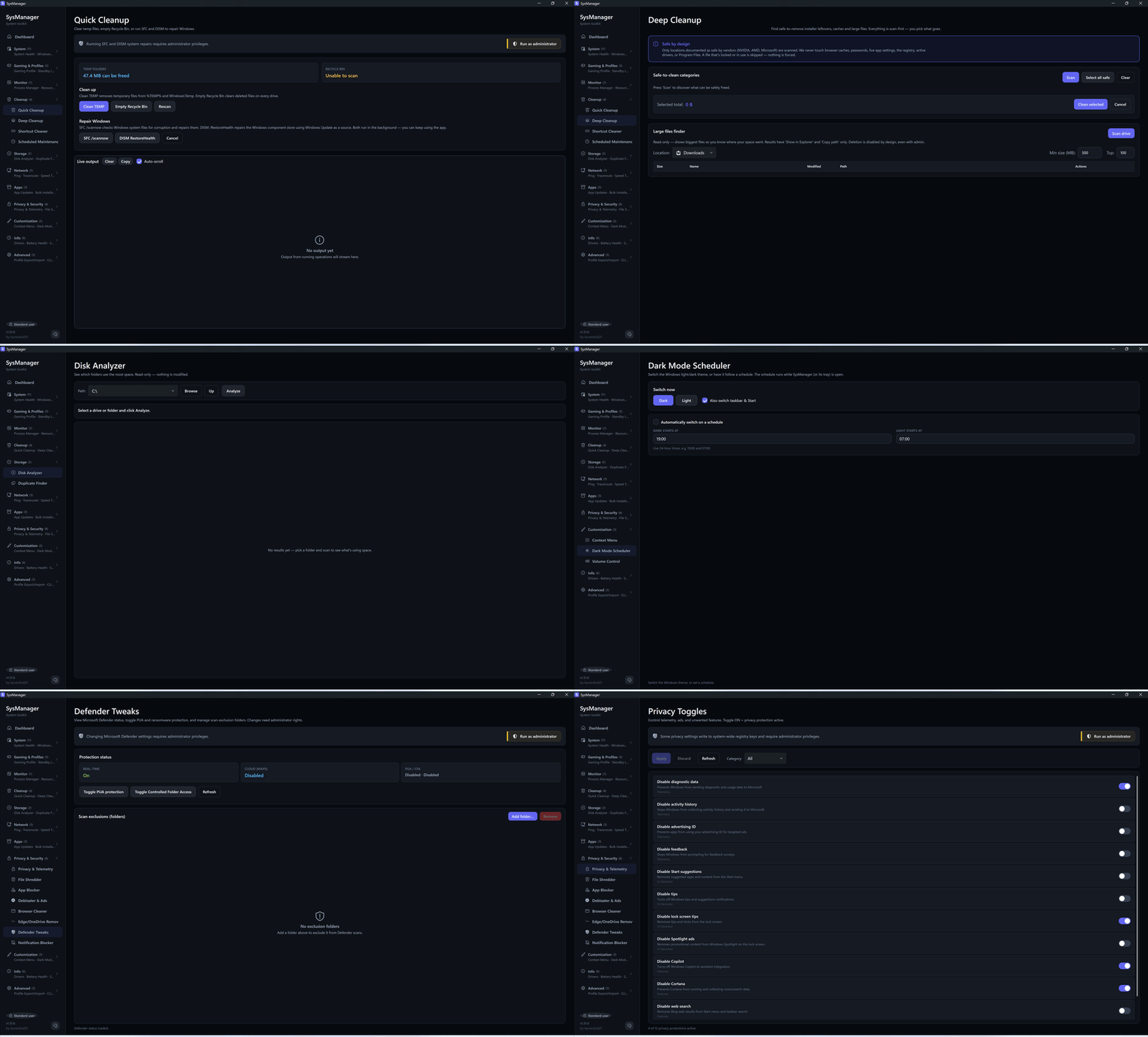 Cleanup & tools: Quick/Deep Cleanup, Disk Analyzer, Dark Mode Scheduler, Defender Tweaks, Privacy & Telemetry.
🏠 Dashboard
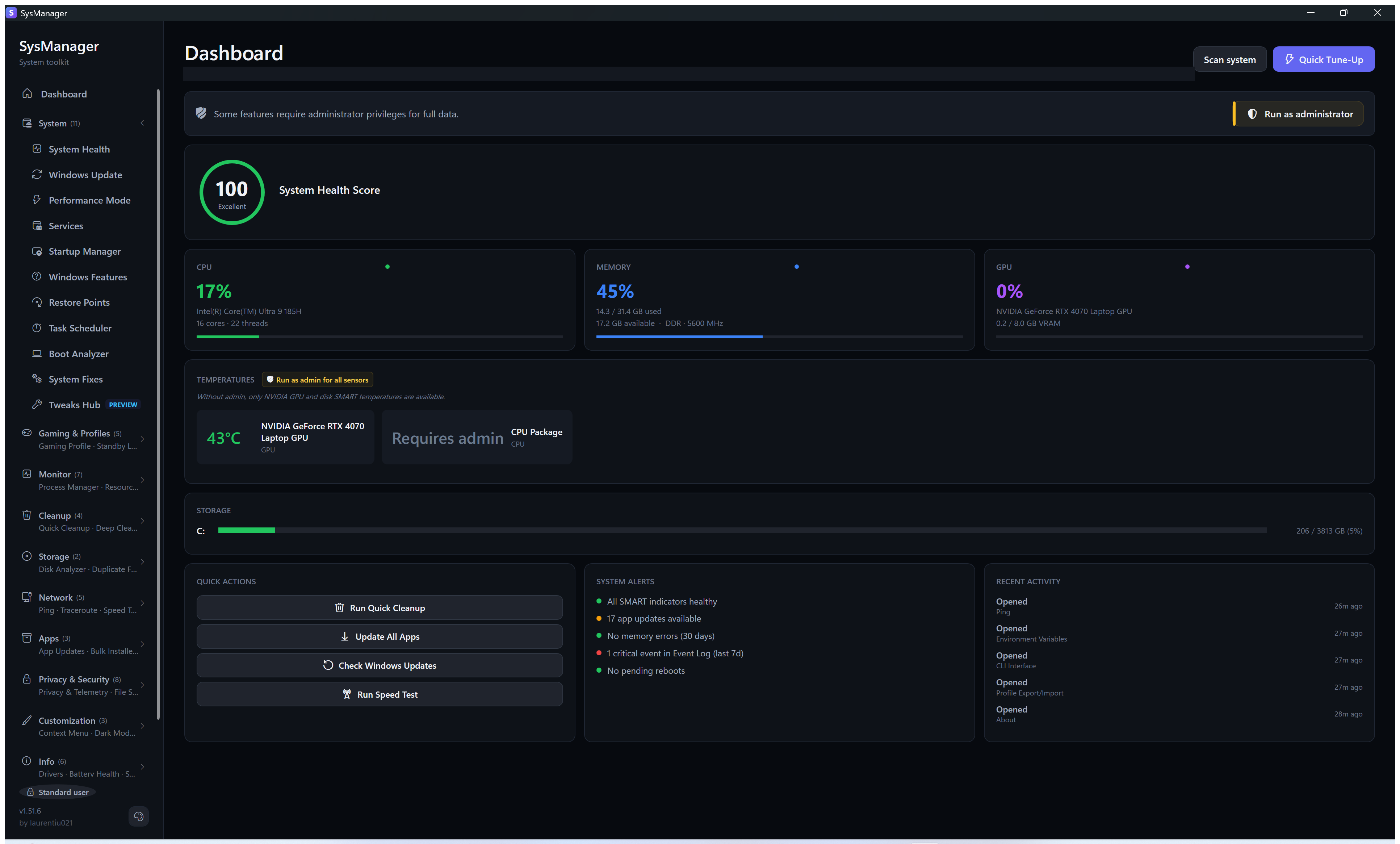
🔧 System — Health · Windows Update · Performance · Windows Features · Restore Points · Boot Analyzer · System Fixes
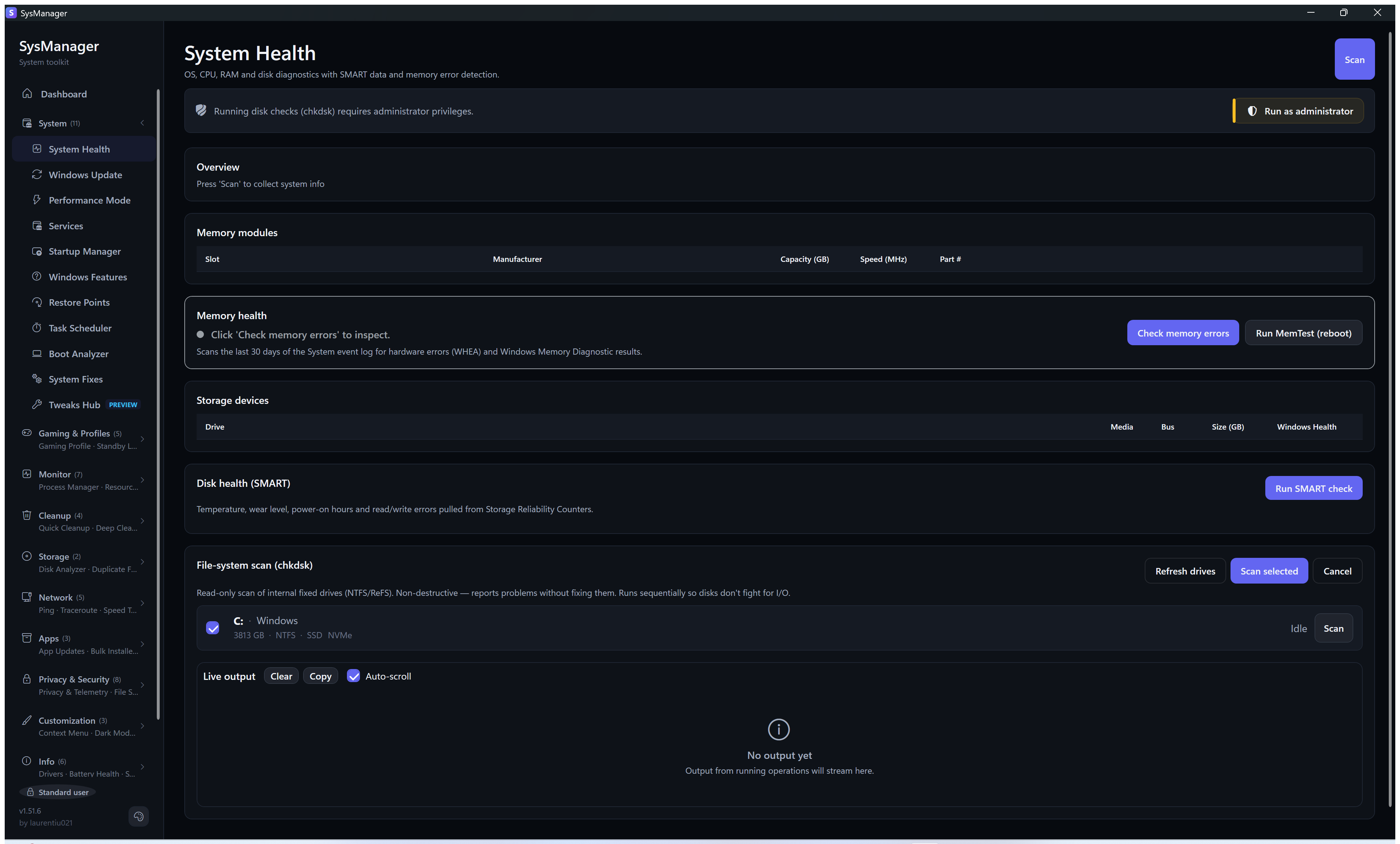
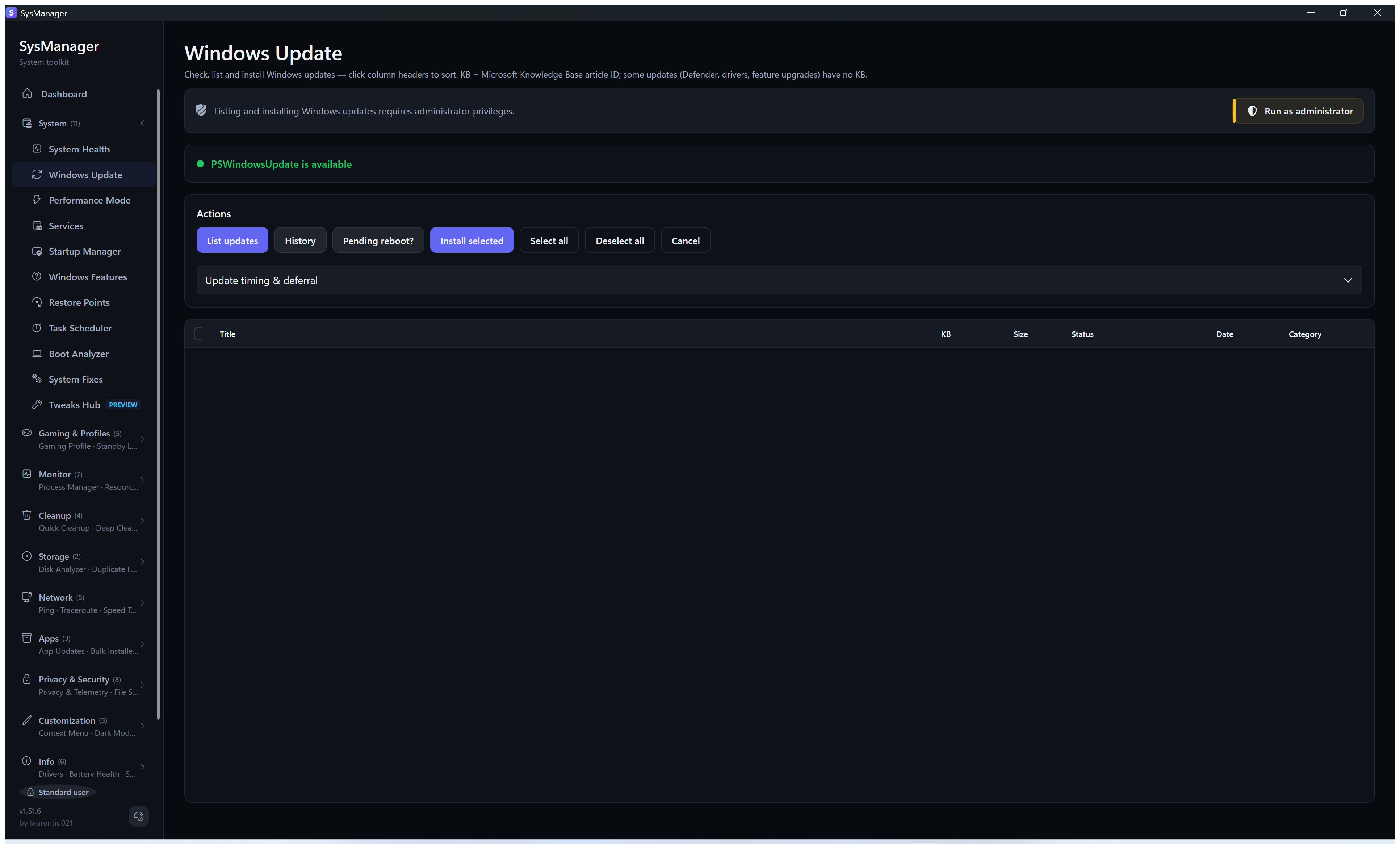
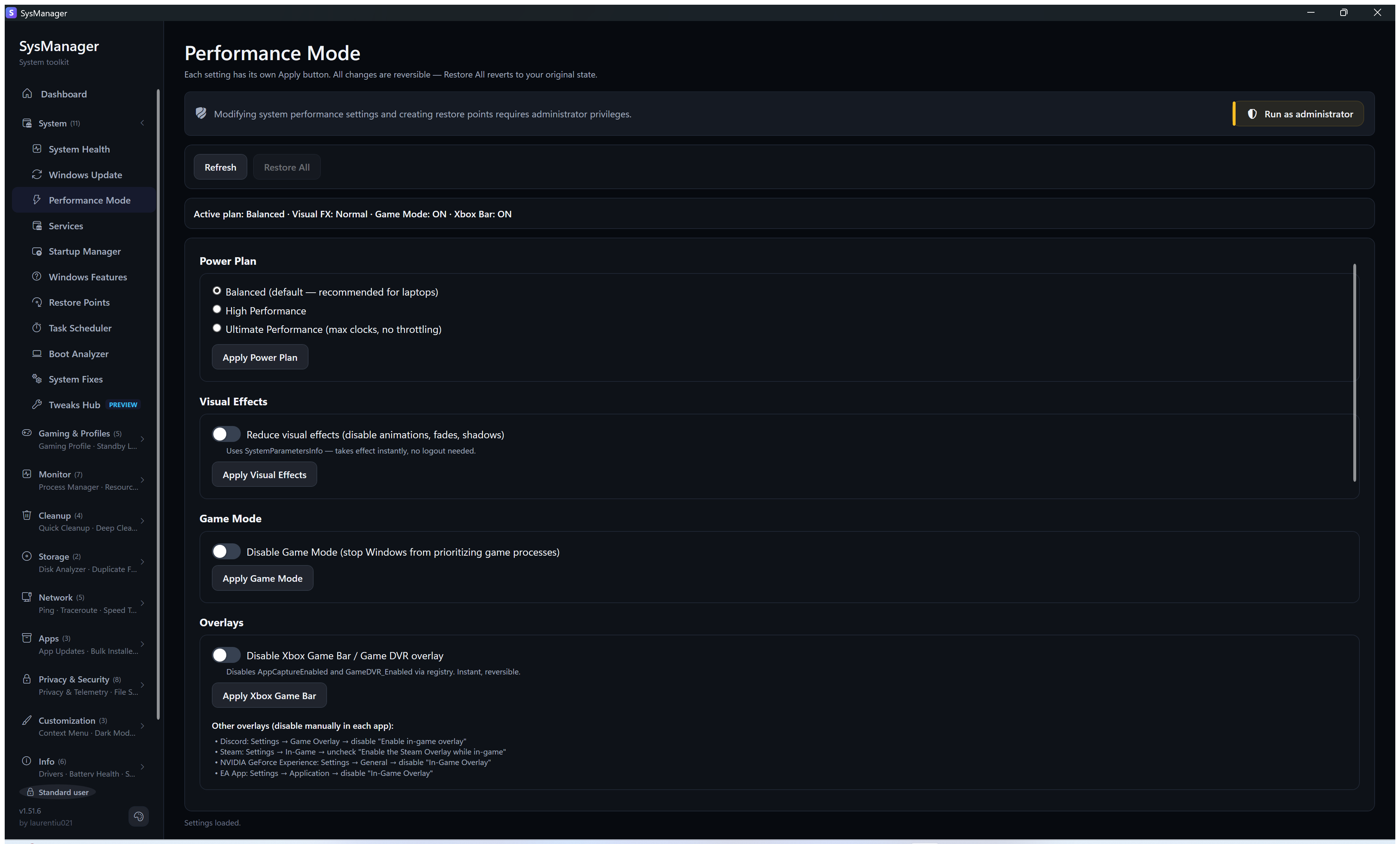
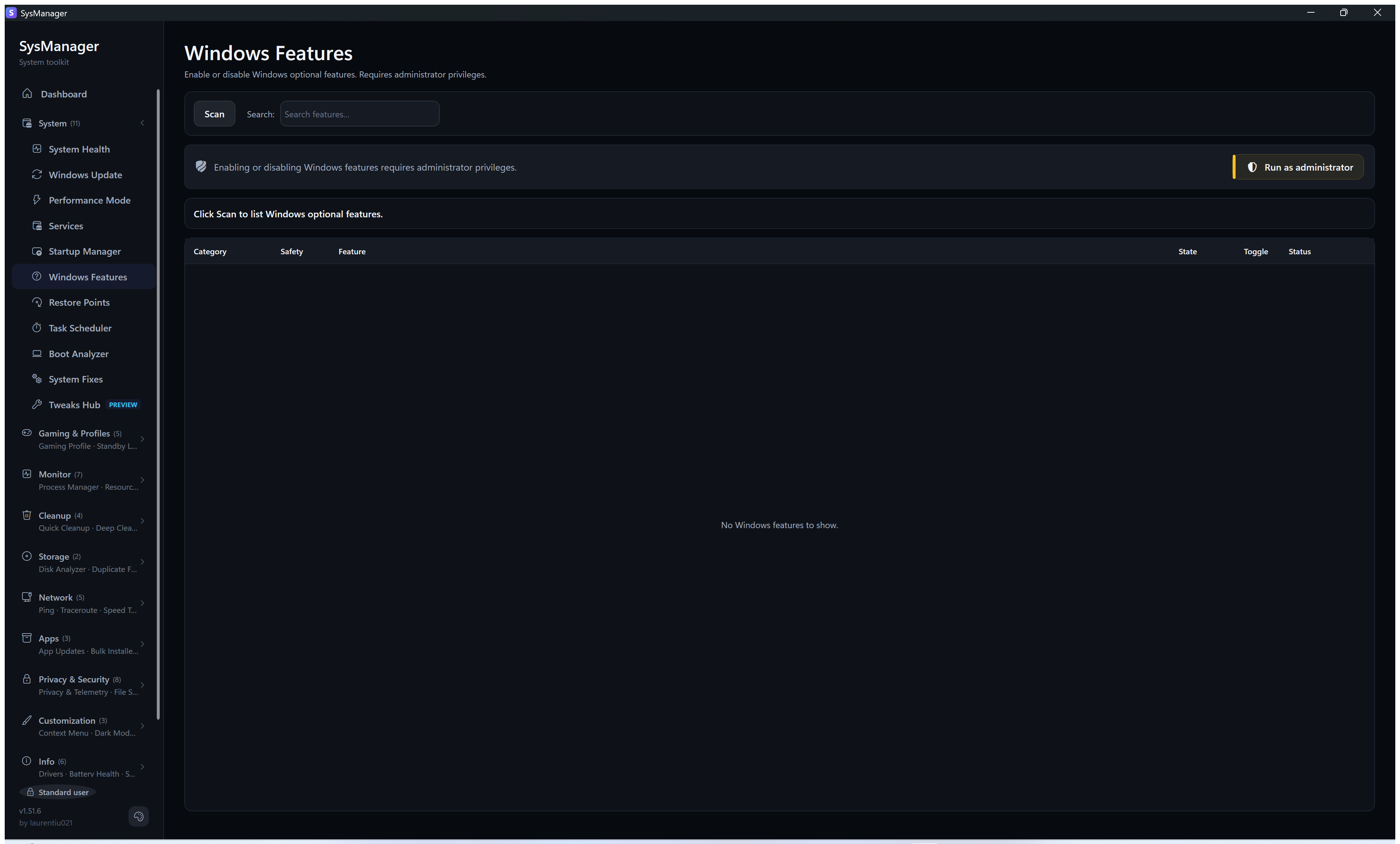
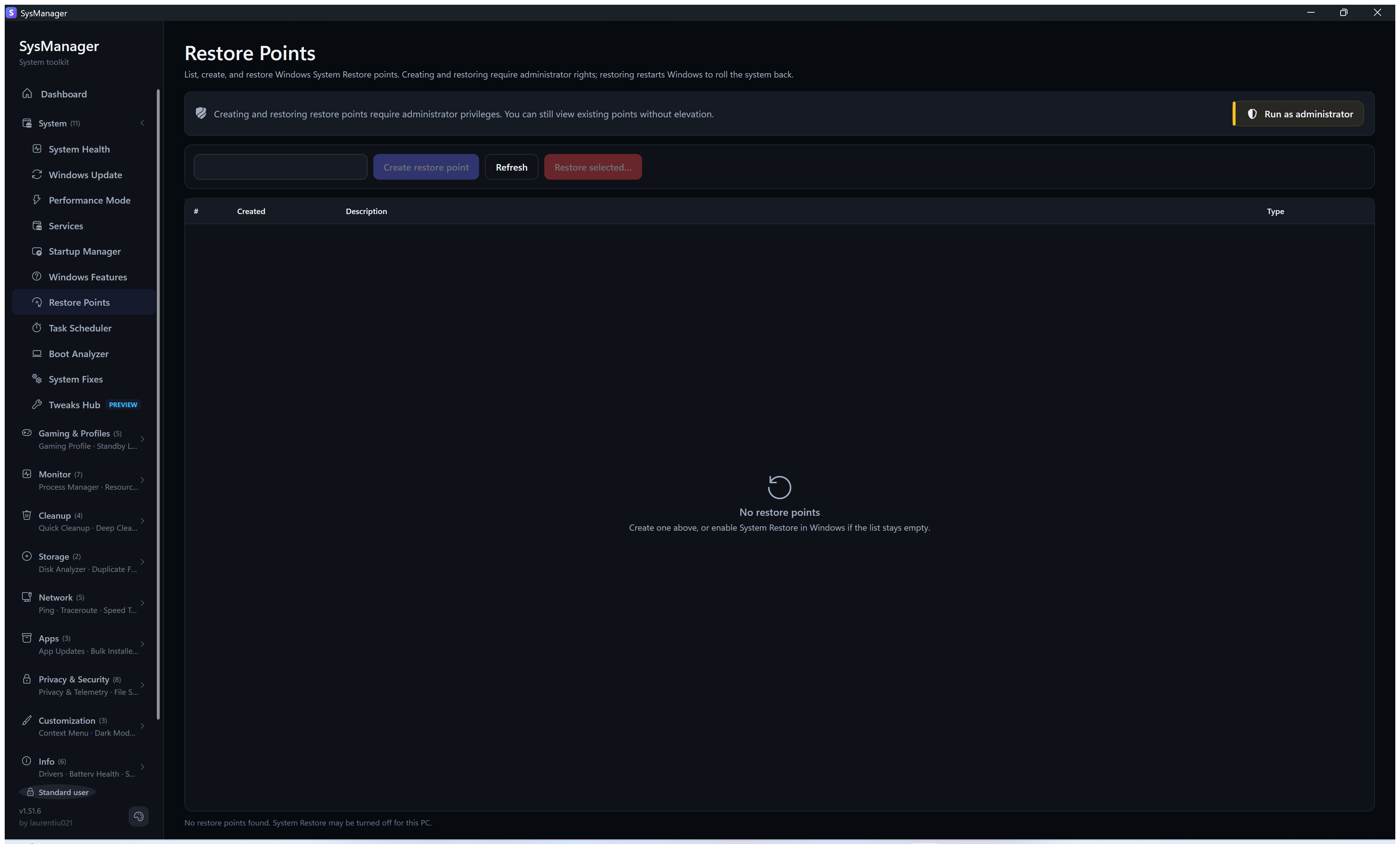
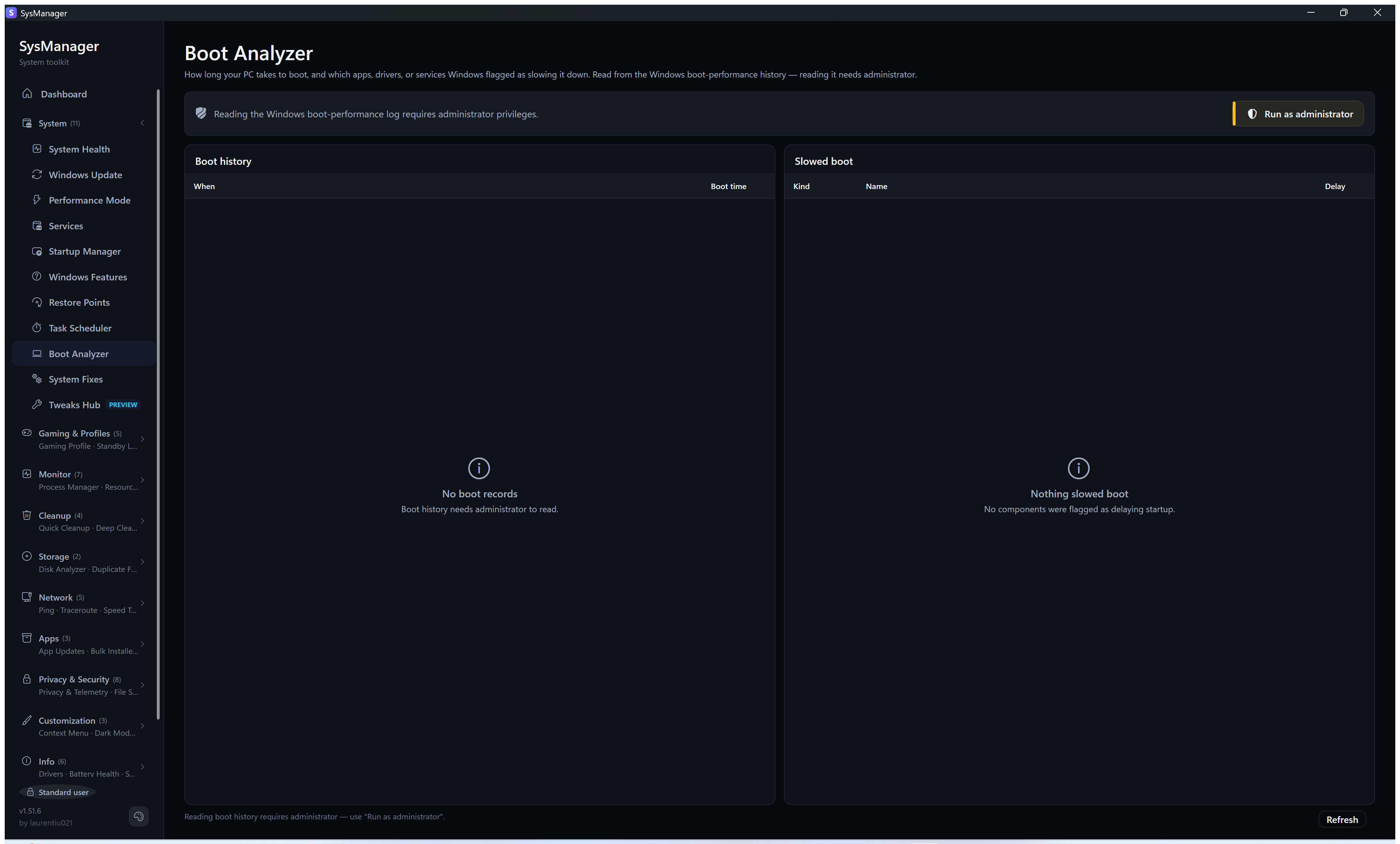
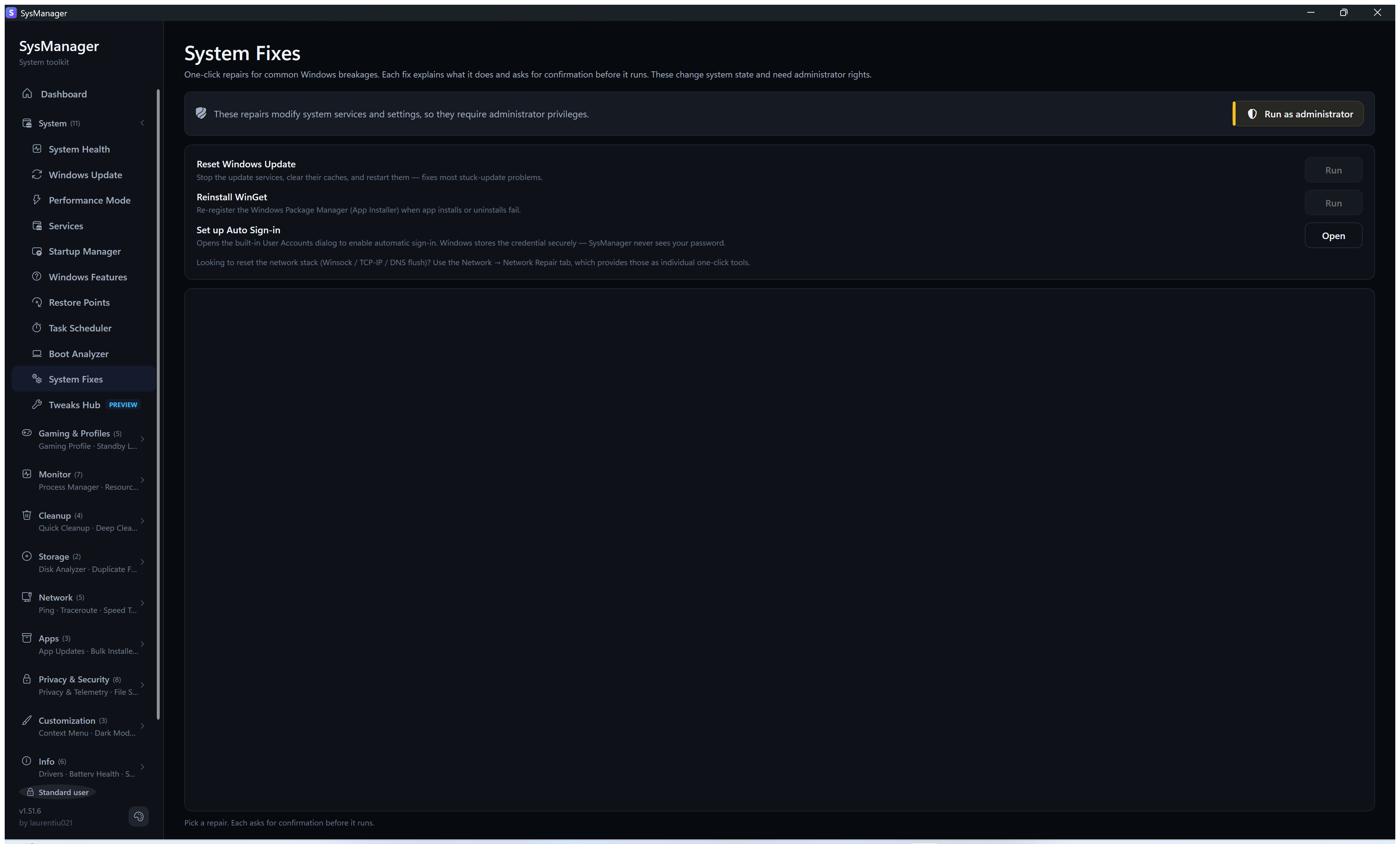
🎮 Gaming & Profiles — Gaming Profile · Standby Cleaner · Timer Resolution · CPU Affinity · Display Profiles

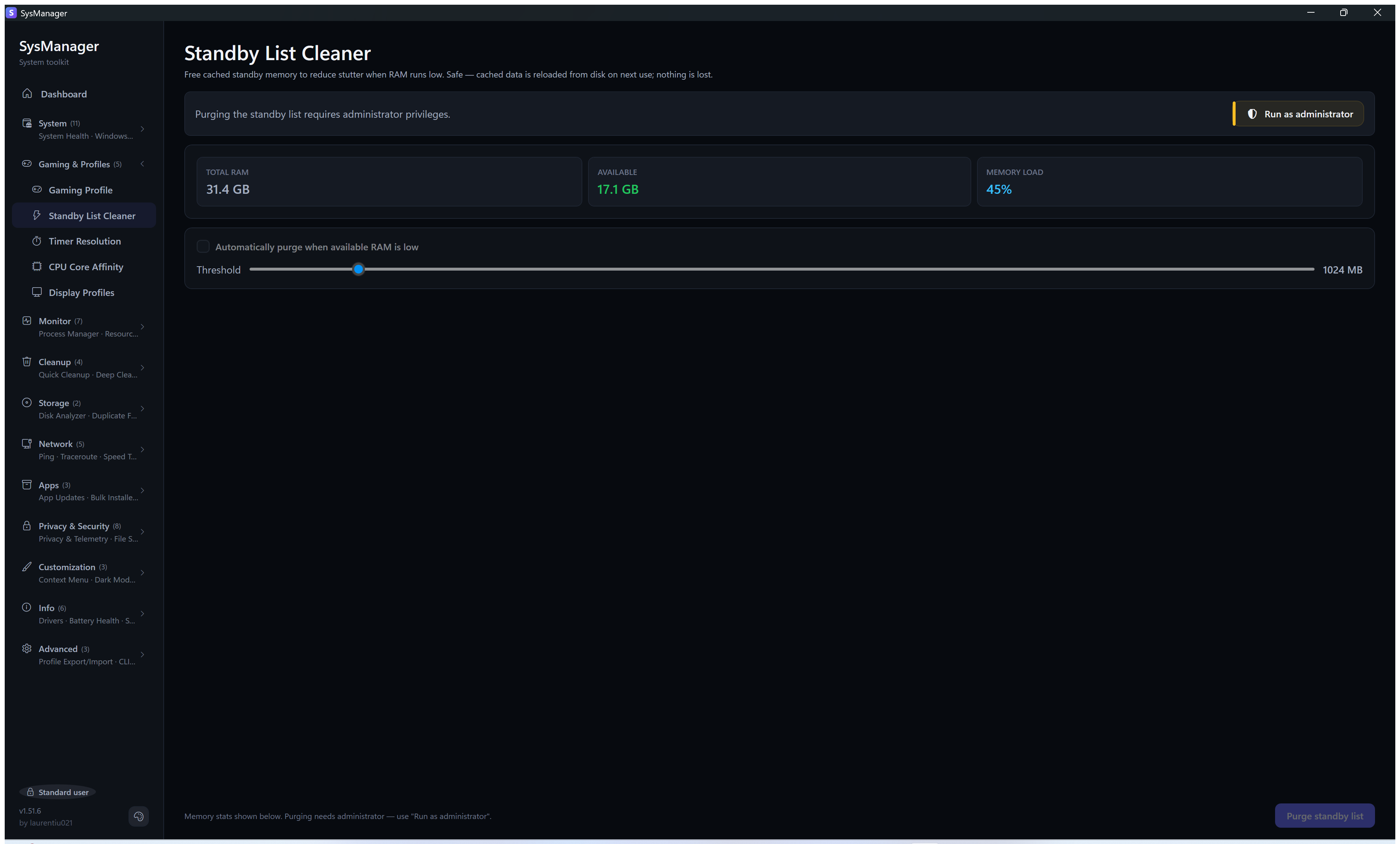
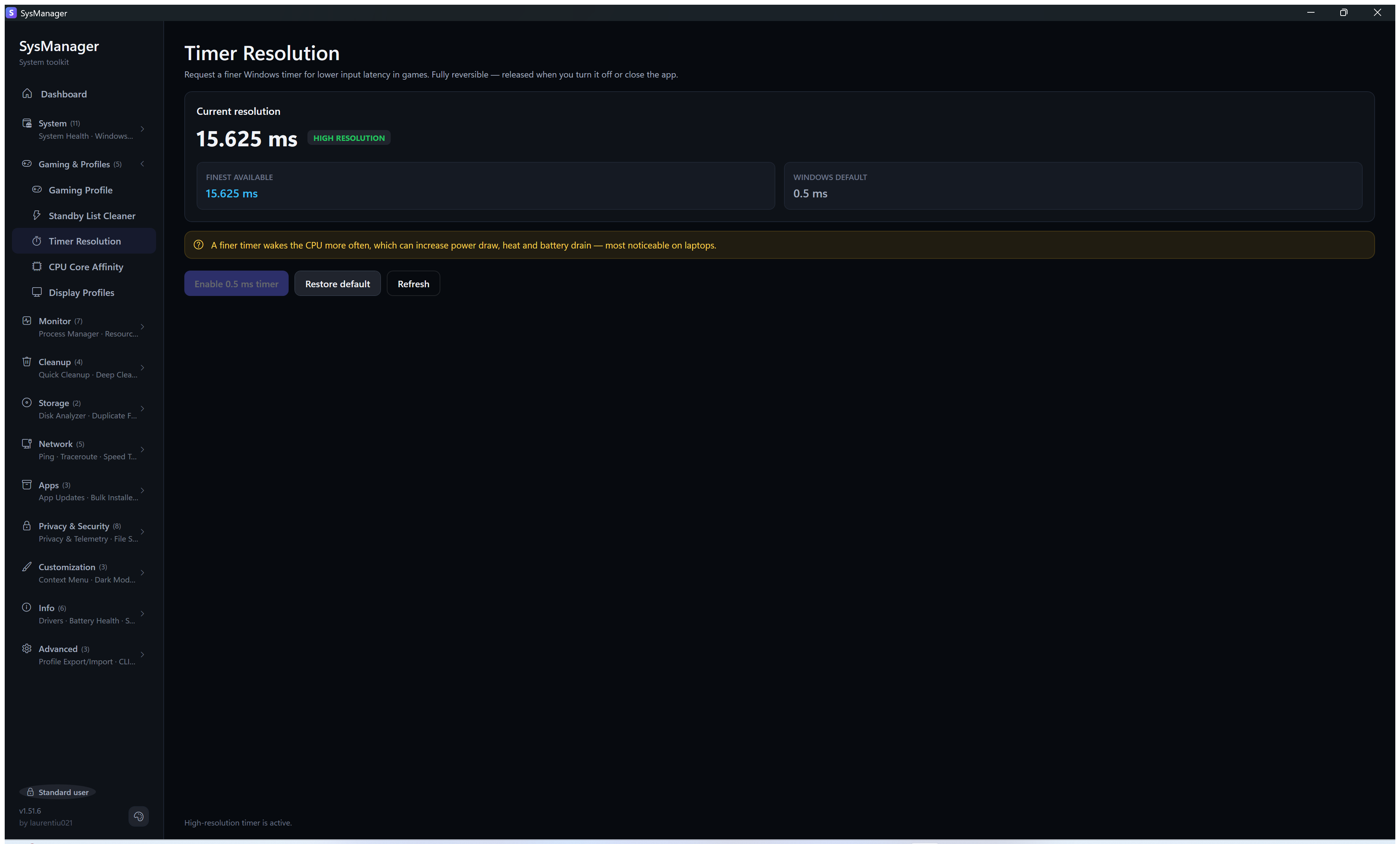
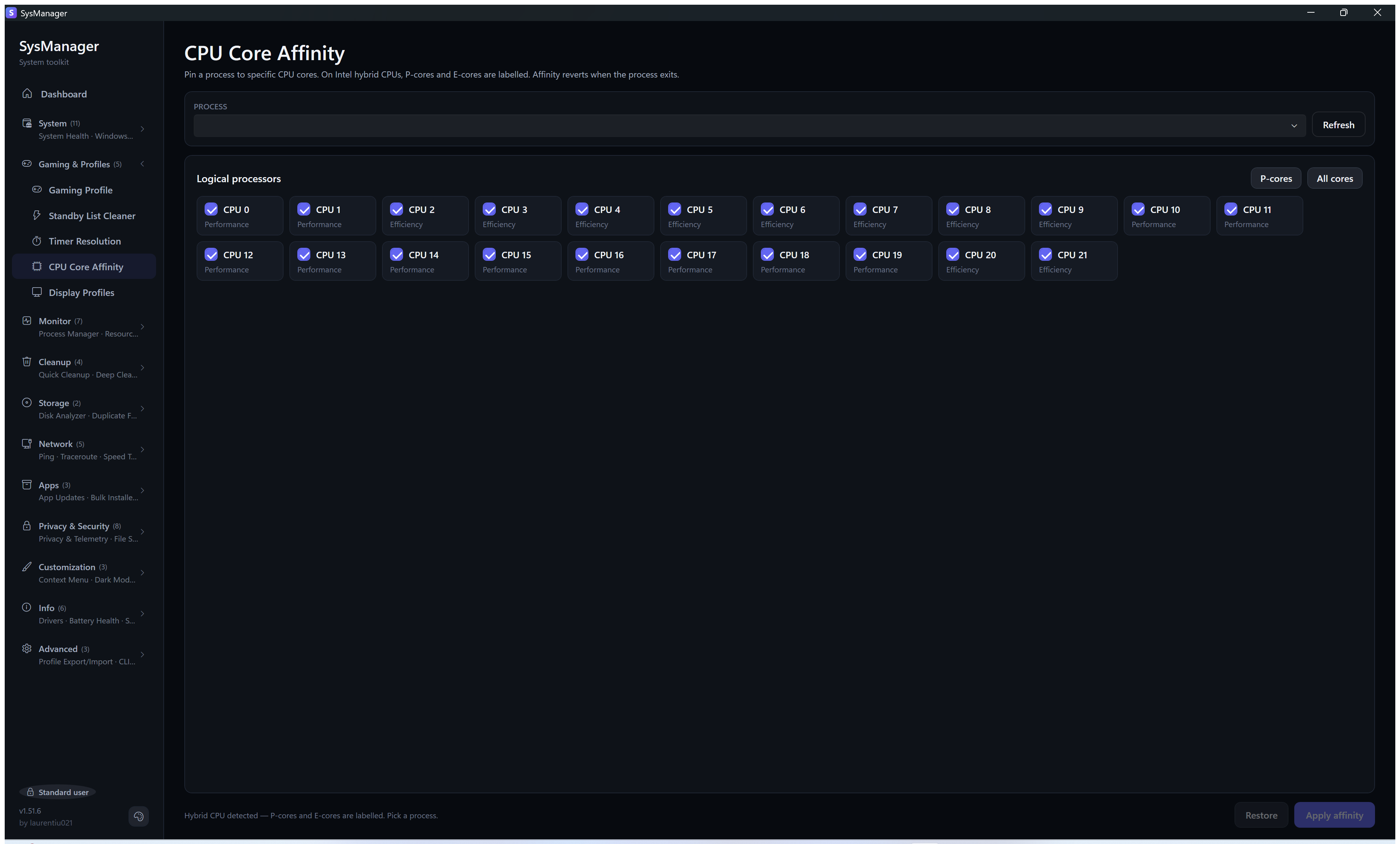
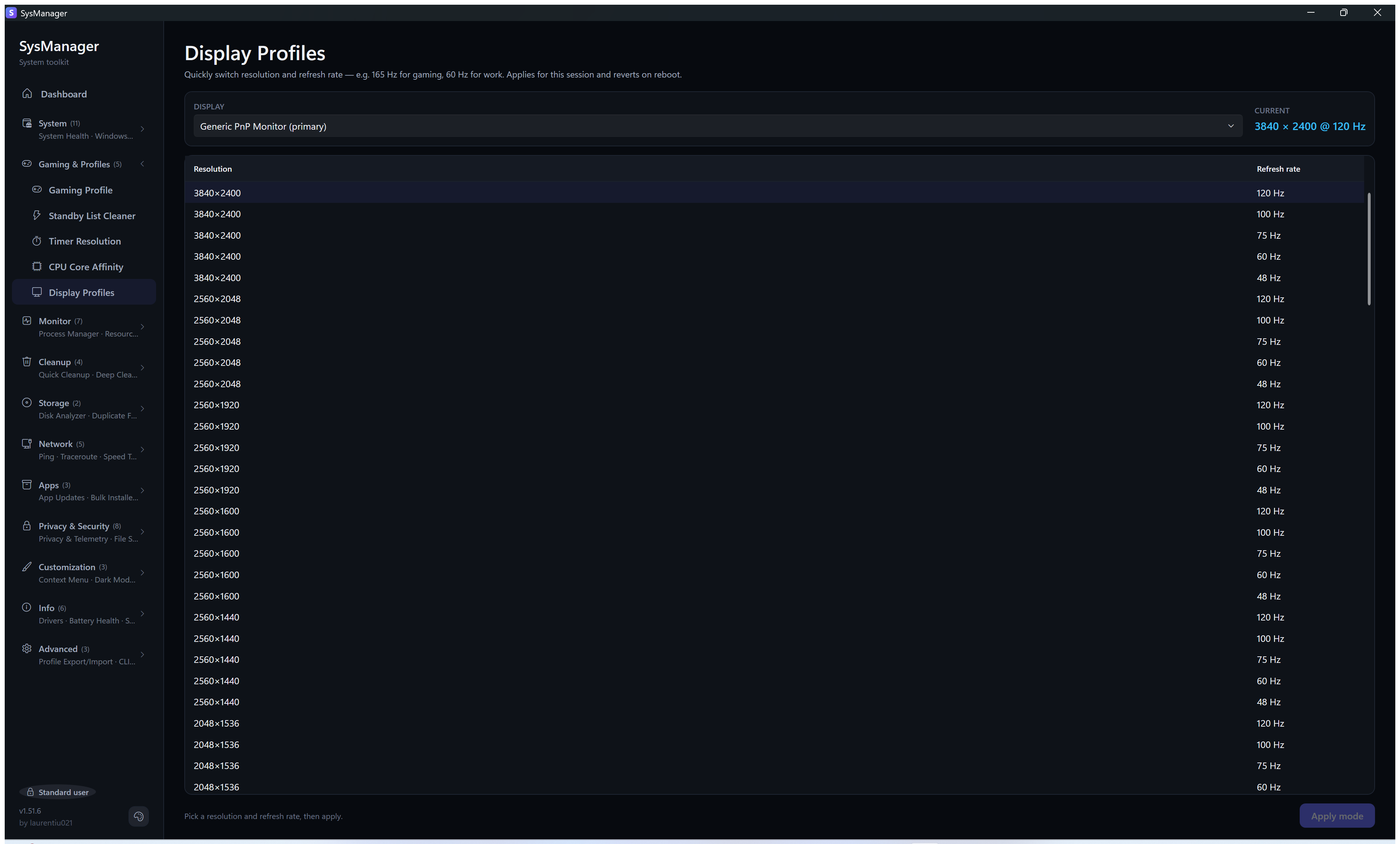
📊 Monitor — Resource History · Settings Watchdog
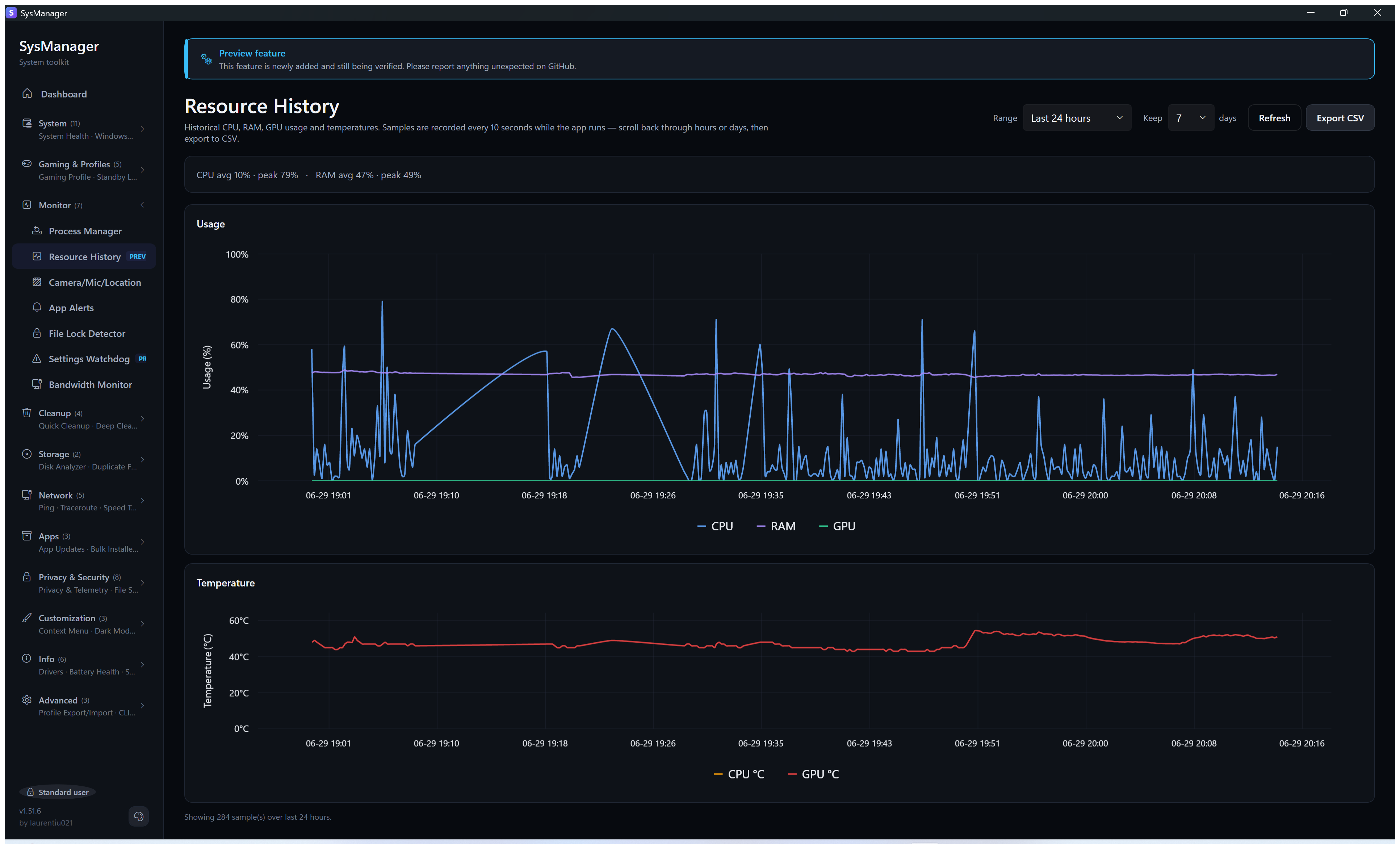
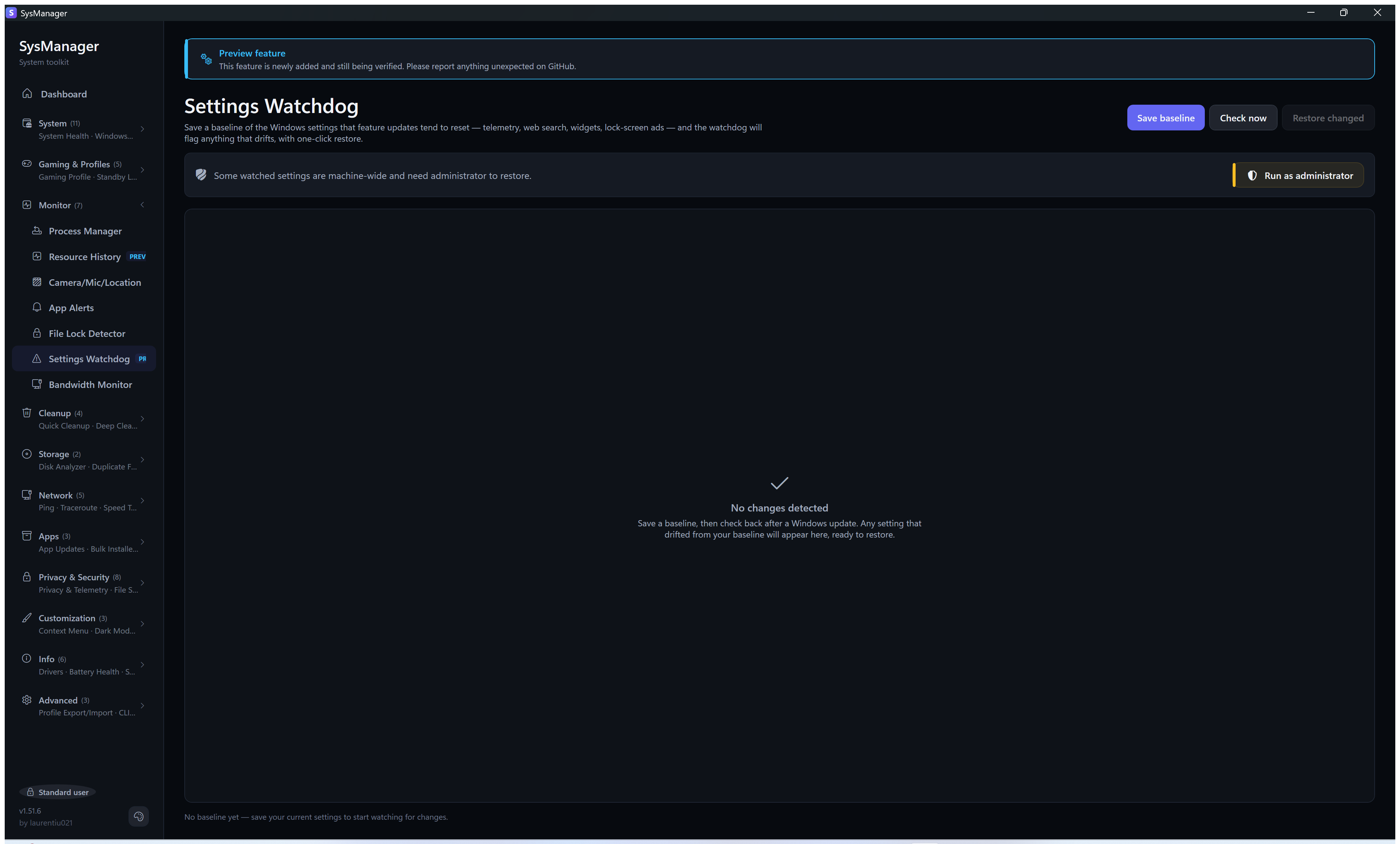
🧹 Cleanup — Quick Cleanup · Deep Cleanup · Shortcut Cleaner · Scheduled Maintenance
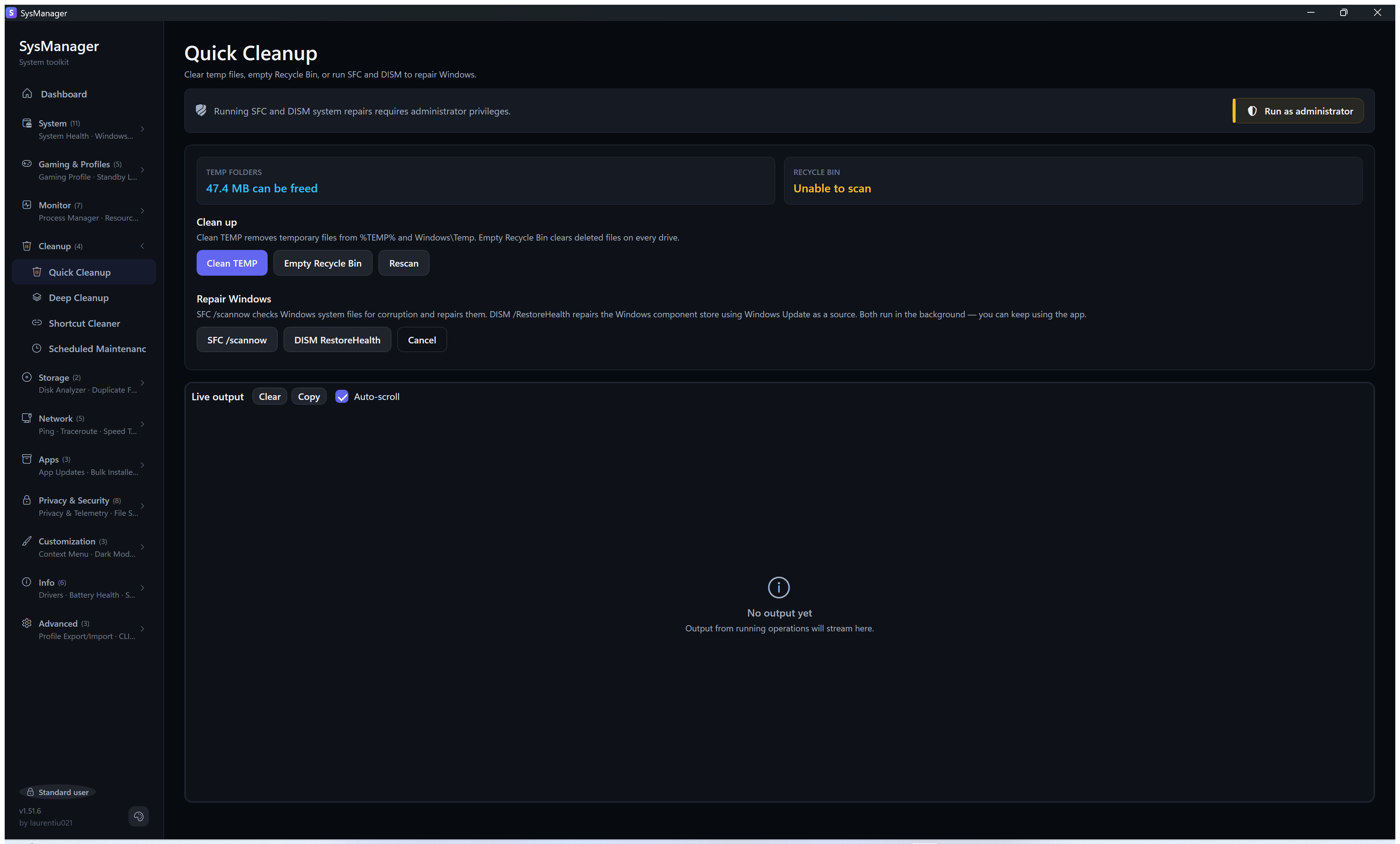
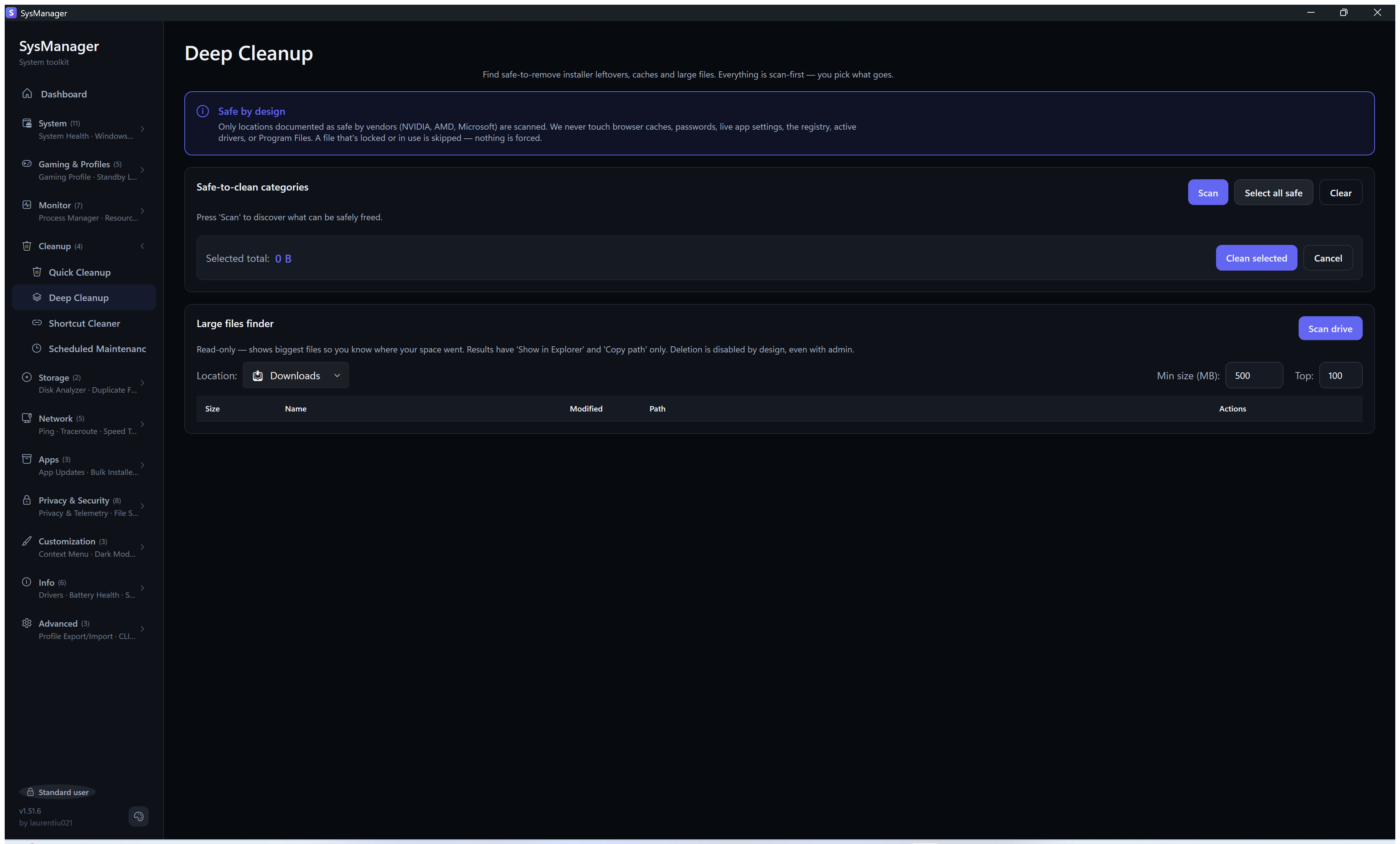
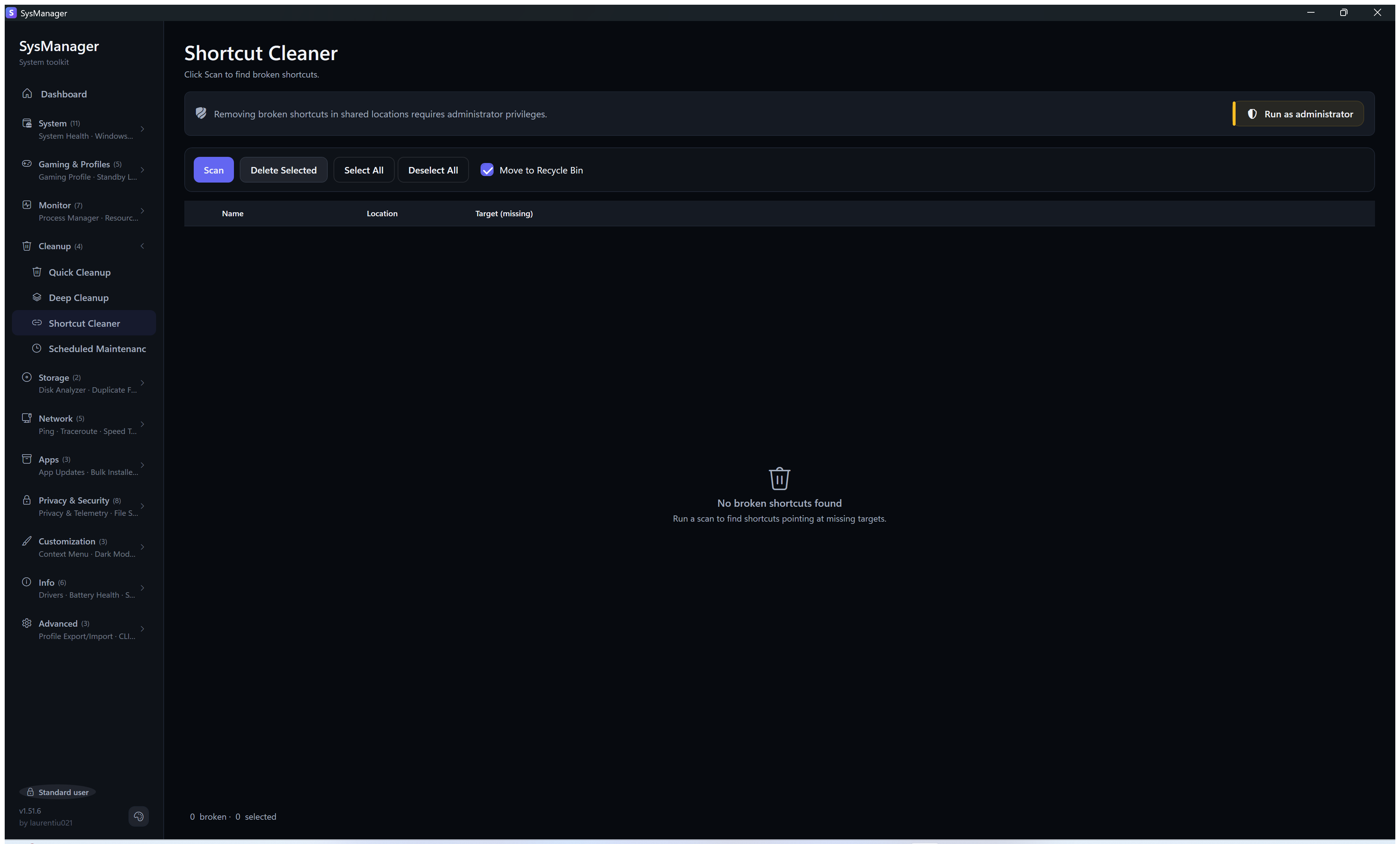
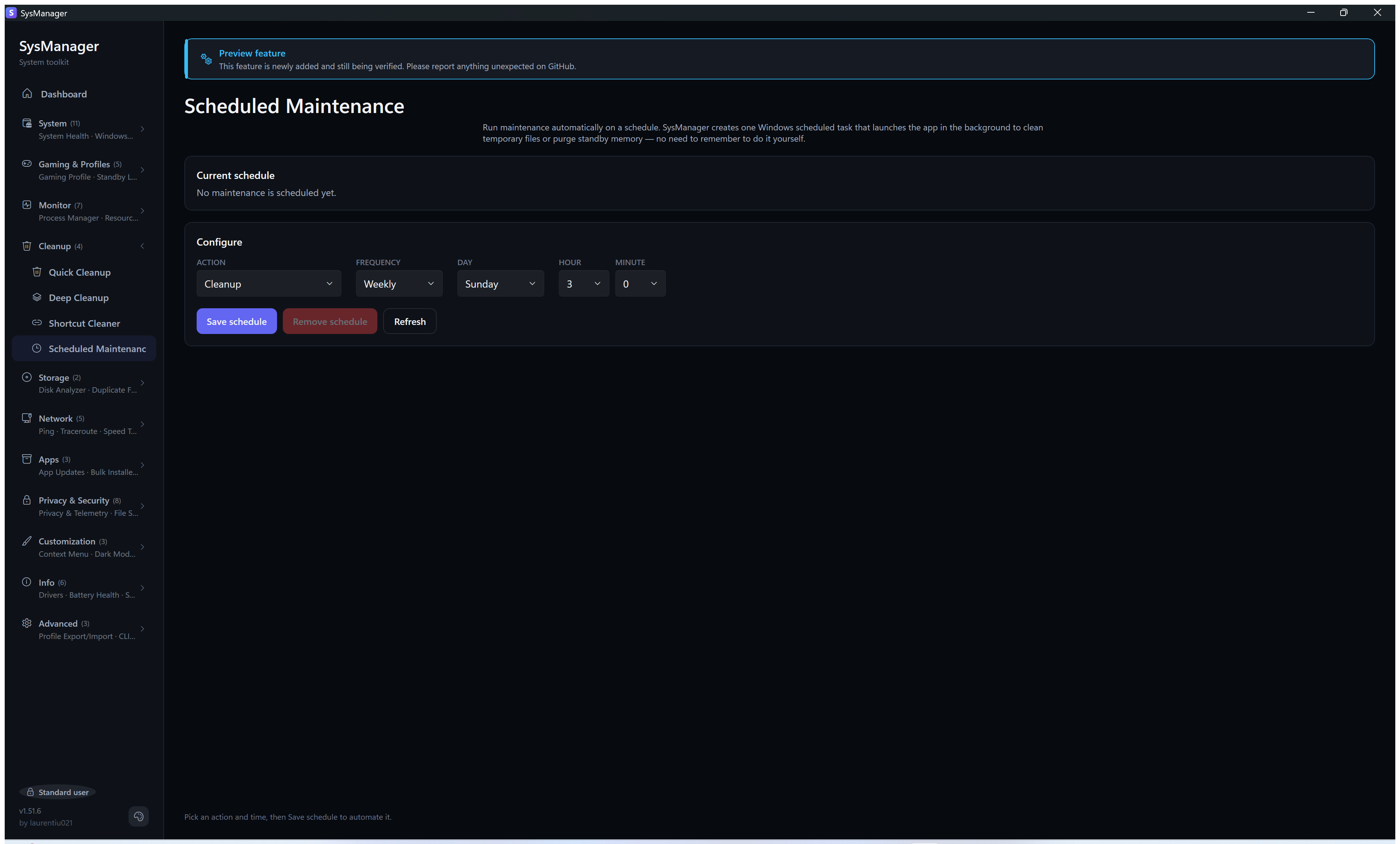
💾 Storage & Files — Disk Analyzer · File Lock Detector
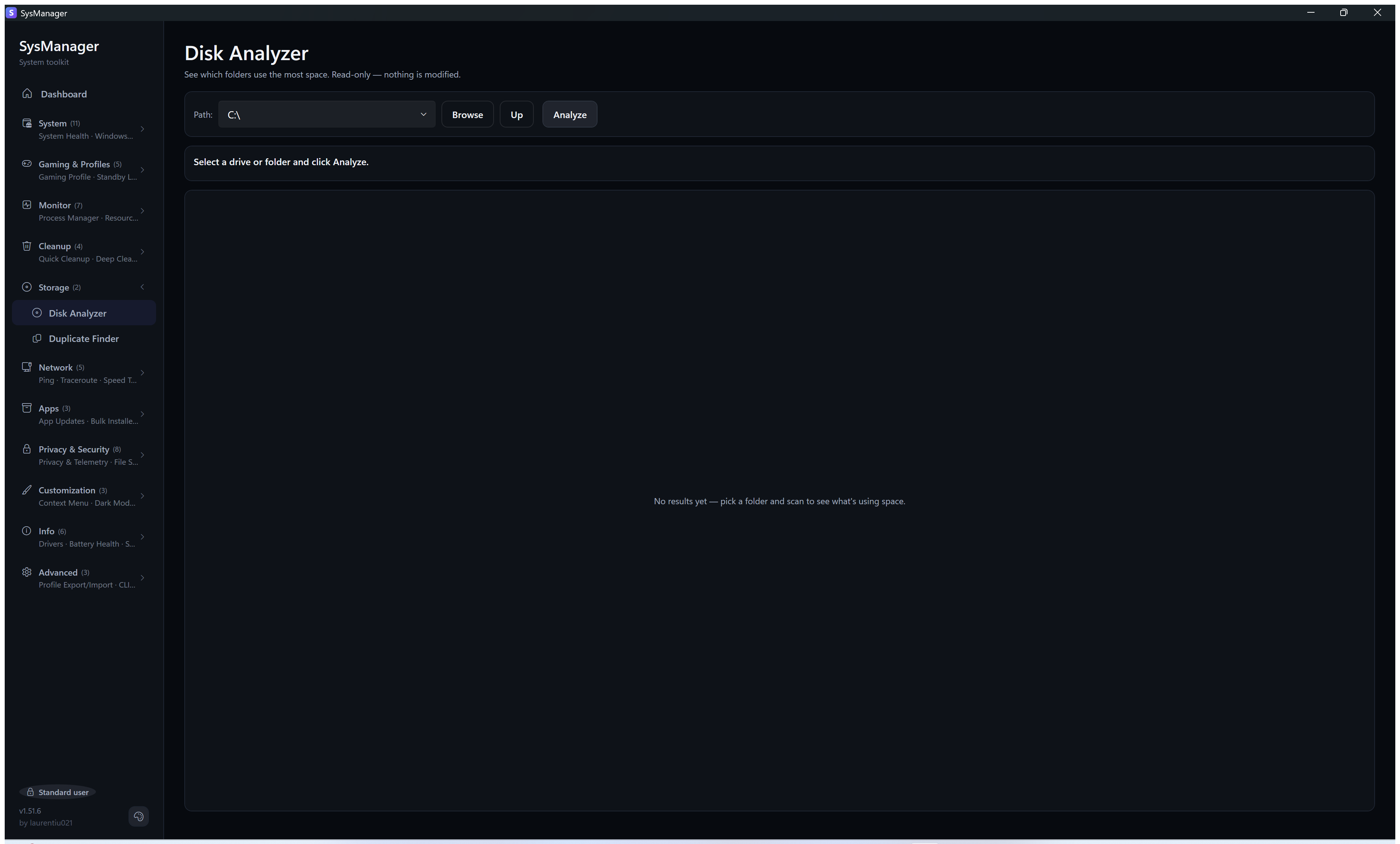
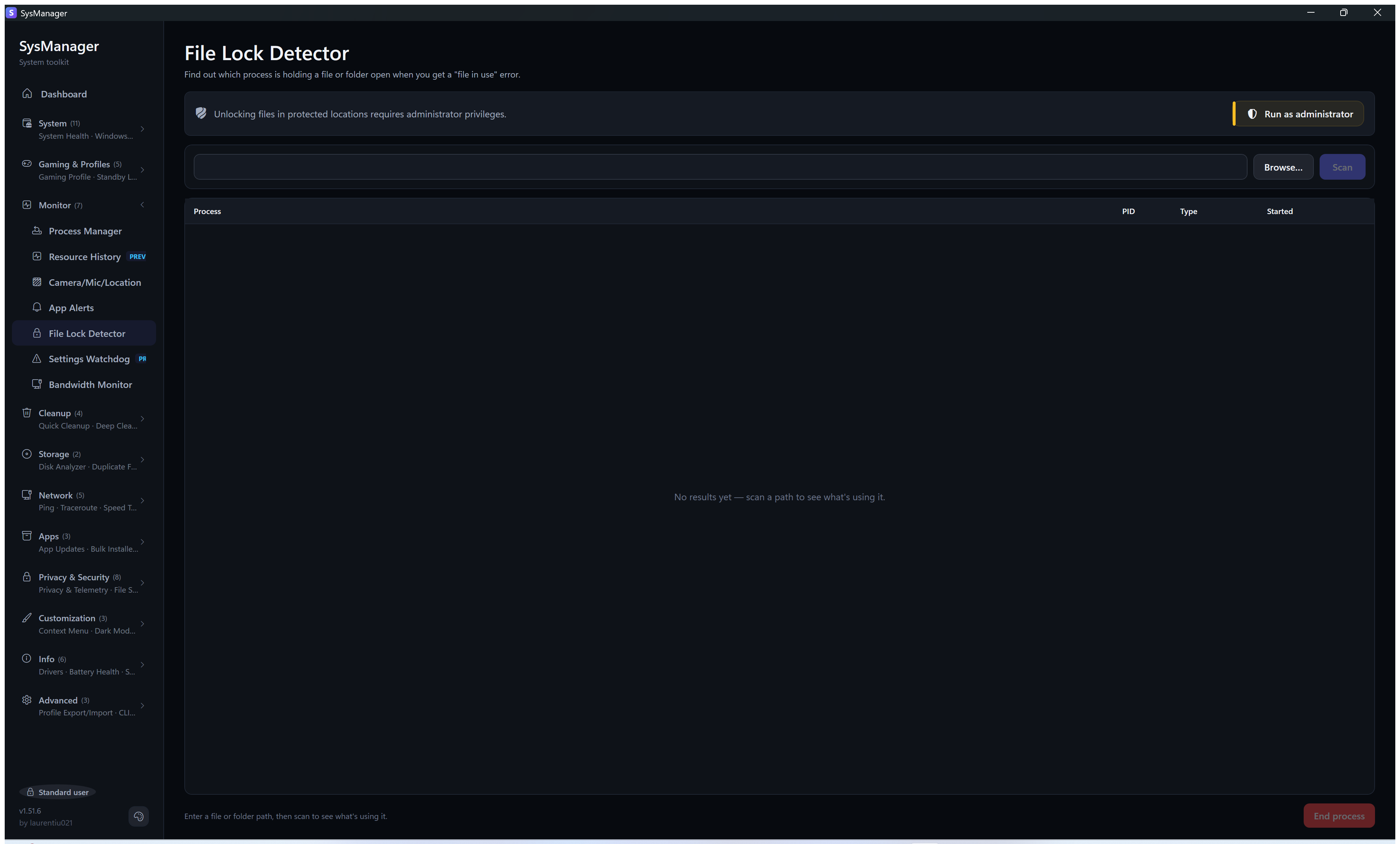
Duplicate Finder is implemented and has no screenshot yet — a shot of it would be a list
of real file paths, which needs redacting before it can ship.
🌐 Network — Ping · Traceroute · Speed Test · Repair
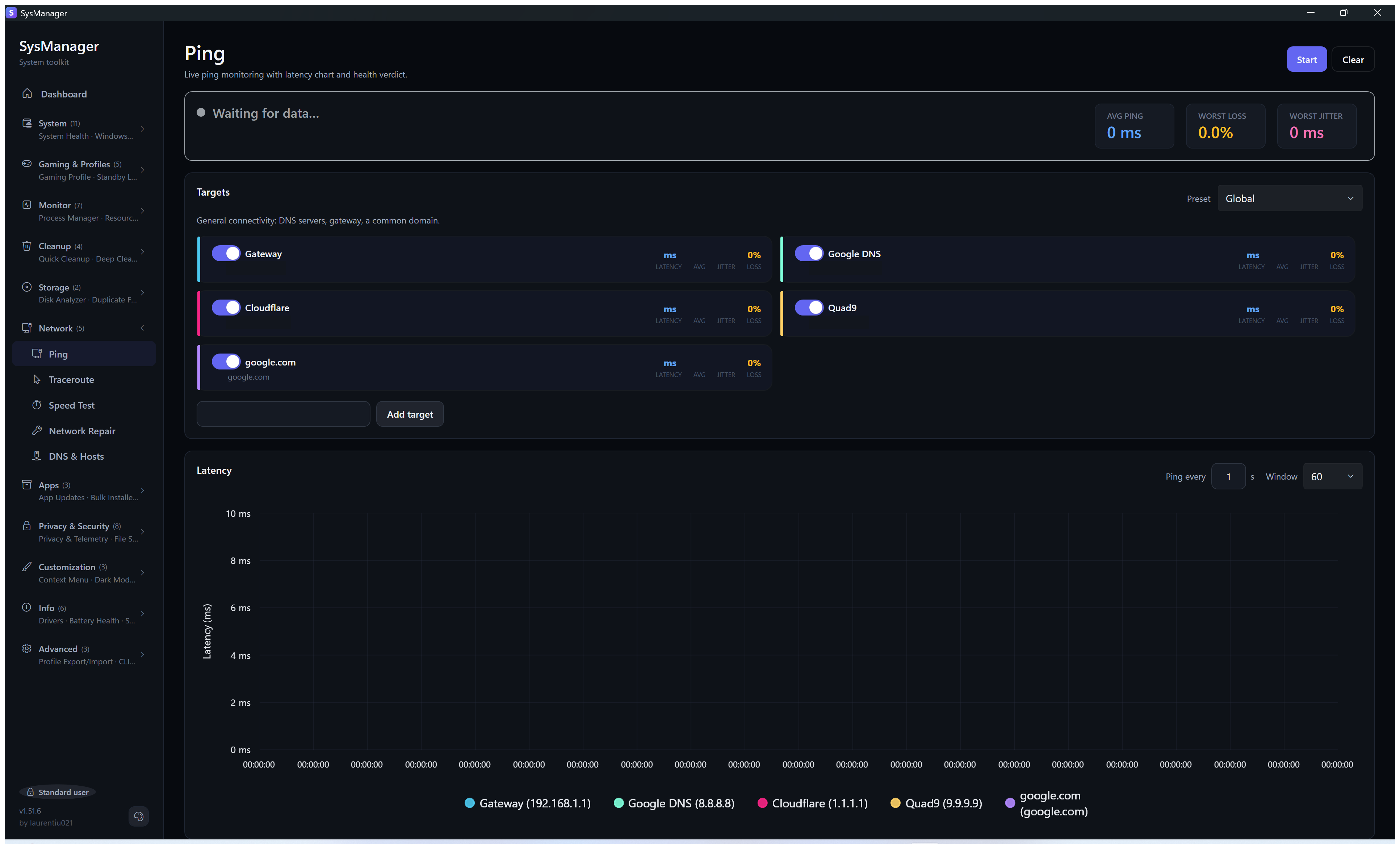
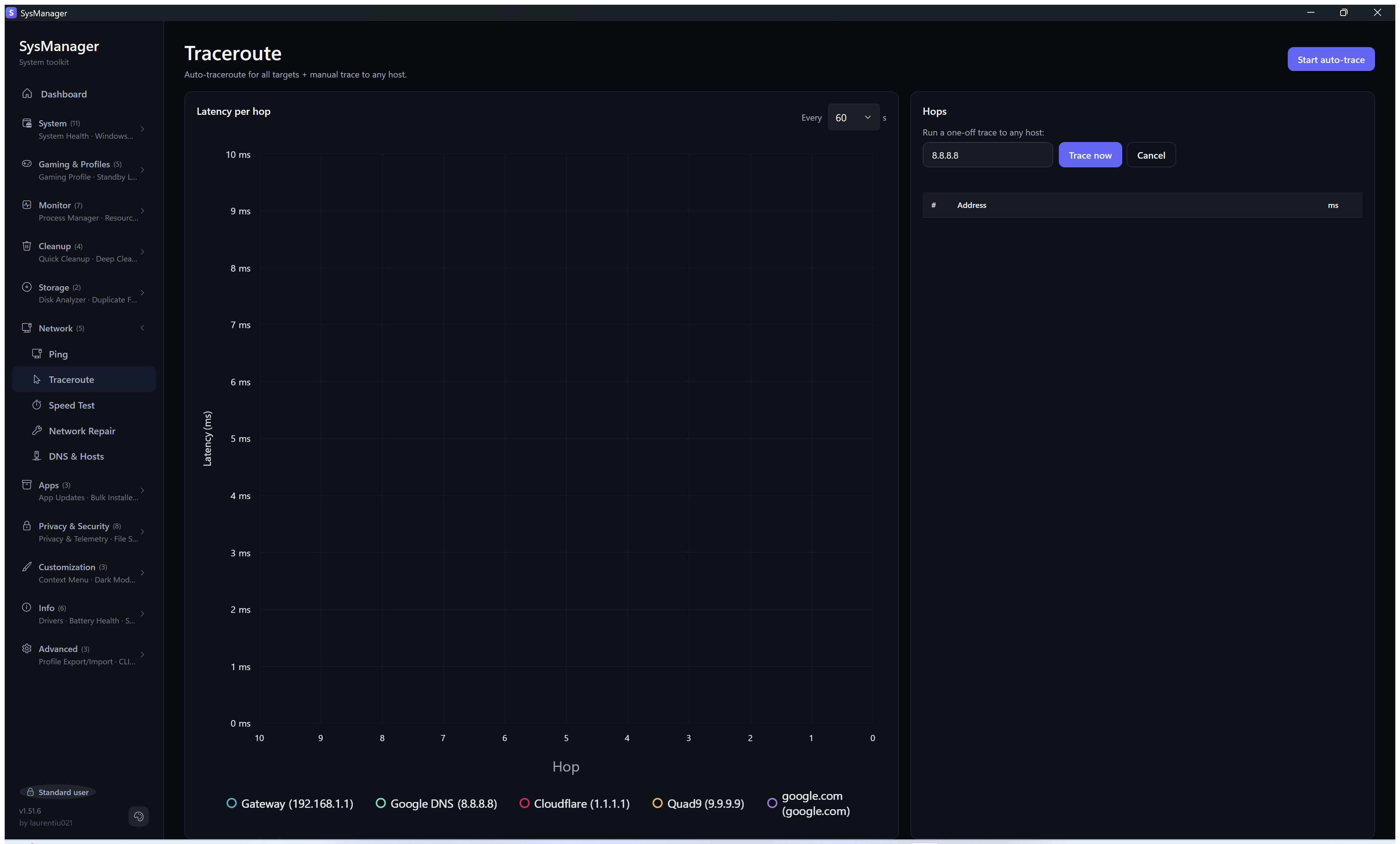
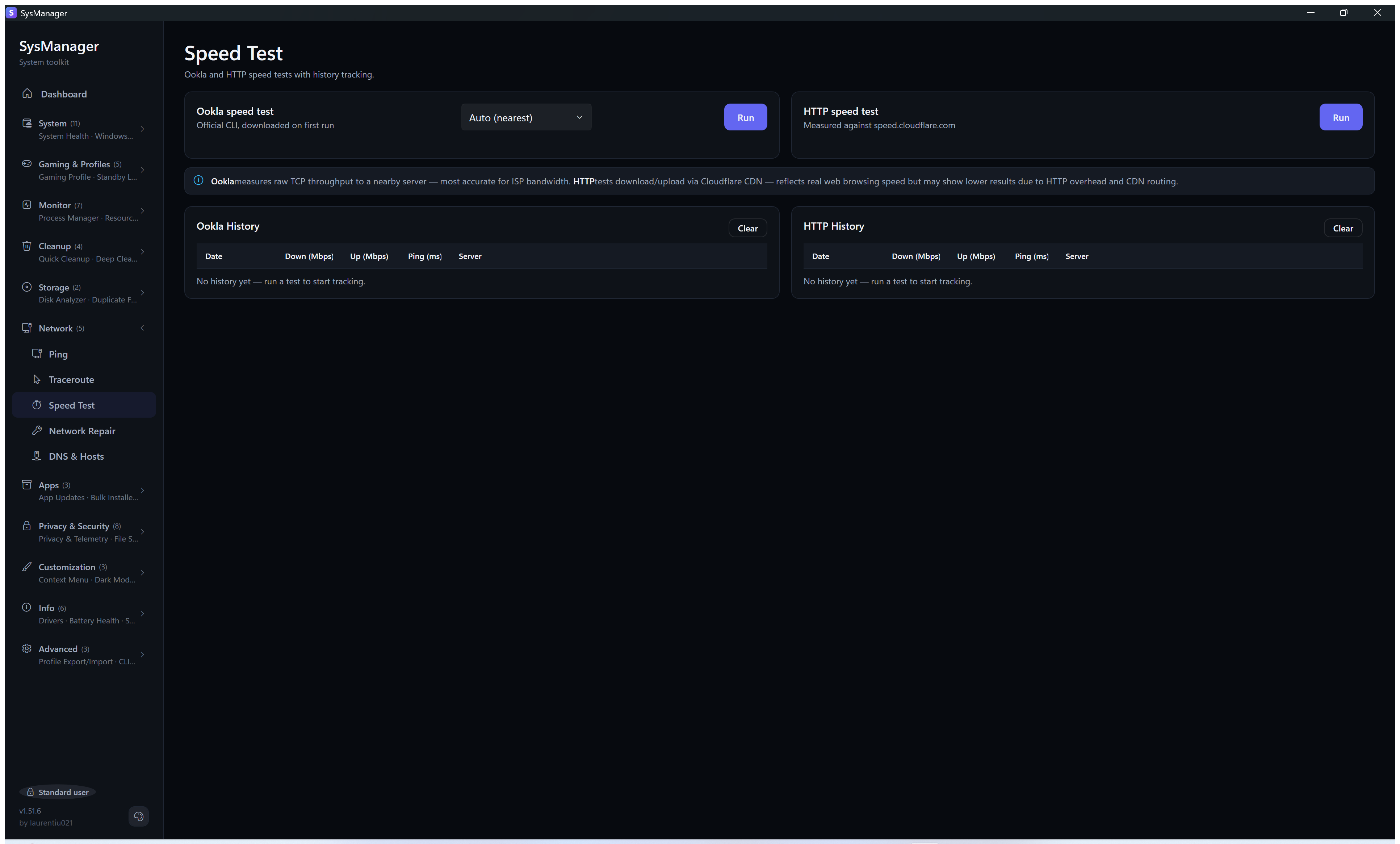
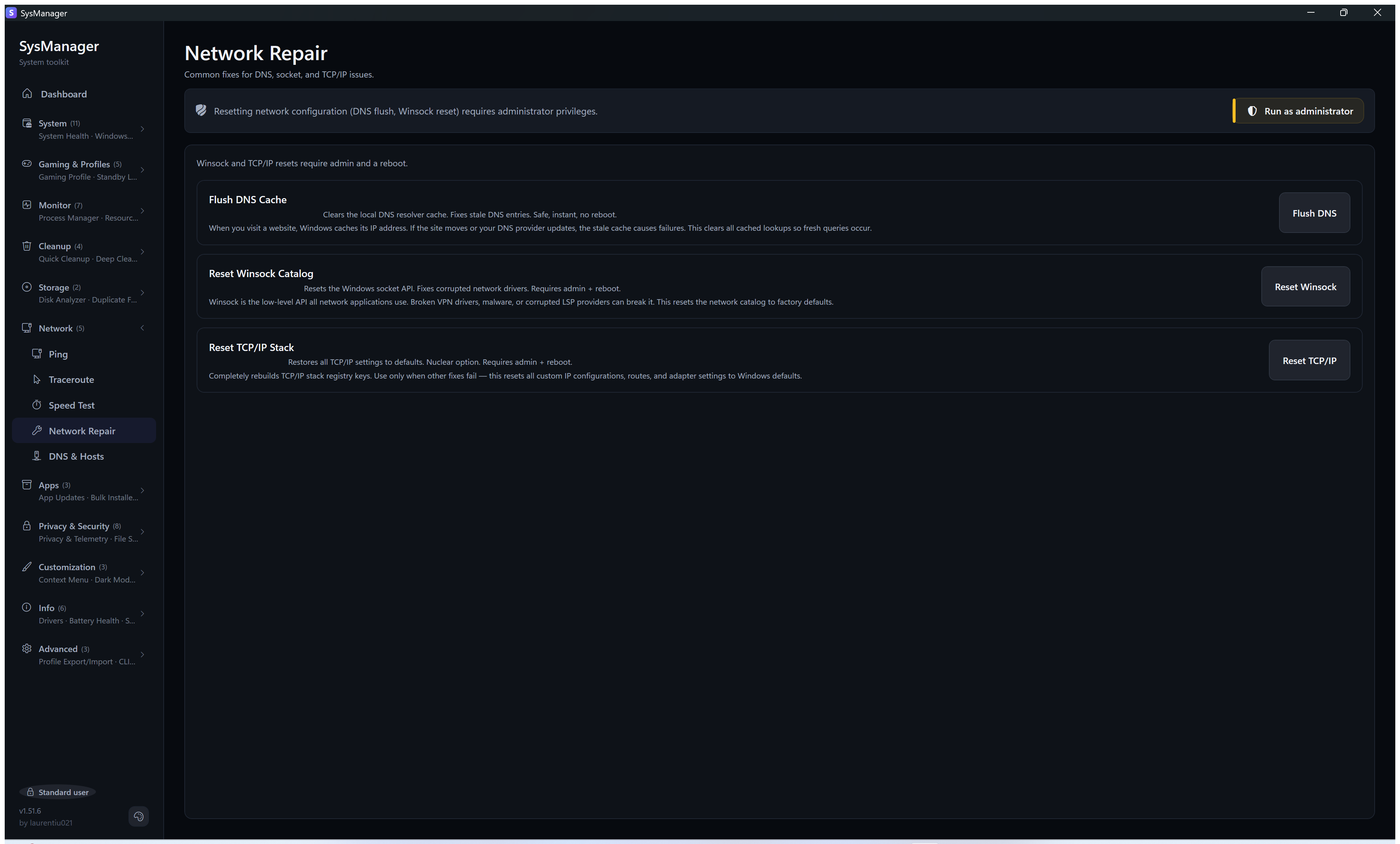
Bandwidth Monitor is implemented but its screenshot is still being recaptured — the
previous one showed the tab while it was a placeholder, which no longer reflects the app.
📦 Apps — App Updates · Bulk Installer · New App Alerts
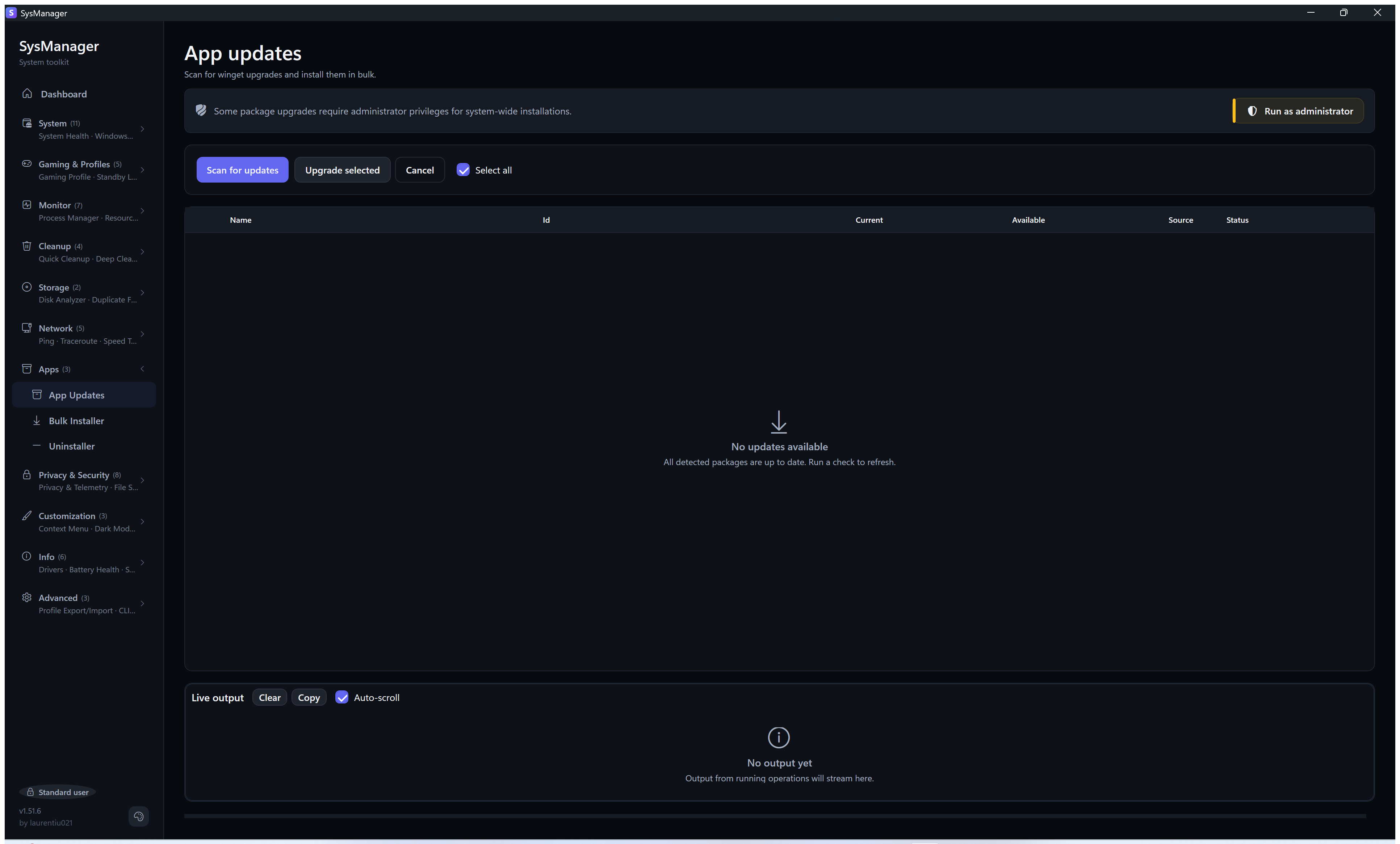
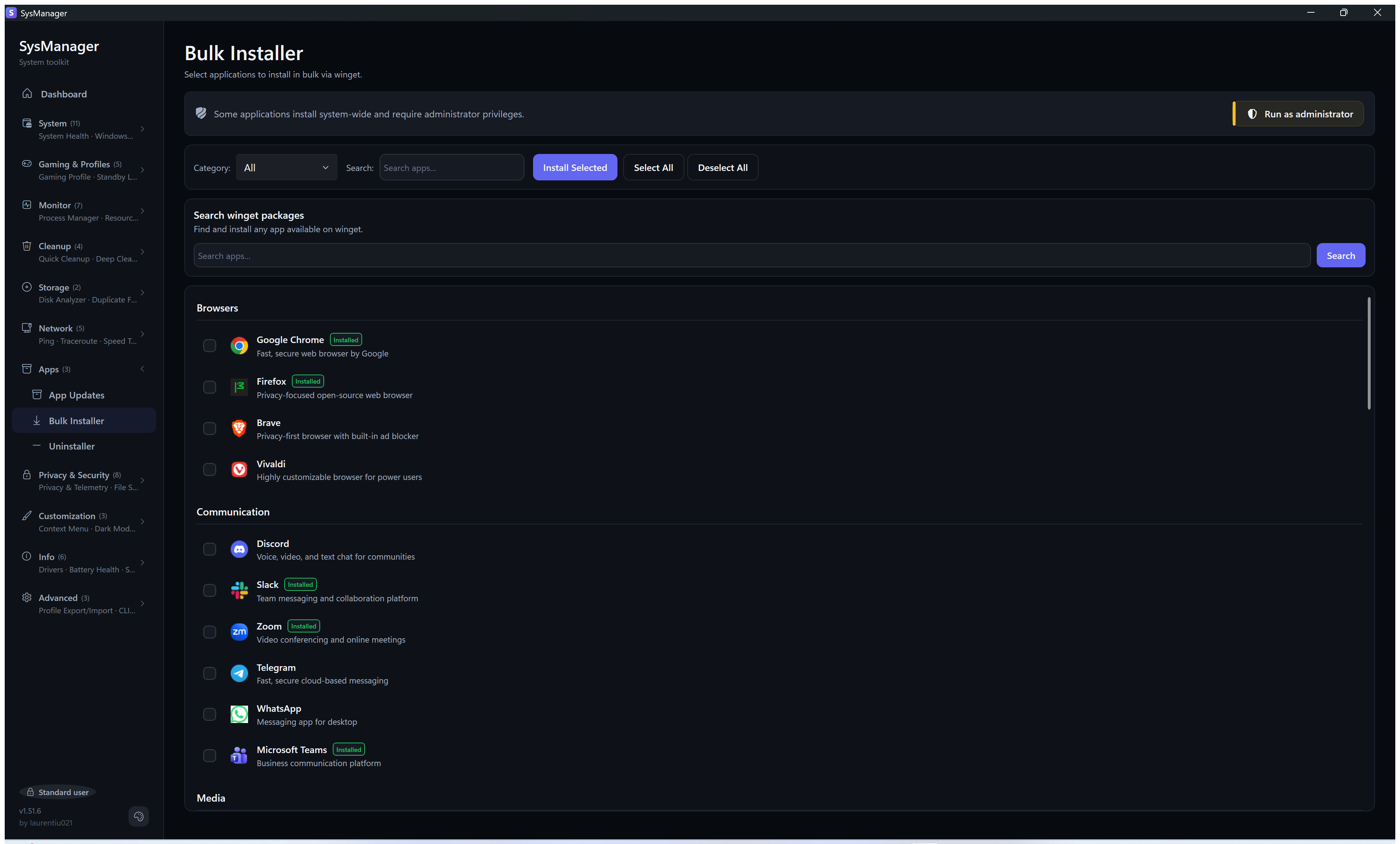
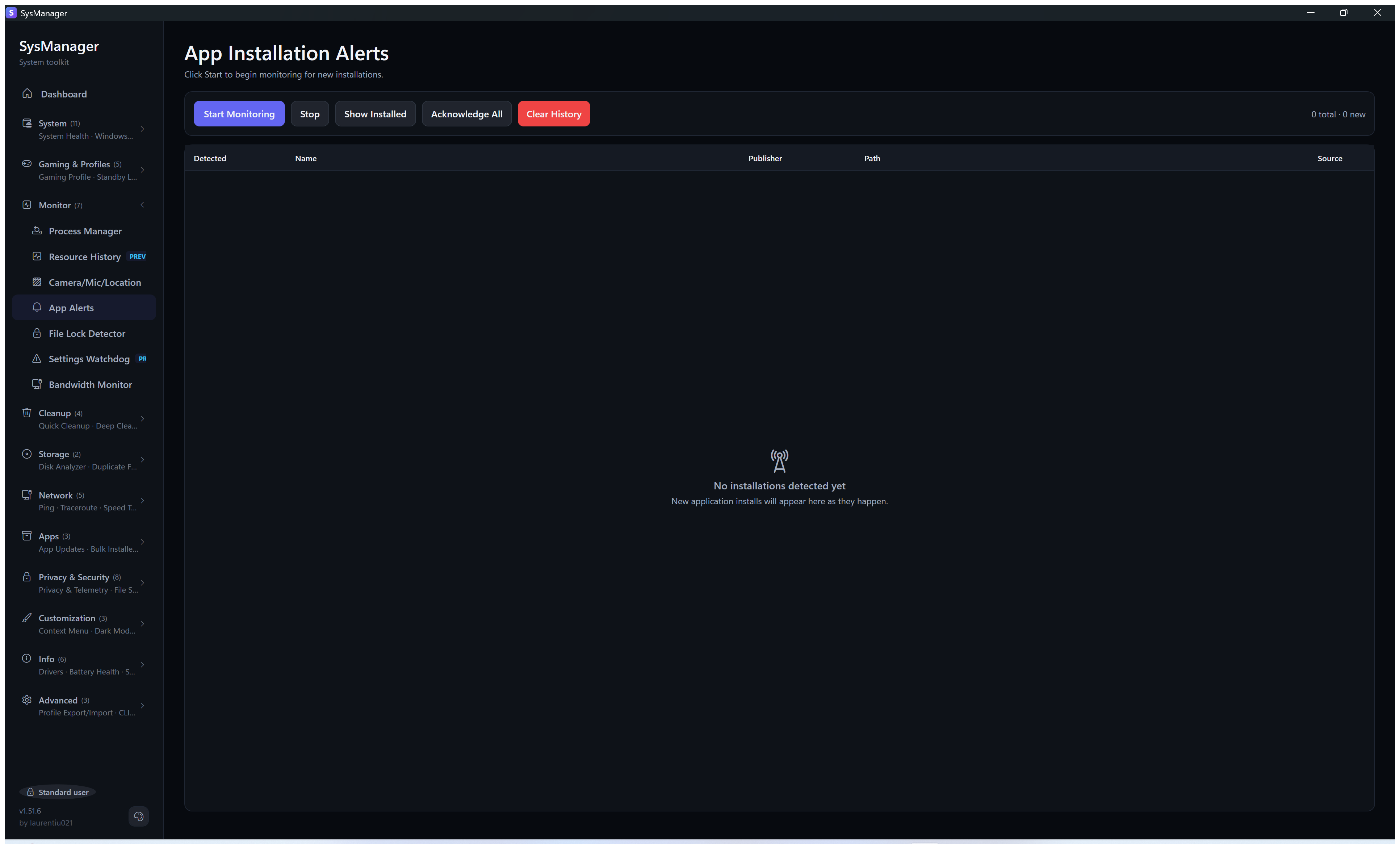
🛡️ Privacy & Security — Privacy & Telemetry · File Shredder · App Blocker · Preinstalled Apps · Browser Cleaner · Defender
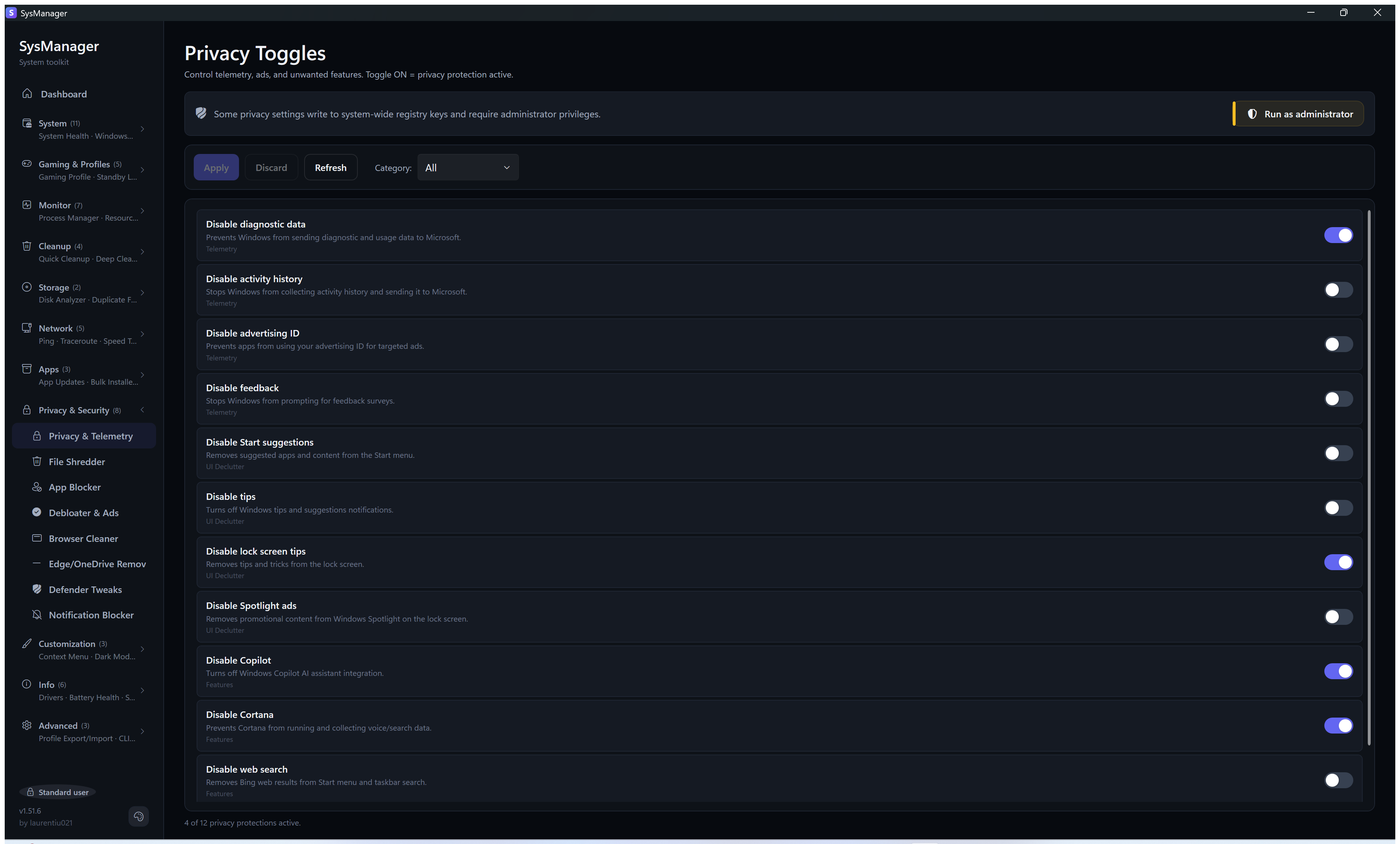
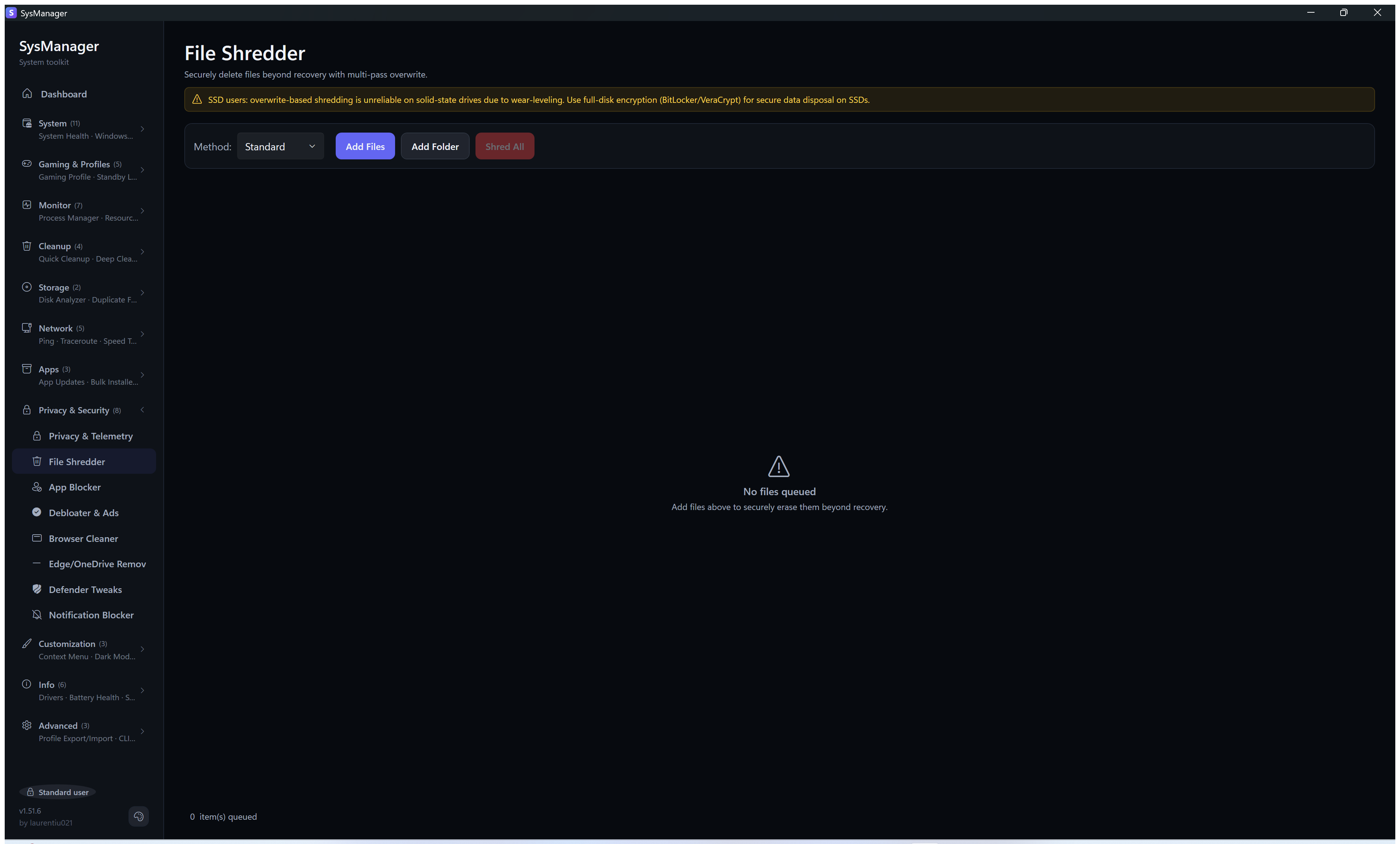
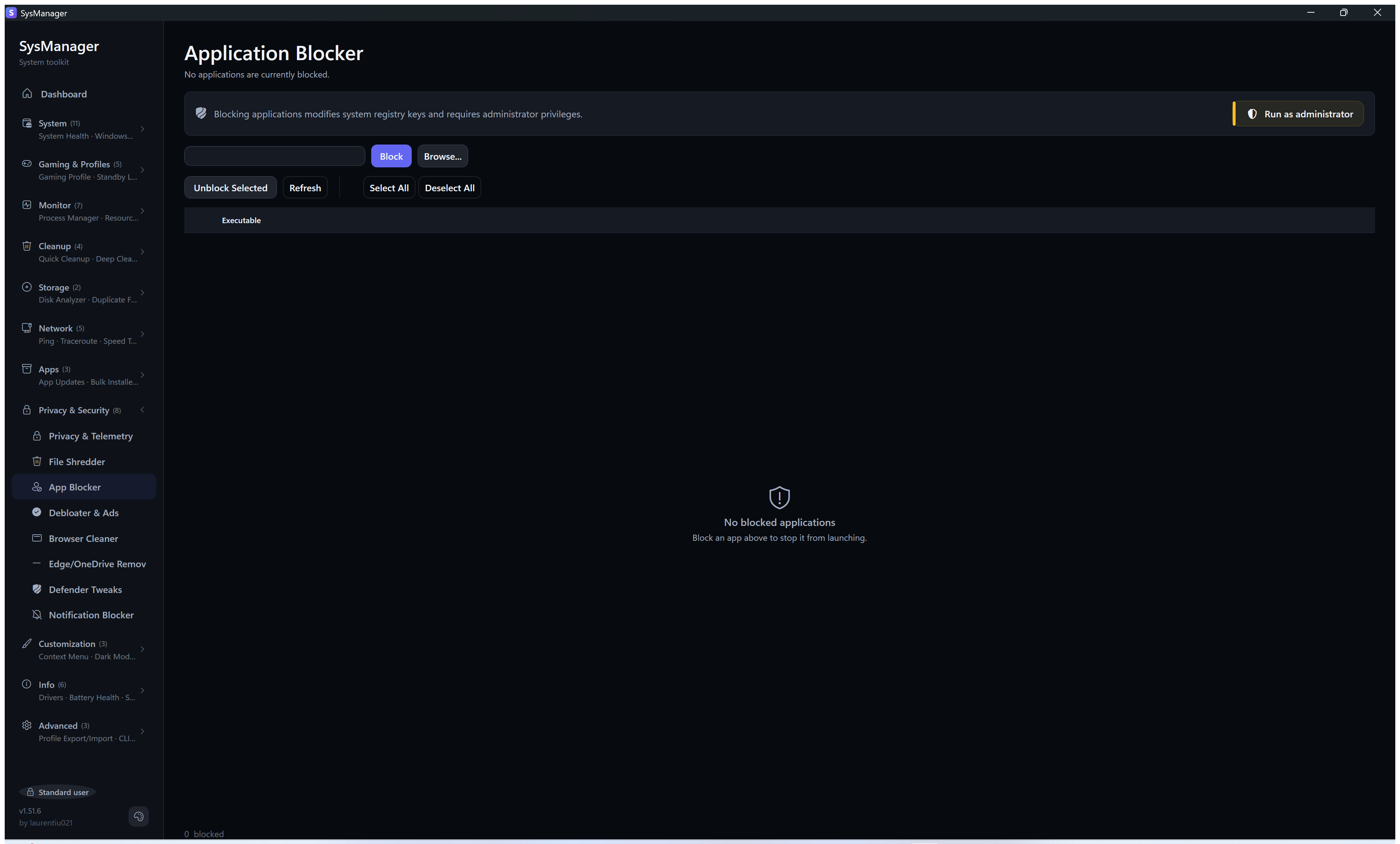
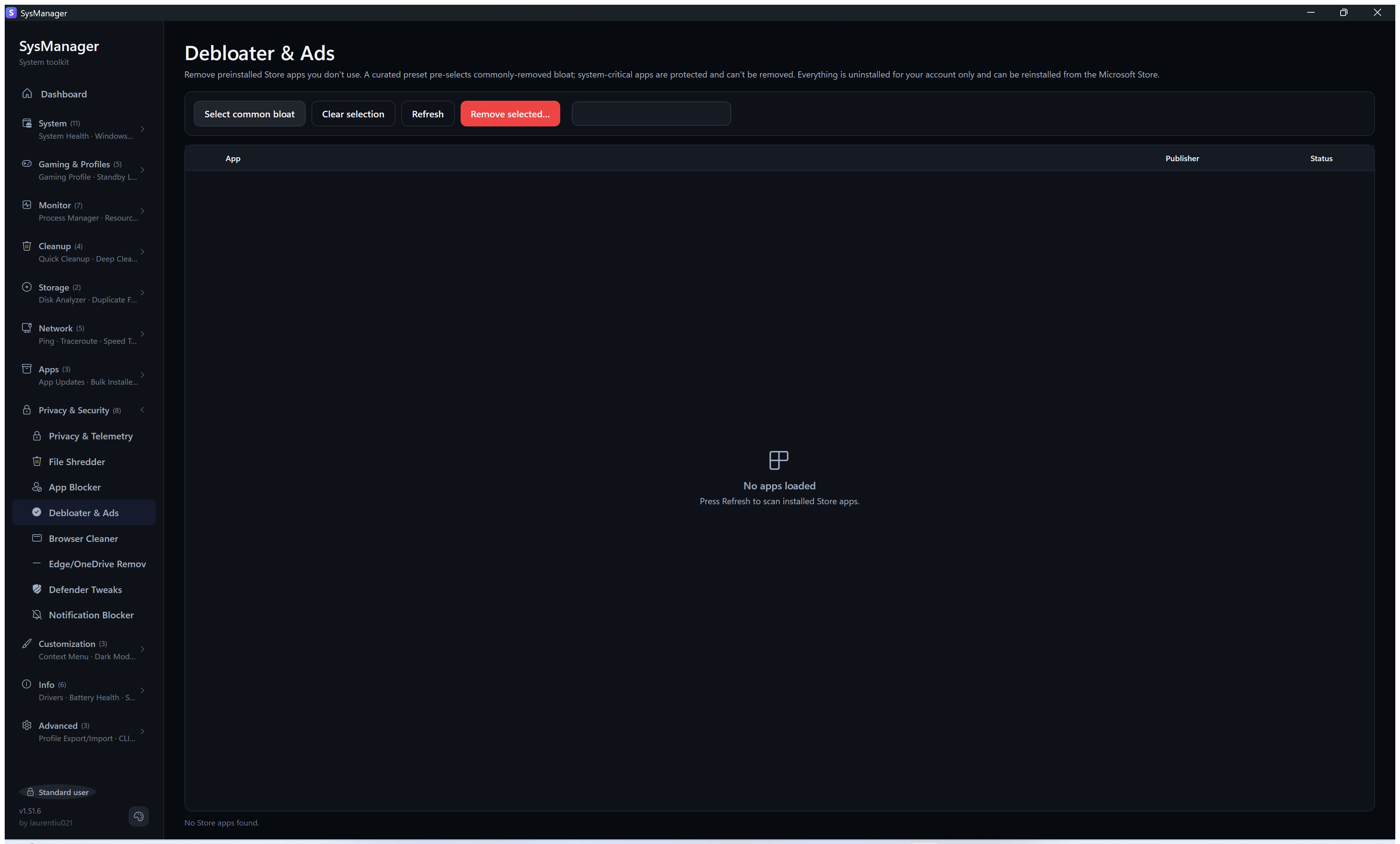
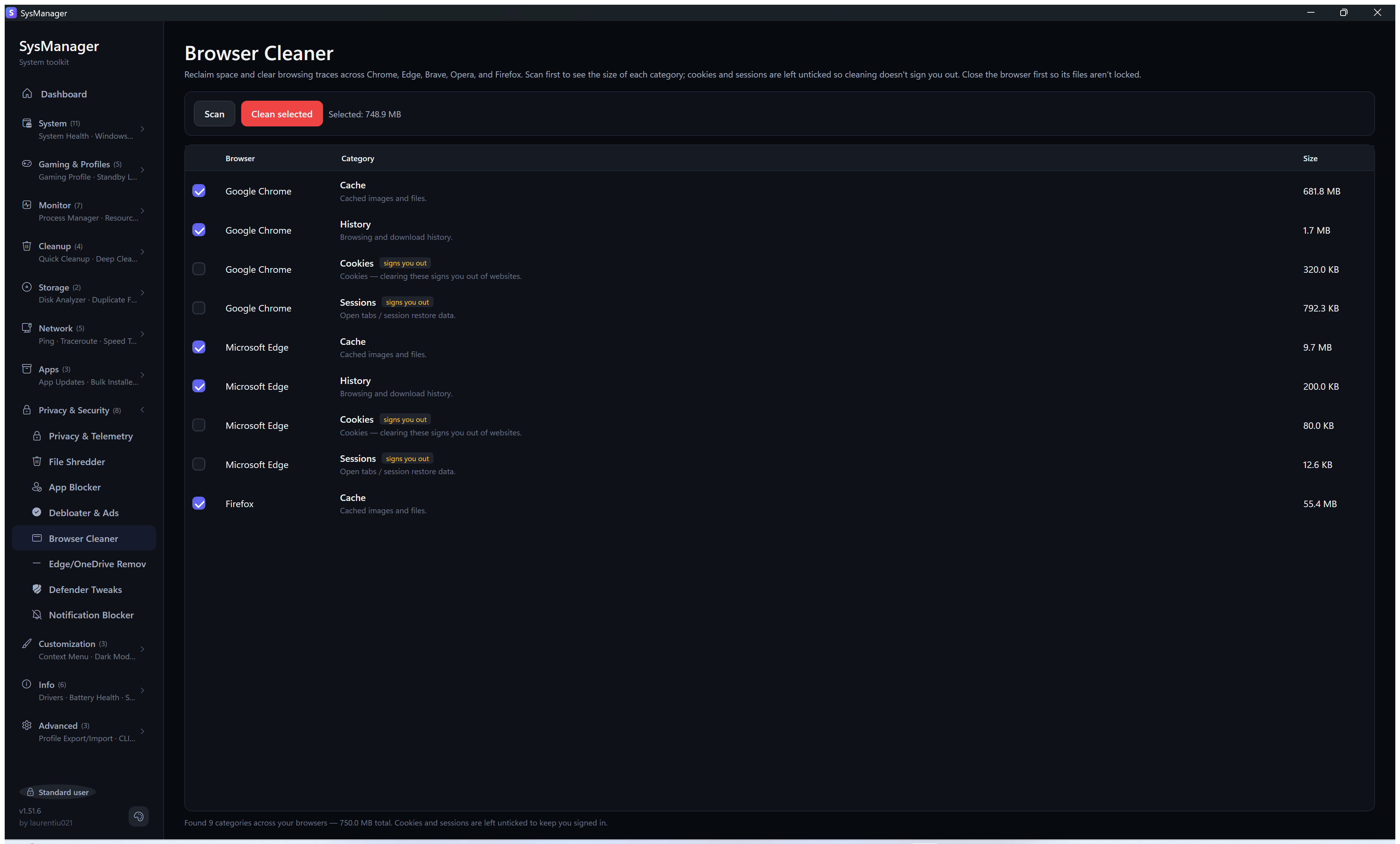
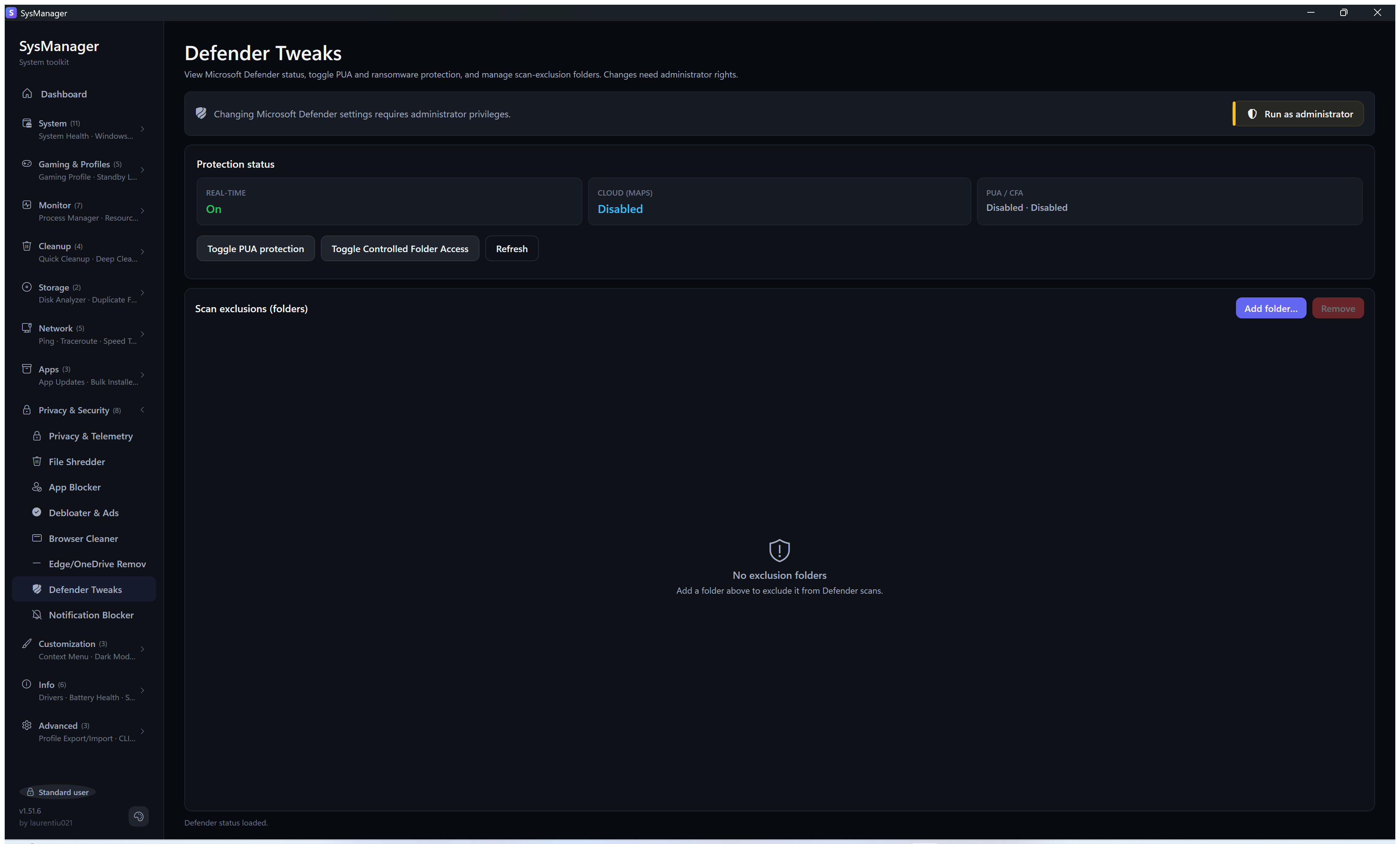
🎨 Customization — Dark Mode Scheduler
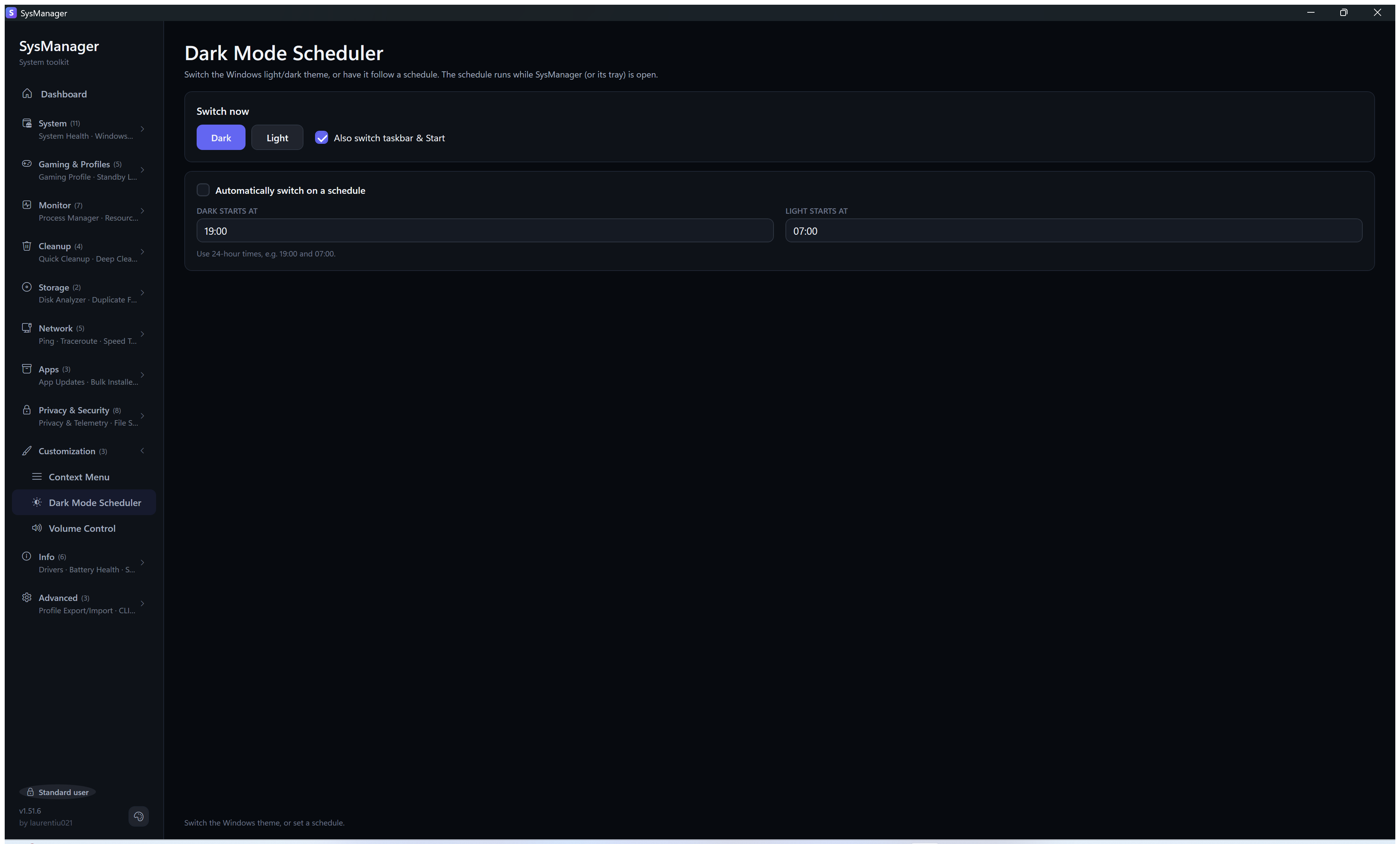
ℹ️ Info — Drivers · Battery · Logs · System Report · About
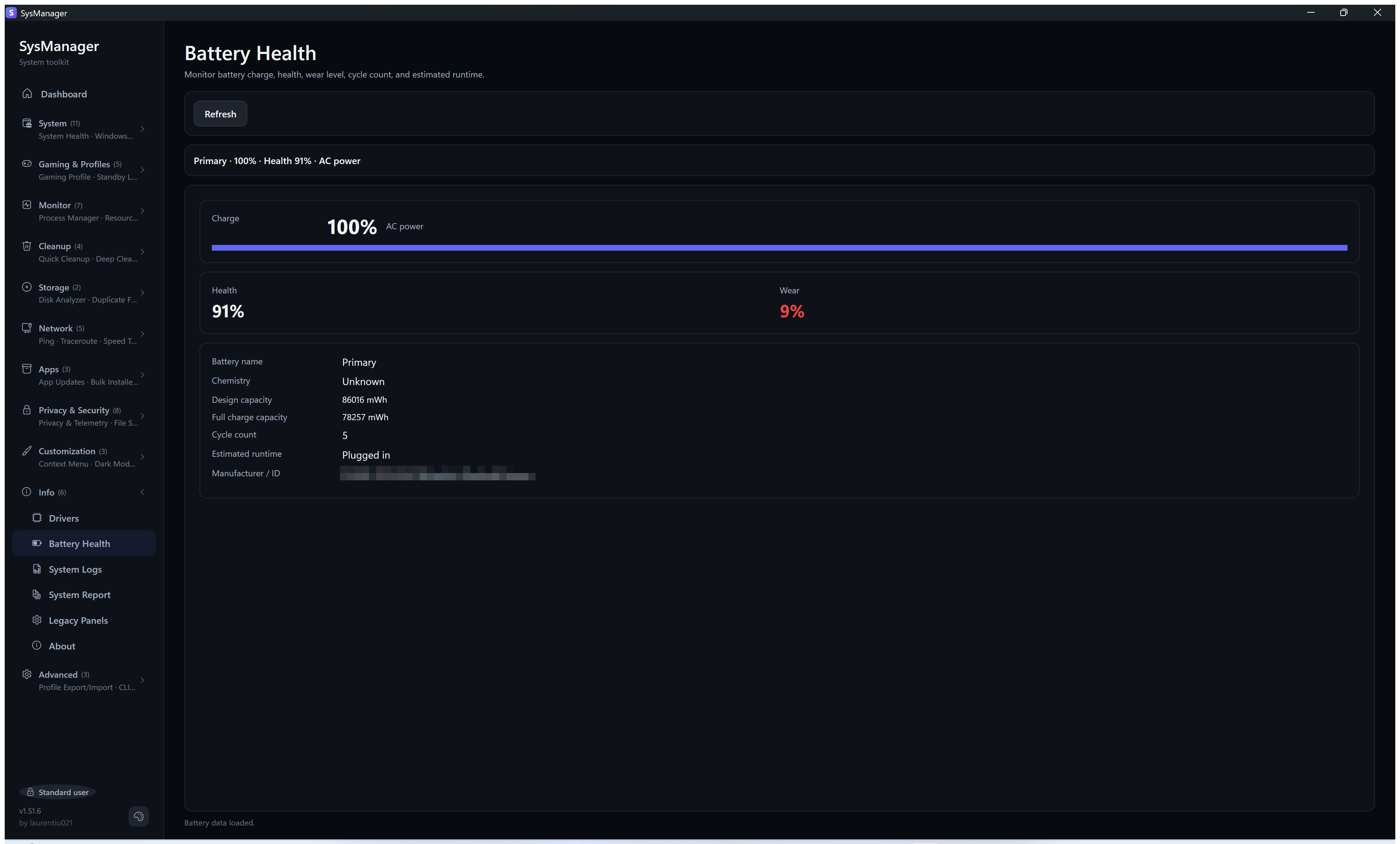
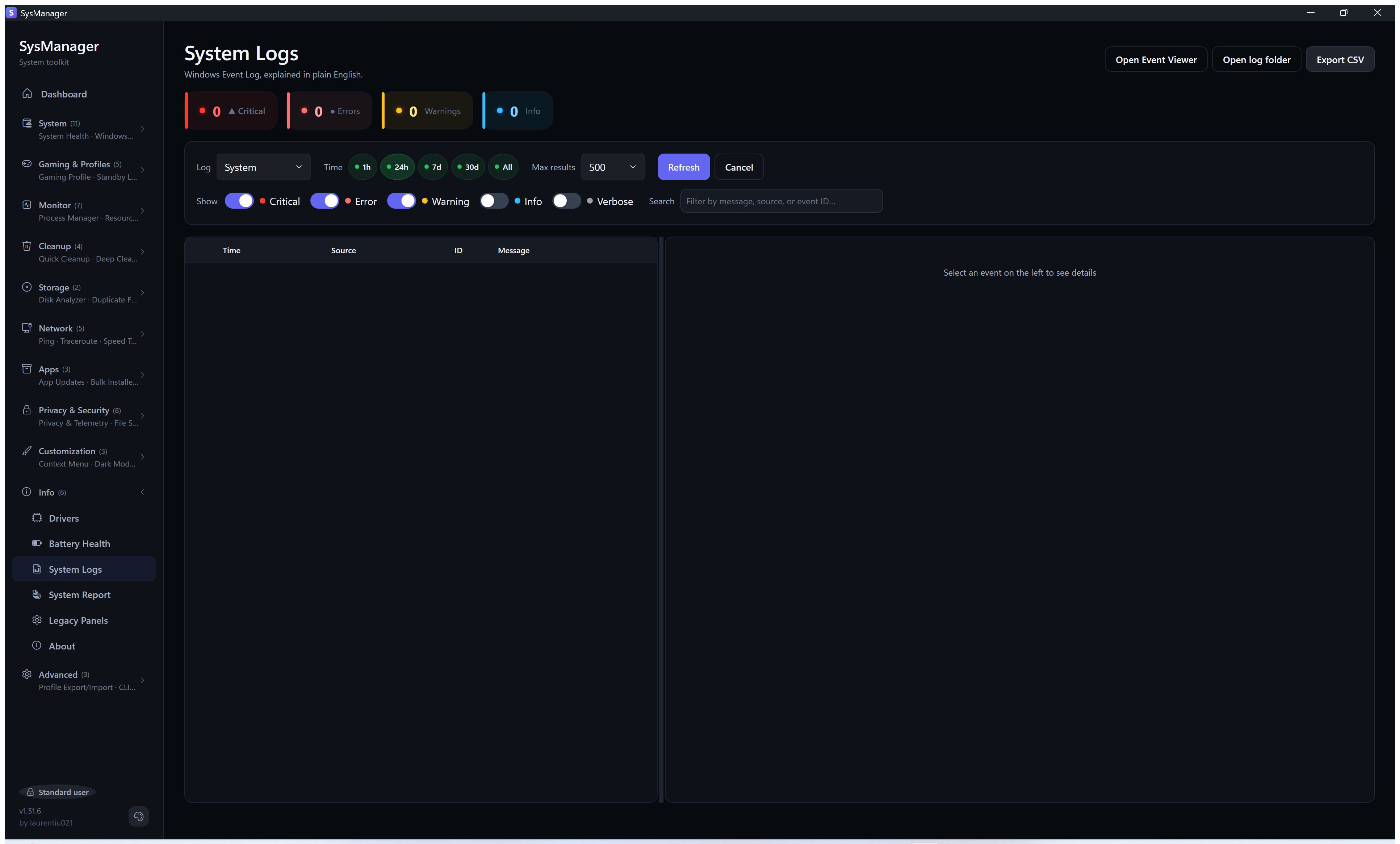
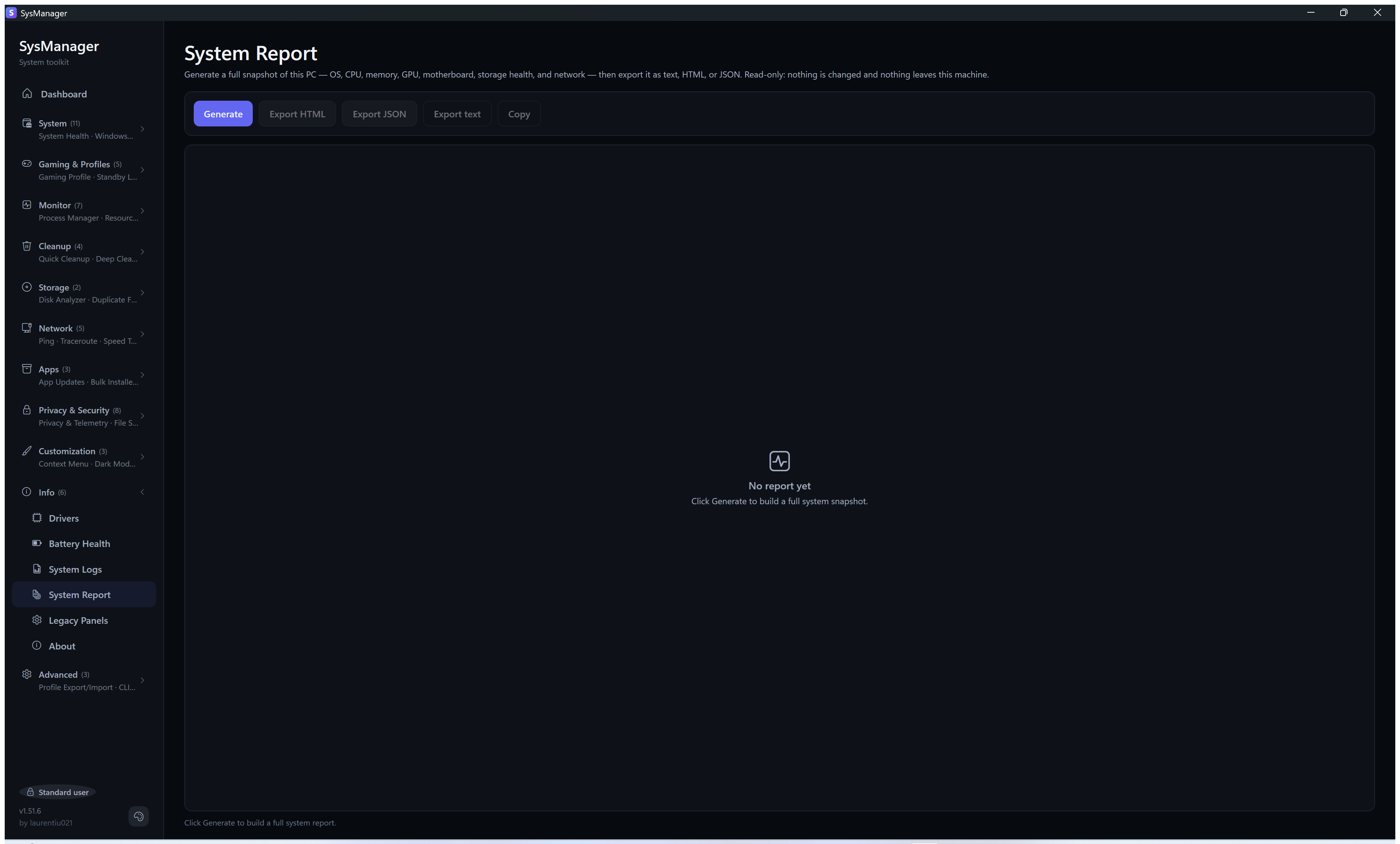
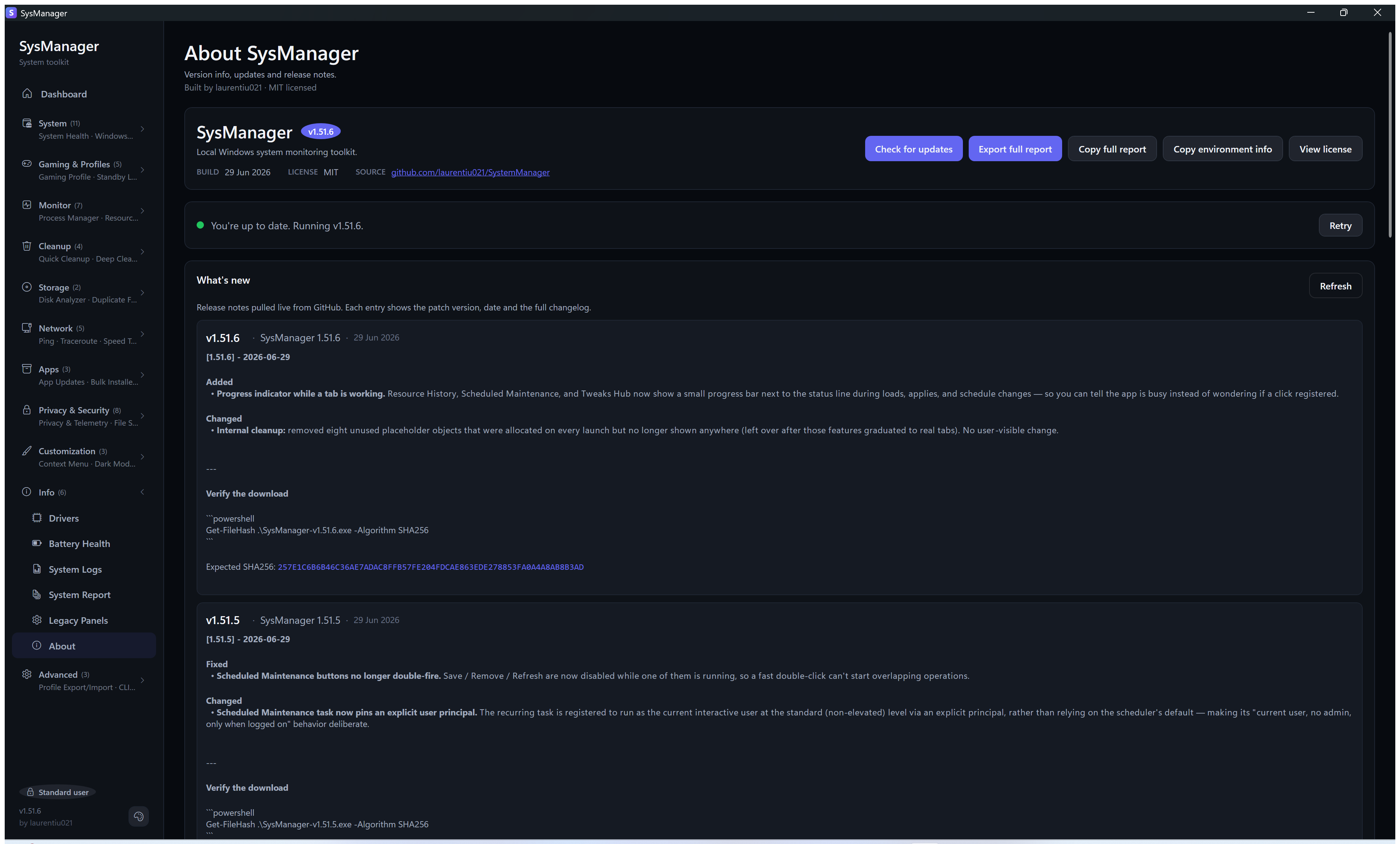
⚙️ Advanced — Profile Export / Import · CLI Interface
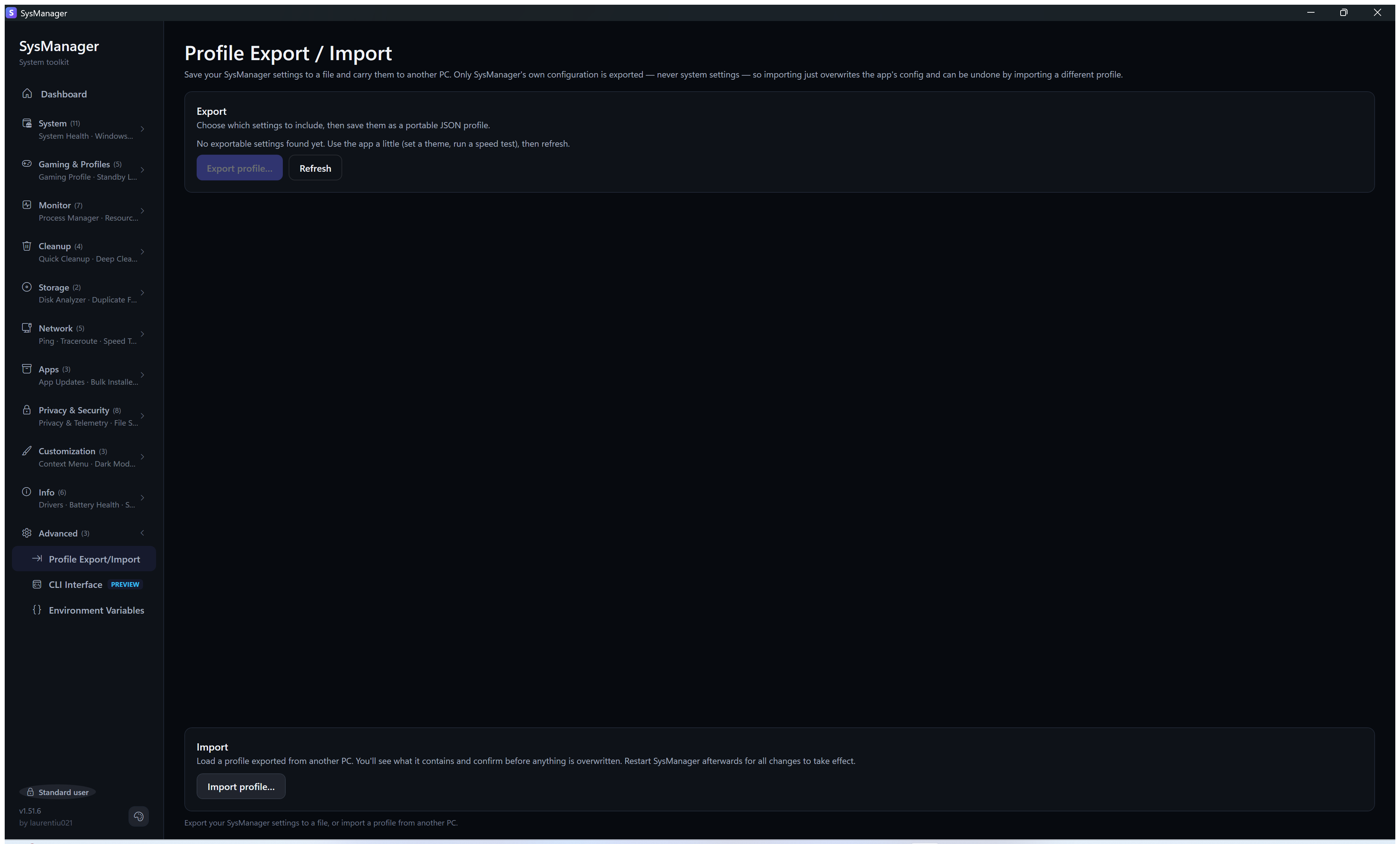
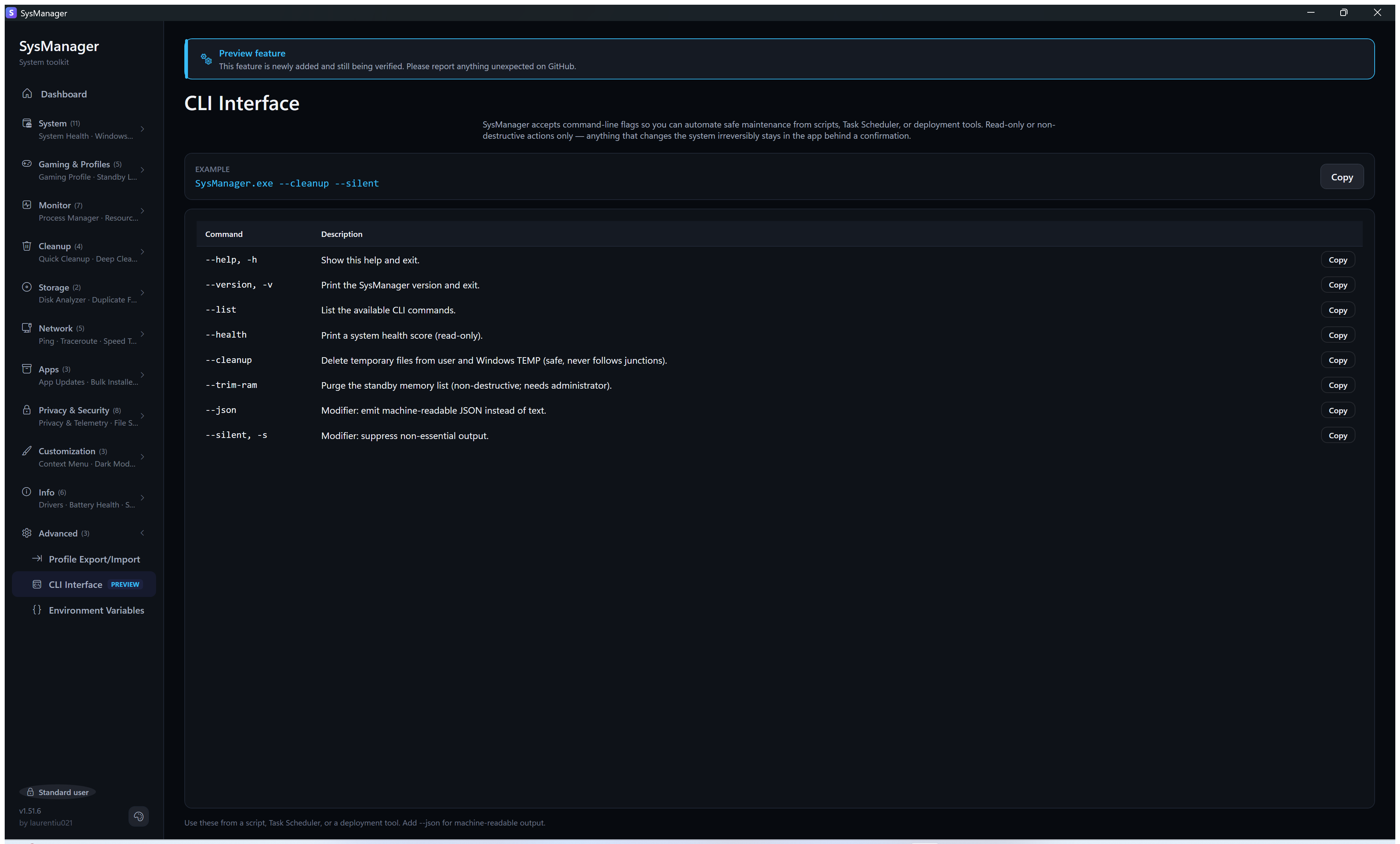
Install
Via winget (recommended)
SysManager is published to the Windows Package Manager
community repository. Install or update with a single command:
winget install laurentiu021.SysManager
Each release is submitted to winget automatically and arrives there once the winget
maintainers accept it, usually within a few hours — run winget upgrade to stay on the
latest version.
Direct download
Grab SysManager-v.exe (the `` shown on the latest release) from the
latest release
and double-click it. The executable is self-contained — no installer, no .NET
runtime required.
> About the download counter. The badge above counts release-asset downloads, not
> people. Most of that number is machinery: SysManager's own in-app updater fetches the
> exe and its checksum, winget installs fetch the exe, and Microsoft's manifest validation
> fetches it for every submitted version. Across all releases the exe has been fetched about
> 70 times for every checksum file (October 2026) — and a human verifying a download takes
> both. Treat the badge as
> traffic, not as an install base.
Why portable, and why there is no installer
The only build is a portable .exe. That is a decision, not an omission, and it has a cost
worth stating alongside the benefit.
What you get. Nothing is installed. SysManager keeps its settings, history and logs in
%LocalAppData%\SysManager and %AppData%\SysManager, the .NET runtime unpacks its native
libraries into %TEMP%\.net\SysManager, and anything else it writes is a change you asked for —
Uninstalling lists every place. There is no service, no scheduled task you did
not create and no uninstaller to trust: delete the exe and the program is gone. You can run it from
a USB stick on a machine you are fixing for someone else, which is a large part of what this
tool is for.
What it costs. A portable exe lives in a user-writable location, so another process
running under your account could replace it on disk. That is inherent to any portable app
and has nothing to do with SysManager's update flow. If you run SysManager elevated, run a
build you got from the Releases page and verified. A machine-scope build under
Program Files, which is not user-writable, is on the roadmap alongside code
signing — the two belong together, because an installed build people trust should be a
signed one.
No Microsoft Store build. The Store sandbox forbids most of what this app does: reading
other processes' working sets, writing the hosts file, changing services and scheduled
tasks, purging the standby list. A Store version would be a different, much smaller app
wearing the same name.
Unsigned, for now. Windows shows a warning on first launch and some antivirus engines
flag an unknown publisher. Both are explained below, along with how to check the download
yourself: First launch ·
Verifying the download ·
If your antivirus flags the download ·
Code signing.
Verifying the download
Each release ships a matching SysManager-v.exe.sha256. Verify before running
(replace `` with the version you downloaded):
Get-FileHash .\SysManager-v.exe -Algorithm SHA256
# Compare the output to the contents of SysManager-v.exe.sha256.
That check confirms the file downloaded intact. To also confirm where the file came
from, each release carries a GitHub build attestation — a signed record, kept in a
public transparency log outside this repository, tying that exact binary to the commit
and workflow that produced it. With the GitHub CLI:
gh attestation verify .\SysManager-v.exe --repo laurentiu021/SystemManager
This is the stronger of the two checks. The .sha256 file is generated in the same job
and published onto the same release as the binary it describes, so both come from one
source — enough to catch a corrupted download, but not a substituted release asset. The
attestation is signed by GitHub's own infrastructure at build time and logged publicly, so
it also records which commit and workflow produced the file, and that record cannot be
rewritten after the fact. Each release also ships
SysManager-v.sbom.json, a CycloneDX inventory of every NuGet package resolved
for that build — useful for checking the dependency set against a vulnerability feed.
First launch: Windows will warn you
The first time you run it, Windows shows a blue box titled "Windows protected your
PC". This is expected, and it is worth knowing what it does and does not mean.
It means Windows does not recognise the publisher. Code-signing certificates cost money
and require a registered identity, and SysManager is a free one-person project without
one yet, so every build is "unknown publisher" to Windows regardless of what it contains.
It is not a virus warning — Windows has not found anything wrong with the file.
The dialog only offers a Don't run button. To continue:
- Verify the SHA256 first, using the command above. Do this before anything else — it is
what makes the next step safe rather than blind.
- Click More info — a small link in the dialog, easy to miss.
- The file name and publisher appear, along with a Run anyway button. Click it.
Windows remembers the choice, so this only happens once per downloaded version.
If you would rather avoid the warning altogether, install through winget instead:
winget install laurentiu021.SysManager
winget fetches and validates the package outside the browser download path, so the
first-launch prompt does not appear.
> Only click through this warning for a file you downloaded from
> the official releases page
> and whose hash you verified. The same dialog protects you from genuinely malicious
> files, so it is worth reading rather than reflexively dismissing.
If your antivirus flags the download
Windows Defender or another antivirus may flag or quarantine the .exe — sometimes days
after it ran fine, because these tools also score a file on how widely it has been seen
before. This is the second-most-likely thing to happen after the SmartScreen box above, so
it is worth explaining rather than leaving you to guess.
Why it happens. Two reasons, and neither is about what the code does:
- The shape of the file. SysManager ships as one large executable that carries everything it needs
inside it, compressed, and unpacks its native libraries into
%TEMP%\.net\SysManager when you launch
it. That is a legitimate way to ship a portable app with no installer — and it is also what some
malware does to hide, so a scanner that judges structure rather than behaviour treats it as
suspicious. Add an unknown publisher and no signature, and a heuristic engine has every reason to be
cautious.
- What the app genuinely does. It deletes files, changes registry settings and stops
processes. That is the job of a maintenance tool, and it is also a fair description of
something you would not want running unasked.
How to check, instead of guessing. Take the SHA-256 from the
release page and open
https://www.virustotal.com/gui/file/
VirusTotal addresses files by hash, so if that exact build has been scanned this shows the
report — including which engines flagged it and which did not. If nobody has submitted that
build yet the page will say so, and you can upload it there yourself.
Then read the Verifying the download section above and run the
build attestation. That is the check that actually settles the question: it proves the file
you hold is the output of a public workflow, built from a public commit in this repository.
> Be honest about what a scan proves. A couple of hits out of ~70 engines on an unsigned,
> compressed, self-extracting build is the ordinary pattern for this kind of file — it is not
> by itself evidence of a problem. Equally, a completely clean sheet is not proof that a file
> is safe; plenty of malware is clean on the day it is released. The attestation is stronger
> than either, because it ties the binary to source you can read.
If it has already been quarantined, restore it or add an exclusion only after the
SHA-256 matches and gh attestation verify succeeds. If either check fails, delete the file
and download it again from the releases page — do not add an exclusion for a file you have
not verified.
Code signing
Releases are currently unsigned, which is why the warning above appears. The intention is
to sign them through the SignPath Foundation — a programme that
provides free code-signing certificates to open-source projects, with the signing performed
by SignPath.io — and an application there is the plan for this
project. It has not happened yet: the Foundation asks for a level of public visibility
(stars, external write-ups, independent references) that a project begun in April 2026 does
not have yet, which is a fair bar for a certificate issued in their name. Until a certificate is
actually in place, this section says so plainly rather than implying one exists.
Until a certificate is in place, the two checks above — the published SHA-256 and the
GitHub build-provenance attestation — are what establish that a download is the genuine,
unmodified build. The attestation is the stronger of the two, and it will remain useful
after signing arrives: it records which commit and workflow produced a given binary,
which a signature alone does not.
The update path is already written for signing, but not yet armed. The publisher it
compares against is a single constant that is deliberately empty until a certificate
exists, so today a signed build is accepted on the strength of the SHA-256 check alone; a
signature that is present but unreadable is still refused. On the day signing is switched
on, filling in that one constant turns on the publisher match and the certificate-chain
validation together — the point of writing them now is that the check cannot quietly become
a formality later. See SECURITY.md for the detail.
Code signing policy
> Not yet in effect. This policy is written in advance of any certificate, because the
> SignPath Foundation programme the project hopes to sign through
> requires the roles and approval process below to be documented and public before an
> application is considered. Nothing here describes a signing arrangement that exists today —
> releases are unsigned, and the SHA-256 plus build attestation above are what verify a
> download. The provider attribution that belongs in this section will be added on the day a
> certificate is actually issued, and not a day earlier.
Team roles. SysManager is maintained by a single developer, so all three roles below are
held by the same person. That is stated plainly rather than dressed up as a team, because it
is the honest description of who can change the code and who approves a release.
- Authors (may commit to the repository): laurentiu021
- Reviewers (must review any change proposed by a non-committer):
laurentiu021
- Approvers (decide whether a given release may be signed):
laurentiu021
Every change reaches main through a pull request whose build-and-test check has passed;
main is protected, requires branches to be up to date before merging, and force-pushes and
deletions are disabled. Releases are built only by GitHub Actions from this public repository
— no binary is ever built or uploaded from a developer machine — and each carries a SHA-256
checksum, a CycloneDX SBOM, and a GitHub build-provenance attestation recording the exact
commit and workflow that produced it. That attestation is the load-bearing guarantee here:
because a single maintainer necessarily holds administrative rights, the meaningful assurance
is not "the rules cannot be bypassed" but "every published binary is verifiably the output of
a public workflow run against a public commit", which anyone can check with
gh attestation verify.
Privacy policy. This program will not transfer any information to other networked systems
unless specifically requested by the user or the person installing or operating it. The full
policy — including a table of the files the app keeps on your own machine, and every case in
which it uses the network — is in SECURITY.md. Two checks run on their own
when SysManager starts: the version check against the GitHub Releases API, at most once a day, and
the Dashboard's app-updates alert, which asks winget. The About tab can switch off either.
Everything else that uses the network runs only when you use it, and
When SysManager uses the network lists each case.
Third-party components are listed in the SBOM published with every release.
Uninstalling
SysManager is a single portable executable. There is no installer and nothing is copied into
Program Files. Do the first two steps while the app is still there, because they happen inside it.
To remove it completely:
-
Put back what you want put back. Changes you asked SysManager to make to Windows are Windows
settings rather than part of the app, so they stay as you set them. Open System › Undo Changes:
it lists what SysManager can still put back — Performance Mode, the services it turned off, the
hosts file, the environment variables, game mode, and the settings you saved in Settings Watchdog —
and links the tabs whose switches are their own undo. Files deleted for good, removed preinstalled
apps and uninstalled programs cannot be put back.
-
Remove the scheduled task, if you created one. Only applies if you used Scheduled
Maintenance: open that tab and press Remove schedule, and the app unregisters the task
(SysManager Scheduled Maintenance- followed by your account's security ID, in the Task
Scheduler Library) for you. Each account that set one up removes its own. It is the only thing
SysManager registers with Windows, and only ever when you explicitly ask for it.
-
Delete the executable — SysManager-vX.Y.Z.exe, wherever you saved it. That is the whole
program. If you installed through winget, winget uninstall laurentiu021.SysManager does this.
-
Delete what it keeps (optional). It is small, except updates, which holds about 170 MB once
the in-app updater has run, and the logs, which are capped at about 140 MB:
%LocalAppData%\SysManager%AppData%\SysManager%TEMP%\.net\SysManager, where the .NET runtime unpacks the app's native libraries each time it startsHKEY_CURRENT_USER\Software\SysManager, the copy of your environment variablesHKEY_LOCAL_MACHINE\SOFTWARE\SysManagerEnvironmentBackup, only if you changed a machine-wide
variable (needs administrator rights)%SystemRoot%\System32\drivers\etc\hosts.bak, only if DNS & Hosts saved the hosts file (needs
administrator rights)
Do step 1 first: deleting these removes the copies Undo Changes puts back from.
Build from source
Prerequisites: Windows 10 or newer and the .NET 10 SDK.
git clone https://github.com/laurentiu021/SystemManager.git
cd SystemManager
dotnet run --project SysManager/SysManager/SysManager.csproj
Produce a single-file exe
From the repo root:
.\publish.ps1
Or manually:
dotnet publish SysManager/SysManager/SysManager.csproj `
  -c Release -r win-x64 --self-contained true `
  -p:PublishSingleFile=true -p:IncludeNativeLibrariesForSelfExtract=true `
  -p:EnableCompressionInSingleFile=true -p:DebugType=embedded `
  -o publish
publish.ps1 is what the release workflow runs. It also passes
-p:ContinuousIntegrationBuild=true -p:Deterministic=true, so its build is reproducible.
The resulting SysManager.exe lands in publish/ and runs standalone on any
Windows 10 / 11 x64 machine.
First-time flow
- Launch the app. The first time, a Welcome screen says what SysManager is, what it does online on its
own, and that it changes nothing you did not ask for, and offers two places to start: Check my PC's
health opens System Health, Clean up junk files opens Quick Cleanup, and Just look around (or
Esc) closes it on the Dashboard. It is shown once on each PC; after that the app opens on the Dashboard.
- If the PC feels slow, press Why is it slow? at the top of the Dashboard. It lists what it
found, worst first, each with the tab that deals with it.
- Open Network › Ping and press Start — live ping begins.
- For anything in Windows Update, System Fixes (SFC/DISM), or system-wide app
updates, press Run as administrator in the banner at the top of the page. The app
relaunches elevated, and the banner turns golden to show it.
Documentation
Reporting bugs and requesting features
Found something broken? Missing a feature you'd love to have?
Two threads worth reading before you post — linked directly, because Discussions is sorted
by recency and every feature release posts an announcement there, so these sit a long way down
the list:
-
📌 Start here — what
this project is, what it will not become, and where to put which kind of post.
-
🗺️ Roadmap — what is
being worked on and what has been decided against, so you can tell whether your idea is
already answered.
-
🐛 Bugs — open an issue
using the bug report template, or press Report a problem on the About tab, which opens it
with your SysManager version and administrator state filled in.
-
💡 Features — open an issue
using the feature request template, or post in
Discussions › Ideas
if it's still a rough idea rather than a concrete request.
-
💬 Questions and how-to's — use
Discussions › Q&A
instead of issues for anything open-ended.
-
🔒 Security vulnerabilities — please report privately via the
Security tab.
See SECURITY.md for the full policy.
The About tab inside the app has a "Copy environment info" helper that copies your
SysManager version, Windows version, architecture, .NET version and elevation state, plus a
hardware summary — CPU, RAM, graphics card and driver, each drive's size and free space, and
display resolution — in a format ready to paste into a bug report. Save diagnostics bundle,
beside it, puts that, the system report and the newest three log files into one zip you can
attach; nothing is sent.
Tech stack
- .NET 10 (WPF, C# 14)
- CommunityToolkit.Mvvm for MVVM plumbing
- Microsoft.Extensions.DependencyInjection for IoC
- WPF-UI (lepoco/wpfui) for the base Fluent theme and control styles
- LiveCharts2 (SkiaSharp) for the charts on Ping, Traceroute, Bandwidth Monitor, Resource History,
Speed Test and Battery Health
- H.NotifyIcon.Wpf for system tray integration
- LibreHardwareMonitor and NvAPIWrapper for CPU/GPU/disk temperature sensors
- System.Management.Automation (PowerShell 7) for the PowerShell-driven tabs, System.Management for
WMI, ServiceController for services, and TraceEvent for Bandwidth Monitor's precise mode
- Serilog with its file sink for the local rolling log
- xUnit v3 on Microsoft Testing Platform, Xunit.StaFact, NSubstitute, NetArchTest and FlaUI for the
unit, integration, architecture and UI-automation tests
Privacy
SysManager runs entirely on your machine. It sends no usage data, collects no telemetry,
and does not require an account. Two checks run on their own when it starts — the version
check against GitHub's releases API and the Dashboard's app-updates alert, which asks winget,
and the About tab can switch off either — and everything else that uses the network runs only
when you use it. When SysManager uses the network lists each one.
Contributing
PRs welcome! Please read CONTRIBUTING.md for the build
setup, coding conventions, and pull-request workflow. New contributors are
expected to follow the Code of Conduct.
Project health — the badges a contributor looks for, kept here rather than at the top, where they told a
visitor nothing about the app:





Support
SysManager is free and open source, built by one person in their spare time.
If it saved you a reinstall or a clean-up headache, you can back its development:

Ko-fi works too, for a one-off.
Sponsorships go toward the build pipeline and the time to fix bugs and finish the tools that
are still in preview. Code signing is planned through the SignPath Foundation's free
certificates for open-source projects (see Code signing), which makes Windows
show the publisher's name instead of "unknown publisher". The app stays free either way.
License
MIT — see LICENSE.
Crafted by laurentiu021.