SoundBar levon2805
Install SoundBar with WinGet
winget install --id=levon2805.SoundBar -e Modern, lightweight Windows volume mixer and audio controller.
winget install --id=levon2805.SoundBar -e Modern, lightweight Windows volume mixer and audio controller.

Control the volume of every app on your PC from one small, tidy window. Turn the game down without touching your music, switch between speakers and headphones in one click, and even control it all from your phone.
Download · Quick tour · Features · Bluetooth · Phone remote · Shortcuts · Help
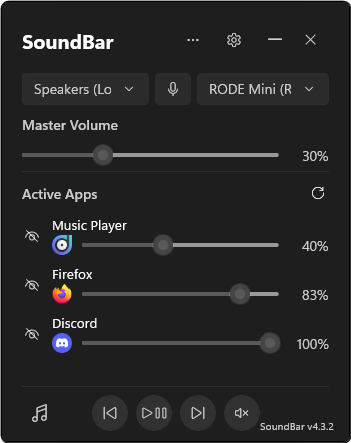
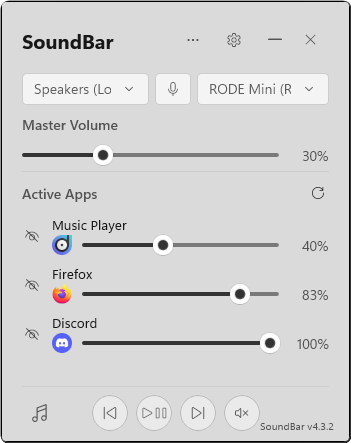
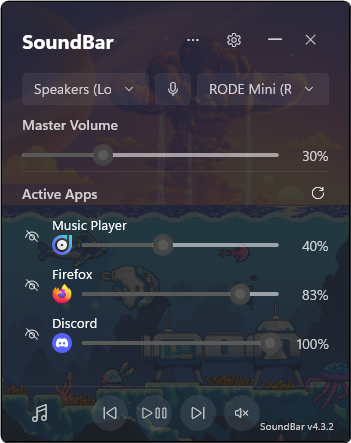
Works on Windows 10 and Windows 11. Free and open source.
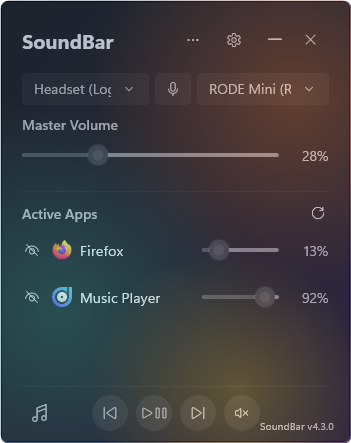
This is the main SoundBar window. Each number is explained next to it.
<img src="docs/images/tour.png" width="300" alt="The SoundBar window with numbered labels" />


    <b>More (⋯):</b> Always on Top, Mobile Companion (control SoundBar from your phone) and Bluetooth.
    <b>Settings:</b> Change how SoundBar looks and works.
    <b>Speakers:</b> Choose where your sound plays (speakers, headphones, headset).
    <b>Microphone mute:</b> Mute your microphone in one click. It turns red while muted.
    <b>Microphone:</b> Choose which microphone to use.
    <b>Master volume:</b> The volume for your whole PC.
    <b>Hide:</b> Remove an app you don't need from the list.
    <b>App name:</b> Shown above the app's slider. Click it to give the app a nickname.
    <b>App volume:</b> Every app gets its own slider. Click the app's icon beside it to mute it.
    <b>Music player:</b> Switch to a big view of the song that's playing.
    <b>Media buttons:</b> Previous, play/pause, next and mute everything.
    <b>Version:</b> Click to see what's new in this version.
Every app that's playing sound gets its own slider, so you can balance a game, a video call and your music without opening Windows settings. Each app's name sits just above its slider, so the slider can stretch across nearly the whole window, even when SoundBar is small.
Drag a slider to change that app's volume.
Click an app's icon (beside its slider) to mute or unmute it.
Click an app's name (above its slider) to rename it to something friendlier (handy for apps with confusing names).
Click the eye to hide an app you never want to see. You can bring it back at any time from Settings > Apps > Hidden Apps.
Missing an app? Apps only appear once they start playing sound. Click the refresh arrow next to Active Apps to check again.
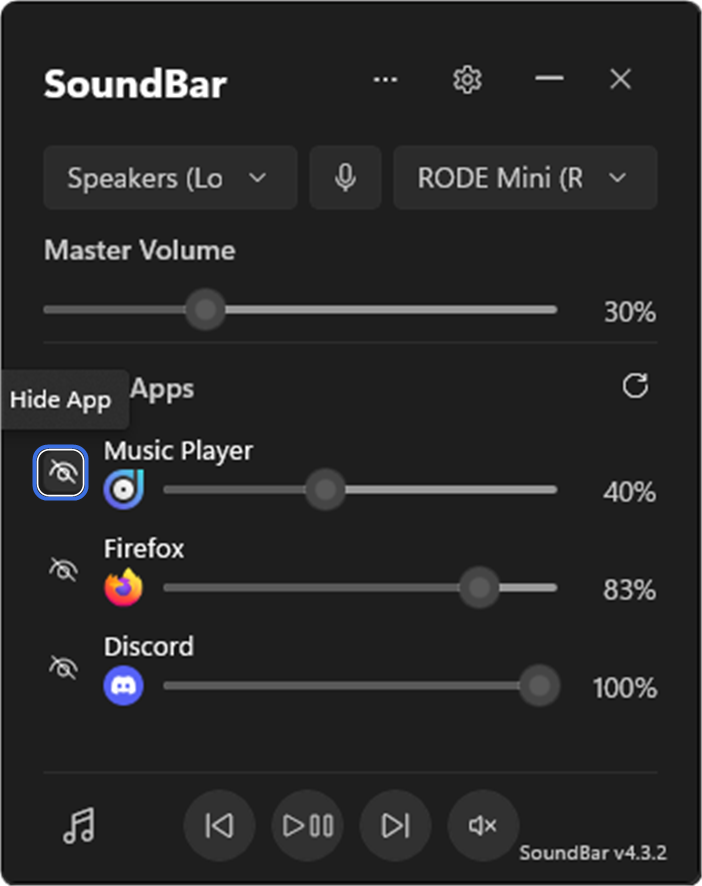 Click the eye to hide an app
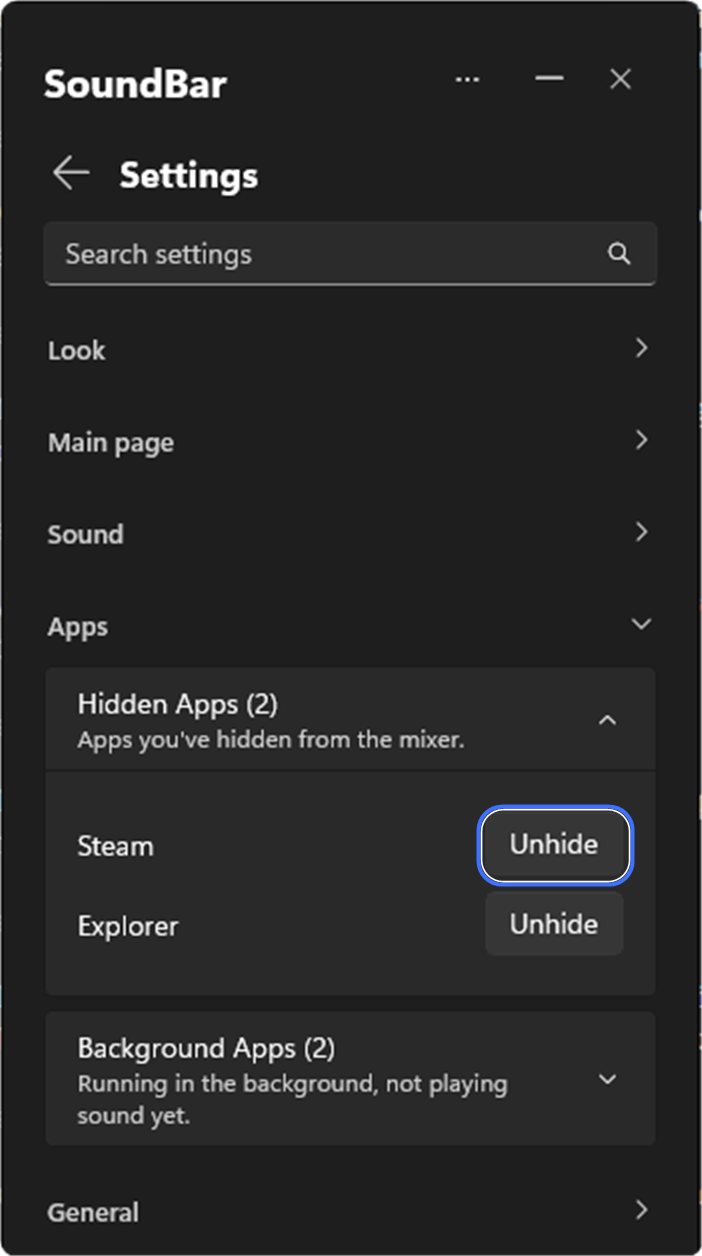 Click Unhide to bring it back. The number shows how many are hidden.
> Background apps: some programs play sound without an open window (for example, apps that sit in the system tray). SoundBar leaves these out to keep the list tidy. To show one, open Settings > Apps > Background Apps and click Allow.
Switch where your sound plays, or which microphone you use, straight from the top of the window. There's no need to dig through Windows settings.
<img src="docs/images/output-devices.png" width="340" alt="Choosing speakers or a headset" />Click the speaker box to choose where sound plays
<img src="docs/images/mic-mute.png" width="300" alt="The microphone mute button turned red" />Click the microphone button to mute it. It turns red so you always know.


<img src="docs/images/input-devices.png" width="540" alt="Choosing a microphone" />Click the microphone box to choose a microphone
Using Bluetooth headphones or speakers? You can connect them from SoundBar too. See Bluetooth.
Connect your Bluetooth headphones, speakers and other devices without opening Windows settings. Click the ⋯ button at the top of SoundBar and choose Bluetooth.
<img src="docs/images/bluetooth.png" width="300" alt="The Bluetooth page with numbered labels" />


    <b>Bluetooth on/off:</b> Turn your PC's Bluetooth on or off.
    <b>Connect:</b> Connect a paired speaker or headset in one click. SoundBar switches your sound over to it as soon as it's ready. Click <b>Disconnect</b> to let go of it again.
    <b>More options:</b> Connect or disconnect, or <b>Remove device</b> to unpair it completely.
    <b>Search:</b> Find new devices nearby. Put your device in pairing mode first, then click <b>Pair</b> next to it. If it shows a code, SoundBar asks you to check it matches.
    <b>More Bluetooth settings:</b> Opens Windows' own Bluetooth page for anything else.


<img src="docs/images/bluetooth-button.png" width="300" alt="Bluetooth in the More menu" />Open the <b>⋯</b> menu and choose <b>Bluetooth</b>
<img src="docs/images/bluetooth-device-menu.png" width="300" alt="The options for a paired device" />Disconnect without unpairing, or remove the device
> Mice, keyboards and game controllers connect by themselves when you switch them on, so they don't get a Connect button. You can still pair and remove them here.
Click the music note in the bottom corner to swap the app list for a big music player. It shows the album art, song name and artist, and has a timeline you can drag to skip to any part of the song.
It works with anything that shows up in Windows' own media controls, such as Spotify, YouTube in your web browser, and most music and video apps.
<img src="docs/images/music-player.png" width="300" alt="The music player view" /><b>1</b> Switch to the music player   <b>2</b> Drag to skip through the song
<img src="docs/images/media-controls.png" width="300" alt="The media buttons" />Previous, play/pause, next and mute are always at the bottom
SoundBar has a built-in phone remote. Change volumes, skip songs, mute your microphone or switch speakers from the sofa, with nothing to install from an app store.
Setting it up (about a minute):
Make sure your phone and PC are on the same Wi-Fi.
Click the ⋯ button at the top of SoundBar and choose Mobile Companion.
Click the big power button. The first time, Windows will ask for permission. Click Yes. You only need to do this once.
A QR code and a 4-digit code appear. Point your phone's camera at the QR code and open the link.
Type the 4-digit code on your phone. That's it, you're connected.
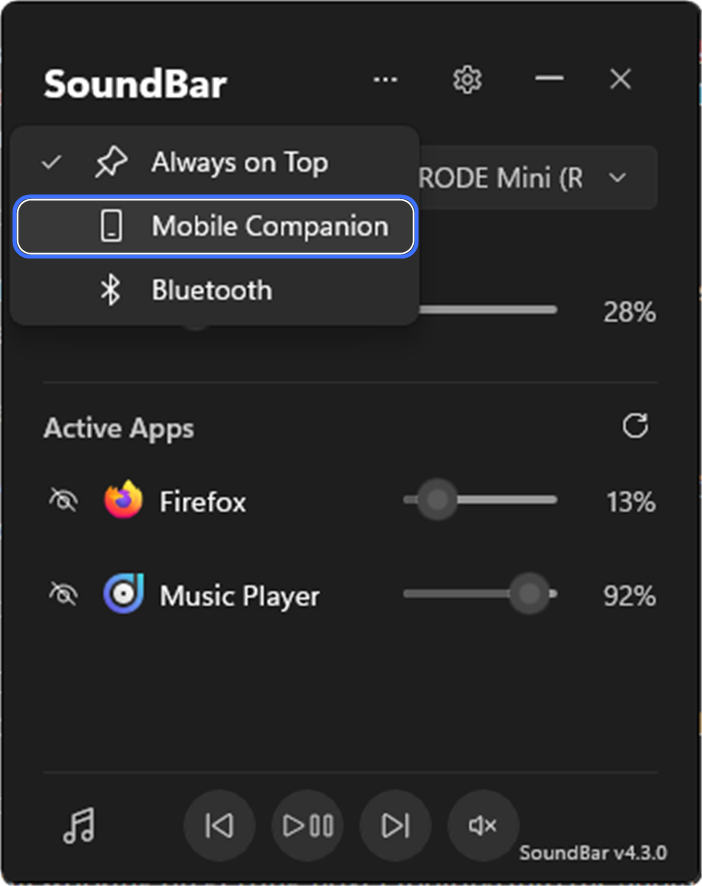 On your PC, open the ⋯ menu and choose Mobile Companion
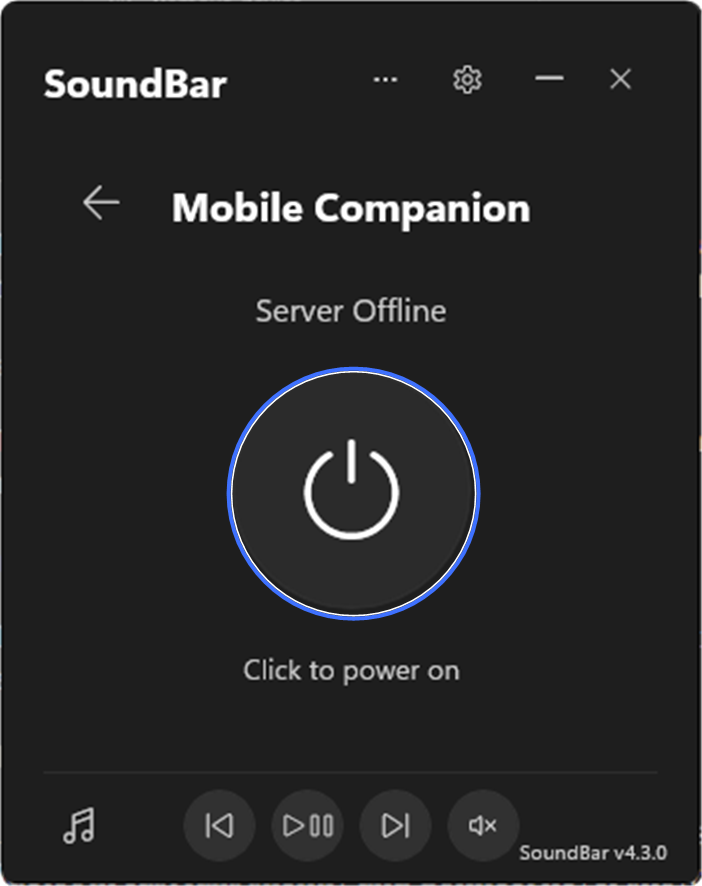 Click the power button to turn it on
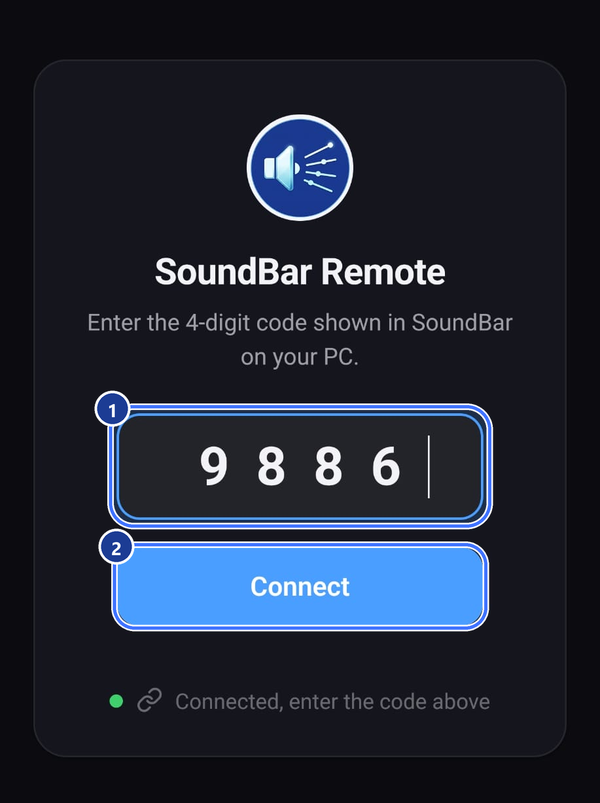 On your phone, 1 type the code 2 tap Connect
What's on your phone:
<img src="docs/images/phone-remote.png" width="300" alt="The SoundBar phone remote with numbered labels" />


    <b>Connection:</b> Shows that your phone is connected to your PC.
    <b>Light / dark:</b> Switch the remote between light and dark mode.
    <b>Master volume:</b> The volume for your whole PC. Tap the speaker to mute everything.
    <b>Song timeline:</b> Drag to skip to any part of the song.
    <b>Play controls:</b> Previous, play/pause and next.
    <b>App volume:</b> Every app on your PC gets its own slider, just like on SoundBar.
    <b>App mute:</b> Tap to mute or unmute that app.
    <b>Speakers:</b> Choose where your PC's sound plays.
    <b>Microphone:</b> Choose which microphone your PC uses.
    <b>Microphone mute:</b> Mute your microphone from across the room.
> Tip: make it feel like a real app. Once connected, add it to your home screen. On iPhone, tap Share > Add to Home Screen in Safari. On Android, tap the ⋮ menu > Add to Home screen in Chrome.
> Keeping it safe: you get a new 4-digit code every time you turn the remote on. Anyone who guesses wrong 5 times is locked out for a while. SoundBar also warns you before turning on if you're on public Wi-Fi (like a café or hotel). Only use the remote on networks you trust.
Everything is in Settings. Click the gear icon at the top of the window.
<img src="docs/images/settings-button.png" width="300" alt="The Settings button" />Click the gear to open Settings
<img src="docs/images/settings-overview.png" width="300" alt="The Settings page with every group folded" /><b>1</b> Search for any setting   <b>2</b> Click a heading to fold it away
Settings are sorted into five groups: Look, Main page, Sound, Apps and General.
Choose Light, Dark or System (follow your Windows setting) in Settings > Look > Theme.
Put any picture behind SoundBar. Go to Settings > Look > Custom background, click Open Folder, drop in a .jpg or .png picture, then click Reload. SoundBar gently dims the picture so the text stays easy to read.
<img src="docs/images/custom-background-settings.png" width="300" alt="The Custom background settings" />Click <b>Open Folder</b> and add your picture
<img src="docs/images/custom-background.png" width="300" alt="SoundBar with a custom wallpaper" />The result
Want to see what's behind SoundBar? Drag the Window opacity slider in Settings > Look. The reset button next to it takes it back to 100%.
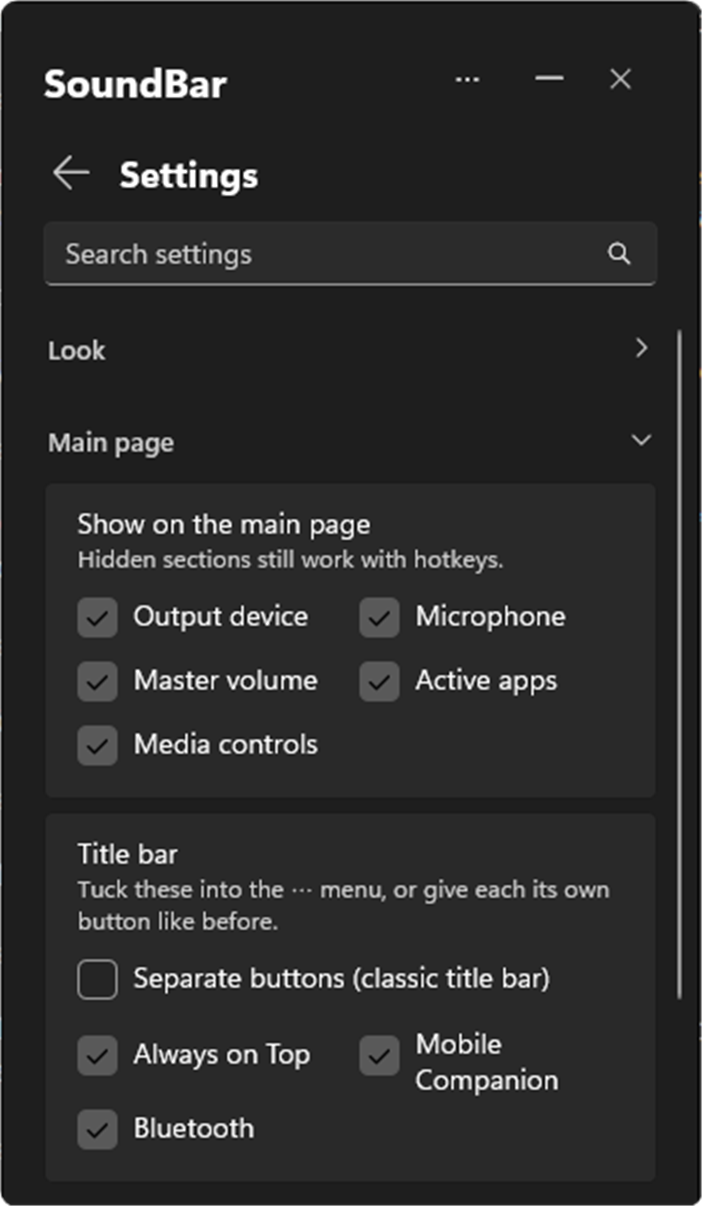
Don't use a microphone? Never switch speakers? Untick any part of the main window in Settings > Main page. Hidden parts still work with keyboard shortcuts.
The same group lets you choose what's in the ⋯ menu. If you'd rather have a separate button for each one at the top of the window, like older versions of SoundBar, tick Separate buttons (classic title bar).
Change the volume of the app you're using without leaving it. This is perfect for games and video calls. "The app you're using" means whichever window you're currently in.
| Shortcut | What it does |
|---|---|
| Ctrl + Alt + ↑ | Turn the app you're using up |
| Ctrl + Alt + ↓ | Turn the app you're using down |
| Ctrl + Alt + M | Mute or unmute the app you're using |
| Ctrl + Alt + I | Mute or unmute your microphone |
You can change any of these in Settings > Sound > Global hotkeys. SoundBar also highlights the app your shortcuts will control, so you always know what you're changing. You can turn this highlight on or off with Active app highlight in Settings > Look.
<img src="docs/images/hotkeys.png" width="280" alt="The Global hotkeys settings" />Pick your own shortcuts
<img src="docs/images/active-app-highlight.png" width="297" alt="The active app highlighted in the list" />The app you're using is highlighted
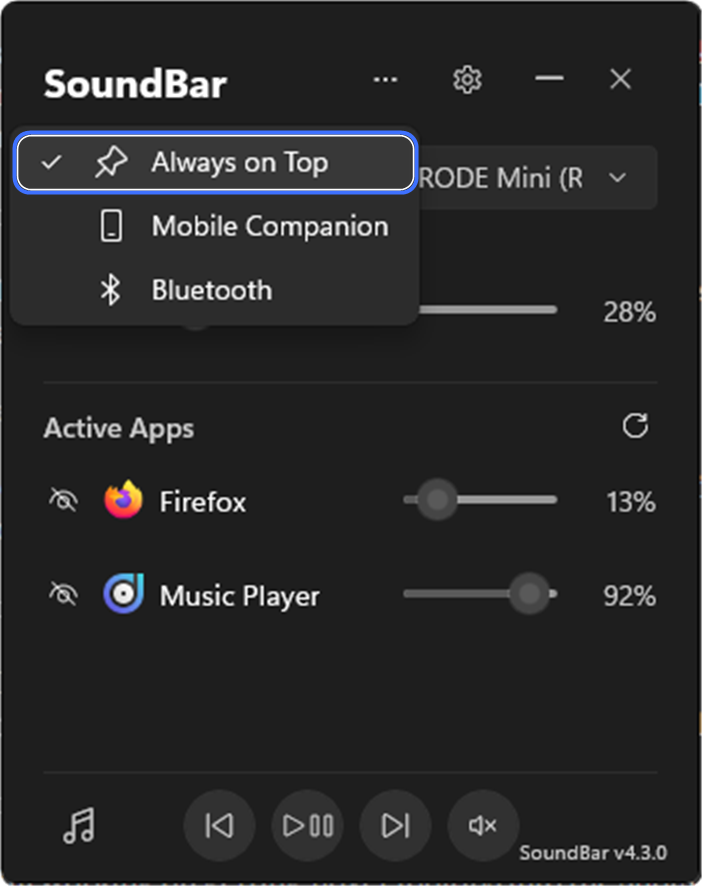
Click the ⋯ button at the top of the window and choose Always on Top to keep SoundBar in front of everything else. A tick shows it's on. Choose it again to turn it off. (With the classic title bar, click the pin instead.)
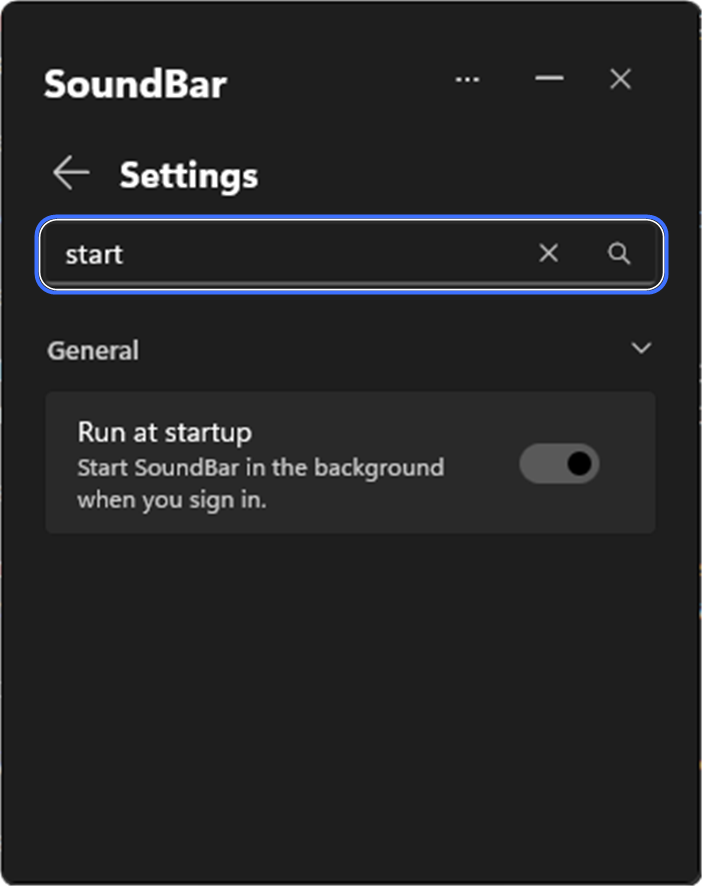
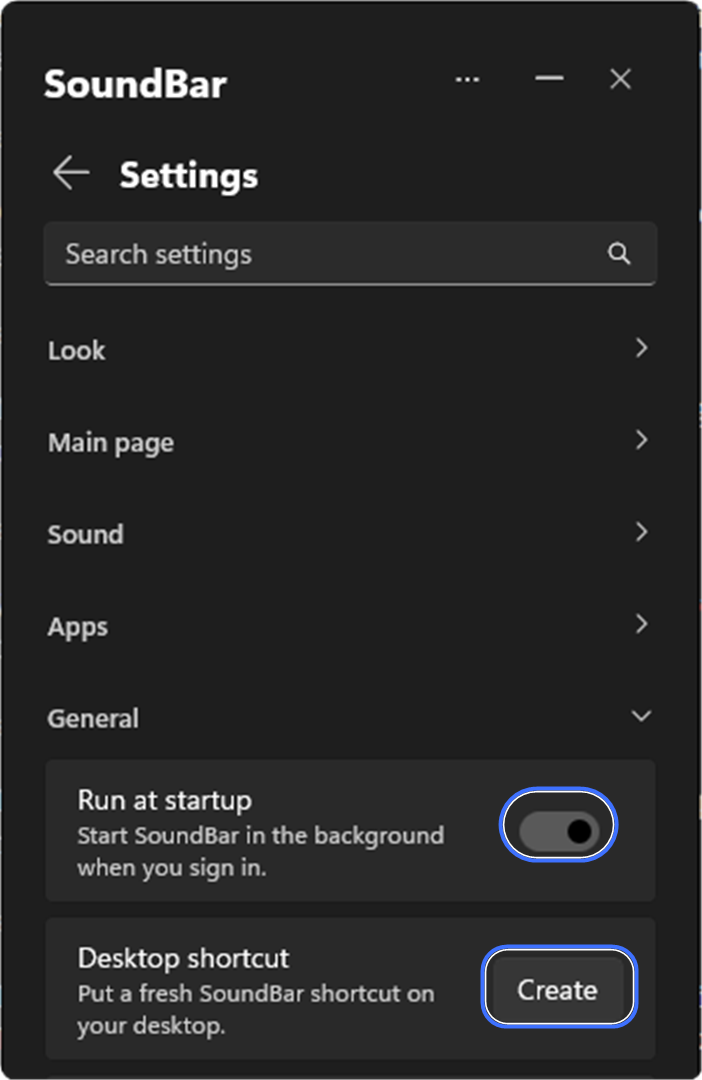
Turn on Run at startup in Settings > General and SoundBar will be ready whenever you turn on your PC. To add a shortcut to your desktop, click Create next to Desktop shortcut.
Silence all Windows notification and system sounds with one switch in Settings > Sound > Do Not Disturb. Your music and games keep playing. To change which sounds Windows plays, click Open next to System sounds.
If your volume stays above 85% for a long time, SoundBar can show a friendly warning to protect your ears. Turn it on in Settings > Sound > Loudness warning.
SoundBar checks for a new version each time it starts. When one is available, a green dot appears on the ⋯ button in the title bar. Open the menu and click Update to vX.Y.Z whenever you're ready, and SoundBar updates itself. Your settings and wallpapers are kept.
<img src="docs/images/update-available.png" width="300" alt="A green dot on the menu button" />A green dot means there's an update
<img src="docs/images/update-menu.png" width="300" alt="The Update item in the menu" />Click <b>Update</b> in the menu
If you use the classic title bar, an Update Available button appears at the top instead. If an update ever takes more than a minute, SoundBar offers a link to download the new version from GitHub yourself.
To see what changed, click the version number in the bottom corner or open Settings > General > About SoundBar.
<img src="docs/images/release-notes.png" width="300" alt="Clicking the version number" />Click the version number
<img src="docs/images/about-updates.png" width="300" alt="The About SoundBar settings" />Or use <b>Release Notes</b> in Settings
You'll need: a 64-bit PC running Windows 10 (version 1809 or newer) or Windows 11.
Winget is Windows' built-in app installer. It also makes updating easy.
winget install levon2805.SoundBar
SoundBar is a single folder. There's nothing else to install.
SoundBar.zip.SoundBar.exe.> Seeing a "Windows protected your PC" message? This is normal for new apps from independent developers. Click More info, then Run anyway. You'll only see it the first time.
An app isn't showing up in the list
Apps only appear once they're actually playing sound. Start playing something, then click the refresh arrow next to Active Apps. If it still doesn't appear, check Settings > Apps > Hidden Apps (you may have hidden it) and Settings > Apps > Background Apps (click Allow to show it).
My phone won't connect
Where are my settings saved?
In %AppData%\SoundBar. Paste that into the File Explorer address bar to open it. Your wallpapers are in the Backgrounds folder inside it. Updating SoundBar never touches this folder.
How do I uninstall SoundBar?
winget uninstall levon2805.SoundBar in Terminal.Advanced settings
A few extra options (such as the network port the phone remote uses) can be changed by hand. Open Settings > General > Advanced settings file and click Open. Changes apply as soon as you save the file.
SoundBar is built natively with the Windows App SDK (WinUI 3) on .NET 8.
Project layout:
src/SoundBar/ contains the main WinUI 3 application (the phone remote's web app is in src/SoundBar/wwwroot/).tests/SoundBar.Tests/ contains the xUnit automated tests.ReleaseTools/ contains internal release and update-signing utilities.docs/images/ contains the screenshots used in this README.Open SoundBar.slnx or src/SoundBar/SoundBar.csproj in Visual Studio 2022 (or newer) to get started.
We use xUnit and Moq to test the internal services and debouncing logic.
The simplest way is Visual Studio's Test Explorer (Test > Test Explorer > Run All Tests).
From the command line, plain dotnet test can fail with ExpandPriContent MSBuild errors (a known Windows App SDK tooling quirk). Build with Visual Studio's MSBuild first, then run the tests without rebuilding:
& "\MSBuild\Current\Bin\MSBuild.exe" tests/SoundBar.Tests/SoundBar.Tests.csproj -p:Configuration=Debug -p:Platform=x64 -restore
dotnet test tests/SoundBar.Tests/SoundBar.Tests.csproj -p:Platform=x64 --no-build