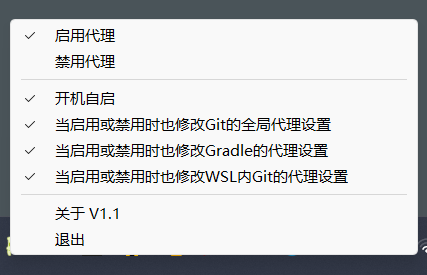
Install proxied with WinGet winget install --id=linsmod.proxied -e Copy WinGet command to clipboard proxied is a system tray application that allows you to control system-level proxy settings directly from the taskbar and syncs them to development tools. It enables/disables Windows system proxy with real-time Windows settings sync via registry monitoring, supports proxy groups for quick switching, and syncs proxy settings to Git (Windows), Gradle, WSL Git, and environment variables. The application also supports optional startup with Windows.
proxied
一个驻留在系统托盘的小程序。打开它,你就可以从任务栏直接控制系统级别的代理开关,并实时反映 Windows 设置的变化。
不止 Windows。它还同步你开发环境里那些"固执地不听系统代理的话"的程序,让你在一个地方控制所有开发环境的代理 。
功能
系统级代理开关 :启用/禁用 Windows 系统代理,实时同步 Windows 设置页(通过监听注册表实现)分别配置 HTTP 与 SOCKS5 :托盘菜单打开“代理设置”,例如 http://192.168.0.4:8502 和 socks5://192.168.0.4:8501,可只填写其中一个同步 Git 代理 :启用/禁用时同步写入 git config --global http.proxy/https.proxy同步 Gradle 代理 :启用/禁用时同步写入 ~/.gradle/gradle.properties同步 WSL 内 Git 代理 :启用/禁用时通过 wsl.exe 同步写入 WSL 内的 git 全局代理配置同步代理环境变量 :一并写入 HKCU\Environment 的 http_proxy、https_proxy、all_proxy、no_proxy开机自启 :可选随 Windows 启动
以上三项"同步 Git / Gradle / WSL Git"都是独立的开关(托盘菜单里勾选),Git 和 Gradle 默认开启,WSL Git 默认关闭,按需调整即可。
为避免双重代理,同时配置两种代理时,Git 和 Gradle 都优先使用 HTTP;只配置 SOCKS5 时使用 SOCKS5。SOCKS5-only 模式下也会用 SOCKS5 地址回填 http_proxy / https_proxy,兼容不读取 all_proxy 的工具。Windows ProxyOverride 会同步为逗号分隔的 no_proxy。
原理
Windows 自家程序大多乖乖用系统级代理设置,但有些开发工具不是:
Gradle 固执地使用 gradle.properties 文件配置网络代理,而不是自动跟随系统代理。WSL 是一个独立的 Linux 环境,完全不认识 Windows 的系统代理,里面的 git 只认自己的 ~/.gitconfig。
我无法忍受它们如此的固执,因此我创造了 proxied。它把 Windows 的代理设置实时同步到:
目标 位置 Windows 系统代理 HKCU\...\Internet Settings(ProxyEnable / ProxyServer)Git(Windows) git config --global http.proxy / https.proxyGradle ~/.gradle/gradle.properties(HTTP 优先,SOCKS5-only 时写入 systemProp.socksProxy*)WSL 内 Git WSL 内 git config --global http.proxy / https.proxy 环境变量 HKCU\Environment 的 http_proxy / https_proxy / all_proxy / no_proxy
它同时也写入 http_proxy 环境变量——我开始以为 Gradle 会读取它,然而并没有。或许某个其他软件会使用这个变量,就像在 Ubuntu 上面一样?我不知道,但仍然保留了这部分代码和功能。
程序自身开关状态存放在 HKCU\Software\Proxied。
构建
项目使用 CMake(Visual Studio 2022 生成器,x64):
cmake -S . -B build -G "Visual Studio 17 2022" -A x64
cmake --build build --config Release
产物在 build\Release\proxied.exe。托盘程序的“开机自启”项也指向这一路径,因此重新编译后重启程序即可用上新版本。
> 程序是单实例的:托盘里已有实例在运行时,直接双击新编译的 exe 会立即退出,实际生效的仍是旧实例。请先从托盘退出旧实例,再启动新版本(或重新登录)。
依赖
Windows 10/11(含 WSL2,可选)
若要使用 WSL 内 Git 同步,需安装 WSL 发行版并内置 git