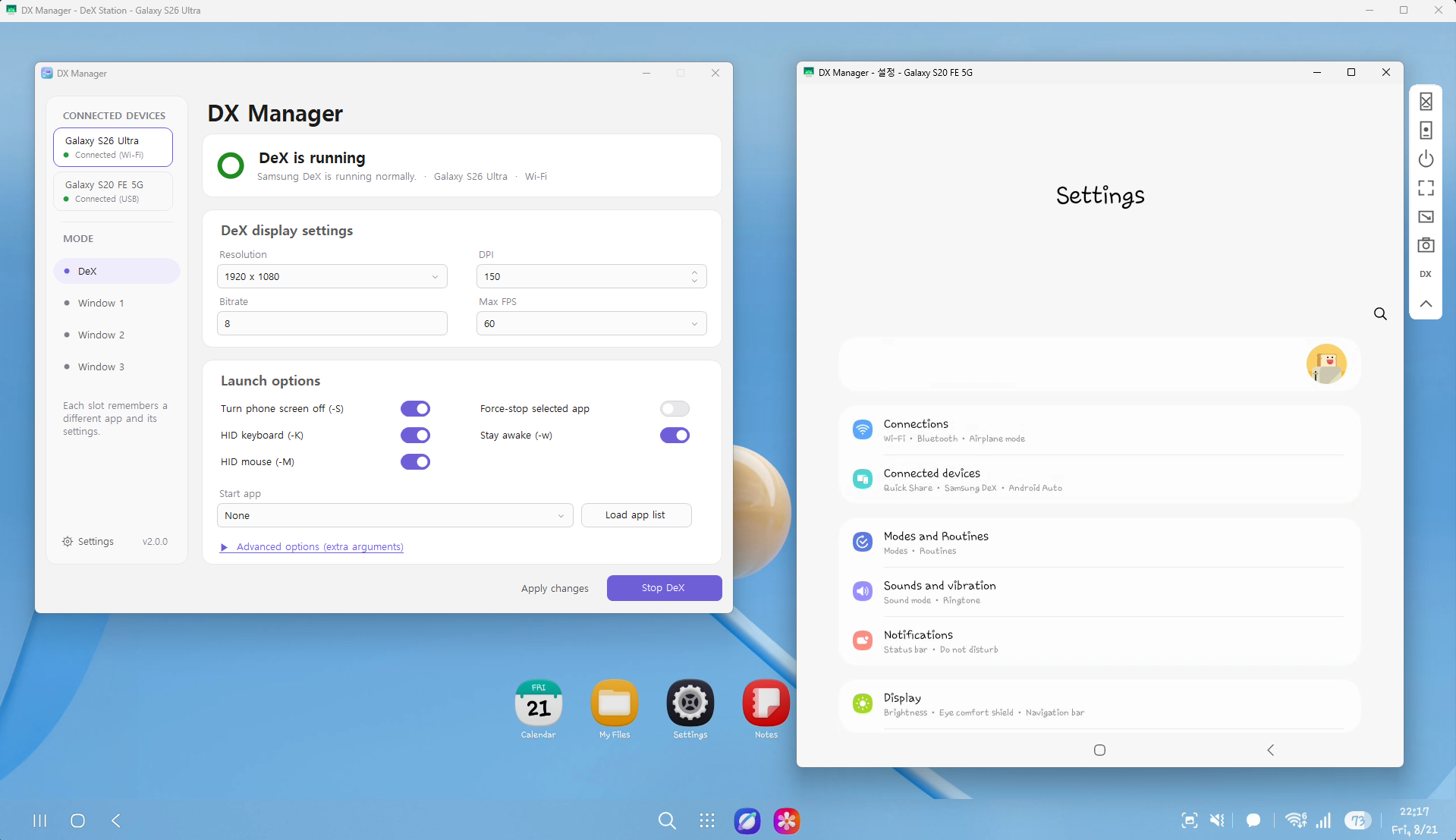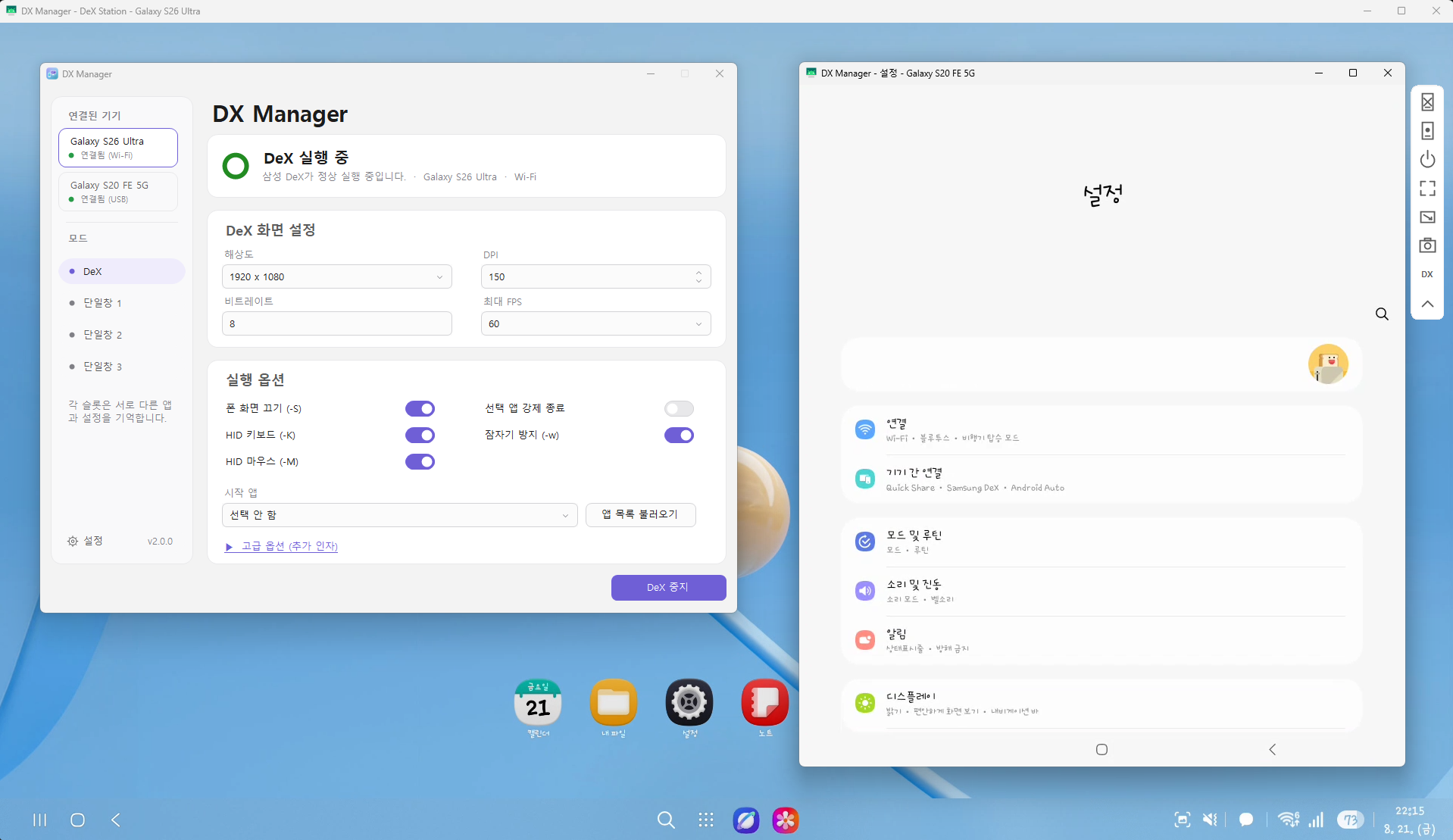
DX Manager
Manage Samsung DeX and independent Android app windows for multiple Galaxy phones from Windows.
여러 Galaxy 휴대폰의 Samsung DeX와 앱별 단일창을 Windows에서 동시에 관리하는 데스크톱 도구입니다.
English ·
한국어 ·
English guide ·
한국어 사용 설명서 ·
FAQ ·
Q&A ·
v2.0.0 release notes ·
Third-party notices
Overview
DX Manager is a Windows utility built around Samsung DeX, ADB, and
scrcpy. It creates and tracks the
correct DeX virtual display, launches scrcpy against that display, and can
open up to three additional app-specific virtual displays for each connected
physical phone. Multiple Galaxy phones can run independent sessions at the
same time.
The application does not depend on an adb.exe registered in the system
PATH. It selects and runs a bundled ADB by absolute path.
Why DX Manager?
After Samsung discontinued DeX for PC, many users were left without an
official way to use the same desktop workflow from Windows.
DX Manager was created as a practical alternative built around Samsung DeX,
scrcpy, and ADB. It adds automation and quality-of-life features shaped by
real daily use.
The goal is not to replace scrcpy. DX Manager makes Samsung DeX and scrcpy
easier and more convenient to use together on Windows.
Project Background
DX Manager began as a personal collection of Batch scripts, CMD commands,
and AutoHotkey automation.
As its features grew through daily use, it was rewritten as a native C#
Windows application to improve usability, stability, maintainability, and
distribution.
Features
- Simultaneously manage multiple physical Galaxy phones
- Start and stop an independent Samsung DeX virtual display for each phone
- Open three independently configured single-app windows per phone
- Keep display, launch, app-profile, transfer, and connection settings separate per phone
- Merge USB and wireless ADB transports belonging to the same physical phone
- USB and wireless ADB connections
- Wi-Fi address detection and Android 11+ pairing
- Per-window resolution, DPI, bitrate, FPS, and app selection
- Reusable single-window profiles that remember settings for each Android app
- Shared history of successfully launched apps
- Optional per-session mini control bars with common scrcpy actions and shortcuts
- HID keyboard and mouse support
- Korean/English key correction and Enter/Shift+Enter switching
- Full scrcpy-window and selected-region capture
- Optional capture transfer to the phone
- Managed drag-and-drop file and folder transfer with Unicode-name
preservation, actual-stage status without estimated progress, and cancellation
- Automatic hiding to the system tray after the configured idle period
- Light, dark, and Windows-following themes
- Automatic Korean/English UI selection
- Session logs and environment diagnostics
- Optional bundled DX Companion with verified install, update, removal, and
one-time permission grant; it provides virtual-display and Stay-awake
recovery, phone-to-PC file transfer, a Quick Settings tile, and a compact
home-screen widget
- 64-bit Windows 7 SP1 compatibility through .NET Framework 4.6.2
Design Philosophy
Every feature in DX Manager was added to solve a problem encountered during
real Samsung DeX use. The project prioritizes:
- Stability over feature count
- Automation over repetitive manual work
- Practical usability over unnecessary complexity
Requirements
- 64-bit Windows 7 SP1, 8.1, 10, or 11 (32-bit Windows is not supported)
- .NET Framework 4.6.2 or later
- Windows 7/8.1: Universal CRT updates required by the bundled legacy ADB
- A Samsung Galaxy device that supports Samsung DeX
- Android Developer options and USB debugging enabled
- A data-capable USB cable for initial authorization
The currently verified phone baseline is Android 16 with One UI 8.x. One UI
7.x and earlier have not been confirmed to work reliably and may show a black
DeX window. Samsung firmware and device-specific behavior may still differ.
Some banking, game, streaming, and security-sensitive apps may refuse to run
when USB debugging is enabled, block protected or DRM-controlled content from
mirroring, or disallow secondary displays. DX Manager does not bypass these
app and Android security policies. An app that does not fully support multiple
displays may also open on the phone instead of the DeX display.
DX Manager intentionally targets .NET Framework 4.6.2 to preserve compatibility
with Windows 7 SP1 and offline or closed-network PCs. Windows 7 SP1 does not
include 4.6.2 by default, so it may need to be installed separately from the
official Microsoft download page.
If .NET Framework 4.7.2 or 4.8 is already installed, no downgrade or separate
4.6.2 installation is required; the same DX Manager build runs on the newer
installed 4.x runtime.
Wireless ADB additionally requires the PC and phone to communicate on the
same local network. Guest Wi-Fi, AP isolation, VLAN rules, or corporate
network policies may block the connection.
Quick Start
- Download the release ZIP and extract the entire folder to a user-writable
location. Avoid protected folders such as
Program Files unless write
permission is configured.
- Enable Developer options and USB debugging on the phone.
- Connect the phone over USB and approve the RSA debugging prompt.
- Run
DXManager.exe.
- Wait for the connected-device status, then select Start DeX.
> [!IMPORTANT]
> Keep the phone connected and use Stop DeX, press Left Alt+F8, or
> right-click the DX Manager tray icon and select Exit. Wait for cleanup
> to finish before disconnecting USB or wireless ADB.
> If USB/Wi-Fi is disconnected first, Android may leave the simulated display
> visible on the phone.
To remove a display that remains on the phone:
- Open Developer options > Simulate secondary displays.
- Select any resolution once.
- Open Simulate secondary displays again.
- Select None. Selecting None first may not clear a stale display.
See the English FAQ
for screenshots.
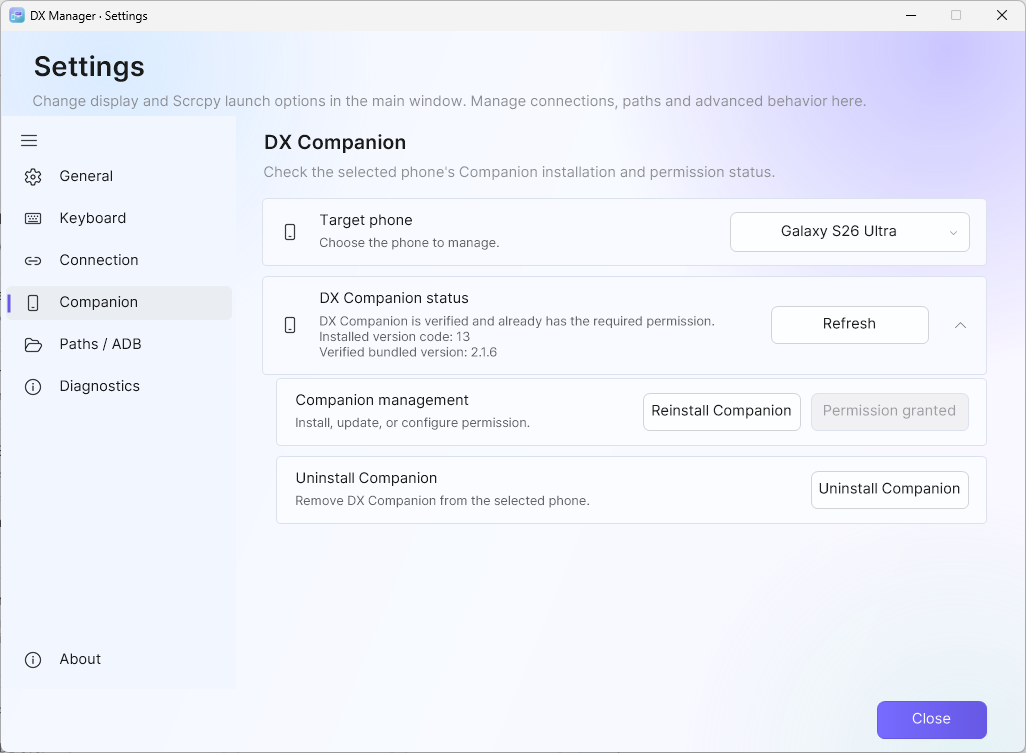
Open Settings > Diagnostics > DX Companion to install the bundled companion
on the currently selected phone. Installation never starts automatically. DX
Manager verifies the bundled APK hash and official signing certificate before
installation, then rechecks the installed package, version, certificate, and
permission afterward. The companion can remove a leftover display, turn off
Android Developer options Stay awake, and send selected phone files or
folders back to the PC.
Do not copy only DXManager.exe. The adjacent tools, DLL, license, and
scrcpy server files are required.
For complete instructions, see:
Default Shortcuts
| Shortcut | Action |
|---|
F8 | Enter capture mode while a scrcpy window is active |
F8 again | Capture the scrcpy client area |
| Mouse drag | Capture a selected region |
Esc | Cancel capture mode |
Left Alt+F8 | Exit DX Manager |
Scroll Lock | Toggle normal Enter / Shift+Enter mode when enabled |
The capture and exit shortcuts are configurable.
Useful scrcpy Shortcuts
These are scrcpy-window shortcuts, not Samsung DeX shortcuts. The examples
below use left Alt, one of scrcpy's default shortcut modifiers.
| Shortcut | Action |
|---|
Alt+F or F11 | Toggle fullscreen |
Alt+G | Resize the window to the video's 1:1 pixel size |
Alt+P | Press the phone's power button |
Alt+O | Turn the phone screen off (O is the letter O) |
Alt+Shift+O | Turn the phone screen on |
Alt+V | Synchronize the PC clipboard and paste |
Ctrl+V | Send Ctrl+V to the active Android app (app-dependent) |
Other official scrcpy 4.1 shortcuts
may work, but some Android system shortcuts can do nothing or act on the
phone's primary display instead of the simulated DeX display.
Drag-and-Drop File Transfer
Drop files or complete folders onto a DeX or single-app scrcpy window. DX
Manager file transfer is enabled by default and uses a Windows 7 SP1 through 11-compatible
path that preserves Korean, Japanese, and other Unicode names. The default
destination is /sdcard/Download/, and it can be changed under Settings >
Paths / ADB > Programs and storage paths. The destination must be below
/sdcard/ or /storage/emulated/0/. Use the adjacent Browse button to
select an existing phone folder; Android paths are displayed with /.
The movable status window shows the active item and up to four waiting items,
file size, elapsed time, and completed/failed/waiting counts. It deliberately
does not show a percentage or ETA because ADB does not report reliable byte
progress on every supported Windows/ADB combination. If the phone already
contains the same name, DX Manager uses name (1).ext, name (2).ext, or
folder (1) for a complete folder.
Cancel stops the active and waiting transfers for that scrcpy window and
attempts to remove their temporary phone data. It is briefly disabled while
the final name is committed.
This feature can be disabled under Settings > Paths / ADB > Programs and
storage paths. When disabled, newly opened DeX and single-app windows use
scrcpy's original file-drop behavior. Existing windows keep the mode with
which they were started, and scrcpy's original behavior may not preserve
non-ASCII file names on every Windows environment.
Mini Control Bar and Single-Window App Profiles
When enabled under Settings > General, a narrow mini control bar follows
each DeX or single-app scrcpy window. It provides phone screen off/on, power,
fullscreen, 1:1 window size, capture, and DX Manager-open actions. Hover over
an icon to see its description and the matching scrcpy shortcut. The bar can
be placed on the left or right and collapsed when it is not needed.
Single-window mode can save one profile per selected Android app. Set the
resolution, DPI, bitrate, FPS, run options, and additional arguments, then open
App profile and select Save current settings. Selecting that app in any
of the three single-window slots automatically applies the saved profile. The
DeX mode settings are not affected.
Device Diagnostics and Optional DX Companion
In Settings > Diagnostics, DX Manager shows the currently selected phone's
model, Android version, SDK level, One UI version, security patch, transport,
and an informational compatibility assessment. Save diagnostic report
creates a privacy-redacted text report containing the environment, selected
device state, connected-device summary, and recent warnings/errors.
The signed DX Companion 2.0.0 APK is included as an external file under
tools\companion, but it is never installed automatically. In Settings >
Diagnostics > DX Companion, the user can install, update, reinstall, grant
the required permission, or uninstall it on the currently selected phone.
DX Manager verifies the exact bundled APK hash and official signing certificate
before installation. It then verifies the installed package ID, version and
certificate before granting WRITE_SECURE_SETTINGS. A copied APK cannot obtain
this protected permission by itself. Uninstall first stops that phone's file
receiver and removes its ADB reverse connection.
The companion removes a leftover simulated display, turns off Developer options
Stay awake, and sends selected phone files or folders to DX Manager. Its
Quick Settings tile and compact 2 × 1 home-screen widget clean both recovery
targets by default. Its network access is limited to authenticated local
connections to DX Manager; it has no analytics, cloud-transfer, or
arbitrary-shell feature. See the
English user guide for
installation, status indicators, and safety details.
Keyboard Compatibility
scrcpy 4.0 migrated its Windows client from SDL2 to SDL3. On tested systems,
the physical right Shift key is detected by Windows but is not handled
correctly by scrcpy 4.0. scrcpy 3.3.4 does not show this behavior.
For compatibility with SDL3-based scrcpy 4.x clients, DX Manager maps physical right
Shift events to left Shift events. This preserves normal Shift typing, but an
Android app cannot distinguish the two Shift sides during that session. The
mapping is not applied to SDL2-based scrcpy versions or other Windows apps.
Building
- Visual Studio 2019
- .NET Framework 4.6.2 targeting pack
- C# WinForms
- No external NuGet packages
Open DexManager.sln and build the Release configuration. The output is
written to DexManager/bin/Release. To create the public portable folder and
ZIP, run scripts/Package-Release.ps1. It keeps the developer output in place
and writes dist/DX Manager plus
dist/DX-Manager-v2.0.0-win-x64.zip. See
DexManager/README.md for packaging notes.
Project Status
Version 2.0.0 bundles scrcpy 4.1. The current verification baseline includes:
- Windows 11: two-phone USB/Wi-Fi combinations with independent DeX,
single-app windows, settings, Companion sessions, and bidirectional transfers
- 64-bit Windows 7 SP1 with .NET Framework 4.6.2: core USB and multi-phone workflow
- Android 16 / One UI 8.x on Samsung Galaxy devices that support DeX
Hardware, Android versions, network policies, and Samsung firmware can affect
behavior. Use Settings > Diagnostics and the session log when reporting a
problem.
Built On
DX Manager depends on and integrates the following technologies and projects:
- Samsung DeX
- scrcpy, maintained by Genymobile
and Romain Vimont
- Android Debug Bridge (ADB) from the Android Open Source Project
Without their work, DX Manager would not exist.
Trademark and Independence
DX Manager is an independently developed utility. It is not affiliated with,
sponsored by, endorsed by, or distributed by Samsung Electronics or
Genymobile.
Samsung and Samsung DeX are trademarks of Samsung Electronics Co., Ltd.
scrcpy is an independent open-source project maintained by its respective
authors.
License
DX Manager's original source code is licensed under the
MIT License. Copyright © 2026
maze. Bundled third-party components remain
under their own licenses. See
THIRD_PARTY_NOTICES.md.
Developer and Project
DX Manager is an independently developed personal project.
한국어
개요
DX Manager는 삼성 덱스(Samsung DeX), ADB와
scrcpy를 기반으로 동작하는
Windows 유틸리티입니다. 연결된 물리 휴대폰마다 올바른 DeX 가상 디스플레이를
생성하고 추적한 뒤 해당 화면을 scrcpy로 실행하며, 휴대폰별 앱 가상
디스플레이를 최대 3개까지 추가로 열 수 있습니다. 여러 Galaxy 휴대폰의
세션을 동시에 독립적으로 실행할 수 있습니다.
이 프로그램은 시스템 PATH에 등록된 adb.exe에 의존하지 않습니다.
동봉된 ADB를 자동으로 선택하고 항상 절대 경로로 실행합니다.
왜 만들었나요?
Samsung DeX for PC가 종료된 뒤에도 Windows에서 기존과 같은 데스크톱
사용 흐름을 원하는 사용자가 많았습니다.
DX Manager는 Samsung DeX, scrcpy와 ADB를 활용한 실용적인 대안으로
만들어졌습니다. 실제로 매일 사용하면서 필요했던 자동화와 여러 편의 기능을
함께 제공합니다.
이 프로그램의 목표는 scrcpy를 대체하는 것이 아닙니다. Samsung DeX와
scrcpy를 Windows에서 더 쉽고 편리하게 함께 사용할 수 있도록 돕는 것이
목표입니다.
프로젝트 배경
DX Manager는 개인적으로 사용하던 Batch 스크립트, CMD 명령과 AutoHotkey
자동화 모음에서 시작되었습니다.
실사용을 거치며 기능이 늘어났고, 사용성·안정성·유지보수성과 배포 편의를
높이기 위해 C# 기반의 Windows 애플리케이션으로 새롭게 개발되었습니다.
주요 기능
- 여러 물리 Galaxy 휴대폰 동시 관리
- 휴대폰마다 독립된 Samsung DeX 가상 디스플레이 실행 및 중지
- 휴대폰마다 각각 독립적으로 설정할 수 있는 앱 단일창 3개
- 휴대폰별 화면·실행·앱 프로필·전송·연결 설정 분리
- 같은 휴대폰의 USB와 무선 ADB 연결을 하나의 물리 기기로 병합
- USB 및 무선 ADB 연결
- Wi-Fi 주소 자동 감지와 Android 11 이상 무선 페어링
- 창별 해상도, DPI, 비트레이트, FPS와 시작 앱 설정
- Android 앱별 단일창 실행 설정을 저장하는 재사용 프로필
- 성공적으로 실행한 앱을 공통 최근 목록으로 기억
- 자주 쓰는 scrcpy 동작과 단축키를 제공하는 세션별 미니 컨트롤바
- HID 키보드 및 마우스 지원
- 한영키 보정과 Enter/Shift+Enter 전환
- scrcpy 전체 화면 및 선택 영역 캡처
- 캡처 결과의 휴대폰 전송
- 한글·Unicode 이름을 보존하고 추정 진행률 없이 실제 단계와 취소를 제공하는 파일·폴더
드래그 앤 드롭 전송
- 설정 시간 동안 미입력 시 시스템 트레이 자동 숨김
- 라이트, 다크 및 Windows 설정 연동 테마
- Windows 언어에 따른 한국어·영어 UI 자동 선택
- 실행 세션 로그와 환경 점검
- 번들 APK와 연결 기기를 검증한 뒤 설치·업데이트·삭제와 최초 1회 권한 부여를
지원하는 선택형 DX Companion, 가상화면·절전모드 해제 복구, 휴대폰에서 PC로
파일 전송, 빠른 설정 타일과 소형 위젯
- .NET Framework 4.6.2를 통한 64비트 Windows 7 SP1 호환
개발 철학
DX Manager의 모든 기능은 Samsung DeX를 실제로 사용하면서 겪은 문제를
해결하기 위해 추가되었습니다. 다음 원칙을 우선합니다.
- 기능의 개수보다 안정성
- 반복적인 수동 작업보다 자동화
- 불필요한 복잡함보다 실용성
요구 사항
- 64비트 Windows 7 SP1, 8.1, 10 또는 11(32비트 Windows는 지원하지 않음)
- .NET Framework 4.6.2 이상
- Windows 7/8.1: 번들 레거시 ADB에 필요한 Universal CRT 업데이트
- Samsung DeX를 지원하는 Samsung Galaxy 기기
- Android 개발자 옵션 및 USB 디버깅 활성화
- 최초 인증을 위한 데이터 통신 지원 USB 케이블
현재 정상 동작을 확인한 휴대폰 기준은 Android 16 / One UI 8.x입니다. One UI
7.x 이하에서는 원활한 동작을 확인하지 못했으며 DeX 창이 검게 표시될 수
있습니다. Samsung 펌웨어와 기기별 동작 차이는 여전히 있을 수 있습니다.
일부 금융·게임·스트리밍·보안 앱은 USB 디버깅이 켜진 환경에서 실행을
거부하거나 보호된 화면과 DRM 콘텐츠의 미러링을 차단하거나 보조 디스플레이
실행을 허용하지 않을 수 있습니다. DX Manager는 이러한 앱 및 Android 보안
정책을 우회하지 않습니다. 다중 디스플레이를 완전히 지원하지 않는 앱은 DeX가
아닌 휴대폰 화면에서 열릴 수도 있습니다.
DX Manager는 Windows 7 SP1 및 오프라인·폐쇄망 PC와의 호환성을 유지하기
위해 의도적으로 .NET Framework 4.6.2를 대상으로 빌드합니다. Windows 7
SP1에는 4.6.2가 기본 포함되지 않으므로 Microsoft 공식 다운로드
페이지에서
별도로 설치해야 할 수 있습니다. 4.7.2 또는 4.8이 이미 설치된 PC에서는
4.6.2로 낮추거나 추가 설치할 필요 없이, 설치된 최신 4.x 런타임으로 같은
DX Manager 빌드가 실행됩니다.
무선 ADB를 사용하려면 PC와 휴대폰이 같은 로컬 네트워크에서 서로 통신할
수 있어야 합니다. 게스트 Wi-Fi, AP 격리, VLAN 규칙 또는 회사 네트워크
정책으로 연결이 차단될 수 있습니다.
빠른 시작
- 릴리스 ZIP을 내려받아 현재 계정이 쓸 수 있는 위치에 폴더 전체의 압축을
풉니다. 별도 쓰기 권한을 설정하지 않았다면
Program Files 같은 보호
폴더는 피하십시오.
- 휴대폰에서 개발자 옵션과 USB 디버깅을 활성화합니다.
- 휴대폰을 USB로 연결하고 RSA 디버깅 허용 창을 승인합니다.
DXManager.exe를 실행합니다.
- 장치 연결 상태가 표시되면 DeX 시작을 선택합니다.
> [!IMPORTANT]
> 휴대폰을 연결한 상태에서 DeX 중지를 누르거나 Left Alt+F8을 누르거나,
> 시스템 트레이의 DX Manager 아이콘을 마우스 오른쪽 버튼으로 눌러 종료를
> 선택하십시오. 정리가 끝난 뒤 USB 또는 무선 연결을 끊으십시오.
휴대폰에 남은 가상 화면은 다음 순서로 제거합니다.
- 개발자 옵션 > 보조 디스플레이 시뮬레이션을 엽니다.
- 아무 해상도나 한 번 선택합니다.
- 보조 디스플레이 시뮬레이션을 다시 엽니다.
- 없음을 선택합니다. 처음부터 없음만 선택하면 남은 화면이 지워지지
않을 수 있습니다.
화면을 포함한 설명은 한국어 FAQ를
참조하십시오.
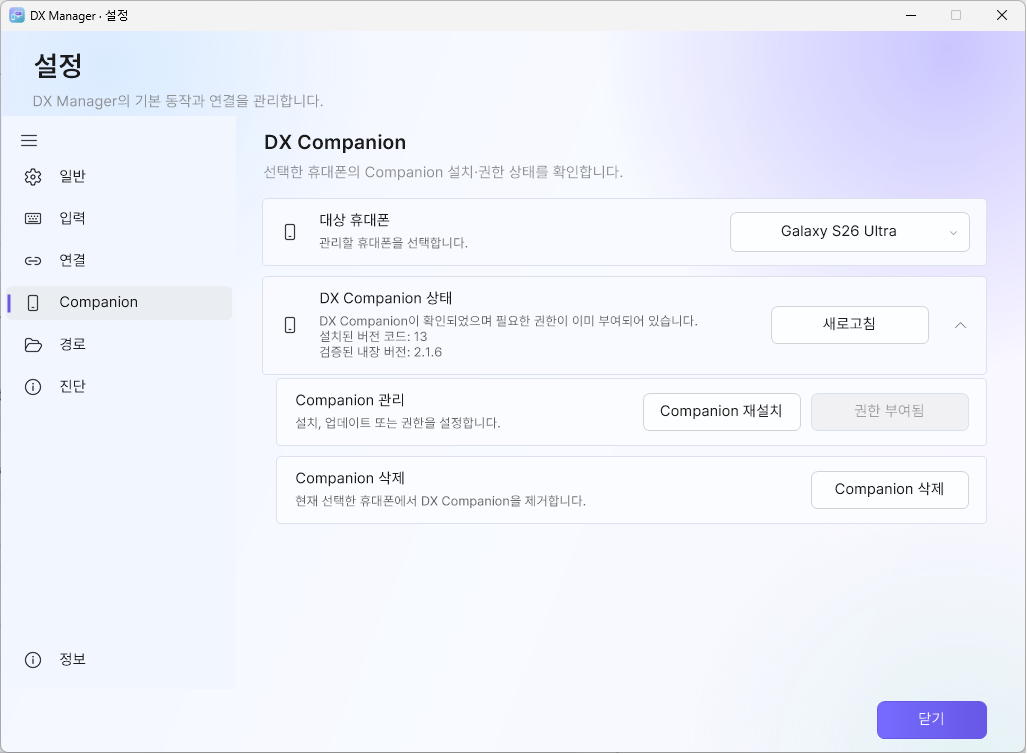
설정 > 진단 > DX Companion에서 현재 선택된 휴대폰에 번들 Companion을
설치할 수 있습니다. 설치는 자동으로 시작되지 않습니다. DX Manager는 설치 전
번들 APK의 해시와 공식 서명을 확인하고, 설치 후에도 패키지명·버전·서명과 권한
상태를 다시 검증합니다. Companion에서는 남은 가상화면 제거, 개발자 옵션의
절전모드 해제 끄기와 휴대폰 파일·폴더의 PC 전송을 사용할 수 있습니다.
DXManager.exe만 따로 복사하면 안 됩니다. 함께 제공되는 tools 폴더,
DLL, 라이선스 파일과 scrcpy 서버 파일이 모두 필요합니다.
자세한 사용법은 다음 문서를 참조하십시오.
기본 단축키
| 단축키 | 동작 |
|---|
F8 | scrcpy 창이 활성화된 상태에서 캡처 모드 진입 |
F8 다시 누름 | scrcpy 화면 영역 캡처 |
| 마우스 드래그 | 선택 영역 캡처 |
Esc | 캡처 모드 취소 |
왼쪽 Alt+F8 | DX Manager 종료 |
Scroll Lock | 사용 설정 시 일반 Enter와 Shift+Enter 모드 전환 |
캡처 및 종료 단축키는 설정에서 변경할 수 있습니다.
자주 사용하는 scrcpy 단축키
다음은 Samsung DeX 자체 단축키가 아니라 scrcpy 창 단축키입니다. 아래 예시는
scrcpy의 기본 단축키 보조 키 중 하나인 왼쪽 Alt를 사용합니다.
| 단축키 | 동작 |
|---|
Alt+F 또는 F11 | 전체 화면 전환 |
Alt+G | 현재 영상의 1:1 픽셀 크기에 맞춰 창 크기 조정 |
Alt+P | 휴대폰 전원 버튼 누르기 |
Alt+O | 휴대폰 화면 끄기 (O는 숫자 0이 아닌 영문자 O) |
Alt+Shift+O | 휴대폰 화면 켜기 |
Alt+V | PC 클립보드를 동기화하고 붙여넣기 |
Ctrl+V | 활성 Android 앱에 Ctrl+V 전달(앱에 따라 동작) |
다른 scrcpy 4.1 공식 단축키도
사용할 수 있지만, 일부 Android 시스템 단축키는 가상 DeX 화면에서 동작하지
않거나 휴대폰의 기본 화면에서 실행될 수 있습니다.
드래그 앤 드롭 파일 전송
DeX 또는 단일창의 scrcpy 창에 파일이나 폴더 전체를 놓을 수 있습니다. DX
Manager 파일 전송은 기본값으로 켜져 있으며, Windows 7 SP1부터 11까지 호환되는 경로로 한글,
일본어 등 Unicode 이름과 폴더 구조를 보존합니다. 기본 저장 위치는
/sdcard/Download/이며 설정 > 경로 / ADB > 프로그램 및 저장 경로에서
변경할 수 있습니다. 저장 위치는 /sdcard/ 또는 /storage/emulated/0/ 아래
폴더만 지정할 수 있습니다. 옆의 찾아보기 버튼으로 휴대폰의 기존 폴더를
선택할 수 있으며 Android 경로는 / 구분자로 표시됩니다.
독립적으로 이동할 수 있는 작은 상태창에는 현재 전송 항목과 다음 대기 항목
4개, 파일 크기, 경과 시간 및 완료·실패·대기 수가 표시됩니다. 지원하는 모든
Windows와 ADB 조합에서 정확한 전송 바이트를 얻을 수 없으므로 오해를 주는
진행률과 남은 시간은 표시하지 않습니다. 같은 이름이 있으면
이름 (1).확장자, 이름 (2).확장자 또는 폴더 전체를 폴더 (1) 이름으로 저장합니다.
취소를 누르면 해당 scrcpy 창의 진행 중·대기 중 전송을 모두 중단하고 임시
데이터를 정리하도록 시도합니다. 최종 이름을 확정하는 짧은 동안에는 버튼이
비활성화됩니다.
이 기능은 설정 > 경로 / ADB > 프로그램 및 저장 경로에서 끌 수 있습니다.
끄면 새로 여는 DeX와 단일창부터 scrcpy의 순정 파일 드롭 기능을 사용합니다.
이미 열린 창은 시작할 때 선택된 방식을 계속 사용하며, 순정 방식은 일부
Windows 환경에서 비ASCII 파일명을 보존하지 못할 수 있습니다.
미니 컨트롤바와 단일창 앱 프로필
설정 > 기본에서 미니 컨트롤바를 켜면 각 DeX·단일창 scrcpy 창의 왼쪽 또는
오른쪽에 좁은 도구 막대가 따라다닙니다. 휴대폰 화면 끄기·켜기, 전원 버튼,
전체 화면, 1:1 창 크기, 캡처와 DX Manager 열기를 마우스로 실행할 수 있습니다.
아이콘에 마우스를 올리면 기능 설명과 해당 scrcpy 단축키가 표시되며, 사용하지
않을 때는 접을 수 있습니다.
단일창 모드는 선택한 Android 앱마다 해상도, DPI, 비트레이트, FPS, 실행 옵션과
추가 인자를 프로필로 저장할 수 있습니다. 원하는 설정을 만든 뒤 앱 프로필 >
현재 설정 저장을 선택하십시오. 이후 세 단일창 중 어느 슬롯에서든 같은 앱을
선택하면 저장된 프로필이 자동으로 적용됩니다. DeX 모드 설정에는 영향을 주지
않습니다.
기기 진단과 선택형 DX Companion
설정 > 진단에는 현재 선택된 휴대폰의 모델, Android 버전, SDK 수준, One UI,
보안 패치, 연결 방식과 참고용 호환성 판정이 표시됩니다. 진단 보고서 저장은
환경·선택 기기 상태·연결 기기 요약·최근 경고와 오류를 개인정보를 가린 텍스트
파일로 저장합니다.
서명된 DX Companion 2.0.0 APK는 공개 ZIP의 tools\companion에 외부 파일
형태로 포함되지만 자동으로 설치되지 않습니다. 설정 > 진단 > DX Companion에서
사용자가 현재 선택된 휴대폰에 설치·업데이트·재설치하거나 권한을 부여하고 삭제할
수 있습니다.
DX Manager는 설치 전 정확한 번들 APK 해시와 공식 서명을 확인합니다. 설치 후에도
패키지명·버전·서명을 확인한 경우에만 WRITE_SECURE_SETTINGS 권한을 부여합니다.
APK만 다른 휴대폰으로 복사해 설치해도 이 보호 권한은 저절로 생기지 않습니다.
삭제할 때는 해당 휴대폰의 파일 수신과 ADB reverse 연결부터 정리합니다.
Companion에서는 남은 가상화면 제거, 개발자 옵션의 절전모드 해제 끄기와
휴대폰 파일·폴더의 PC 전송을 사용할 수 있습니다. 빠른 설정 타일과 2 × 1 홈
화면 위젯은 기본적으로 두 복구 항목을 함께 정리합니다. 네트워크 권한은 DX
Manager와 인증된 로컬 연결에만 사용하며 분석 수집, 클라우드 전송과 임의
shell 실행 기능은 없습니다. 설치 방법과 상태 표시, 주의사항은
한국어 사용 설명서를
참조하십시오.
키보드 호환성
scrcpy 4.0의 Windows 클라이언트는 SDL2에서 SDL3로 변경되었습니다. 확인한
환경에서는 Windows가 물리 오른쪽 Shift를 정상 감지하지만 scrcpy 4.0이
해당 입력을 올바르게 처리하지 못했습니다. scrcpy 3.3.4에서는 같은 문제가
발생하지 않았습니다.
DX Manager는 SDL3 기반 scrcpy 4.x 창과의 호환을 위해 물리 오른쪽 Shift 입력을
왼쪽 Shift 입력으로 변환합니다. 일반적인 Shift 타이핑은 유지되지만 해당
세션에서 Android 앱은 좌우 Shift를 구분할 수 없습니다. SDL2 기반 scrcpy와
다른 Windows 프로그램에는 이 변환을 적용하지 않습니다.
빌드
- Visual Studio 2019
- .NET Framework 4.6.2 Targeting Pack
- C# WinForms
- 외부 NuGet 패키지 없음
DexManager.sln을 열고 Release 구성으로 빌드합니다. 결과물은
DexManager/bin/Release에 생성됩니다. 공개용 포터블 폴더와 ZIP은
scripts/Package-Release.ps1을 실행해 만듭니다. 개발 빌드 폴더는 유지하고
dist/DX Manager와 dist/DX-Manager-v2.0.0-win-x64.zip을 생성합니다. 배포 파일 구성은
DexManager/README.md를 참조하십시오.
프로젝트 상태
버전 2.0.0은 scrcpy 4.1을 포함합니다. 현재 확인 기준은 다음과 같습니다.
- Windows 11: 휴대폰 두 대의 USB·Wi-Fi 조합, 독립 DeX·단일창·설정·
Companion 세션과 양방향 전송
- 64비트 Windows 7 SP1 및 .NET Framework 4.6.2: USB 핵심 및 복수 기기 기능
- Samsung DeX를 지원하는 Android 16 / One UI 8.x Galaxy 기기
하드웨어, Android 버전, 네트워크 정책과 Samsung 펌웨어에 따라 동작이
달라질 수 있습니다. 문제를 제보할 때는 설정 > 진단과 실행 세션
로그를 활용하십시오.
기반 기술과 프로젝트
DX Manager는 다음 기술과 프로젝트를 활용하여 만들어졌습니다.
- Samsung DeX
- Genymobile과 Romain Vimont가 개발·관리하는
scrcpy
- Android Open Source Project의 Android Debug Bridge(ADB)
이 기술과 프로젝트가 없었다면 DX Manager도 존재할 수 없었습니다.
상표 및 독립성 고지
DX Manager는 독립적으로 개발된 유틸리티입니다. Samsung Electronics 또는
Genymobile과 제휴·후원·보증 관계가 없으며 해당 회사에서 배포하는
프로그램이 아닙니다.
Samsung과 Samsung DeX는 Samsung Electronics Co., Ltd.의 상표입니다.
scrcpy는 해당 개발자들이 유지·관리하는 독립적인 오픈소스 프로젝트입니다.
라이선스
DX Manager 자체 소스 코드는 MIT License로 배포됩니다.
Copyright © 2026 maze. 동봉된 제3자
구성요소에는 각각의 라이선스가 적용됩니다. 자세한 내용은
THIRD_PARTY_NOTICES.md를
참조하십시오.
개발자와 프로젝트
DX Manager는 개인이 독립적으로 개발한 프로젝트입니다.