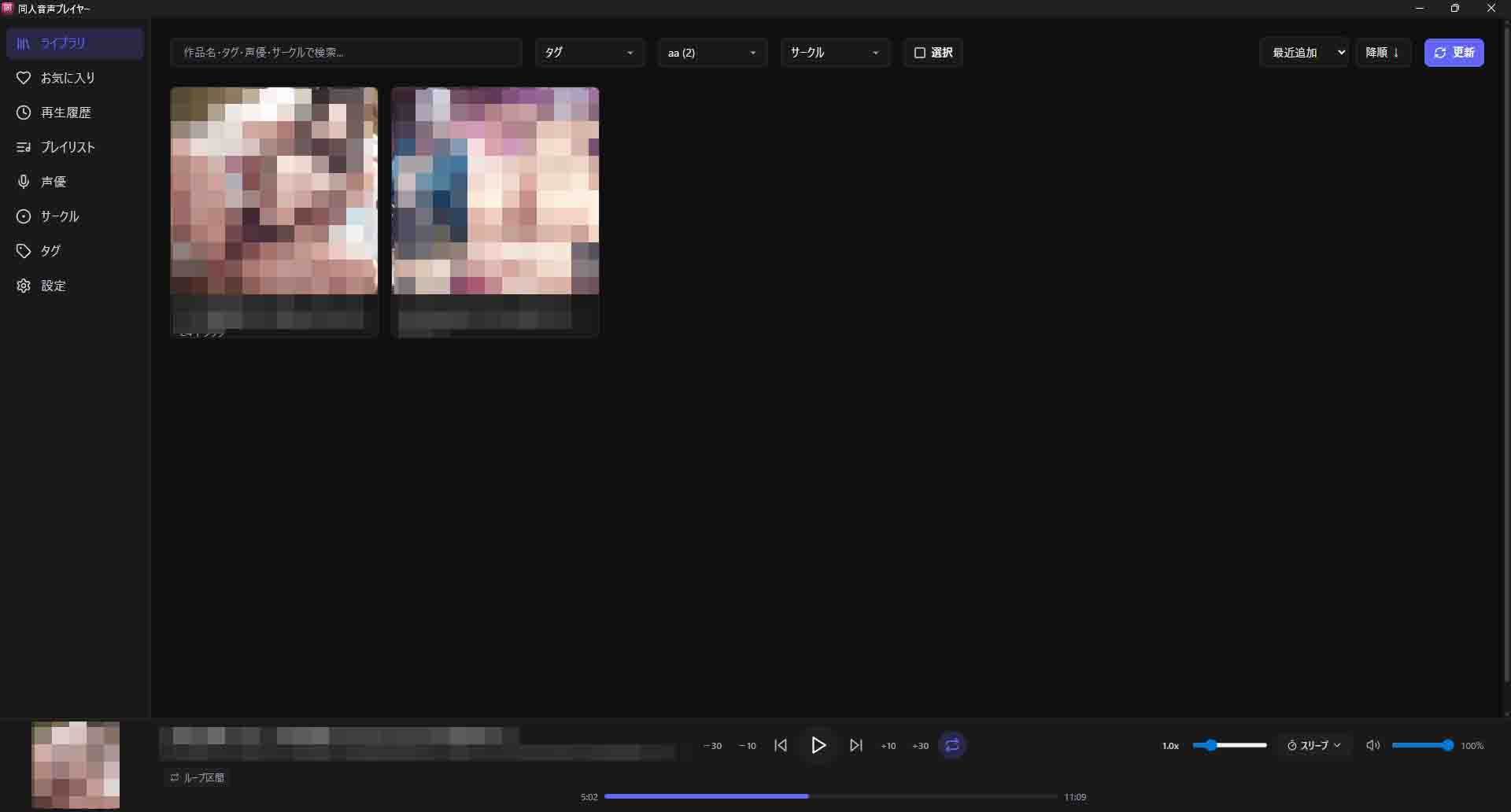
Use this command to install doujin-player with WinGet:
winget install --id=megamega39.doujin-player -e Copy WinGet command to clipboard doujin-player (同人音声プレイヤー) is a Tauri-based desktop application
for managing and playing local doujin audio works. Features include
library management with automatic thumbnail/variation detection,
A/B loop points with named presets, sleep timer, playback speed
(0.5x-3.0x), video playback (MP4/WebM), tags/voice-actor/circle
classification, favorites, playlists, cross-library search, playback
statistics, auto-resume, 7-language UI, media key support, taskbar
thumbnail controls, and in-app auto-update.
同人音声プレイヤー / Doujin Audio Player
ローカルの同人音声作品を管理・再生するデスクトップアプリケーションです。
インストール
Releases ページ から最新版のインストーラー(.exe)をダウンロードして実行してください。
アプリ内の設定ページからアップデートの確認・自動更新ができます。
特徴
ライブラリ管理 — フォルダをスキャンして作品を自動登録。サムネイル・音声バリエーション(SEあり/なし、形式別)を自動検出高機能プレイヤー — 区間ループ(A/B点設定・微調整・名前付き保存)、スリープタイマー、再生速度変更(0.5x〜3.0x)動画再生対応 — MP4・WebM形式の動画ファイルも再生可能整理機能 — タグ・声優・サークルによる分類、お気に入り(作品・トラック単位)、プレイリスト横断検索 — 作品名・タグ・声優・サークル名をまとめて検索一括タグ付け — ライブラリで複数作品を選択してタグ・声優・サークルを一括登録再生統計 — 再生回数の自動記録、よく聴くトラックTOP10、最近再生した作品の表示再生位置の自動保存 — トラックの再生位置を自動保存し、途中から再開可能カスタマイズ — テーマカラー8色、ダーク/ライトモード、ショートカットキー設定多言語対応 — 日本語・English・简体中文・繁體中文・한국어・Español・Portuguêsメディアキー対応 — キーボード・イヤホンの再生/停止ボタンに対応タスクバー操作 — タスクバーホバーで再生コントロール・アルバムアート表示(Windows)システムトレイ — 閉じる時にトレイに最小化するオプション(設定で切替可能)ウィンドウ状態復元 — ウィンドウのサイズ・位置を記憶し、次回起動時に復元自動アップデート — 新しいバージョンをアプリ内から確認・インストール
使い方
ライブラリ登録 — 設定画面から作品フォルダのルートを選択してスキャン作品を再生 — ライブラリから作品をクリック → トラックをクリックで再生開始区間ループ — 再生パネルの「ループ区間」→ A/B点を設定 → ループON。名前を付けて保存も可能お気に入り — 作品の♡で作品お気に入り、トラックの♡でトラックお気に入りプレイリスト — サイドバーの「プレイリスト」から新規作成 → 作品詳細画面でトラックを追加スリープタイマー — 再生パネルの時計アイコンから時間を選択(5分〜1時間)テーマ・言語変更 — 設定画面からテーマカラー・ダーク/ライトモード・言語を変更
ショートカットキー
キー 操作 Space再生 / 一時停止 J / L10秒 戻る / 進む Shift+J / Shift+L30秒 戻る / 進む Shift+← / Shift+→5秒 戻る / 進む ← / →前のトラック / 次のトラック [ / ]A点設定 / B点設定 \区間ループ ON/OFF Mミュート ↑ / ↓音量 アップ / ダウン
ショートカットは設定画面からカスタマイズ可能です。
A desktop application for managing and playing local doujin audio works.
Install
Download the latest installer (.exe) from the Releases page and run it.
You can check for updates and install them from the settings page within the app.
Features
Library Management — Scan folders to automatically register works. Auto-detects thumbnails and audio variants (with/without SE, by format)Advanced Player — Segment loop (A/B point setting, fine-tuning, named save), sleep timer, playback speed control (0.5x–3.0x)Video Playback — Supports MP4 and WebM video filesOrganization — Classify by tags, voice actors, and circles. Favorites (per work and per track), playlistsCross-search — Search across work titles, tags, voice actors, and circle names at onceBatch Tagging — Select multiple works in the library to assign tags, voice actors, and circles in bulkPlayback Statistics — Automatic play count tracking, top 10 most-played tracks, recently played worksAuto-save Playback Position — Automatically saves track position and resumes where you left offCustomization — 8 theme accent colors, dark/light mode, customizable keyboard shortcutsMulti-language — 日本語・English・简体中文・繁體中文・한국어・Español・PortuguêsMedia Key Support — Works with keyboard and earphone play/stop buttonsTaskbar Controls — Playback controls and album art on taskbar hover (Windows)System Tray — Option to minimize to tray on close (configurable in settings)Window State Restore — Remembers window size and position across sessionsAuto-update — Check for and install new versions from within the app
Usage
Register Library — Select the root folder of your works from the settings page and scanPlay a Work — Click a work in the library → click a track to start playbackSegment Loop — Click "Loop Segment" in the player panel → set A/B points → enable loop. You can also name and save segmentsFavorites — Click ♡ on a work for work favorites, ♡ on a track for track favoritesPlaylists — Create a new playlist from "Playlists" in the sidebar → add tracks from the work detail pageSleep Timer — Click the clock icon in the player panel and select a duration (5 min – 1 hour)Theme & Language — Change theme color, dark/light mode, and language from the settings page
Keyboard Shortcuts
Key Action SpacePlay / Pause J / LSeek back / forward 10s Shift+J / Shift+LSeek back / forward 30s Shift+← / Shift+→Seek back / forward 5s ← / →Previous / Next track [ / ]Set A point / Set B point \Toggle segment loop ON/OFF MMute ↑ / ↓Volume up / down
All shortcuts can be customized in the settings page.
開発
必要環境
Node.js 18+
Rust (rustup)
npm
セットアップ
npm install
npm run tauri dev
ビルド
npm run tauri build
技術スタック
カテゴリ 技術 デスクトップ基盤 Tauri 2 (Rust) フロントエンド React 19 + TypeScript スタイル Tailwind CSS 3 状態管理 Zustand 5 データベース SQLite (rusqlite)
詳細なアーキテクチャは docs/ARCHITECTURE.md を参照してください。
作者
shimao — GitHub
ライセンス
GPL-3.0