Migrato
Čeština: README.cs.md
An open-source tool for moving your data to a new Windows PC — over Wi-Fi (local network), no cables, no cloud, no fees.
Run the app on both computers, a PIN appears on the new one, pick what to transfer on the old one, done. The UI is in English or Czech, following your Windows language.
| Home | Receiving (new PC) |
|---|
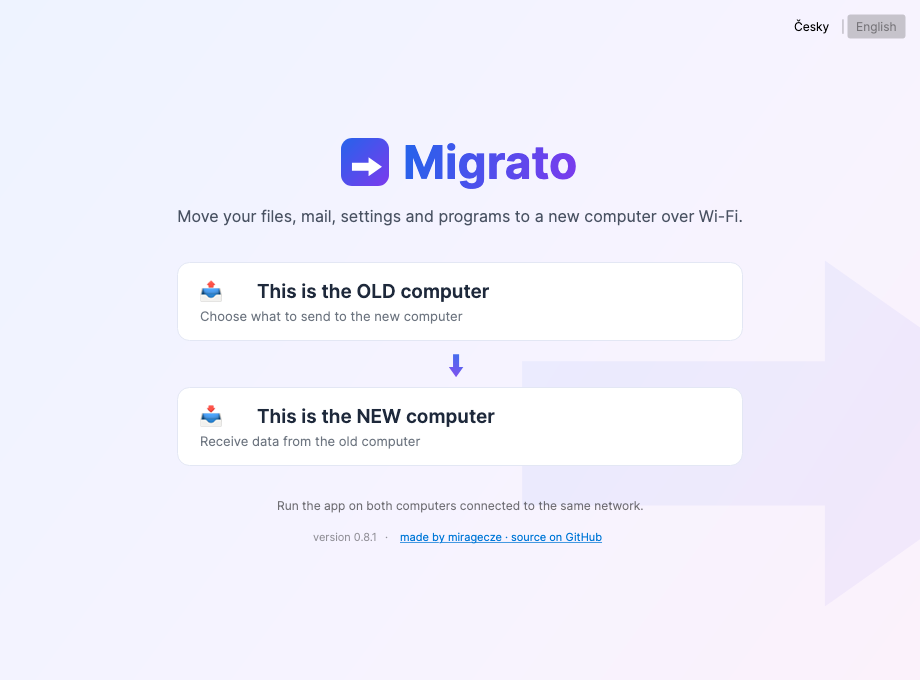 | 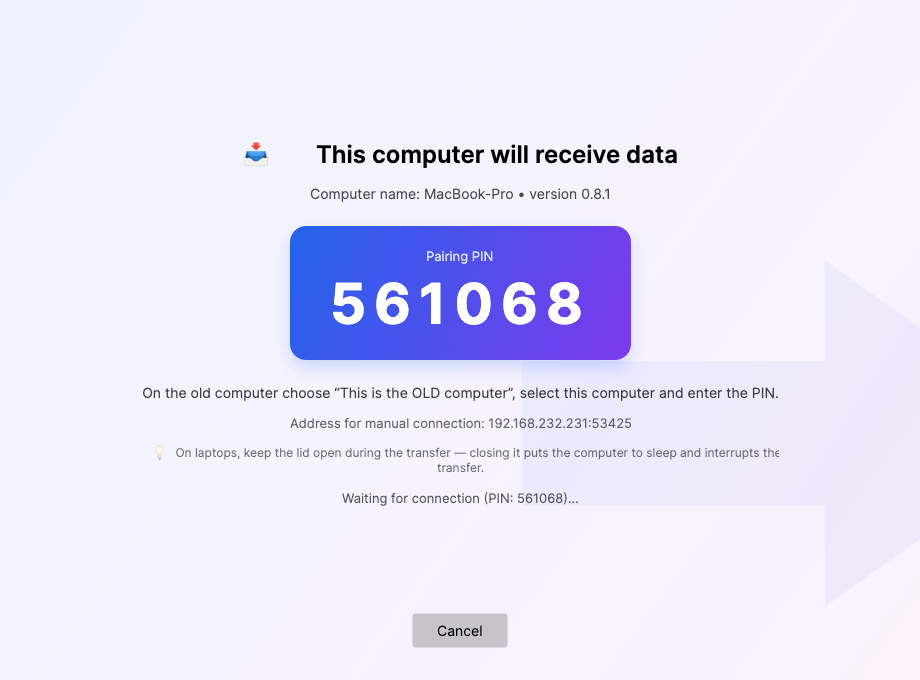 |
What it transfers
- Files — Desktop, Documents, Downloads, Pictures, Music, Videos, Favorites. Folders are resolved via Windows APIs, so OneDrive-redirected folders work too. Plus any custom folders from anywhere (including other drives) — they land on the new PC's desktop in “Transferred folders”.
- Mozilla Thunderbird — the complete profile: accounts, mail, passwords, contacts, calendar, filters, add-ons.
- Mozilla Firefox — the complete profile: bookmarks, passwords, history, extensions, open tabs.
- Settings of other apps — Notepad++, VLC, FileZilla, OBS Studio, GIMP, LibreOffice, KeePass, VS Code, Windows Terminal, IrfanView, PuTTY, 7-Zip, WinRAR, Total Commander. Includes settings stored in the registry (HKCU). Missing apps are installed automatically via winget.
- Chrome and Edge bookmarks — default profile.
- Installed programs — reinstalled automatically on the new PC via
winget import; a human-readable list of all programs is saved to the desktop.
- Wi-Fi networks including passwords — the new computer connects on its own.
What it deliberately does not promise
Honesty is a core feature of this tool:
- Chrome and Edge passwords cannot be transferred. They are encrypted by Windows DPAPI with a key tied to the specific computer and account. Use Google/Microsoft account sync instead. (Firefox and Thunderbird passwords do transfer — their key travels with the profile.)
- Installed programs are not moved 1:1 — they are reinstalled via winget and their data is transferred. Programs not available in winget need manual installation (see the list on your desktop).
- Hardware-bound licenses (Office activation, Adobe, etc.) must be transferred with the vendor.
Quick start (PowerShell)
Paste this into PowerShell on both computers — it downloads the latest release and runs it:
$dir = "$env:LOCALAPPDATA\Migrato"
New-Item $dir -ItemType Directory -Force | Out-Null
Invoke-WebRequest https://github.com/miragecze/migrato/releases/latest/download/Migrato.exe -OutFile "$dir\Migrato.exe"
Unblock-File "$dir\Migrato.exe"
& "$dir\Migrato.exe"
(The app is stored outside the transferred folders on purpose — Migrato excludes the folder it runs from, so don't keep it on the Desktop or in Downloads.)
How to use it
- Download
Migrato.exe from Releases on both computers (or use the PowerShell quick start above). If your browser refuses the exe, grab Migrato-win-x64.zip instead and unpack it.
- On the new computer run Migrato and choose “This is the NEW computer” — a 6-digit PIN appears.
- On the old computer choose “This is the OLD computer” — the new computer shows up in the list (both must be on the same network). If it doesn't (NAT, VMs, separated subnets), use the manual IP:port connection shown on the new computer's screen.
- Enter the PIN, pick what to transfer, start.
- Close the apps being transferred (Thunderbird, Firefox…) on both computers first — Migrato warns about running processes.
Both computers are kept awake during the transfer. You can still interrupt it at any time — the next run resumes where it left off: finished files are only verified by checksum and skipped, the interrupted file continues from its last byte. Every file is verified with SHA-256 after transfer.
Existing files at the same destination path are overwritten — the tool is designed for migrating to a fresh computer.
> SmartScreen note: the exe is not code-signed yet, so Windows shows an “unknown publisher” warning on first run. Click More info → Run anyway. Code signing is planned once the project matures.
How it compares
| Migrato | LocalSend | Windows “Transfer to a new PC” | EaseUS Todo PCTrans |
|---|
| Price | free, open source | free, open source | free (Windows 11 only) | paid |
| Full PC migration wizard | ✅ | ❌ (manual file sharing) | partial | ✅ |
| Program reinstall | ✅ via winget | ❌ | ❌ | ✅ 1:1 (best effort) |
| Thunderbird/Firefox incl. passwords | ✅ | ❌ | ❌ | partial |
| App settings catalog | ✅ | ❌ | ❌ | ✅ |
| Wi-Fi networks & passwords | ✅ | ❌ | ❌ | ✅ |
| Wallpaper & fonts | ✅ | ❌ | partial | ✅ |
| Works without a Microsoft account | ✅ | ✅ | ❌ (required) | ✅ |
| Resume after interruption | ✅ | ❌ | ? | ✅ |
Troubleshooting
The old computer can't see the new one:
- Both computers must be on the same network and subnet (check with
ipconfig that e.g. both are 192.168.1.x).
- Virtual machines (Parallels, VirtualBox, Hyper-V): switch networking to Bridged mode, or use the manual IP:port connection shown on the new computer's screen.
- Firewall: allow Migrato on first run, or open UDP 42424 (discovery) and TCP 53425 (transfer) inbound for private networks.
- Some routers have AP/client isolation enabled on Wi-Fi — devices can't see each other; use an Ethernet cable or disable isolation.
The transfer seems stuck: if the progress bar moves or file names change, it's working (verifying resumed data reads gigabytes from disk without network traffic). A genuinely dead connection fails on its own within ~30 seconds.
Security
- All transfer traffic is TLS-encrypted (an ephemeral certificate per session).
- Pairing is protected by the PIN: the sender proves knowledge of the PIN with an HMAC bound to the receiver's certificate fingerprint, so the PIN is never revealed and a man-in-the-middle fails even with a recorded exchange. The receiver locks the session after 5 failed attempts.
- Data never leaves your local network. No cloud, no telemetry.
Building from source
Requires the .NET SDK 10.
dotnet test                                  # core tests
dotnet run --project src/Migrato.App        # run for development
dotnet publish src/Migrato.App -c Release -r win-x64 --self-contained \
  -p:PublishSingleFile=true -p:IncludeNativeLibrariesForSelfExtract=true -o publish
Development works on macOS/Linux too (Avalonia UI); Windows-only modules (winget, netsh, registry) disable themselves elsewhere.
Architecture
src/Migrato.Core   library: discovery (UDP broadcast), TLS + PIN pairing,
                   transfer protocol with resume and SHA-256 verification,
                   migration modules (known folders, app profiles, winget, Wi-Fi)
src/Migrato.App    GUI (Avalonia, MVVM), Czech/English
tests/             unit tests + an integration loopback transfer over real TCP/TLS
Supporting another app = one new entry in src/Migrato.Core/Modules/app-profiles.json (where the app keeps its data, process name, winget id) — no new code.
License
MIT