AI Usage Dashboard


简体中文
Know your coding-agent limits before they interrupt your session.
See Claude Code, Codex, Grok Build, Cursor, Antigravity Gemini, and OpenCode Go
usage windows, reset times, and service health—plus your DeepSeek API balance—in one
local desktop view.
Windows · macOS · Linux · No dashboard account · No analytics or telemetry
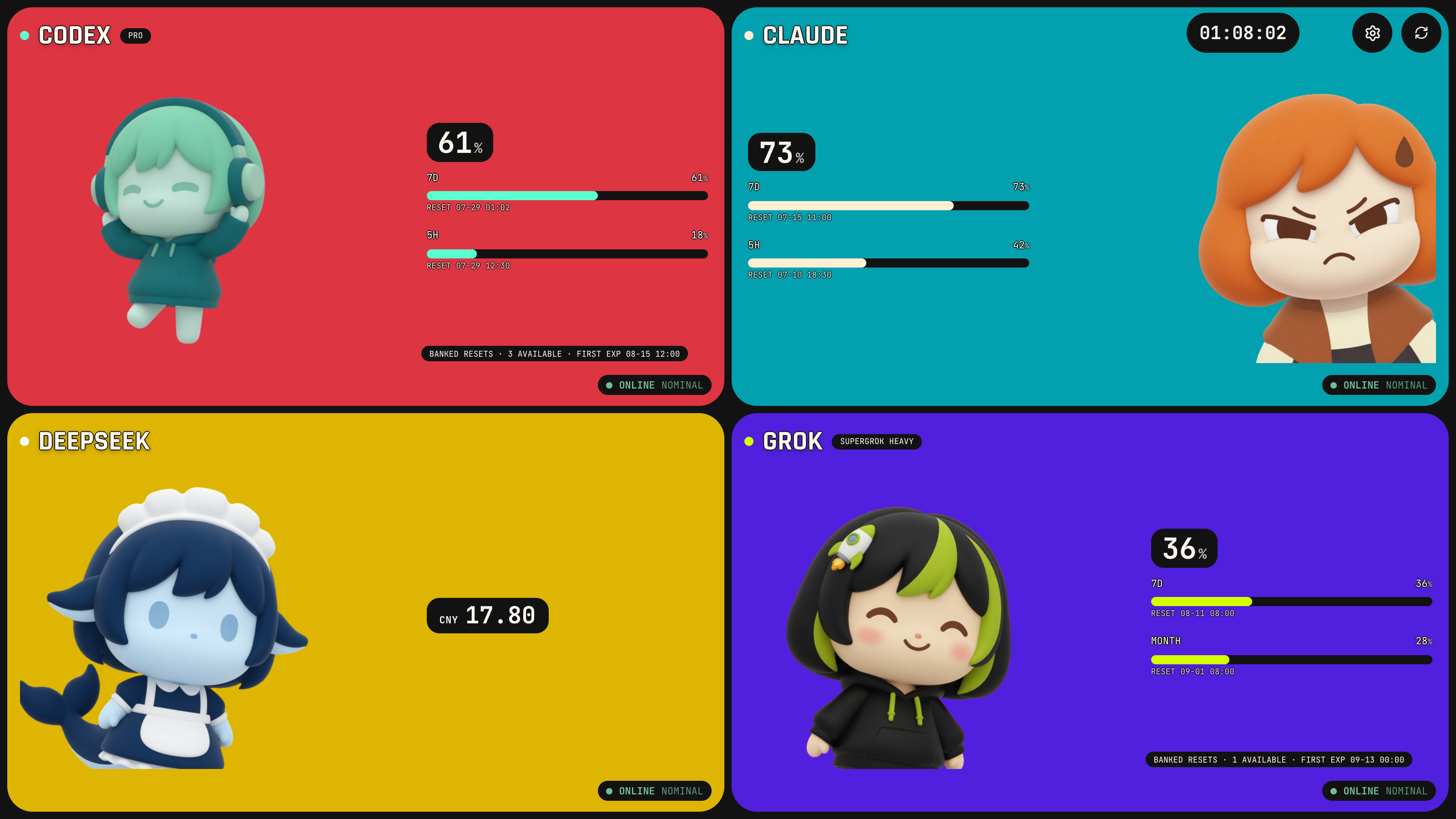
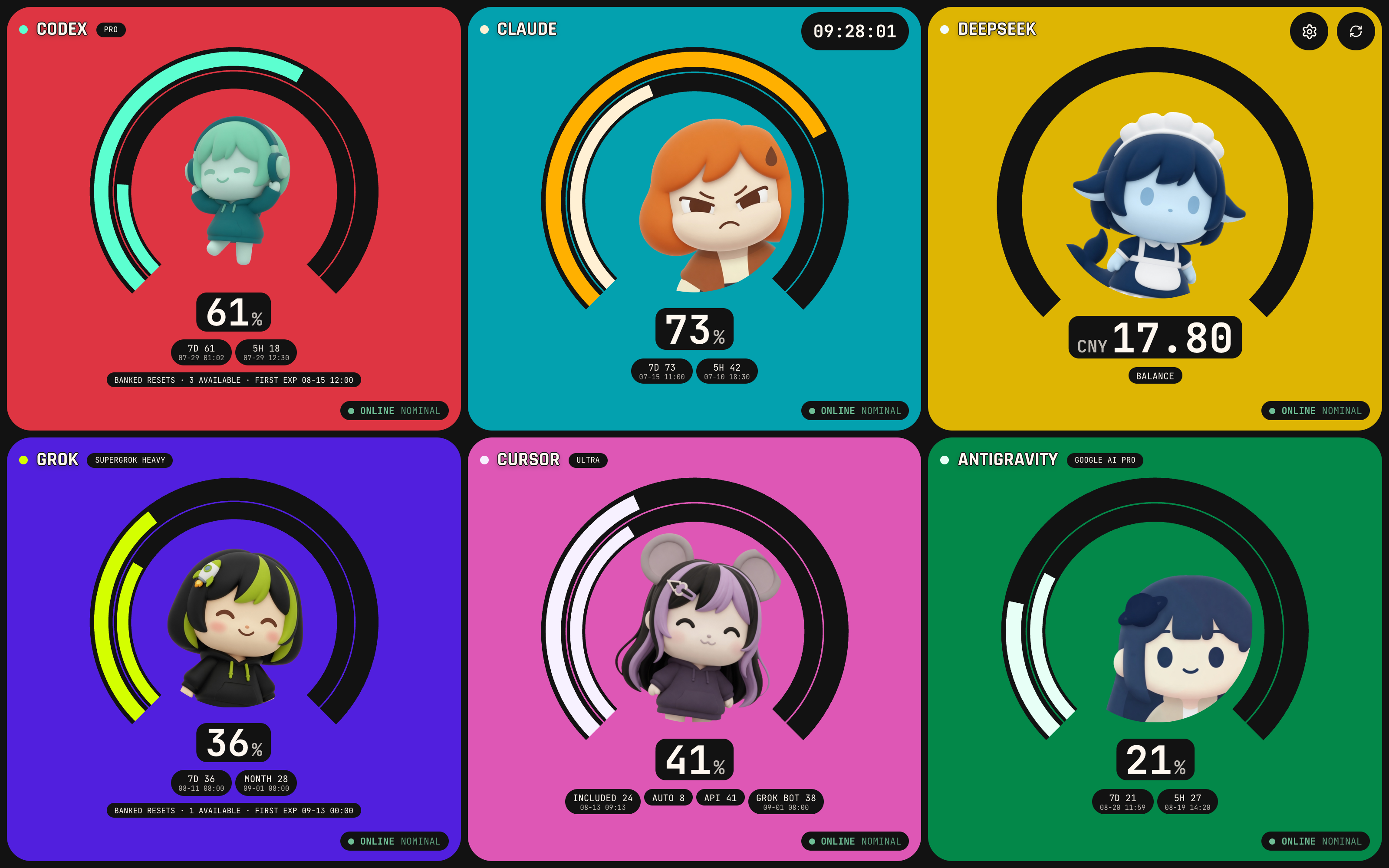
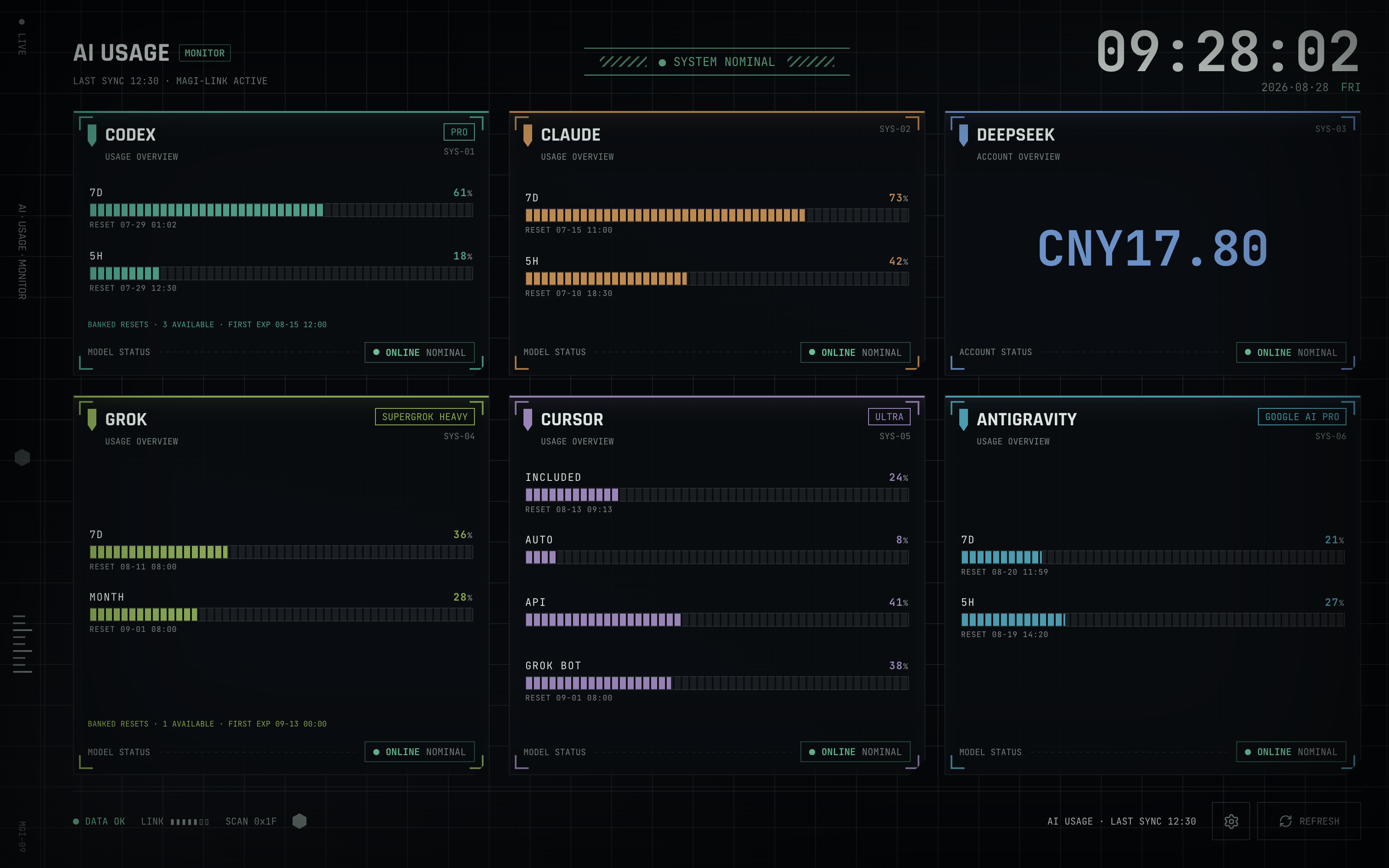
> Production UI rendered with bundled synthetic fixtures. No account information
> or provider credentials are shown.
AI Usage Dashboard is a current-status quota cockpit for individual developers,
not a historical cost analyzer or team FinOps service.
Install
Download installers and SHA-256 checksums from the
latest release,
or install from the command line.
Windows
winget install --id neyham.AIUsageDashboard --exact --source winget
macOS
curl -fsSL https://github.com/neyham/ai-usage-dashboard/releases/latest/download/install-macos.sh | sh
Linux — Debian/Ubuntu .deb, otherwise AppImage
curl -fsSL https://github.com/neyham/ai-usage-dashboard/releases/latest/download/install-linux.sh | sh
On Omarchy / Hyprland, the AppImage can open a blank window or tiny type.
See Omarchy / Hyprland after the script finishes.
The macOS and Linux scripts verify downloaded assets against the published
SHA-256 file. Published installers are currently unsigned, so Windows SmartScreen
or macOS Gatekeeper may require manual confirmation.
At a glance
| Provider | What the dashboard shows |
|---|
| Claude Code | Available usage windows, reset times, extra usage, subscription tier, cooldown, and cache state |
| Codex | Usage windows, reset times, plan, banked resets, and earliest expiry |
| X Subscription | One weekly pool shared by Grok and Cursor, split by product (Chat, Bot, Build, Cursor), with reset time. Shown instead of separate Grok and Cursor cards when either is enabled on a switched seat |
| Grok Build | Combined credit usage for the server-reported period, reset time, plan, optional monthly allowance, and banked usage-limit resets when available |
| Cursor | Included, Auto, named-model API usage, Grok Bot quota, plan, and billing-cycle reset |
| Antigravity | Gemini and Claude/GPT 5-hour and 7-day quotas, reset times, and Google AI plan |
| OpenCode Go | 5-hour, weekly, and monthly subscription usage with reset times (Go and Go Plus) |
| DeepSeek | API balance and insufficient-balance state |
- Each provider refreshes independently; one outage does not erase the others.
- Last-known-good data stays visible and is marked when it may be stale.
- Grok and Cursor share one X toggle in Display Settings. A switched X
Subscription seat shows one X card; an unswitched seat keeps separate Grok
and Cursor cards and hides whichever side has no local login.
- Choose any zero-to-seven card layout. Two panels sit side by side;
three use a T (full-width top card, two below); four panels use a 2×2
of landscape cards. Five panels fill the board; a single top-tier plan
(SuperGrok Heavy, Cursor Ultra/Enterprise, or Google AI Ultra) occupies
the left half; two top-tier plans split the top row. Six cards use a 3×2
grid and seven use four over three.
- The default skin is IP color slabs. Compact cards keep the dual ring;
wide cards use labeled bars with the character emerging from a lower
corner of the card. Display Settings can switch to the
classic EVA segmented-bar HUD (no mascots). The choice is saved as
artSkin in config.json.
- Use a normal window or borderless fullscreen on every platform.
- Enable Low Power Mode to stop animation and heavy compositing, update the
clock once per minute, and use a 15-minute automatic-refresh minimum.
- Windows additionally supports scheduled idle launch and screensaver mode.
Compatibility and limitations
Version 0.9.3 is the current multi-platform release: Windows (WinGet + NSIS),
Linux (.deb / AppImage), and macOS (.dmg). Screensaver and scheduled-idle
helpers remain Windows-only. Published installers are not code-signed. Community
WinGet indexes can lag a new GitHub release until the version manifest is
reviewed.
This project reads credential formats and usage endpoints used by provider CLI
tools. Some of those interfaces are undocumented and can change without notice;
incompatible responses fail closed to sanitized last-known-good data. This
project is not affiliated with, endorsed by, or supported by Anthropic, OpenAI,
xAI, Cursor, Antigravity, OpenCode, or DeepSeek.
Local by design
The Rust backend owns credentials and live network requests. The React renderer
only receives sanitized percentages, reset times, plan labels, balances,
timestamps, and status text.
- There is no project account, project-operated server, analytics, or telemetry.
- Stored tokens, API keys, credential files, and raw provider responses are
never returned to the renderer.
- A DeepSeek key entered in Settings is stored in the per-user
config.json,
never in the usage cache, and is not shown again by the UI. macOS and Linux
config files use mode 0600.
- Sanitized cached summaries can still contain private account information and
should be treated as sensitive.
- Malformed configuration and invalid mock modes fail closed.
"Local-first" does not mean live mode is offline: enabled providers are queried
directly from the Rust backend. See the full security model before
reporting a vulnerability or suspected credential exposure.
Additional installation notes
Pin a version with VERSION=0.9.3 before the install script, for example
VERSION=0.9.3 sh install-linux.sh.
Windows (WinGet and direct installer)
The package is live in WinGet as neyham.AIUsageDashboard. After a new GitHub
release, community-source indexes can lag briefly while the version manifest is
reviewed and propagated:
winget source update
winget show --id neyham.AIUsageDashboard --exact --source winget
After installation, open AI Usage Dashboard (Judge Demo) from the Start
menu for an offline walkthrough with synthetic data.
Linux and macOS
The one-line scripts pull .deb / AppImage or .dmg assets from GitHub
Releases and verify checksums. Direct downloads remain available on the
latest release
page.
Omarchy / Hyprland
Omarchy is Arch-based, so install-linux.sh installs the AppImage (no dpkg).
That AppImage embeds Ubuntu WebKit. On Hyprland the bundled webview often dies
on EGL (blank window). HiDPI panels with xwayland:force_zero_scaling (Omarchy
default) also draw CSS pixels at 1× unless GTK is told the scale, so type looks
tiny.
Install host WebKit if needed (webkit2gtk-4.1 and gtk3 are usually already
present), extract the AppImage, and launch the binary against the system
libraries:
# after install-linux.sh
appimage="$HOME/.local/bin/ai-usage-dashboard.AppImage"
root="$HOME/.local/share/ai-usage-dashboard"
mkdir -p "$root"
cd "$root"
"$appimage" --appimage-extract

# HiDPI: use the scale from `hyprctl monitors` (often 2). On 1× omit GDK_SCALE.
cat > "$HOME/.local/bin/ai-usage-dashboard" <<'EOF'
#!/bin/sh
export DISPLAY="${DISPLAY:-:0}"
export GDK_BACKEND="${GDK_BACKEND:-x11}"
export GDK_SCALE="${GDK_SCALE:-2}"
export GDK_DPI_SCALE="${GDK_DPI_SCALE:-1}"
export WEBKIT_DISABLE_DMABUF_RENDERER="${WEBKIT_DISABLE_DMABUF_RENDERER:-1}"
export LD_LIBRARY_PATH="/usr/lib${LD_LIBRARY_PATH:+:$LD_LIBRARY_PATH}"
bin="$HOME/.local/share/ai-usage-dashboard/squashfs-root/usr/bin/ai-usage-dashboard"
if [ -x "$bin" ]; then
  exec "$bin" "$@"
fi
exec "$HOME/.local/bin/ai-usage-dashboard.AppImage" "$@"
EOF
chmod 755 "$HOME/.local/bin/ai-usage-dashboard"
ai-usage-dashboard
This is a user-level launcher only. It does not change Hyprland or Omarchy
desktop settings. Native Wayland for the bundled GTK is unreliable; XWayland
:0 is the path that works. More packaging notes: packaging/linux/README.md.
Run without credentials
The isolated offline demo reuses the production parsers and bundled fixtures:
- launch with
--judge-demo (Start menu shortcut: AI Usage Dashboard (Judge
Demo)); the UI shows SYNTHETIC DEMO · OFFLINE;
- it does not load normal
config.json, credentials, cache, or provider
endpoints;
- refresh actions regenerate fixture data without constructing a live request;
- provider selections persist separately in the platform config directory
(
judge-demo.json) and cannot alter live settings;
- settings can exercise every zero-to-seven card layout.
It demonstrates the UI and parser-to-renderer boundary without touching live
accounts. It does not validate authentication, endpoint availability, or live
quota accuracy.
Command-line fallbacks:
# Windows (current-user install)
& "$env:LOCALAPPDATA\AI Usage Dashboard\ai-usage-dashboard.exe" --judge-demo
# Linux / macOS (from a local build)
./src-tauri/target/release/ai-usage-dashboard --judge-demo
Runtime requirements
| Platform | Requirements |
|---|
| Windows 10/11 | WebView2 Runtime (usually present on Windows 11) |
| Linux | WebKitGTK 4.1, GTK 3 (see packaging/linux) |
| macOS | macOS 11+ |
Source build requirements
- Node.js 20.19+ or 22.12+.
- Rust 1.90 or later.
Windows: x86_64-pc-windows-msvc toolchain and Visual Studio Build Tools with
Desktop development with C++. Build from PowerShell for Windows integration
(Task Scheduler and screensaver integration). A WSL build produces a Linux
binary instead.
Linux (Ubuntu 24.04 example):
sudo apt-get install -y build-essential curl wget file libssl-dev libgtk-3-dev \
  libwebkit2gtk-4.1-dev libayatana-appindicator3-dev librsvg2-dev patchelf pkg-config
macOS: Xcode Command Line Tools (xcode-select --install).
Build and run
git clone https://github.com/neyham/ai-usage-dashboard.git
cd ai-usage-dashboard
npm ci
npm run app:dev
Build the native app and platform installers:
npm run app:build
Outputs land under src-tauri/target/release/ and
src-tauri/target/release/bundle/ (NSIS on Windows, .deb/AppImage on Linux,
.dmg/.app on macOS).
app:build remaps Rust source and toolchain paths to neutral /build/... paths
so local usernames and checkout locations are not embedded in the executable.
Use this command for distributable builds rather than invoking tauri build
directly. This does not sanitize files you explicitly add as bundle resources.
Do not use a standalone cargo build debug executable as a deployment smoke
test. Debug builds load the Vite devUrl (http://localhost:1420) and require
npm run app:dev to stay running. Use npm run app:build and the release binary
or bundle when validating embedded production assets.
Provider setup
Use the settings button (gear) to choose the window mode, art skin, and
which providers appear on the home screen. Disabled providers are excluded from
automatic and manual refresh cycles, including credential reads and network
requests. Only changed fields are submitted; provider and window changes are
saved together, and a temporary CLI fullscreen override is not persisted by a
provider-only save. The same dialog accepts a replacement DeepSeek API key;
leave its password field blank to keep the existing value.
| Provider | Default credential source | Override |
|---|
| Claude | $CLAUDE_CONFIG_DIR when set; otherwise ~/.claude: .credentials.json, then credentials.json | claudeCredentialsPath (native file path) |
| Codex | ~/.codex/auth.json | codexAuthPath (native file path) |
| DeepSeek | deepSeekApiKey saved from Display Settings, then DEEPSEEK_API_KEY | Enter or replace it in Display Settings |
| Grok Build | ~/.grok/auth.json | grokCredentialsPath (native file path) |
| Cursor | Official CLI login (~/.cursor/auth.json on macOS, %APPDATA%\Cursor\auth.json on Windows, ~/.config/cursor/auth.json then ~/.cursor/auth.json on Linux; macOS Keychain / Linux secret-tool cursor-access-token) or Cursor desktop state.vscdb | cursorCredentialsPath (auth.json or state.vscdb) |
| Antigravity | Official agy OAuth file ~/.gemini/antigravity-cli/antigravity-oauth-token, then the OS keyring item agy writes (service=gemini, account=antigravity) | antigravityCredentialsPath (native file path; skips the keyring) |
| OpenCode Go | OpenCode's own API-key login: opencode.db (OpenCode 2.x, credential row opencode-go), then auth.json (1.x), under $XDG_DATA_HOME/opencode or ~/.local/share/opencode (also on Windows); then OPENCODE_API_KEY | openCodeGoCredentialsPath (opencode.db or auth.json) |
Sign in with the official Claude Code, Codex, Grok Build, Cursor,
Antigravity (agy), and OpenCode clients before enabling their panels. Grok,
Cursor, Antigravity, and OpenCode Go are disabled by default so an upgrade never starts reading a newly
introduced credential source without an explicit selection. Enable Cursor from
Display Settings (gear) or by setting enabledProviders.cursor to true
in config.json.
The direct settings field stores DeepSeek's key as plaintext in the per-user
configuration file. The app never pre-fills or returns that value to the UI;
blank means unchanged. On Mac/Linux, every app config replacement is created
with mode 0600 before it becomes visible.
If you do not want the key in config.json, set DEEPSEEK_API_KEY in the app's
environment instead.
Windows reads the same native credential files as a regular Windows login.
It does not look inside WSL. An explicit path is fail closed. If it cannot be
read, the dashboard reports an authentication or data error instead of silently
selecting another account.
When a recognized Grok access token expires and the login contains a refresh
token, the dashboard runs
grok --no-auto-update models through the official CLI with no shell
interpolation, no captured output, and a 20-second timeout. The official CLI
silently renews its own session, after which the dashboard rereads
auth.json. The dashboard never extracts the refresh-token value into app
state, sends it, logs it, passes it to the child process, or writes the
credential file itself. A billing 401 can trigger the same flow once, covering
clock skew or a token rejected before its local expiry. Attempts are serialized
across dashboard processes and held per credential source for 15 minutes before
another background attempt. An unavailable CLI is shown as
GROK SESSION EXPIRED instead of incorrectly claiming that the credential file
is missing; a 403 is reported separately as GROK ACCESS UNAVAILABLE.
Cursor uses the official CLI login or the desktop app session already on the
machine. On macOS the CLI stores the access token in the login Keychain
(cursor-access-token); on Windows and Linux the CLI writes auth.json. Linux
also checks ~/.cursor/auth.json and the same cursor-access-token secret-tool
item. The desktop app keeps a session token in state.vscdb. If
usage-summary rejects an unexpired CLI session (401/403), the dashboard
tries the next source instead of stopping on AUTH FORBIDDEN. The dashboard
only reads the access token, builds a WorkosCursorSessionToken cookie in the
same userId%3A%3Atoken form as cursor.com / CodexBar (and retries decoded
:: if that encoding is rejected) for cursor.com/api/usage-summary, and
never extracts a refresh token, writes
credential files, or asks the official Cursor CLI to renew. The same token also queries
GetSandUsageStatus for Grok Bot quota on the Cursor card; a missing Bot
response does not fail Included / Auto / API. An expired session is reported as
SESSION EXPIRED. These are not public APIs; incompatible responses fail
closed to sanitized last-known-good data.
OpenCode Go reads the API key that opencode auth login stored, read-only, and
calls opencode.ai/zen/go/v1/usage. Only the server-reported 5-hour, weekly,
and monthly percentages are shown. Go and Go Plus set limits per model, so the
dashboard does not estimate quota from local cost history, and it cannot tell
the two plans apart.
Antigravity uses the official agy OAuth file at
~/.gemini/antigravity-cli/antigravity-oauth-token. Current agy builds store
the same JSON in the OS keyring instead of that file; the dashboard then reads
the gemini / antigravity item from macOS Keychain, GNOME Keyring, or
Windows Credential Manager. If the access token is expired, the dashboard may refresh it in memory through
Google's token endpoint. It does not embed Google OAuth client secrets. The
client is taken from ANTIGRAVITY_OAUTH_CLIENT_ID /
ANTIGRAVITY_OAUTH_CLIENT_SECRET, from client_id/client_secret on the local
login JSON, or by scanning an installed agy / Antigravity.app (the same
discovery CodexBar uses). If none are found, the panel shows SESSION EXPIRED
until you run agy, which refreshes the OS login. It never writes the file or
keyring item, never sends the refresh token to the renderer, and never logs
credentials. Quota comes
from retrieveUserQuotaSummary. These are not public APIs; incompatible
responses fail closed to sanitized last-known-good data.
CodexBar's Grok adapter informed the credential boundary, official-CLI renewal,
and provider selection. Grok Build 0.2.111 currently returns Method not found
for its x.ai/billing ACP probe, so this dashboard uses the live-verified
read-only JSON billing responses that include an explicit period type and Grok
Build product usage. These are not public APIs; incompatible responses fail
closed to sanitized last-known-good data.
Claude token renewal
Claude credential files are read-only to the dashboard. It does not call
Anthropic's token endpoint. A refresh token rotates, and a second client
refreshing it can invalidate Claude Code's own login.
An unexpired access token is used for the usage request. After expiry or an HTTP
401, the dashboard rereads the selected file first: Claude Code may already have
renewed it. If renewal is still needed and a refresh token is present, the
dashboard can start the official claude command in a private terminal and
request /status. This is a best-effort recovery probe, not a documented token
refresh API. It sends no model prompt. Success requires changed, usable
credentials followed by a successful usage response; a CLI exit alone is not
proof of recovery.
The CLI uses the same profile as the selected native .credentials.json file.
Renamed/imported credential files are readable but do not trigger CLI renewal.
Probe attempts are limited to one every 30 minutes; that cooldown does not
prevent adopting credentials already renewed by Claude Code. claudeCodeCommand
and claudeCodeRefreshTimeoutSeconds choose the binary and the time limit.
Renewal uses a fresh session with built-in tools and user hooks disabled only
for that process. User connection settings remain available and saved settings
are unchanged. Claude Code's managed policy still applies.
This fetcher currently reads credential files, not macOS Keychain. A Claude
login stored only in Keychain is not supported by this path.
claudeCodeRefreshEnabled and claudeCodeRefreshMaxBudgetUsd remain in the
config file so older installs still load. They no longer enable a billed prompt
or turn this renewal off.
Configuration
Run the following to create or open the configuration file:
# Linux / macOS
./src-tauri/target/release/ai-usage-dashboard --config

# Windows
.\src-tauri\target\release\ai-usage-dashboard.exe --config
Config path by platform:
| Platform | Path |
|---|
| Windows | %APPDATA%\AiUsageDashboard\config.json |
| Linux | ~/.config/AiUsageDashboard/config.json |
| macOS | ~/Library/Application Support/AiUsageDashboard/config.json |
Example:
{
  "refreshIntervalMinutes": 5,
  "networkTimeoutSeconds": 15,
  "enabledProviders": {
    "codex": true,
    "claude": true,
    "deepseek": true,
    "grok": false,
    "cursor": false,
    "antigravity": false,
    "opencodego": false
  },
  "deepSeekApiKey": "",
  "claudeCredentialsPath": "",
  "claudeCodeRefreshEnabled": false,
  "claudeCodeCommand": "claude",
  "claudeCodeRefreshTimeoutSeconds": 30,
  "claudeCodeRefreshMaxBudgetUsd": 0.03,
  "codexAuthPath": "",
  "grokCredentialsPath": "",
  "cursorCredentialsPath": "",
  "antigravityCredentialsPath": "",
  "openCodeGoCredentialsPath": "",
  "mockMode": "",
  "windowMode": "normal",
  "lowPowerMode": false,
  "artSkin": "ip"
}
Settings changed in the application apply immediately. Restart the application
after editing the JSON file directly. Timing and CLI recovery values are
clamped to safe bounds:
| Setting | Allowed range |
|---|
refreshIntervalMinutes | 5 to 1,440 minutes |
claudeCodeRefreshTimeoutSeconds | 5 to 120 seconds |
artSkin is "ip" (color slabs, default) or "ring" (classic EVA bars).
Change it from Display Settings.
lowPowerMode can also be changed from Display Settings. It disables
continuous motion and heavyweight full-screen overlays, removes decorative
glows, updates the clock once per minute, and applies a 15-minute minimum to
automatic provider refreshes. Manual refresh remains available. Hidden or
minimized windows pause motion and clock updates automatically in either mode.
deepSeekApiKey is plaintext in config.json. Treat that per-user file as a
secret and do not sync or commit it. The settings UI never displays the saved
value again.
Refresh and cache behavior
- Enabled providers refresh immediately at launch, then repeat every five
minutes by default. Normal mode can be configured from 5 minutes to 24 hours.
- Disabled providers are not displayed, do not read credentials, and do not
receive background or manual refresh requests. Their last-known cache remains
available if they are enabled again later.
- Screensaver mode enforces a 15-minute minimum interval to avoid unnecessary
idle-time traffic.
- Low-power mode enforces the same 15-minute minimum while it is enabled. The
change is applied immediately without triggering an extra provider request.
- Press
F5 or use the refresh button for an on-demand refresh in normal or
fullscreen mode.
- Provider usage and balance requests receive one retry after transport
failures, HTTP 408, or HTTP 5xx responses. Claude OAuth renewal is not
automatically replayed after an ambiguous transport failure because refresh
tokens can rotate.
- Claude HTTP 429 responses honor
Retry-After plus a 30-second buffer. If no
usable value is returned, the cooldown defaults to 30 minutes.
- Codex, DeepSeek, and Grok HTTP 429 responses use the same bounded cooldown and
persist it in
state.json, preventing manual refreshes from bypassing the
provider's Retry-After deadline.
- A successful response is cached per provider. Cached data older than six
hours is marked as possibly stale.
Understanding status warnings
SYSTEM NOMINAL means every enabled provider returned fresh, healthy data.
WARNING - SERVICE DEGRADED means at least one enabled provider is cached,
unavailable, rate limited, unauthenticated, or reporting a non-nominal balance.
SERVICE FAILURE means every enabled check failed or only fallback data was
available. With no providers selected, the dashboard remains in standby.
Panel status text distinguishes setup and auth from generic failures when
possible: DeepSeek uses KEY MISSING / AUTH EXPIRED / AUTH FORBIDDEN
instead of a blanket API ERROR when the key is absent or rejected; Codex and
Claude use LOGIN REQUIRED / AUTH EXPIRED (and related auth statuses), while
a malformed or unreadable Codex credential file is CREDENTIAL ERROR; Grok
keeps GROK SESSION EXPIRED for expired sessions. API ERROR still means a
transport, HTTP, or response-parse failure after credentials were available.
If every enabled panel fails:
- Confirm that Claude Code, Codex, and any enabled Grok Build or Cursor provider are
signed in and that a DeepSeek key is available through one of the documented
sources.
- Open
config.json and check for invalid JSON or an incorrect explicit path.
- Restart after editing the JSON directly, then trigger one manual refresh.
- Check the providers' official status pages. A provider outage should not be
repaired by deleting credentials.
- Use mock mode to separate a local UI problem from a credential or provider
problem.
Deleting %LOCALAPPDATA%\AiUsageDashboard\state.json only clears cached display
data; it does not repair authentication.
Launch modes
Default chrome follows windowMode in config.json (normal or fullscreen).
Change it from Display Settings in the app (gear icon), or by editing the
config file and restarting. CLI flags still override the saved preference for
that process.
| Argument | Behavior |
|---|
| none | Uses saved windowMode (normal by default) |
--fullscreen | Borderless fullscreen; Esc exits |
--judge-demo | Offline synthetic demo; no normal config, credential, cache, or provider access |
/s or -s | Fullscreen, always on top, and exits on real input after a short arming delay |
--config or /c | Opens config.json and exits |
/p | Windows screensaver preview; intentionally exits without rendering |
Task Scheduler is the recommended idle-launch method:
.\install-idle-task.ps1 -IdleMinutes 10
.\install-idle-task.ps1 -Remove
The script prefers an installed executable under %LOCALAPPDATA%, then falls
back to the release build. Use -ExePath when the executable lives elsewhere.
The .scr integration is experimental because WebView2 is not embedded in the
small Windows Settings preview pane:
.\install-screensaver.ps1 -TimeoutSeconds 900
.\install-screensaver.ps1 -Remove
The installer backs up the current user's screensaver registry values and only
restores them if AI Usage Dashboard is still the selected screensaver when it is
removed.
Tests
Install the Playwright browser once, then run the renderer and Rust suites:
npx playwright install chromium
npm test
npm run test:rust
cargo clippy --locked --all-targets --manifest-path src-tauri/Cargo.toml -- -D warnings
The UI suite exercises healthy, rate-limited, partial-failure, and
insufficient-balance states across seven viewports, including Surface 200%
landscape, portrait, and half-Snap layouts. It also checks overflow, touch
targets, refresh state, keyboard behavior, screensaver input exit, offline demo
disclosure, zero-to-seven card selection layouts, plan-tier large and small
cards, transactional settings failures, CLI fullscreen isolation, modal focus
behavior, and auth-chip mapping.
Set mockMode to normal, claude429, or failures to exercise the embedded
provider fixtures without network access. An unknown value displays INVALID MOCK MODE and remains offline. --judge-demo is the safer offline entrypoint
because it ignores normal configuration and cache files entirely.
Repository layout
src/                         React and TypeScript renderer
scripts/viewport-check.mjs   Playwright viewport and interaction suite
mocks/                       Embedded provider response fixtures
src-tauri/src/               Rust backend, cache, fetchers, and launch modes
src-tauri/nsis-hooks.nsh     Offline demo Start menu shortcut
docs/releases/               Per-release notes
install-idle-task.ps1        Scheduled idle-mode install and removal
install-screensaver.ps1      Experimental .scr install and safe restoration
License
AI Usage Dashboard is licensed under the MIT License. Embedded font
software keeps its separate OFL-1.1 terms; see
THIRD_PARTY_NOTICES.md.