Boxboard
Boxboard places Microsoft Dev Box windows on Windows virtual desktops and
monitors. It remembers which Dev Box belongs in each slot, on which desktop and
on which monitor, starts missing clients through Windows App, and positions
their separate, normal windows. You can resize or move a client afterward
without Boxboard moving it back.
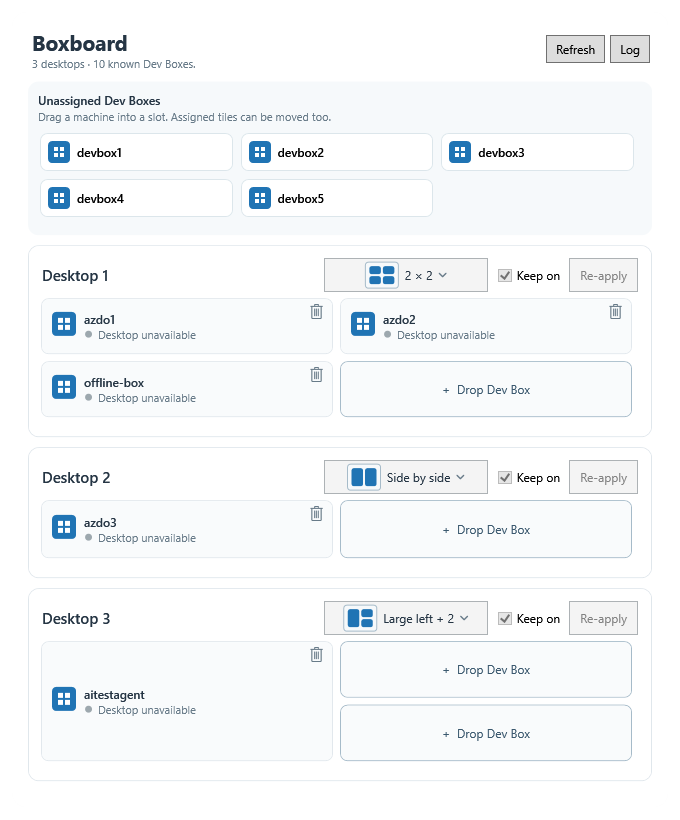
Offline demo with synthetic Dev Boxes. No remote desktop content is shown.
Install
- Use Windows 11 build 22621 or later and install
Windows App.
Managing clients across multiple virtual desktops requires Windows 11
build 26100 or later.
- Download
Boxboard-win-x64.zip from the
latest release and
extract its three files into a folder of your choice. Alternatively,
download Boxboard.exe, LICENSE.txt and THIRD_PARTY_LICENSE.txt
separately and keep them together. The executable is self-contained:
no .NET SDK, administrator access or installer is needed.
- Run
Boxboard.exe. Click Refresh to find your Dev Boxes; Microsoft
sign-in may be required. Boxboard saves assignments in
%LOCALAPPDATA%\Boxboard\settings.json. The first launch has no
assignments and does not start a remote client.
For example, to keep the downloaded files under your user profile, open
PowerShell in the folder containing the three release files and run:
$install = Join-Path $env:LOCALAPPDATA 'Programs\Boxboard'
New-Item -ItemType Directory -Path $install -Force | Out-Null
Copy-Item .\Boxboard.exe, .\LICENSE.txt, .\THIRD_PARTY_LICENSE.txt -Destination $install
& (Join-Path $install 'Boxboard.exe')
On a fresh installation, Start with Windows is enabled by default. Boxboard
registers itself only for your Windows account; clear the checkbox under its
title to opt out. Existing settings keep their previous startup behavior until
you change the checkbox. If you previously made a Startup-folder shortcut,
remove that shortcut before enabling the checkbox to avoid starting twice.
To update, close Boxboard, replace the three files in the install folder,
and run the new executable. Your assignments remain in the separate settings
file. Closing Boxboard does not close Windows App clients. To uninstall,
close Boxboard, clear Start with Windows, and remove its install folder
and any older Startup shortcut.
Delete %LOCALAPPDATA%\Boxboard only if you also want to lose the saved
assignments.
Use
- Every virtual desktop is a group, and every monitor in that group has its own
card. A Dev Box in a card is pinned to that desktop and that monitor, so
one desktop can hold a 2 × 2 grid on one monitor and a different arrangement
on the next. Drag an unassigned Dev Box from the top tray to a slot, or drag
an assigned tile to another slot, monitor or desktop.
Dragging an assigned tile onto another assigned tile swaps them immediately.
Dropping an unassigned tray entry onto an occupied slot replaces its Dev Box,
returning the replaced one to the tray without closing its client.
- Identify monitors shows each monitor's number on that monitor for a few
seconds. Boxboard numbers monitors from left to right, so use this to tell
which card is which before dragging Dev Boxes into it. When the monitor
provides a unique hardware serial, its pin survives changes to the Windows
display number and device path. Older device-path pins with assignments are
matched to the same physical monitor on startup without changing their
slots. If no unique hardware identity is available, the card says
pin may change.
- Layouts saved by an earlier version are pinned automatically on first start:
a running assigned client identifies the monitor. Otherwise, Boxboard picks
the only external monitor if there is exactly one, or the primary monitor,
and records the choice in its log. If a pinned monitor is
disconnected, its card stays with the assignments saved but cannot be edited
until the monitor is back. Disconnected monitor cards without assignments
are hidden. Cards with assignments shrink to a warning. While a monitor is
disconnected, already-open assigned windows temporarily share the active
primary monitor with its own windows, tiled together per virtual desktop.
When the monitor returns, each layout returns to its saved monitor without
changing its assignments. No new connections are requested solely because
a display disconnected; use Re-apply all to request missing assigned
clients on the primary monitor.
- Missing virtual desktops with no assigned Dev Boxes are hidden; layouts
with assignments remain visible for recovery. Keep on still starts
missing clients automatically when their saved physical monitor is active.
- Choose 2 × 2, Side by side, Large left + 2, or One window
using the graphical preview cards on each monitor card. One window fills that
monitor's usable work area like a maximized window; Windows App keeps its
normal frame and taskbar entry.
Choosing fewer slots unassigns only the slots that disappear. Their Dev
Boxes return to the top tray; their already-open client windows stay open.
Switching back to a larger layout does not reassign them automatically.
- Assignment changes and layout choices take effect automatically.
Re-apply explicitly snaps all visible assigned windows back to their
slots, including windows you have manually resized, and retries missing
clients. Re-apply all does the same for every available desktop and
monitor card with assignments. It also requests missing clients for a
genuinely disconnected monitor on the active primary monitor, without
changing the saved pin. If one card fails, Boxboard continues with the
others and reports the failure in the Log. For a newly opened Windows App
client, Boxboard can correct late sizing changes during its first 15 seconds;
it leaves later manual window positions alone.
- Keep on is enabled by default for each monitor card. While Boxboard runs,
it can request a missing assigned client again, with a limit of three
automatic requests per slot. Turn it off on a card if you want to leave
a closed client closed. If an assigned Windows App client has one additional
visible window in its process, Keep on closes the old client and that
window before requesting a replacement. If Windows App ignores the
dialog's close request, Boxboard dismisses its OK button first; it
never clicks Reconnect. Turn Keep on off to leave
reconnect dialogs for manual handling. Windows App handles authentication
and MFA.
- Use the trash icon on a tile to clear its assignment. Right-click an
assigned tile for manual Connect / Reconnect or Bind an existing
window when client titles are ambiguous. The Log button opens a
separate in-memory diagnostic window. The small label next to Boxboard
shows the release version; unreleased builds say dev.
Minimize Boxboard to keep it running in the notification area without a
taskbar button. Double-click its tray icon to open the manager; right-click
the icon for Open and Exit. The window's X exits Boxboard and stops
Keep on. Closing Boxboard does not close Windows App clients.
Window open means that a Windows App window exists, not that its RDP
connection is active. Boxboard does not click Reconnect in Windows App,
bypass Windows lock or sign-in, or store credentials.
If a virtual desktop or a monitor disappears, its assignments remain saved, but
Boxboard cannot arrange clients there until it is back.
Development
Building from source requires the .NET 10 SDK
on Windows:
dotnet build .\Bevdox.slnx -c Release
dotnet test .\Boxboard.Tests\Boxboard.Tests.csproj -c Release
dotnet run --project .\Boxboard -- --demo
--demo uses an isolated synthetic layout and never controls real clients.
To use a separate real settings file, pass
--settings C:\path\to\settings.json. The native WPF integration test shows
real test windows; do not run it over active work without a suitable window.
License
Boxboard's original code is MIT-licensed under LICENSE. It builds
on the MIT-licensed Bevdox by
@anydot. The original Bevdox copyright and the
license for adapted virtual-desktop interop are retained in
Boxboard/THIRD_PARTY_LICENSE.txt. Both
license files are included with the release executable.
🤖