explobar oleg-shilo
Use this command to install explobar with WinGet:
winget install --id=oleg-shilo.explobar -e A keyboard-driven toolbar extension for Windows Explorer.
winget install --id=oleg-shilo.explobar -e A keyboard-driven toolbar extension for Windows Explorer.
See also: customization.md
A keyboard-driven toolbar extension for Windows Explorer that eliminates the friction between file navigation and productivity tools.
winget install explobar
Windows Explorer offers virtually no customisation beyond appearance. When you need to open a terminal, launch an editor, or run a script on files you're viewing, you face constant friction: copying paths, switching windows, typing commands, or navigating through nested context menus. Every action requires multiple intermediate steps that break your flow.
While brilliant tools like QTTabBar have extended Windows functionality dramatically and almost addressed those concerns, they have become increasingly fragile due to being tightly coupled with Explorer internals. Microsoft's dramatic changes to these internals in Windows 11 have rendered QTTabBar (and similar tools) unreliable. Thus, in some cases, QTTabBar is unable to even start.
Explobar provides immediate access to your productivity tools right where you work - in Explorer. Press a keyboard shortcut (or the launch), and a toolbar appears at your cursor with instant access to any command, application, or custom action. No copying paths. No switching windows. No mouse hunting. Just navigation → selection → action.
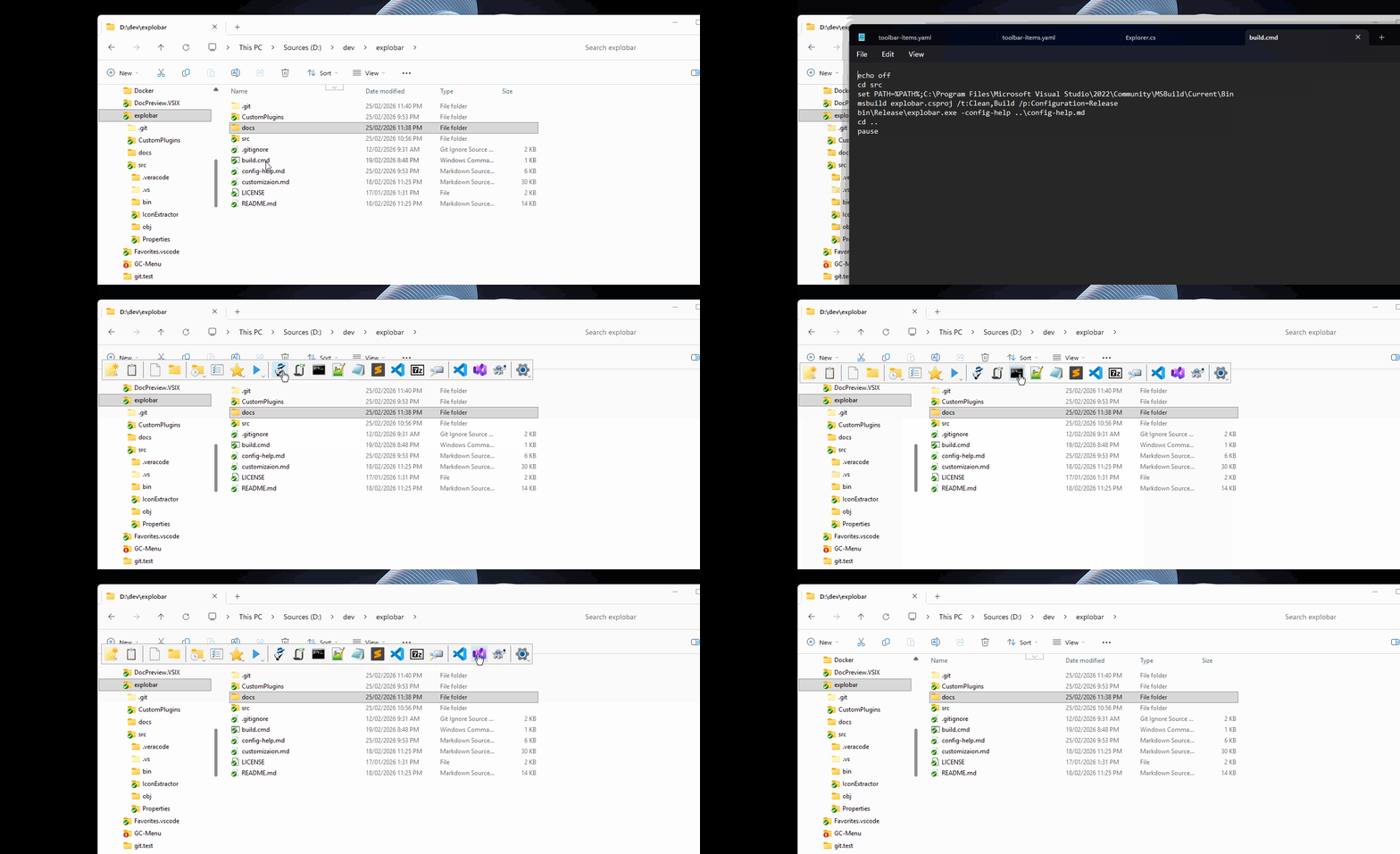
The customisation of Explobar is going far beyond controlling the user experience. It is better to be compared to the concept of automation. Anything you can do on your OS, you can trigger from the toolbar that you fully control. Below is an example of a SW developer toolbar customised with the additional buttons:
Zero Friction UX
Customisation for Everyone
Safe & Reliable
Zero-Friction Deployment
YamlDotNet.dll (get it with WinGet)winget install explobarWin+R > Type "explobar" > Press Enter.Start with Windows.Requirements: Windows 10/11, .NET Framework 4.8.1+
Shift+Escape (configurable) OR click the embedded Explorer buttonEscape to dismissThe toolbar appears where your cursor is, with full context of your current folder and selected files.
Explobar automatically embeds a small clickable button in each Explorer window for instant toolbar access:
This provides a mouse-friendly alternative to the keyboard shortcut, keeping toolbar access always visible and just one click away.
Configuration file: %LocalAppData%\Explobar\toolbar-items.yaml
Settings:
  ButtonSize: 24
  ShortcutKey: Shift+Escape
Applications:
  - Path: notepad.exe
  - Name: Calculator
    Path: calc.exe
  - Name: Terminal
    Path: wt.exe
    Arguments: '-d %c%'
Items:
 - Path: '{new-file}'           # Built-in: create text file
 - Path: '{new-folder}'         # Built-in: create folder
 - Path: '{separator}'          # Visual separator
 - Path: 'notepad.exe'          # Custom: launch notepad
   Arguments: '%f%'             # Pass selected file
   Tooltip: 'Edit in Notepad'
Settings:
ButtonSize - Icon size in pixels (default: 24)ShortcutKey - Keyboard shortcut to show toolbar (default: Shift+Escape)HistorySize - Number of recent folders to remember (default: 10)ShowConsoleAtStartup - Show debug console on startup (default: false)DarkTheme - Enable dark theme for toolbar (default: false)DisableExplorerLaunchButton - Hide the embedded Explorer button (default: false)ExplorerButtonXPosition - Horizontal position of Explorer button from left edge in pixels (default: 200)IndexOfButtonUnderMouse - Controls which button appears under cursor when toolbar opens (default: 0)
0 = Center the toolbar under cursorItems: Toolbar buttons (stock or custom)
Favorites: Quick-access folder list
Applications: Quick-launch application list (object format with Name, Path, Arguments, WorkingDir)
%f% - First selected file (quoted)%c% - Current directory (quoted)%Variable% - Any environment variable{new-tab} - New Explorer tab{new-file} - New text file in current folder{new-folder} - New folder in current folder{from-clipboard} - Navigate to path from clipboard{recent} - Recently visited folders menu{favorites} - Favorite folders menu{applications} - Favorite applications menu{props} - File/folder properties dialog{icons} - Icon browser - browse and extract icons from any file{separator} - Visual separator{app-config} - Configuration and tools menuItems:
- Path: 'wt.exe'
Arguments: '-d %c%'
Icon: 'cmd.exe'
Tooltip: 'Windows Terminal'
Shortcut: 'Ctrl+Alt+T'
Items:
- Path: 'calc.exe'
  Shortcut: 'Ctrl+Alt+C'
  SystemWide: true      # Works even when Explorer isn't focused
  Hidden: true          # No toolbar button, keyboard-only
Settings:
  ExplorerButtonXPosition: 150    # Move button to 150px from left edge
  # DisableExplorerLaunchButton: true  # Uncomment to hide the button entirely
For complete configuration reference, see docs/customizaion.md.
The Icon Browser allows you to preview and extract icons from any file containing icon resources (executables, DLLs, icon files).
Access:
{icons}{app-config} → "Preview icons"Features:
Common Icon Sources:
shell32.dll - Classic Windows icons (folders, files, system)imageres.dll - Modern Windows icons (Windows 7+)sud.dll - User account and security icons.exe, .dll, or .ico fileExtend Explobar with custom .NET plugins for workflows that need more than launching applications.
1. C# Source Files (Recommended for Quick Development)
.cs files2. Pre-compiled DLLs (For Complex Projects)
using Explobar;
using System.Windows.Forms;

public class HelloButton : CustomButton
{
    public HelloButton()
    {
        IconIndex = 1;
        IconPath = "shell32.dll";
        Tooltip = "Say Hello";
    }

    public override void OnClick(ClickArgs args)
    {
        MessageBox.Show($"Hello from: {args.Context.RootPath}");
    }
}
Items:
  # C# source file (auto-compiled)
  - Path: '{C:\Plugins\HelloButton.cs}'

  # Pre-compiled DLL
  - Path: '{C:\Plugins\MyTools.dll,HelloButton}'
Important: Plugin paths must be enclosed in curly brackets {}.
For complete plugin development guide, see customization.md.
Toolbar doesn't appear
Configuration changes not applying
ShowConsoleAtStartup: trueToolbar state issues
{app-config} menu or system tray to reset Explorer processPlugin not loading
{path\to\plugin.dll}Right-click tray icon for quick access:
Will arguebly work with all Windows but some features (e.g. NewTab) are specifically targeting Windows 10/11 only.
When an Explorer window contains multiple tabs open to folders with same names, it's impossible to reliably detect which tab is active due to Windows Explorer API limitations.
Impact: Will show a message box asking to close the duplicated tabs.
Workaround: Enable "Display the full path in the title bar" in Folder Options to improve tab detection reliability, or close duplicate/similarly-named tabs
Hash (#) Character:
Navigate2) fails with paths containing #explorer.exe, which opens the path in a new window instead of navigating the current tab.SystemWide: true) always active, even when Explorer doesn't have focusCtrl+Shift+Alt+Key not supported){path\to\plugin.dll}CustomButton and implement ICustomButton.cs) are automatically compiled at runtimeMyCustomButton.cs) is included in the release packageExplobar - Friction-free productivity for Windows Explorer
Note: The application is configured as a Windows Application. Console window is hidden by default but can be toggled via system tray menu or ShowConsoleAtStartup setting for debugging.