


Void
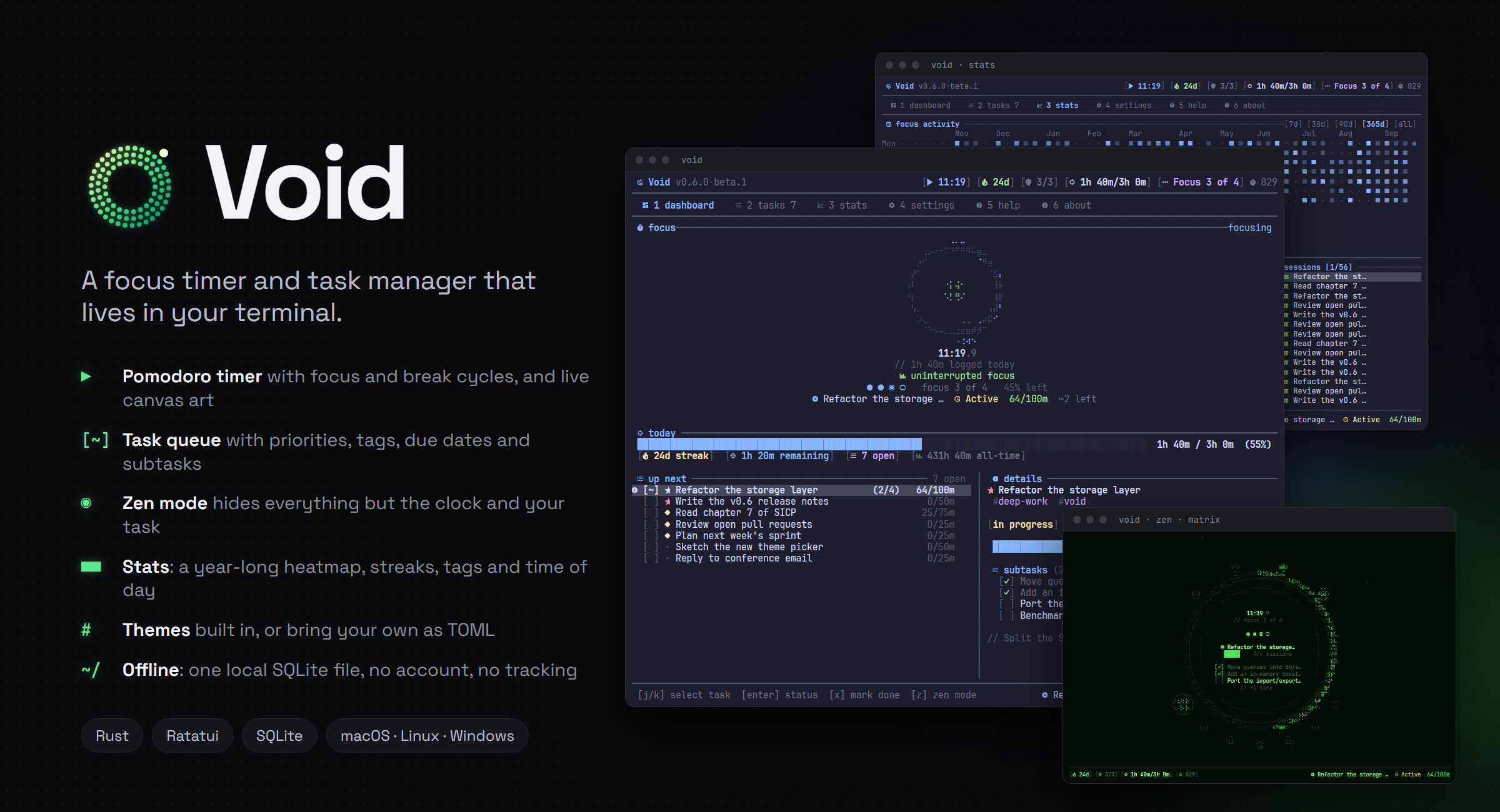
A focus timer and task manager that lives in your terminal. Void runs Pomodoro-style focus and
break cycles, keeps a queue of what you're working on, and shows where your time went. It's
keyboard-driven and fast, and it works completely offline.
Features
Timer
- Focus, short break and long break intervals, plus a custom timer and saved presets.
- Animated canvas art on the dashboard, or a static version, or none at all.
- A daily goal, with day, week and month streaks and streak freezes for the days you miss.
- Desktop notifications and a sound when a session ends.
Tasks
- Priorities, tags, due dates, estimates and subtasks.
- Filter by status or tag, search with
/, and edit several tasks at once in bulk mode.
- Void can pick the next task for you and move on when you finish one.
- Old finished tasks are archived automatically.
Zen mode
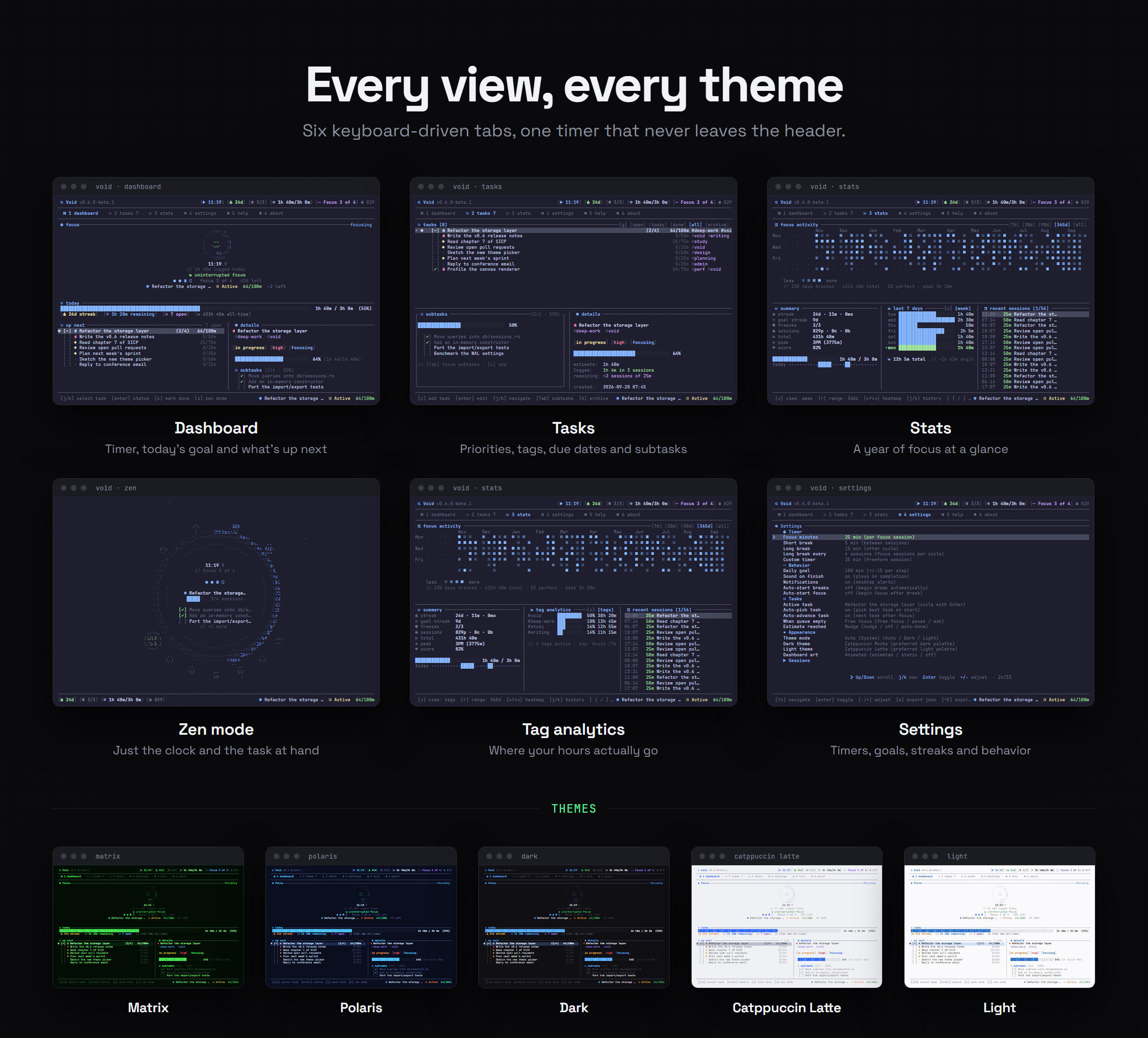
- Hides everything except the timer and the task you're on. Press
z on the dashboard.
Stats
- A year-long focus heatmap, with the sessions for any day you select.
- Your last 7 days, tag analytics, and focus by weekday and time of day.
- A paged history of every session.
Everywhere
- Built-in themes (Catppuccin Mocha and Latte, Matrix, Polaris, Dark and Light), plus your own in TOML.
- Nerd Font icons, with plain ASCII on terminals that can't show them. Set
VOID_ICONS=ascii or
VOID_ICONS=nerd to choose.
- Everything lives in one SQLite file on your machine. No account, no cloud, no tracking.
Install
Cargo (recommended)
cargo install void-focus
Homebrew (macOS / Linux)
brew tap p6laris/tap
brew install void
Winget (Windows)
Coming soon: Void is waiting to be accepted into winget. Once it is, you'll be able to run:
winget install p6laris.Void
Until then, use Cargo or the Windows zip from the Releases
page.
Binaries
Pre-compiled binaries for macOS, Linux and Windows are on the
Releases page.
Usage
Run void to open the app. Press ? (or 5, or h) at any time for the full list of keys.
| Key | Action |
|---|
1–6 | Switch tabs (Tab also works, except on Tasks and About where it moves focus) |
Space | Start or resume the timer |
p | Pause (on the Tasks tab: cycle the selected task's priority) |
n | Skip to the next session (logs the time if at least a minute has passed) |
e | End the session, logging the time so far |
z | Zen mode (1–9 tick off the active task's subtasks) |
a | Add a task |
/ | Search tasks |
T | Filter tasks by tag |
A | Archive a task (restores it in the Archive filter) |
Ctrl-S | Export a backup |
Esc | Back to the dashboard, or leave Zen mode; quits from the dashboard |
q or Ctrl-C | Quit (q asks first if a session is running; Ctrl-C saves it) |
You can also manage tasks without opening the app:
void add "Write the release notes" --due tomorrow --tags writing,void
void list
void done 3
void start 3
void help lists every command and void --version prints the version. Commands exit with a
non-zero status when they fail, so they're safe to use in scripts. Your data is stored in ~/.local/share/void/void.db, or your OS
equivalent.
Custom themes
Void loads themes from TOML files. Drop a .toml file into your themes directory:
- Linux:
~/.config/void/themes/
- macOS:
~/Library/Application Support/void/themes/
- Windows:
%APPDATA%\void\themes\
Here's an example cyber.toml:
name = "Cyberpunk"

[palette]
neon_pink = "#FF00FF"
neon_blue = "#00FFFF"
dark_bg = "#0B0B1A"
gray = "#333333"

[tokens]
bg = "dark_bg"
text = "#FFFFFF"
dim = "gray"
accent = "neon_pink"
on_accent = "#000000"
success = "neon_blue"
warning = "#FFFF00"
error = "#FF0033"
info = "neon_blue"
progress_dim = "gray"
task_track = "gray"
panel = "dark_bg"
panel_border = "neon_pink"
select_bg = "gray"
select_fg = "neon_pink"
active_bg = "gray"
active_fg = "neon_blue"
The Catppuccin themes that ship with Void are good starting points.
Import and export
Export
Export your tasks, settings and focus history to a JSON file at any time.
From the command line:
# Export to the default location
void --export

# Export to a specific file
void --export ~/my_backup.json

# Export your sessions as CSV
void --export-csv ~/sessions.csv
From the app, press Ctrl-S anywhere, or e in the Settings tab.
Import
To restore a backup or move your data to a new machine:
void --import ~/my_backup.json
> Heads up: importing replaces your current data with the contents of the backup. Void asks
> you to confirm before anything changes; add --yes to skip the prompt in scripts.
Importing a .csv file adds its sessions to your history instead of replacing anything. Rows that
were already imported are skipped.
Development
git clone https://github.com/p6laris/Void.git
cd Void
cargo run
Before opening a pull request, format the code and make sure it passes the lints:
cargo fmt
cargo clippy --all-targets -- -D warnings
See CONTRIBUTING.md for more.
License
MIT. See LICENSE.