OpenInzone
English · 日本語




An open, unofficial reimplementation of INZONE Hub's device control for Windows: a tray
application, a command line tool, and a Stream Deck plugin.
> Not affiliated with Sony. OpenInzone is an independent project. It is not affiliated with,
> authorised, sponsored or endorsed by Sony Group Corporation or any of its affiliates. "Sony",
> "INZONE" and "INZONE Hub" are trademarks of Sony Group Corporation or its affiliates, used here
> only to identify the hardware and the vendor application this project interoperates with.
Control a Sony INZONE headset from the notification area, a physical key, a Stream Deck, or the
command line, without INZONE Hub.
INZONE Hub can adjust the headphone volume and the game/chat balance, but only through its own
window. This talks to the dongle directly over the same channel, so the same settings can be
reached from a panel in the notification area, bound to a key, scripted, or read from a status
bar.
There are two programs to run, and one download carries both:
| |
|---|
inzonetray.exe | the tray application — an icon in the notification area, a panel and global hotkeys. This is the one most people want. |
inzone.exe | the command line tool — the same settings from a terminal, with JSON for scripting |
A third, inzoned.exe, is never started by hand: it owns the connection to the headset, and
whichever of the others needs it starts it and lets it stop again thirty seconds later. The
Stream Deck plugin is a client of the same thing, which is why a deck key works
with no window open.
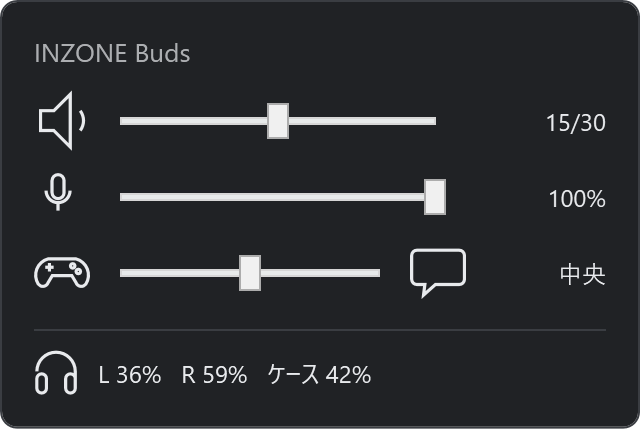
One left click on the tray icon opens this:
Supported models
| Model | Connection | Status |
|---|
| INZONE Buds | USB dongle, HID (PID_0EC2) | Verified |
| INZONE H9 | USB dongle, serial port (PID_0E53) | Verified |
| INZONE H9 II | USB dongle | Verified |
| INZONE H7 | USB dongle, serial port (PID_0E53) | Untested |
| INZONE H3, H5, H6 Air, E9 | — | Untested |
- Verified: tried on the real device.
- Untested: nobody has tried it. The protocol is shared across the INZONE range, so it may well
work; an issue saying what does and does not
helps.
Microphone mute from the computer is INZONE Buds only. The headsets are muted on the headset itself,
by flipping the microphone up (H9, H7, H5, H3) or with a switch (H9 II, H6 Air), so OpenInzone shows
the mute state the headset reports, and a Stream Deck mute key turns the microphone level down to 0
instead.
A dongle on a serial port cannot be shared. The INZONE H9 / H7 dongle (PID_0E53) has no HID
control channel and carries the same packets over a USB serial port instead, and only one program
can hold a serial port at a time. While INZONE Hub has it, OpenInzone cannot connect; while the
OpenInzone tray has it (a Stream Deck starts the tray's daemon too), INZONE Hub cannot. Quit one
before using the other.
Contents
Everything up to the developer guide is for using it; building it and the tools that check it are
in there.
What it can do
- Game/chat balance, 0–100
- Headphone volume, 0–30, and mute
- Microphone mute and level
- Battery for both earbuds and the case
- Noise cancelling, ambient sound, sidetone and the rest of INZONE Hub's settings, bar the
equaliser — see デバイス
- Watch for changes made elsewhere, including from the earbuds themselves
- Drive all of it from a Stream Deck, with the values on the keys
Requirements
- Windows 10 1809 or later, x64
- The INZONE USB dongle, plugged in, with the earbuds out of the case and connected
Nothing else needs installing. The download is self-contained, so there is no .NET runtime to set
up first.
Windows only. On Linux, zoneout covers the same
device and more of it — see Related projects.
inzone and the tray can be used at the same time. Neither opens the headset itself: inzoned.exe
does, and both ask it, which is what keeps two conversations from claiming each other's replies.
INZONE Hub does not need to be closed either. The control interface is opened with sharing enabled,
so both can be connected at once — handy while trying this out, since you can watch INZONE Hub's own
sliders move. A dongle on a serial port (INZONE H9 / H7) is the exception: only one of the two can
hold it, as Supported models says.
Install
No terminal, and no administrator rights. Download one file, run it, and the icon is in the
notification area.
1. Download the installer
Open the latest release, scroll down
to Assets, and click OpenInzone--setup.exe — with the current release that file
is OpenInzone-0.1.0-setup.exe. It lands in your Downloads folder like any other download.
The other file there, OpenInzone--win-x64.zip, is the same two programs without an
installer. It needs a terminal, so it is covered under Command line.
2. Run it, and get past the warning
Double-click the file you downloaded. Windows will stop you with a blue window saying
"Windows protected your PC".
That is SmartScreen. It appears because this build is not code-signed — signing certificates cost
money, and this is a free project — not because anything is wrong with the file. Click
More info, and then the Run anyway button that appears underneath.
The installer opens with a language prompt that offers English, Japanese and Simplified Chinese,
guessing from Windows' own language and falling back to English for anything else. Whichever you
pick carries through the rest of setup — the two optional checkboxes on the next page — and into
the tray application itself, which opens its menus in that language from first launch. It can be
changed afterwards from the settings window; see Hotkeys and settings.
3. Take the defaults
It installs for you rather than for the whole machine, so it never asks for administrator rights,
and it puts the programs in %LOCALAPPDATA%\Programs\OpenInzone with a Start menu entry.
Two checkboxes are worth knowing about:
| Checkbox | |
|---|
| Windows の起動時に常駐する (run at startup) | ticked — the tray comes up with Windows |
| デスクトップにショートカットを作成する (desktop shortcut) | not ticked |
The last page offers to start OpenInzone straight away. Leave that ticked and click Finish.
4. That is it
A headphone icon appears in the notification area, at the right-hand end of the taskbar. Windows
often hides new icons behind the ^ arrow there: click the arrow, and drag the icon out onto the
taskbar to keep it in sight.
Left click it. If the panel shows your model name and some numbers, everything works — see
Using the tray. If it says 未接続 (not connected), check the dongle is plugged
in and the earbuds are out of the case, then see Troubleshooting.
To remove it later: Settings → Apps → Installed apps → OpenInzone → Uninstall. That leaves
%APPDATA%\openinzone alone, so the keys you chose survive a reinstall.
Installing with Scoop
scoop bucket add penguinwokrs https://github.com/penguinwokrs/scoop-bucket
scoop install penguinwokrs/openinzone
This installs the same programs as the zip, adds OpenInzone to the Start menu under
Scoop Apps, and puts inzone on PATH. Update it either way. The update button in 設定 runs
Scoop in a PowerShell window that closes by itself when it is done. scoop update openinzone works
with the tray running: the tray notices within 15 seconds and restarts as the new version. The one
thing that holds an update up is inzone watch left running in a terminal; see
Troubleshooting. The Stream Deck plugin is not included; see
Installing it.
Installing with winget
winget install penguinwokrs.OpenInzone
> Not yet available. OpenInzone has not been submitted to the public winget repository, so
> this command will fail until that happens. Use the installer above until then.
For the maintainer: each release attaches three winget manifest files
(penguinwokrs.OpenInzone.yaml, .installer.yaml and .locale.en-US.yaml) under
Assets, generated from the templates in packaging/winget/ with that release's version,
download URL and SHA-256 already filled in. Submitting a version means either running
wingetcreate submit against the downloaded folder, or opening a pull request by hand against
microsoft/winget-pkgs with those three files placed
under manifests/p/penguinwokrs/OpenInzone//. Both routes need a GitHub account with
permission to fork that repository; nothing here automates either one.
Using the tray
inzonetray.exe is the one to start. It puts an icon in the notification area and stays there:
the installer's run at startup task brings it up with Windows, and from the zip it is the
executable itself. Only one copy runs — start a second and it exits at once, leaving the first
holding the hotkeys.
Left click the icon for a panel at the bottom-right of the monitor the notification area is
on. It carries three sliders and the battery levels — the panel pictured at the top of this
page:
| Slider | What it moves |
|---|
| headphone volume | the headset's own volume, 0–30 — not the Windows playback volume |
| microphone level | the Windows capture endpoint for the headset, 0–100 |
| game/chat balance | 0–100. 0 is all game, 100 is all chat; the reading names the side it leans to |
Clicking the microphone icon toggles the headset's microphone mute, and the icon gets a red slash
while it is muted. The speaker and the game/chat icons are labels rather than buttons; the
headphone mute is on the command line, as inzone volume mute.
Only INZONE Buds takes a microphone mute from the computer, as in INZONE Hub. The headsets mute with
their own button, so this icon and inzone mic mute are refused on them without anything being
sent. The Stream Deck mute key mutes a headset by level instead: a press sets the microphone level
to 0, and the next sets it back to the key's Unmute level (100 when left blank). The key reads
MUTED when either the headset's button or a level of 0 has muted it.
The microphone is split on purpose: the slider is the Windows endpoint, the mute is the headset's
own flag. That is what INZONE Hub does, because only the mute is on the wire — docs/PROTOCOL.md
records why. See Which volume is which.
Dragging a slider does not flood the HID channel. Writes are coalesced onto a 100 ms timer, and
the value you release on is always sent.
Below the sliders are the battery levels for both earbuds and the case. The case number is the
same snapshot the command line reports: see Battery for why it can sit still for
hours, and for what charging does not tell you.
The panel closes as soon as it loses focus. Right click the icon for a menu with 設定
(settings), ヘルプ (help, which opens this page) and 終了 (exit); hovering over it shows the model,
the volume and the battery.
Hotkeys and settings
The tray holds nine global hotkeys. They work from any application, including from inside a
full-screen game:
| Command | Default |
|---|
| 音量を上げる / 下げる (volume up / down) | Ctrl+Alt+Right / Ctrl+Alt+Left |
| バランスをゲーム寄りに / チャット寄りに (balance towards game / chat) | Ctrl+Alt+Up / Ctrl+Alt+Down |
| バランスを中央に (balance to the middle) | Ctrl+Alt+Home |
| マイクミュート切り替え (toggle microphone mute) | Ctrl+Alt+Shift+M |
| マイクレベルを上げる / 下げる (microphone level up / down) | Ctrl+Alt+PageUp / Ctrl+Alt+PageDown |
| 外音コントロールを切り替え (switch ambient sound control: off, noise cancelling, ambient sound) | Ctrl+Alt+Shift+A |
設定 in the right-click menu opens a window with five tabs — 全般, デバイス, ホットキー,
アップデート and プラグイン. There is no save button: everything applies as you change it.
ホットキー lists all nine commands with the key each one holds. Select a row and press a
combination to assign it; Esc clears a row to unassigned. A combination another application
already holds is marked as in use the moment you press it, so you find out there rather than by
pressing it later and getting nothing. 既定に戻す (restore defaults) puts every row back. Each
change re-registers the hotkeys immediately — there is nothing to restart.
全般 has two checkboxes and, below them, a 表示言語 (display language) box. Windows の起動時に
常駐する starts the tray with Windows. 起動時に更新を確認する asks GitHub once per login whether a
newer release exists, waiting about thirty seconds first so it is not competing with the login. It
says nothing unless there is one, and the notification it raises can be clicked straight into the
アップデート tab below with the button already reading 更新; it is off until you tick it. 表示言語
switches the tray between English, 日本語 and 简体中文, each named in its own script; changing it
offers to restart the tray immediately, or you can leave it for next launch.
アップデート shows the version this copy is and a button. 更新を確認 (check for updates) asks
the same question there and then, and reports what it found rather than only good news — that you
are current, that a newer release exists but has no installer attached, or that GitHub's answer
could not be read. When there is one the button becomes 更新, which downloads that release's
installer, checks it against the SHA-256 GitHub publishes alongside it, and runs it; the tray exits
so the installer can replace it, and the installer starts it again.
プラグイン saves the Stream Deck plugin: pick where to put it, then open the folder. See
Stream Deck.
デバイス
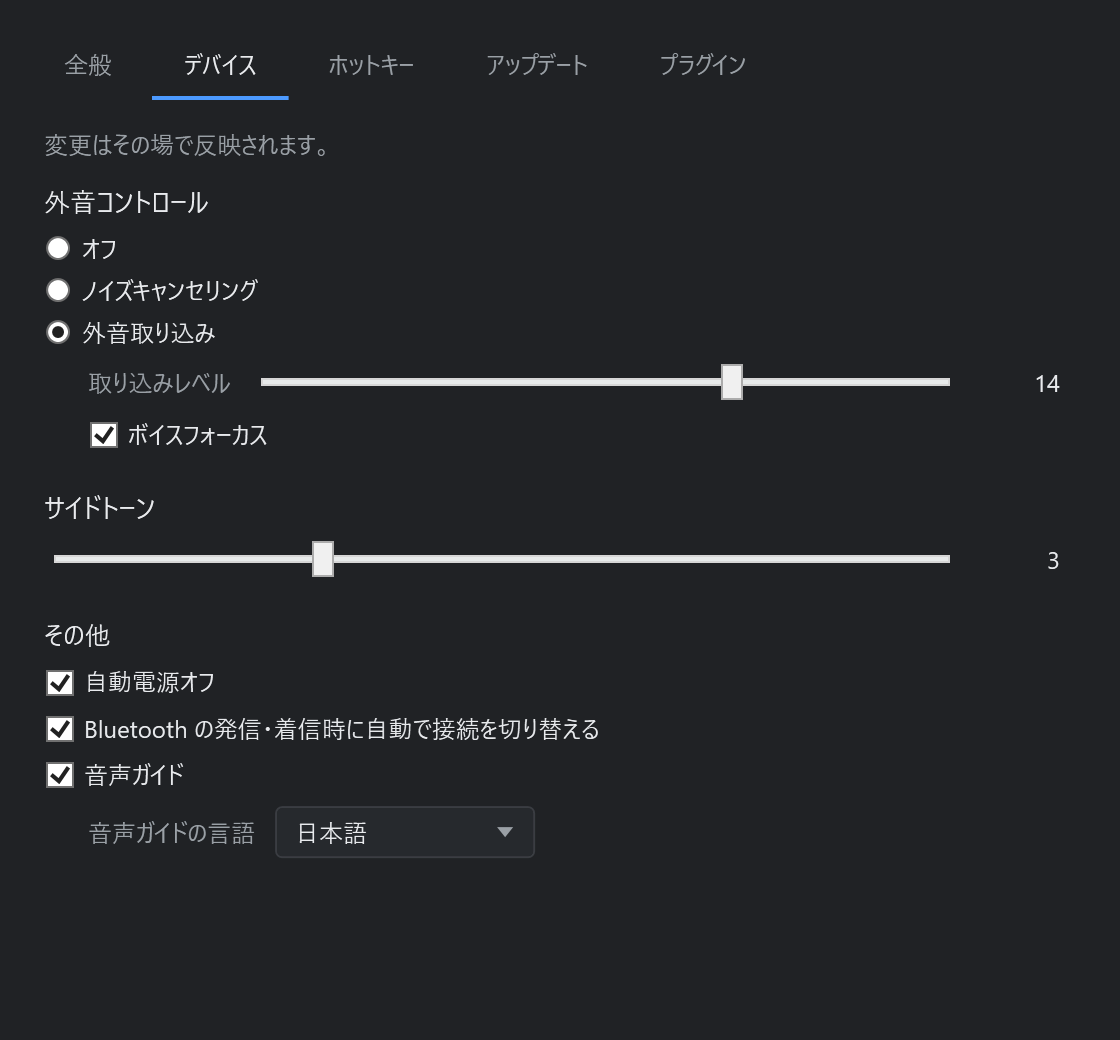
The settings INZONE Hub offers besides the three on the panel, except the equaliser:
| |
|---|
| 外音コントロール | Off, noise cancelling, or ambient sound with a level of 1–20 |
| ボイスフォーカス | Within ambient sound, brings voices forward |
| サイドトーン | How much of your own voice comes back, 0–10 |
| 自動電源オフ | Power off when taken off and left |
| Bluetooth | Switch the connection on an incoming or outgoing call |
| 音声ガイド | Spoken prompts, in English, Japanese or Chinese |
Each one is written as you change it and then read back, so what you see is what the headset says
rather than what it was asked for — change the mode and the level it kept comes back with it. The
tab is greyed out entirely while no headset is connected.
A setting your model does not have is not shown at all, rather than shown as off. Which ones
those are is not guessed at: the headset publishes its own list of what it carries, and this reads
it once per connection. The panel and the Stream Deck plugin go by the same answer, so a model with
no game/chat balance is not given a balance slider or a balance key either.
These are decoded from watching INZONE Hub work, packet by packet: see
docs/PROTOCOL.md for what each one sends, and
the capability map for
how it answers what it has.
If a combination cannot be registered when the tray starts, because something else claimed it
first, a balloon names the commands affected. Every other hotkey still works.
Because the tray keeps the device open and caches the current values, a held-down key applies one
write per press instead of a read and a write, so repeats stay responsive.
The assignments live in %APPDATA%\openinzone\hotkeys.json, keyed by command id:
{
  "bindings": {
    "volume-up": "Ctrl+Alt+Right",
    "volume-down": "Ctrl+Alt+Left",
    "balance-game": "Ctrl+Alt+Up",
    "balance-chat": "Ctrl+Alt+Down",
    "balance-centre": "Ctrl+Alt+Home",
    "mic-mute": "Ctrl+Alt+Shift+M",
    "mic-up": "Ctrl+Alt+PageUp",
    "mic-down": "Ctrl+Alt+PageDown",
    "ambient-next": "Ctrl+Alt+Shift+A"
  },
  "checkForUpdatesAtStartup": false
}
Hand-editing works as well as capturing. An empty string leaves that command unassigned, and a
key is the modifiers Ctrl, Alt, Shift, Win plus one key: letters and digits,
F1–F24, arrows, Home, End, PageUp, PageDown, Insert, Delete, Space, Enter,
Tab, Escape, Backspace, the numpad operators, and the media keys VolumeUp, VolumeDown,
VolumeMute, MediaNext, MediaPrev, MediaStop, MediaPlayPause.
A configuration file left by an earlier version is in a different shape, and is migrated when the
tray reads it, so an upgrade keeps the keys you chose.
Starting with Windows is a Run entry under HKCU, written either by that checkbox or by the
installer's optional task. Both mean the same thing, so setting it in one place and clearing it in
the other is not a conflict. Windows keeps a separate enabled/disabled flag for the entry, set by
Task Manager's Startup tab rather than by this application; the checkbox reflects that too, so an
entry someone disabled there shows as off here even though the Run value itself is still present,
and ticking the checkbox again clears the flag along with writing the value.
Stream Deck
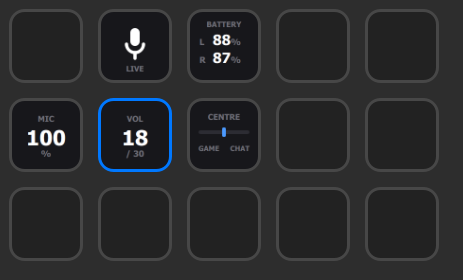
There is a plugin for Elgato Stream Deck. Six of its twelve actions turn a key into a live readout:
battery for each earbud, the balance as a number, whether the microphone is muted, and the current
ambient sound mode — all of it on the key, updated the moment anything changes, including when
the change came from the tray's own panel or from the headset itself. The other six are dedicated
up/down keys — pictures rather than readouts, which answer a press with the reading for a moment and
then go back to being pictures. On a Stream Deck +, every action sits on a dial too, which is the
right control for a value that slides.
OpenInzone has to be installed, but nothing has to be running. The plugin opens nothing
itself. It asks inzoned.exe, which owns the connection to the headset and is started on demand
by whichever client first needs it — so a deck key works with no window open, and the daemon stops
thirty seconds after the last client goes.
Everything therefore agrees with everything else: a change made on the deck shows up in the tray's
panel as it happens, and running inzone while the tray is open is safe. Why one process has to
own the headset, and what the others say to it, is in docs/IPC.md.
Actions
| Action | On a key | On a dial | Shows |
|---|---|---|
| Volume | Steps by the amount you set | Turn to adjust | 16 / 30 |
| Volume up | Raises it by the step | Turn to adjust, press to raise | 16 / 30 after a press |
| Volume down | Lowers it by the step | Turn to adjust, press to lower | 16 / 30 after a press |
| Game / chat balance | Steps | Turn to adjust, press to centre | GAME 1.0, CENTRE, CHAT 2.0 |
| More game | Moves it towards game | Turn to adjust, press to move | GAME 1.0 after a press |
| More chat | Moves it towards chat | Turn to adjust, press to move | CHAT 2.0 after a press |
| Microphone mute | Toggles | Press to toggle | MUTED or LIVE |
| Microphone level | Steps | Turn to adjust, press to mute | 75 % |
| Mic level up | Raises it by the step | Turn to adjust, press to raise | 75 % after a press |
| Mic level down | Lowers it by the step | Turn to adjust, press to lower | 75 % after a press |
| Ambient sound control | Steps through off, noise cancelling and ambient sound | Turn to step, press for the next mode | OFF, NC, or AMB |
| Battery | Press to re-read | Press to re-read | L 97 and R 94 |
Each stepping action has a Step setting. Left blank, volume moves by 1 of the headset's 30
notches, the balance by one notch of the −5.0…+5.0 scale INZONE Hub uses, and the microphone level
by 5 %.
The plain Volume, balance and microphone level actions take their direction from the sign of the
step on a key, so a negative step makes a key that turns the value down and a pair of them
gives you up and down. On a dial, the sign is ignored and the direction comes from the way the
dial is turned. The six directed actions settle that themselves: the arrow is on the key, the
panel takes the absolute value of what you type and writes it back into the field, and a Volume
down key cannot be configured into turning the volume up. They are pictures rather than readouts
— pressing one shows the reading for a moment and then the key goes back to its picture.
A key flashes a warning when the daemon cannot be reached, and every reading shows -- rather
than the last value it saw, so a stale number is never left sitting there looking current.
Installing it
Two ways, both of which end with Stream Deck showing the actions in its list:
- From the tray. 設定 → プラグイン → ダウンロード saves the plugin where you choose, then
offers to open the folder. Double-click the file it saved.
- From a release. Every release carries
com.penguinwokrs.openinzone.streamDeckPlugin.
Download it and double-click it.
Stream Deck asks once whether to install it, and the twelve actions appear under OpenInzone.
Drag one onto a key, or onto a dial on a Stream Deck +.
If Stream Deck says the plugin is invalid, the file did not download completely — it is around
6.9 MB. Download it again rather than unpacking it by hand.
Building the plugin, and driving it without a deck, are in the
developer guide.
Troubleshooting
The panel says 未接続, or "No INZONE dongle found."
The dongle is not plugged in, or it enumerates with a product id this does not know. From a
terminal, inzone devices lists what was found:
PS> inzone devices
VID_054C&PID_0EC2 UsagePage=0xFF04 Usage=0x0001 In=64 Out=64 "Hid Interface"
  \\?\hid#vid_054c&pid_0ec2&mi_05&col03#8&29ddaaec&0&0002#{4d1e55b2-f16f-11cf-88cb-001111000030}
If that is empty too, check that a device with vendor 054C and usage page 0xFF04 is present.
Discovery matches on capability rather than a fixed product id, so a different INZONE model should
still be found.
"The headset did not answer ... within 1500 ms."
The dongle is there but the earbuds are not reachable — still in the case, out of range, or
powered off. Take them out and try again.
"Windows protected your PC", or the exe will not start.
Nothing here is code-signed, so SmartScreen asks about the installer: choose
More info → Run anyway. If instead you unpacked the zip, the files still carry their mark of
the web — run Unblock-File recursively over wherever you put them, as
Command line shows.
inzone is not recognised as a command.
The PATH step was skipped, or the terminal predates it. Open a new terminal, or run the executable
by path: & "$env:LOCALAPPDATA\Programs\OpenInzone\inzone.exe" status for the installer,
& "$env:LOCALAPPDATA\OpenInzone\inzone.exe" status for a zip unpack.
A balloon says a hotkey could not be registered.
Something else registered that combination first; graphics drivers and chat applications are the
usual culprits. Pick another combination in 設定. The remaining hotkeys still work.
scoop update openinzone says "The following instances of "openinzone" are still running."
A program is running from Scoop's own folder for OpenInzone. That is almost always inzone watch
in another terminal, which says so when it starts. Stop it with Ctrl+C and run the update again.
Up to 1.1.3 the tray and the daemon cause this too: use the update button in 設定 instead, or quit
the tray from its menu first.
"Could not open the INZONE serial port ... Another program has it."
The dongle is on a serial port (INZONE H9 / H7), and INZONE Hub, the OpenInzone tray or inzone watch already holds it. Quit that one, and OpenInzone connects within a few seconds.
inzone mic shows the mute state but no level.
Windows is not currently exposing a capture endpoint for the headset. The mute flag lives on the
headset and keeps working; the level is a Windows setting and needs that endpoint.
Command line
inzone.exe reaches the same settings without the tray, one at a time — which is where scripting
and status bars start. Everything from here to the end of this section wants a terminal:
right-click the Start button → Terminal.
Getting inzone.exe
If you ran the installer, it is already there, in %LOCALAPPDATA%\Programs\OpenInzone beside the
tray. Skip to Put it on PATH.
If you installed it with Scoop, it is already on PATH. Skip to
Check the headset is found.
If you would rather not run an installer at all, OpenInzone--win-x64.zip on the
latest release carries the same
programs — inzone.exe, inzonetray.exe and the inzoned.exe they share, with LICENSE and
the .NET runtime they need — and installs nothing. Unpack it somewhere permanent:
$dir = "$env:LOCALAPPDATA\OpenInzone"
$zip = (Get-Item "$env:USERPROFILE\Downloads\OpenInzone-*-win-x64.zip").FullName
Expand-Archive $zip -DestinationPath $dir -Force
Get-ChildItem $dir -Recurse | Unblock-File
Unblock-File clears the mark Windows puts on anything that came from the internet. Without it
the first run is met with "Windows protected your PC". Neither download is code-signed, so
SmartScreen can appear for the installer as well; choose More info → Run anyway.
Unpacking the zip gives you no Start menu entry and no autostart task. The tray's 設定 window has
a checkbox for starting with Windows, which writes the same registry entry the installer would.
Put it on PATH
So that inzone works from any directory, not just the folder it sits in:
$dir = "$env:LOCALAPPDATA\Programs\OpenInzone"      # or wherever the zip was unpacked
[Environment]::SetEnvironmentVariable(
    "Path",
    [Environment]::GetEnvironmentVariable("Path", "User") + ";$dir",
    "User")
Close the terminal and open a new one for that to take effect.
This step is optional. Skipping it means writing .\inzone.exe from inside the folder wherever the
examples below say inzone.
Check the headset is found
With the dongle plugged in and the earbuds out of the case:
PS> inzone status
Device       INZONE Buds
Serial       L 3015430 / R 3015430 / dongle 3015430
Battery      L 97%  R 97%  case 34%
Balance      50 (0.0)
Volume       15/30
Microphone   unmuted, level 100%
Sidetone     0
If this prints numbers, everything below will work. If it prints an error instead, see
Troubleshooting.
Change something
Open INZONE Hub next to the terminal and watch its slider move as you run these.
PS> inzone balance +10
60 (+1.0)

PS> inzone balance +10
70 (+2.0)

PS> inzone balance centre
50 (centre)
0 is all game and 100 is all chat, and the bracket names the side the mix leans to and by how many
of the steps INZONE Hub moves in. It is not a signed number: a sign only means something once you
know which end is which, and that is what this project had wrong.
The headphone volume and the microphone work the same way:
PS> inzone volume 20
20/30

PS> inzone volume -1
19/30

PS> inzone mic toggle
muted
Battery
inzone battery shows charge for both earbuds and the case.
The case percentage is not a live reading. The case has no radio of its own, so its level only
reaches the dongle when you put an earbud in — that is the moment it catches up. A case left
charging on its own keeps reporting the same number however long you wait: in one measurement it
sat at 36% for 37 minutes on a charger, then jumped straight to 42% the moment an earbud went in.
Both earbuds in the case means nothing answers at all, and inzone battery says so and exits 1.
Charging is not reported. The headset sends nothing that distinguishes charging from not
charging, so neither this tool nor INZONE Hub can show it. An earbud that has been in the case
simply comes back with a higher percentage.
Watch changes as they happen
Leave this running and change the balance from INZONE Hub, or from the earbuds themselves:
PS> inzone watch
Watching INZONE Buds. Press Ctrl+C to stop.
01:20:20  GameChatMixBalance     60 (+1.0)
01:20:21  HeadphoneVolume        16/30
01:20:23  BatteryInfo            L 94%  R 94%  case 34%
01:20:24  MicVolume              muted
The headset's replies reach every program that has the interface open, so watch also shows
traffic caused by INZONE Hub or by another copy of this tool — not only changes made at the
earbuds. Repeated lines for one change are normal: the headset answers the request and then
announces the new value.
watch opens the dongle itself. On a dongle on a serial port (INZONE H9 / H7) that means it cannot
run while INZONE Hub or the tray holds the port.
This is what makes a status bar or stream overlay possible: pipe it somewhere and read it.
Command reference
inzone status                 Show everything at once
inzone devices                List the control interfaces found

inzone balance                Show the game/chat balance
inzone balance 70             Set it (0 = all game, 100 = all chat)
inzone balance +10 | -10      Move it by a step
inzone balance centre         Back to the middle

inzone volume                 Show the headphone volume
inzone volume 20              Set it (0-30)
inzone volume +1 | -1         Move it by a step
inzone volume mute | unmute | toggle

inzone mic                    Show the microphone state
inzone mic mute | unmute | toggle
inzone mic 50                 Set the level (0-100)
inzone mic +5 | -5            Move the level by a step

inzone battery                Show charge levels
inzone watch                  Print changes as they happen
inzone watch battery          Print changes to one event only
                              (battery, balance, volume, mic, sidetone)

--json                        Any command, as one JSON object
                              (watch emits one object per line)
--raw                         Add the undecoded bytes to battery output
inzone --help prints the same list.
Which volume is which
Worth being precise about, because the names invite the wrong guess:
| Command | What it moves |
|---|
inzone volume | the headset's own volume, 0–30, the same slider INZONE Hub shows |
inzone mic level | the Windows capture endpoint for the headset, 0–100 |
inzone mic mute | the headset's own microphone mute |
inzone volume does not touch the Windows playback volume, and neither does INZONE Hub. The
microphone is the one setting INZONE Hub splits across both worlds, and this follows it.
Scripting
--json works on every command, not just battery — add it and you get one JSON object on
stdout instead of the aligned columns. watch --json prints one object per line instead, so each
line is a complete record on its own.
Examples
$ inzone battery --json
{"left":51,"right":71,"case":34,"detail":{"left_state":"reporting","right_state":"reporting","case_state":"reporting","case_is_snapshot":true}}
$ inzone status --json
{"device":"INZONE Buds","serial":{"left":"3015430","right":"3015430","dongle":"3015430"},"battery":{"left":51,"right":71,"case":34,"detail":{…}},"balance":{"value":50,"notch":0},"volume":{"value":15,"max":30,"muted":false},"mic":{"muted":false,"level":100,"level_available":true},"sidetone":{"value":0}}
$ inzone watch battery --json
{"time":"05:21:11","event":"battery","left":57,"right":78,"case":34,"detail":{…}}
{"time":"05:23:21","event":"battery","left":56,"right":78,"case":34,"detail":{…}}
The vocabulary matches on purpose: inzone watch battery and jq 'select(.event=="battery")'
pick out the same thing, one server-side and one client-side.
$ inzone watch --json | jq -c 'select(.event=="battery")'
What the battery keys mean
left, right and case are percentages, or null when that part is not reporting — an earbud
sitting in the case, or a case level that has never been relayed.
A headset model has no separate right earbud and no case, so on that model those keys are
absent from the object rather than null. null means "this part exists but is not
reporting right now"; a missing key means "this model has no such part".
detail.case_is_snapshot is always true for earbuds. The case has no radio of its own — an
earbud relays its level when it is docked, so the number is a snapshot from that moment, not a
live reading.
detail.raw appears only with --raw, and carries the undecoded bytes.
Exit codes
| Code | Meaning |
|---|
| 0 | Success |
| 1 | The device side failed — no dongle, earbuds in the case, no answer |
| 2 | The command itself was wrong — unknown command, unknown watch filter, a value that is not a number |
The split is there for anything polling on a timer: it can tell "I typed this wrong" apart from
"they are charging", and decide whether retrying is worth it.
Errors are JSON too
In text mode, errors go to stderr, same as always. Under --json, everything goes to stdout —
success or failure — so a consumer reading stdout gets exactly one object either way:
$ inzone battery --json          # with both earbuds in the case
{"error":"unreachable","message":"The earbuds did not answer. They are in the case, out of range, or off."}
Watch filters
inzone watch takes filter words to print changes to just one thing: battery, balance,
volume, mic, sidetone — the same words the event field carries above.
Developer guide
Everything below is about building OpenInzone from source and working on it. None of it is needed
to use the released build.
The principles a change is reviewed against are in docs/ARCHITECTURE.md,
and how to send one is in CONTRIBUTING.md.
What you need
- .NET 10 SDK
- The dongle and the earbuds, for anything beyond the protocol tests
- Windows to run it; the build itself also works from Linux or WSL
OpenInzone.Core, OpenInzone.Control and the CLI target net10.0 and reach Windows only through
P/Invoke and COM. The tray is a WPF application on net10.0-windows, and EnableWindowsTargeting
lets even that one build off Windows. So the whole solution compiles anywhere the SDK runs; only
the resulting .exe is Windows-only.
Building on Windows
winget install Microsoft.DotNet.SDK.8
git clone https://github.com/penguinwokrs/openinzone.git
cd openinzone

dotnet publish src\OpenInzone.Cli    -c Release -r win-x64 --self-contained true -p:PublishSingleFile=true -o publish
dotnet publish src\OpenInzone.Tray   -c Release -r win-x64 --self-contained true -o publish\tray
dotnet publish src\OpenInzone.Daemon -c Release -r win-x64 --self-contained true -o publish\tray
The daemon goes into the tray's output on purpose: it is what the tray connects to, and the
runtime already published there is the one it needs. That leaves inzone.exe in publish\ and
inzonetray.exe beside inzoned.exe in publish\tray\, needing nothing installed on the
machine that runs them — the same programs the release downloads contain. The
tray publishes as a folder rather than a single file, which is the shape both the installer and
the zip ship. Drop --self-contained true for much smaller binaries if the .NET 10 runtime is
already present.
PS> .\publish\inzone.exe status
dotnet run --project src\OpenInzone.Cli -- status works too, for a quick loop without
publishing.
Building from WSL
This cross-builds from WSL without anything extra. If the SDK was installed with the
dotnet-install.sh script rather than a package manager, put it on the path first:
export DOTNET_ROOT="$HOME/.dotnet"
export PATH="$HOME/.dotnet:$PATH"
dotnet publish src/OpenInzone.Cli  -c Release -r win-x64 --self-contained true -p:PublishSingleFile=true -o publish
dotnet publish src/OpenInzone.Tray -c Release -r win-x64 --self-contained true -o publish/tray
The resulting .exe runs straight from the WSL path through the usual interop, so
./publish/inzone.exe status works from the repository directory — the dongle is reached through
the Windows side, no USB passthrough involved.
The tray is the exception: WSL is a poor place to exercise it, since global hotkeys are registered
against the Windows session and the panel is a Windows desktop window. It builds and it starts,
but try it from Windows.
installer/build.sh 0.1.0 builds the installer from here too. It publishes both programs into
dist/, then hands them to the Windows-side Inno Setup compiler, which has to be installed on
that side (winget install --id JRSoftware.InnoSetup).
That last hand-off is through the \\wsl.localhost share, which occasionally gives the compiler
an incomplete view of a directory the Linux side already sees in full. When that happens the
compile can abort with Error on line 48 ... No files found matching "...\dist\tray\*";
re-running the script is the fix. The script also checks the finished installer's size, so a run
where the compiler saw only part of the payload cannot produce an undersized installer and still
report success.
Tests
The protocol layer and the control layer have unit tests. They are plain managed code with no
device involved, so they run anywhere the SDK does, WSL included:
dotnet test
The expected packets come from the worked example in docs/PROTOCOL.md, captured from a real
dongle. They pin the framing, the address nibbles, the little endian transaction id and where each
checksum starts — the last one differing between commands and events is the detail most likely to
be reintroduced by mistake.
Discovery, report I/O, the Windows audio endpoint and the tray's own windows need hardware or a
desktop, and are not covered. The device state, the hotkey catalogue and the configuration sit in
OpenInzone.Control, which has no UI of its own — that is what leaves them testable.
Opening the settings window
tools/ShowSettings builds the real settings window the way the tray does, against whatever daemon
is running, and saves a picture of every tab:
PS> dotnet run --project tools/ShowSettings -- out
変更はその場で反映されます。
ambient level: 20
sidetone: 0
ambient mode: ambient off
auto power off: on
language: 日本語 (1)
It exists because a window that could not be built at all once reached a release. A handler
attached in markup runs while the window is still being read, and one of them reached for a label
that did not exist yet. Nothing caught it: the tests never construct a window, and the screenshot
script strips the handlers out before parsing, because it has no code-behind to resolve them
against. Between them they covered the markup and the logic and left out the two being put
together — which is what this runs.
Because it fills from a real headset over the real channel, it also shows whether what a person is
shown is what the device actually said. --late-start opens the window before the channel is up,
as happens when the daemon is still starting, so that the window asking again can be checked rather
than assumed.
It takes no hotkeys, so running it cannot take a key away from a tray that is already running. It
needs a desktop, so it does not run under WSL.
Building the Stream Deck plugin
$ ./plugin/build.sh 0.1.0
That stages the plugin under dist/streamdeck/, then checks the manifest with Elgato's own CLI
and writes dist/com.penguinwokrs.openinzone.streamDeckPlugin. The CLI runs through npx, so
nothing is installed, but it does need Node 20.1 or later on PATH; without Node the build stops
after staging and says so.
Stream Deck also loads an unpacked plugin straight out of its own plugins directory, so
./plugin/build.sh 0.1.0 --install copies it there instead — quit Stream Deck first, since it
holds the running plugin open.
Checking the plugin without a deck
plugin/FakeStreamDeck stands in for the Stream Deck application: it launches the real plugin the
way Stream Deck does, speaks the same WebSocket protocol, and checks what comes back.
$ dotnet run --project plugin/FakeStreamDeck -- path/to/openinzone-streamdeck.exe
  [ok] turning the dial one tick moves it one step
  [ok] pressing the volume dial changes nothing
  [ok] turning the mute dial leaves the microphone alone
It exists because a dial cannot otherwise be exercised without a Stream Deck +. Elgato's
documentation says nothing about developing without the hardware, the community emulator handles
keys only, and OpenDeck — which does implement encoders — reaches its devices over HID and has no
virtual one. What it cannot check is how any of it looks; what it does check is every decision the
plugin makes, and two of those were wrong once.
It steps the volume up and back down, and puts it back even if a check fails part way through.
The settings panel has its own mode, because that page is ordinary HTML talking over the same
socket — so standing in for the application is all it takes to exercise it in a real browser:
$ dotnet run --project plugin/FakeStreamDeck -- --property-inspector
It prints a connectElgatoStreamDeckSocket(...) call to paste into the page's console, then
reports what the page sends back.
What none of this can check is how any of it looks. A key face and a dial's touch strip are drawn
by Stream Deck, and only a deck will show whether they read well.
To check the plugin can reach the daemon without a deck attached:
PS> openinzone-streamdeck.exe --probe
pipe: OpenInzone.Daemon.owner.v1
snapshots : 2
connected : True
model     : INZONE Buds
volume    : 16/30
Releasing
Pushing a tag of the form v1.2.3 is the whole of it. The release workflow runs the tests,
publishes the tray, the daemon and the CLI, builds the Stream Deck plugin and the installer, fills
in the winget manifests, and creates the release with all of it attached.
The notes are GitHub's own, generated from the pull requests merged since the last tag and sorted
into the categories in .github/release.yml by label. That is why work goes
in through a pull request rather than straight onto main: a commit pushed directly leaves nothing
for the generator to say, and the release arrives with an empty body. The pull request's title
becomes the line a reader sees, so it is written for them.
$ git switch -c what-this-does
$ gh pr create --label enhancement
$ gh pr merge --squash
$ git tag -a v1.2.3 -m "v1.2.3" && git push origin v1.2.3
Labels: enhancement, bug, fix, protocol, documentation. Anything else lands under other
changes, and ignore-for-release leaves it out altogether.
The repository is set up to match, and none of it lives in a file, so it is written down here:
| Setting | Value | Why |
|---|
| Merge methods | squash only | One commit per pull request, and a history that reads like the notes |
| Squash commit title | the pull request's title | Otherwise a single-commit pull request is squashed under the commit's own title, and the history and the notes say different things |
| Squash commit body | the commit messages | The reasoning is written in the commits, and taking the pull request body instead would drop it |
| Delete branch on merge | on | |
Ruleset on main | a pull request is required, no approvals, squash only, no deletion, no force push | The rule is only a habit until something enforces it |
A direct push to main is refused, including one made by the person who owns the repository. If
that is ever in the way, the ruleset is under Settings → Rules.
Layout
src/OpenInzone.Core       protocol and transport
  Native/                 P/Invoke and COM declarations
  Hid/                    device discovery and report I/O
  Protocol/               packet codec and the request/response session
  Audio/                  the headset's Windows capture endpoint
  Model/                  typed values for each setting
src/OpenInzone.Control    device state, the hotkey catalogue and the configuration, with no UI
src/OpenInzone.Ipc        the local channel every client drives the headset through
src/OpenInzone.Daemon     inzoned.exe - the one process that opens the headset
src/OpenInzone.Cli        inzone.exe
src/OpenInzone.Tray       inzonetray.exe - the icon, the panel and the settings window
src/OpenInzone.StreamDeck openinzone-streamdeck.exe - the Stream Deck plugin
src/OpenInzone.Resources  the window, tray and flyout text for all three languages - its own
                          assembly because WPF cannot resolve a same-assembly resx-generated class
                          from XAML on this SDK, so it has to live somewhere the markup compiler
                          in OpenInzone.Tray can reference across an assembly boundary
tests/OpenInzone.Core.Tests
  Protocol/               packet codec tests, checked against docs/PROTOCOL.md
  Model/                  the battery values and how they format
  Output/                 the CLI's text and JSON output
  Control/                device state, key parsing and the configuration, migration included
  Ipc/                    the wire format and a round trip over a real pipe
  StreamDeck/             key faces, what each input means, and the manifest
installer/                the Inno Setup script and the script that compiles it
installer/lang/           .isl files Inno Setup does not ship itself - Simplified Chinese, vendored
plugin/                   the .sdPlugin directory and the script that builds it
plugin/FakeStreamDeck     stands in for Stream Deck so the plugin can be driven without one
tools/ShowSettings        opens the real settings window against a running daemon and photographs it
assets/                   the application icon and the script that draws it
docs/PROTOCOL.md          the reverse-engineered wire format
docs/IPC.md               the channel between the daemon and its clients
docs/ARCHITECTURE.md      the design principles above both
config/                   an example hotkey configuration
OpenInzone.sln ties the eleven projects together for Visual Studio and Rider.
Using it as a library
OpenInzone.Core has no dependencies beyond the framework. It is GPL-3.0-only, so anything
you distribute that links against it has to be GPL-3.0 as well.
using var device = InzoneDevice.Open();

Console.WriteLine(device.GetModelInfo().Name);   // INZONE Buds
device.AdjustMixBalance(+10);
device.ToggleMicMute();
device.SetMicLevel(80);

device.SettingChanged += (_, e) => Console.WriteLine($"{e.EventId} changed");
device.Session exposes raw Get and Set against any event id, for settings this wrapper does
not model yet. docs/PROTOCOL.md lists what is known.
How it works
The dongle exposes the game and chat audio as two separate USB audio endpoints and mixes them in
hardware. The balance, the headphone volume and the mute flags are settings on the headset,
reached over a vendor HID collection on usage page 0xFF04 using a packet format of Sony's own.
docs/PROTOCOL.md documents the wire format in full, including where each detail was found in
INZONE Hub and which parts were confirmed against hardware.
Other people have taken on the same hardware. Where the work overlaps, this is what each one is
for.
| Project | Platform | What it does |
|---|
| HeadsetControl | Windows, macOS, Linux | Controls a wide range of gaming headsets from one CLI. INZONE H5 gets sidetone, chat mix and microphone volume; INZONE Buds is battery only, read passively. |
| zoneout | Linux | CLI, Qt GUI and Python library for INZONE H9 II and INZONE Buds. Reaches further into the device than this project does: noise cancelling, ambient sound, auto power off, voice guide language, boot defaults. |
| LINZONE Hub | Linux | GUI and CLI, plus a DKMS module that publishes INZONE battery through power_supply so UPower and the desktop shell can see it. |
| inzone-linux | Linux | Reads INZONE Buds battery, with an optional tray icon. |
On Windows the field is battery indicators —
takamachi66 and
kinako19 both put INZONE Buds charge in the
notification area, and InzoneBudsBattery puts it
inside Final Fantasy XIV. They read; none of them write. Changing a setting from a script or a key,
on Windows, is the part this project adds.
If you are on Linux, zoneout is the better starting point. It covers more of the device, and it is
where this project would send a feature request for anything beyond volume, balance and mute.
The protocol was found twice
zoneout's SPECS.md documents the same wire format, arrived at independently and from the other
direction — from captures rather than from the vendor application. The two agree: the same key id
96 C3, the same event ids 0x21 volume, 0x22 balance, 0x23 sidetone, 0x24 microphone and
0x04 battery, the same 0x14 in the address byte of an event, the same 0xA0. HeadsetControl's
INZONE H5 driver builds "a Sony vendor HCI COMMAND" and waits for the matching EVENT, which is that
framing a third time.
The descriptions differ in generality rather than in substance. zoneout gives each command a value
offset, a checksum offset and a constant; docs/PROTOCOL.md describes the framing those offsets
fall out of, which makes each of those constants the sum over that command's fixed header bytes.
Two readings taken separately and agreeing is the strongest evidence either is right, short of
Sony saying so.
License
GPL-3.0-only. See LICENSE.
This program is distributed in the hope that it will be useful, but WITHOUT ANY WARRANTY; without
even the implied warranty of MERCHANTABILITY or FITNESS FOR A PARTICULAR PURPOSE. It talks to
hardware over an undocumented channel; you run it at your own risk.
Trademarks and scope
OpenInzone is an independent, non-commercial project. It is not affiliated with, authorised,
sponsored or endorsed by Sony Group Corporation or its affiliates.
"Sony", "INZONE" and "INZONE Hub" are trademarks of Sony Group Corporation or its affiliates.
They appear in this repository only to identify the hardware this project talks to and the vendor
application whose behaviour it reproduces — no more of those marks than that requires. No Sony
logo, product photograph, typeface or artwork from INZONE Hub is used or redistributed here.
The project exists for interoperability: using hardware you own from software you choose. The
wire format in docs/PROTOCOL.md is a description of observed behaviour, confirmed against a
device. It contains no code, resources or assets taken from INZONE Hub.
Deliberately out of scope, and not accepted as contributions:
- firmware update, firmware extraction, or redistribution of any Sony firmware image
- circumventing any protection, licence check, or restriction
- redistributing any part of INZONE Hub, including decompiler or disassembler output
- anything that presents this project as an official or endorsed Sony product
Writing values the firmware does not expect is a way to find out what happens the hard way. The
ranges here match what INZONE Hub itself sends.