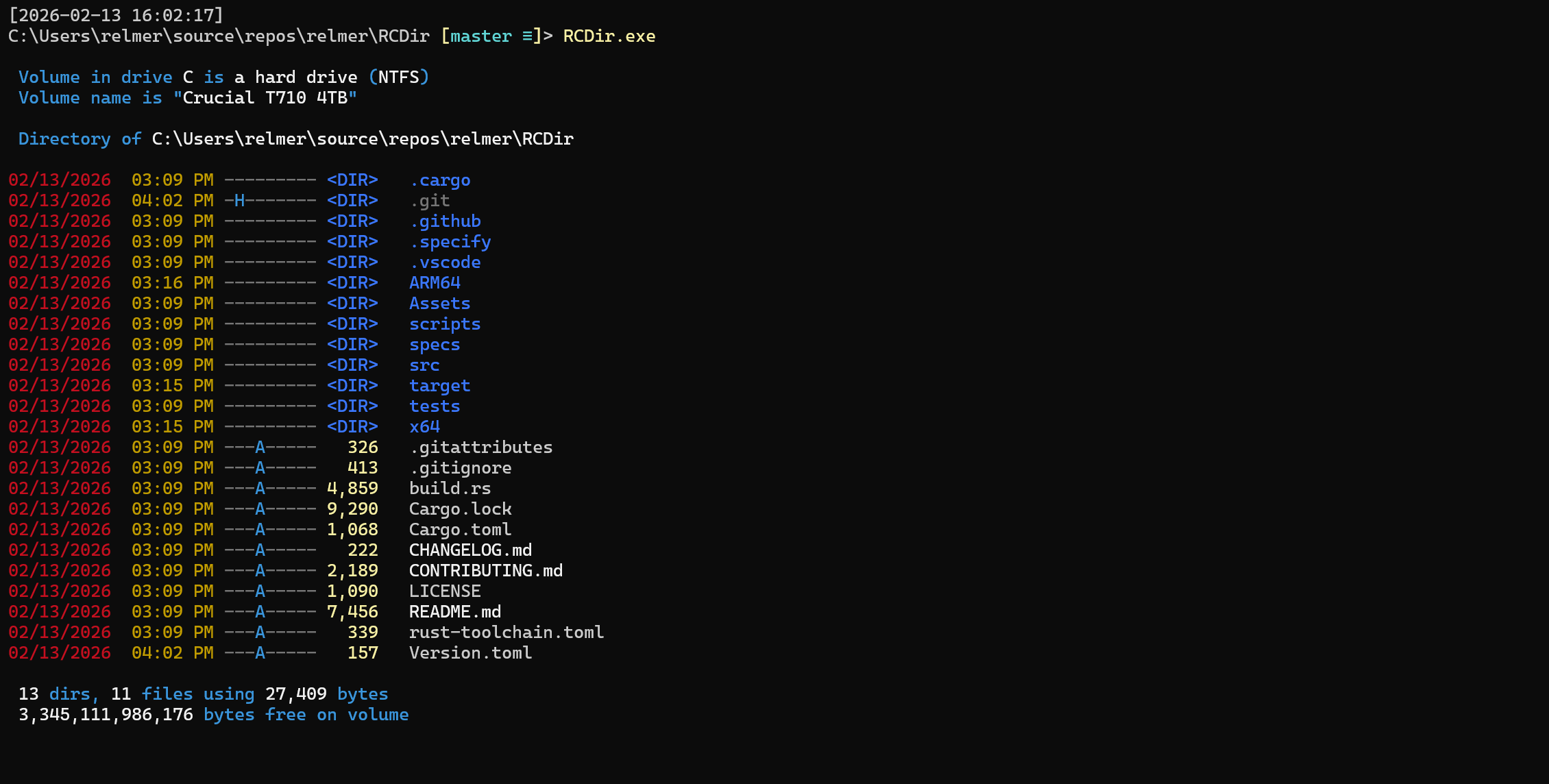
RCDir ("Rusticolor Directory") is a fast, colorized directory listing tool for Windows consoles,
written in Rust. Features include color by extension and attributes, Nerd Font file and folder
icons, cloud sync status (OneDrive, iCloud), file owner display, NTFS alternate data streams,
sorting, recursion, wide output, and multi-threaded enumeration with native ARM64 support.
RCDir is a parallel Rust implementation of TCDir with feature parity.
README
RCDir
This is a Rust port of TCDir, the original C++ implementation. Features generally show up in TCDir first, and I try to get them ported to RCDir within a week or so.
RCDir ("Rust Colorized Directory") is a fast, colorized directory listing tool for Windows consoles.
It's designed as a practical dir-style command with useful defaults (color by extension/attributes, Nerd Font file/folder icons, sorting, recursion, wide output, and a multi-threaded enumerator).
What's New
Version
Highlights
5.2
Interactive PowerShell alias configuration (--set-aliases, --get-aliases, --remove-aliases)
5.1
--Tree hierarchical directory view with depth control
5.0
Nerd Font file/folder icons (~187 extensions, ~65 directories)
Run the setup script to install or verify all Rust prerequisites automatically:
.\scripts\Setup.ps1
Alternatively, the rust-toolchain.toml at the repo root will prompt rustup to install the correct toolchain, targets, and components automatically whenever you run cargo.
Quick start
Build:
VS Code: run a build task (e.g. Build Release (current arch))
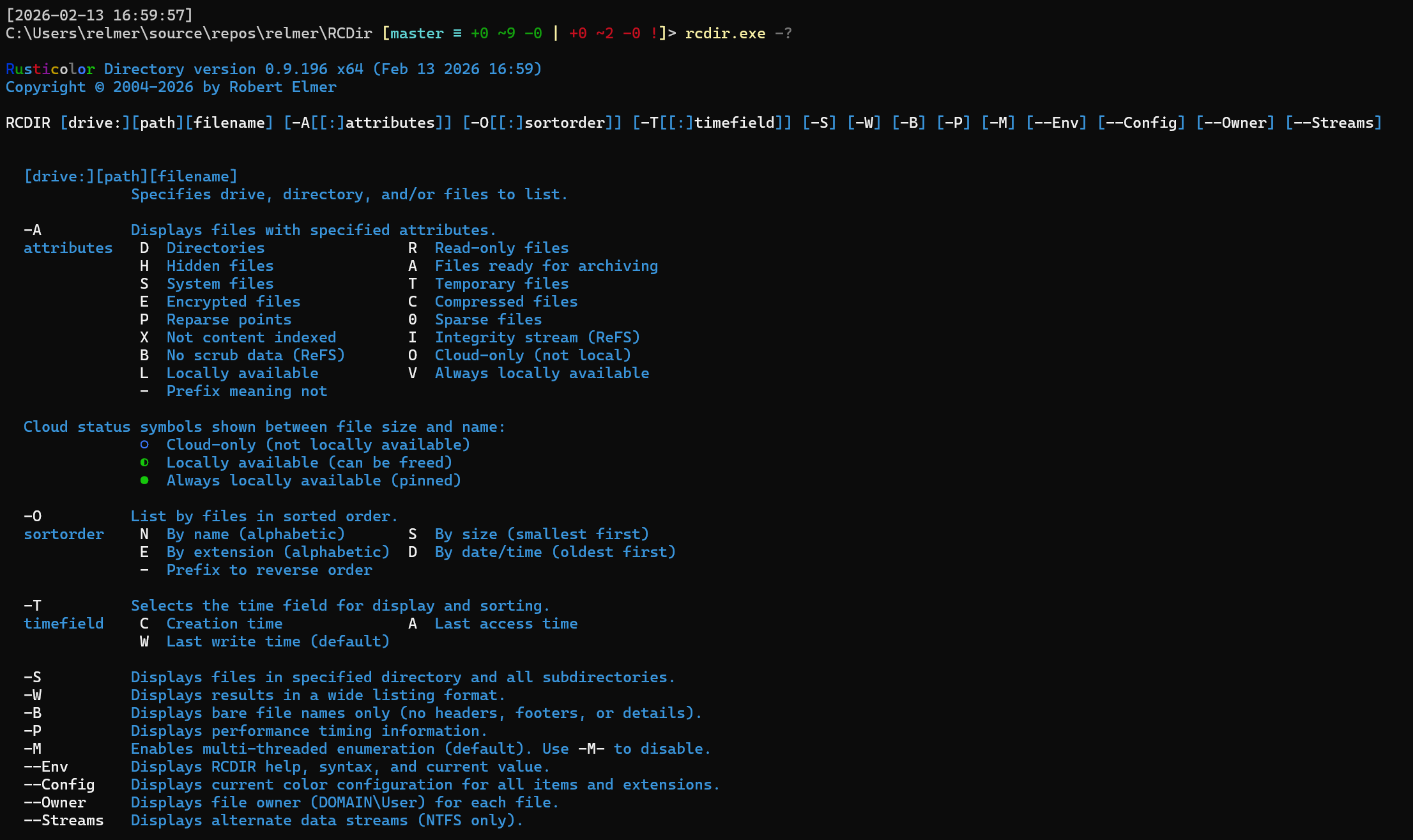
-T:: select which timestamp to display and sort by
C creation time, A last access time, W last write time (default)
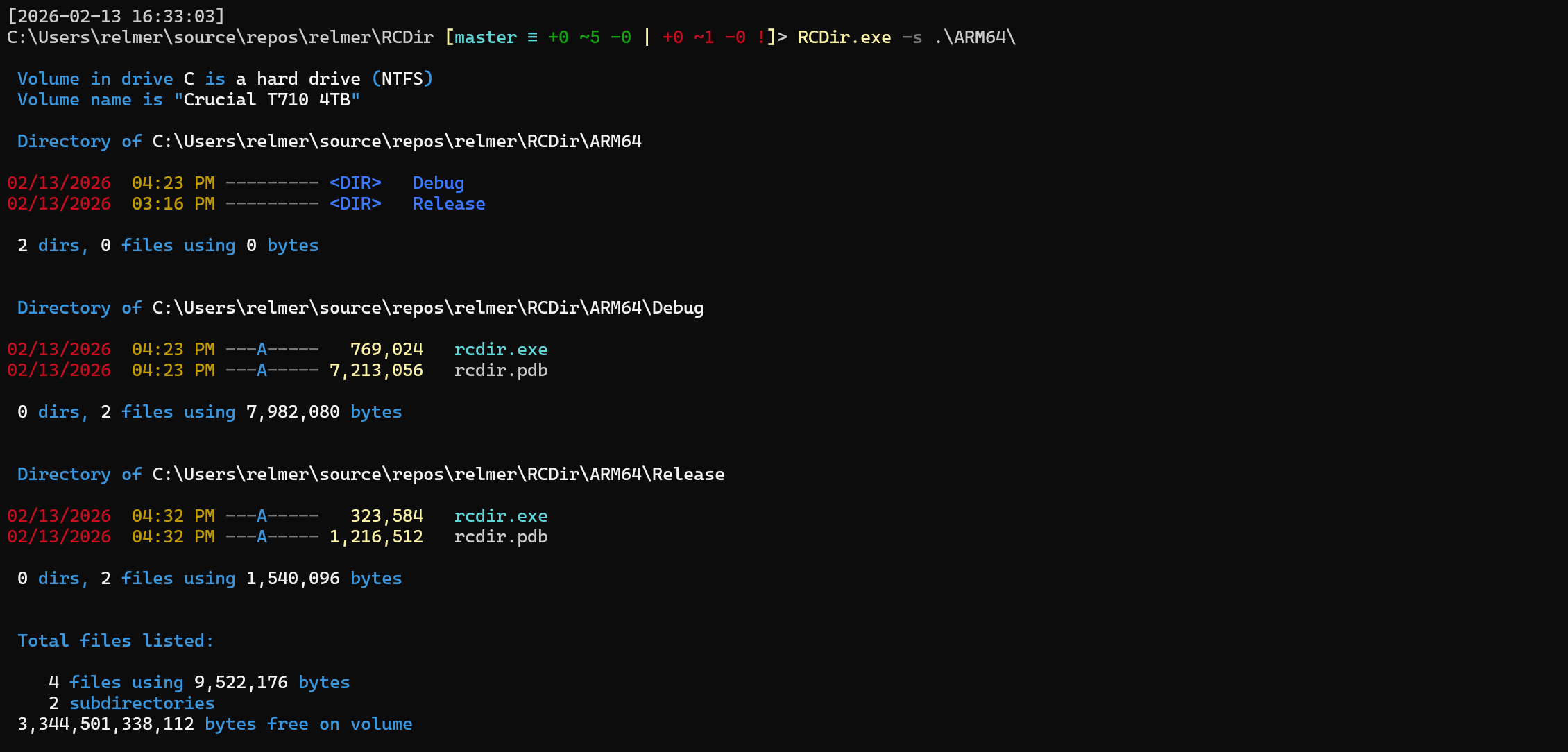
-S: recurse into subdirectories
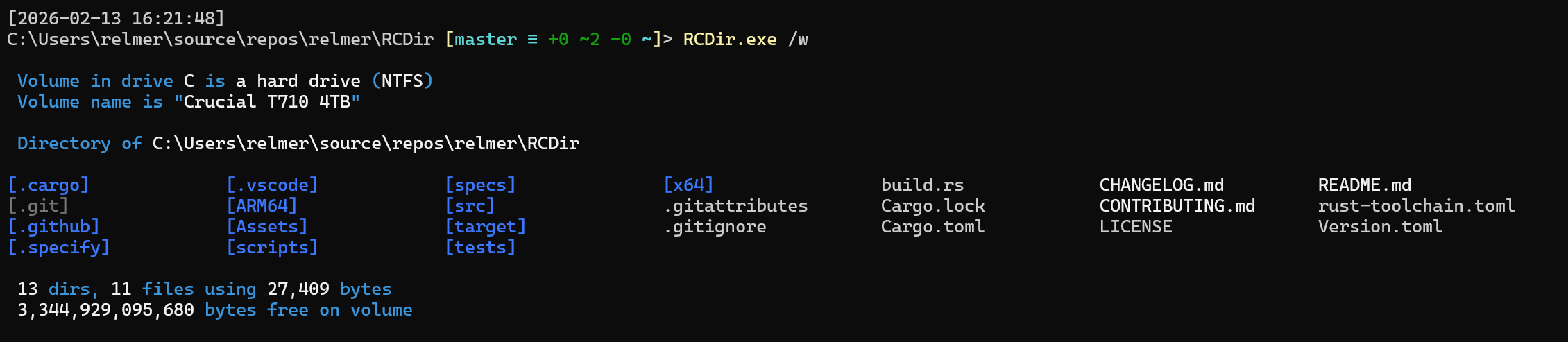
-W: wide listing format
-B: bare listing format
-P: show performance timing information
-M: enable multi-threaded enumeration (default); use -M- to disable
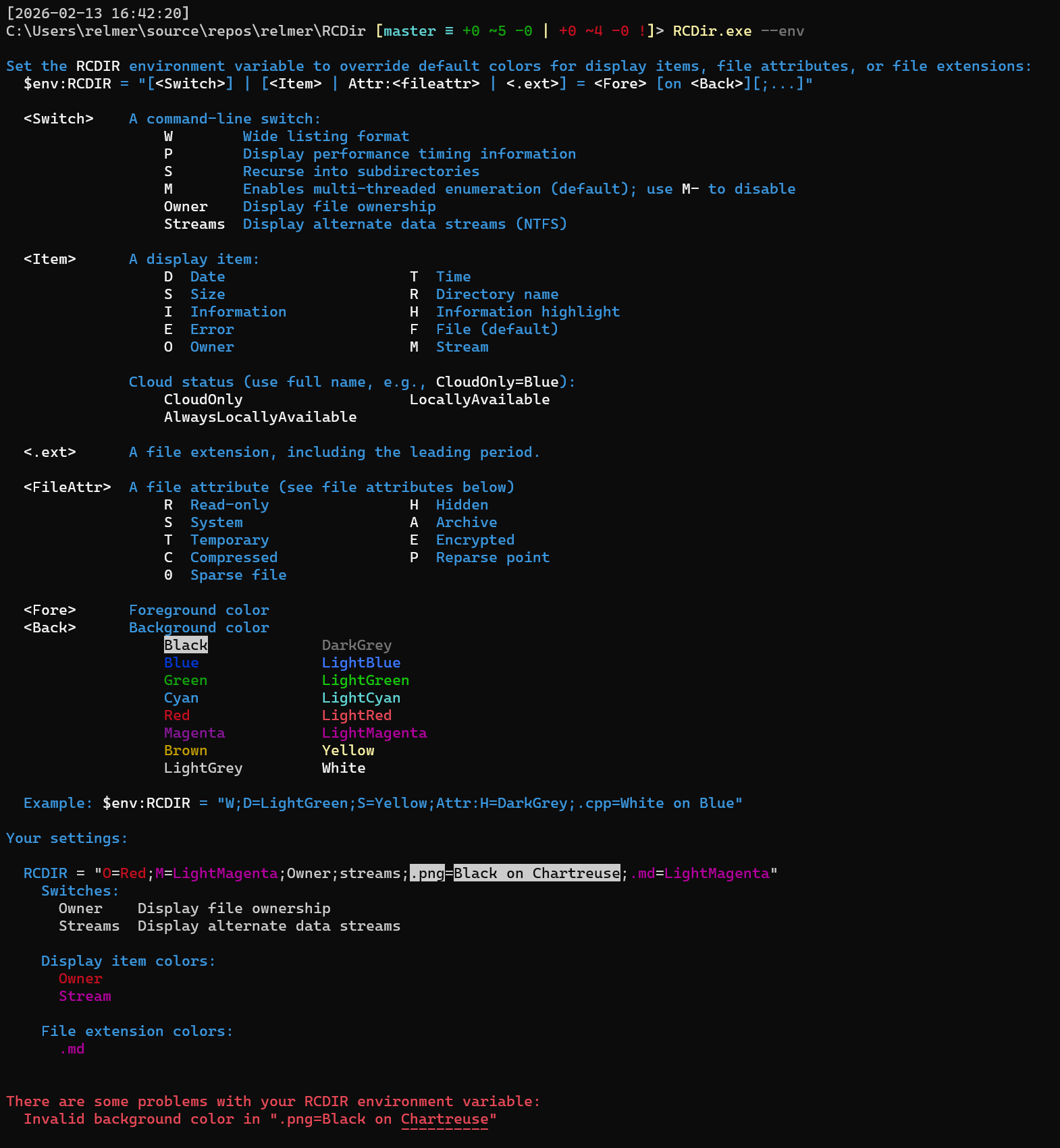
--Env: show RCDIR environment variable help/syntax/current value
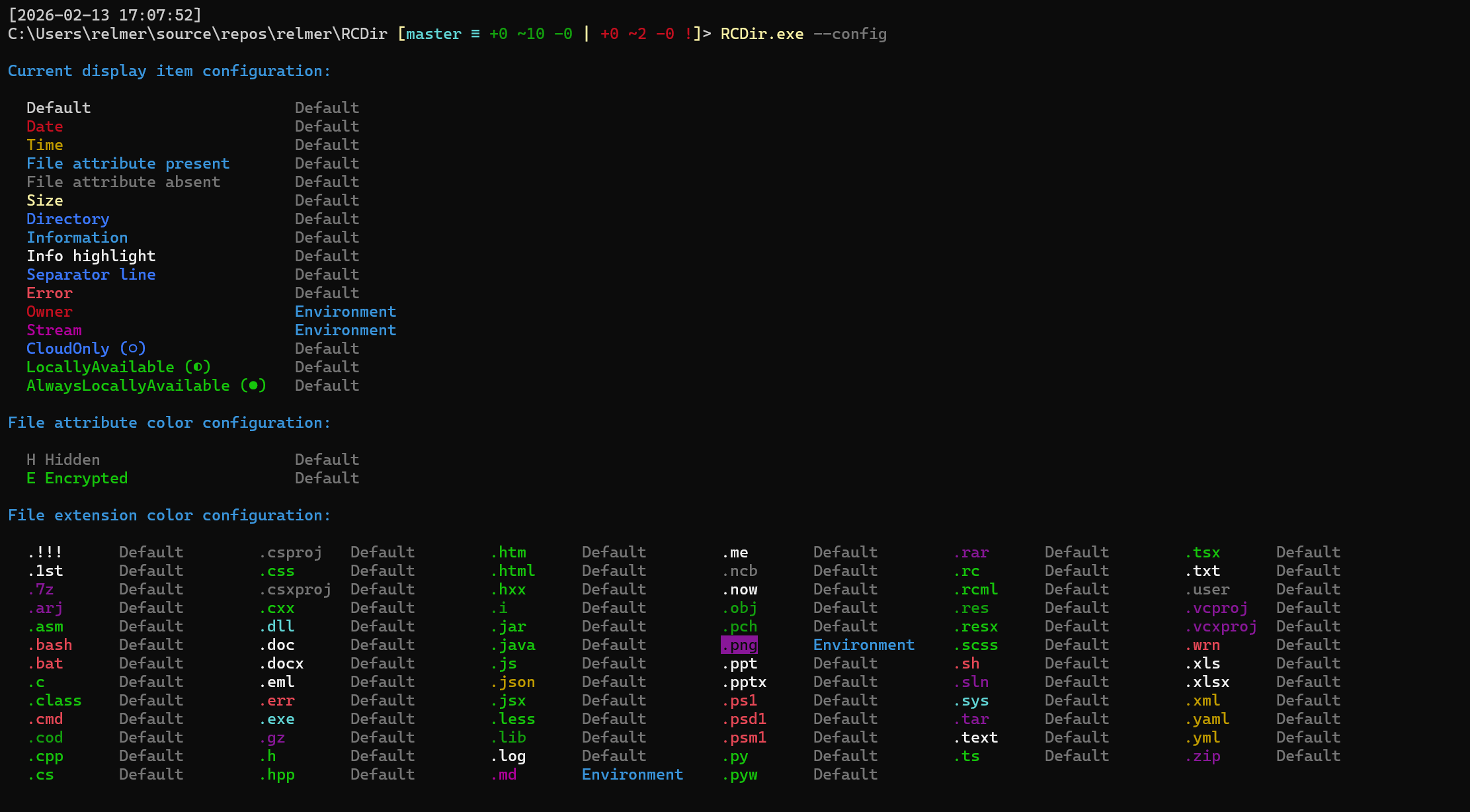
--Config: show current color configuration
--Owner: display file owner (DOMAIN\User format); not allowed with --Tree
--Streams: display NTFS alternate data streams
--Icons: enable Nerd Font file/folder icons; use --Icons- to disable
--Tree: hierarchical directory tree view; use --Tree- to disable
--Depth=N: limit tree depth to N levels (requires --Tree)
--TreeIndent=N: tree indent width per level, 1–8, default 4 (requires --Tree)
--Size=Auto|Bytes: Auto shows abbreviated sizes (e.g., 8.90 KB); Bytes shows exact comma-separated sizes. Tree mode defaults to Auto, non-tree defaults to Bytes
Attribute filters (/A:)
Standard attributes: D (directory), H (hidden), S (system), R (read-only), A (archive)
Cloud sync attributes (OneDrive, iCloud, etc.):
O - cloud-only placeholder files (not locally available)
L - locally available files (hydrated, can be dehydrated)
V - pinned/always available files (won't be dehydrated)
Extended attributes:
X - not content indexed (excluded from Windows Search)
I - integrity stream enabled (ReFS only)
B - no scrub data (ReFS only)
F - sparse file
U - unpinned (allow dehydration)
Use - prefix to exclude (e.g., /A:-H excludes hidden files).
Cloud file visualization
When browsing cloud-synced folders (OneDrive, iCloud Drive, etc.), RCDir displays sync status symbols:
○ (hollow) - cloud-only placeholder, not available offline
◐ (half) - locally available, can be dehydrated
● (solid) - pinned, always available offline
When a Nerd Font is detected, the cloud symbols are automatically upgraded to dedicated NF glyphs (cloud-outline, cloud-check, pin).
Nerd Font icons
When RCDir detects a Nerd Font in the console, it automatically displays file and folder icons next to each entry — in normal, wide, and bare listing modes.
Detection works via:
GDI glyph probe — renders a canary glyph to confirm Nerd Font symbols are available in the active console font
System font enumeration — checks whether any installed font's name contains "Nerd Font" or a "NF", "NFM", or "NFP" suffix
WezTerm detection — WezTerm bundles Nerd Font symbols natively, so icons are enabled automatically
ConPTY detection — Windows Terminal, VS Code terminal, and other modern terminals are recognized
Icon mappings (~187 extensions, ~65 well-known directories) are aligned with the Terminal-Icons PowerShell module default theme.
Use --Icons to force icons on, or --Icons- to force them off, regardless of detection.
Tree view (--Tree)
Tree mode displays the directory hierarchy with Unicode box-drawing connectors (├──, └──, │). All metadata columns (date, time, attributes, size, cloud status) appear at every level. Directories and files are sorted together (interleaved) rather than grouped.
rcdir --Tree — show full tree from the current directory
rcdir --Tree --Depth=2 — show only 2 levels deep
rcdir --Tree --TreeIndent=2 — narrower indentation (default is 4)
rcdir --Tree *.rs — show only .rs files; empty subdirectories are pruned
Tree mode uses abbreviated file sizes (--Size=Auto) by default for consistent column alignment across directories. Junction points and symlinks are listed but not expanded, preventing infinite cycles.
Incompatible with -W (wide), -B (bare), -S (recurse), --Owner, and --Size=Bytes.
Tree listing: rcdir.exe --Tree
Examples:
Recurse through subdirectories: rcdir.exe -s
Wide listing: rcdir.exe -w
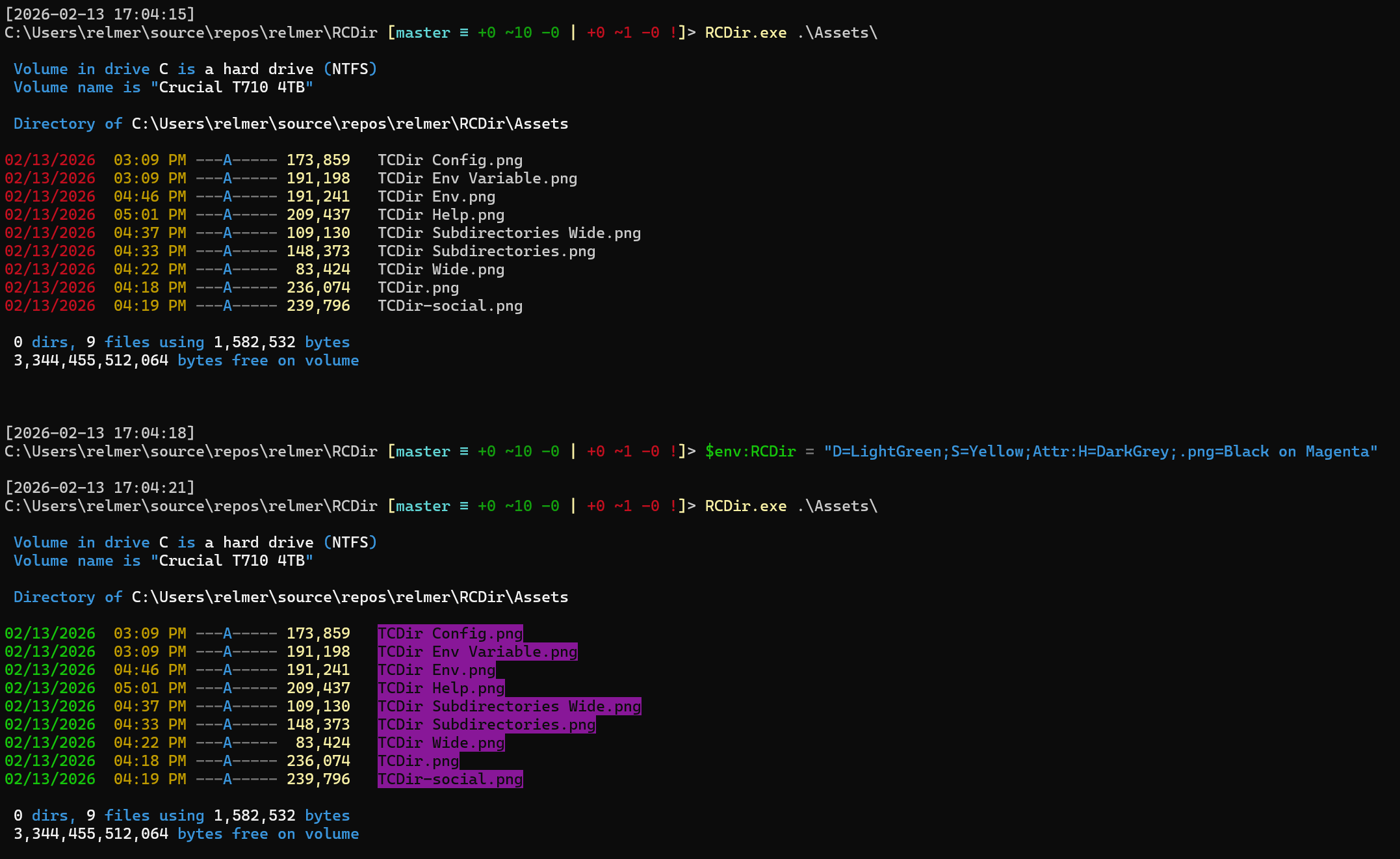
Configuration (RCDIR environment variable)
RCDir supports customizing colors (and default switch behavior) via the RCDIR environment variable.