TCDir



Install
For your convenience, TCDir is now available through winget:
winget install relmer.TCDir
About TCDir
TCDir ("Technicolor Directory") is a fast, colorized directory listing tool for Windows consoles.
It's designed as a practical dir-style command with useful defaults (color by extension/attributes, Nerd Font file/folder icons, sorting, recursion, wide output, and a multi-threaded enumerator).
What's New
| Version | Highlights |
|---|
| 5.2 | Interactive PowerShell alias configuration (--set-aliases, --get-aliases, --remove-aliases) |
| 5.1 | --Tree hierarchical directory view with depth control |
| 5.0 | Nerd Font file/folder icons (~200 extensions, ~65 directories) |
| 4.2 | Cloud sync status badges (OneDrive, iCloud), file owner, NTFS alternate data streams |
| 4.1 | - and -- style switch prefixes |
| 4.0 | Multi-threaded enumeration (2–4× faster recursive listings), ARM64 native binary |
See CHANGELOG.md for full release history.
Hat tip to Chris Kirmse whose excellent ZDir from the '90s was the original inspiration for TCDir.
> Also available in Rust: RCDir is a parallel Rust implementation of TCDir with feature parity.
Why TCDir?
| Feature | dir | TCDir | eza | lsd |
|---|
| Color-coded by extension & attribute | — | ✅ | ✅ | ✅ |
| Cloud sync status (OneDrive, iCloud) | — | ✅ | — | — |
| Nerd Font file/folder icons | — | ✅ | ✅ | ✅ |
| Tree view with full metadata | — | ✅ | ✅ | ✅ |
| Multi-threaded enumeration | — | ✅ | — | — |
| Native Windows (no WSL/MSYS) | ✅ | ✅ | ⚠️ | ⚠️ |
Familiar dir switch syntax | ✅ | ✅ | — | — |
| ARM64 native binary | ✅ | ✅ | — | — |
| NTFS alternate data streams | ✅ | ✅ | — | — |
| Configurable via environment variable | — | ✅ | — | — |
Manual installation
Download
If you're not a winget enthusiast, youc an grab the latest binary for your architecture directly:
Place the .exe somewhere on your PATH, or add its directory to your PATH.
See all releases on the Releases page.
Shell aliases
TCDir includes a built-in alias configuration wizard. Run from PowerShell:
tcdir --set-aliases
The wizard walks you through:
- Root alias — a short name (e.g.,
d) that maps to tcdir
- Sub-aliases — derived commands like
dt (tree), dw (wide), dd (dirs-only), ds (recursive), dsb (recursive bare)
- Profile location — which PowerShell profile to save to, or output for the current session only
The generated aliases are PowerShell functions stored between marker comments in your profile. To inspect or remove them later:
tcdir --get-aliases       # show configured aliases
tcdir --remove-aliases    # interactive removal
tcdir --set-aliases --whatif  # preview without writing
Both PowerShell 7+ (pwsh) and Windows PowerShell 5.1 (powershell) are supported — the wizard auto-detects which version launched it.
Requirements
- Windows 10/11
- PowerShell 7 (
pwsh) to run the build/test scripts
- Visual Studio 2026 (v18.x)
- The free Community edition is fine, but any edition will work
- Workload: Desktop development with C++
- Individual components (usually included with the workload, but worth confirming):
- MSVC v14x x64/x86 build tools
- Windows 10/11 SDK
- C++ unit test framework (to build/run the
UnitTest project)
- Optional (ARM64 builds/tests): MSVC v14x ARM64 build tools
- The scripts use
vswhere.exe to locate MSBuild and the test runner
- Optional: VS Code (the repo includes
.vscode/ tasks wired up to scripts/Build.ps1 and scripts/RunTests.ps1)
Quick start
Build:
- Visual Studio: open
TCDir.sln and Build Solution
- VS Code: run a build task (e.g. Build Release x64 (no test))
- Command line:
pwsh -NoProfile -ExecutionPolicy Bypass -File .\scripts\Build.ps1 -Configuration Release -Platform x64 -Target Build
Run:
.\x64\Release\TCDir.exe.\ARM64\Release\TCDir.exe
Usage
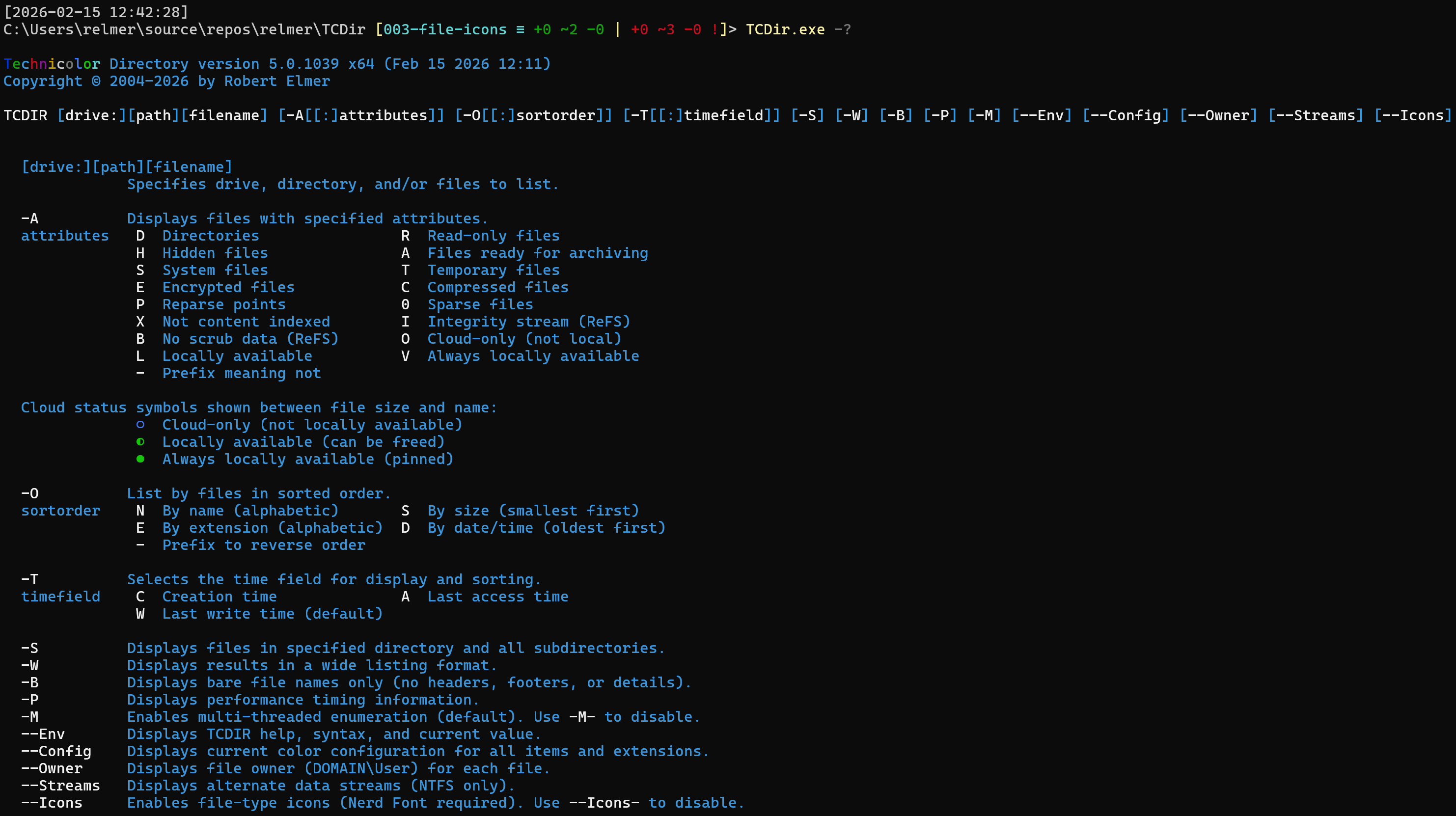
Show help:
TCDir.exe -?
Basic syntax:
TCDIR [drive:][path][filename] [-A[[:]attributes]] [-O[[:]sortorder]] [-T[[:]timefield]] [-S] [-W] [-B] [-P] [-M] [--Env] [--Config] [--Owner] [--Streams] [--Icons] [--Tree] [--Depth=N] [--TreeIndent=N] [--Size=Auto|Bytes]
Common switches:
-A[:]: filter by file attributes-O[:]: sort results
- both
-oe and -o:e forms are supported
N name, E extension, S size, D date/time- prefix
- to reverse
-T:: select which timestamp to display and sort by
C creation time, A last access time, W last write time (default)
-S: recurse into subdirectories-W: wide listing format-B: bare listing format-P: show performance timing information-M: enable multi-threaded enumeration (default); use -M- to disable--Env: show TCDIR environment variable help/syntax/current value--Config: show current color configuration--Owner: display file owner (DOMAIN\User format); not allowed with --Tree--Streams: display NTFS alternate data streams--Icons: enable Nerd Font file/folder icons; use --Icons- to disable--Tree: hierarchical directory tree view; use --Tree- to disable--Depth=N: limit tree depth to N levels (requires --Tree)--TreeIndent=N: tree indent width per level, 1–8, default 4 (requires --Tree)--Size=Auto|Bytes: Auto shows abbreviated sizes (e.g., 8.90 KB); Bytes shows exact comma-separated sizes. Tree mode defaults to Auto, non-tree defaults to Bytes--set-aliases: interactive wizard to configure PowerShell aliases for tcdir--get-aliases: display all configured tcdir aliases and their source profiles--remove-aliases: interactive removal of tcdir aliases from profile files--whatif: dry-run modifier for --set-aliases or --remove-aliases (preview only, no file changes)
Attribute filters (/A:)
Standard attributes: D (directory), H (hidden), S (system), R (read-only), A (archive)
Cloud sync attributes (OneDrive, iCloud, etc.):
O - cloud-only placeholder files (not locally available)L - locally available files (hydrated, can be dehydrated)V - pinned/always available files (won't be dehydrated)
Extended attributes:
X - not content indexed (excluded from Windows Search)I - integrity stream enabled (ReFS only)B - no scrub data (ReFS only)F - sparse fileU - unpinned (allow dehydration)
Use - prefix to exclude (e.g., /A:-H excludes hidden files).
Cloud file visualization
When browsing cloud-synced folders (OneDrive, iCloud Drive, etc.), TCDir displays sync status symbols:
○ (hollow) - cloud-only placeholder, not available offline◐ (half) - locally available, can be dehydrated● (solid) - pinned, always available offline
When a Nerd Font is detected, the cloud symbols are automatically upgraded to dedicated NF glyphs (cloud-outline, cloud-check, pin).
Nerd Font icons
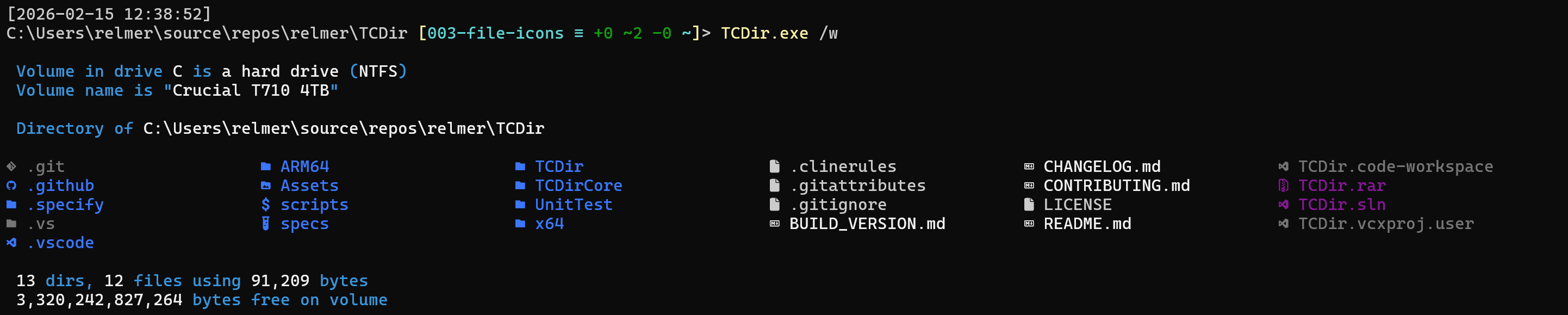
When TCDir detects a Nerd Font installed, it automatically displays file and folder icons next to each entry — in normal, wide, and bare listing modes.
Detection works via:
- GDI glyph probe — renders a canary glyph to confirm Nerd Font symbols are available in the active console font
- System font enumeration — checks whether any installed font's name contains "Nerd Font" or a "NF", "NFM", or "NFP" suffix
- WezTerm detection — WezTerm bundles Nerd Font symbols natively, so icons are enabled automatically
- ConPTY detection — Windows Terminal, VS Code terminal, and other modern terminals are recognized
Icon mappings (~200 extensions, ~65 well-known directories) are aligned with the Terminal-Icons PowerShell module default theme.
Use --Icons to force icons on, or --Icons- to force them off, regardless of detection.
Tree view (--Tree)
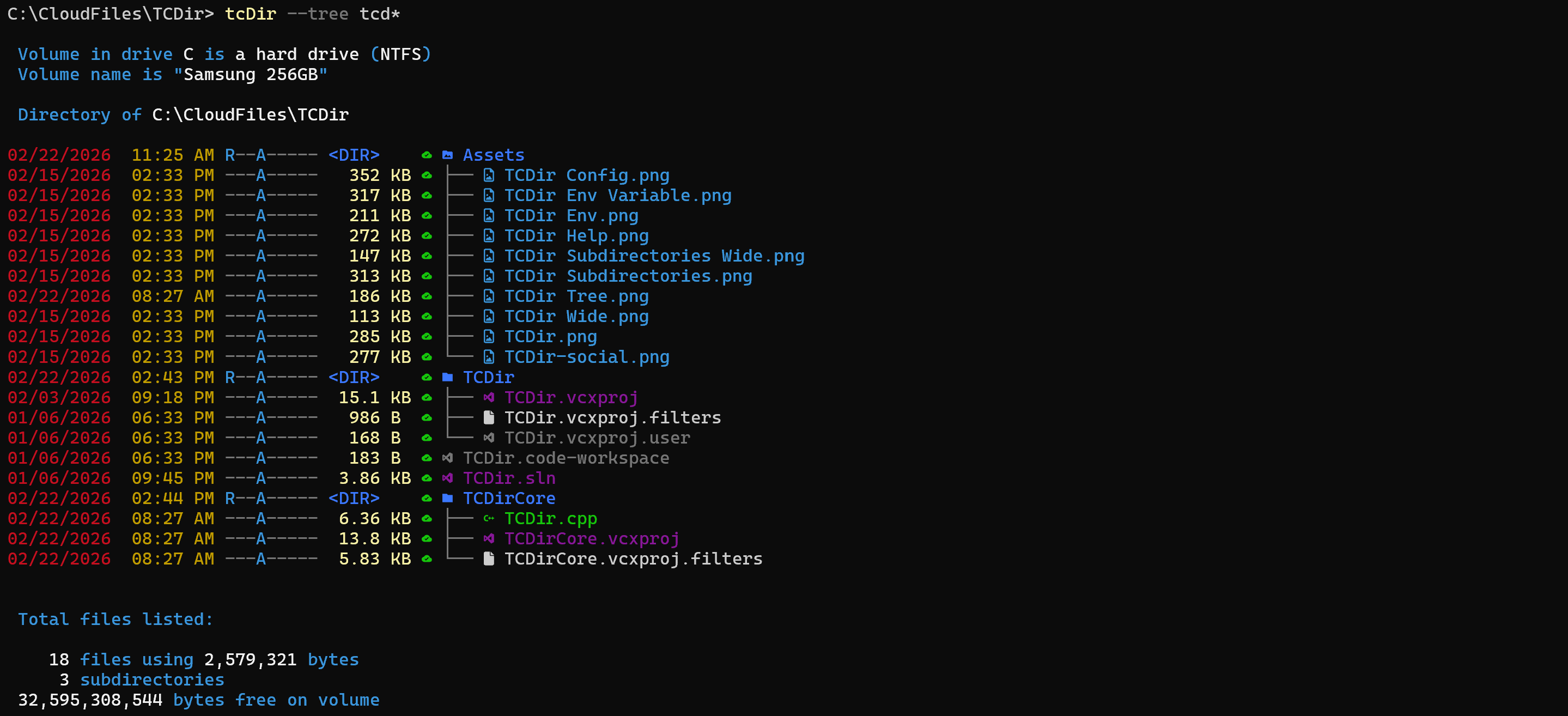
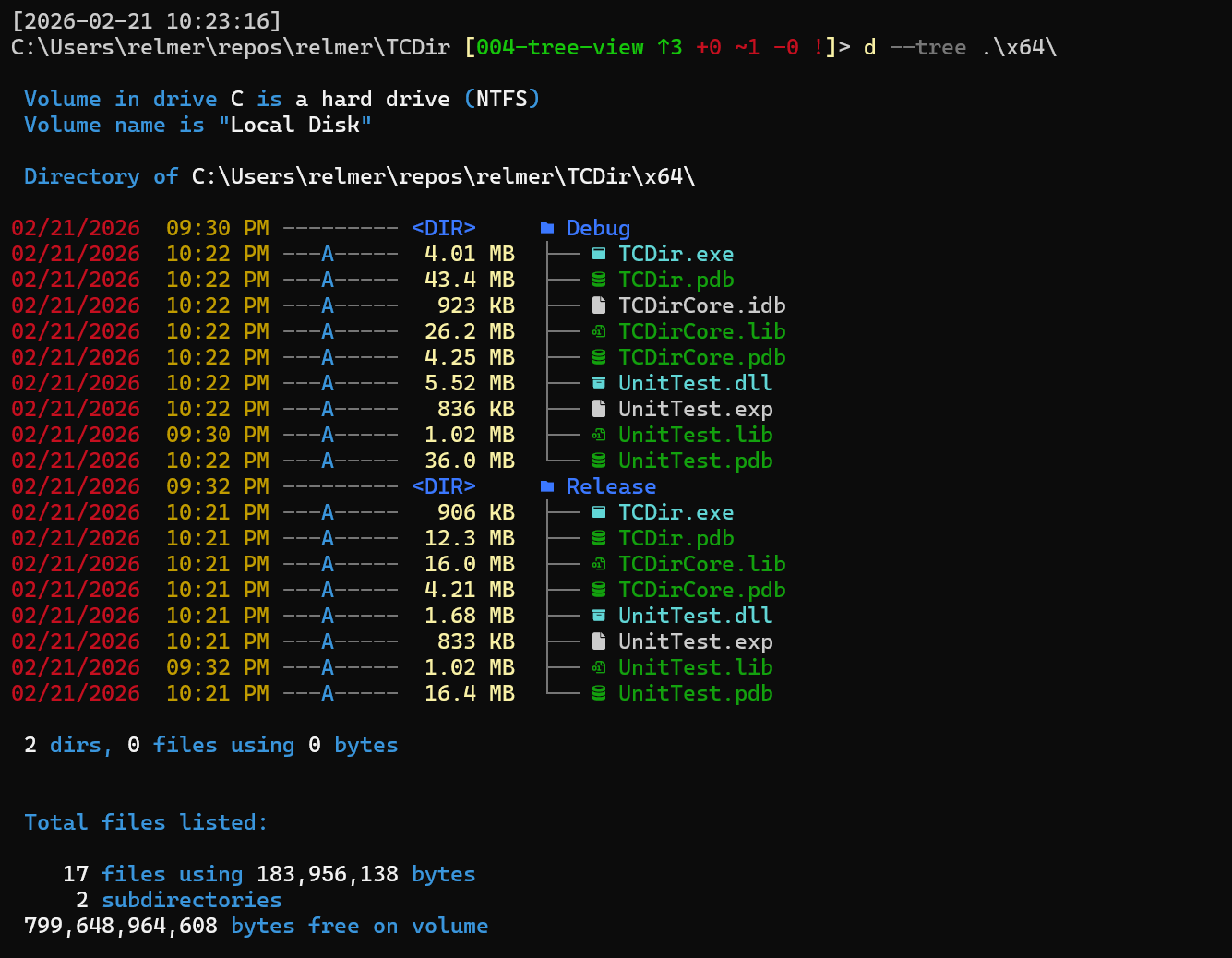
Tree mode displays the directory hierarchy with Unicode box-drawing connectors (├──, └──, │). All metadata columns (date, time, attributes, size, cloud status) appear at every level. Directories and files are sorted together (interleaved) rather than grouped.
tcdir --Tree — show full tree from the current directorytcdir --Tree --Depth=2 — show only 2 levels deeptcdir --Tree --TreeIndent=2 — narrower indentation (default is 4)tcdir --Tree *.cpp — show only .cpp files; empty subdirectories are pruned
Tree mode uses abbreviated file sizes (--Size=Auto) by default for consistent column alignment across directories. Junction points and symlinks are listed but not expanded, preventing infinite cycles.
Incompatible with -W (wide), -B (bare), -S (recurse), --Owner, and --Size=Bytes.
- Tree listing:
TCDir.exe --Tree
Examples:
Configuration (TCDIR environment variable)
TCDir supports customizing colors (and default switch behavior) via the TCDIR environment variable.
Syntax:
- PowerShell:
$env:TCDIR = "[] | [ | Attr: | <.ext>] = [on ][;...]"
- CMD:
set TCDIR=[] | [ | Attr: | <.ext>] = [on ][;...]
Note: Switch names in the TCDIR variable do NOT include prefixes (/, -, --). Use just the switch name (e.g., W, Owner, Streams).
Default switches
Enable default switches by including the switch name:
W - enable wide listing by defaultS - enable subdirectory recursion by defaultP - enable performance timing by defaultM - enable multi-threading by default (already on by default)B - enable bare listing by defaultOwner - display file ownership by defaultStreams - display NTFS alternate data streams by defaultIcons - enable Nerd Font icons by default; Icons- to force offTree - enable tree view by default; Tree- to force offDepth=N - set default tree depth limitTreeIndent=N - set default tree indent width (1–8)Size=Auto / Size=Bytes - set default size display format
Color customization
Configure colors for display items, file attributes, and extensions:
Example:
- PowerShell:
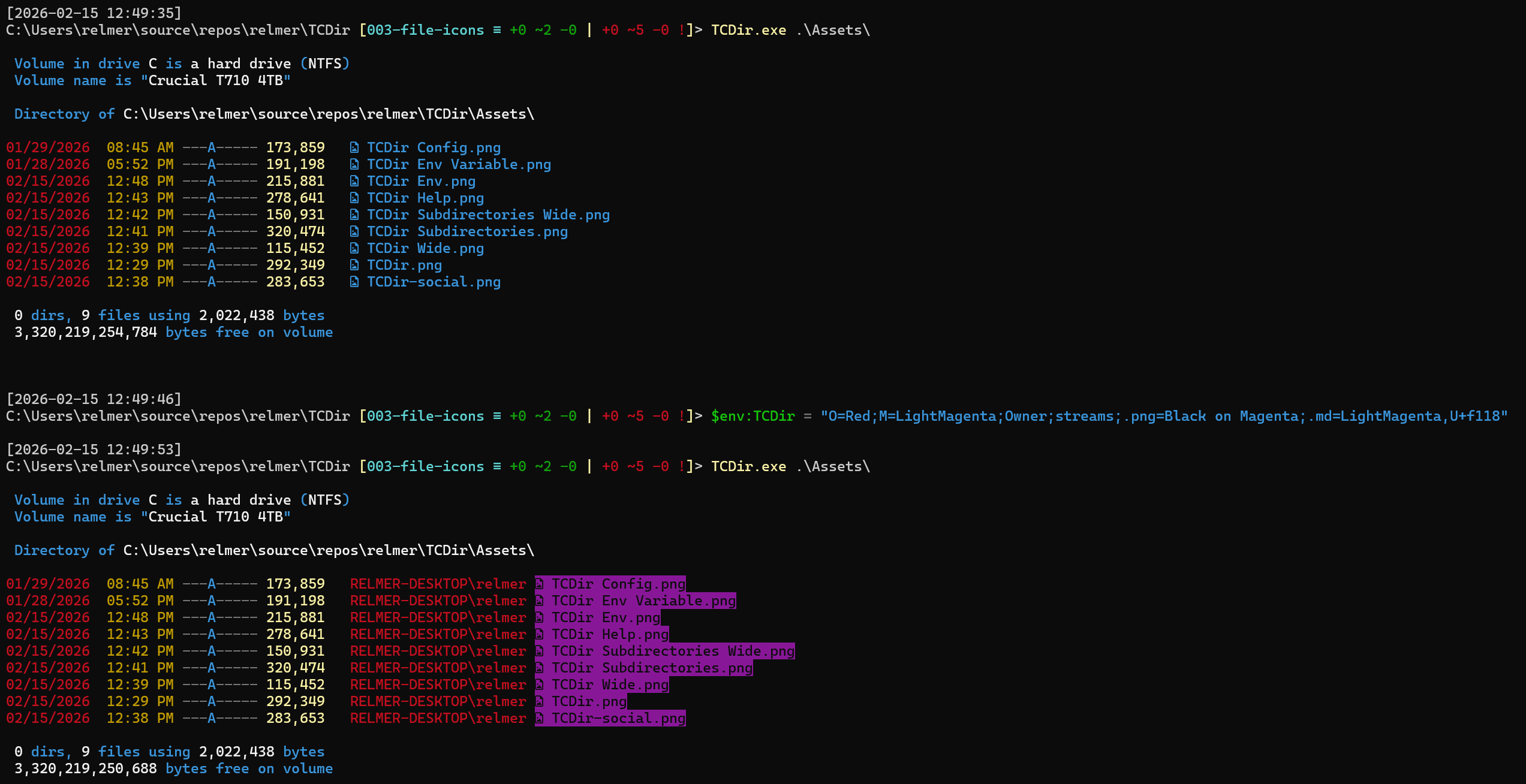
$env:TCDIR = "W;D=LightGreen;S=Yellow;Attr:H=DarkGrey;.png=Black on Magenta"
- CMD:
set TCDIR=W;D=LightGreen;S=Yellow;Attr:H=DarkGrey;.png=Black on Magenta
Decoded breakdown of the example:
W sets the default switch /W (wide listing) onD=LightGreen sets the Date display item color to LightGreenS=Yellow sets the Size display item color to YellowAttr:H=DarkGrey sets the Hidden file attribute color to DarkGrey.png=Black on Magenta sets the .png extension color to black text on a magenta background
Display items for color configuration:
D (Date), S (Size), N (Name), Attr (Attributes)CloudOnly, Local, Pinned - cloud sync status symbol colors
Icon override (<.ext>=,U+):
- Override the icon glyph for any extension:
.rs=DarkRed,U+E7A8
- Color-only override (keep default glyph):
.js=Yellow
- Glyph-only override (keep default color):
.md=,U+F48A
File attribute colors (Attr:):
-
H (hidden), S (system), R (read-only), D (directory)
-
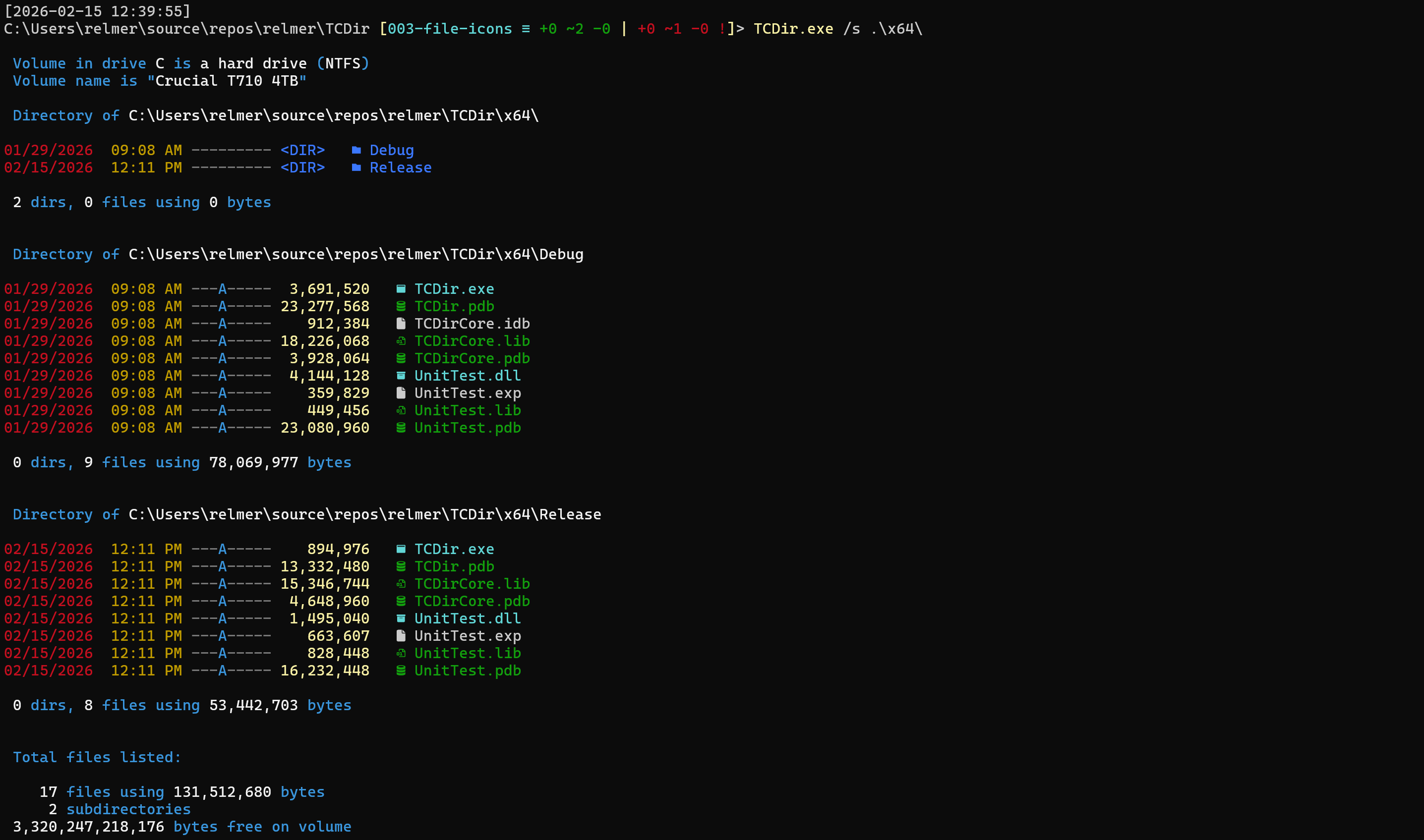
Here's an example of the default output, setting the TCDIR environment variable, then showing its effects:
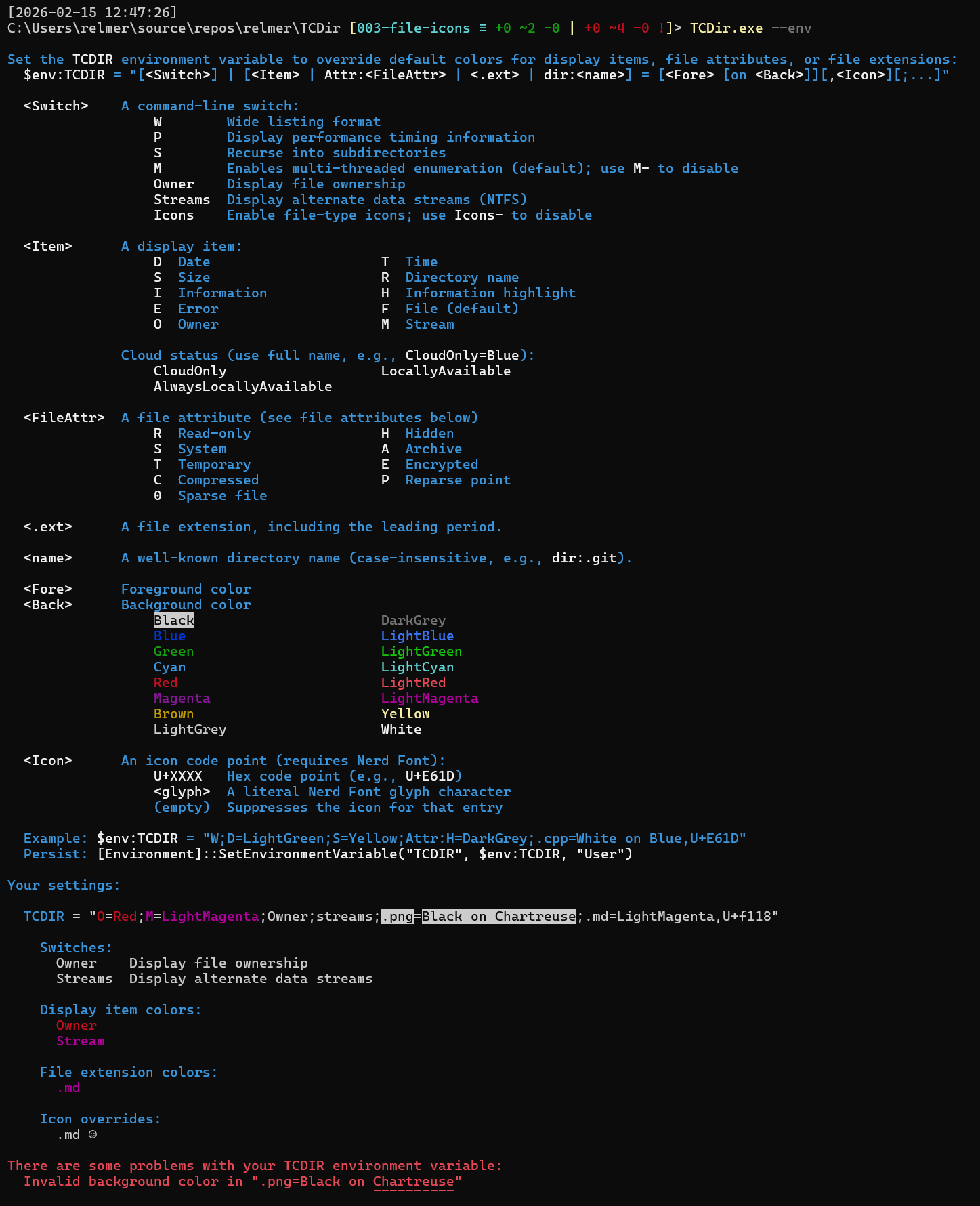
To see the full list of supported colors and a nicely formatted explanation, use --Env.
- Any errors in the TCDIR variable are shown at the end.
TCDir.exe --Env:
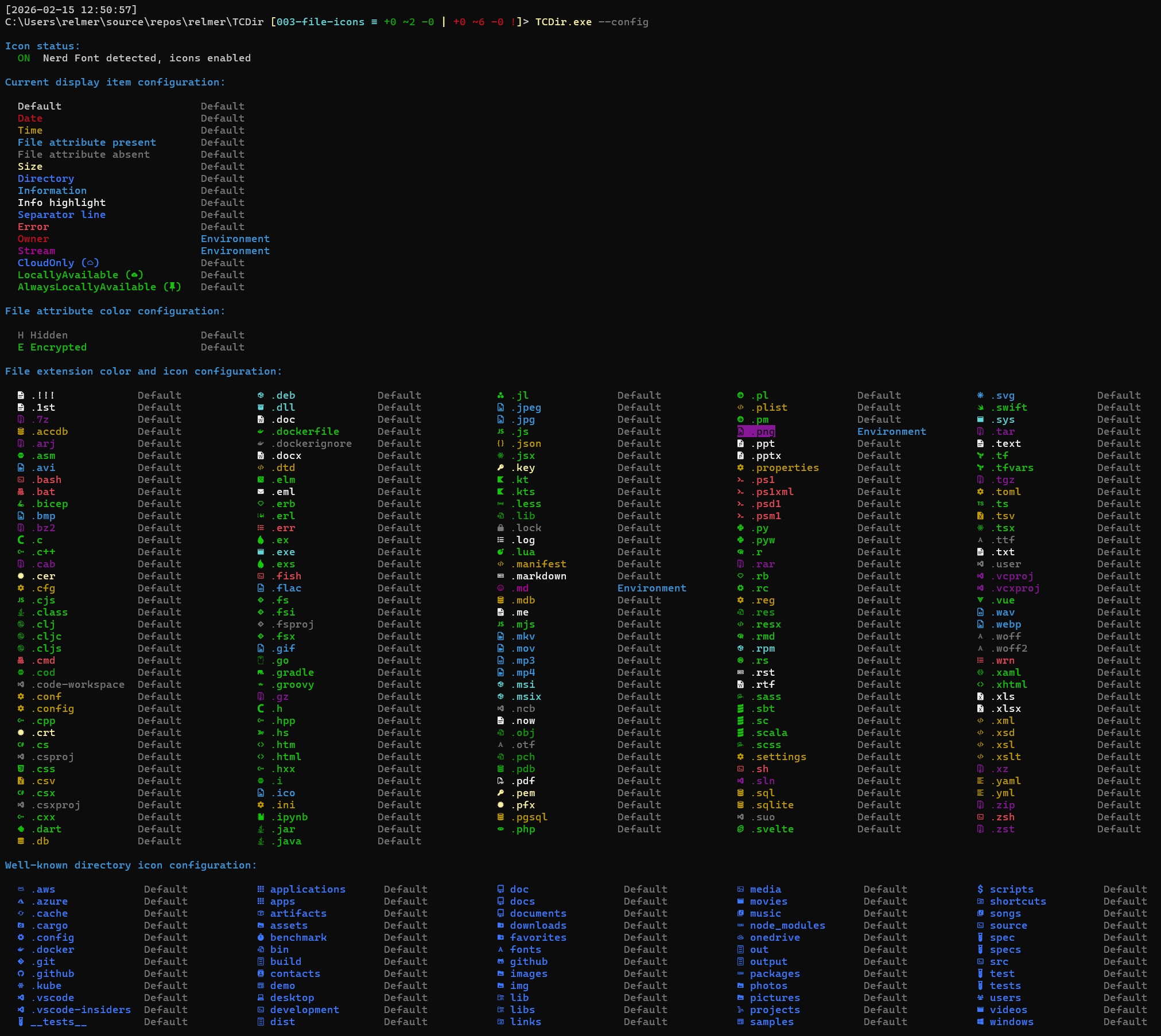
To see your current color configuration, use --Config:
- All configuration settings are displayed along with the source of that configuration.
TCDir.exe --Config:
Building
Build options
- Visual Studio: open
TCDir.sln and Build Solution
- VS Code: the repo includes
.vscode/ (tasks/launch/settings), with tasks wired up to scripts/Build.ps1 and scripts/RunTests.ps1
- Command line: use the PowerShell build scripts below
Build scripts
- Build:
pwsh -File .\scripts\Build.ps1 -Configuration -Platform -Target Build
- Clean:
pwsh -File .\scripts\Build.ps1 -Configuration -Platform -Target Clean
- Rebuild:
pwsh -File .\scripts\Build.ps1 -Configuration -Platform -Target Rebuild
- Build both Release targets:
pwsh -File .\scripts\Build.ps1 -Target BuildAllRelease
Build outputs land under:
x64\Debug\TCDir.exe, x64\Release\TCDir.exeARM64\Debug\TCDir.exe, ARM64\Release\TCDir.exe
Tests
Run unit tests:
pwsh -File .\scripts\RunTests.ps1
(Uses Visual Studio’s vstest.console.exe, discovered via vswhere.)
Versioning
The build number is auto-incremented by a pre-build script. Details are in BUILD_VERSION.md.
License
MIT License. See LICENSE.