QuickText rockbenben
Install QuickText with WinGet
winget install --id=rockbenben.QuickText -e Windows tray snippet manager & text expander — recall by pinyin or abbreviation, pasted at the cursor
winget install --id=rockbenben.QuickText -e Windows tray snippet manager & text expander — recall by pinyin or abbreviation, pasted at the cursor

> A tray snippet manager and text expander for Windows
English · 简体中文 · 繁體中文 · 日本語 · 한국어 · Español · Português · Français · Deutsch · Italiano · Русский · Tiếng Việt · ไทย · Bahasa Indonesia · हिन्दी · বাংলা · العربية · Türkçe

Stop typing the same thing twice. QuickText lives in the Windows tray: store the text you reach for again and again — email, addresses, signatures, templates, canned replies, images — once, then in any input box type a few keystrokes or an abbreviation and it lands right at your cursor. Multi-line, special characters and emoji preserved character-for-character.
> Your reusable text, a few keystrokes away — dropped straight at the cursor.
⬇ Get the latest release — Windows x64.
Two builds, three downloads — portable either way. No installer, no account.
| File | Needs | Good for |
|---|---|---|
QuickText--win-x64.zip | nothing | take this one if unsure. Air-gapped or intranet machines, a USB stick you carry between PCs, a work PC where you can't install anything |
QuickText--win-x64-needs-dotnet10.zip | .NET 10 Desktop Runtime installed | your own online PC: install the runtime once, and every update after that is a small download |
QuickText.exe | same as above | the same build with no zip around it: click and run, or drop it over your existing copy to update |
Every one of them is (or unpacks to) the same single-file QuickText.exe. The only difference between the two builds is where the runtime comes from — the first bundles .NET into the exe, which is why it is so much larger; the second uses the copy already on the machine. The release page lists each asset's exact size. Same features, same data; switch between them any time.
The exe isn't code-signed, so Windows SmartScreen warns on first run: click More info → Run anyway.
Wherever you type the same thing over and over on Windows. It lives in the tray and works in every input box (chat windows, browser forms, editors, mail clients — not tied to one app). It's a snippet manager and text expander in one, plus pinyin search, variable templates, and images.
| Who | What they store |
|---|---|
| Support / e-commerce | Canned replies, standard answers, promo blurbs, QR codes or product shots |
| Sales / business | Email templates, openers, quotes, sign-offs |
| Developers / ops | Commands, config, JSON, boilerplate ({...} emitted verbatim, never parsed) |
| Office / form-filling | Email, address, phone, ID numbers, meeting-note templates (prompt you, remember the last value) |
| HR / admin / legal | Onboarding notices, standard notifications, disclaimers — stays local, nothing uploaded |
> On storing anything sensitive. Snippets are saved as plain JSON — nothing is encrypted, by design, so you can read, diff, and edit the file yourself. That's fine for templates and boilerplate on a machine only you use. It also means an ID number or a password put in there is readable by anything that can read the file — including whatever else runs under your account, and the sync provider if you put the folder in Dropbox / OneDrive. For genuinely secret values, use a password manager and leave QuickText for the text you'd be comfortable having on your desktop.

In any place you can type — say you need your email in a chat box:
Ctrl+Shift+8; the panel appears over the active window.> Type nothing to browse by category, with Recent / Favorites pinned on top; the ones you use most float to the top automatically.
> ↑↓ move · ←→ switch category · Alt+1–9 quick-pick · double-click to send · Esc to close.
Same library, three ways to pull from it; mix them freely:
| Way | How to trigger | Best for |
|---|---|---|
| 🔍 Panel search | Ctrl+Shift+8 → type → Enter | Many snippets, occasional use, browsing to pick |
| ⌨️ Inline abbreviation | Just type ;sig then Space / Tab / Enter | High-frequency fixed phrases, no panel needed |
| 🧩 Variable template | Pull a snippet with {variables} via either of the above | Email / forms: one template, a few words changed |
Full detail on abbreviations and variables is in In detail below — the Placeholders and Abbreviations sections.
In detail. Everything above is what most people need. What follows is the full reference.
Double-click QuickText.exe; it lives in the system tray (no taskbar button). On first run it:
Ctrl+Shift+8.> The panel's top-right icons: + New · Manager (open the editor) · Settings · 📌 Pin (keep the panel open after a send, to fire several in a row). Jump straight to the Manager / Settings without going back to the tray.
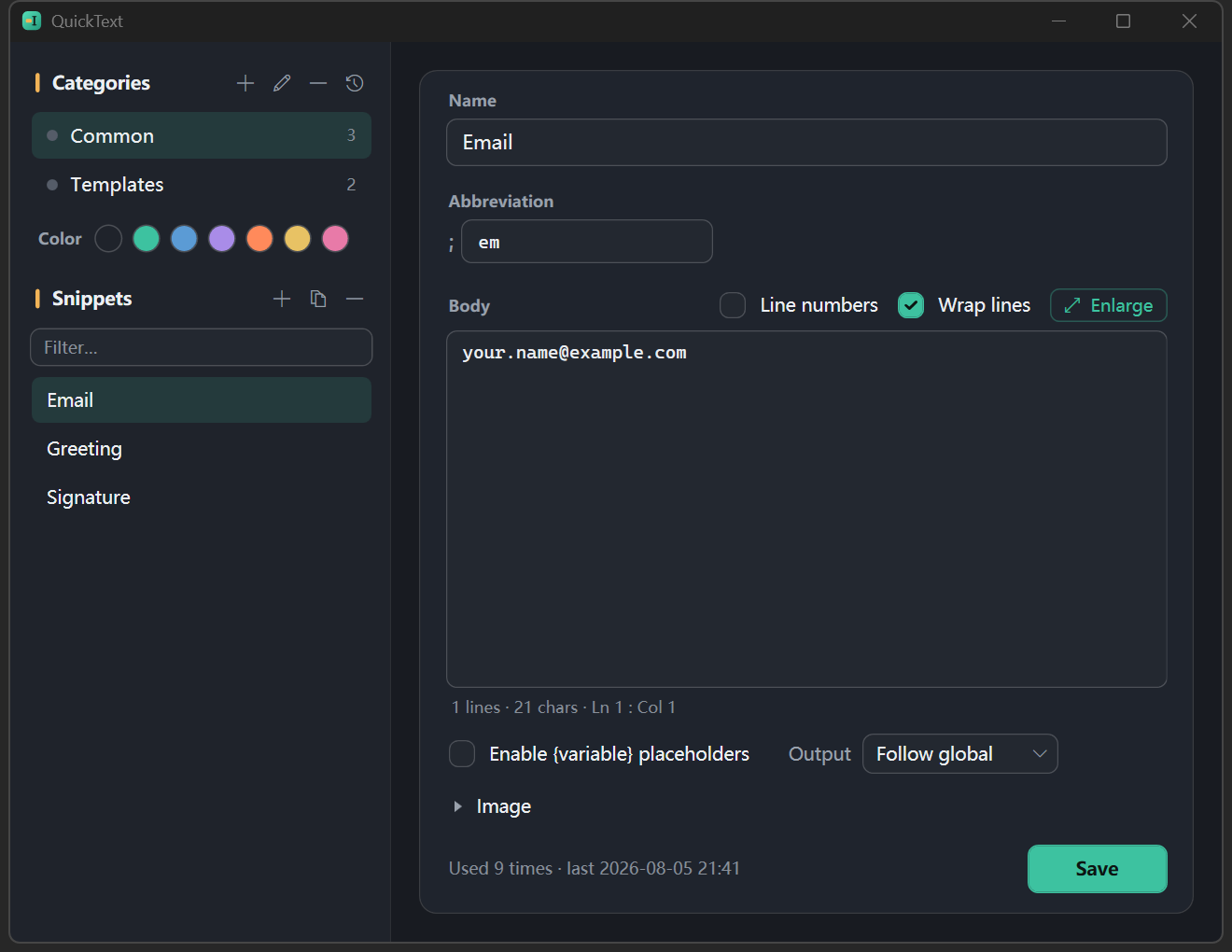
Ctrl+Z undoes a delete.Ctrl+N to save it as a new snippet (that text becomes the body; @category … files it in that category) and jump to the Manager to finish (Ctrl+E edits the selected one).> Long text / code: the ⤢ Enlarge button above the body opens it in a near-full-screen editor (or press Ctrl+Shift+Enter in the body); Esc or "Done" ends the session; if you changed anything it asks whether to save or discard first. With "enable {variable} placeholders" checked, tokens are tinted by kind — variables cyan, auto tokens like {date} amber, {snippet:x} purple, {cursor} cyan dashed — while a misspelled snippet name, an invalid date format or an unclosed brace gets a red squiggle you can hover for the reason. All of those paste verbatim at send time, which used to be discoverable only after pasting the wrong thing. Hovering a date token also previews its resolved value. For code, leave the checkbox off: highlighting is fully disabled so a body full of {} stays quiet, and the status bar just notes how many tokens will be output as-is. Also included: Enter keeps indentation and Tab indents a whole multi-line selection.
>
> The enlarged window always shows line numbers, and its footer offers a code format picker — JSON, YAML, XML, HTML, Markdown, SQL, Python, JavaScript/TypeScript, C#, Java, PowerShell, Shell and INI, 13 in all — which syntax-highlights the body and is remembered per snippet. The stored text stays plain and what gets pasted is unchanged. Placeholder highlighting paints the background while syntax highlighting tints the glyphs, so the two never fight: a JSON body with {variables} in it shows both its structure and its variables at once.
Placeholders are a per-snippet switch: tick "Enable {variable} placeholders" in the Manager editor and the tokens below are resolved on send; left unticked (the default), the body is sent verbatim — code, scripts and JSON full of literal {...} are never misparsed or prompted on.
> Upgrading: placeholders used to be always-on. The first launch after upgrading automatically ticks the switch for existing snippets whose body contains {...}, so nothing changes behavior; untick it in the Manager for the ones that are actually code.
When enabled, these placeholders are resolved on send:
| Placeholder | What it does |
|---|---|
{name} (any label) | Prompts you to fill it in before pasting; remembers your last value so repeats don’t re-ask |
{name:John} | Variable with a default, prefilled in the prompt |
{env|dev|test|prod} | Variable with options — the prompt shows a dropdown (first option doubles as the default; free typing still allowed) |
{clipboard} | Inserts the current clipboard contents |
{cursor} | Leaves the caret at this spot after pasting (also suppresses auto-Enter) |
{date} {time} {datetime} | Inserts the current date/time; supports offsets like {date+7} (7 days out) and custom formats like {date=MMM d, yyyy} / {time=HH:mm:ss}, combinable with offsets: {date+7=MM-dd}. Formats are WYSIWYG (: / output verbatim, always Gregorian), and {date=dddd} names the weekday in the interface language. Chinese aliases {日期} / {时间} / {日期时间} also work |
{uuid} {random} | Random values: a UUID / 6 digits, fresh per occurrence |
{snippet:name} | Inlines another snippet's body (3 levels deep, cycle-safe) — keep shared signatures in one place |
Example: a signature Best regards,\n{name} (with placeholders enabled) → asks for the name on send → pastes the finished signature.
Give a snippet an abbreviation to expand it directly in any input box. The trigger prefix is set once in Settings (default ;):
sig for your signature. The prefix is added automatically (don't retype it); the field shows the current prefix ; in front.;sig (= prefix + abbreviation) then Space / Tab / Enter → it deletes ;sig and expands the body (a {placeholder} prompts first when that snippet has placeholders enabled).;sig (same window, within 5 s).Details: matching is case-insensitive (;SIG fires with CapsLock on); a typo corrected with Backspace still expands; two snippets sharing an abbreviation get an inline warning in the Manager; and the tray menu has a one-click “Pause expansion” toggle (for demos/games).
> About the prefix: the prefix (default ;) keeps ordinary typing / pinyin from false-triggering a bare abbreviation. Change it under Settings → Abbreviations → Trigger prefix (to ,, :, …) or leave it empty. A prefixed abbreviation is self-delimiting and fires even glued to the preceding text (e.g. thx;sig); with no prefix it only fires as its own word (never as the tail of a longer one like graf). You can also disable abbreviations per app (a blacklist, e.g. cmd.exe; putty.exe) or turn them off entirely.
Ctrl+V). Optional: press Enter after pasting, single-click to send, “Keep my clipboard intact” (off by default — apps that read the clipboard slowly can end up pasting the old content instead). Each snippet can override this (Manager → Output: follow global / paste / paste + Enter / copy only) — chat phrases auto-send, code snippets never do.Ctrl/Alt/Shift/Win; function keys F1–F24 work on their own); or ② tap a modifier: single- or double-tap one modifier (e.g. right Ctrl, right Shift) to summon (a lone modifier can't be a normal hotkey, so it's detected by tap). Choosing tap disables the combo — the two are mutually exclusive, so it's always clear which one is live.| Action | Keys |
|---|---|
| Summon / close panel | Ctrl+Shift+8 (configurable) / Esc |
| Select / switch category / quick-pick | ↑↓ / ←→ / Alt+1–9 |
| Send | Enter or double-click (single-click optional) |
| Favorite / unfavorite | Ctrl+D |
| Create / edit in panel | Ctrl+N / Ctrl+E |
| Preview: expand / collapse | Ctrl+Space (when a preview shows) |
| Undo delete (Manager) | Ctrl+Z |
| Abbreviation: trigger / undo | type abbr + Space·Tab·Enter / Backspace after expanding |
@category keywords scopes the search to one category (bare @category browses it).⤢ Enlarge opens it in its own window; unsaved changes are always confirmed — on closing it, and on switching to another snippet), placeholder highlighting (tinted by kind; dead snippet refs / invalid date formats / unclosed braces are squiggled red with a reason on hover; nothing is highlighted when placeholders are off — the status bar says so instead), code-friendly (the enlarged window always shows line numbers and offers 13 code formats for syntax highlighting; Enter keeps indentation, Tab indents a multi-line selection, no-wrap mode), 7 category colors, drag reorder / move, multi-select batch move / delete (Ctrl / Shift select, then right-click), undo delete, trash (30-day restore, with body preview), duplicate-abbr warning, usage stats, save feedback.v* tags.Data folder (default Documents\QuickText, changeable in Settings, can point at a sync drive):
/
  ├─ index.json        # category order + each category's file name and color
  ├─ .json   # the snippets in that category (Snippet[])
  ├─ trash.json        # soft-deleted snippets (auto-purged after 30 days)
  └─ images/           # image files for image snippets
Snippet: { id, name, abbr, body, useVariables, outputMode, imagePath?, updatedAt }.*.tmp → File.Replace) so a sync never reads a half-written file; FileSystemWatcher hot-reload (coalesced), with a self-write guard.%APPDATA%\QuickText\settings.json, usage counts / favorites in %APPDATA%\QuickText\usage.stats (they change on every send and would conflict across machines), daily auto-backups in %APPDATA%\QuickText\backups\.QuickText.portable marker next to QuickText.exe and applies on the next restart (the first portable start carries your settings and usage across, so you don't reconfigure). Settings, usage, backups and the default library then live under \Data\ instead of %APPDATA% / Documents, and "start with Windows" uses a Startup-folder shortcut rather than the registry — so the whole tool travels on a stick and leaves nothing on the host. The app must sit in a writable location (a USB stick, not Program Files); the text library moves via Export / Import backup. Start-with-Windows is tracked per mode, so re-tick it in the new mode after switching if you want it. Leave it off for the installed layout above (the right choice when the data folder is a sync drive).(It has to be a marker file, not a plain setting — it decides where settings.json itself lives; the switch only takes effect next start, never disturbing the current session.)Assets live in assets/branding/: quicktext-mark.svg (primary), quicktext-mark-mono.svg (monochrome), quicktext.ico (16–256, app / tray icon), quicktext-256.png, quicktext-social.png (1200×630 og:image), quicktext-social-2x.png (2400×1260 @2x), brand.html (brand sheet). The mark is a text I-beam caret on a mint tile beside an amber block of just-landed text — “text▮”, i.e. putting your text at the cursor. Palette “terminal dusk”: mint (the app accent #3DC2A0) + amber #F2B457 on teal-biased ink; a sans wordmark paired with Cascadia Code mono.
Pure Core (no Win32, unit-testable) kept separate from Win32/UI.
src/QuickText.Core — everything testable without a window:
Models, Persistence (Store, UsageStore, JsonConfig)Search (SearchIndex), Abbr (AbbrMatcher), PinyinSnippets (Placeholders, PlaceholderScanner, CodeLanguages)Settings, Localization (.resx, 18 languages)src/QuickText.App — the WPF layer:
SearchPanel / ManagerWindow / SettingsWindow / BodyEditorWindow / AppDialog / VariablesDialogBodyEditor (native TextBox with the custom-drawn PlaceholderLayer and LineNumberGutter) and CodeEditor (AvalonEdit)Ui/Syntax (bundled YAML/INI/Shell highlighting plus the dark and light token palettes), Ui/Theme.xaml + Ui/Theme.Light.xamlInterop: GlobalHotkey, KeyboardHook, PasteEngine, Autostart, NativeMethodstests/QuickText.Core.Tests — Core unit tests (xUnit).
dotnet build QuickText.sln -c Debug
dotnet test  tests/QuickText.Core.Tests/QuickText.Core.Tests.csproj
dotnet run  --project src/QuickText.App        # or run QuickText.exe under bin
Publish a single-file portable build (win-x64), with or without the .NET runtime bundled:
dotnet publish src/QuickText.App -c Release -p:PublishProfile=win-x64                 # standalone, no runtime needed
dotnet publish src/QuickText.App -c Release -p:PublishProfile=win-x64-needs-dotnet10  # much smaller, needs the .NET 10 desktop runtime
Requires the .NET 10 SDK. Windows only (Win32 global hotkey / keyboard hook / clipboard).
Project #023 of the 365 Open Source Plan — one person + AI, 300+ open-source projects in a year.
