BrightCtrl
Adjust the brightness of your external monitors right from the terminal.
A single native binary — no ddcutil, no Node.js, no runtime deps. Linux
talks DDC/CI directly over i2c; Windows uses the Monitor Configuration API.
Install
npm / npx (Linux & Windows, x64)
npx brightctrl          # run without installing
npm i -g brightctrl     # or install globally
Arch Linux (AUR)
yay -S brightctrl
Prebuilt binary
# Linux
curl -L https://github.com/shahriyardx/brightctrl/releases/latest/download/brightctrl -o brightctrl
chmod +x brightctrl
sudo mv brightctrl /usr/local/bin/
Windows
# Scoop
scoop bucket add brightctrl https://github.com/shahriyardx/brightctrl
scoop install brightctrl

# WinGet
winget install shahriyardx.brightctrl
Or download brightctrl.exe from the latest release and run it from a terminal.
From source
cargo install --git https://github.com/shahriyardx/brightctrl
Setup (Linux)
DDC/CI needs the i2c kernel module and group access (one-time):
sudo modprobe i2c-dev
echo i2c-dev | sudo tee /etc/modules-load.d/i2c.conf   # load on boot
sudo usermod -aG i2c $USER                              # then log out and back in
On Windows no setup is needed — just enable DDC/CI in your monitor's OSD menu
if list comes up empty. Monitor names come from EDID; if Windows has no driver
for a display it may fall back to a generic name.
TUI
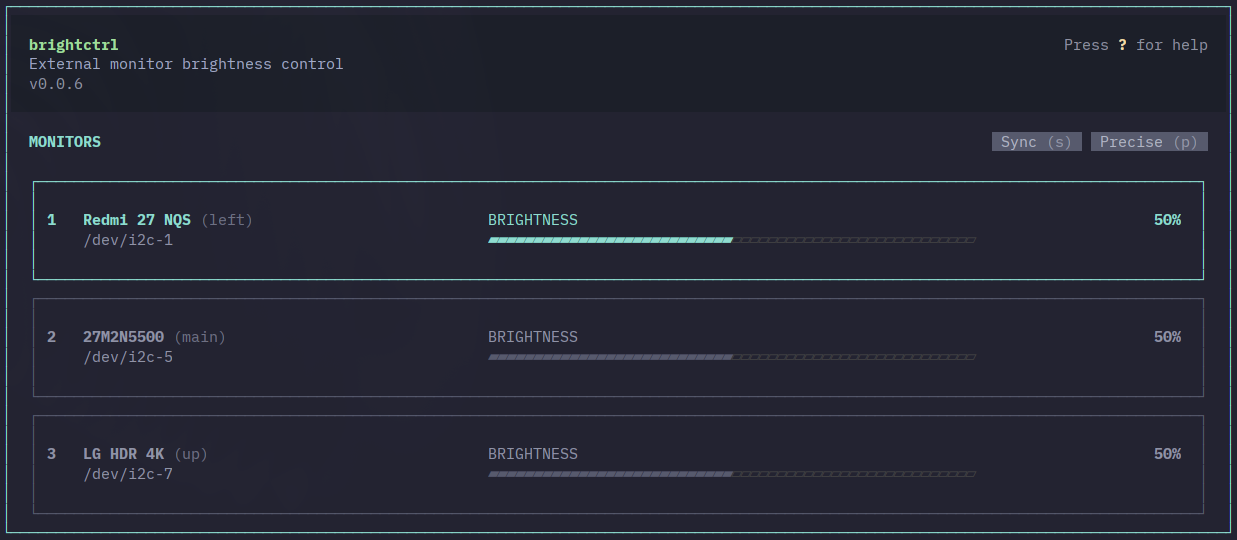
Run brightctrl with no arguments.
| Key | Action |
|---|
↑ ↓ / k j | Pick a monitor |
← → / h l | Brightness down / up |
1–9 | Select monitor by number |
/ | Type an exact value (0-100) |
p | Precise mode — 1% steps instead of 5% |
s | Sync — adjust all monitors at once |
m | Set brightness to 0 |
r | Refresh monitor list |
? | Help |
q | Quit |
CLI
brightctrl list                 # detected monitors with ids, aliases, brightness
brightctrl list --json          # same, as JSON
brightctrl list --fast          # read the cache instead of scanning i2c
brightctrl get          # print brightness (0-100)
brightctrl set  <0-100> # set brightness
brightctrl alias      # name a monitor for easier targeting
brightctrl alias            # remove the alias
`` is a monitor number (1), its id (GSM7707), or an alias (left).
Config and aliases live at ~/.config/brightctrl/config.toml.
Scanning vs the cache
A full DDC/CI scan walks every i2c bus and retries each one, because a single
read often NAKs even on a healthy monitor. That takes a few seconds — fine for
the TUI, far too slow for anything interactive.
So the detected list is cached at ~/.config/brightctrl/monitors.json.
--fast serves list and get straight from it. set uses it too: it
resolves the target from the cache and confirms the monitor on that bus still
reports the id it cached before writing, so a hotplug that renumbered the buses
can't send the write to the wrong display. Pass --no-cache to force a scan.
Cached brightness is the value as of the last scan or set, so it goes stale if
you change brightness from the monitor's own OSD buttons. Run a plain
brightctrl list to resync.
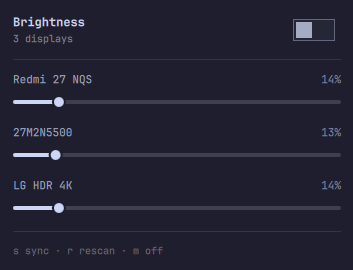
On Omarchy, brightctrl can also live in the status bar
as a popup with one slider per monitor.
brightctrl shell install
omarchy-shell shell rescanPlugins
omarchy plugin enable brightctrl.brightness
The widget reads through the cache, so the popup opens instantly and dragging a
slider writes in milliseconds. Keys: s sync all displays, r rescan, m off,
arrows to pick a display and adjust it.
brightctrl shell uninstall removes it again.
The Omarchy shell only discovers plugins in ~/.config/omarchy/plugins/, which
a package can't write to at build time — hence the install step. The QML itself
lives in shell/ in this repo.
Waybar module
Waybar can't host the popup — that widget is QML, and waybar has no plugin API
and no slider. What it can do is a text readout you scroll on, and brightctrl
speaks Waybar's JSON directly, so there is no wrapper script to install.
Add this to ~/.config/waybar/config.jsonc:
"custom/brightness": {
  "exec": "brightctrl waybar",
  "return-type": "json",
  "interval": 10,
  "tooltip": true,
  "on-scroll-up": "brightctrl set all +5",
  "on-scroll-down": "brightctrl set all -5",
  "on-click": "xdg-terminal-exec brightctrl"
}
Then put "custom/brightness" in one of the modules-* arrays.
The bar shows the brightest display; the tooltip lists each one by its name.
Scrolling moves every monitor together, and clicking opens the TUI. Change the
step by editing +5 / -5.
xdg-terminal-exec launches your configured default terminal. Swap it for
whatever you use — foot brightctrl, alacritty -e brightctrl,
kitty brightctrl — if you don't have it.