Lunifier



Seamless cross-platform (Windows & Linux) software that transfers your Logitech Easy-Switch keyboards and mice (MX Keys, MX Master series, M720 Triathlon, POP, etc.) between computers when the mouse cursor hits the edge of your screen—just like Logitech Flow, but operating autonomously over direct Bluetooth, Unifying, and Logi Bolt receivers without requiring any local network!
Why Lunifier?
Official Logitech Flow has significant limitations:
- No Linux Support: Logitech Options+ is not available on Linux.
- Network Dependency: Official Flow mandates that all computers share the same Wi-Fi/LAN subnet with open ports, which fails on VPNs, guest networks, corporate firewalls, or isolated PCs.
- Multi-Channel Border Routing: Lunifier lets you route each screen edge (Left, Right, Top, Bottom) to distinct Easy-Switch channels (Channel 1, Channel 2, Channel 3), effortlessly coordinating 2-PC or 3-PC setups.
Lunifier solves all of these:
- Autonomous Multi-Protocol Support: Automatically detects and switches your Logitech devices whether connected via Direct Bluetooth, Unifying Receivers, Logi Bolt Receivers, or mixed transports (e.g. keyboard on Unifying receiver and mouse on Bluetooth).
- Logitech HID++ 2.0 Feature
0x1814 (CHANGE_HOST): Issues hardware channel switch commands directly to all connected Easy-Switch peripherals simultaneously.
- Multi-Border Screen Routing: Configure what happens at each border independently: e.g. Left Border switches to Channel 1, Right Border switches to Channel 3.
- Dual Operating Modes: Operates completely autonomously on each host with zero inter-PC connection, or links peers over Bluetooth RFCOMM for cursor entry coordinate alignment and clipboard sync without any LAN/Wi-Fi connection.
Multi-Border 3-Channel Architecture
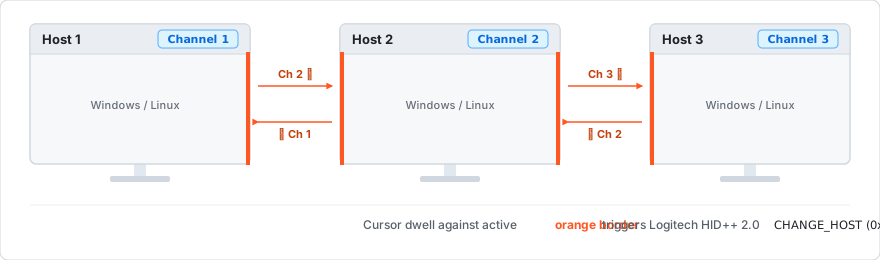
When the cursor dwells against a configured screen border:
- Host 1 Right Border $\rightarrow$ Instantly switches keyboard & mouse to Channel 2.
- Host 2 Left Border $\rightarrow$ Instantly switches keyboard & mouse to Channel 1.
- Host 2 Right Border $\rightarrow$ Instantly switches keyboard & mouse to Channel 3.
- Host 3 Left Border $\rightarrow$ Instantly switches keyboard & mouse to Channel 2.
ASCII Layout Schematic
+---------------------------+   +---------------------------+   +---------------------------+
|          Host 1           |   |          Host 2           |   |          Host 3           |
|        (Channel 1)        |   |        (Channel 2)        |   |        (Channel 3)        |
|                           |   |                           |   |                           |
|       Right Border ===>   |   |   <=== Left Border        |   |                           |
|      (Switch to Ch 2)     |   |   (Switch to Ch 1)        |   |                           |
|                           |   |                           |   |                           |
|                           |   |       Right Border ===>   |   |   <=== Left Border        |
|                           |   |      (Switch to Ch 3)     |   |   (Switch to Ch 2)        |
+---------------------------+   +---------------------------+   +---------------------------+
Installation & Quick Start
1. Windows Installation
Option A: Windows Installer (.exe / Winget ready)
Download and run Lunifier-Setup-1.0.0.exe from Releases.
Option B: Windows Package Manager (Winget)
Once submitted to the official winget-pkgs repository, or using the local manifest:
winget install silviuk.Lunifier
Option C: Portable / Development Setup
- Clone or extract the repository.
- Run
setup_windows.bat (installs dependencies and tests device detection).
- Run
run_gui.bat to configure settings, or run_daemon.bat to start the background service.
2. Linux Installation
Option A: APT Repository (Recommended — Automatic Updates)
Lunifier maintains an official APT repository hosted directly on GitHub Pages. Adding this repository allows your Ubuntu or Debian system to receive and install new versions automatically whenever you run standard system upgrades (sudo apt update && sudo apt upgrade).
One-Line Quick Install:
curl -fsSL https://silviuk.github.io/Lunifier/install.sh | sudo bash
> [!TIP]
> You can also browse the repository landing page with one-click copy commands at silviuk.github.io/Lunifier.
Manual Step-by-Step Installation
# 1. Add repository GPG signing key
sudo mkdir -p /etc/apt/keyrings
curl -fsSL https://silviuk.github.io/Lunifier/key.gpg | sudo gpg --dearmor -o /etc/apt/keyrings/lunifier.gpg

# 2. Add Lunifier repository to APT sources
echo "deb [signed-by=/etc/apt/keyrings/lunifier.gpg] https://silviuk.github.io/Lunifier stable main" | sudo tee /etc/apt/sources.list.d/lunifier.list

# 3. Update & install
sudo apt update
sudo apt install lunifier
Option B: Standalone Debian / Ubuntu Package (.deb)
Download the latest .deb package directly from Releases:
sudo apt install ./lunifier_2.2.2_all.deb
This automatically configures udev permissions, desktop shortcuts, and systemd user services.
Option C: Setup Script (Any Linux distribution)
- Open a terminal in the cloned repository:
chmod +x setup_linux.sh
./setup_linux.sh
- Launch the settings GUI:
lunifier --gui
- Enable autostart on login:
systemctl --user enable --now lunifier.service
Configuration (config.json)
Settings can be modified via the GUI (lunifier --gui) or by editing config.json:
- Windows location:
%APPDATA%\Lunifier\config.json
- Linux location:
~/.config/lunifier/config.json
(Note: Lunifier automatically migrates existing legacy settings if found).
{
    "host_name": "Host",
    "my_channel": 2,
    "target_channel": 3,
    "trigger_edge": "right",
    "entry_edge": "left",
    "hold_delay_ms": 250,
    "cooldown_ms": 2500,
    "edge_channels": {
        "left": 1,
        "right": 3,
        "top": null,
        "bottom": null
    },
    "devices": [
        "MX Keys",
        "Keys",
        "M370",
        "POP",
        "Triathlon",
        "M720",
        "MX Master",
        "MX Anywhere",
        "Mouse"
    ],
    "bt_p2p_enabled": false,
    "bt_peer_address": "",
    "sync_clipboard": false
}
Key Parameters:
my_channel: Easy-Switch channel (1, 2, or 3) on the current computer.edge_channels: Maps each screen edge (left, right, top, bottom) to a target Easy-Switch channel (or null to disable).hold_delay_ms: Dwell time (in milliseconds) before triggering to prevent accidental switches when targeting scrollbars or window edges (default: 250).cooldown_ms: Delay after a switch before a new trigger is accepted to avoid immediate bounce-back.bt_peer_address: Bluetooth MAC address of partner host (optional, leave empty for Autonomous mode).
CLI Usage
usage: lunifier [-h] [--scan] [--switch {1,2,3}] [--daemon] [--gui] [--setup] [--config CONFIG]

Lunifier - Seamless cross-platform Logitech Easy-Switch Flow

options:
  -h, --help            show this help message and exit
  --scan                Scan and list connected Logitech devices across Bluetooth & Unifying
  --switch {1,2,3}      Immediately switch devices to Channel 1, 2, or 3
  --daemon              Run in background daemon mode
  --gui                 Launch the GUI settings and status window
  --setup, --configure  Interactive terminal configuration wizard
  --config CONFIG       Path to custom config.json file
License
MIT License. Copyright (c) 2026 Silviu Vlasceanu.