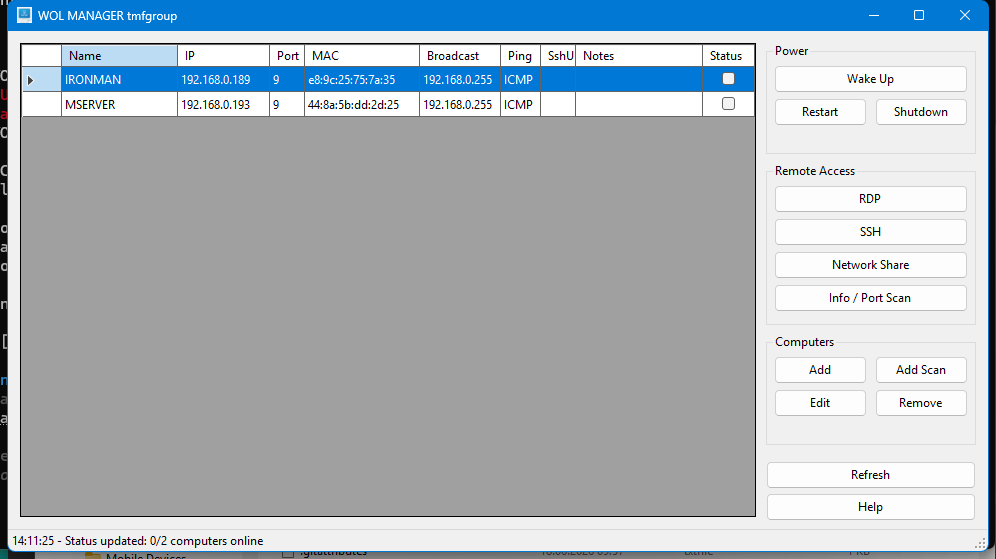
WOL Manager is a Windows desktop tool for network administrators that combines Wake-on-LAN,
remote power control (restart / shutdown), RDP, SSH, network share access, and port scanning
in one place. It auto-discovers Windows computers on the LAN, minimizes to the system tray,
and polls online/offline status every few seconds.
README
WOL Manager
A Windows desktop tool for network administrators — Wake-on-LAN, remote power control, RDP, SSH, network share access, and port scanning, all in one place.
Features
Feature
Description
Wake on LAN
Sends magic packets through all active network interfaces (multi-homed / Hyper-V safe)
Restart / Shutdown
Remote power commands via shutdown.exe with confirmation dialog
RDP
Launches Remote Desktop Connection with one click
SSH
Opens Windows Terminal or cmd with ssh [user@]host; username saved per computer
Network Share
Browses \\hostname in Explorer; credential dialog on failure
Info / Port Scan
Pings host, detects OS from TTL, scans 20 common TCP ports in parallel
Network Scanner
Auto-discovers Windows computers on LAN (ping + ARP + hostname)
System Tray
Minimize to tray; balloon notification when a woken computer comes online
Notes
Free-text notes per computer (role, location, owner)
Status polling
Online / offline status refreshed every 10 seconds
Screenshots
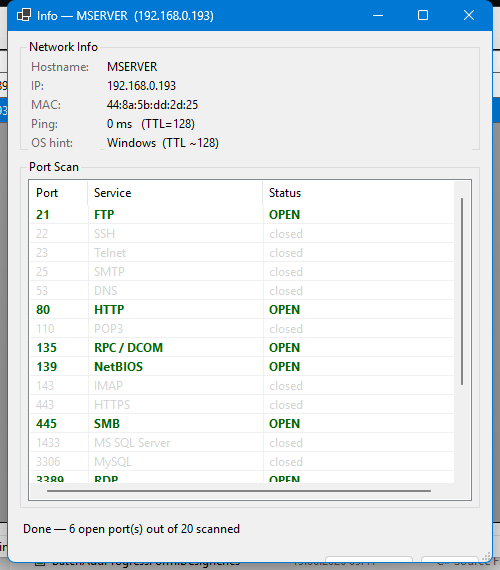
Info / Port Scan
Pings the target, guesses the OS from TTL, and scans 20 common TCP ports in parallel.
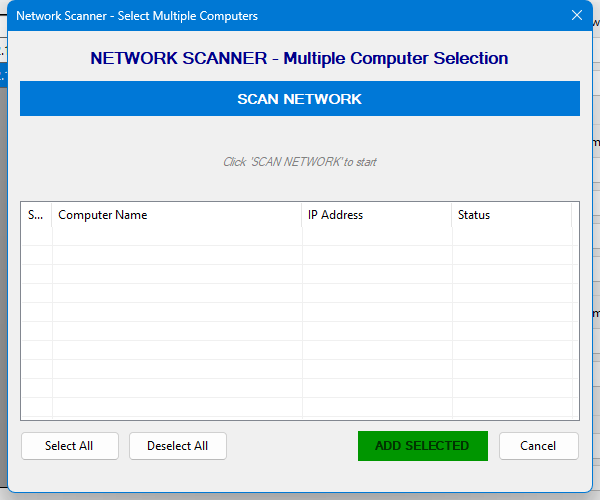
Network Scanner
Auto-discovers active computers on the LAN — click Scan Network, tick the ones you want, and add them in bulk.
OpenSSH Client (optional, for SSH) — Settings → Apps → Optional features → OpenSSH Client
Installation
Download WOLManager-Setup-1.1.exe from Releases and run it.
The installer places files in Program Files (requires admin rights).
Configuration is stored in %APPDATA%\WOLManager\computers.json — survives reinstalls and updates.
Building from source
git clone https://github.com/toevi/WOLManager.git
cd WOLManager
dotnet build -c Release
Add computers — click Add (manual) or Add Scan (auto-discover)
Wake a computer — double-click the row, or select it and click Wake Up
Remote access — select a computer, then use RDP / SSH / Network Share
Port scan — select a computer, click Info / Port Scan
Edit SSH username — click Edit, fill in SSH username field — it will be used automatically next time
Wake on LAN tips
MAC address is required (AA:BB:CC:DD:EE:FF)
WOL must be enabled in BIOS/UEFI and in the network adapter power management settings
Disable Fast Startup: Control Panel → Power Options → Choose what the power buttons do → Turn on fast startup: OFF
Works on the same LAN segment; for cross-subnet WOL configure directed broadcast on your router
Remote Restart / Shutdown tips
File and Printer Sharing must be enabled on the target
Firewall rule Remote Shutdown must be active on the target
You need administrator rights on the target machine
Security
All external processes launched via ProcessStartInfo.ArgumentList — no shell string interpolation
SSH target validated with a strict regex before reaching any terminal emulator (blocks shell metacharacters even from attacker-controlled DNS hostnames)
Port scan uses pure .NET TcpClient.ConnectAsync — no shell, no data read, port is a typed int
Config stored in %APPDATA%\WOLManager\ (not Program Files — no elevated writes at runtime)