Quick Shell
Open your favorite project folders from PowerToys Command Palette, PowerToys Run, or Raycast for Windows in one search.
Save directories you use every day, open them in whichever terminal you actually use, optionally run a command on open (dotnet run, npm run dev, and so on), and jump there without digging through File Explorer.
What you can do
- Save workspaces to folders you open often, with optional home keywords for fast root search
- Any terminal you use: Windows Terminal, Intelligent Terminal, every profile on your PC, plus WSL and classic shells
- Multiple launches per workspace: run several terminals or commands from one folder (API + frontend, shell + dev server, and so on)
- Tabbed multi-launch: when several launches share the same Windows Terminal host, they open as tabs in one window instead of separate windows
- Run commands on open: start dev servers, scripts, or anything else automatically
- Suggested commands: click a pill to add a project-aware launch command based on what's in the folder (
package.json, *.csproj, docker-compose.yml, and more)
- Repo-aware workspace setup: creating or discovering a workspace can pre-fill multiple launch rows from the project layout
- Task search: search by launch label or command (e.g.
dev, frontend, dotnet watch) from the Command Palette home screen or inside Quick Shell
- Git branch targets: pin a branch per worktree folder; Quick Shell switches before launch and remembers targets across linked worktrees
- Workspace health checks: pre-launch validation, runtime signals (ports in use, matching processes), and status badges on the list
- Discover git repos: scan local folders and add repositories as workspaces
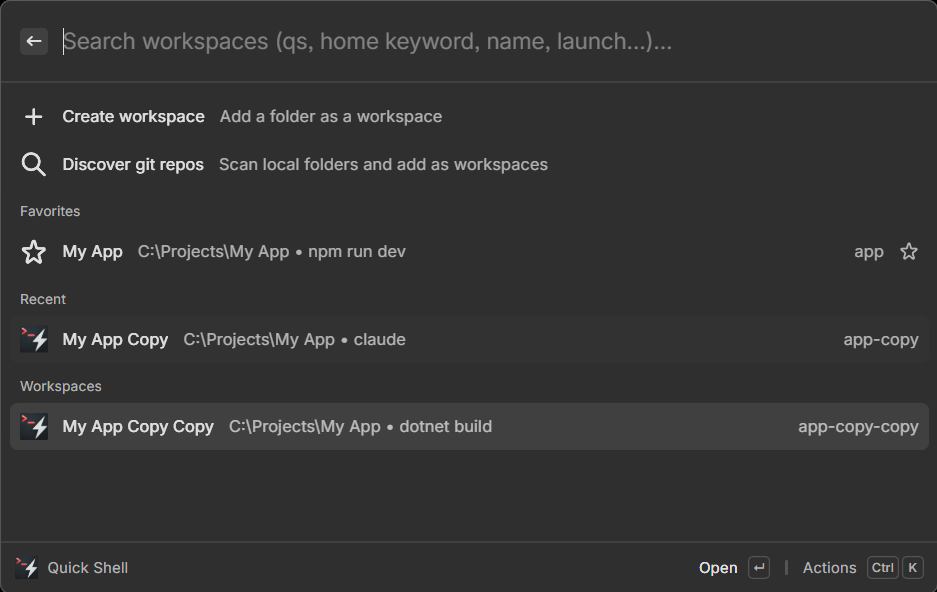
- Favorite workspaces so they stay at the top of your list, with Recent and Workspaces sections below
- Create and edit in Command Palette: no hand-editing JSON required
- Undo and redo edits from the list, settings row, or Ctrl+Z / Ctrl+Y
- Section headers in your list to group projects
- Import and export workspaces as JSON from Quick Shell settings (backup, sharing, migration)
- Open elevated when you need admin, from the ⋯ menu or with Ctrl+Enter
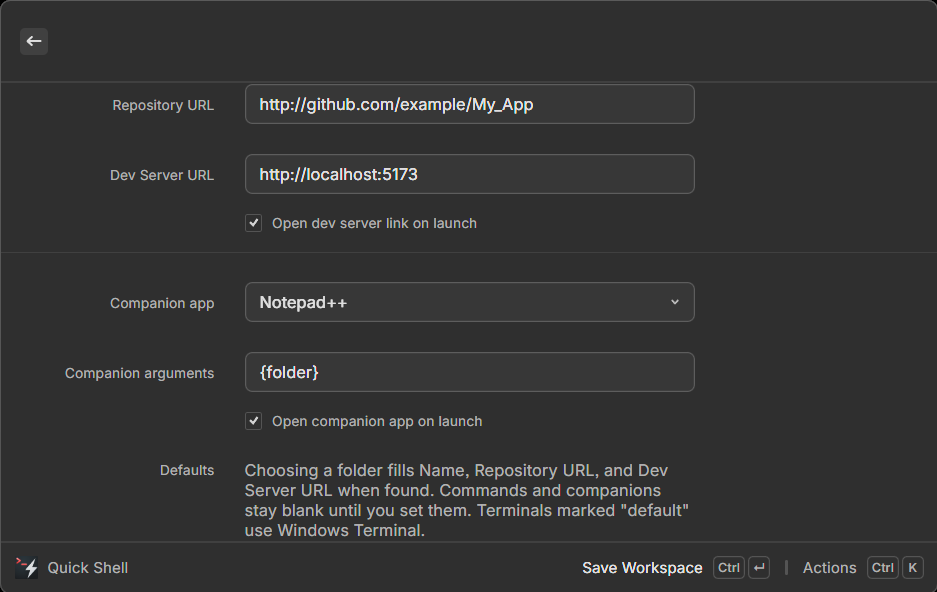
- Optional dev server, repo, and companion app links: open a browser tab or editor when a workspace runs
- Search from the root palette: type a home keyword like
api and matching workspaces appear without opening the extension first
- PowerToys Run on WinGet and GitHub installs: type
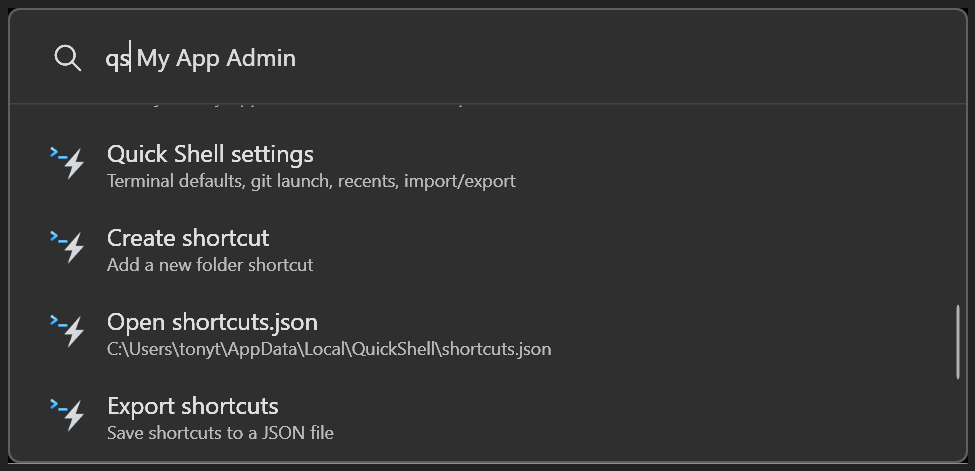
qs in Run (Alt+Space) to open the same workspaces from a second launcher
Quick start
Open Command Palette, search Quick Shell, and you're in.
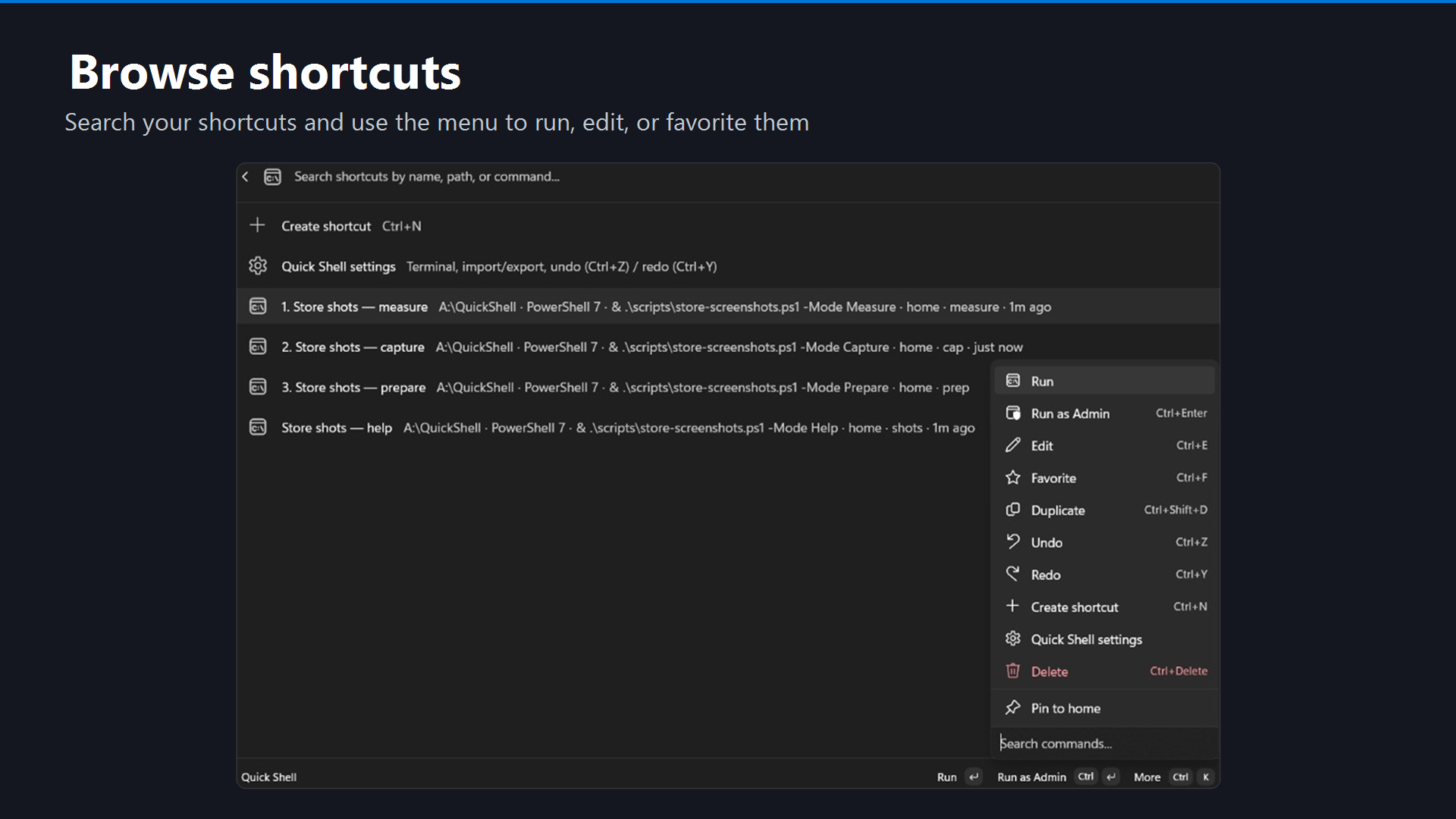
1. Browse workspaces (Ctrl+K for everything else)
Search, favorite, edit, duplicate, undo, and run, all from the list and its context menu.
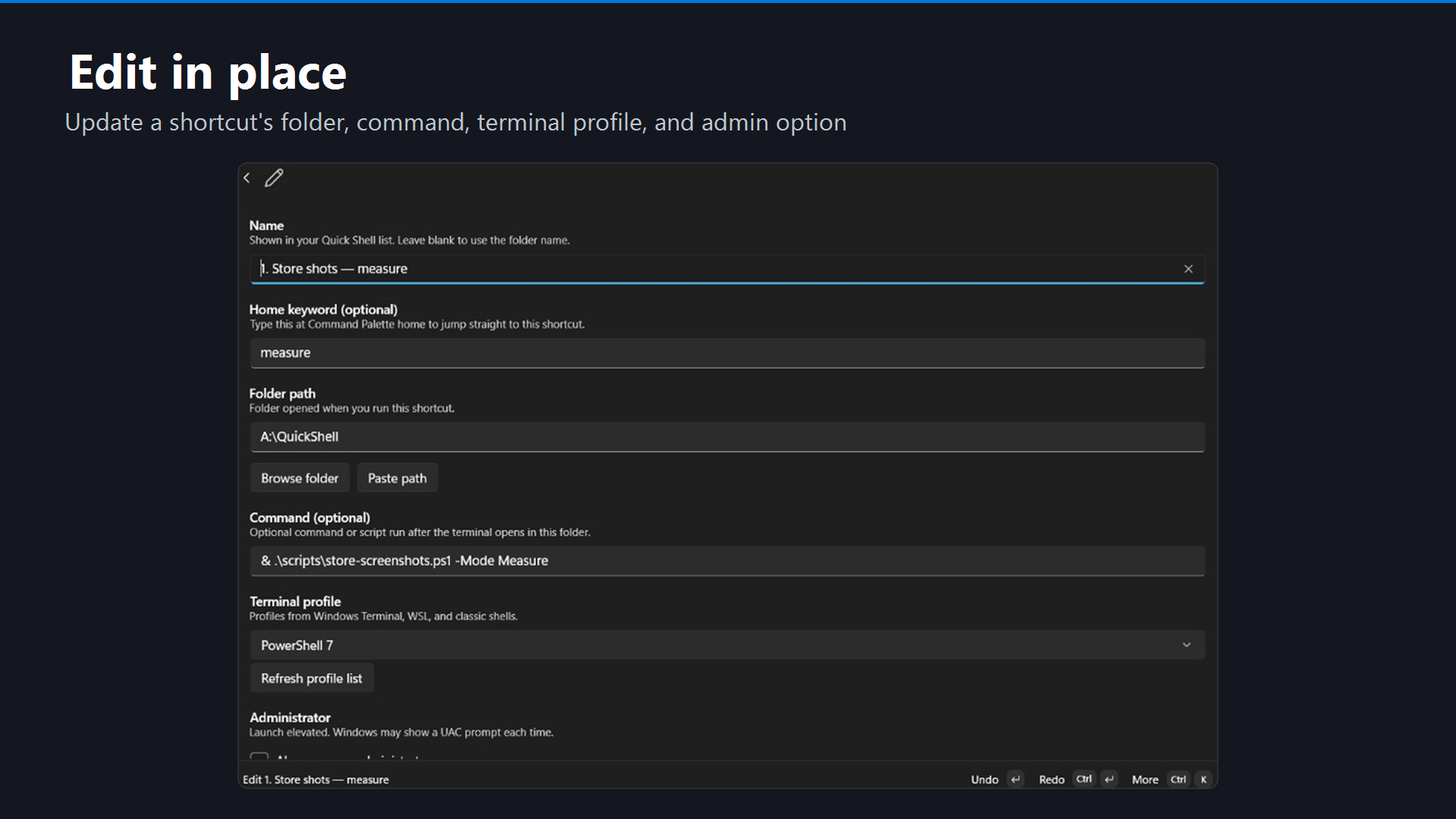
2. Edit in place (folder, command, terminal, admin)
No JSON required. Pick a folder, optional command, profile, and whether to launch elevated.
3. Settings (defaults, backup, import, git launch)
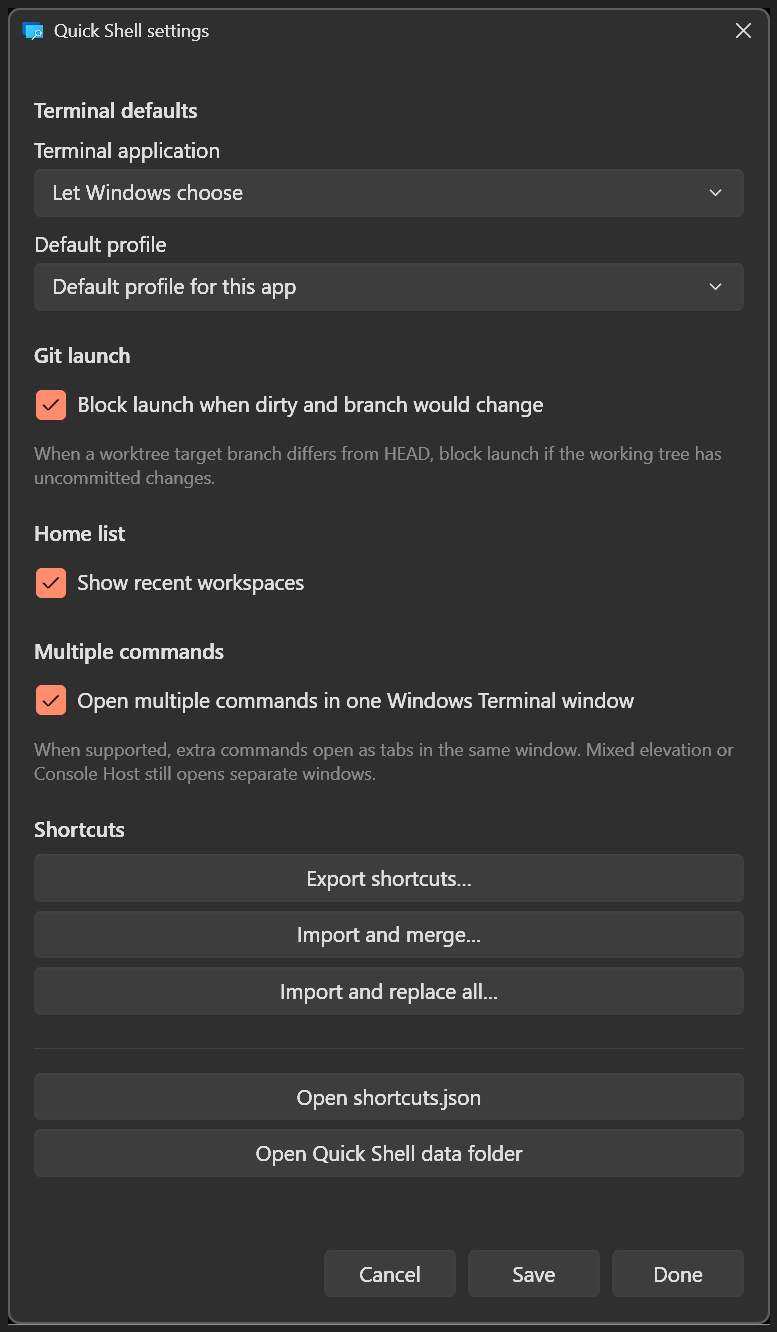
Set your default terminal host and profile, configure git launch safety (block when dirty + branch switch), export a backup, or import workspaces from another PC. Merge keeps yours and adds new names; Replace all swaps the whole file.
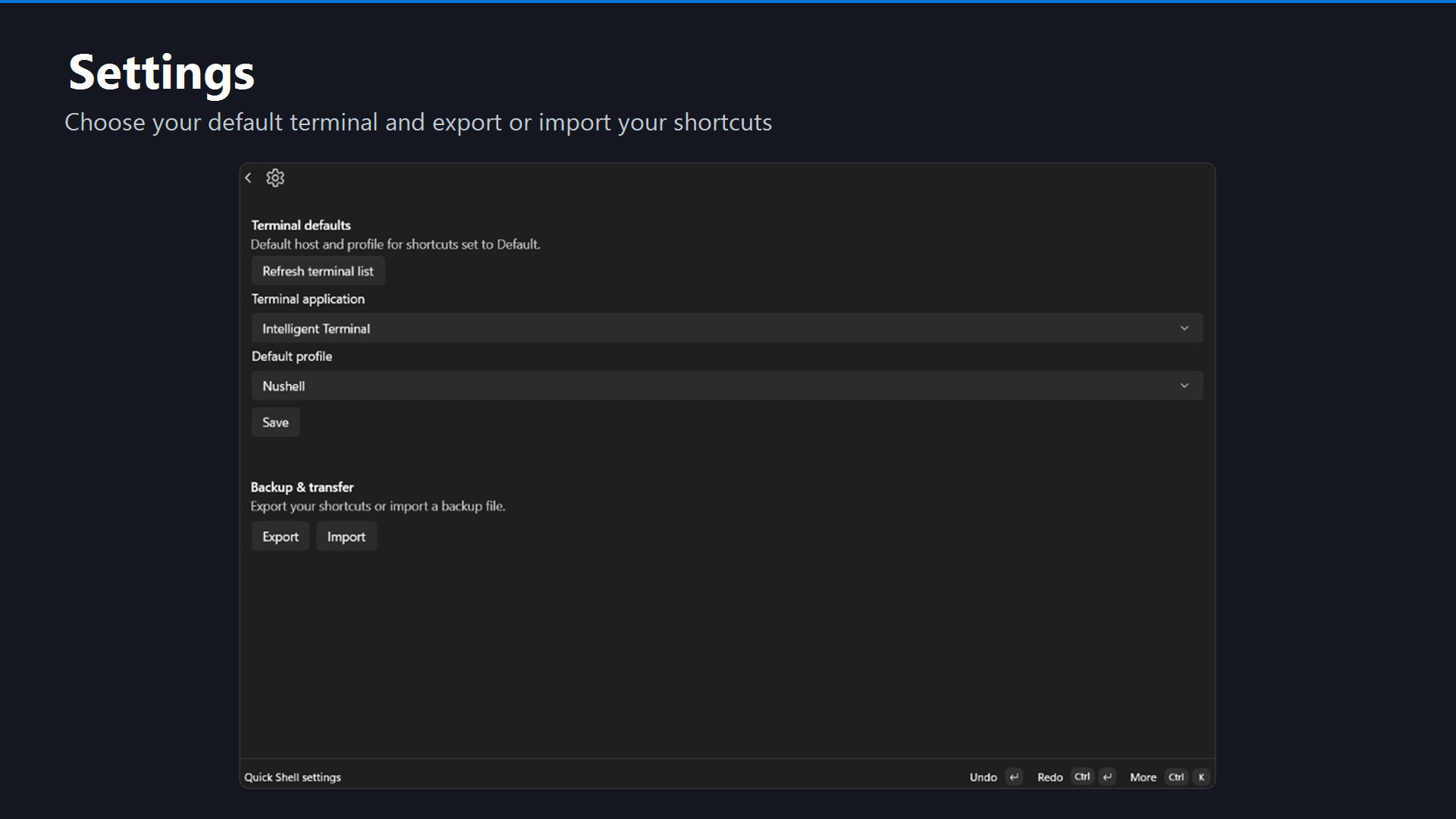
At the top of the list: Create workspace (Ctrl+N), then Discover git repos, then Quick Shell settings. You can also open settings from ⋯ → Quick Shell settings on any workspace.
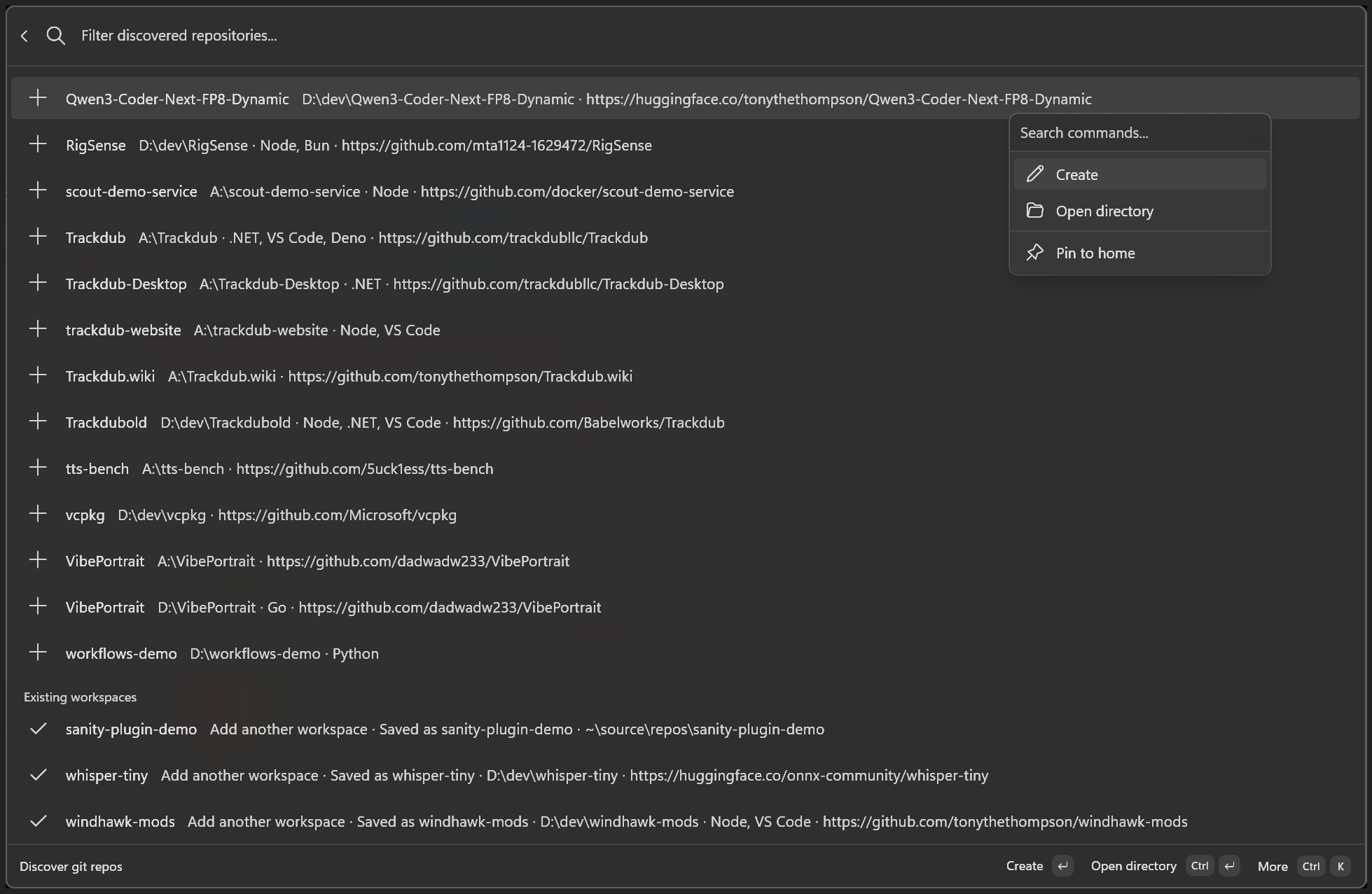
4. Discover git repos
Scans common project folders and lists repositories not yet saved as workspaces — add one with a click, or pin it straight to home.
Your workspaces are stored in %LOCALAPPDATA%\QuickShell\shortcuts.json. Git branch targets live in %LOCALAPPDATA%\QuickShell\worktree-branch-targets.json. The app creates these on first run; you can also manage everything from Command Palette.
> Tip: If the extension does not appear, confirm Command Palette is on in PowerToys → Command Palette, then run Reload Command Palette Extension again.
Everyday usage
Open the ⋯ menu on any workspace (or press Ctrl+K) for edit, favorite, duplicate, undo, and elevated launch.
| What you want | How |
|---|
| Open a saved folder | Search Quick Shell, pick a workspace, Enter |
| Open from PowerToys Run | Alt+Space → qs, pick a workspace (WinGet / GitHub install) |
| Run one launch from a multi-launch workspace | ⋯ → pick the launch by label (e.g. Frontend, API) |
| Jump straight to a workspace | Type its home keyword at the Command Palette home screen (e.g. api) |
| Run a specific task from anywhere | At the Command Palette home screen, search by launch label or command (e.g. dev, dotnet watch) |
| Create a workspace | Create workspace at the top of the list (Ctrl+N), or ⋯ → Create workspace |
| Discover local git repos | Discover git repos on the home list |
| Check workspace health | ⋯ → Workspace status… |
| Set or switch git branch target | Edit workspace details → Target branch, or Workspace status… → Switch branch… |
| Allow launch on a dirty tree | Quick Shell settings → Git launch → turn off Block launch when dirty and branch would change |
| Add a suggested command row | In the workspace editor, use Suggested commands when shown |
| Favorite a workspace | ⋯ → Favorite, or Ctrl+F |
| Duplicate a workspace | ⋯ → Duplicate, or Ctrl+Shift+D |
| Delete a workspace | ⋯ → Delete, or Ctrl+Delete |
| Reorder favorites | ⋯ → Move favorite up / down / to top / to bottom, or Ctrl+Alt+Up / Down |
| Edit a workspace | ⋯ → Edit, or Ctrl+E |
| Undo / redo | Select a row → Ctrl+Z / Ctrl+Y, or ⋯ → Undo / Redo |
| Open once as admin | ⋯ → Run as Admin, or Ctrl+Enter |
| Always open as admin | Enable Launch elevated in the editor, or "RunAsAdmin": true in JSON |
| Change default terminal or profile | Open Quick Shell settings (list row or ⋯ on any workspace) |
| Set how many recents to show | Quick Shell settings → Recent workspaces to show |
| Refresh terminal list | Quick Shell settings → Refresh terminal list, or ↻ in the editor |
| Copy last launch diagnostics | ⋯ → Copy launch diagnostics, or Quick Shell settings after a failed launch |
| Copy a redacted support bundle | Workspace status… or Quick Shell settings → Copy support bundle |
| Open redacted support logs | Workspace status… or Quick Shell settings → Open support log folder |
| Back up or move workspaces | Quick Shell settings → Export workspaces / Import workspaces |
| Reset all workspaces | Quick Shell settings → Reset all workspaces (backup .bak is kept) |
| Resolve import conflicts | Merge (keep yours, add new, rename duplicates) or Replace all (file only) |
| Reload after hand-editing JSON | Changes load automatically when Quick Shell reads the file |
Workspace options (shortcuts.json)
Each workspace is stored in %LOCALAPPDATA%\QuickShell\shortcuts.json. The filename is historical; entries are workspaces in the UI.
Core fields
| Field | Required | Description |
|---|
Name | Yes | Display name in Command Palette |
Directory | Yes | Folder to open |
Abbreviation | No | Home keyword: type at the Command Palette home screen to jump to this workspace (e.g. api). JSON field name stays Abbreviation. |
IsPinned | No | true to favorite the workspace (keeps it at the top under Favorites) |
RunAsAdmin | No | true to always launch elevated (UAC prompt); also available as a checkbox when editing |
Target branch is not stored in shortcuts.json. Set it in the workspace editor or Workspace status…; Quick Shell persists it in %LOCALAPPDATA%\QuickShell\worktree-branch-targets.json keyed by git worktree.
Legacy single-launch fields
Still supported; synthesized into Launches on load when Launches is empty:
| Field | Required | Description |
|---|
Command | No | Command to run after opening the folder |
Terminal | No | Launch target: default, wt (pair with WtProfile), it, powershell, pwsh, cmd, or wsl. The global terminal application setting chooses wt.exe vs wtai.exe for profile launches. |
WtProfile | No | Windows Terminal or Intelligent Terminal profile name when Terminal is wt or it |
Multi-launch (Launches)
Preferred for multiple terminals or commands per workspace. Each entry:
| Field | Required | Description |
|---|
Label | No | Display name for this launch in the editor and context menu |
Terminal | No | Same values as the legacy Terminal field |
WtProfile | No | Profile name when using wt or it |
Command | No | Command to run for this launch |
RunAsAdmin | No | true to launch this entry elevated |
IsEnabled | No | false to skip this launch (default true) |
Order | No | Sort order when multiple launches are enabled |
TaskType | No | Task category metadata for search and suggestions: none, api, frontend, services, logs, test, or build |
Optional links and companion app
| Field | Required | Description |
|---|
DevServerUrl | No | http:// or https:// URL opened in your browser when the workspace runs (if Open on launch is enabled) |
OpenDevServerOnLaunch | No | true to open DevServerUrl whenever the full workspace runs |
RepoUrl | No | Repository URL opened from the workspace context menu |
CompanionApps | No | Ordered list of companion apps (Path, Arguments, OpenOnLaunch, Order); max 5 |
CompanionAppPath | No | Primary companion path (mirrored from first CompanionApps entry; still dual-read) |
CompanionAppArguments | No | Primary arguments; use . or {folder} for the workspace directory |
OpenCompanionAppOnLaunch | No | Primary open-on-launch flag (mirrored); per-entry flags on CompanionApps win for multi |
Mix section headers into the same array with workspace objects:
| Field | Required | Description |
|---|
Type | Yes (for headers) | Set to "separator" for a titled section header |
Title | No | Section label shown in the list (omit for a blank divider) |
Favorited workspaces (IsPinned) appear under Favorites at the top, then Recent, then the rest under Workspaces (favorites and recents are not repeated in the workspace list). Configure how many recents appear in Quick Shell settings.
Example (legacy single-launch shape, still valid):
[
  {
    "Name": "My API",
    "Abbreviation": "api",
    "Directory": "C:\\Projects\\MyApi",
    "Command": "dotnet run",
    "Terminal": "wt"
  },
  {
    "Type": "separator",
    "Title": "Web"
  },
  {
    "Name": "Frontend",
    "Directory": "C:\\Projects\\web",
    "Command": "npm run dev",
    "Terminal": "wt"
  }
]
More examples: shortcuts.example.json.
Workspace health
Before a workspace launches, Quick Shell runs a health check and surfaces problems early.
| Signal | What it means |
|---|
| Blocking errors | Missing folder, invalid launch, unknown terminal profile, missing executable, or WSL distro. Launch is blocked with a clear message. |
| Warnings | Dev-server port already in use, or a matching process already running |
| Git state | Current branch and whether the working tree is clean or dirty |
| Branch mismatch | Configured target branch differs from the checked-out branch |
| Running | Port or process heuristics suggest the workspace may already be up |
In the workspace list, badges call out items that need attention (warning icon) or appear to be running (activity icon). Open ⋯ → Workspace status… for a full snapshot (launches, git, runtime signals, and attention items), with Refresh, detailed Copy launch diagnostics, and redacted support-bundle/log-folder actions.
Git branches and worktrees
Quick Shell understands git worktrees: each linked worktree folder gets its own target branch, stored in %LOCALAPPDATA%\QuickShell\worktree-branch-targets.json (separate from shortcuts.json).
- Set a target branch in workspace details, or use ⋯ → Workspace status… → Switch branch…
- On launch, Quick Shell checks out the target branch when it differs from HEAD
- Use current branch clears the target so launches follow whatever is checked out
- Git launch settings control whether launch is blocked when the tree is dirty and a branch switch would be required (on by default)
Need two branches open at once? Use git worktree add for a second folder, then save it as its own workspace with its own target.
Quick add commands
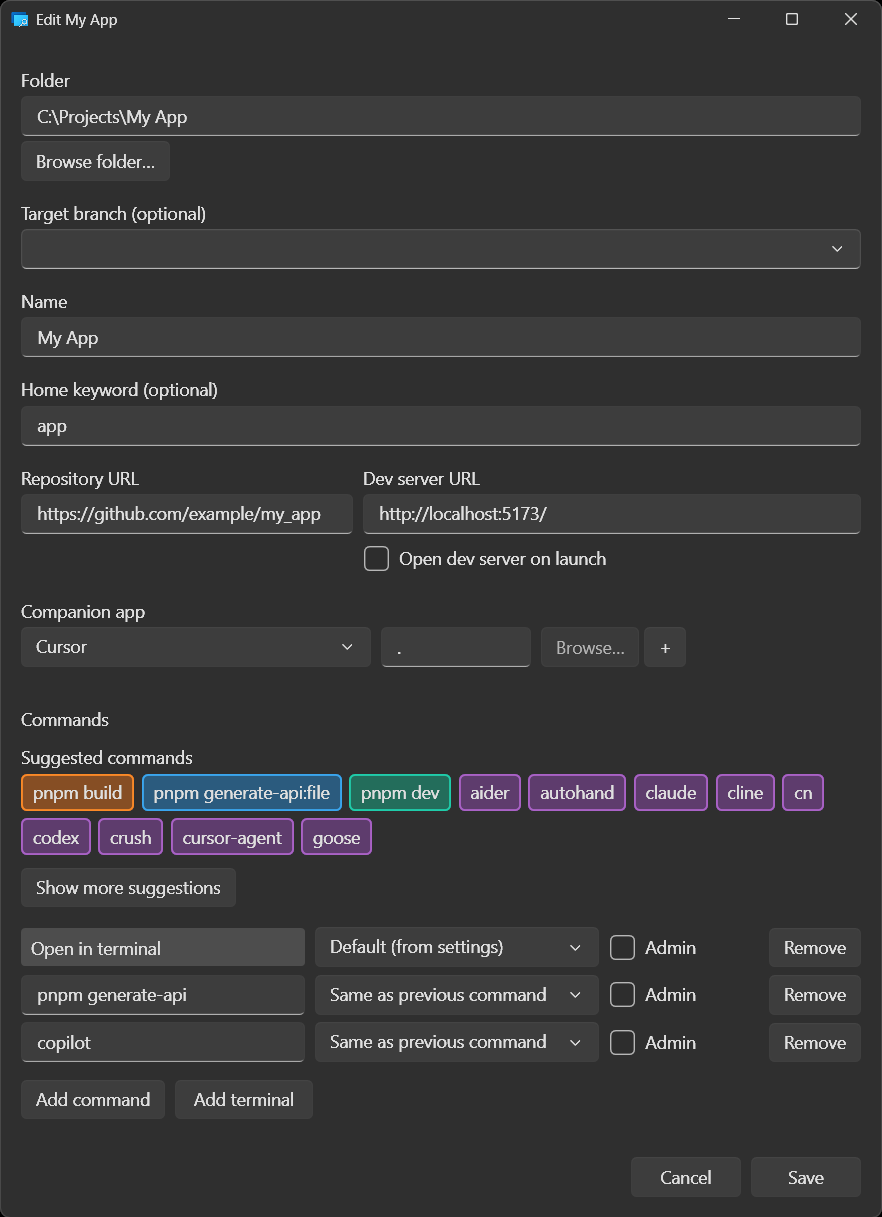
When editing a workspace, Suggested commands appear as clickable pills for folders Quick Shell recognizes (Command Palette and PowerToys Run) or as a picker in the Raycast extension. Each pill shows a concrete command such as API · dotnet watch — click once to fill the first empty launch row (or append a new row). Suggestions are based on files in the folder only; nothing is sent over the network.
| Behavior | Detail |
|---|
| Label | {Type} · {command} (for example Frontend · npm run dev) |
| On click | Inserts the command string; stores task type metadata on the row |
| After add | That pill hides while the command is in use |
| Clear row | Use the × on the command field (CmdPal/Run) or clear the text; the pill returns |
| Undo | Ctrl+Z / Ctrl+Y in CmdPal and Run undo pill add, clear, and show-more toggles (not per-keystroke command typing) |
| Save | Blank rows are dropped; at least one launch row is kept |
| Editor padding | New/edit forms start with three empty launch rows so the first few pill clicks avoid layout rebuilds (CmdPal) |
Suggestions come from package.json scripts, .NET projects, docker-compose.yml, Make/Just/Taskfile targets, VS Code tasks, and other markers in the folder. Browse/Paste on create or edit does not auto-fill commands or companion apps (use suggestion pills / pick a companion). Discover git repos still heuristically seeds launches and a companion when the project layout is clear.
Privacy: classification reads only the workspace folder you chose. Commands may appear in tooltips; they are not uploaded. Local support logs are redacted JSONL under %LOCALAPPDATA%\QuickShell\logs and omit workspace names, paths, commands, exception messages, and arbitrary data. Raycast uses the local QuickShell.Suggest helper (QUICKSHELL_SUGGEST_EXE overrides its path for development).
Terminals
Quick Shell reads Windows Terminal and Intelligent Terminal settings.json files and lists every profile you have configured, including custom shells such as Alacritty, WezTerm, Git Bash, or Ubuntu. It also discovers WSL distros and classic shells on your PATH (PowerShell, pwsh, cmd).
Quick Shell settings splits terminal choice the same way Windows does:
| Setting | What it controls |
|---|
| Terminal application | Host executable (wt.exe or wtai.exe) for Default launches and profile launches |
| Default profile | Profile used when a workspace's terminal is set to Default |
Per-workspace profile choices stay on each workspace in the editor. Host options include Let Windows choose and Windows Console Host for classic cmd / PowerShell launches.
Default terminal application and default profile are saved to %LOCALAPPDATA%\QuickShell\settings.json and survive reloads.
After you install a new terminal or edit profiles, use Refresh terminal list in Quick Shell settings or the ↻ button next to the terminal picker when creating or editing a workspace.
Requirements
- Windows 10 version 2004 (build 19041) or later. Windows 11 recommended.
- PowerToys with Command Palette enabled
Install
Option 1: Microsoft Store (recommended)
Get Quick Shell for CmdPal from the Microsoft Store (Store ID: 9PC8S6LNRT3R). In Command Palette, search Quick Shell.
The Store package is Command Palette only. For PowerToys Run, see PowerToys Run below.
Option 2: WinGet
Same extension, choose bundled (CmdPal + Run) or CmdPal only:
| Package | What you get |
|---|
tonythethompson.QuickShell | Command Palette and PowerToys Run (qs) |
tonythethompson.QuickShellforCmdPal | Command Palette only (same as Microsoft Store) |
# Bundled (CmdPal + Run)
winget install tonythethompson.QuickShell

# CmdPal only (Store-equivalent)
winget install tonythethompson.QuickShellforCmdPal
Restart PowerToys after the bundled install so Run picks up the plugin.
Option 3: Download an installer
Get the latest x64 or ARM64 installers from GitHub Releases:
| Installer | What you get |
|---|
QuickShell-Setup-*-x64.exe / *-arm64.exe | Command Palette + PowerToys Run |
QuickShellforCmdPal-Setup-*-x64.exe / *-arm64.exe | Command Palette only |
After installing
- Restart PowerToys (required for the Run plugin on WinGet and GitHub installs)
- Open PowerToys Command Palette (default: Win + Alt + Space)
- Run
Reload Command Palette Extension
- Search
Quick Shell
You should see Quick Shell with the subtitle Open saved folders in any terminal you use.
PowerToys Run
WinGet and the GitHub EXE installer ship the PowerToys Run plugin alongside Command Palette. The tonythethompson.QuickShellforCmdPal WinGet package and QuickShellforCmdPal-Setup-*.exe installers are CmdPal only (Store-equivalent). No separate download.
- Restart PowerToys after install
- Open PowerToys Run (Alt+Space)
- Type
qs to browse workspaces, or qs plus a keyword to filter (e.g. qs api)
Run uses the same shortcuts.json and settings as Command Palette. You can create, edit, and launch workspaces from either launcher.
Microsoft Store installs do not include Run. Download QuickShell.Run-x64.zip or QuickShell.Run-ARM64.zip from GitHub Releases, or follow docs/powertoys-run-plugin.md.
Run ships its own native (WPF) settings window and workspace editor, so both work without Command Palette running:


Raycast
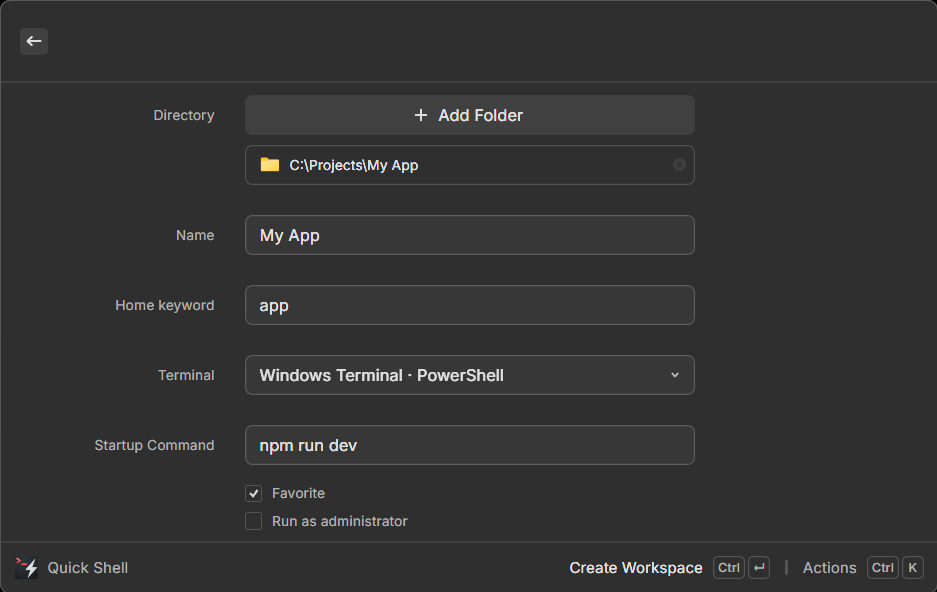
A native Raycast for Windows extension covering the same workspace model: Open Workspace, Create Workspace, Edit Workspace, Discover Git Repos, and Manage Workspaces. Search qs, quickshell, or a workspace's home keyword from Raycast's root search.
Install: from the Raycast Store (Windows and macOS). GitHub Releases and WinGet do not ship Raycast sideload packages.
Requires Raycast. Raycast stores workspaces in its own LocalStorage (not shared %LOCALAPPDATA%\QuickShell\shortcuts.json); use Import/Export JSON to bridge with CmdPal/Run. See QuickShell.Raycast/README.md for commands, preferences, and deeplinks.
Troubleshooting
Extension missing after install
Run Reload Command Palette Extension in Command Palette. Restart PowerToys if needed.
PowerToys Run (qs) not showing
Restart PowerToys after install. WinGet and GitHub EXE installs bundle the plugin automatically; Store users need the Run ZIP from Releases (see PowerToys Run).
Shortcuts disappeared after an update
Check %LOCALAPPDATA%\QuickShell\shortcuts.json.bak for a backup. Older installs may also have left a copy at %LOCALAPPDATA%\TerminalShortcutsCmdPal\shortcuts.json.
Duplicate or broken Quick Shell in Windows Settings
You may have an old installer alongside a newer one, or both Store and WinGet installed. In Settings → Apps, uninstall extra Quick Shell entries and keep a single install.
Building from source
For contributors and local MSIX installs (recommended for development):
Prerequisites: Windows 11, .NET 10 SDK, Visual Studio 2022 (Windows workload), PowerToys with Command Palette enabled.
# All surfaces (CmdPal MSIX + Run plugin + Raycast)
.\scripts\ddeploy.ps1
# same as:
.\scripts\deploy-all.ps1

# CmdPal only: stop CmdPal, build/install signed MSIX, start CmdPal
.\scripts\deploy.ps1

# Same, with local PowerToys CmdPal SDK (sibling PowerToys checkout)
.\scripts\run-cmdpal-dev.ps1 -UseLocalSdk

# Skip UAC entirely (trusts cert in CurrentUser\TrustedPeople)
.\scripts\deploy.ps1 -SkipElevation
.\scripts\ddeploy.ps1 -SkipElevation
After the first successful install, deploy.ps1 stays in your current terminal. It only elevates when the dev certificate is not trusted yet. Approve UAC once if prompted; later runs skip elevation automatically.
Required after every CmdPal deploy: run Reload Command Palette Extension in Command Palette, then search Quick Shell.
Dev deploy from workspaces: install launcher shortcuts into your shared shortcuts file, then reload the extension:
.\scripts\install-dev-deploy-shortcuts.ps1
This adds ddeploy, dcmd, drun, and dray workspaces that run the scripts above from PowerShell.
WinGet EXE vs dev MSIX: winget install tonythethompson.QuickShellforCmdPal installs an unpackaged EXE with COM registration. The dev loop installs a signed MSIX (tonythethompson.536944BA0D095). Both target Command Palette but use different registration paths. For local development, uninstall the WinGet CmdPal-only package before using deploy.ps1, or CmdPal may load the wrong build. deploy.ps1 warns when it detects %LOCALAPPDATA%\Programs\QuickShell\QuickShell.exe.
License
Apache 2.0. See LICENSE.
Website
tonythethompson.github.io/QuickShell: install steps, getting started, support, and privacy policy.
Microsoft Store: Quick Shell for CmdPal (Store ID: 9PC8S6LNRT3R)
Feedback
Open an issue on GitHub for bugs, ideas, or questions. Email: tonythethompson@hotmail.com.