Features
-
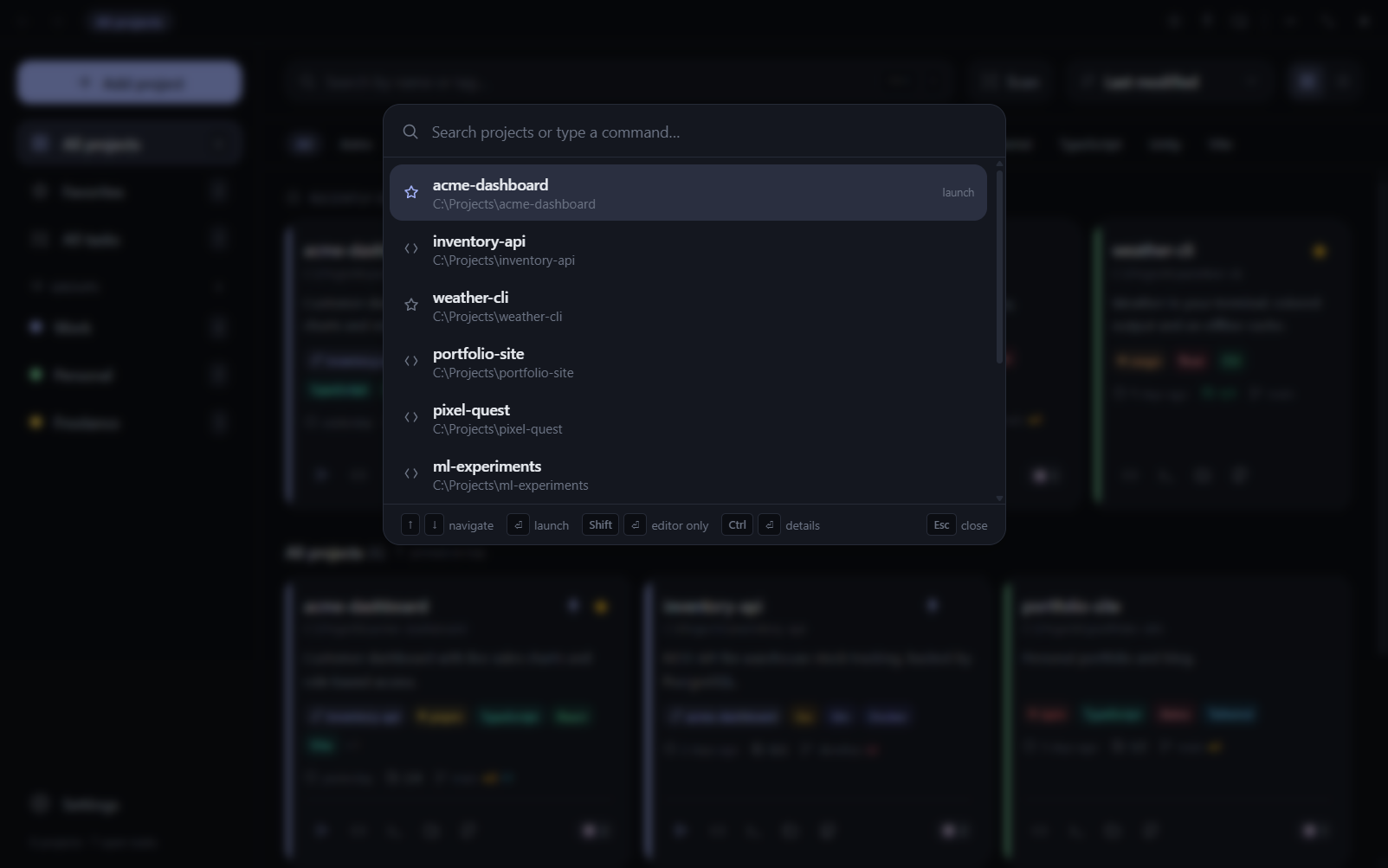
Command palette (Ctrl+K): fuzzy-search your projects and press Enter to open one in your editor. A global shortcut (Ctrl+Shift+P) opens it even while the app sits in the tray.
-
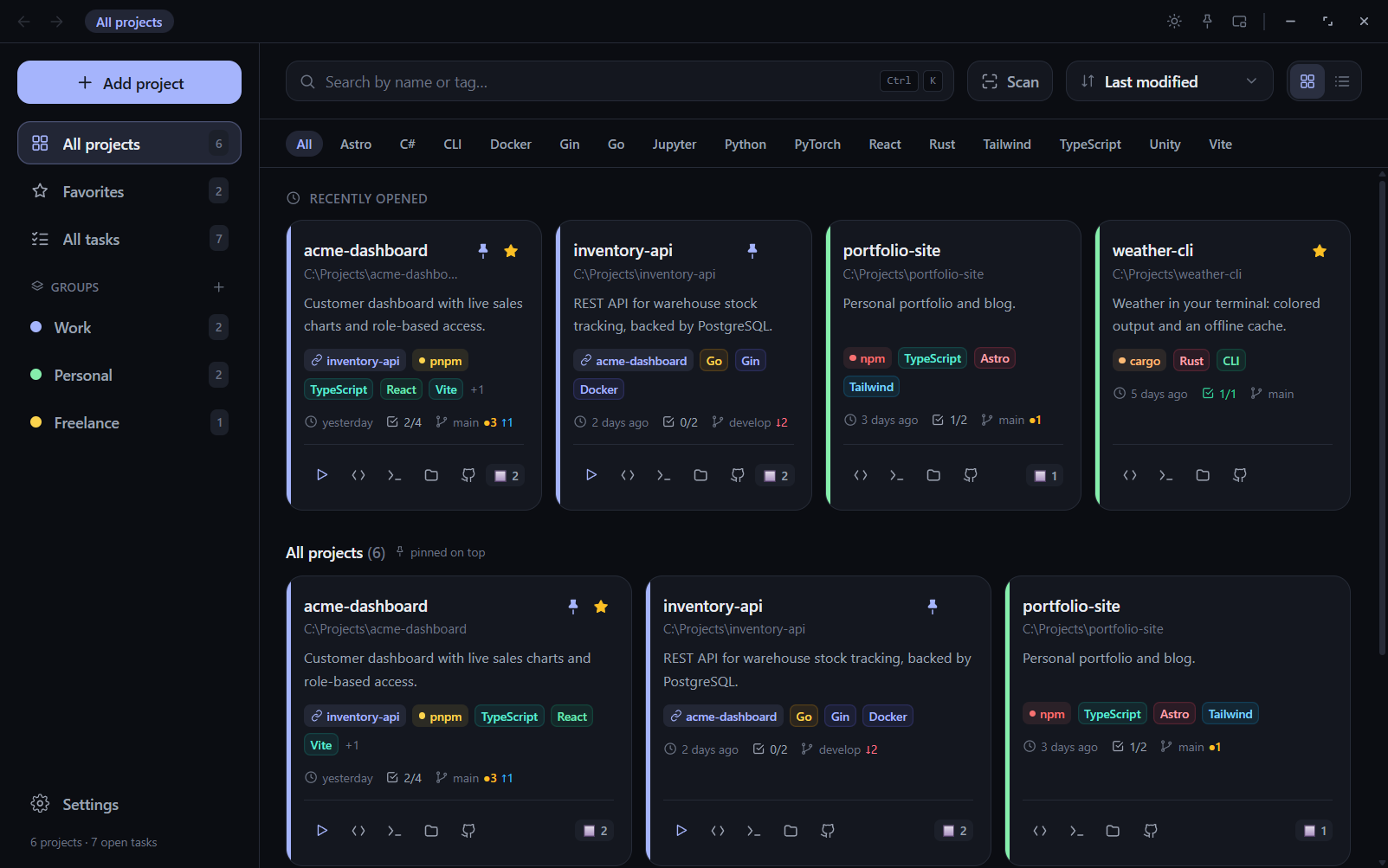
Add projects your way: pick a folder, drop one onto the window, or scan a root folder and import everything it finds.
-
Automatic detection of ~40 languages, frameworks (React, Next.js, Django, Laravel, Rails, Spring, Flutter, Unity, Godot…) and package managers (npm, pnpm, yarn, bun, cargo, pip, poetry, go, composer, nuget…).
-
Git status on every card: current branch, uncommitted changes, commits ahead/behind.
-
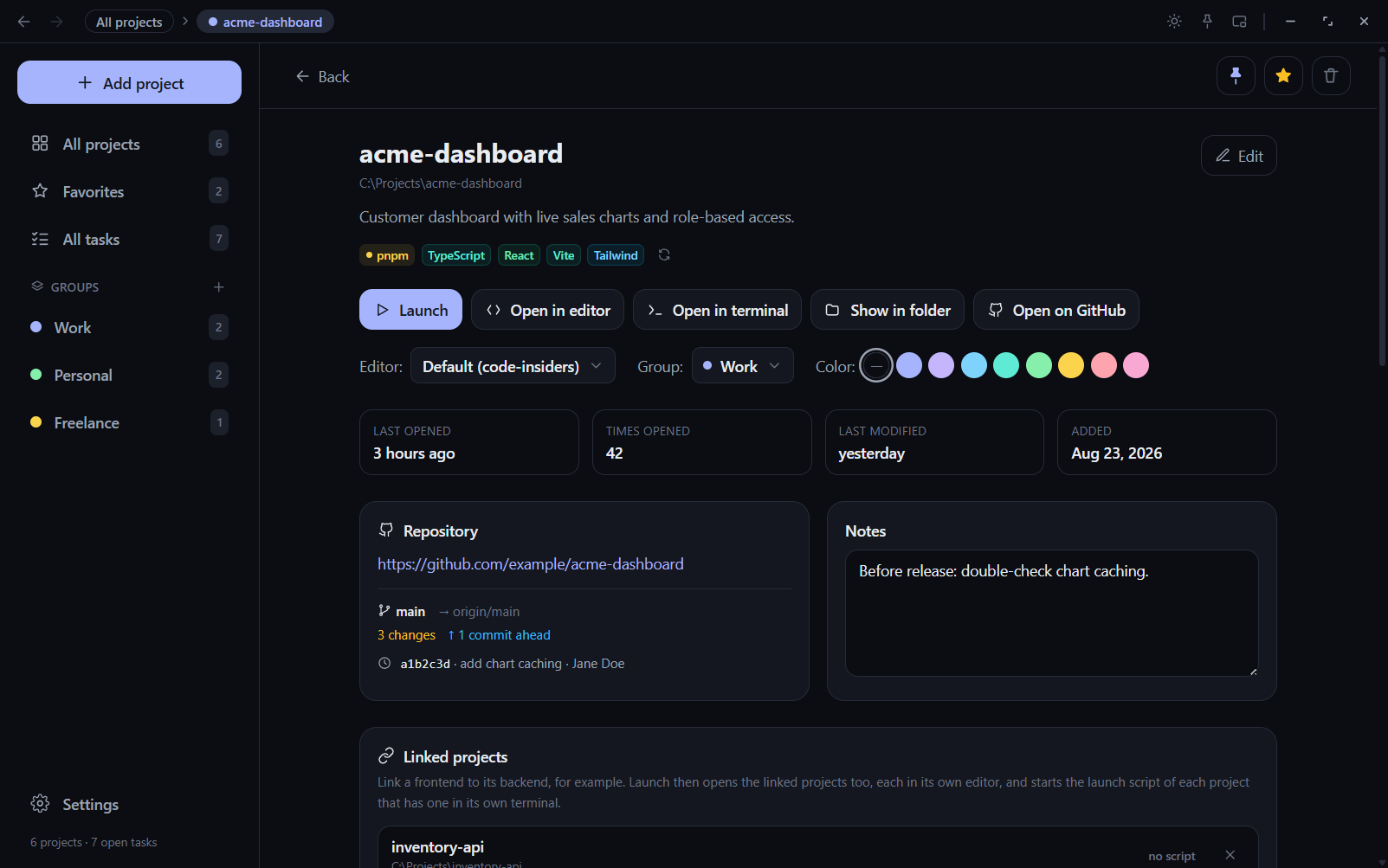
Quick actions: open in your editor (per-project choice: VS Code, VS Code Insiders, Cursor, or any command), in a terminal, in Explorer, or on GitHub.
-
Project pages with notes, a to-do list, the rendered README and one-click package.json scripts.
-
All tasks: every project's to-dos in one list.
-
Linked projects: link a frontend to its backend, wherever they live on disk. Launch opens them together, each in its own editor, and starts each one's dev script in its own terminal.
-
Organize: favorites, pinning, color-coded groups (drag cards onto a group), tags, sorting and a custom order you set by dragging cards.
-
Bulk actions: Ctrl/Shift+click to select several projects, then favorite, pin, tag, group, link or remove them at once.
-
Tray menu with favorites and recent projects; open one without opening the window.
-
Maintenance: spots projects whose folder was moved or deleted, re-detects tags, exports and imports backups.
-
Turkish and English UI, dark and light themes, four styles (Classic, Minimal, Glass, Soft), three card colorings and layouts, and eight accent colors.
Install
Microsoft Store (recommended): get it from the Microsoft Store. The Store version is signed by Microsoft, installs without SmartScreen warnings and updates automatically. Windows 10 (1809) or later.
Installer: download the latest proje-yoneticisi-setup-.exe from Releases and run it. Windows 10 and 11 are supported.
The installer is not code-signed, so Windows SmartScreen will warn about an unknown publisher. Choose More info → Run anyway. Every installer is built by GitHub Actions from this repository's source; see code signing and privacy.
To update the installer version, install the new version over the old one. Settings → Updates tells you when a new version is out: click Check now, or turn on Check automatically (off by default; see the privacy policy). Your projects are kept: the app stores its data outside the install folder (see Your data). The Store version keeps its data separately; to move your projects between the two, use Settings → Backup to export and import.
Keyboard shortcuts
| Shortcut | Action |
|---|
| Ctrl+K | Command palette |
| Enter (in the palette) | Launch the project (with its linked projects and dev script), or open it in the editor |
| Shift+Enter / Ctrl+Enter (in the palette) | Open in the editor only / open the project page |
| Ctrl+Shift+P | Bring the app up with the palette open (works from the tray; configurable) |
| Ctrl+N | Add a project |
| Ctrl+F | Search |
| Arrow keys, Enter | Move between cards, open one |
| Ctrl/Shift+click, Ctrl+A | Select projects / select all (Esc clears) |
| Esc | Back / close |
Your data
Everything stays on your computer, in a single JSON file:
%APPDATA%\project-manager\data.json
A .bak copy of the previous version is written before every save, and the app recovers from it if the file is ever damaged. The app also keeps a daily copy of the last 7 days in the backups folder next to it; Settings → Backup lists them and restores any of them, and exports and imports the whole thing.
The app makes no network requests of its own. The only things that reach the internet are links you open in your browser and https images embedded in a project's README.
Development
Requirements: Node.js 22+ and npm, on Windows.
npm install
npm run dev         # the Electron app with hot reload
npm run dev:web     # the UI alone in a browser, on fictional sample data
npm test            # unit tests (Vitest), in tests/
npm run build       # installer in release/
npm run build:store # Microsoft Store (MSIX) package in release/
| Path | What lives there |
|---|
src/main/ | Electron main process: window, tray, IPC, data file, git, project detection (detect.js) |
src/preload/ | The bridge the UI is allowed to use (window.api) |
src/renderer/src/ | React UI; locales/ holds the translations |
scripts/ | Icon generation and the README screenshots |
Adding a language: copy src/renderer/src/locales/en.js, translate the values, and register the file in src/renderer/src/lib/i18n.js.
Screenshots: run npm run dev:web and then npm run screenshots. They are rendered from the fictional sample data in src/renderer/src/lib/mockApi.js.
If npm run build fails while extracting winCodeSign with a "cannot create symbolic link" error, turn on Windows Developer Mode (or run the terminal as administrator) and try again. Release builds on GitHub Actions don't hit this.
Releasing
Pushing a version tag builds the installer on GitHub Actions and attaches it to a GitHub release:
npm version minor      # or patch / major: bumps package.json and creates the tag
git push --follow-tags
License
MIT